

Overview
Affireo turns your WooCommerce store into an affiliate program. Each affiliate gets a referral link. When a shopper arrives through that link and places an order, Affireo records a commission for the affiliate. You and your affiliates can both see the numbers.
The plugin covers the whole program. People apply through a registration form, and you approve, reject or suspend them. Affireo tracks visits and referrals and holds commissions for a grace period so refunded orders are never paid out. You record manual or store credit payouts, and you can export your data as CSV. Affiliates use a dashboard on your site to see their earnings, referral links, commission history and payout history.
This free edition is meant for store owners who want a working affiliate program without paying for one. The readme states that every feature is fully functional with no time limit, quota or license key, and that you can approve as many affiliates as you like.
Requirements
- WordPress 6.2 or later
- PHP 7.4 or later
- WooCommerce 8.0 or later, installed and active
Installation
Affireo needs WooCommerce, so install and activate WooCommerce first. Then install Affireo from the WordPress.org plugin directory.
Make sure WooCommerce is installed and active.
In your WordPress admin, go to Plugins > Add New.
Search for
Affireo Affiliates for WooCommerce.Click Install Now on the Affireo - Affiliates for WooCommerce plugin.
Click Activate. A new Affiliates menu appears in the admin sidebar.
Quick start
- Set your commission
Go to Affiliates > Settings. The Commissions tab opens first. Enter a Default commission and choose
Percent of the orderorFixed amount per order. Click Save settings. - Check the tracking window
Open the Tracking tab and set Cookie duration. This is how many days after a click a purchase still credits the affiliate. Click Save settings.
- Create the affiliate pages
Create a page that contains
[ppl_afw_portal]for the affiliate dashboard. If you want a separate application page, create another page that contains[ppl_afw_registration]. Then open the Portal tab under Affiliates > Settings and enter the ID of the dashboard page in Dashboard page ID. - Decide how applications are approved
On the Affiliates tab, tick Activate new applications instantly to approve everyone automatically, or leave it unticked to review each application yourself under Affiliates > All Affiliates. You can also add your Program terms, which appear above the terms checkbox on the registration form.
- Share referral links
Each affiliate has a slug, shown in the Slug column under Affiliates > All Affiliates. Affiliates share links such as
https://yourstore.com/?ref=yourslugorhttps://yourstore.com/go/yourslug/. - Follow referrals and pay affiliates
Referred orders appear under Affiliates > Referrals. Once affiliates reach the minimum payout, record their payouts under Affiliates > Payouts.
#Overview
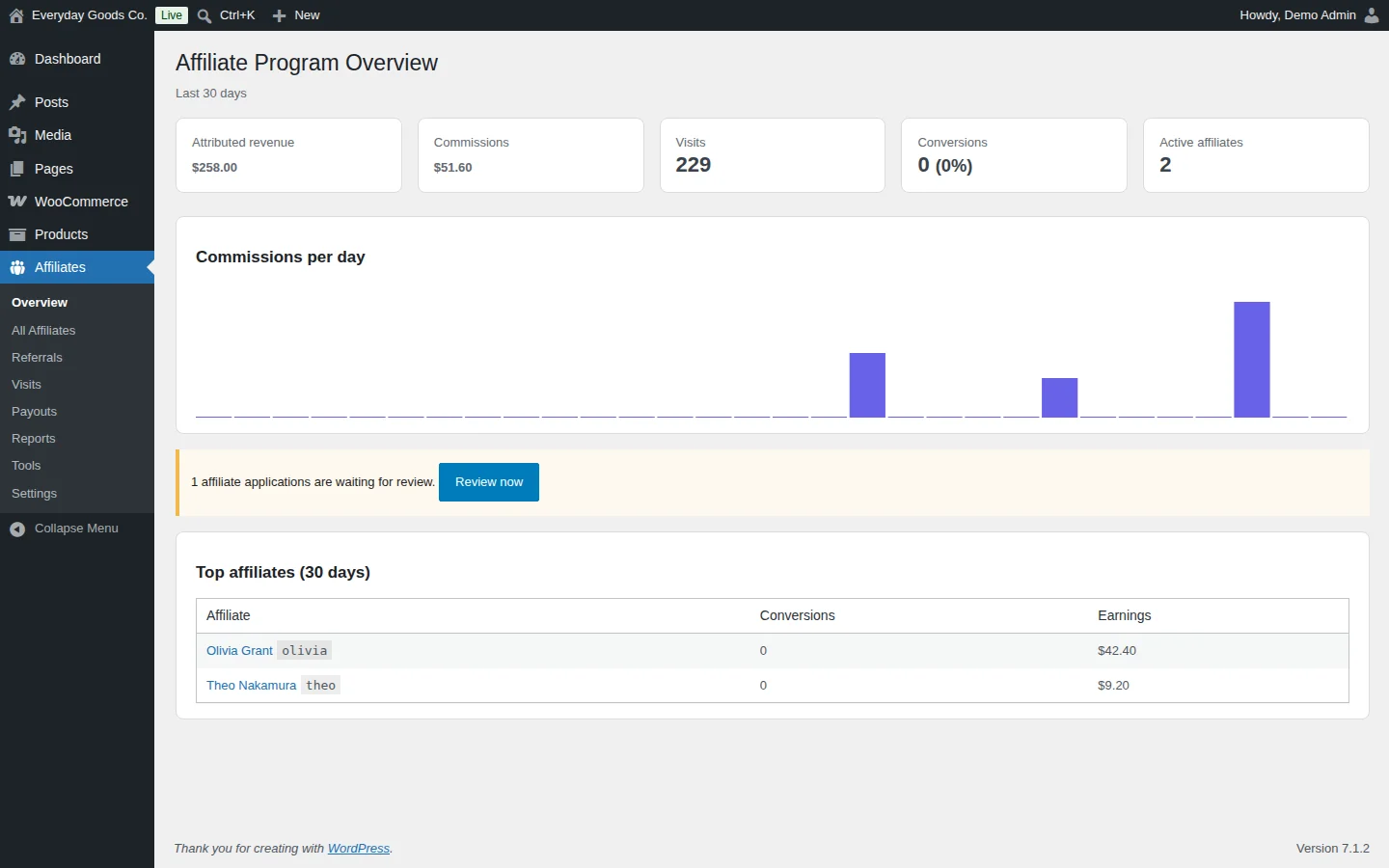
Affiliates > Overview gives you a snapshot of your program for the last 30 days.
- The summary cards show Attributed revenue, Commissions, Visits, Conversions (with the conversion rate) and Active affiliates.
- Commissions per day charts commission activity over the period.
- When applications are waiting, a notice tells you how many. Click Review now to go to them.
- Top affiliates (30 days) lists your best performers with their Conversions and Earnings.
#All Affiliates
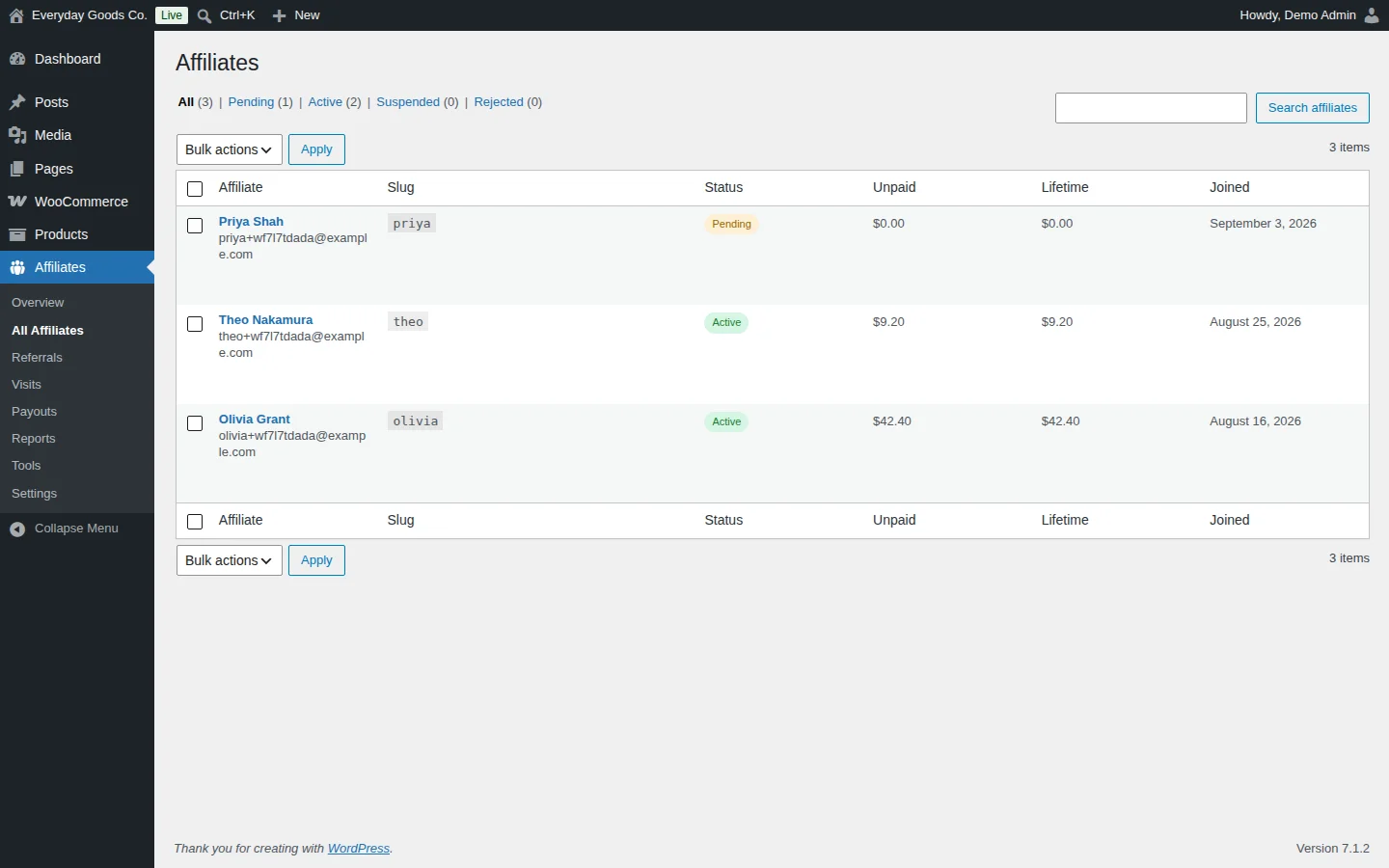
Affiliates > All Affiliates lists everyone who has joined or applied to your program.
- Use the status links at the top to filter by All, Pending, Active, Suspended or Rejected.
- Search by affiliate with the search box and Search affiliates.
- Select affiliates with the checkboxes, choose an action from Bulk actions and click Apply. This is how you approve several applications at once.
The table shows each affiliate's name and email, Slug, Status, Unpaid balance, Lifetime earnings and the date they Joined. The slug is the part affiliates use in their referral links, for example ?ref=yourslug or /go/yourslug/.
Click an affiliate's name to open their details. According to the readme, this view shows their balance, lifetime earnings, custom commission rate, payout method, recent referrals and an activity log. A per affiliate commission rate overrides the default rate from the settings.
#Referrals
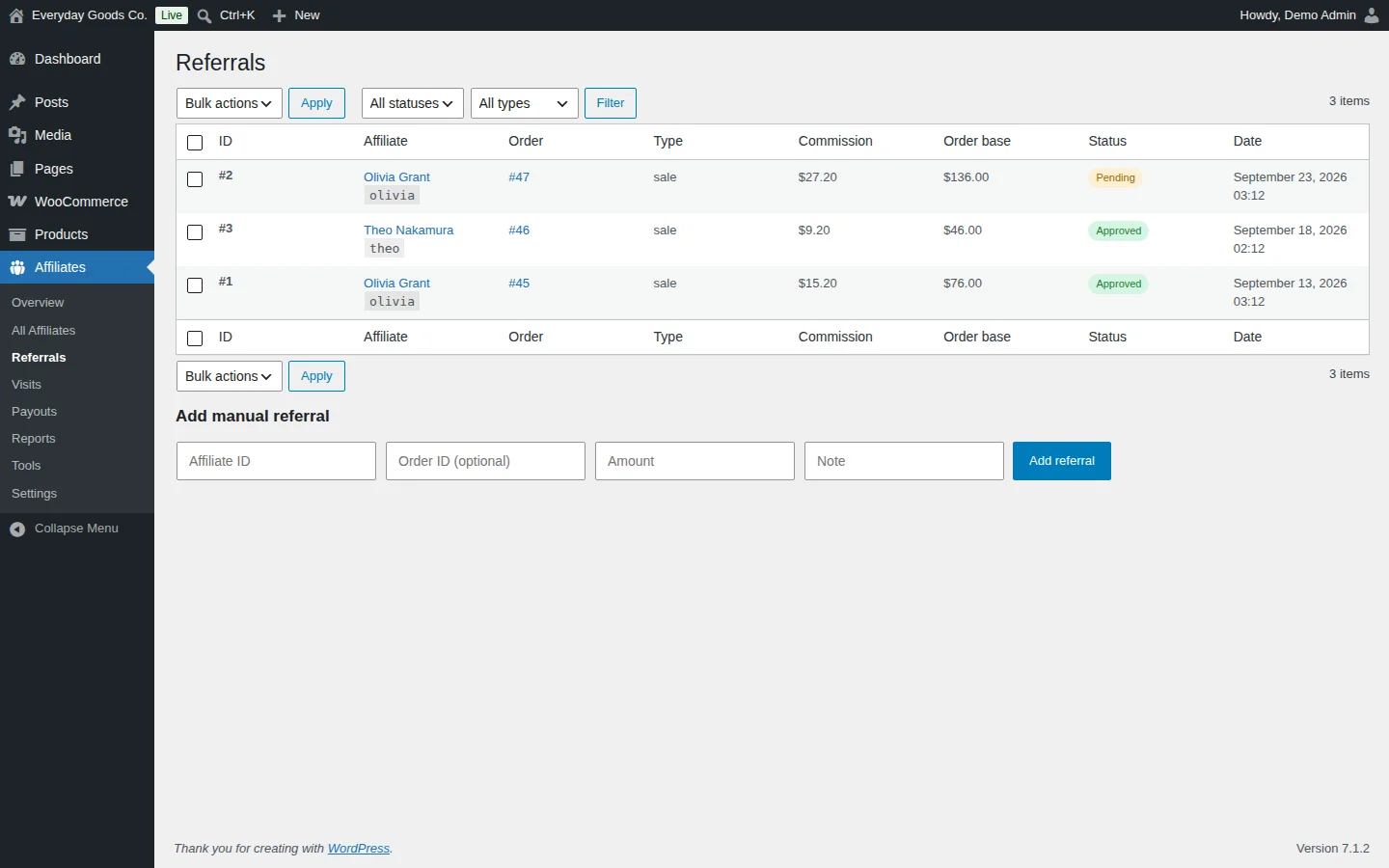
Affiliates > Referrals lists every commission record. Each row shows the referral ID, the Affiliate, the WooCommerce Order, the Type, the Commission, the Order base the commission was calculated on, the Status and the Date.
- Filter the list with the status and type dropdowns, then click Filter.
- Select referrals and use Bulk actions to act on several at once.
Referral statuses include Pending, Approved, Paid, Rejected and Refunded. New commissions stay locked for the Grace period set on the Commissions tab so refunded orders are never paid out. If a refund happens after approval, a full refund reverses the commission and a partial refund reduces it proportionally.
Add a manual referral
Use Add manual referral below the table to credit an affiliate yourself:
- Enter the Affiliate ID.
- Optionally enter an Order ID.
- Enter the Amount and an optional Note.
- Click Add referral.
#Visits
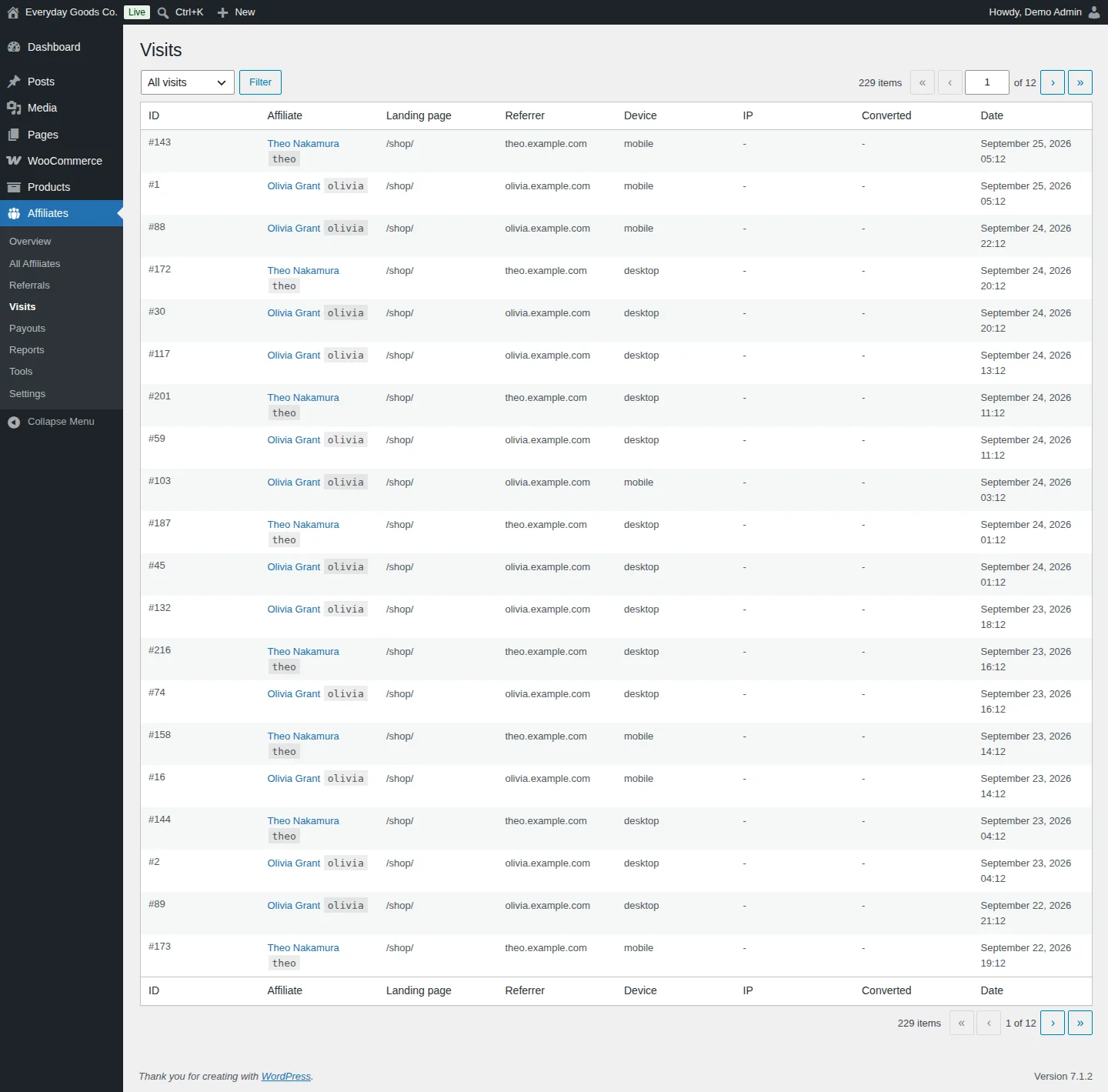
Affiliates > Visits shows each click on a referral link. The table lists the visit ID, the Affiliate, the Landing page, the Referrer, the Device, the IP, whether the visit Converted and the Date.
Use the dropdown and Filter to narrow the list, and the page controls to move through older visits.
The readme notes that bot filtering keeps crawlers from creating fake clicks, that IP addresses are stored hashed, and that the plugin supports the WP Consent API.
#Payouts
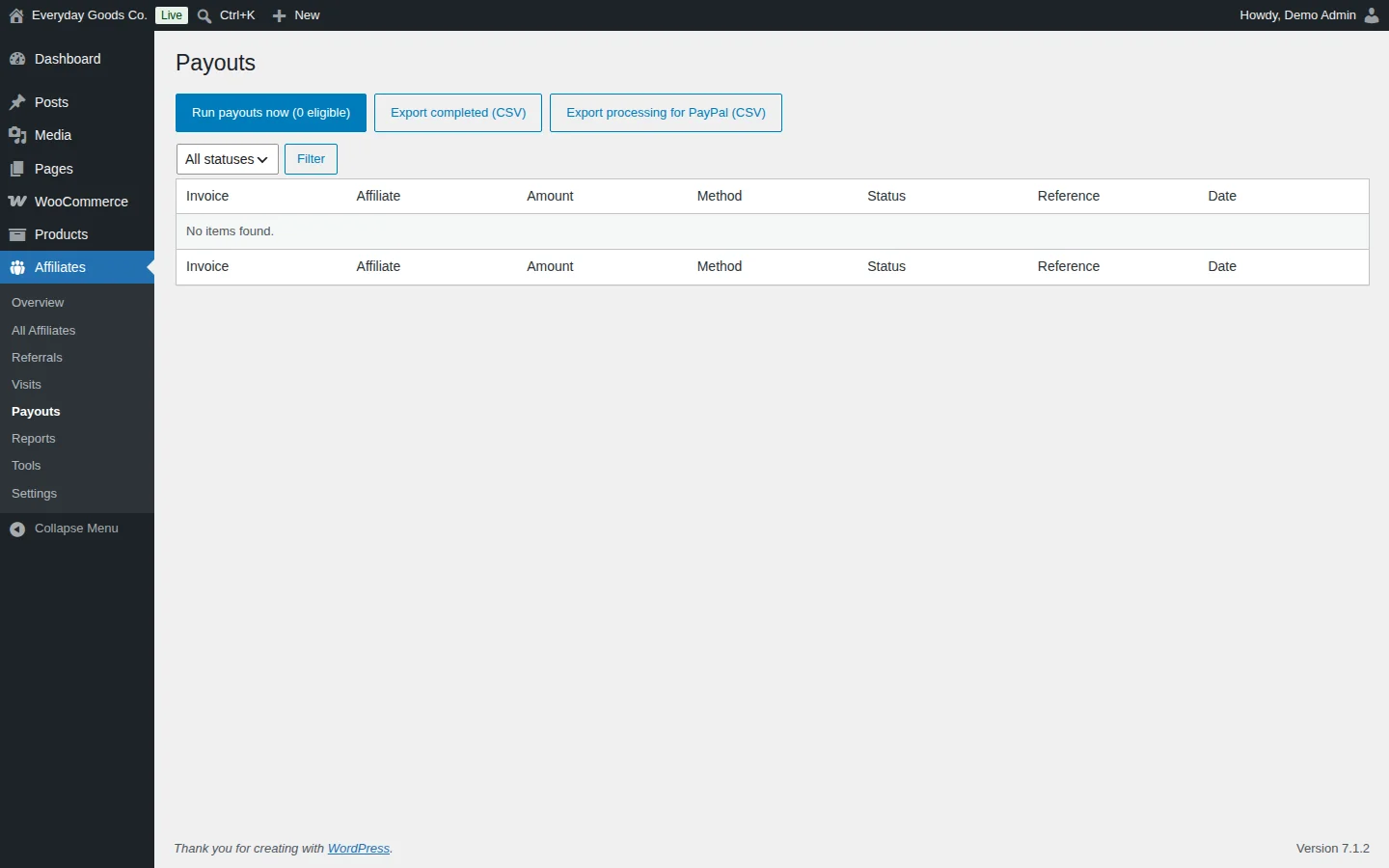
Affiliates > Payouts is where you record what you pay your affiliates. Affireo does not send money itself. You pay using your normal method, and the plugin records each payout with a sequential invoice number.
- Run payouts now creates payouts for affiliates who are eligible. The number in brackets shows how many affiliates are eligible right now. An affiliate becomes eligible once their approved balance reaches the Minimum payout set under Affiliates > Settings > Payouts.
- Export completed (CSV) downloads completed payouts.
- Export processing for PayPal (CSV) downloads payouts that are still processing as a CSV file.
- Use the status dropdown and Filter to narrow the list.
The table shows the Invoice, Affiliate, Amount, Method, Status, Reference and Date of each payout.
#Reports
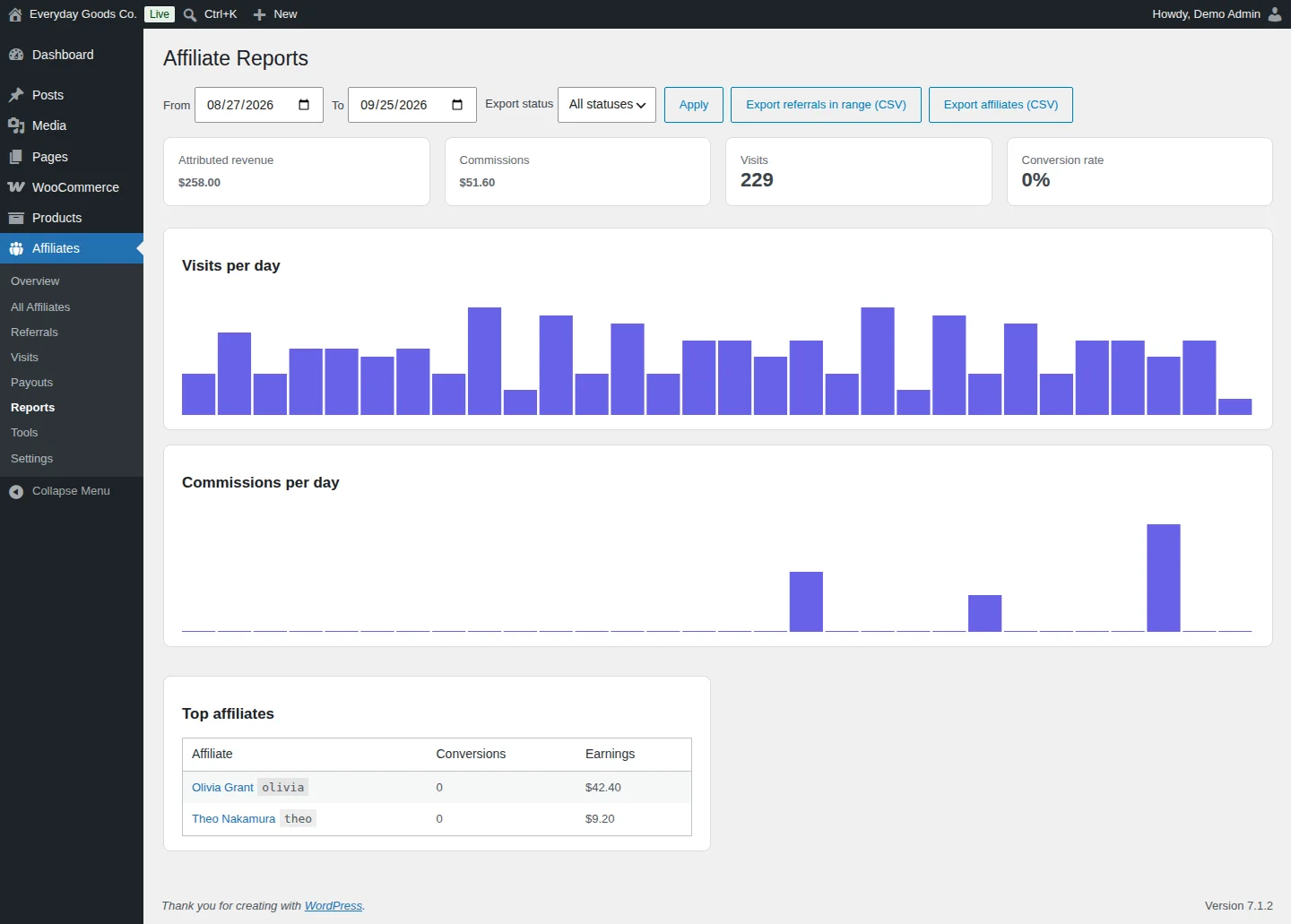
Affiliates > Reports shows your program's performance for any date range.
- Choose the From and To dates.
- Click Apply to update the screen.
The report shows Attributed revenue, Commissions, Visits and Conversion rate, charts for Visits per day and Commissions per day, and a Top affiliates table.
To export referrals for the selected dates, pick an Export status (All statuses, Pending, Approved, Paid, Rejected or Refunded) and click Export referrals in range (CSV). Export affiliates (CSV) downloads your affiliate list.
#Tools
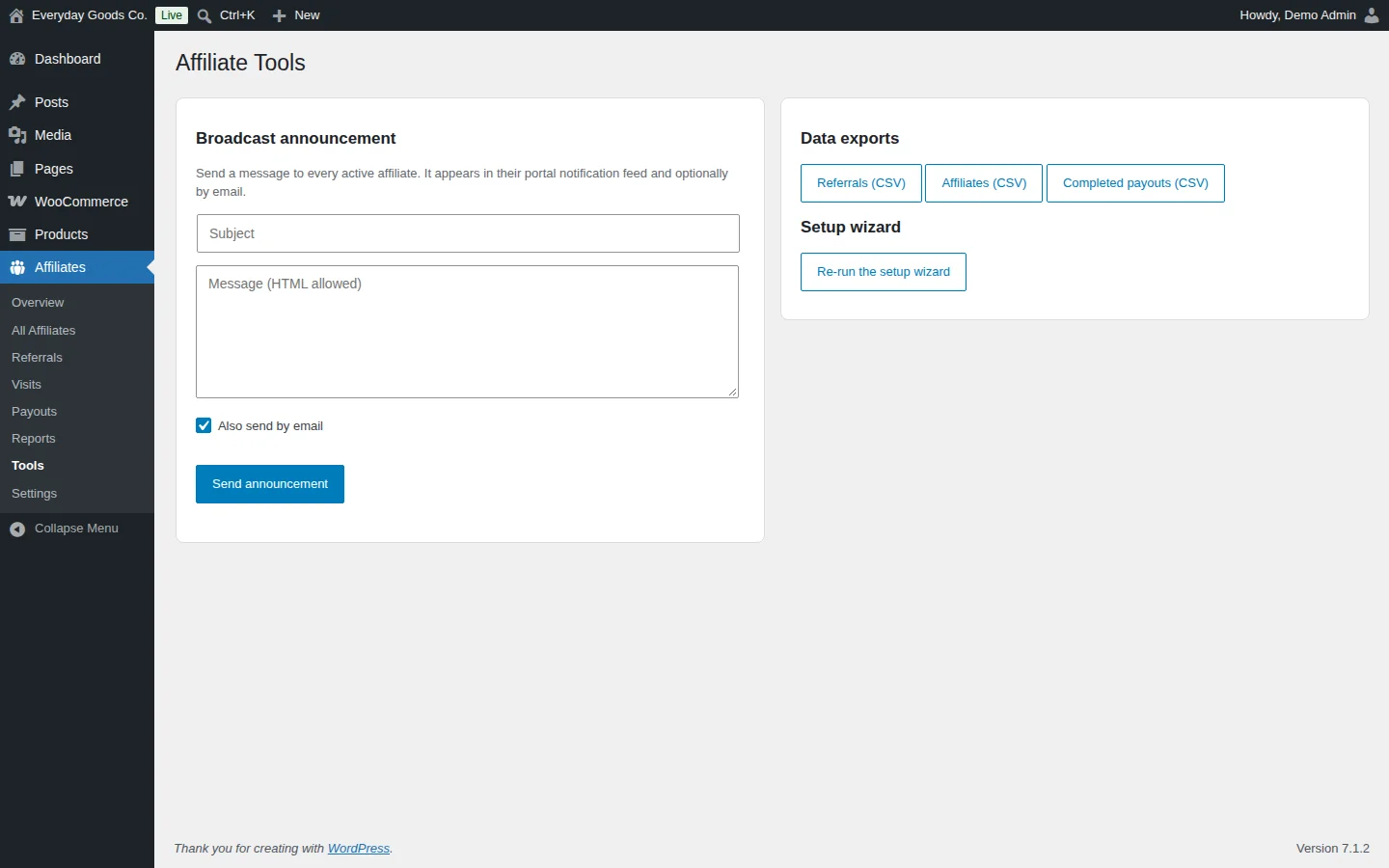
Affiliates > Tools groups a few one-off tasks.
Broadcast announcement sends a message to every active affiliate. It appears in their portal notification feed.
- Enter a Subject.
- Write the Message (HTML allowed).
- Keep Also send by email ticked if you also want to email it.
- Click Send announcement.
Data exports downloads CSV files of all your data: Referrals (CSV), Affiliates (CSV) and Completed payouts (CSV). Unlike the Reports export, Referrals (CSV) here includes every referral.
Setup wizard lets you go through the setup wizard again with Re-run the setup wizard.
#Settings: Commissions
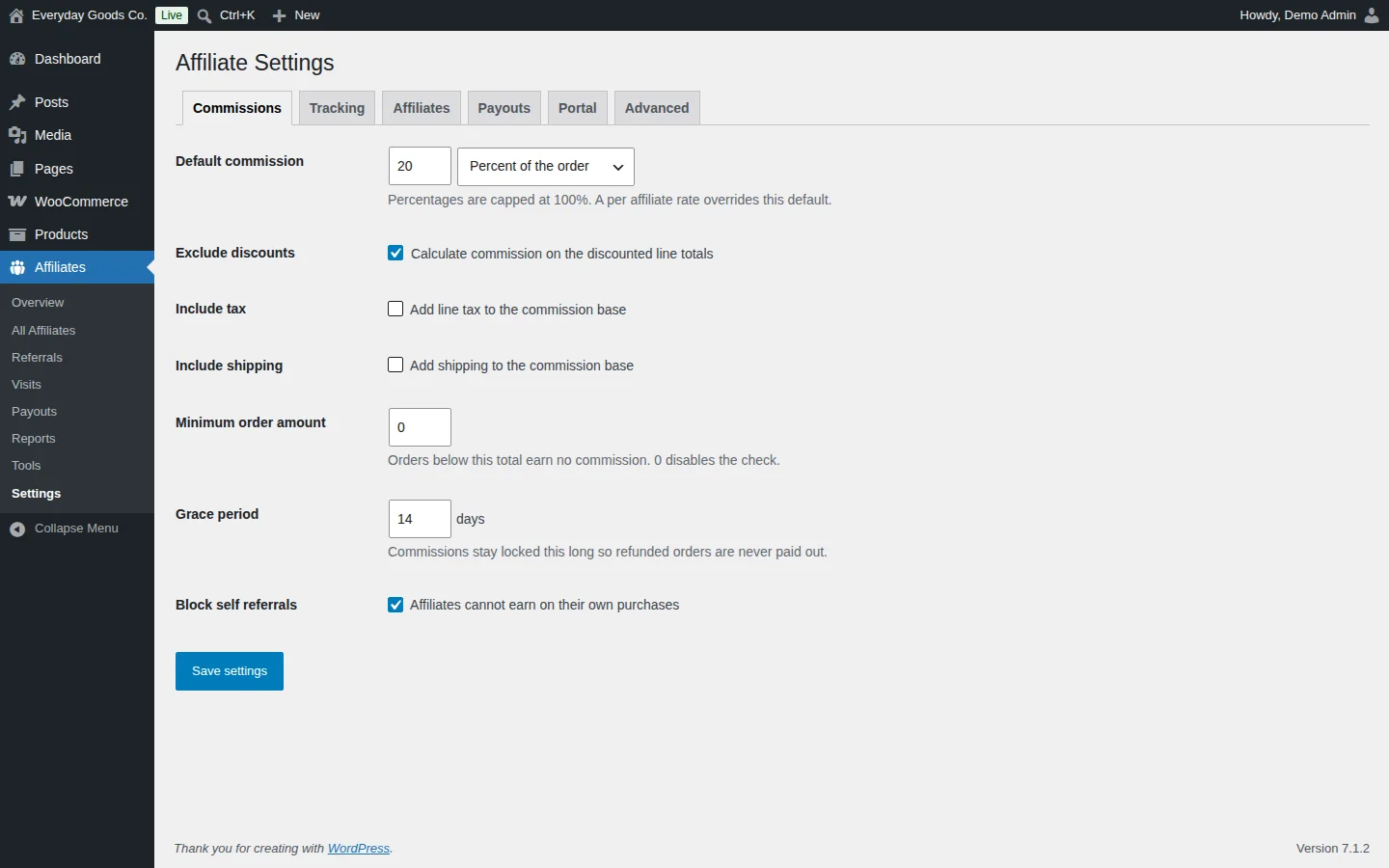
Go to Affiliates > Settings. The screen has six tabs: Commissions, Tracking, Affiliates, Payouts, Portal and Advanced. Click Save settings on each tab after you make changes.
The Commissions tab controls how much affiliates earn:
- Default commission: the rate, either
Percent of the orderorFixed amount per order. Percentages are capped at 100%. A per affiliate rate overrides this default. - Exclude discounts: calculate commission on the discounted line totals.
- Include tax and Include shipping: add line tax or shipping to the amount commission is calculated on.
- Minimum order amount: orders below this total earn no commission. Enter
0to turn the check off. - Grace period: the number of days commissions stay locked, so refunded orders are never paid out.
- Block self referrals: stops affiliates from earning on their own purchases.
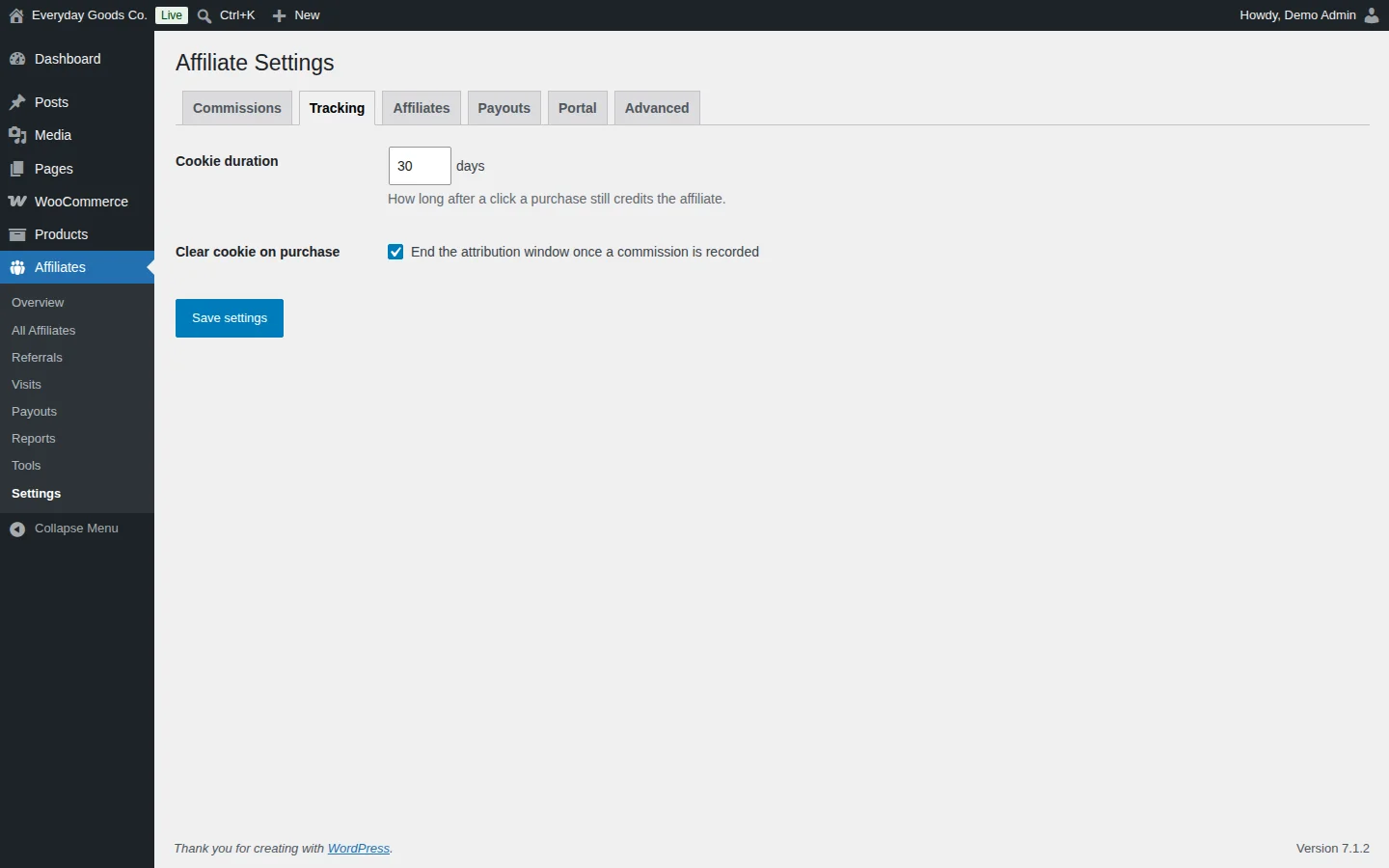
#Settings: Tracking
The Tracking tab controls how long a click counts.
- Cookie duration: how many days after a click a purchase still credits the affiliate. The readme gives 30 days as the default.
- Clear cookie on purchase: when ticked, the attribution window ends once a commission is recorded.
Affireo uses last click attribution, so the most recent affiliate link a shopper clicked gets the credit.
#Settings: Affiliates
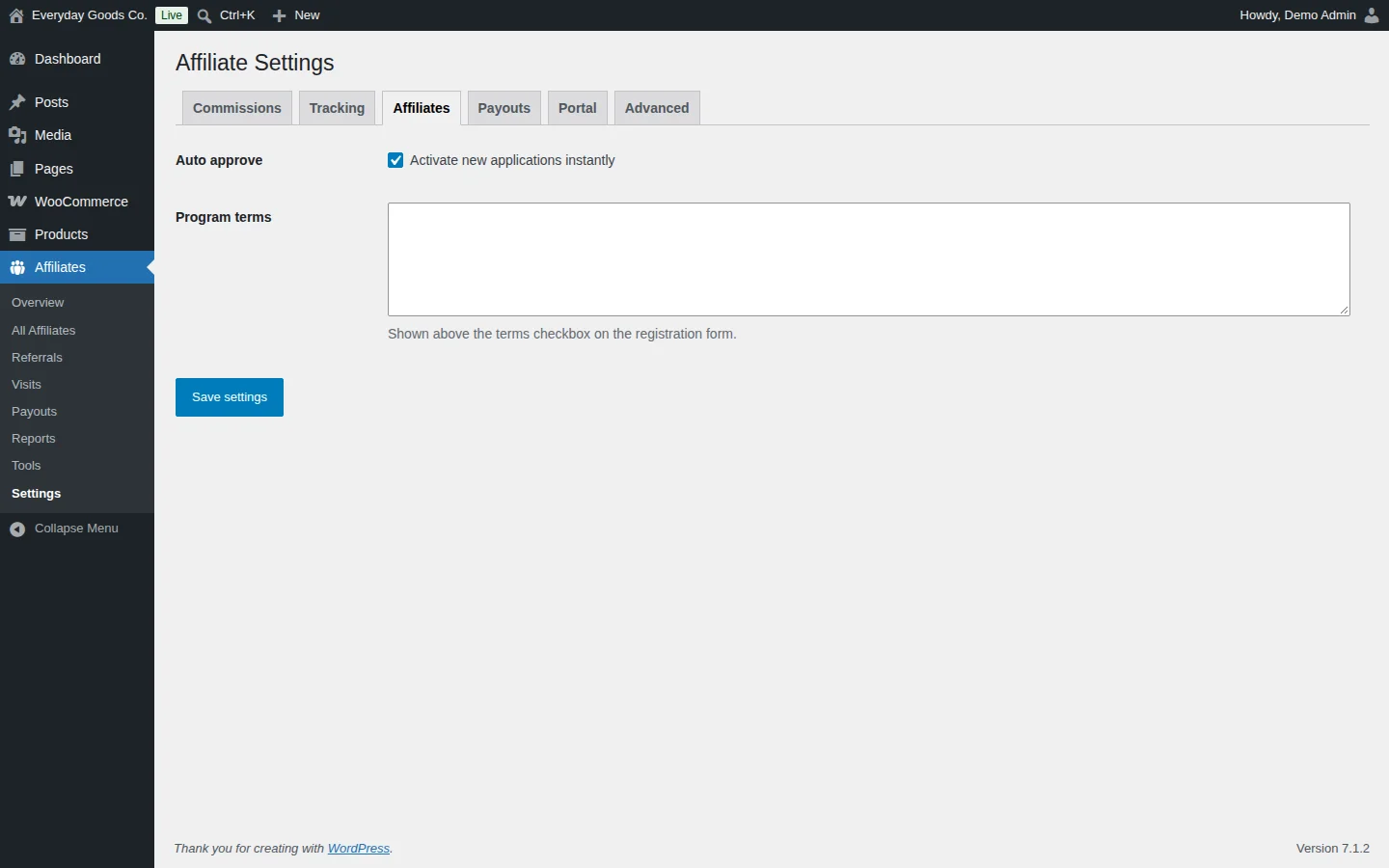
The Affiliates tab controls how people join your program.
- Auto approve: tick Activate new applications instantly to make new applicants active right away. Leave it unticked to review each application under Affiliates > All Affiliates.
- Program terms: the text shown above the terms checkbox on the registration form.
#Settings: Payouts
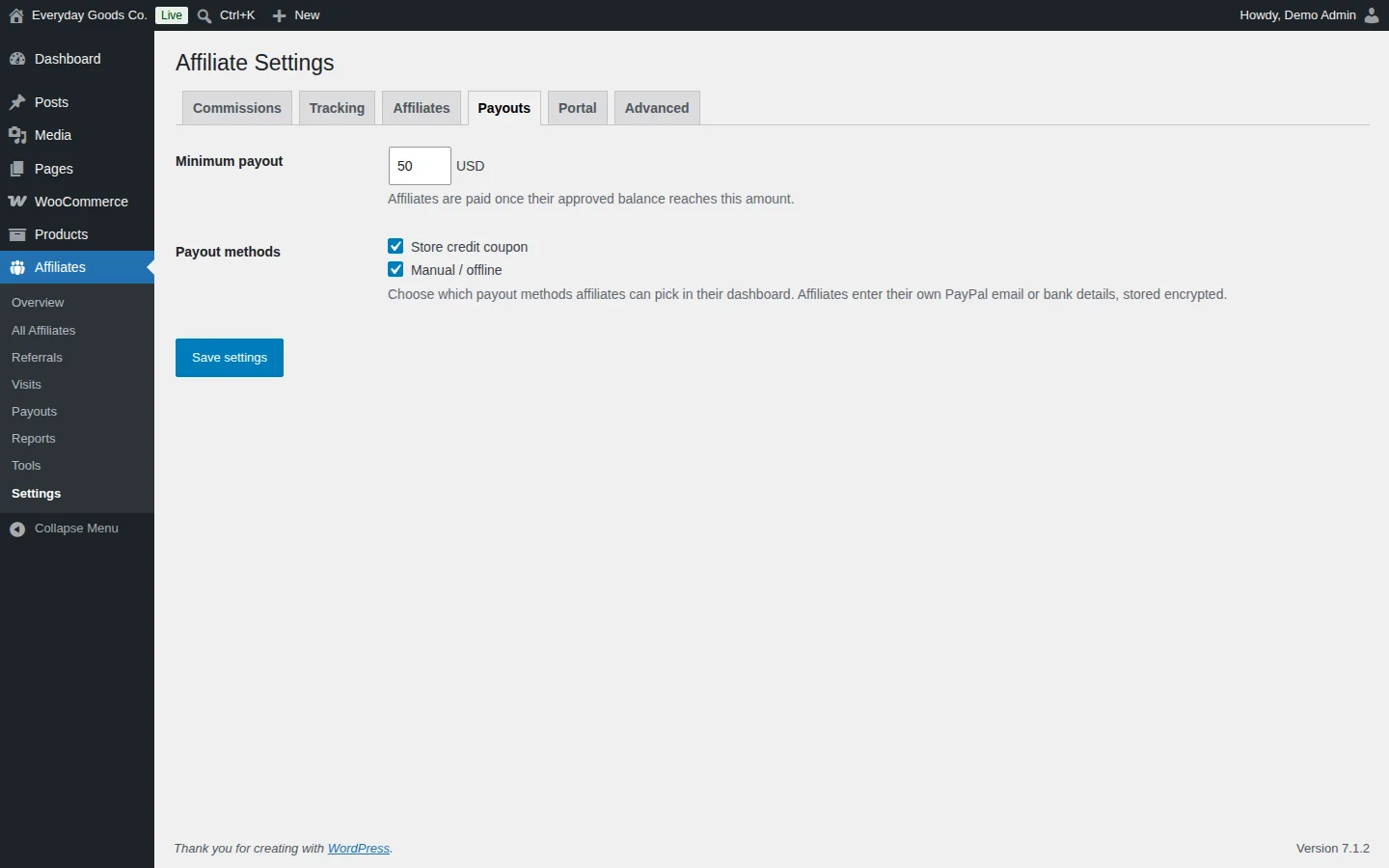
The Payouts tab controls when and how affiliates can be paid.
- Minimum payout: affiliates are paid once their approved balance reaches this amount.
- Payout methods: choose which methods affiliates can pick in their dashboard. This edition offers Store credit coupon and Manual / offline.
Payout details that affiliates enter are stored encrypted and are only shown masked in the admin.
#Settings: Portal
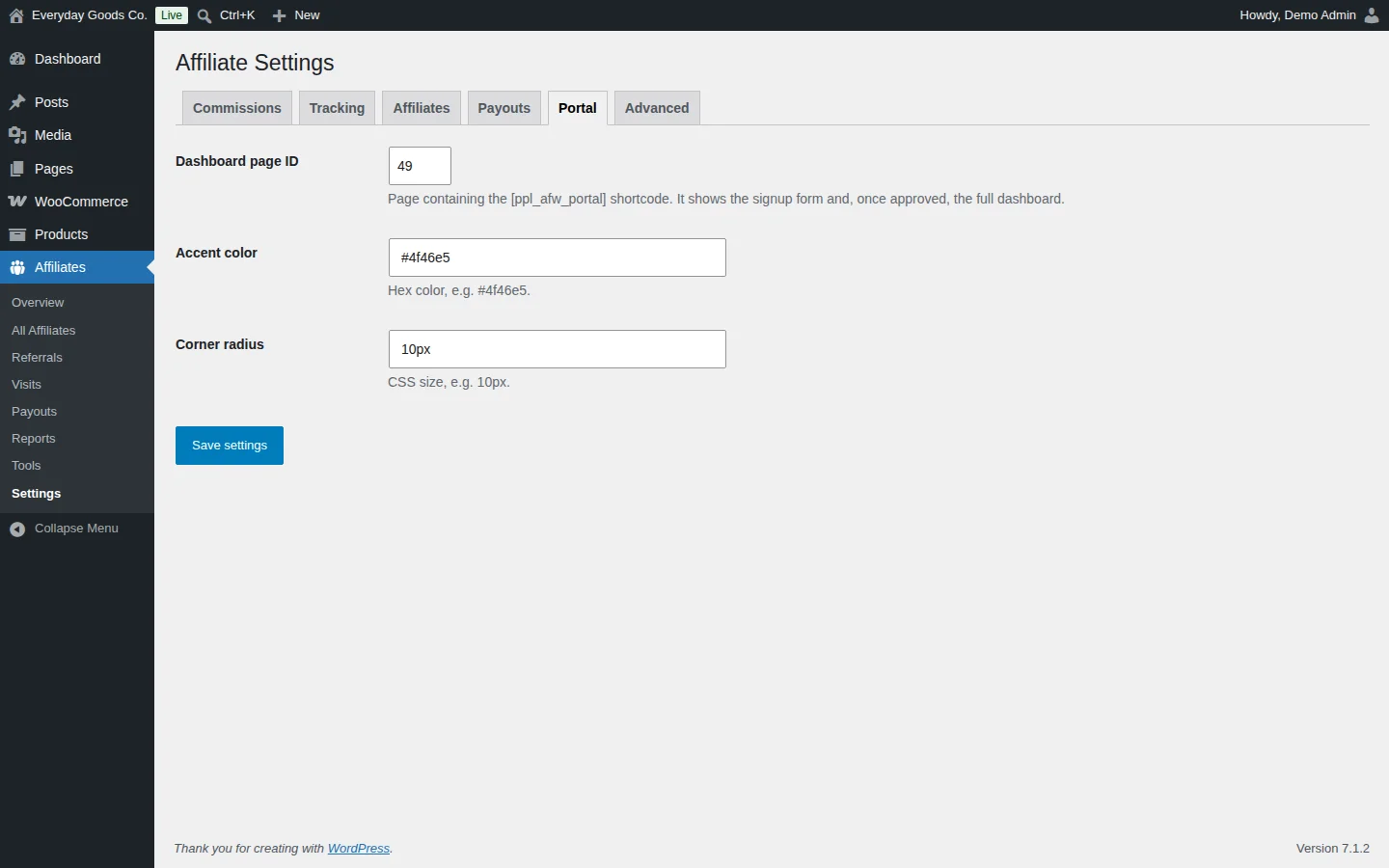
The Portal tab connects the affiliate dashboard to a page on your site and sets its look.
- Dashboard page ID: the ID of the page that contains the
[ppl_afw_portal]shortcode. That page shows the signup form and, once an affiliate is approved, the full dashboard. - Accent color: a hex color, for example
#4f46e5. - Corner radius: a CSS size, for example
10px.
To find a page ID, open the page in the editor under Pages and look at the number after post= in the browser address bar.
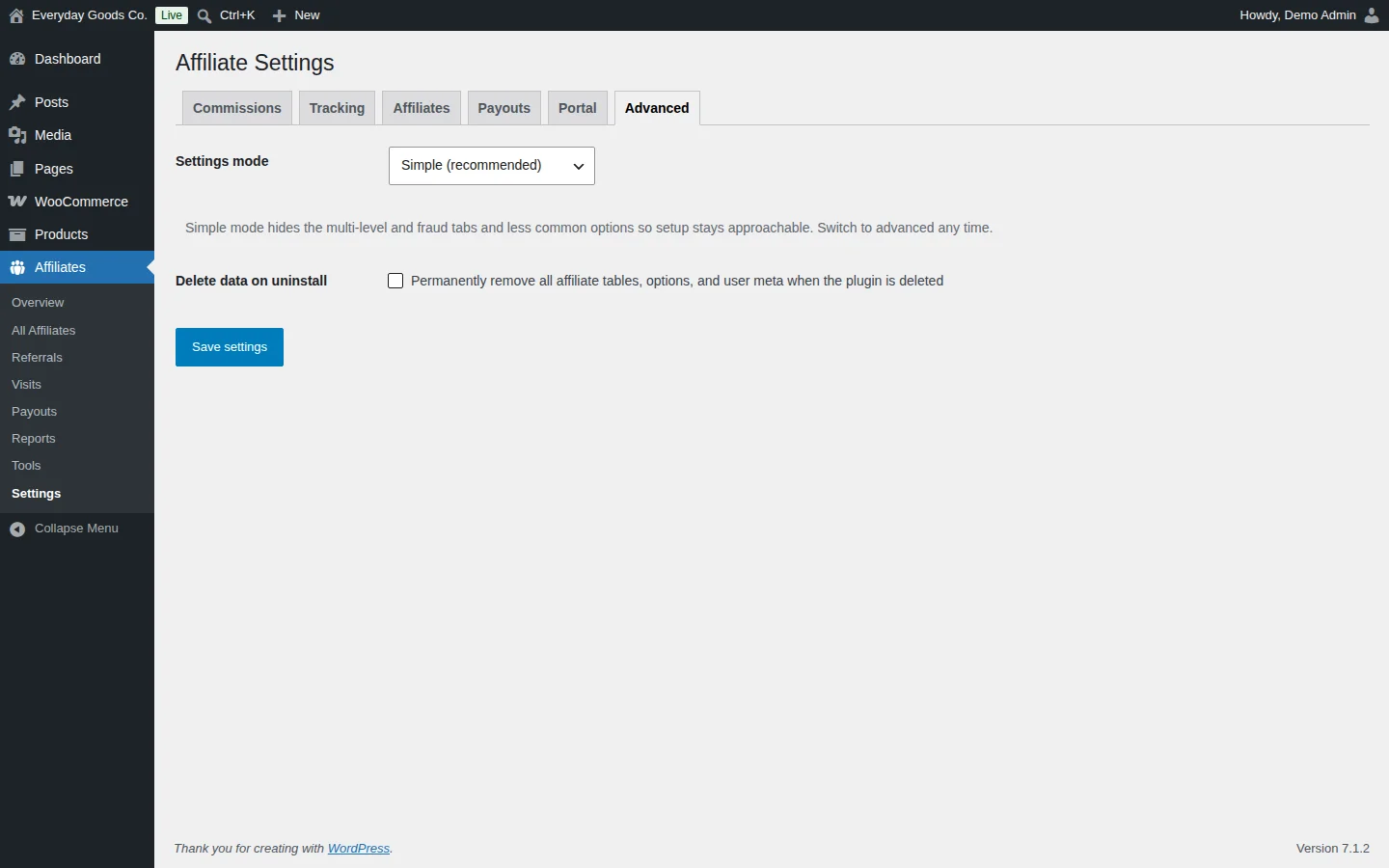
#Settings: Advanced
The Advanced tab has two options.
- Settings mode:
Simple (recommended)hides less common options so setup stays approachable. ChooseAdvanced (show all options)to see everything. You can switch at any time. - Delete data on uninstall: when ticked, all affiliate tables, options and user meta are permanently removed when you delete the plugin. Leave it unticked to keep your data.
Settings reference
Affiliates > Settings > Commissions
| Setting | Type | Default | What it does |
|---|---|---|---|
| Default commission | number | - | The commission amount. Percentages are capped at 100%. A per affiliate rate overrides this default. |
| Default commission | select | Percent of the order |
Whether the amount is a `Percent of the order` or a `Fixed amount per order`. |
| Calculate commission on the discounted line totals | checkbox | on |
Shown under **Exclude discounts**. Calculates commission on line totals after discounts. |
| Add line tax to the commission base | checkbox | off |
Shown under **Include tax**. Adds line tax to the amount commission is calculated on. |
| Add shipping to the commission base | checkbox | off |
Shown under **Include shipping**. Adds shipping to the amount commission is calculated on. |
| Minimum order amount | number | 0 |
Orders below this total earn no commission. 0 disables the check. |
| Grace period | number | 14 |
Number of days commissions stay locked so refunded orders are never paid out. |
| Affiliates cannot earn on their own purchases | checkbox | on |
Shown under **Block self referrals**. Stops affiliates from earning commission through their own link. |
Affiliates > Settings > Tracking
| Setting | Type | Default | What it does |
|---|---|---|---|
| Cookie duration | number | 30 |
How many days after a click a purchase still credits the affiliate. |
| End the attribution window once a commission is recorded | checkbox | - | Shown under **Clear cookie on purchase**. Ends the attribution window after a commission is recorded. |
Affiliates > Settings > Affiliates
| Setting | Type | Default | What it does |
|---|---|---|---|
| Activate new applications instantly | checkbox | - | Shown under **Auto approve**. New applicants become active right away instead of waiting for review. |
| Program terms | textarea | - | Shown above the terms checkbox on the registration form. |
Affiliates > Settings > Payouts
| Setting | Type | Default | What it does |
|---|---|---|---|
| Minimum payout | number | - | Affiliates are paid once their approved balance reaches this amount. |
| Store credit coupon | checkbox | - | Under **Payout methods**. Lets affiliates choose store credit as their payout method in their dashboard. |
| Manual / offline | checkbox | - | Under **Payout methods**. Lets affiliates choose manual or offline payment as their payout method in their dashboard. |
Affiliates > Settings > Portal
| Setting | Type | Default | What it does |
|---|---|---|---|
| Dashboard page ID | number | - | ID of the page containing the `[ppl_afw_portal]` shortcode. It shows the signup form and, once approved, the full dashboard. |
| Accent color | text | #4f46e5 |
Hex color used as the dashboard accent, for example `#4f46e5`. |
| Corner radius | text | 10px |
CSS size for rounded corners, for example `10px`. |
Affiliates > Settings > Advanced
| Setting | Type | Default | What it does |
|---|---|---|---|
| Settings mode | select | Simple (recommended) |
`Simple (recommended)` hides less common options. `Advanced (show all options)` shows everything. |
| Permanently remove all affiliate tables, options, and user meta when the plugin is deleted | checkbox | off |
Shown under **Delete data on uninstall**. Leave unticked to keep your affiliate data when the plugin is deleted. |
Shortcodes
[ppl_afw_portal]
Shows the affiliate dashboard: earnings, referral links, commission history and payout history. Visitors who are not yet affiliates see the signup form instead. Enter the ID of the page that holds this shortcode in **Dashboard page ID** under **Affiliates > Settings > Portal**.
[ppl_afw_portal][ppl_afw_registration]
Shows the affiliate registration form. Applications appear under **Affiliates > All Affiliates**, where you approve or reject them.
[ppl_afw_registration]On your site
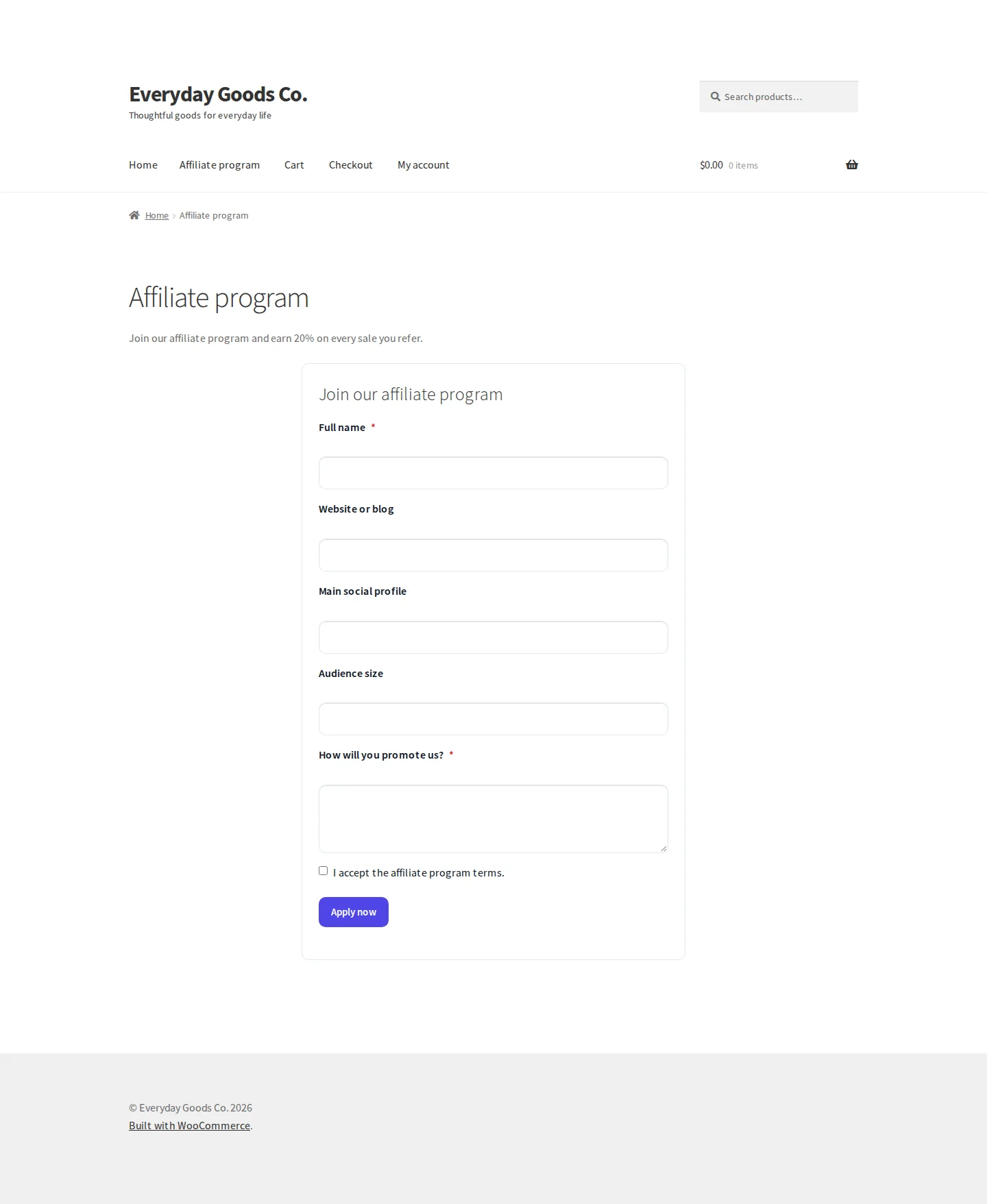
Visitors who want to join your program see the Join our affiliate program form. It appears on a page with the [ppl_afw_registration] shortcode, and on the [ppl_afw_portal] page until the visitor is an approved affiliate.
The form asks for:
- Full name (required)
- Website or blog
- Main social profile
- Audience size
- How will you promote us? (required)
- A checkbox to accept the affiliate program terms. The text you enter in Program terms is shown above it.
Applicants click Apply now to submit. Their application then appears under Affiliates > All Affiliates, or becomes active right away if auto approve is on.
Once approved, affiliates use the dashboard on the [ppl_afw_portal] page to see their earnings, referral links, commission history, payout history and profile. The readme notes that the dashboard supports light and dark mode, works on screens down to 320px wide, is keyboard accessible and still works with JavaScript disabled. Its templates can be overridden by your theme.
Active affiliates also get a toolbar shortcut on your site that gives them the tracked referral link for the page they are viewing, ready to copy. WooCommerce normally hides the toolbar from customers and subscribers, so Affireo shows it again for active affiliates. To keep it hidden, return false from the ppl_afw_toolbar_restore_admin_bar filter.
Frequently asked questions
How do affiliates sign up?
Create a page containing the [ppl_afw_registration] shortcode. Applications appear under Affiliates > All Affiliates, where you approve or reject them. To approve everyone automatically, tick Activate new applications instantly under Affiliates > Settings > Affiliates.
What do referral links look like?
Affiliates can use ?ref=yourslug on any link to your store, or the shorter /go/yourslug/ form. Each affiliate's slug is shown in the Slug column under Affiliates > All Affiliates.
How do affiliates get paid?
Affireo records the payouts you make, generates a sequential invoice for each one and exports what you owe as CSV. You send the money using your normal method. Payout methods in this edition are Store credit coupon and Manual / offline.
What happens if a referred order is refunded?
Commissions stay locked for the Grace period you set on the Commissions tab (14 days by default), so a refunded order never reaches a payout. If a refund happens after approval, a full refund reverses the commission and a partial refund reduces it proportionally.
Can I get an email when an affiliate refers an order?
Yes. Go to WooCommerce > Settings > Emails and enable New referral (admin). It is off by default.
Can I export referrals for a specific period?
Yes. On Affiliates > Reports, choose the dates and optionally an Export status, then click Export referrals in range (CSV). The Referrals (CSV) button under Affiliates > Tools exports every referral.
Does it work with High Performance Order Storage?
Yes. The plugin declares HPOS compatibility and works with both legacy post storage and HPOS. The readme also lists compatibility with the WooCommerce Blocks checkout.
Will uninstalling delete my data?
No. Your affiliate data is kept unless you first tick Delete data on uninstall under Affiliates > Settings > Advanced.
Troubleshooting
- The plugin will not activate, or the Affiliates menu is missing.
Affireo requires WooCommerce 8.0 or later. Install and activate WooCommerce under Plugins, then activate Affireo again. Also check that your site runs WordPress 6.2 or later and PHP 7.4 or later.
- The affiliate dashboard does not appear where you expect.
Go to Affiliates > Settings > Portal and check that Dashboard page ID matches the ID of the page that contains
[ppl_afw_portal]. Make sure the shortcode is on that page, then click Save settings.- New applicants stay in Pending.
Automatic approval is off. Approve applicants under Affiliates > All Affiliates (filter by Pending, select them and use Bulk actions), or click Review now on the Overview screen. To approve everyone automatically, tick Activate new applications instantly under Affiliates > Settings > Affiliates.
- A referred order did not earn a commission.
Check these settings:
- Minimum order amount on the Commissions tab: orders below it earn nothing.
- Block self referrals: affiliates cannot earn on their own purchases while it is ticked.
- Cookie duration on the Tracking tab: purchases made after the window has ended are not credited.
- Clear cookie on purchase: when ticked, the window ends once a commission is recorded, so later orders are not credited.
If the sale should count, add it yourself with Add manual referral under Affiliates > Referrals.
- Run payouts now shows 0 eligible.
An affiliate is only eligible once their approved balance reaches the Minimum payout under Affiliates > Settings > Payouts. New commissions also stay locked for the Grace period on the Commissions tab before they can be paid. Check the referral statuses under Affiliates > Referrals.
- You do not receive an email for new referrals.
The New referral (admin) email is off by default. Enable it under WooCommerce > Settings > Emails.
Upgrade
Upgrade to Affireo - Affiliates for WooCommerce
Affireo Pro is a separate plugin for stores that need more control over what they pay affiliates and how they pay them. Nothing in the free plugin is locked or limited. Pro reads the same data, so your affiliates, referrals, payouts and settings carry over with nothing to import. When Pro is active, the free plugin stands down.
Pro adds:
- PayPal and bank transfer as affiliate payout methods
- Fraud scoring that holds or suspends risky referrals
- Referrals still credited when cookies are blocked