

Overview
Anticipo lets you sell a product weeks or months before it arrives. Customers place a normal WooCommerce order. The order waits in a dedicated Pre-ordered status, outside your fulfilment queue, until the release date. On release day a background job releases every waiting order, reduces stock, moves the orders into your normal workflow and emails the customers. Nobody needs to be logged in.
The Pro edition adds deposits and pay on release billing, with balances collected as a linked WooCommerce order and a payment link. It also adds allocation limits with a "82 of 100 claimed" progress bar, pre-order pricing, scheduled release reminders, bulk date shifting, reports, a release calendar, CSV export, a REST API, per variation release dates and customer self cancellation.
Anticipo is for WooCommerce store owners who launch new products, take reservations for limited runs or pre-sell stock that has not arrived yet. You manage everything from WooCommerce > Pre-orders and from the Pre-order tab on each product.
Requirements
- WordPress 6.4 or later
- PHP 7.4 or later
- WooCommerce 8.2 or later, installed and active
Installation
Anticipo Pro needs WooCommerce, so install and activate WooCommerce first. The Pro plugin replaces the free edition. When you activate it, the free edition is switched off automatically and all of your existing pre-orders and settings are kept.
Make sure WooCommerce is installed and active.
Log in to your ProPluginsLab account and open My Account > Downloads. Download the Anticipo Pro zip file.
In WordPress, go to Plugins > Add New > Upload Plugin.
Choose the zip file you downloaded and click Install Now.
Click Activate Plugin. If the free edition is active, it is switched off automatically and your data is kept.
Go to WooCommerce > Pre-orders to open the plugin screens.
Quick start
- Review the store wide settings
Go to WooCommerce > Pre-orders and open the Settings tab. Check Enable pre-orders is ticked, pick your Default billing (pay in full, pay on release or deposit) and adjust the Add to cart button text and Availability message if you want different wording. Click Save settings.
- Turn a product into a pre-order
Edit the product you want to sell early. In the Product data box, open the Pre-order tab, tick Enable pre-orders and set the release date. Dates are entered in your store timezone. Click Update. The product now shows your pre-order button text, the availability message and a countdown to release.
- List upcoming products on a page (optional)
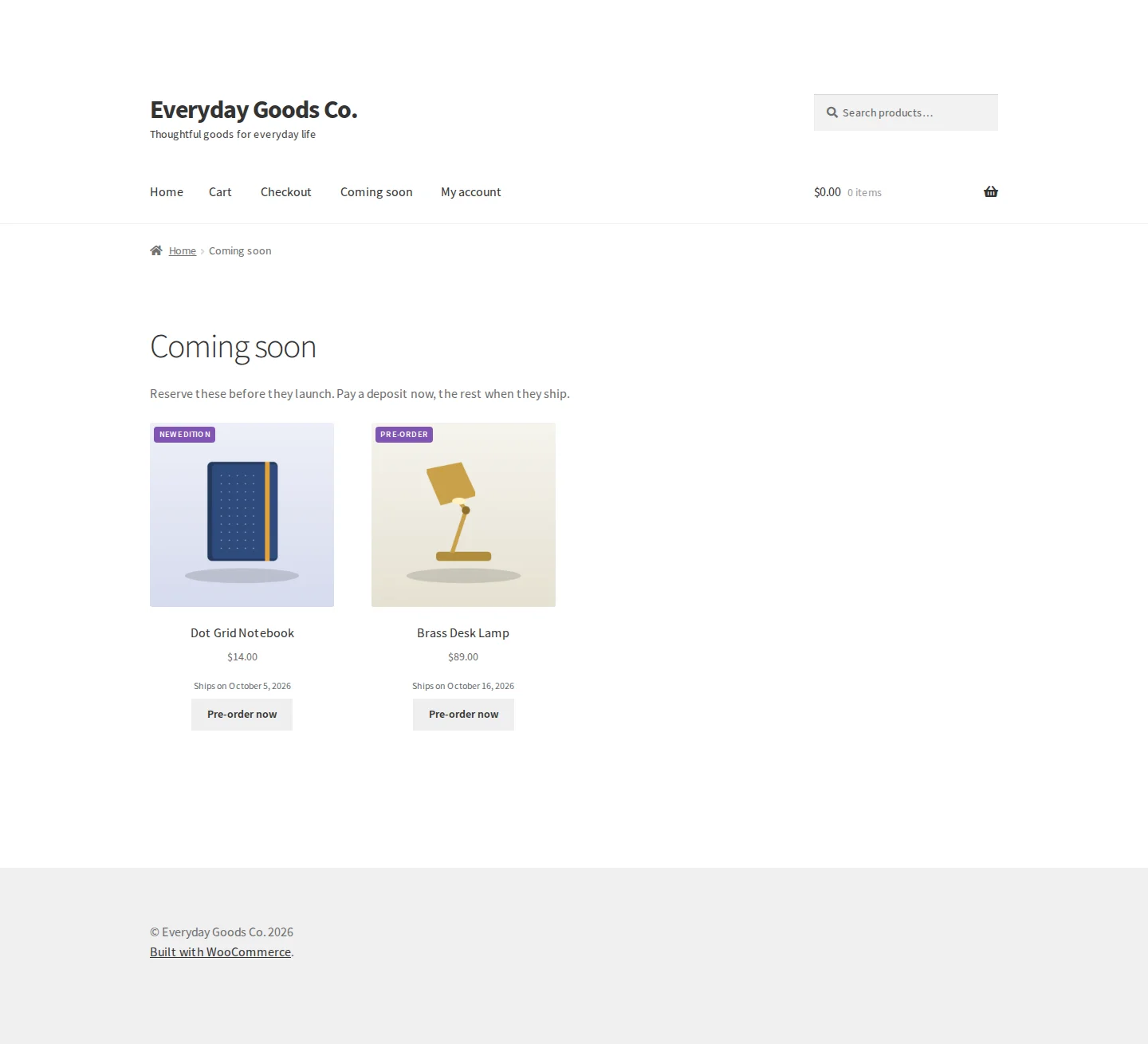
Add
[anticipo_preorder_products]to any page to show every product currently taking pre-orders, soonest release first. - Watch pre-orders come in
New pre-orders appear on the Pre-orders tab. Use the Release calendar tab to see what is due and the Reports tab to see value booked, collected and still to collect.
- Check that background jobs run
Open the Status tab. Under Health checks, Action Scheduler should be available, because releases and reminders run in the background through it.
#Pre-orders list
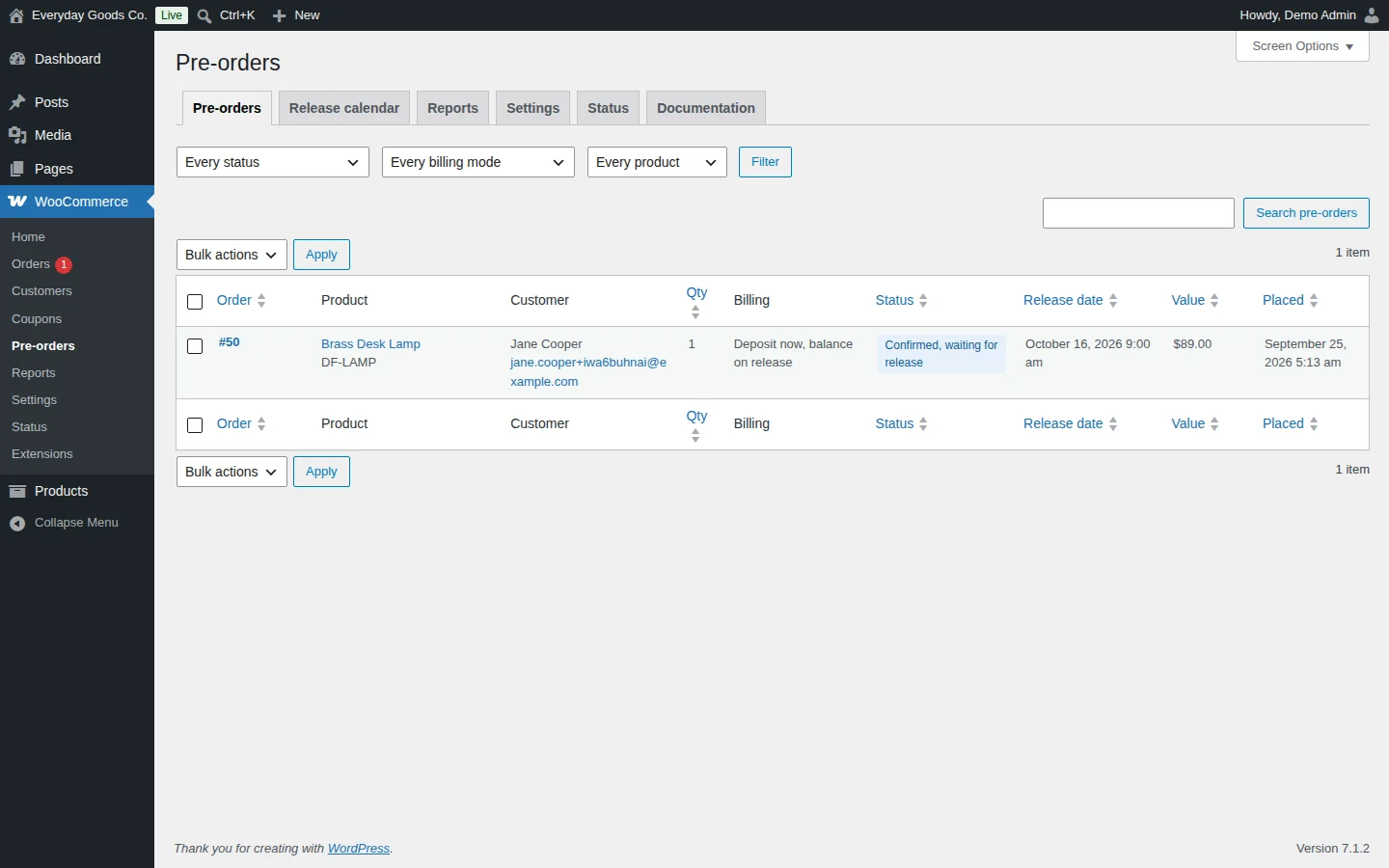
Go to WooCommerce > Pre-orders. The first tab, Pre-orders, lists every pre-ordered line in your store.
The table shows Order, Product, Customer, Qty, Billing, Status, Release date, Value and Placed. You can sort by order, quantity, status, release date, value and date placed.
To narrow the list:
- Choose a status, a billing mode and a product from the three drop-downs (Every status, Every billing mode, Every product).
- Click Filter.
- To find a specific pre-order, type in the search box and click Search pre-orders.
You can release or cancel pre-orders by hand, one at a time or in bulk. Tick the rows you want, choose an action from Bulk actions and click Apply. Use Screen Options to change how the list is displayed.
#Release calendar
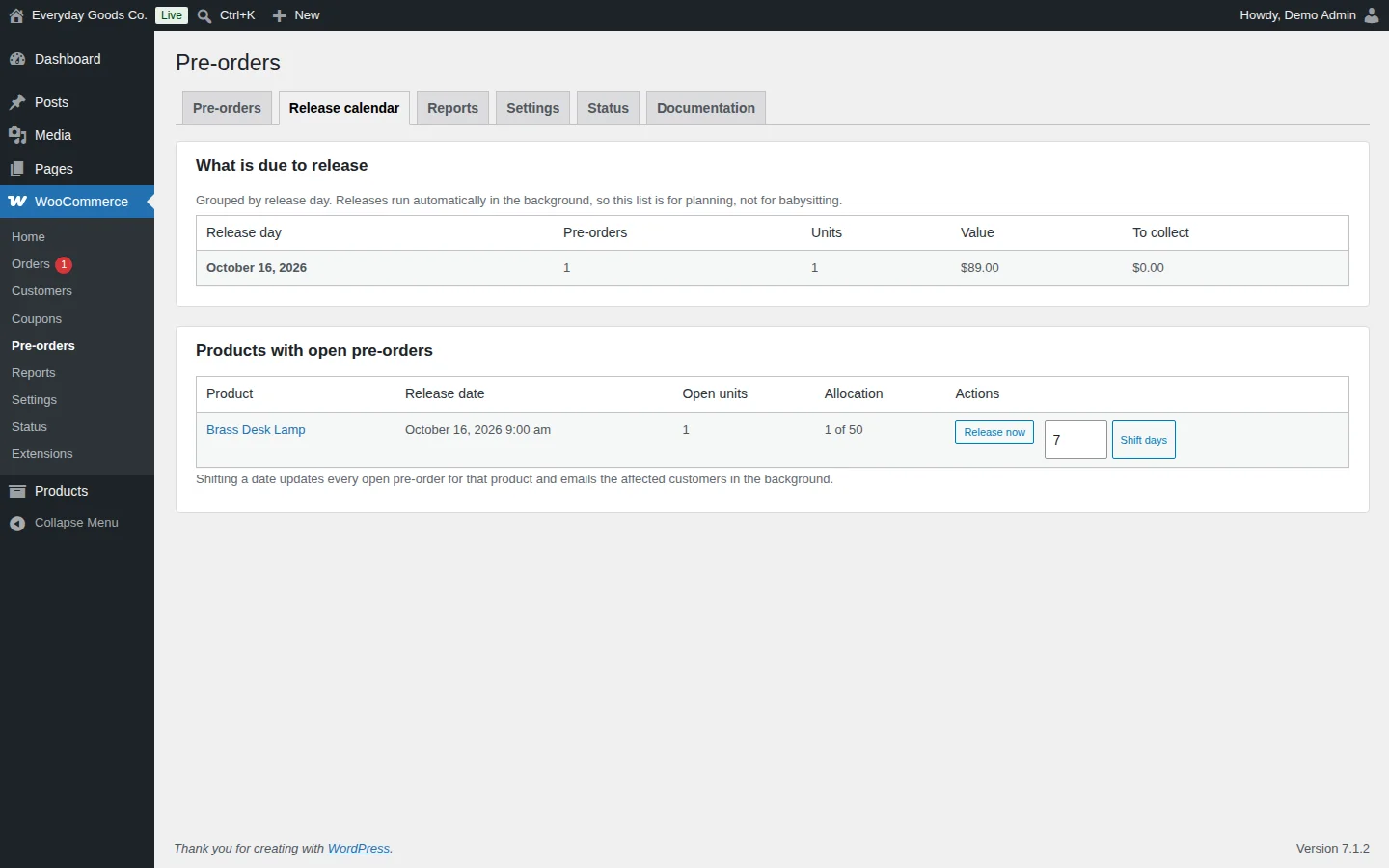
The Release calendar tab shows what is coming up. Releases run automatically in the background, so this screen is for planning.
What is due to release groups open pre-orders by release day, with the number of Pre-orders, Units, Value and the amount still To collect.
Products with open pre-orders lists each product with its Release date, Open units and Allocation (units claimed against the maximum you set). The Actions column gives you two tools:
- Release now: releases the product's pre-orders straight away, without waiting for the release date.
- Shift days: enter a number of days in the box and click Shift days to move the release date. Shifting a date updates every open pre-order for that product and emails the affected customers in the background.
#Reports
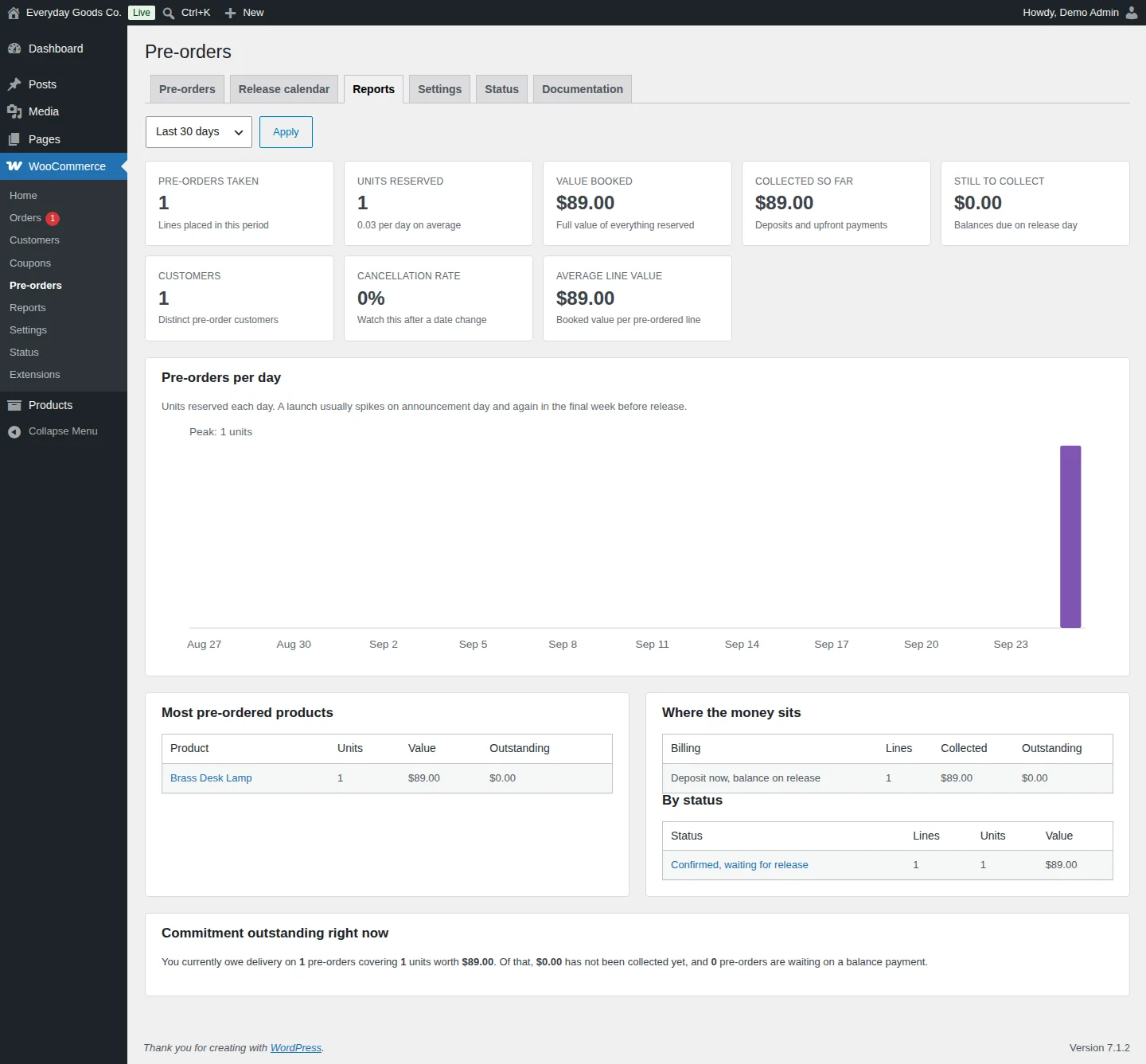
The Reports tab shows how your pre-orders are doing. Pick a period (Last 7 days, Last 30 days, Last 90 days or Last 12 months) and click Apply.
The summary cards show:
- Pre-orders taken: lines placed in the period.
- Units reserved, with the average per day.
- Value booked: the full value of everything reserved.
- Collected so far: deposits and upfront payments.
- Still to collect: balances due on release day.
- Customers: distinct pre-order customers.
- Cancellation rate: worth watching after a date change.
- Average line value: booked value per pre-ordered line.
Below the cards you find a Pre-orders per day chart of units reserved each day, Most pre-ordered products, Where the money sits (collected and outstanding amounts per billing mode), By status, and Commitment outstanding right now, a one-line summary of what you currently owe customers and what has not been collected yet.
Report figures are cached. You set how long under Settings > Advanced > Cache reports for this many minutes.
#Settings
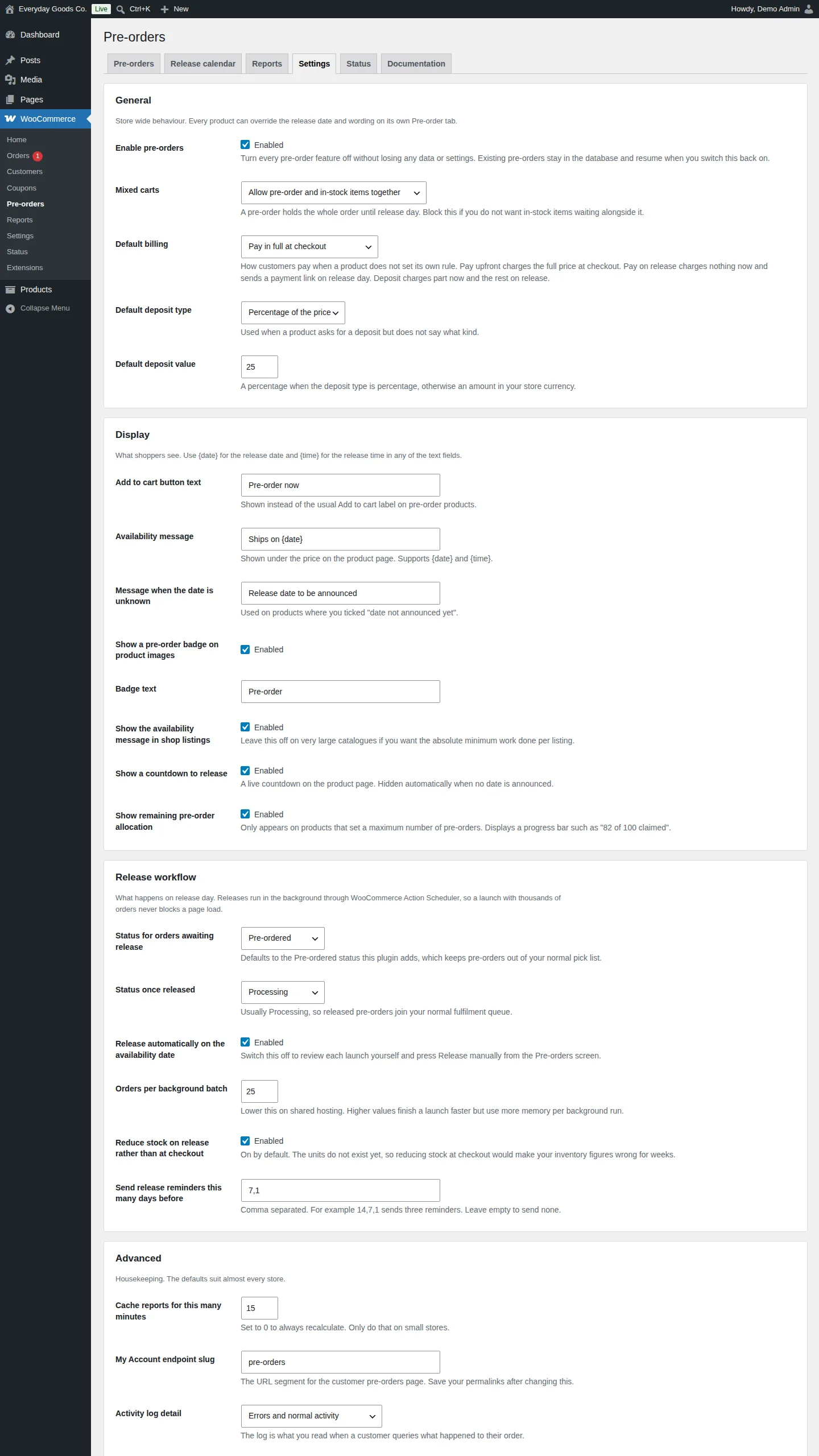
The Settings tab holds the store wide rules. Every product can override the release date and wording on its own Pre-order tab. The settings are grouped in five boxes:
- General: switch all pre-order features on or off, choose whether pre-orders can share a cart with in-stock items, and set the default billing and deposit.
- Display: what shoppers see. Use
{date}for the release date and{time}for the release time in any of the text fields. - Release workflow: order statuses before and after release, automatic release, batch size, when stock is reduced and when release reminders are sent.
- Advanced: report caching, the My Account endpoint slug, the activity log and data removal.
- Payments: how long customers have to pay a balance, what happens if they never pay, automatic charging of a saved card and customer self cancellation.
Click Save settings at the bottom after making changes. Turning off Enable pre-orders does not delete anything: existing pre-orders stay in the database and resume when you switch it back on. See the settings reference below for every field.
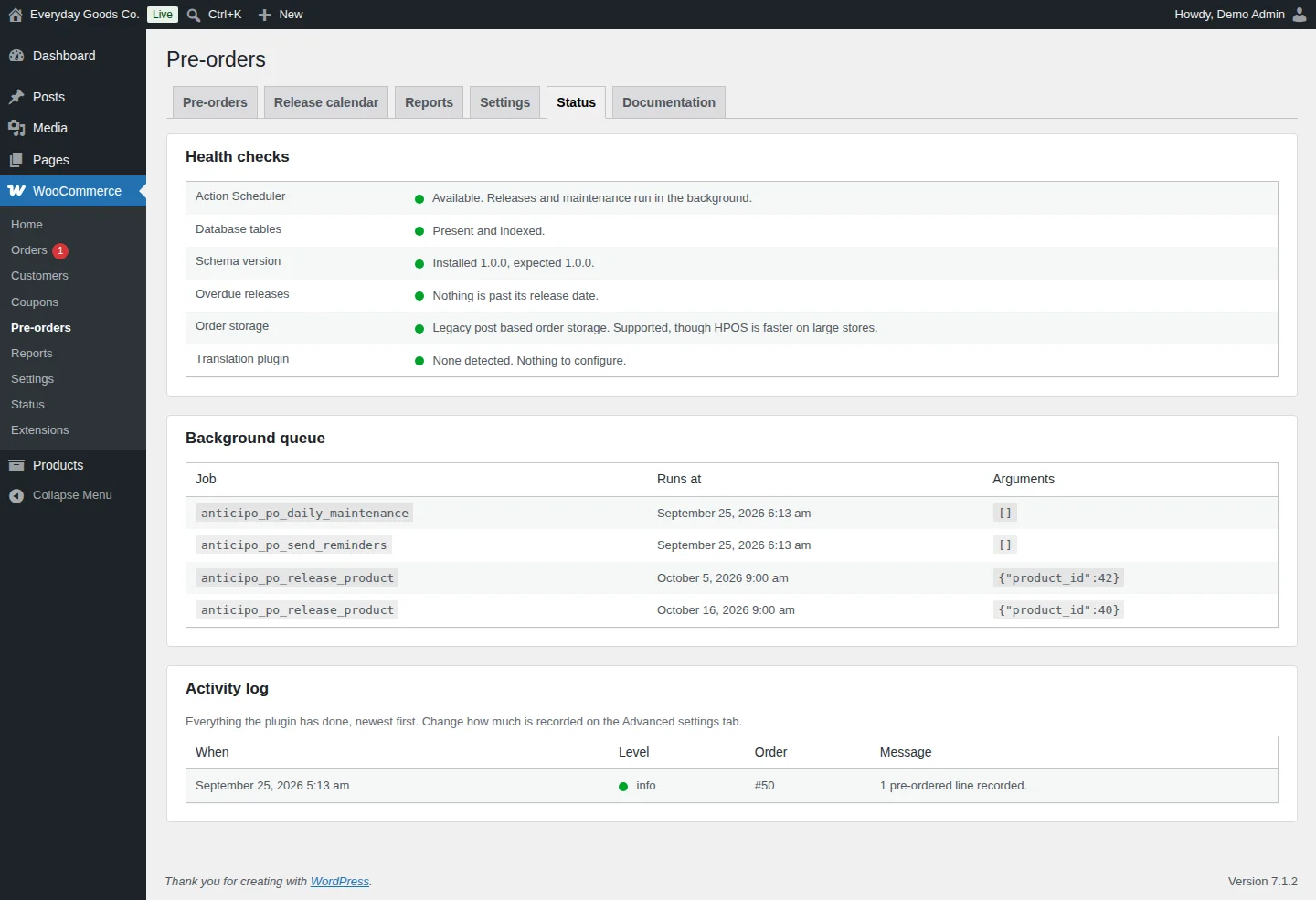
#Status
The Status tab is the first place to look when something does not happen as expected.
Health checks reports on Action Scheduler, Database tables, Schema version, Overdue releases, Order storage and Translation plugin. A green dot means the check passed.
Background queue lists the scheduled jobs, when each one Runs at, and its Arguments. You will see jobs such as anticipo_po_release_product (one per product release), anticipo_po_send_reminders and anticipo_po_daily_maintenance.
Activity log lists everything the plugin has done, newest first, with When, Level, Order and Message. Use it when a customer asks what happened to their order. You change how much is recorded with Activity log detail on the Advanced settings.
#Built-in documentation
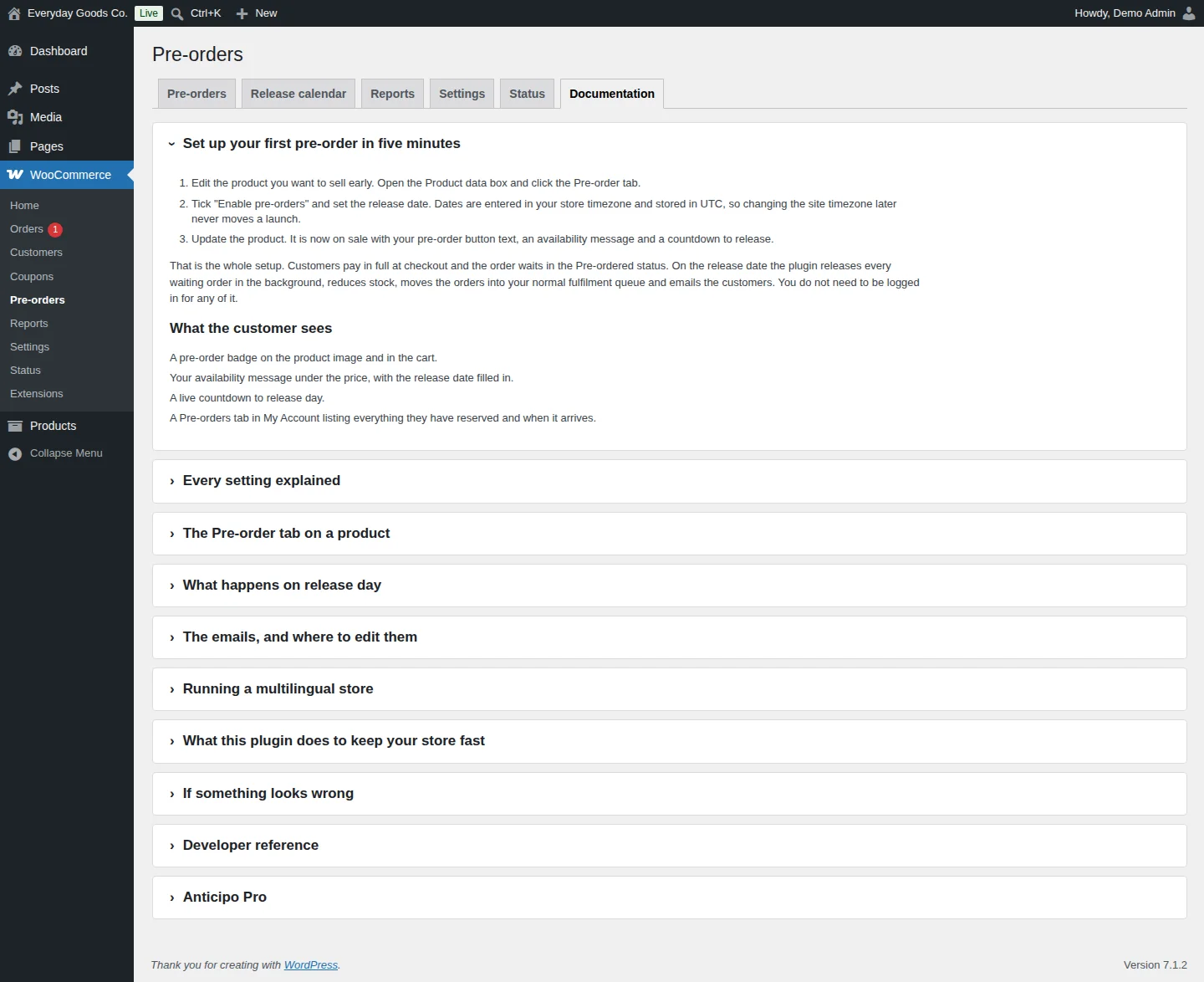
The Documentation tab contains the plugin's own guide, organised in collapsible sections:
- Set up your first pre-order in five minutes
- Every setting explained
- The Pre-order tab on a product
- What happens on release day
- The emails, and where to edit them
- Running a multilingual store
- What this plugin does to keep your store fast
- If something looks wrong
- Developer reference (hooks, helper functions and template overrides)
Click a heading to expand it.
#The Pre-order tab on a product
You turn a product into a pre-order from the product itself. This works with simple, variable and external products.
- Go to Products and edit the product.
- In the Product data box, open the Pre-order tab.
- Tick Enable pre-orders and set the release date and time. Dates are entered in your store timezone and stored in UTC, so changing the site timezone later never moves a launch.
- Click Update.
On this tab you can also:
- Take pre-orders with no announced date, then fill the date in later. Every waiting customer is emailed automatically.
- Set a cut-off date so orders close before release.
- Give the product its own button text, availability message and Badge text (for example "Coming soon") instead of the store wide wording.
Variations inherit the release date and rules from the parent product. The Pro edition also supports release dates per variation.
#Pre-order emails
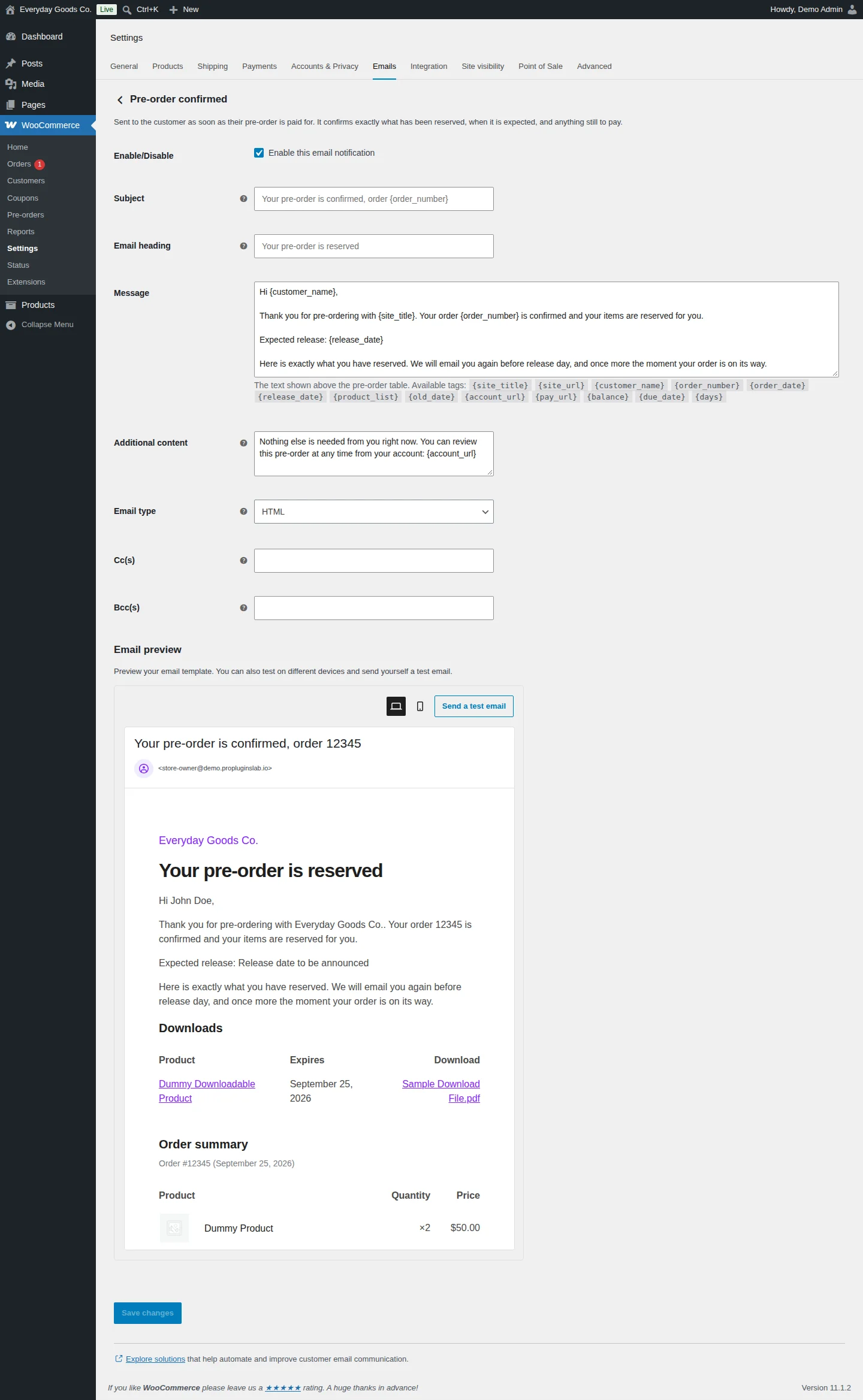
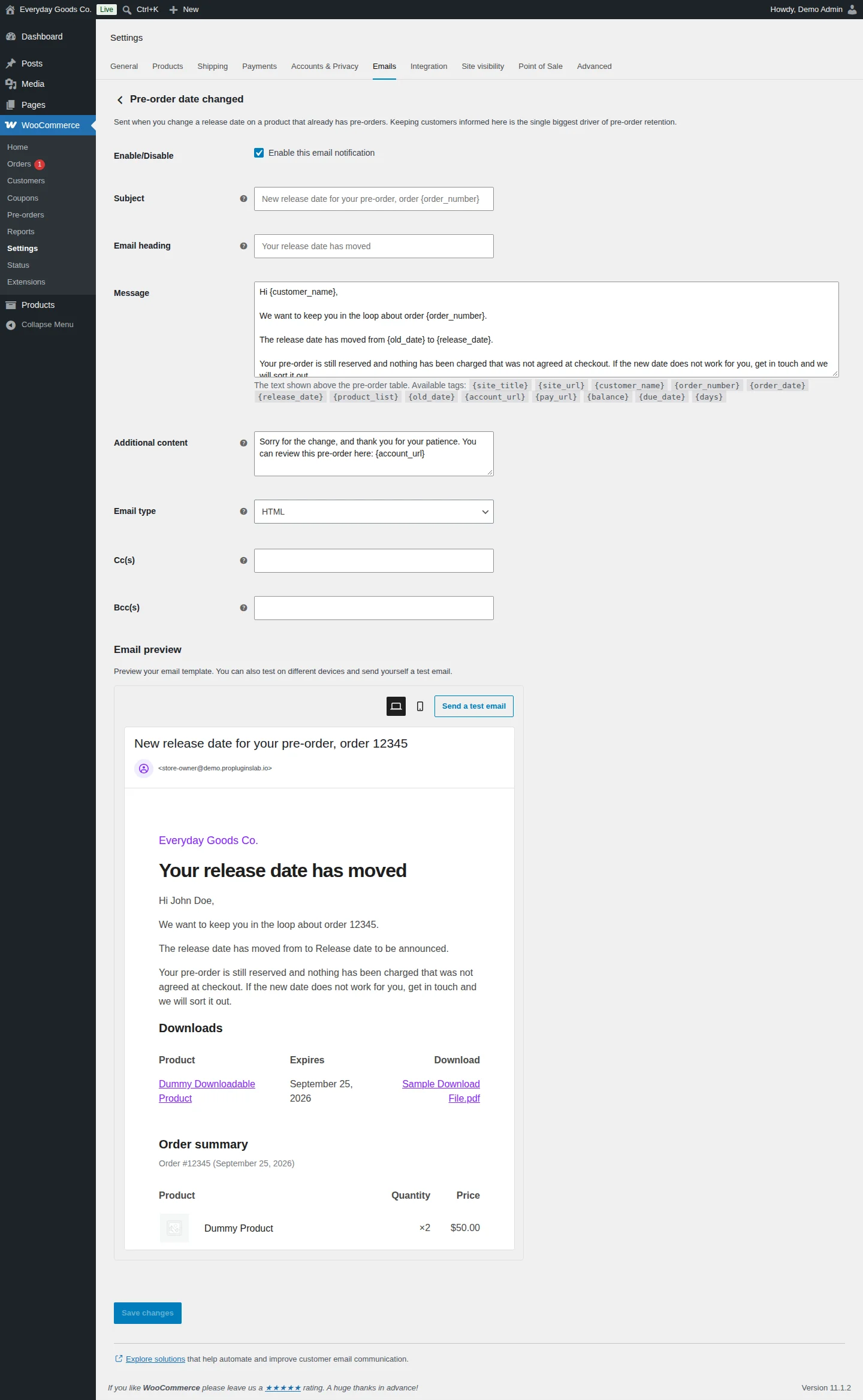
Each pre-order email is a real WooCommerce email. You manage them under WooCommerce > Settings > Emails. The emails include pre-order confirmed, release date changed, pre-order released and pre-order cancelled for the customer, plus a new pre-order notice for the store.
- Pre-order confirmed is sent to the customer as soon as their pre-order is paid for. It confirms what has been reserved, when it is expected and anything still to pay.
- Pre-order date changed is sent when you change the release date on a product that already has pre-orders.
Each email has the usual WooCommerce fields plus a Message field: the text shown above the table of pre-ordered products. You can use these merge tags in it: {site_title} {site_url} {customer_name} {order_number} {order_date} {release_date} {product_list} {old_date} {account_url} {pay_url} {balance} {due_date} {days}.
The Email preview at the bottom shows how the email will look. Click Send a test email to send yourself a copy, then click Save changes. Emails come in HTML and plain text, and both can be overridden from your theme.
Settings reference
WooCommerce > Pre-orders > Settings > General
| Setting | Type | Default | What it does |
|---|---|---|---|
| Enable pre-orders | checkbox | On |
Turns every pre-order feature off without losing any data or settings. Existing pre-orders stay in the database and resume when you switch this back on. |
| Mixed carts | select | Allow pre-order and in-stock items together |
A pre-order holds the whole order until release day. Options: Allow pre-order and in-stock items together, Allow but warn the customer at checkout, Block: pre-orders must be bought on their own. |
| Default billing | select | Pay in full at checkout |
How customers pay when a product does not set its own rule. Options: Pay in full at checkout, Pay nothing now, pay on release (a payment link is sent on release day), Deposit now, balance on release. |
| Default deposit type | select | Percentage of the price |
Used when a product asks for a deposit but does not say what kind. Options: Percentage of the price, Fixed amount. |
| Default deposit value | number | 25 |
A percentage when the deposit type is percentage, otherwise an amount in your store currency. |
WooCommerce > Pre-orders > Settings > Display
| Setting | Type | Default | What it does |
|---|---|---|---|
| Add to cart button text | text | Pre-order now |
Shown instead of the usual Add to cart label on pre-order products. |
| Availability message | text | Ships on {date} |
Shown under the price on the product page. Supports {date} and {time}. |
| Message when the date is unknown | text | Release date to be announced |
Used on products where you ticked "date not announced yet". |
| Show a pre-order badge on product images | checkbox | On |
Shows a badge on the images of pre-order products. |
| Badge text | text | Pre-order |
The store wide badge wording. A product can set its own on its Pre-order tab. |
| Show the availability message in shop listings | checkbox | On |
Leave this off on very large catalogues if you want the absolute minimum work done per listing. |
| Show a countdown to release | checkbox | On |
A live countdown on the product page. Hidden automatically when no date is announced. |
| Show remaining pre-order allocation | checkbox | On |
Only appears on products that set a maximum number of pre-orders. Displays a progress bar such as "82 of 100 claimed". |
WooCommerce > Pre-orders > Settings > Release workflow
| Setting | Type | Default | What it does |
|---|---|---|---|
| Status for orders awaiting release | select | Pre-ordered |
Defaults to the Pre-ordered status this plugin adds, which keeps pre-orders out of your normal pick list. |
| Status once released | select | Processing |
Usually Processing, so released pre-orders join your normal fulfilment queue. |
| Release automatically on the availability date | checkbox | On |
Switch this off to review each launch yourself and press Release manually from the Pre-orders screen. |
| Orders per background batch | number | 25 |
Lower this on shared hosting. Higher values finish a launch faster but use more memory per background run. |
| Reduce stock on release rather than at checkout | checkbox | On |
On by default. The units do not exist yet, so reducing stock at checkout would make your inventory figures wrong for weeks. |
| Send release reminders this many days before | text | 7,1 |
Comma separated. For example 14,7,1 sends three reminders. Leave empty to send none. |
WooCommerce > Pre-orders > Settings > Advanced
| Setting | Type | Default | What it does |
|---|---|---|---|
| Cache reports for this many minutes | number | 15 |
Set to 0 to always recalculate. Only do that on small stores. |
| My Account endpoint slug | text | pre-orders |
The URL segment for the customer pre-orders page. Save your permalinks after changing this. |
| Activity log detail | select | Errors and normal activity |
How much the activity log records. Options: Off, Errors only, Errors and normal activity, Everything, including debug detail. |
| Delete log entries older than (days) | number | 90 |
Log entries older than this are removed. |
| Delete all pre-order data when the plugin is deleted | checkbox | Off |
Off by default. Deactivating never removes data. Only deleting the plugin with this box ticked does. |
WooCommerce > Pre-orders > Settings > Payments
| Setting | Type | Default | What it does |
|---|---|---|---|
| Days the customer has to pay the balance | number | 7 |
Counted from release day. The customer gets a final reminder one day before the deadline. |
| Cancel the pre-order if the balance is never paid | checkbox | Off |
Off by default. Leave it off if you would rather chase the customer yourself. |
| Try to charge the saved card automatically | checkbox | Off |
Only works when the gateway supports saved payment methods and the customer saved one at checkout. If the charge cannot be attempted or fails, the customer is emailed a payment link instead. |
| Let customers cancel their own pre-orders | checkbox | On |
Adds a Cancel button to the customer pre-orders page in My Account. |
| Stop self cancellation this many days before release | number | 2 |
So nobody cancels the morning a launch ships. |
WooCommerce > Settings > Emails > Pre-order confirmed
| Setting | Type | Default | What it does |
|---|---|---|---|
| Enable/Disable | checkbox | On |
Enable this email notification. |
| Subject | text | - | The email subject. The field shows "Your pre-order is confirmed, order {order_number}" as a placeholder. |
| Email heading | text | - | The heading at the top of the email. The field shows "Your pre-order is reserved" as a placeholder. |
| Message | textarea | - | The text shown above the pre-order table. Available tags: {site_title} {site_url} {customer_name} {order_number} {order_date} {release_date} {product_list} {old_date} {account_url} {pay_url} {balance} {due_date} {days} |
| Additional content | textarea | Nothing else is needed from you right now. You can review this pre-order at any time from your account: {account_url} |
Text shown below the main email content. |
| Email type | select | HTML |
Options: Plain text, HTML, Multipart. |
| Cc(s) | text | - | Extra addresses to copy on this email. |
| Bcc(s) | text | - | Extra addresses to blind copy on this email. |
WooCommerce > Settings > Emails > Pre-order date changed
| Setting | Type | Default | What it does |
|---|---|---|---|
| Enable/Disable | checkbox | On |
Enable this email notification. |
| Subject | text | - | The email subject. The field shows "New release date for your pre-order, order {order_number}" as a placeholder. |
| Email heading | text | - | The heading at the top of the email. The field shows "Your release date has moved" as a placeholder. |
| Message | textarea | - | The text shown above the pre-order table. Available tags: {site_title} {site_url} {customer_name} {order_number} {order_date} {release_date} {product_list} {old_date} {account_url} {pay_url} {balance} {due_date} {days} |
| Additional content | textarea | Sorry for the change, and thank you for your patience. You can review this pre-order here: {account_url} |
Text shown below the main email content. |
| Email type | select | HTML |
Options: Plain text, HTML, Multipart. |
| Cc(s) | text | - | Extra addresses to copy on this email. |
| Bcc(s) | text | - | Extra addresses to blind copy on this email. |
Shortcodes
[anticipo_preorder_products]
Lists every product currently taking pre-orders as a normal shop grid, soonest release first. Products with no announced date are listed last.
[anticipo_preorder_products limit="12" columns="4"]| Attribute | Default | Description |
|---|---|---|
limit | - | How many products to show. |
columns | - | How many columns the grid uses. |
orderby | - | Sort order: `release_date` or `title`. |
category | - | Product category slugs to limit the list to. |
empty | - | The message shown when nothing is on pre-order. |
On your site
Shoppers see pre-order products much like any other product, with a few additions:
- The add to cart button uses your pre-order text, for example Pre-order now.
- An availability message under the price, with the release date filled in, for example "Ships on" followed by the date. Products without an announced date show your unknown-date message instead.
- A pre-order badge on the product image and in the cart. Each product can use its own badge wording.
- A live countdown to release on the product page, when a date is announced.
- A progress bar such as "82 of 100 claimed" on products with an allocation limit, when Show remaining pre-order allocation is on.
You can collect all upcoming products on one page with the [anticipo_preorder_products] shortcode, as shown below.
Customers also get a Pre-orders tab in My Account that lists everything they have reserved, its status and when it arrives. If self cancellation is enabled, they can cancel from there until the cut-off you set.
Frequently asked questions
Does Anticipo work with variable products?
Yes. Variations inherit the release date and rules from the parent product. Pro also supports release dates per variation.
Why is my stock not going down when someone pre-orders?
This is by design. Stock is reduced on release day, because the units do not exist yet. If you are pre-selling stock you already hold, turn off Reduce stock on release rather than at checkout under Settings > Release workflow.
How is the balance collected on deposit and pay on release orders?
On release day the balance is collected as a real, linked WooCommerce order with a secure payment link, so your gateway, refunds and reporting work normally. The customer has the number of days set in Days the customer has to pay the balance to pay. If you tick Try to charge the saved card automatically, the plugin tries the saved payment method first and emails a payment link if the charge cannot be taken. No card details are stored by the plugin.
Can the badge say something other than "Pre-order"?
Yes. Set the store wide wording in Badge text under Settings > Display, or give a single product its own wording in the Badge text field on its Pre-order tab.
Does it work with High Performance Order Storage and the block checkout?
Yes. Compatibility is declared for High Performance Order Storage and legacy post based storage, plus the Cart and Checkout blocks. The cart rules are enforced through the Store API.
Will this slow my shop down?
Pre-orders live in their own indexed database table, settings are read from objects WooCommerce has already loaded, and the plugin's CSS and JavaScript are not loaded on pages that have no pre-orders.
Is my data deleted if I remove the plugin?
Only if you ask for it. Deactivating never deletes anything. Deleting the plugin removes data only when Delete all pre-order data when the plugin is deleted is ticked under Settings > Advanced.
Does the plugin send data to an external service?
No. It makes no outbound HTTP requests and sends no data anywhere.
Troubleshooting
- The release date passed and nothing happened.
Open WooCommerce > Pre-orders > Status. Health checks tells you whether Action Scheduler is running and Overdue releases shows anything past its date. Also check that Release automatically on the availability date is ticked under Settings > Release workflow. You can release by hand with Release now on the Release calendar tab or from the Pre-orders list. On a very low traffic site, pointing a real server cron at
wp-cron.phpmakes scheduled jobs punctual. A nightly sweep also catches missed releases.- The Pre-orders tab in My Account returns a 404.
Go to Settings > Permalinks and click Save Changes without changing anything. This regenerates the rewrite rules. Do the same every time you change My Account endpoint slug under Settings > Advanced.
- The pre-order button is not showing on a product.
Check that Enable pre-orders is ticked on the Settings tab, because it switches every pre-order feature off when unticked. Then edit the product and make sure Enable pre-orders is ticked on its Pre-order tab, and click Update.
- A customer asks what happened to their order.
Open the Status tab and read the Activity log. It lists every action taken, with the order number and a message. If the log is empty or too thin, raise Activity log detail under Settings > Advanced. Entries older than Delete log entries older than (days) are removed.
- Customers do not receive a pre-order email.
Go to WooCommerce > Settings > Emails, open the email (for example Pre-order confirmed) and make sure Enable this email notification is ticked. Click Send a test email in the Email preview to check delivery, then click Save changes.
- Customers cannot add a pre-order and an in-stock product to the same cart.
Check Mixed carts under Settings > General. If it is set to Block: pre-orders must be bought on their own, change it to Allow pre-order and in-stock items together or Allow but warn the customer at checkout. Keep in mind that a pre-order holds the whole order until release day.