

Overview
Anticipo lets you sell a product weeks or months before it arrives. Customers pay in full at checkout. The order then waits in its own Pre-ordered status, outside your normal fulfilment queue, until launch day.
On the release date, a background job releases every waiting order. It reduces stock, moves the orders into your normal workflow and emails the customers. Nobody needs to be logged in for this to happen. You can also release or cancel pre-orders by hand, one at a time or in bulk.
The plugin is for WooCommerce store owners who want to take orders for upcoming products, new editions or restocks with a known or not yet announced date. Shoppers see a pre-order button, a badge, an availability message and a countdown. They can follow their reservations from a Pre-orders tab in My Account.
Requirements
- WordPress 6.4 or later
- PHP 7.4 or later
- WooCommerce 8.2 or later, installed and active
Installation
Anticipo is a free plugin on WordPress.org. It needs WooCommerce, so install and activate WooCommerce first.
In your WordPress admin, go to Plugins > Add New.
Search for Anticipo - Pre-Orders for WooCommerce.
Click Install Now on the plugin card.
Click Activate.
Go to WooCommerce > Pre-orders to open the plugin screens. The Documentation tab has a five minute setup guide.
Quick start
- Check the store wide settings
Go to WooCommerce > Pre-orders and open the Settings tab. Make sure Enable pre-orders is ticked. Under Mixed carts, choose whether pre-order items can share a cart with in-stock items. Click Save settings.
- Set the wording shoppers see
In the Display section of the same tab, set the Add to cart button text, the Availability message (use
{date}and{time}for the release date and time) and the Badge text. Every product can override this wording on its own Pre-order tab. - Turn a product into a pre-order
Edit the product you want to sell early. In the Product data box, open the Pre-order tab, tick Enable pre-orders and set the release date. Click Update. The product now shows your pre-order button, the availability message and a countdown to release.
- Review the customer emails
Go to WooCommerce > Settings > Emails and open the pre-order emails, for example Pre-order confirmed. Adjust the subject, heading and message, then use Send a test email to check the result.
- Track incoming pre-orders
When customers start ordering, open WooCommerce > Pre-orders. The Pre-orders tab lists every pre-order with its status and release date. On the release date, the orders are released automatically.
#The Pre-order tab on a product
You turn a product into a pre-order from the product edit screen. This works for simple, variable and external products. Variations inherit the release date and rules from the parent product.
- Go to Products and edit the product.
- In the Product data box, click the Pre-order tab.
- Tick Enable pre-orders.
- Set the release date and time. You enter it in your store timezone. It is stored in UTC, so changing the site timezone later never moves a launch.
- Click Update.
On this tab you can also:
- Take pre-orders with no announced date yet. The product then shows the Message when the date is unknown from the settings. When you fill in the date later, every waiting customer is emailed automatically.
- Set a cut-off date so orders close before release, for example while you confirm quantities with a supplier.
- Give the product its own button text and availability message instead of the store wide wording.
- Enter its own Badge text, such as "Coming soon" or "Limited edition". This wording is used on the product image, in shop listings and in the cart.
#Pre-orders list
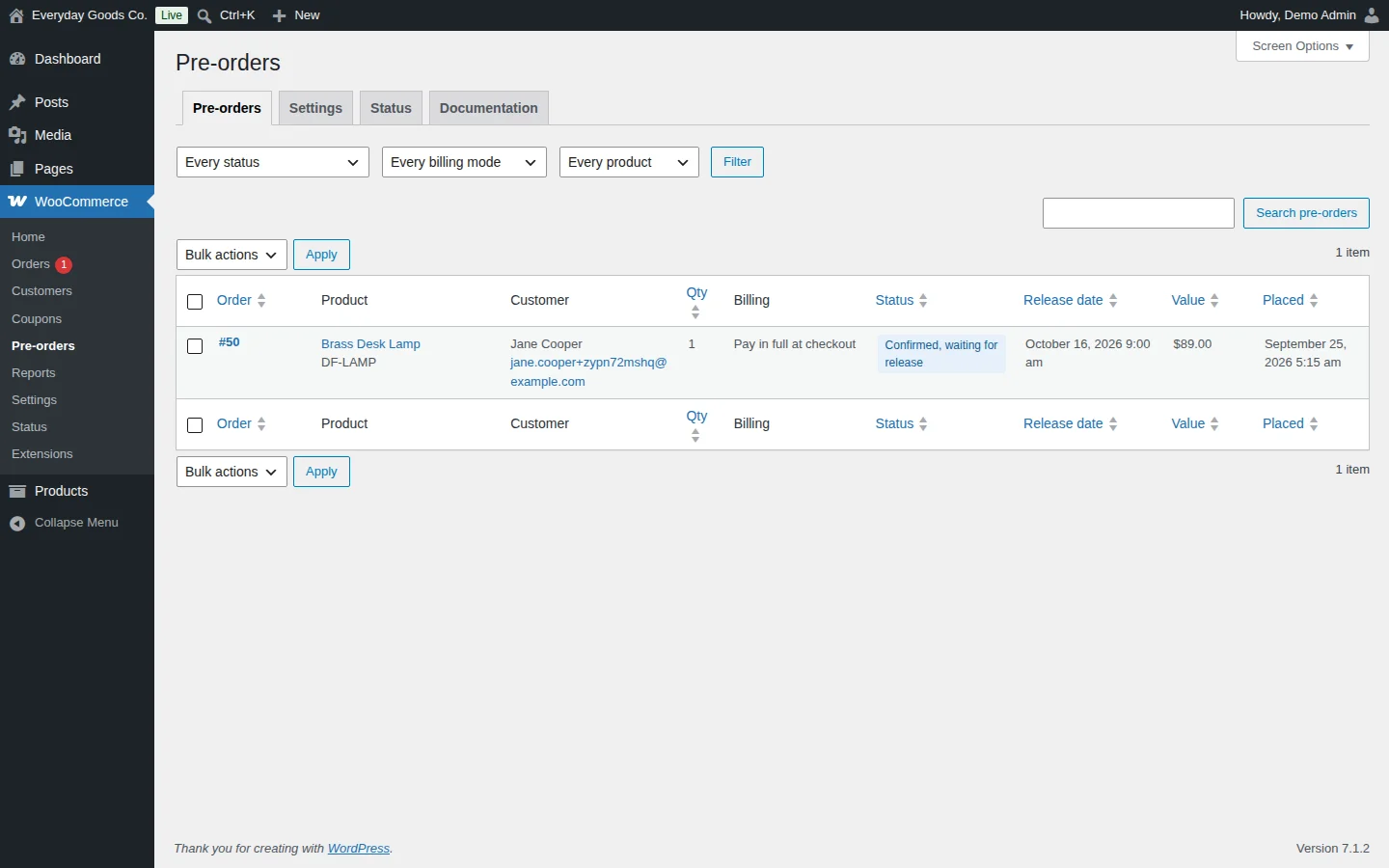
Go to WooCommerce > Pre-orders. The Pre-orders tab is the first screen you see. It lists every pre-order in your store.
Each row shows:
- Order: the WooCommerce order number, linked to the order.
- Product: the pre-ordered product and its SKU.
- Customer: name and email address.
- Qty: the quantity reserved.
- Billing: how the order is paid, for example Pay in full at checkout.
- Status: where the pre-order stands, for example Confirmed, waiting for release.
- Release date: when the product is due.
- Value and Placed: the order value and the date the order was placed.
Click the Order, Qty, Status, Release date, Value or Placed column heading to sort the list. To narrow it down, pick a status, a billing mode or a product from the three drop-downs and click Filter. Use the search box and Search pre-orders to find a specific pre-order. Screen Options at the top right controls the list display.
#Releasing or cancelling pre-orders by hand
You do not have to wait for the release date. From the Pre-orders tab you can release or cancel any pre-order by hand, one at a time or in bulk.
To work on several pre-orders at once:
- Tick the checkbox next to each pre-order, or tick the checkbox in the header row to select all of them.
- Choose an action from Bulk actions.
- Click Apply.
If you prefer to review every launch yourself, go to the Settings tab and switch off Release automatically on the availability date. Pre-orders then wait until you release them from this screen.
#Settings
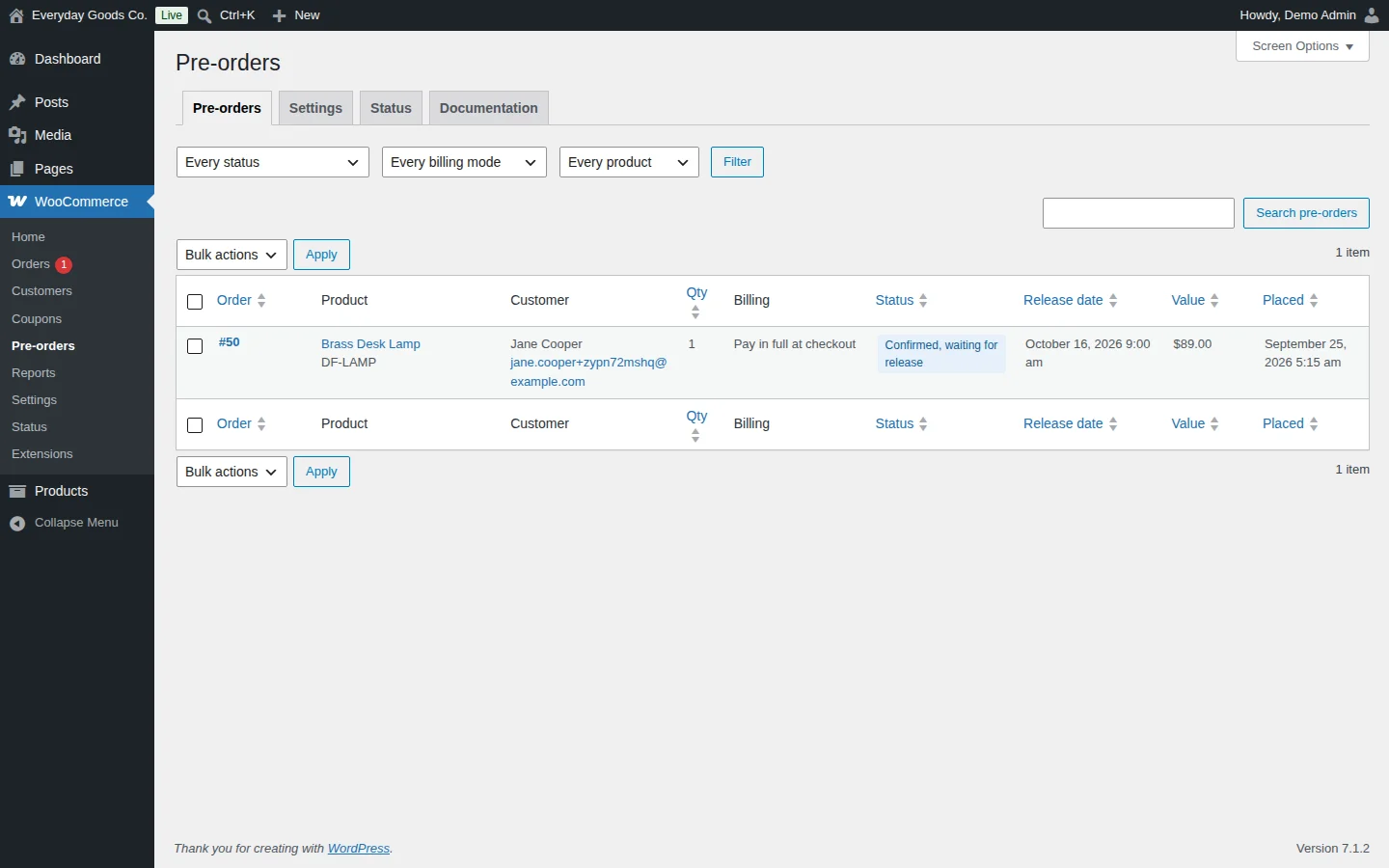
Go to WooCommerce > Pre-orders and open the Settings tab. These are store wide settings. Every product can override the release date and wording on its own Pre-order tab. Click Save settings at the bottom when you are done.
The screen has four sections:
- General: switch every pre-order feature on or off, and decide whether pre-orders can share a cart with in-stock items. Turning Enable pre-orders off keeps all data and settings. Existing pre-orders resume when you switch it back on. The Mixed carts rule is also enforced in the Cart and Checkout blocks.
- Display: what shoppers see. Use
{date}for the release date and{time}for the release time in any of the text fields. This covers the button text, the availability message, the badge and the countdown. - Release workflow: what happens on release day. Choose the order status while a pre-order waits and after it is released, whether release happens automatically, how many orders are handled per background batch, and when stock is reduced. Releases run in the background through WooCommerce Action Scheduler, so a launch with thousands of orders never blocks a page load.
- Advanced: housekeeping. Set the My Account endpoint slug, how much goes into the activity log, how long log entries are kept, and whether pre-order data is deleted with the plugin.
The full list of fields is in the settings reference below.
#Status
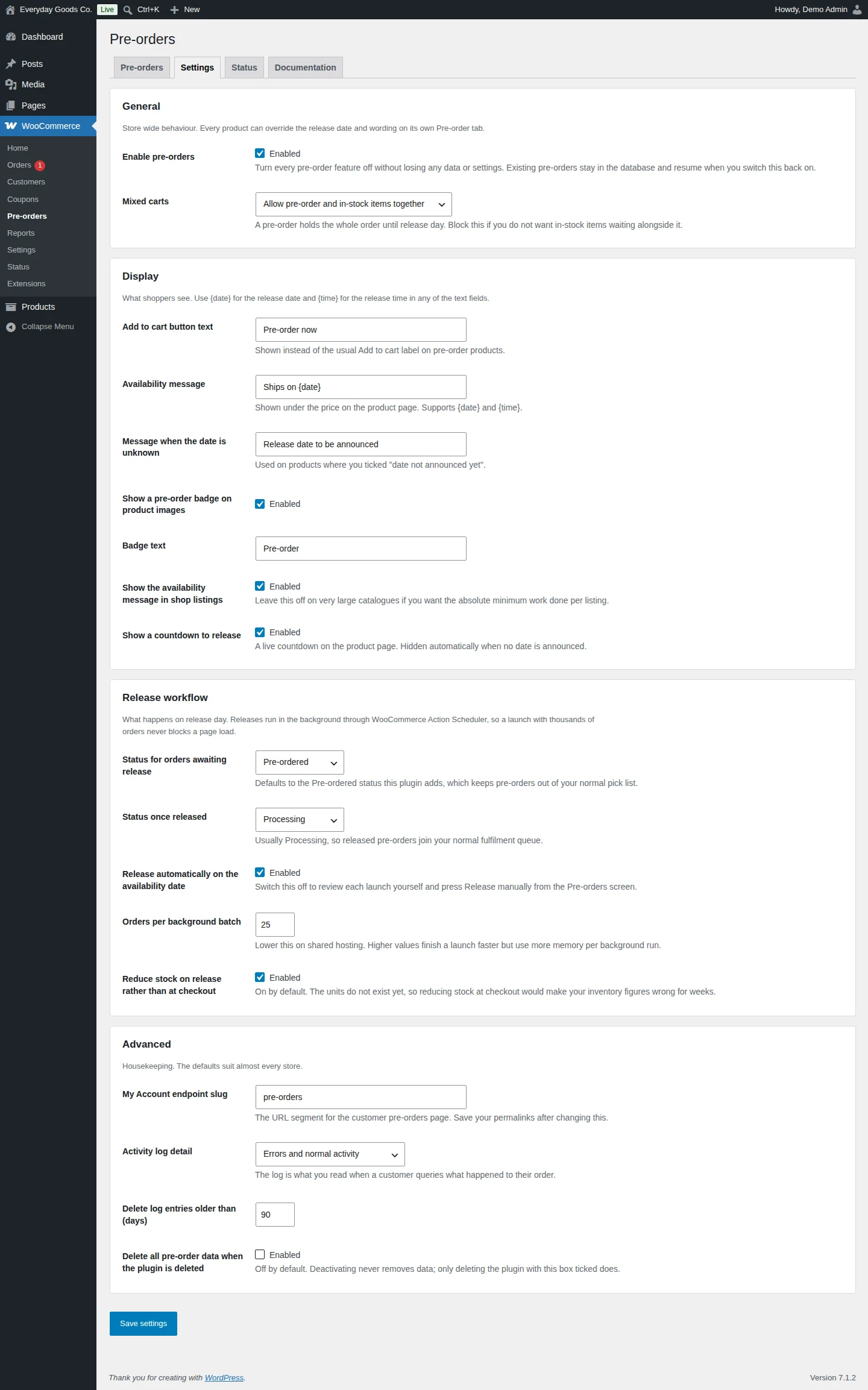
Go to WooCommerce > Pre-orders and open the Status tab. Check this screen first when something does not look right.
Health checks shows a green or warning result for:
- Action Scheduler: whether background releases and maintenance can run.
- Database tables: whether the plugin's own tables are present and indexed.
- Schema version: the installed database version compared with the expected one.
- Overdue releases: whether any pre-order is past its release date.
- Order storage: whether your store uses High Performance Order Storage (HPOS) or legacy post based storage. Both are supported.
- Translation plugin: whether a translation plugin such as WPML or Polylang is detected.
Background queue lists the scheduled jobs with Job, Runs at and Arguments. You see a daily maintenance job (anticipo_po_daily_maintenance) and one release job (anticipo_po_release_product) for each product with an upcoming release date. The daily job is a nightly sweep that catches anything missed, so an interrupted launch recovers on its own.
Activity log lists everything the plugin has done, newest first, with When, Level, Order and Message. Read it when a customer asks what happened to their order. Change how much is recorded with Activity log detail on the Settings tab.
#Built-in documentation
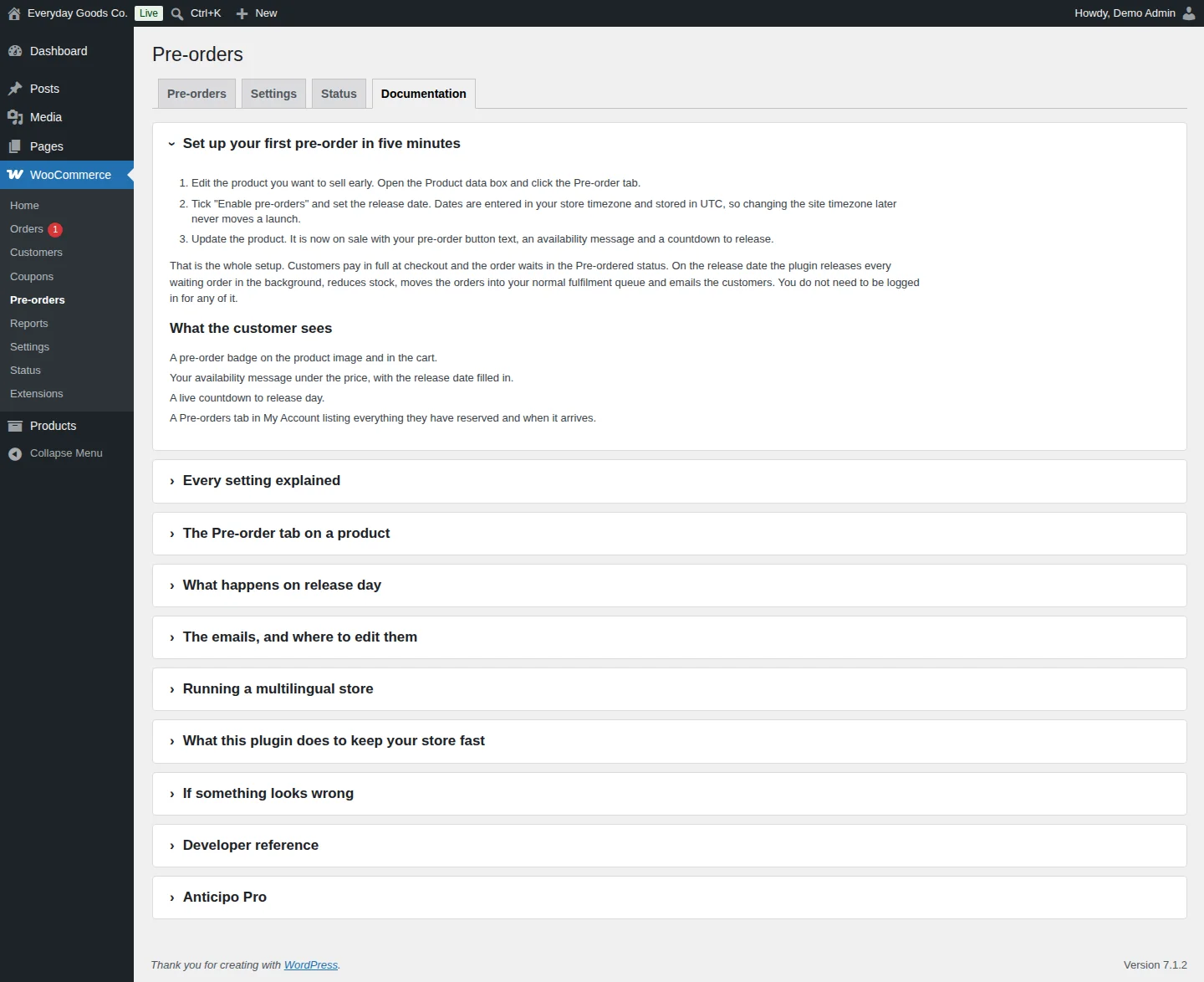
The Documentation tab under WooCommerce > Pre-orders carries a guide inside your admin. Click a heading to expand it. It covers:
- Setting up your first pre-order in five minutes, and what the customer sees
- Every setting explained, with its default
- The Pre-order tab on a product, and listing upcoming pre-orders on a page
- What happens on release day, releasing early or by hand, missed releases and stock
- The emails, merge tags and changing the layout
- Running a multilingual store
- What the plugin does to keep your store fast
- Fixes for common problems
- A developer reference with hooks, helper functions and template overrides
#Pre-order emails
Anticipo adds five emails. Each one is a regular WooCommerce email, so you manage it under WooCommerce > Settings > Emails like any other:
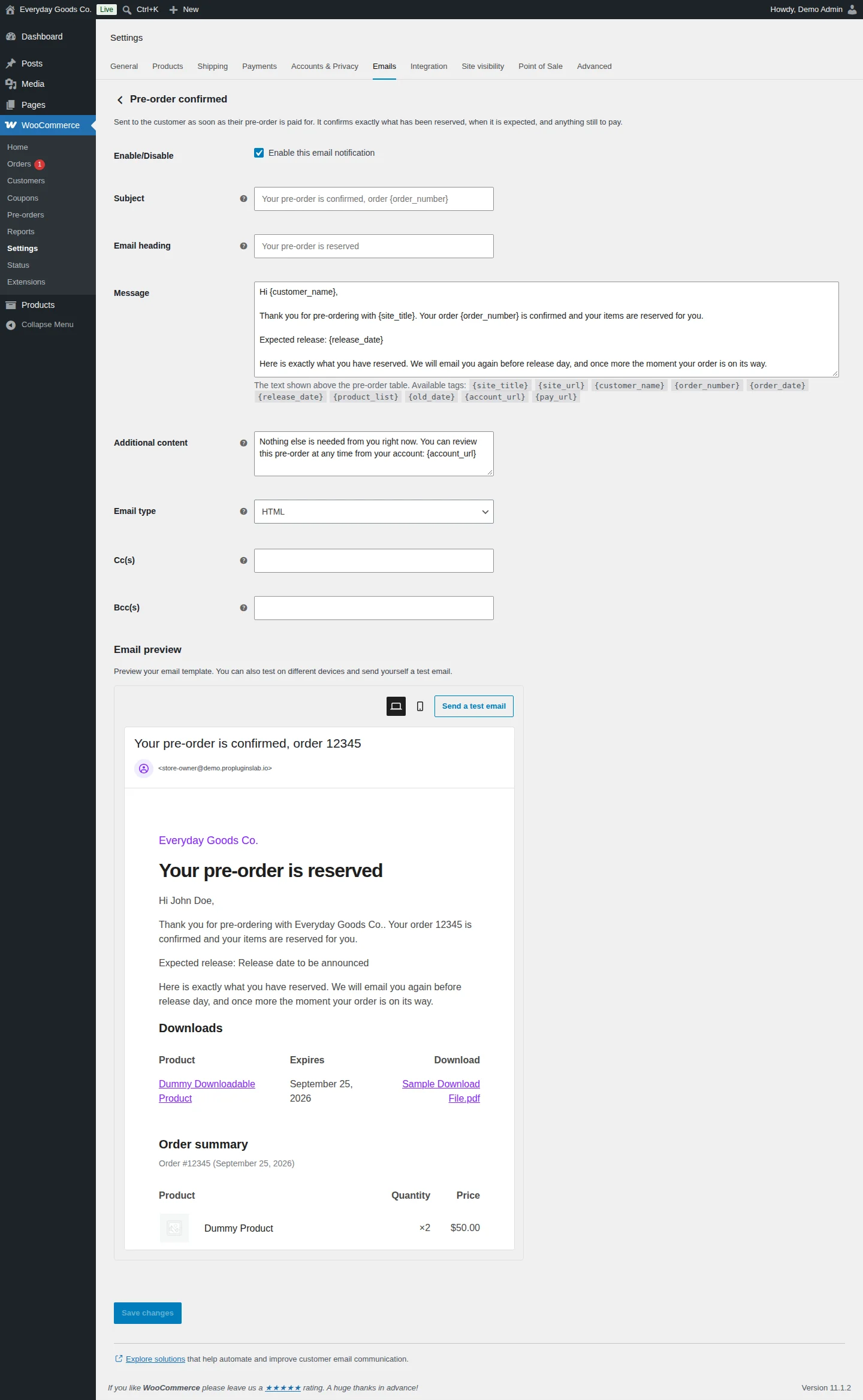
- Pre-order confirmed (customer): sent as soon as the pre-order is paid for. It confirms what has been reserved and when it is expected.
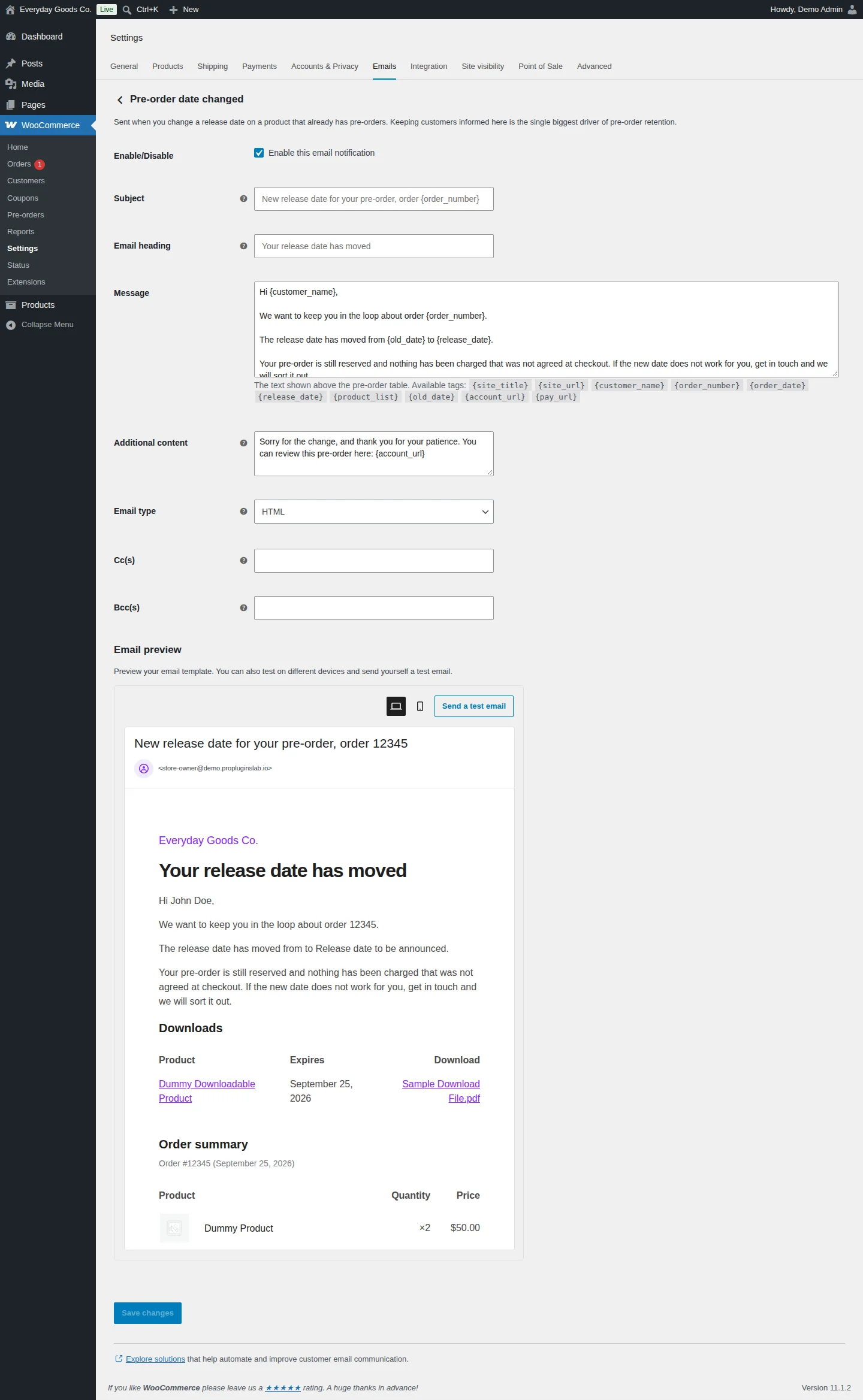
- Pre-order date changed (customer): sent when you change the release date on a product that already has pre-orders.
- Pre-order released (customer)
- Pre-order cancelled (customer)
- New pre-order (store)
Each email has Enable/Disable, Subject, Email heading, Message, Additional content, Email type, Cc(s) and Bcc(s) fields. The Message is the text shown above the table of pre-ordered products. You can use these merge tags in it:
{site_title} {site_url} {customer_name} {order_number} {order_date} {release_date} {product_list} {old_date} {account_url} {pay_url}
The Email preview below the fields shows how the email looks. Switch between desktop and mobile views, or click Send a test email to send one to yourself. Click Save changes when you are done.
Every email comes in HTML and plain text. Both templates can be overridden from your theme.
Settings reference
WooCommerce > Pre-orders > Settings
| Setting | Type | Default | What it does |
|---|---|---|---|
| Enable pre-orders | checkbox | Enabled |
Turn every pre-order feature off without losing any data or settings. Existing pre-orders stay in the database and resume when you switch this back on. |
| Mixed carts | select | Allow pre-order and in-stock items together |
A pre-order holds the whole order until release day. Options: Allow pre-order and in-stock items together, Allow but warn the customer at checkout, Block: pre-orders must be bought on their own. |
| Add to cart button text | text | Pre-order now |
Shown instead of the usual Add to cart label on pre-order products. |
| Availability message | text | Ships on {date} |
Shown under the price on the product page. Supports {date} and {time}. |
| Message when the date is unknown | text | Release date to be announced |
Used on products where you ticked "date not announced yet". |
| Show a pre-order badge on product images | checkbox | Enabled |
Shows the badge on the images of pre-order products. |
| Badge text | text | Pre-order |
Store wide badge wording. A product can use its own wording from the Badge text field on its Pre-order tab. |
| Show the availability message in shop listings | checkbox | Enabled |
Leave this off on very large catalogues if you want the absolute minimum work done per listing. |
| Show a countdown to release | checkbox | Enabled |
A live countdown on the product page. Hidden automatically when no date is announced. |
| Status for orders awaiting release | select | Pre-ordered |
Defaults to the Pre-ordered status this plugin adds, which keeps pre-orders out of your normal pick list. |
| Status once released | select | Processing |
Usually Processing, so released pre-orders join your normal fulfilment queue. |
| Release automatically on the availability date | checkbox | Enabled |
Switch this off to review each launch yourself and press Release manually from the Pre-orders screen. |
| Orders per background batch | number | 25 |
Lower this on shared hosting. Higher values finish a launch faster but use more memory per background run. |
| Reduce stock on release rather than at checkout | checkbox | Enabled |
The units do not exist yet, so reducing stock at checkout would make your inventory figures wrong for weeks. Turn it off if you pre-sell from stock you already hold. |
| My Account endpoint slug | text | pre-orders |
The URL segment for the customer pre-orders page. Save your permalinks after changing this. |
| Activity log detail | select | Errors and normal activity |
How much is recorded in the activity log on the Status tab. Options: Off, Errors only, Errors and normal activity, Everything, including debug detail. |
| Delete log entries older than (days) | number | 90 |
How long activity log entries are kept. |
| Delete all pre-order data when the plugin is deleted | checkbox | Disabled |
Deactivating never removes data. Only deleting the plugin with this box ticked does. |
WooCommerce > Settings > Emails > Pre-order confirmed
| Setting | Type | Default | What it does |
|---|---|---|---|
| Enable/Disable | checkbox | Enabled |
Enable this email notification. |
| Subject | text | - | The email subject. The field shows `Your pre-order is confirmed, order {order_number}` as its placeholder. |
| Email heading | text | - | The main heading inside the email. The field shows `Your pre-order is reserved` as its placeholder. |
| Message | textarea | - | The text shown above the pre-order table. Available tags: {site_title} {site_url} {customer_name} {order_number} {order_date} {release_date} {product_list} {old_date} {account_url} {pay_url} |
| Additional content | textarea | - | Text shown below the main email content, for example a link to the pre-order in the customer's account with {account_url}. |
| Email type | select | HTML |
The email format: Plain text, HTML or Multipart. |
| Cc(s) | text | - | Extra addresses that receive a copy of this email. |
| Bcc(s) | text | - | Extra addresses that receive a blind copy of this email. |
WooCommerce > Settings > Emails > Pre-order date changed
| Setting | Type | Default | What it does |
|---|---|---|---|
| Enable/Disable | checkbox | Enabled |
Enable this email notification. |
| Subject | text | - | The email subject. The field shows `New release date for your pre-order, order {order_number}` as its placeholder. |
| Email heading | text | - | The main heading inside the email. The field shows `Your release date has moved` as its placeholder. |
| Message | textarea | - | The text shown above the pre-order table. Available tags: {site_title} {site_url} {customer_name} {order_number} {order_date} {release_date} {product_list} {old_date} {account_url} {pay_url} |
| Additional content | textarea | - | Text shown below the main email content, for example a link to the pre-order in the customer's account with {account_url}. |
| Email type | select | HTML |
The email format: Plain text, HTML or Multipart. |
| Cc(s) | text | - | Extra addresses that receive a copy of this email. |
| Bcc(s) | text | - | Extra addresses that receive a blind copy of this email. |
Shortcodes
[anticipo_preorder_products]
Lists every product currently taking pre-orders as a normal shop grid, soonest release first. Products with no announced date are listed last. Add it to any page.
[anticipo_preorder_products limit="12" columns="4"]| Attribute | Default | Description |
|---|---|---|
limit | - | How many products to show. |
columns | - | How many columns the grid uses. |
orderby | - | Sort order: `release_date` or `title`. |
category | - | Only show products from these product category slugs. |
empty | - | The message shown when nothing is on pre-order. |
On your site
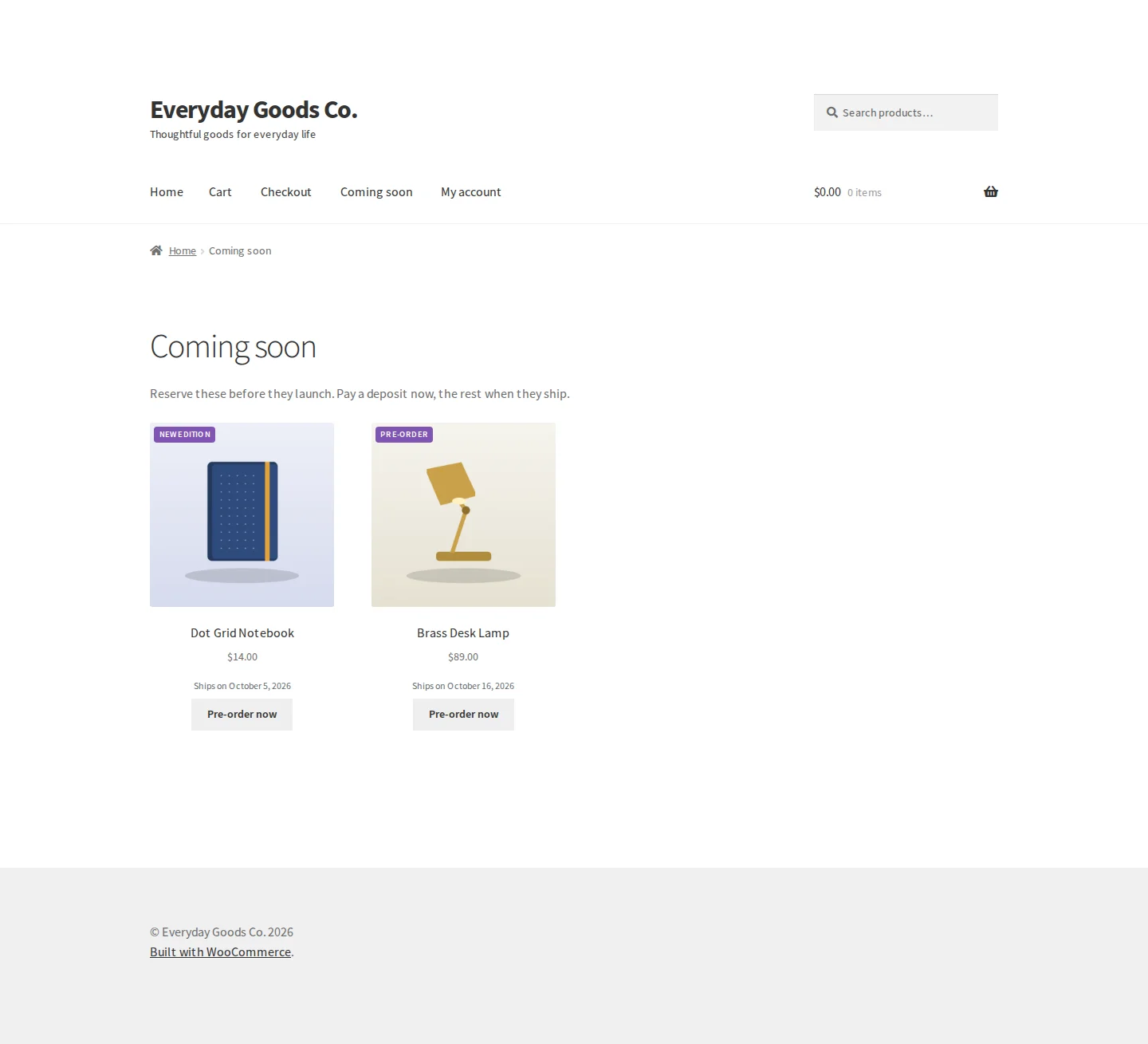
Shoppers see pre-order products clearly marked across your store:
- Pre-order button: the usual Add to cart label is replaced by your Add to cart button text, for example
Pre-order now. - Badge: a pre-order badge on the product image and in the cart. It uses the store wide Badge text or the product's own wording.
- Availability message: shown under the price on the product page with the release date filled in, and in shop listings when that setting is on.
- Countdown: a live countdown to release on the product page. It is hidden when no date is announced.
- My Account: a Pre-orders tab lists everything the customer has reserved, its status and when it arrives.
To gather all upcoming products on one page, add the [anticipo_preorder_products] shortcode to it. The page shows each product with its badge, price, availability message and pre-order button, soonest release first.
Frequently asked questions
Does Anticipo work with variable products?
Yes. Variations inherit the release date and rules from the parent product. You can also use pre-orders on simple and external products.
Why is my stock not going down when someone pre-orders?
This is by design. Stock is reduced on release day, because the units do not exist yet and reducing stock at checkout would make your inventory figures wrong for weeks. If you pre-sell from stock you already hold, turn off Reduce stock on release rather than at checkout under Release workflow on the Settings tab.
Can I take pre-orders before I know the release date?
Yes. Mark the product's date as not announced on its Pre-order tab. Shoppers see the Message when the date is unknown instead. When you fill in the date later, every waiting customer is emailed automatically.
Can I show all my upcoming pre-orders on one page?
Yes. Add [anticipo_preorder_products] to any page. It shows every product currently taking pre-orders as a shop grid, soonest release first, with products that have no announced date listed last. It accepts limit, columns, orderby, category and empty.
Can the badge say something other than "Pre-order"?
Yes. Set the store wide wording in Badge text under Display on the Settings tab, or give a single product its own wording in the Badge text field on its Pre-order tab.
Does it work with High Performance Order Storage and the Cart and Checkout blocks?
Yes. Compatibility is declared for High Performance Order Storage and legacy post based storage, and for the Cart and Checkout blocks. The cart rules are enforced through the Store API. Any payment gateway works, because a pre-order is an ordinary WooCommerce order.
Does it work on a multilingual store?
Yes, with WPML and Polylang. Release emails are sent in the language the customer originally ordered in. The Translation plugin health check on the Status tab shows whether one is detected.
Is my data deleted if I remove the plugin?
Only if you ask for it. Deactivating never deletes anything. Deleting the plugin removes pre-order data only when Delete all pre-order data when the plugin is deleted is ticked in the Advanced section of the Settings tab.
Troubleshooting
- The release date passed and nothing happened.
Open WooCommerce > Pre-orders > Status. The Action Scheduler health check tells you whether background jobs are running, and Overdue releases lists anything past its date. Also check that Release automatically on the availability date is ticked on the Settings tab. You can release the orders by hand from the Pre-orders tab. On a very low traffic site, pointing a real server cron at
wp-cron.phpmakes scheduled jobs punctual.- The Pre-orders tab in My Account returns a 404.
Go to Settings > Permalinks and click Save Changes without changing anything. This regenerates the rewrite rules. Do the same every time you change the My Account endpoint slug.
- The pre-order button is not showing on a product.
Check that Enable pre-orders is ticked in the General section of WooCommerce > Pre-orders > Settings. Then edit the product, open the Pre-order tab in the Product data box and make sure Enable pre-orders is ticked there too. Click Update after any change.
- Stock is not reduced for pre-orders I sell from stock I already hold.
By default, stock is reduced on release day. Turn off Reduce stock on release rather than at checkout under Release workflow on the Settings tab, then click Save settings.
- Customers are not receiving a pre-order email.
Go to WooCommerce > Settings > Emails and open the email, for example Pre-order confirmed. Make sure Enable/Disable is ticked and click Save changes. Use Send a test email in the Email preview to check that the email is delivered.
- A customer asks what happened to their order.
Open WooCommerce > Pre-orders > Status and read the Activity log. It lists every action taken on each pre-order, newest first, with the order number. If you need more detail, set Activity log detail in the Advanced section of the Settings tab to a more detailed level.
Upgrade
Upgrade to Anticipo - Pre-Orders for WooCommerce
Anticipo Pro is a separate plugin for stores that want more than full payment up front. It replaces the free plugin and keeps every existing pre-order and setting when you switch. Everything described on this page stays available in the free plugin without limits.
The Pro version adds:
- Take a deposit now or charge in full on release day
- Limits on total pre-orders and per customer
- Pre-order discount or premium price
- Separate release dates for each variation
- Release calendar, demand reports and CSV export
- Reminder, balance due and failed payment emails