
Overview
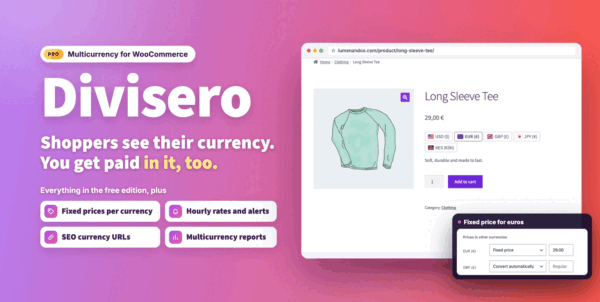
Multicurrency for WooCommerce: fixed prices per currency, hourly exchange rates, currency rules, SEO currency URLs and reports, with checkout in every currency.
Requirements
- WordPress 6.5 or later
- PHP 7.4 or later
- WooCommerce 8.5 or later
- Required plugins: woocommerce
Installation
Download Divisero - Multicurrency for WooCommerce from your ProPluginsLab account, then upload it to WordPress.
Log in to your ProPluginsLab account and open My Account > Downloads.
Download the plugin zip file.
In your WordPress admin, go to Plugins > Add New Plugin > Upload Plugin.
Choose the zip file, click Install Now, then Activate.
License and automatic updates
Divisero works fully as soon as it is activated. The license key turns on automatic updates, so new versions arrive in WordPress like any other plugin update. Pro features never depend on it.
Activate your license
Find your license key in My Account on propluginslab.io, in the license keys section. It is also in your order confirmation email.
In WordPress, open Divisero > License. When two or more ProPluginsLab plugins or add-ons are active on the site, WooCommerce > Licenses also appears and lists all of them in one place.
Paste the key into the Divisero - Multicurrency for WooCommerce Pro row and click Activate. The status changes to Active and automatic updates are on.

Receive updates automatically
Once the license is active, new versions of Divisero show up under Dashboard > Updates and on the Plugins screen. Click Update now, or click Enable auto-updates in the Divisero row on the Plugins screen and WordPress installs every future release for you.
Good to know
- Keys are checked once a day in the background, so your site never waits for the license server. If the server is briefly unreachable, the plugin keeps its last known status.
- An expired key or a key that is not accepted only stops updates. Divisero keeps working. After renewing, click Check now in its row.
- Moving to a new domain: click Deactivate on the old site first, then activate the key on the new one. The status shows Site address changed, checking until the new address is confirmed.
- On the command line:
wp ppl-license list,wp ppl-license activate <plugin> <key>,wp ppl-license checkandwp ppl-license deactivate <plugin>.
Quick start
- Open Dashboard
Go to
wp-admin/admin.php?page=diviseroin your WordPress admin. - Open Currencies
Go to
wp-admin/admin.php?page=divisero&tab=currenciesin your WordPress admin. - Open Currencies: Currency editor
Go to
wp-admin/admin.php?page=divisero&tab=currenciesin your WordPress admin. - Open Currencies: Add a custom currency
Go to
wp-admin/admin.php?page=divisero&tab=currenciesin your WordPress admin.
#Dashboard
Location: wp-admin/admin.php?page=divisero
On this screen:
- Dashboard
- Everything looks fine
- Currencies
- Exchange rates
- Payments
- Page cache
- Other currency plugins
- Geolocation

#Currencies
Location: wp-admin/admin.php?page=divisero&tab=currencies
On this screen:
- Currencies
- Your currencies
- Add a currency

#Currencies: Currency editor
Location: wp-admin/admin.php?page=divisero&tab=currencies
On this screen:
- Currencies
- Your currencies
- Add a currency

#Currencies: Add a custom currency
Location: wp-admin/admin.php?page=divisero&tab=currencies
On this screen:
- Currencies
- Your currencies
- Add a currency

#Prices
Location: wp-admin/admin.php?page=divisero&tab=prices
On this screen:
- Prices
- Fixed prices
- CSV file
- Export
- Import

#Checkout and payments
Location: wp-admin/admin.php?page=divisero&tab=checkout
On this screen:
- Checkout and payments
- Paying for orders
- Payment methods and currencies
- Fallback currencies

#Rules
Location: wp-admin/admin.php?page=divisero&tab=rules
On this screen:
- Rules
- How the currency is decided
- By URL
- By customer
- By role
- By language

#Divisero Multicurrency for WooCommerce Pro License
Location: wp-admin/admin.php?page=cwg-license-divisero-multicurrency-for-woocommerce-pro
On this screen:
- Divisero Multicurrency for WooCommerce Pro License
#Exchange rates
Location: wp-admin/admin.php?page=divisero&tab=rates
On this screen:
- Exchange rates
- Automatic updates
- Rate service keys
- Backup and custom services
- Rate change alerts
- Rate history

#Exchange rates: Automatic updates turned on
Location: wp-admin/admin.php?page=divisero&tab=rates
On this screen:
- Exchange rates
- Automatic updates
- Rate service keys
- Backup and custom services
- Rate change alerts
- Rate history

#Switcher
Location: wp-admin/admin.php?page=divisero&tab=switcher
On this screen:
- Switcher
- Look
- Live preview
- Where it appears
- Place it anywhere
- Shortcode
- Block
- Widget and menus

#Cache
Location: wp-admin/admin.php?page=divisero&tab=cache
On this screen:
- Cache
- Page cache
- Test the cache

#Integrations
Location: wp-admin/admin.php?page=divisero&tab=integrations
On this screen:
- Integrations
- Other currency plugins
- Plugins Divisero works with

#Reports
Location: wp-admin/admin.php?page=divisero&tab=reports
On this screen:
- Reports
- Sales by currency

#Tools
Location: wp-admin/admin.php?page=divisero&tab=tools
On this screen:
- Tools
- Import from another currency plugin
- Settings file
- Export
- Import
- Log
- Setup wizard

#Settings
Location: wp-admin/admin.php?page=divisero&tab=settings
On this screen:
- Settings
- Default currency
- Currency from the shopper’s country
- Country rules
- Access and data
- Currency addresses for search engines
- Subscription renewals
- Price API

#Setup wizard
Location: wp-admin/admin.php?page=divisero&view=wizard
On this screen:
- Step 1 of 7: Welcome
- What Divisero found

#Edit product
Location: wp-admin/post.php?post=29&action=edit
On this screen:
- Edit product
- Product description
- Publish
- Product image
- Product gallery
- Product categories
- Product tags
- Product brands

#Edit order
Location: wp-admin/post.php?action=edit&post=52
On this screen:
- Edit order
- Order actions
- Order attribution
- Origin
- Customer history
- Total orders
- Total revenue
- Average order value

#Order actions
Location: wp-admin/post.php?action=edit&post=63
On this screen:
- Edit order
- Order actions
- Order attribution
- Origin
- Customer history
- Total orders
- Total revenue
- Average order value

#Orders
Location: wp-admin/edit.php?post_type=shop_order
On this screen:
- Orders

#Orders
Location: wp-admin/edit.php?post_type=shop_order&divisero_order_currency=EUR
On this screen:
- Orders

#Edit coupon
Location: wp-admin/post.php?post=51&action=edit
On this screen:
- Edit coupon
- Publish
- Coupon data

#Documentation
Location: wp-admin/admin.php?page=divisero-docs
On this screen:
- Documentation
- Getting started
- First steps
- Three currencies to know
- The Divisero menu
- Saving changes
- The health check on the Dashboard
- What you need

Settings reference
Currencies
Currencies: Currency editor
#NAME
The name shoppers see when the switcher shows names.
#SYMBOL
The sign shown with prices, for example € or kr.
#SYMBOL POSITION
Where the symbol goes next to the amount.
#DECIMALS
Digits after the decimal sign. Most currencies use 2, the Japanese yen uses 0.
#THOUSAND SEPARATOR
Groups the digits of large prices so they are easy to read.
#DECIMAL SEPARATOR
Separates whole units from cents.
#FLAG
The flag shown next to this currency in the switcher.
#Shown to shoppers
When off, shoppers cannot pick this currency, and its settings stay here for later.
#Can be paid in
When off, shoppers see prices in this currency but pay in its fallback currency or your store currency.
#ROUNDING
Makes converted prices look tidy. Prices in your store currency never change.
#ROUND TO
Not used while a price ending is chosen: the ending decides the price.
#PRICE ENDING
Makes converted prices end the same way, for example 19.99.
#SEARCH CURRENCIES
Type a code or a name, for example EUR or euro.
#Code
A short code of 3 or 4 letters or digits that is not a real currency code.
Currencies: Add a custom currency
Checkout and payments
#CURRENCY AT CHECKOUT
The order, the payment and the emails are in that currency. Divisero also keeps the totals in your store currency for your books.
#Hide payment methods that cannot take the currency
Shoppers only see payment methods that work for their order, so no payment fails at the last step.
#Switch to the currency of the billing country
When a shopper enters a billing country at checkout, the order switches to that country’s currency if you sell in it.
#INSTEAD OF USD
Used when a payment method cannot take USD. Without one, shoppers pay in USD when payments in USD are off, or pick another method.
#INSTEAD OF EUR
Used when a payment method cannot take EUR. Without one, shoppers pay in USD when payments in EUR are off, or pick another method.
#INSTEAD OF GBP
Used when a payment method cannot take GBP. Without one, shoppers pay in USD when payments in GBP are off, or pick another method.
#INSTEAD OF JPY
Used when a payment method cannot take JPY. Without one, shoppers pay in USD when payments in JPY are off, or pick another method.
#INSTEAD OF KES
Used when a payment method cannot take KES. Without one, shoppers pay in USD when payments in KES are off, or pick another method.
Rules
#PATH
The start of the page address, for example /wholesale/. On a site in a subfolder, you can leave the folder out.
#CURRENCY
The currency shoppers get when this rule matches.
#CUSTOMER USER ID
The number shown in the address when you edit the user, after user_id=.
#ROLE
The user role this rule is for.
#LANGUAGE
A language of your multilingual plugin.
Exchange rates
#How many EUR for 1 USD
Leave empty until you know the rate; prices stay in your store currency meanwhile.
#Markup for EUR in percent
Percent added to the rate, for example 2 to cover bank fees. From -50 to 100.
#Keep the EUR rate as entered
Automatic updates skip this currency.
#How many GBP for 1 USD
Leave empty until you know the rate; prices stay in your store currency meanwhile.
#Markup for GBP in percent
Percent added to the rate, for example 2 to cover bank fees. From -50 to 100.
#Keep the GBP rate as entered
Automatic updates skip this currency.
#How many JPY for 1 USD
Leave empty until you know the rate; prices stay in your store currency meanwhile.
#Markup for JPY in percent
Percent added to the rate, for example 2 to cover bank fees. From -50 to 100.
#Keep the JPY rate as entered
Automatic updates skip this currency.
#How many KES for 1 USD
Leave empty until you know the rate; prices stay in your store currency meanwhile.
#Markup for KES in percent
Percent added to the rate, for example 2 to cover bank fees. From -50 to 100.
#Keep the KES rate as entered
Automatic updates skip this currency.
#How many CAD for 1 USD
Leave empty until you know the rate; prices stay in your store currency meanwhile.
#Markup for CAD in percent
Percent added to the rate, for example 2 to cover bank fees. From -50 to 100.
#Keep the CAD rate as entered
Automatic updates skip this currency.
#How many PTS for 1 USD
Leave empty until you know the rate; prices stay in your store currency meanwhile.
#Markup for PTS in percent
Percent added to the rate, for example 2 to cover bank fees. From -50 to 100.
#Keep the PTS rate as entered
Automatic updates skip this currency.
#Update exchange rates automatically
Off until you switch it on. While it is off, Divisero contacts no outside service and uses the rates you enter.
#OPEN EXCHANGE RATES API KEY
Stored encrypted and never shown again. Type a new key to replace it.
#FIXER (APILAYER) API KEY
Stored encrypted and never shown again. Type a new key to replace it.
#EXCHANGERATE-API API KEY
Stored encrypted and never shown again. Type a new key to replace it.
#CURRENCYFREAKS API KEY
Stored encrypted and never shown again. Type a new key to replace it.
#FALLBACK SERVICE
Asked for rates when the main service fails, so rates keep updating.
#ADDRESS
The https address that returns your rates as JSON. Only used when you pick Custom JSON as the service or the fallback.
#WHERE THE RATES ARE IN THE JSON
The key that holds the code to rate list, with dots for nested keys, for example data.rates.
#RATES ARE BASED ON
The currency the service gives its rates in. Divisero recalculates them for your store currency.
#Email me when a rate moves a lot
After an automatic update, Divisero sends an email when a rate changed more than the amount below.
#CHANGE IN PERCENT
A move bigger than this, up or down, sends the email. From 0.1 to 100.
#SEND TO
Leave empty to use the site admin email address.
#Keep a history of rates
Records each rate at every automatic update and whenever rates are saved by hand, so you can see how they moved.
#DAYS TO KEEP
Older records are deleted. From 7 to 3650 days.
#CURRENCY
The currency whose rate is shown.
#PERIOD
How far back the chart goes.
Exchange rates: Automatic updates turned on
#How many EUR for 1 USD
Leave empty until you know the rate; prices stay in your store currency meanwhile.
#Markup for EUR in percent
Percent added to the rate, for example 2 to cover bank fees. From -50 to 100.
#Keep the EUR rate as entered
Automatic updates skip this currency.
#How many GBP for 1 USD
Leave empty until you know the rate; prices stay in your store currency meanwhile.
#Markup for GBP in percent
Percent added to the rate, for example 2 to cover bank fees. From -50 to 100.
#Keep the GBP rate as entered
Automatic updates skip this currency.
#How many JPY for 1 USD
Leave empty until you know the rate; prices stay in your store currency meanwhile.
#Markup for JPY in percent
Percent added to the rate, for example 2 to cover bank fees. From -50 to 100.
#Keep the JPY rate as entered
Automatic updates skip this currency.
#How many KES for 1 USD
Leave empty until you know the rate; prices stay in your store currency meanwhile.
#Markup for KES in percent
Percent added to the rate, for example 2 to cover bank fees. From -50 to 100.
#Keep the KES rate as entered
Automatic updates skip this currency.
#How many CAD for 1 USD
Leave empty until you know the rate; prices stay in your store currency meanwhile.
#Markup for CAD in percent
Percent added to the rate, for example 2 to cover bank fees. From -50 to 100.
#Keep the CAD rate as entered
Automatic updates skip this currency.
#How many PTS for 1 USD
Leave empty until you know the rate; prices stay in your store currency meanwhile.
#Markup for PTS in percent
Percent added to the rate, for example 2 to cover bank fees. From -50 to 100.
#Keep the PTS rate as entered
Automatic updates skip this currency.
#Update exchange rates automatically
Off until you switch it on. While it is off, Divisero contacts no outside service and uses the rates you enter.
#EXCHANGE RATE SERVICE
Where the rates come from.
#HOW OFTEN
How often Divisero fetches new rates in the background.
#OPEN EXCHANGE RATES API KEY
Stored encrypted and never shown again. Type a new key to replace it.
#FIXER (APILAYER) API KEY
Stored encrypted and never shown again. Type a new key to replace it.
#EXCHANGERATE-API API KEY
Stored encrypted and never shown again. Type a new key to replace it.
#CURRENCYFREAKS API KEY
Stored encrypted and never shown again. Type a new key to replace it.
#FALLBACK SERVICE
Asked for rates when the main service fails, so rates keep updating.
#ADDRESS
The https address that returns your rates as JSON. Only used when you pick Custom JSON as the service or the fallback.
#WHERE THE RATES ARE IN THE JSON
The key that holds the code to rate list, with dots for nested keys, for example data.rates.
#RATES ARE BASED ON
The currency the service gives its rates in. Divisero recalculates them for your store currency.
#Email me when a rate moves a lot
After an automatic update, Divisero sends an email when a rate changed more than the amount below.
#CHANGE IN PERCENT
A move bigger than this, up or down, sends the email. From 0.1 to 100.
#SEND TO
Leave empty to use the site admin email address.
#Keep a history of rates
Records each rate at every automatic update and whenever rates are saved by hand, so you can see how they moved.
#DAYS TO KEEP
Older records are deleted. From 7 to 3650 days.
#CURRENCY
The currency whose rate is shown.
#PERIOD
How far back the chart goes.
Switcher
#STYLE
How the currencies are shown to shoppers.
#Flag
Shows a small flag next to each currency.
#Currency code
Shows the three letter code, for example EUR.
#Symbol
Shows the currency sign, for example €.
#Name
Shows the full name, for example Euro.
#Floating switcher
Adds a small switcher in a corner of every page except checkout.
#CORNER
Pick the corner that does not cover your chat or cookie button.
#On product pages
Shows the switcher just below the price on each product page.
#IN A MENU
Adds a small currency dropdown at the end of the menu you pick, in the same card as the floating switcher. It shows the flag, code and symbol chosen above.
#Currency
Cache
#CACHE MODE
Automatic picks the right mode for the caches found. Change it only if the test below shows wrong prices.
Settings
#DEFAULT CURRENCY
Shown to shoppers until they pick a currency or their country decides it.
#CURRENCY FOR SEARCH ENGINES
Search engines and other bots always see this currency, so your listings show one steady price.
#Remember the choice of logged in customers
Customers get the currency they picked last time on any device they log in with.
#Use the shopper’s country
New shoppers see prices in the currency of their country. No outside service is contacted.
#WHERE THE COUNTRY COMES FROM
Automatic uses the country header of your CDN when there is one, otherwise the WooCommerce location database.
#COUNTRY HEADER
The header your CDN adds with the visitor’s country. Cloudflare uses CF-IPCountry, Amazon CloudFront uses CloudFront-Viewer-Country.
#TRUSTED PROXIES
The IP addresses of your proxies, one per line. Needed for X-Country-Code; once filled in, only these addresses can set the country.
#COUNTRY
The country of the shopper.
#CURRENCY
The currency shoppers from that country get.
#Editor
#Author
#Contributor
#Subscriber
#Customer
#Shop manager
#Demo Admin
#Keep data when Divisero is deleted
Keeps your currencies, rates and settings if you delete the plugin, so you can install it again later.
#Also remove the currency records of orders
Only used when data is not kept. Orders keep their currency records while the setting above is on.
#LOG LEVEL
How much Divisero writes to its log on the Tools tab. Errors only is enough unless support asks for more.
#CURRENCY IN THE ADDRESS
Shoppers who open such an address see that currency, in any browser, and links keep it. Your store currency keeps the normal address as its main one; its prefix works too.
#Tell search engines about the other currencies
Adds hreflang links to each page that point to the same page in the other currencies.
#RENEWAL PRICE
Renewals are always charged in the currency of the first order; this decides the amount.
#Public price API
Lets apps and headless shops read your currencies and product prices in any currency under /wp-json/divisero-pro/v1/. It is read only and open to anyone, and shows only what your shop already shows.
Shortcodes
[divisero_convert]
Shortcode registered by the plugin.
[divisero_convert][divisero_rates]
Shortcode registered by the plugin.
[divisero_rates][divisero_converter]
Shortcode registered by the plugin.
[divisero_converter][divisero_switcher]
Shortcode registered by the plugin.
[divisero_switcher]On your site
These pages show what visitors see on your site.


Frequently asked questions
Do I lose my settings when I move from free to Pro?
No. Both editions use the same currencies, rates, settings and order records. Activate Pro, then deactivate the free plugin.
What does "Convert automatically" mean for a product?
The product's price in your store currency is converted with the exchange rate and the currency's rounding, like in the free plugin. Choose "Fixed price" for a currency to show exactly the prices you enter.
Does the licence switch features off?
No. The licence only enables automatic updates. Every feature keeps working without it.
Where are the JavaScript and CSS sources, and how do I rebuild them?
The human readable sources are in assets/src, next to package.json, package-lock.json and webpack.config.js. Run npm ci and then npm run build in the plugin folder to rebuild assets/build.