
Overview
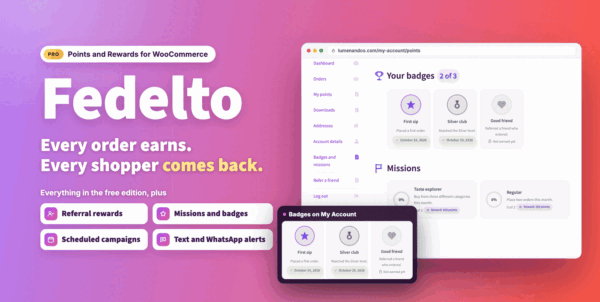
Fedelto adds a points and rewards program to your WooCommerce store. Customers earn points on orders and on other actions such as sign ups, reviews and referrals. They can spend points at checkout, turn them into coupons or claim rewards from a catalog on My Account.
Every point movement is written to a permanent ledger. A customer's balance is the sum of their ledger rows, rows are never edited or deleted, and awards are keyed so that running a job twice does not double points. You can always see where a point came from and where it went.
The plugin is for store owners who want repeat purchases and a clear view of what their program costs. Pro uses the same ledger, levels and settings as the free edition, so switching keeps every point.
Requirements
- WordPress 6.5 or later
- PHP 7.4 or later
- WooCommerce 8.5 or later (required, must be active)
- Presentero Gift Cards, only for gift card rewards that issue a real gift card
- WooCommerce Subscriptions, only for the subscription earning events
- WooCommerce Bookings, only for the completed booking earning event
- Your own Twilio account, only for text and WhatsApp notifications
Installation
WooCommerce 8.5 or newer must be installed and active first. Fedelto Pro is a complete plugin and does not need the free edition. If the free edition is active, deactivate it after installing Pro: while both are active the free copy stays idle and reminds you. Pro uses the same points and settings.
Log in to your ProPluginsLab account and open My Account > Downloads. Download the Fedelto zip file.
In WordPress, go to Plugins > Add New > Upload Plugin.
Choose the zip file and click Install Now.
Click Activate.
If the free edition of Fedelto is active, deactivate it from the Plugins screen.
License and automatic updates
Fedelto works fully as soon as it is activated. The license key turns on automatic updates, so new versions arrive in WordPress like any other plugin update. Pro features never depend on it.
Activate your license
Find your license key in My Account on propluginslab.io, in the license keys section. It is also in your order confirmation email.
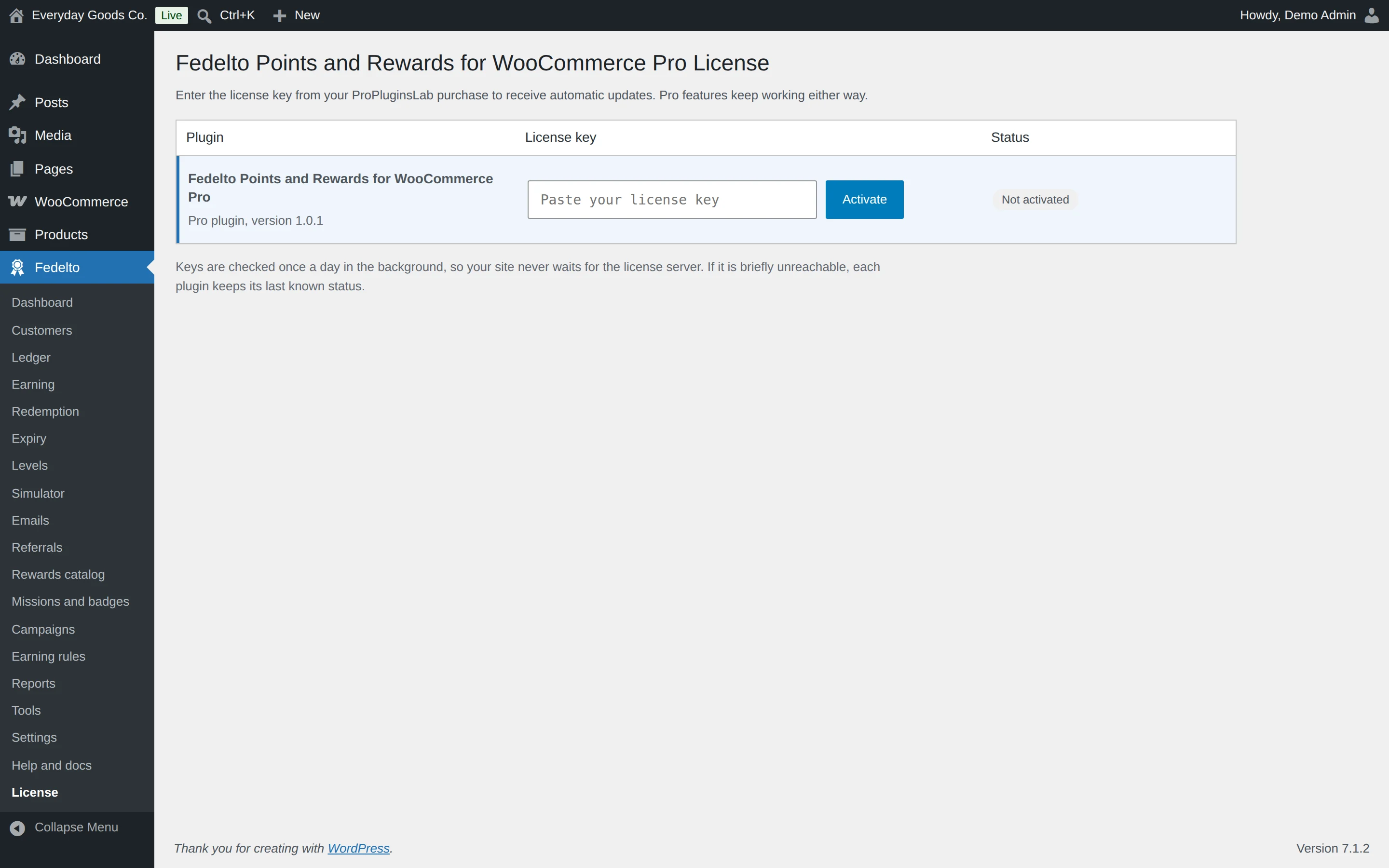
In WordPress, open the License item in the Fedelto menu. When two or more ProPluginsLab plugins or add-ons are active on the site, WooCommerce > Licenses also appears and lists all of them in one place.
Paste the key into the Fedelto - Points and Rewards for WooCommerce Pro row and click Activate. The status changes to Active and automatic updates are on.
Receive updates automatically
Once the license is active, new versions of Fedelto show up under Dashboard > Updates and on the Plugins screen. Click Update now, or click Enable auto-updates in the Fedelto row on the Plugins screen and WordPress installs every future release for you.
Good to know
- Keys are checked once a day in the background, so your site never waits for the license server. If the server is briefly unreachable, the plugin keeps its last known status.
- An expired key or a key that is not accepted only stops updates. Fedelto keeps working. After renewing, click Check now in its row.
- Moving to a new domain: click Deactivate on the old site first, then activate the key on the new one. The status shows Site address changed, checking until the new address is confirmed.
- On the command line:
wp ppl-license list,wp ppl-license activate <plugin> <key>,wp ppl-license checkandwp ppl-license deactivate <plugin>.
Quick start
- Run the setup wizard
Open the Fedelto menu. The wizard asks about your store, offers a program template, and sets the earn rate, the point value, expiry, levels and what customers see. It can also award points for past orders. You can reopen it any time with Run the setup wizard again on the Dashboard.
- Check the earn rate and what points are worth
Open Fedelto > Earning and set POINTS EARNED and AMOUNT SPENT. Then open Fedelto > Redemption and set POINTS and AMOUNT. For example, 5 points per $1 spent with 100 points worth $1 gives customers 5 percent back.
- Try it in the Simulator
Open Fedelto > Simulator, add a few products and click Run the simulation. You see the points for each line, the rule that gave them, the level multiplier, the rounding and any cap. The simulator never writes anything.
- Place a test order
Open a product page to see the earn estimate. Place and pay a test order. The order gets a note with the points awarded, and the customer sees them under My points on My Account.
- Check the Dashboard
Open Fedelto > Dashboard. Each health card should pass. A card with a problem explains the cause in plain words and offers a fix button or a link.
- Add the extras you want
Turn on what suits your store, one at a time: Levels, Referrals, Rewards catalog, Missions and badges, Campaigns and Earning rules. Each one has its own section below.
#How the program works from start to finish
A customer earns points, the points wait until they are available, the customer spends them, and any points left may expire. Every step is a row in the ledger.
A worked example
Say your store uses these settings. They are an example, so use your own numbers:
| Setting | Example value |
|---|---|
| Earn rate | 5 points for every $1 spent |
| Product rule on one product | Multiply the store rate by 2 |
| Customer's level | Silver, with an earn multiplier of 1.25 |
| Points become available | When the order is completed |
| Value of points | 100 points are worth $1 |
| Expiry | 365 days after earning |
A Silver customer buys a $40 product at the store rate and a $30 product with the double points rule.
- Each line: the $40 product earns 40 x 5 = 200 points. The $30 product earns 30 x 5 x 2 = 300 points. The total is 500 points.
- Level multiplier: 500 x 1.25 = 625 points.
- Award: when the order reaches the status you chose, for example Processing, the customer is awarded 625 points. They show as pending and cannot be spent yet.
- Available: when the order is completed, the 625 points become available. A refund before that takes them back without them ever having been spent.
- Worth: 625 points are worth $6.25 at checkout.
- Expiry: the batch expires at the end of the day 365 days after it was earned, in your store time zone. If the customer spends these points first, nothing is lost.
The order of the calculation
Fedelto works out order points in this order:
- Points for each line: a product rule first, otherwise a category rule, otherwise the store rate.
- Shipping and fees, if you switched them on.
- The level multiplier.
- Earning rules that match.
- Campaigns that are running.
- Rounding.
- MAXIMUM POINTS PER ORDER, if you set one.
Points are counted on the amount actually paid for the items, after coupons. Points spent on an order do not earn points. Gift card products never earn points.
Three words you will see
- Batch: points earned together, with their own expiry date.
- Pending: awarded but not available yet.
- Held: reserved for an order waiting for payment, so they cannot be spent twice.
#Setup wizard
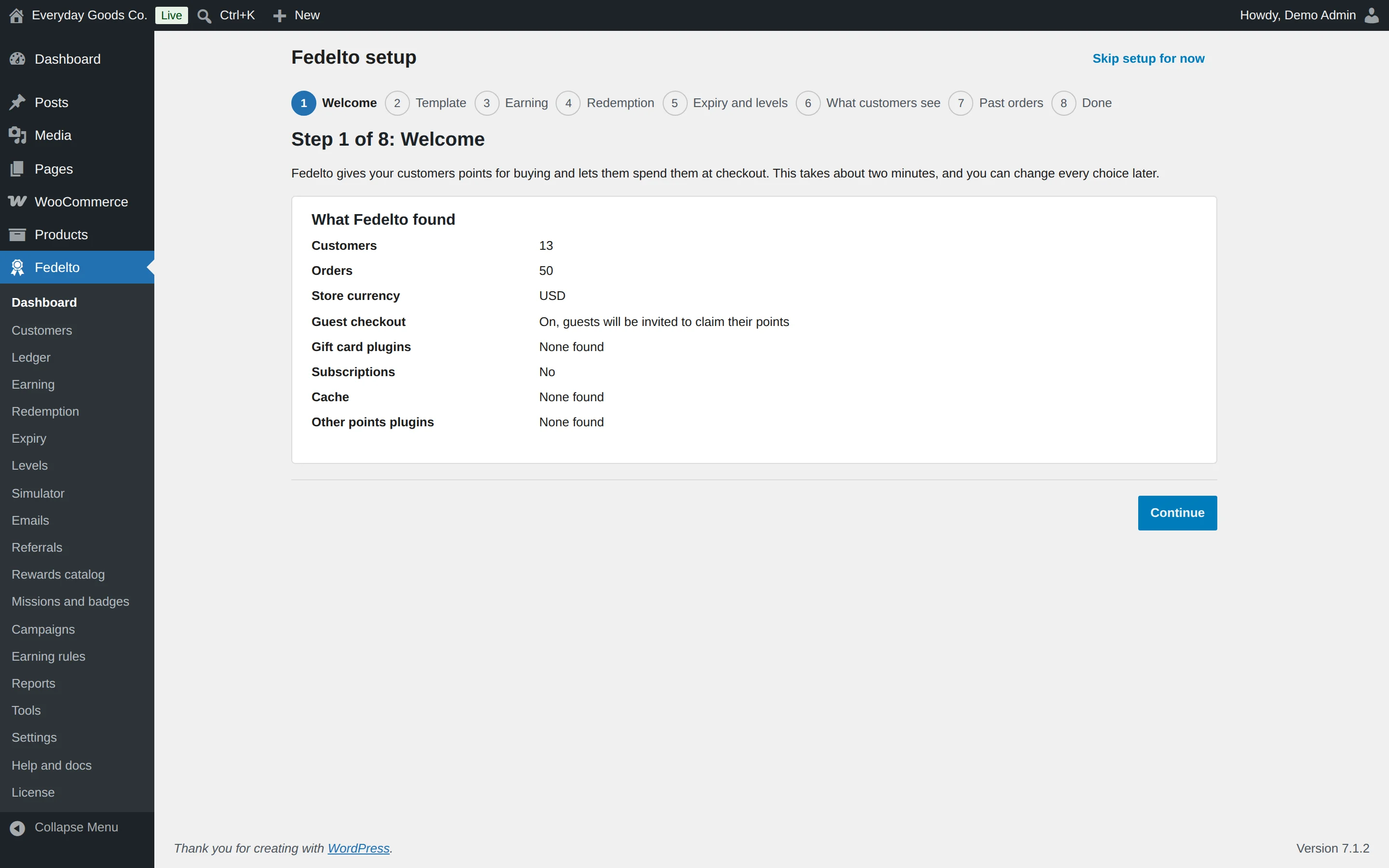
The wizard has eight steps and starts with what Fedelto found on your site. It offers a program template, sets the earn rate and point value with worked examples, then covers expiry, levels, what customers see and whether to award points for past orders.
Click Continue to go through it, or Skip setup for now to set things up yourself. To reopen it with your current values filled in, use Run the setup wizard again on the Dashboard or under Tools.
#Dashboard
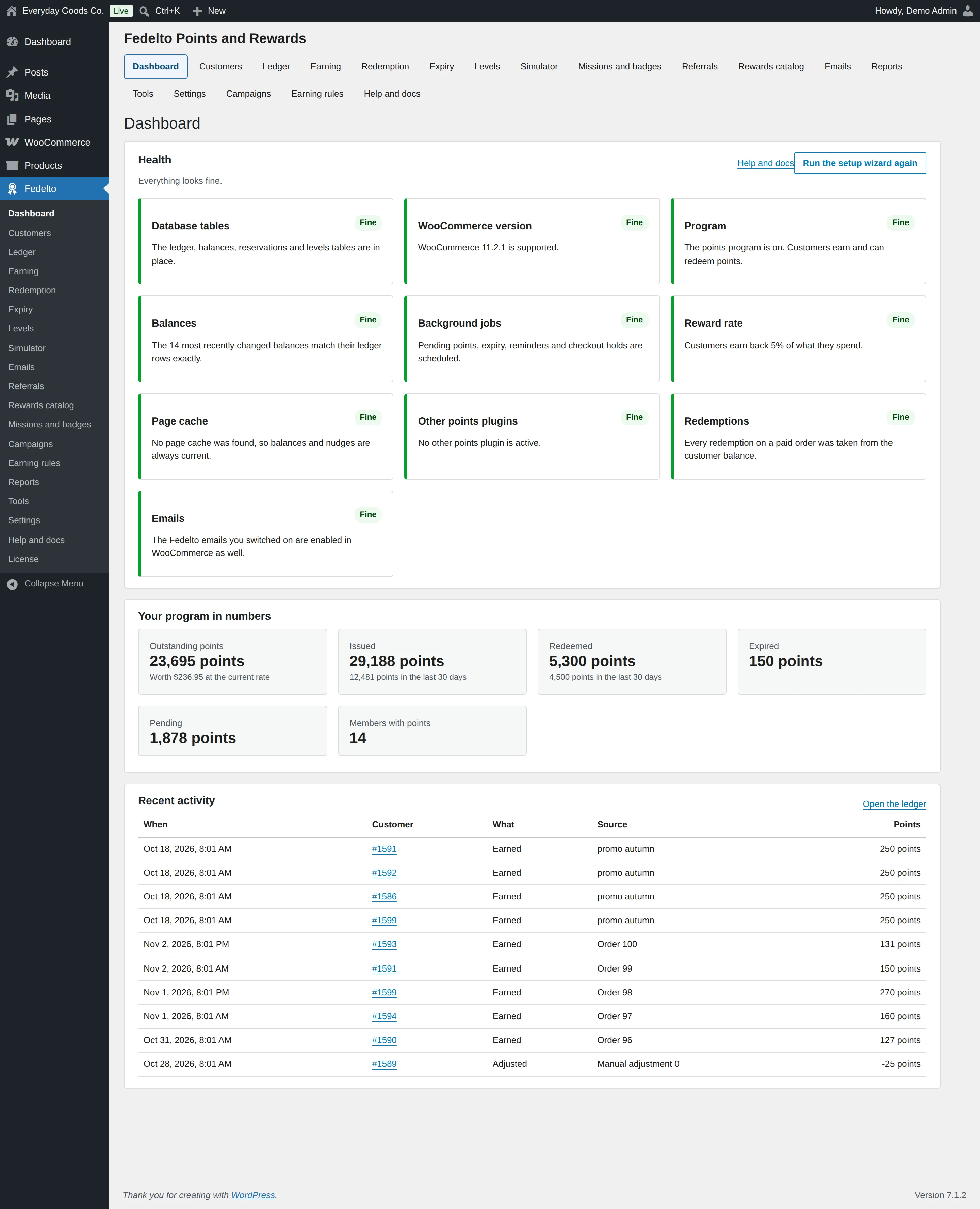
The Dashboard at Fedelto > Dashboard shows whether the program is healthy and what is happening in it.
- Health: cards for the database tables, WooCommerce version, program state, balances, background jobs, reward rate, page cache, other points plugins, redemptions and emails. A card with a problem explains what to do and gives a fix button or a link.
- Your program in numbers: points issued, redeemed and outstanding.
- Recent activity: the latest point movements, with a link to Open the ledger.
Check this screen after setup and after any large change.
#Customers
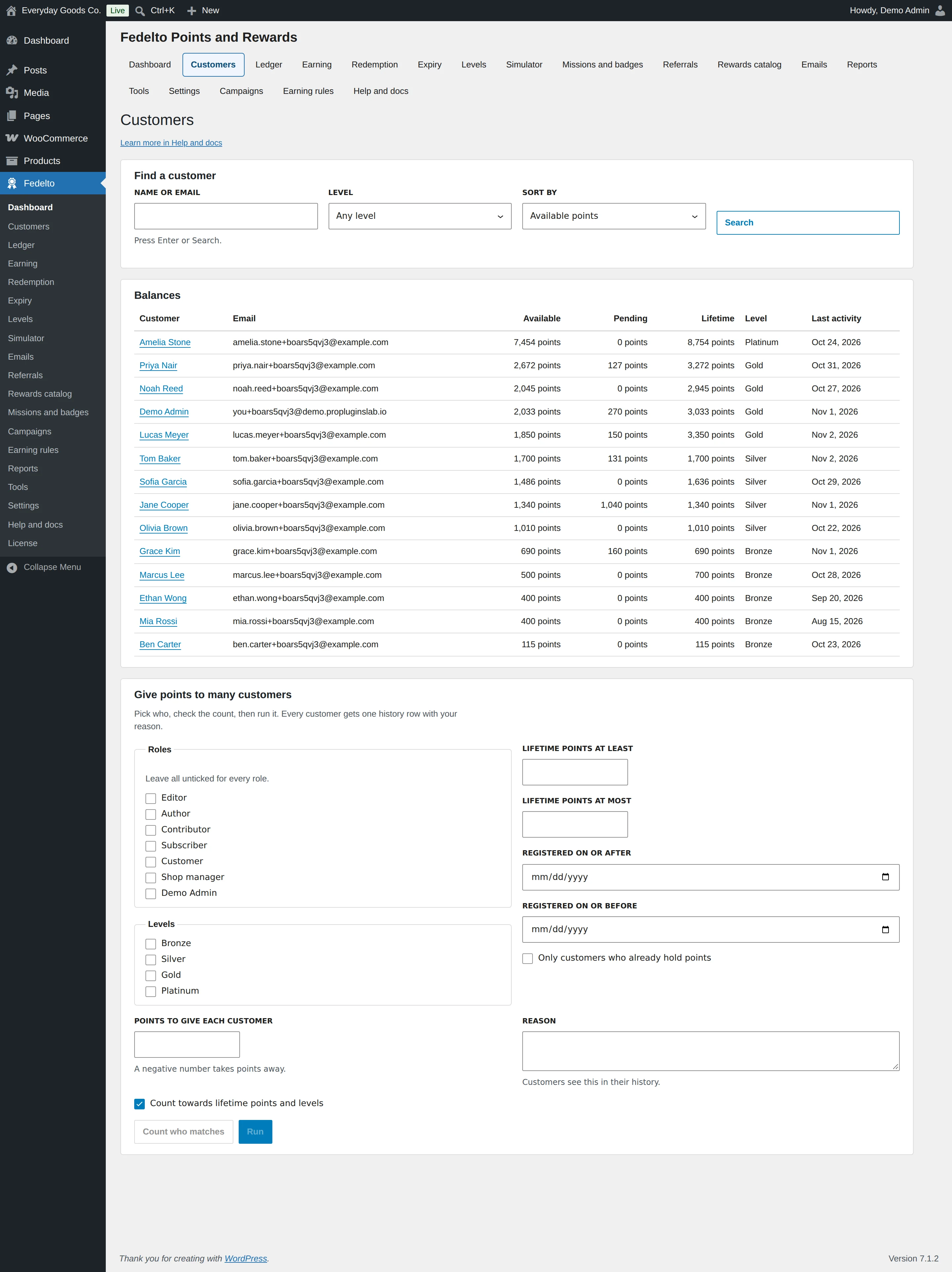
Use Fedelto > Customers to find a customer, see their balance and change it.
Find a customer
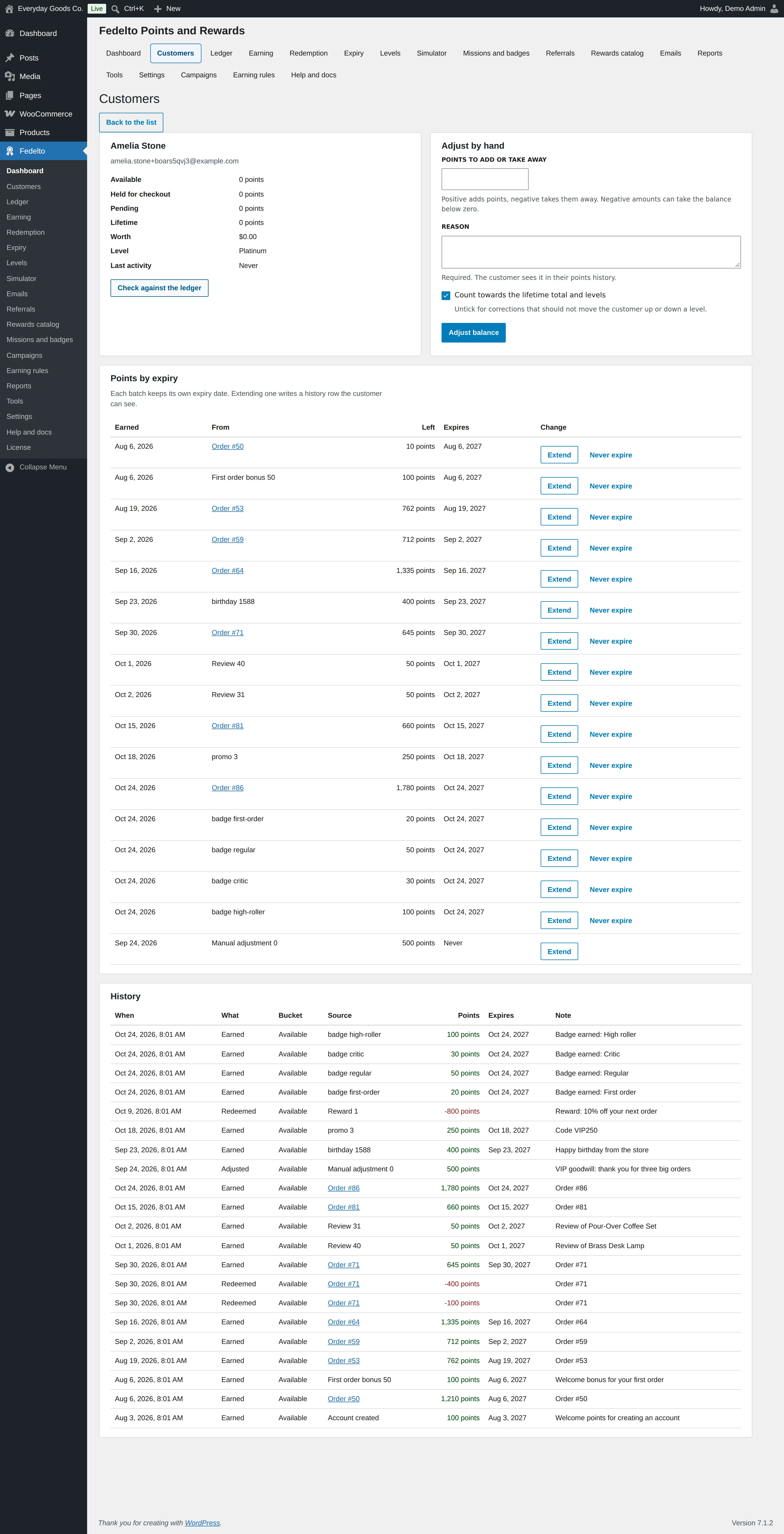
Search by name or email, or filter by level. Click a name to open the customer's record. It shows available, held, pending and lifetime points, what the points are worth, the level, Points by expiry and the full History.
Adjust a balance by hand
- Open the customer and go to Adjust by hand.
- Enter Points to add or take away. A negative number takes points away and can take the balance below zero.
- Enter a Reason. It is required, and the customer sees it in their points history.
- Keep Count towards the lifetime total and levels ticked, or untick it for corrections that should not move the customer up or down a level.
- Click Adjust balance.
Only roles chosen under Settings > Access > Who can adjust points by hand can do this. Administrators always can.
Change when a batch expires
Under Points by expiry, Extend moves one batch to a later date and Never expire removes its date. Both write a history row and leave the balance unchanged.
Check a balance
Check against the ledger compares the stored balance with the ledger rows. If they differ, the balance is rebuilt from the ledger and corrected.
Give points to many customers
- Pick who gets the points: roles, levels, lifetime points, registration dates or Only customers who already hold points. Leave all roles unticked for every role.
- Enter POINTS TO GIVE EACH CUSTOMER and a REASON.
- Click Count who matches to see how many customers match, with a sample of names. Nothing is written yet.
- Click Run. The batch runs in the background, 200 customers at a time, and each customer gets one history row with your reason.
Running the same batch twice does not double anything. A negative number removes points the same way, and a bulk removal never takes a balance below zero.
#Ledger
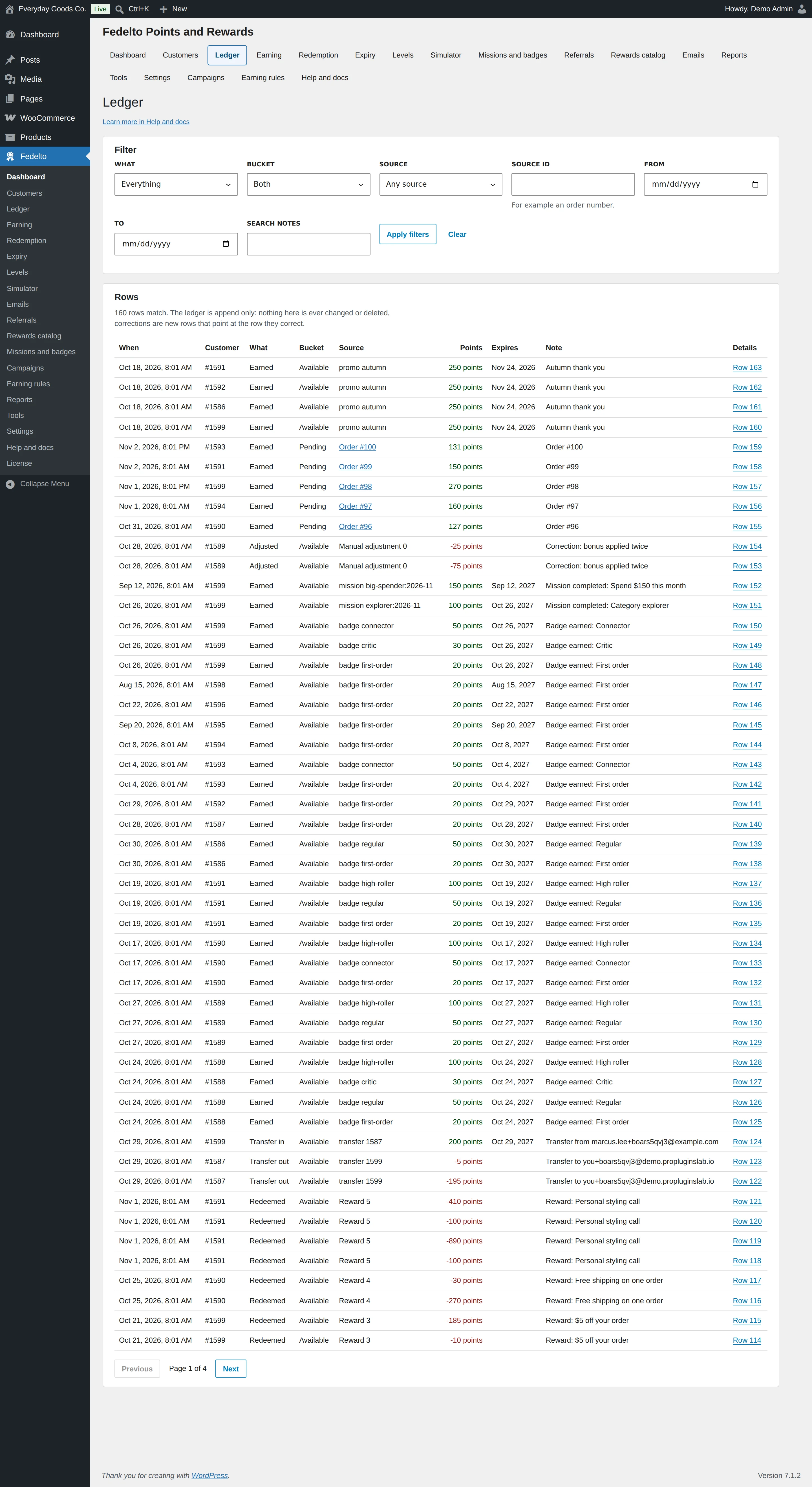
The ledger at Fedelto > Ledger is the permanent record of every point movement across all customers: earned, redeemed, returned, expired, adjusted, imported, claimed, rescheduled and bulk rows.
A permanent record
Rows are never edited or deleted. A mistake is corrected by a new row that reverses it, so the history always explains the balance. If a balance ever looks wrong, the balance is rebuilt from the ledger and the ledger itself does not change.
Filter the list
Use Filter to narrow the rows by What, Bucket, Source, Source id (for example an order number), From and To dates, or Search notes. Click Apply filters, or Clear to start again.
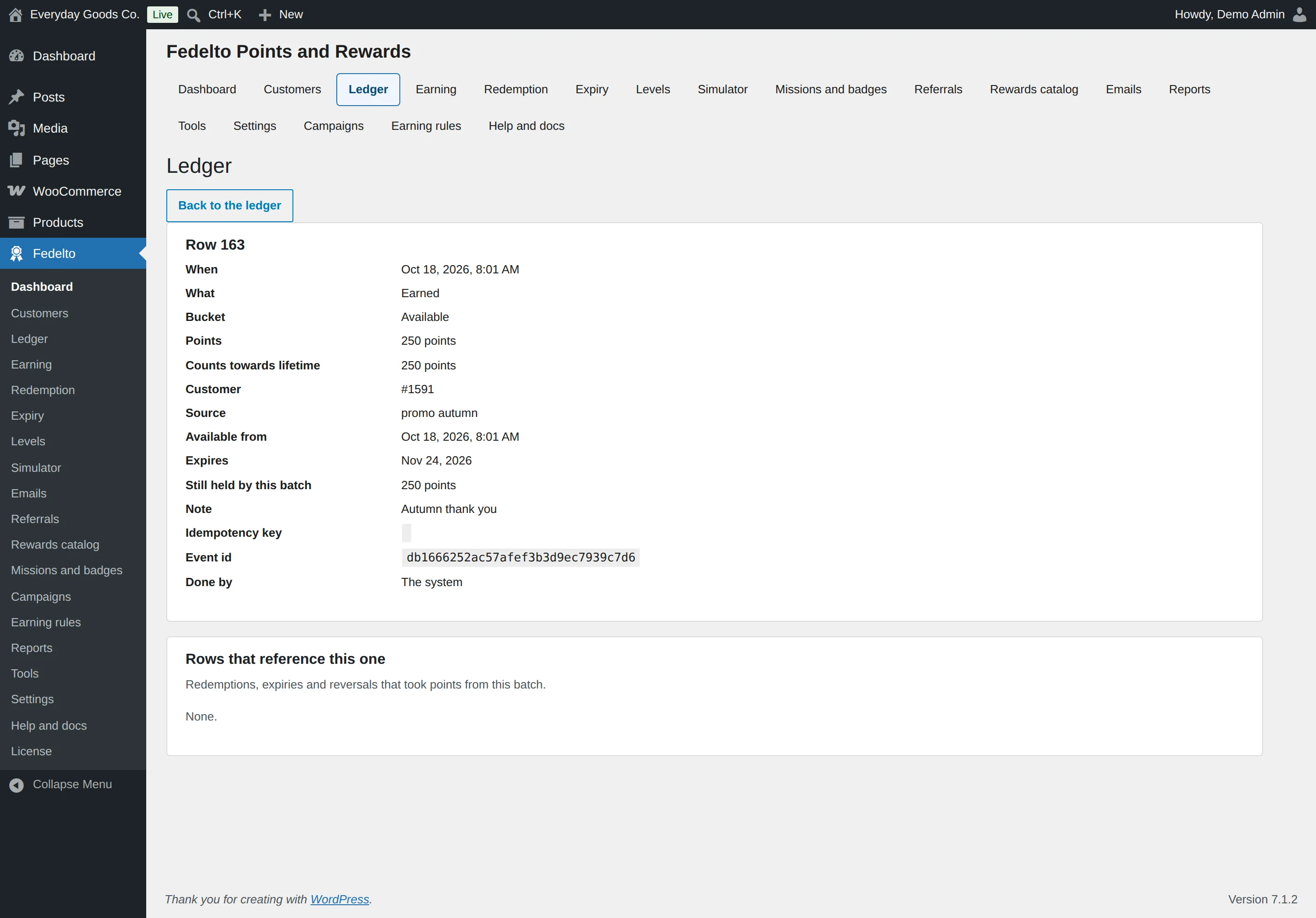
How to read a row
Click Details on a row to open it:
| Field | What it tells you |
|---|---|
| When | When the movement happened. |
| What | The type of movement, such as Earned or Redeemed. |
| Bucket | Whether the row affects available or pending points. |
| Points | The change in the balance. |
| Counts towards lifetime | How much of it counts towards the lifetime total. |
| Customer | Whose balance changed. |
| Source | What caused it, such as an order, a review or a code. |
| Available from | When the points can be spent. |
| Expires | When the batch expires, or Never. |
| Still held by this batch | How many points of this batch are left. |
| Note | The text shown with the row. |
| Idempotency key and Event id | Technical ids that stop the same award being written twice. |
| Done by | The person who did it, or The system. |
Below that, Rows that reference this one lists the redemptions, expiries and reversals that took points from this batch.
Refunds and cancellations
- Partial refund: takes back the share of points that matches the refunded amount, and gives back the right share of points spent on the order.
- Full refund: takes back everything the order earned.
- Cancelled order: takes back its points. It also returns points spent on it while Give points back when an order is cancelled is on.
- Points already spent: with Allow negative balances off, a refund takes back only what the customer still has, and the order gets a note about the rest. With it on, the balance can go below zero and new points pay it off first.
#Earning
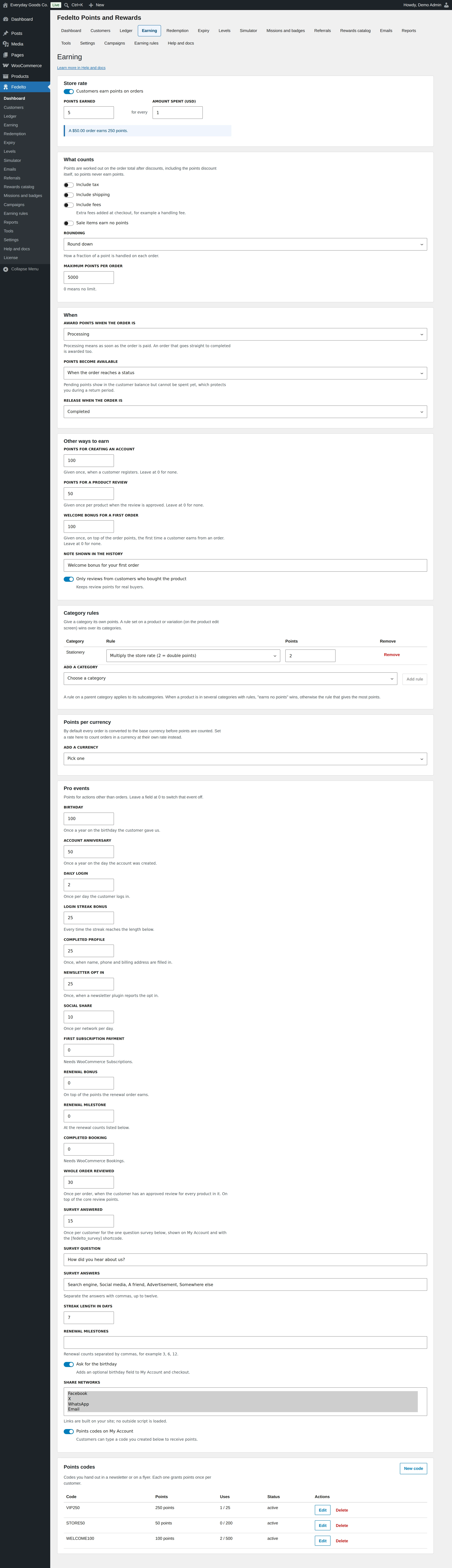
Use Fedelto > Earning to set how customers earn points on orders.
Set it up
- Under Store rate, tick Customers earn points on orders, then set POINTS EARNED and AMOUNT SPENT.
- Under What counts, choose whether tax, shipping and fees earn points and whether sale items earn nothing. Choose the ROUNDING and any MAXIMUM POINTS PER ORDER.
- Under When, choose the order status that awards points and when they become available.
- Under Other ways to earn, set points for creating an account, a product review and a first order.
- Add Category rules and Points per currency if you need them.
- Save your changes.
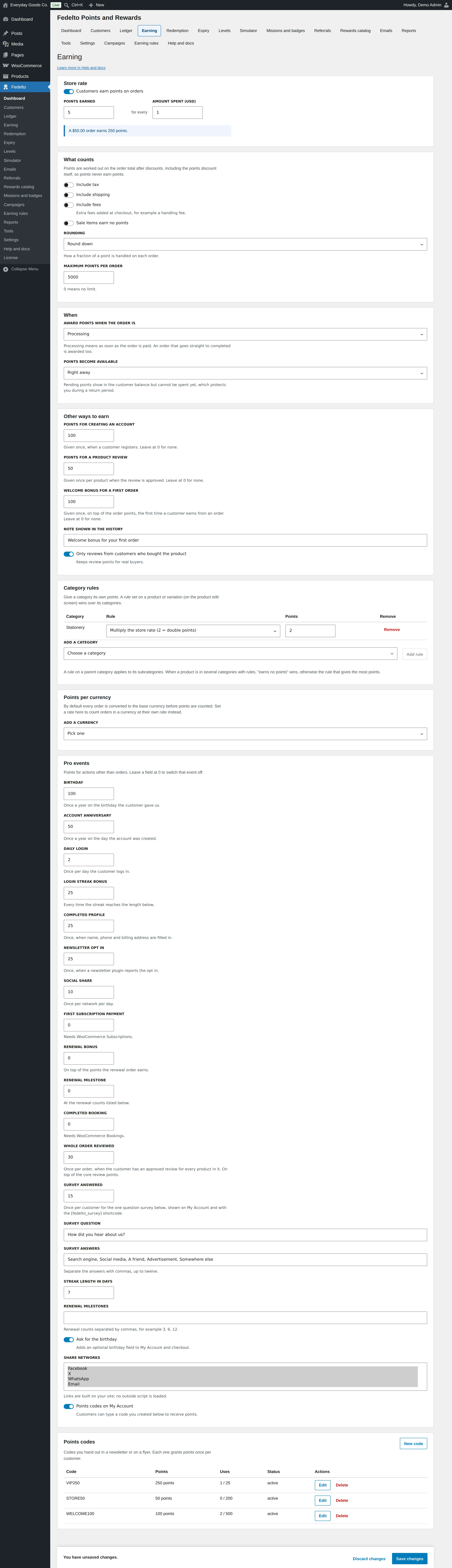
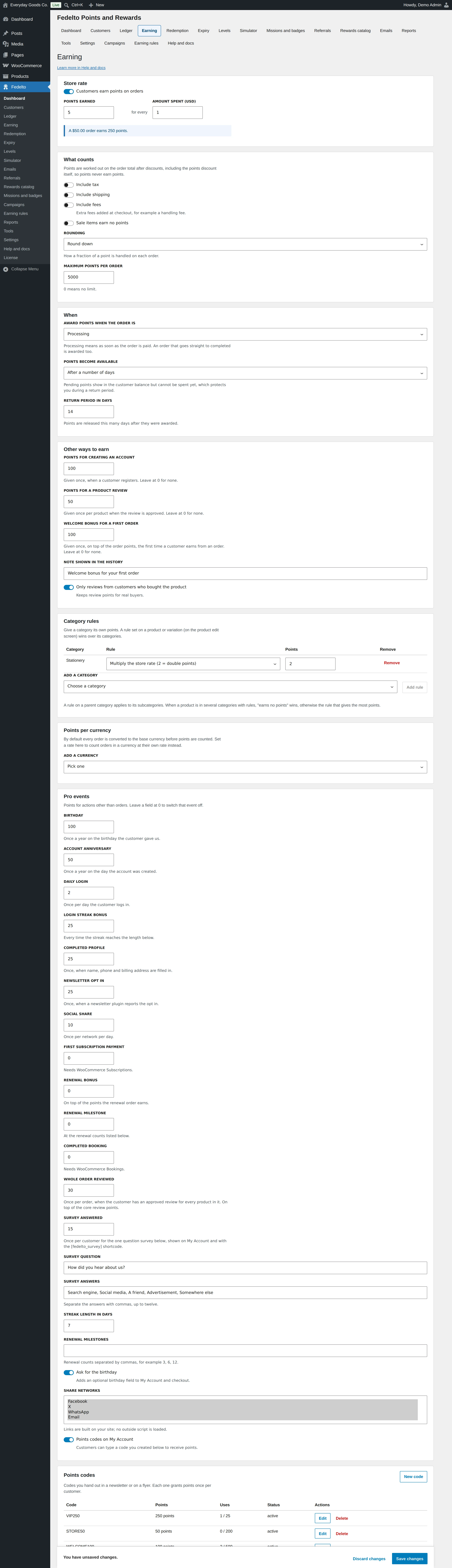
When points become available
| Choice | What happens | Choose it when |
|---|---|---|
| Right away | Points can be spent as soon as they are awarded. | You rarely get returns. |
| When the order reaches a status | Points stay pending until the status in RELEASE WHEN THE ORDER IS. | You want points released when an order is completed. |
| After a number of days | Points stay pending for RETURN PERIOD IN DAYS. | You have a fixed return period. |
Category rules
Choose a category under ADD A CATEGORY and click Add rule. A rule on a parent category applies to its subcategories. A product rule beats a category rule. When a product is in several categories with rules, "earns no points" wins, otherwise the rule that gives the most points is used.
Points per currency
By default every order is converted to the base currency before points are counted. Add a currency under ADD A CURRENCY and set a rate to count orders in that currency at their own rate.
#Ways to earn
Set an amount above 0 to use an event. Leave it at 0 to skip it.
| Way to earn | When points are given |
|---|---|
| Order | When the order reaches the status you chose. |
| POINTS FOR CREATING AN ACCOUNT | Once, when a customer registers. Site administrators do not receive it. |
| WELCOME BONUS FOR A FIRST ORDER | Once, on top of the order points. |
| POINTS FOR A PRODUCT REVIEW | Once per product when the review is approved. |
| BIRTHDAY | Once a year on the birthday the customer gave. Turn on Ask for the birthday to collect it. |
| ACCOUNT ANNIVERSARY | Once a year on the day the account was created. |
| DAILY LOGIN | Once per day the customer logs in. |
| LOGIN STREAK BONUS | Every time the streak reaches STREAK LENGTH IN DAYS. |
| COMPLETED PROFILE | Once, when name, phone and billing address are filled in. |
| NEWSLETTER OPT IN | Once, when a newsletter plugin reports the opt in. |
| SOCIAL SHARE | Once per network per day. Links are built on your site, and no outside script is loaded. Email shares open the mail app and earn nothing. |
| FIRST SUBSCRIPTION PAYMENT, RENEWAL BONUS and RENEWAL MILESTONE | Need WooCommerce Subscriptions. |
| COMPLETED BOOKING | Needs WooCommerce Bookings. |
| WHOLE ORDER REVIEWED | Once per order, when every product in it has an approved review. |
| SURVEY ANSWERED | Once per customer, for the one question survey on My Account or the [fedelto_survey] shortcode. |
| Referrals | See the Referrals section. |
| Missions and badges | See the Missions and badges section. |
Points codes
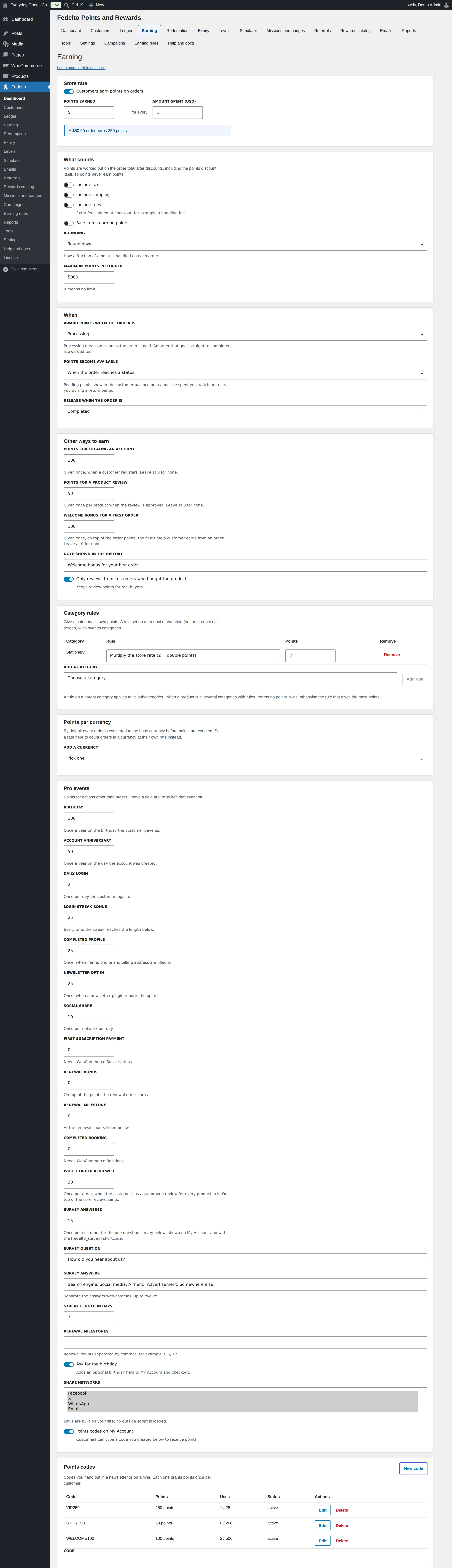
A points code is a code you create that customers type on My Account to receive points. Use it in a newsletter or on a printed card.
- Keep Points codes on My Account on.
- Under Points codes, click New code.
- Enter the CODE (letters, numbers and hyphens), the POINTS, TOTAL USES ALLOWED, USES PER CUSTOMER, an optional EXPIRES date and the STATUS.
- Click Save code.
A code must have 4 to 60 characters. You can also show the entry box on any page with [fedelto_promo_code].
#Products and orders
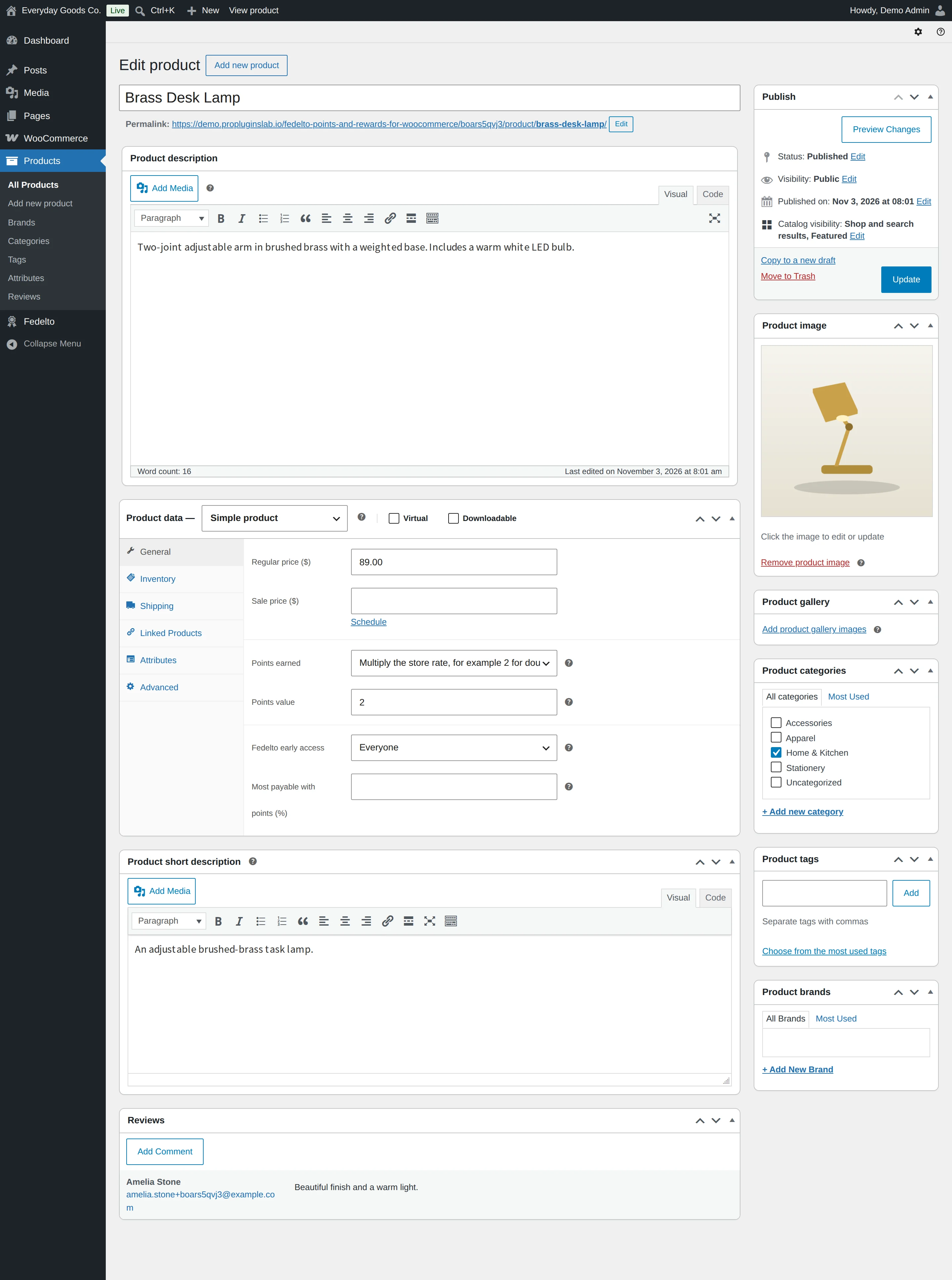
Product rules
On the product edit screen you can change how one product earns and how it can be paid for:
- Points earned: follow the store rate, give fixed points per item, use a different rate, multiply the store rate or give no points.
- Points value: the number used by the fixed amount or different rate choice.
- Fedelto early access: only members at this level or above, whose level grants early access, can buy the product.
- Most payable with points (%): for example, 50 means points can cover half of this product's price.
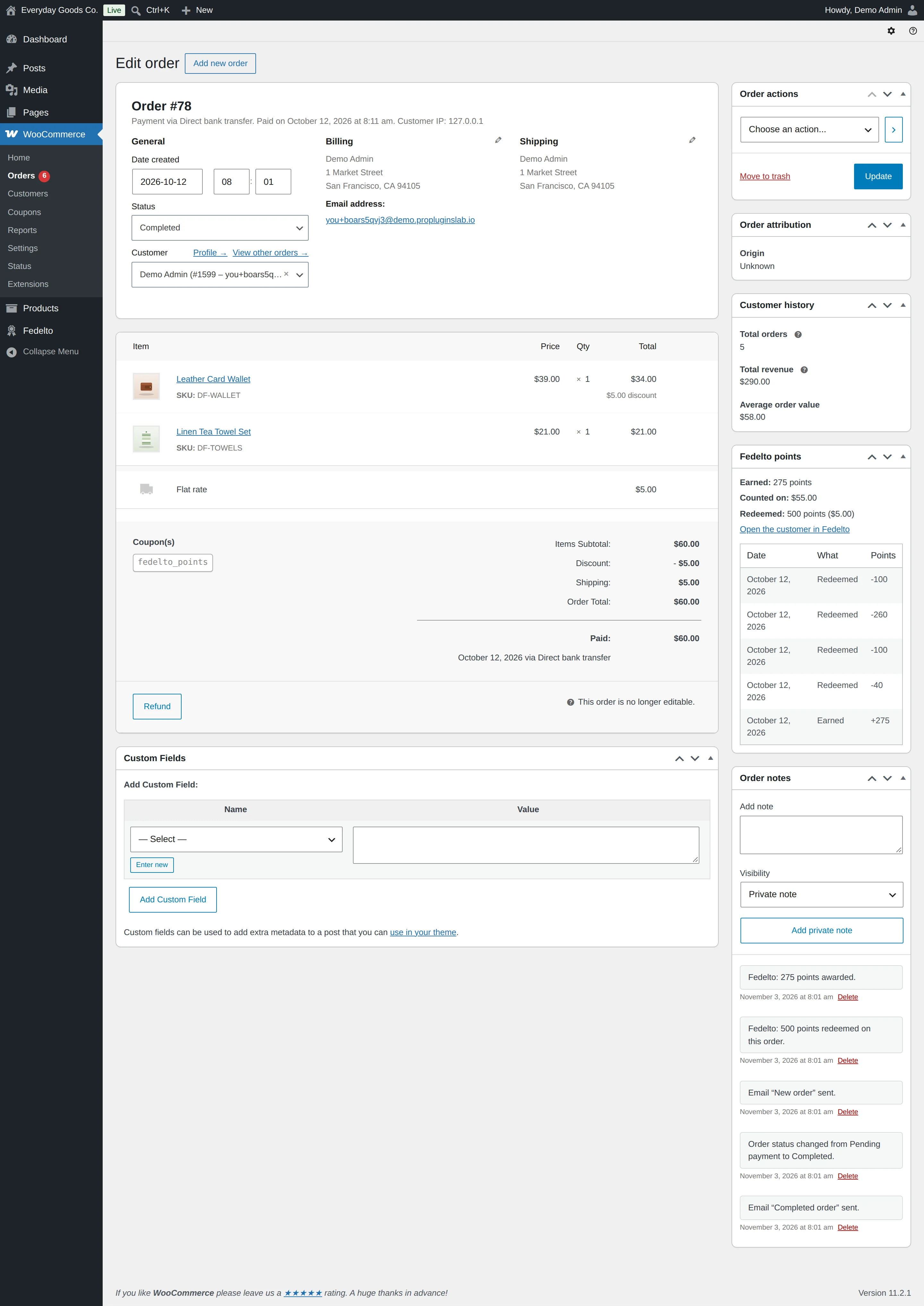
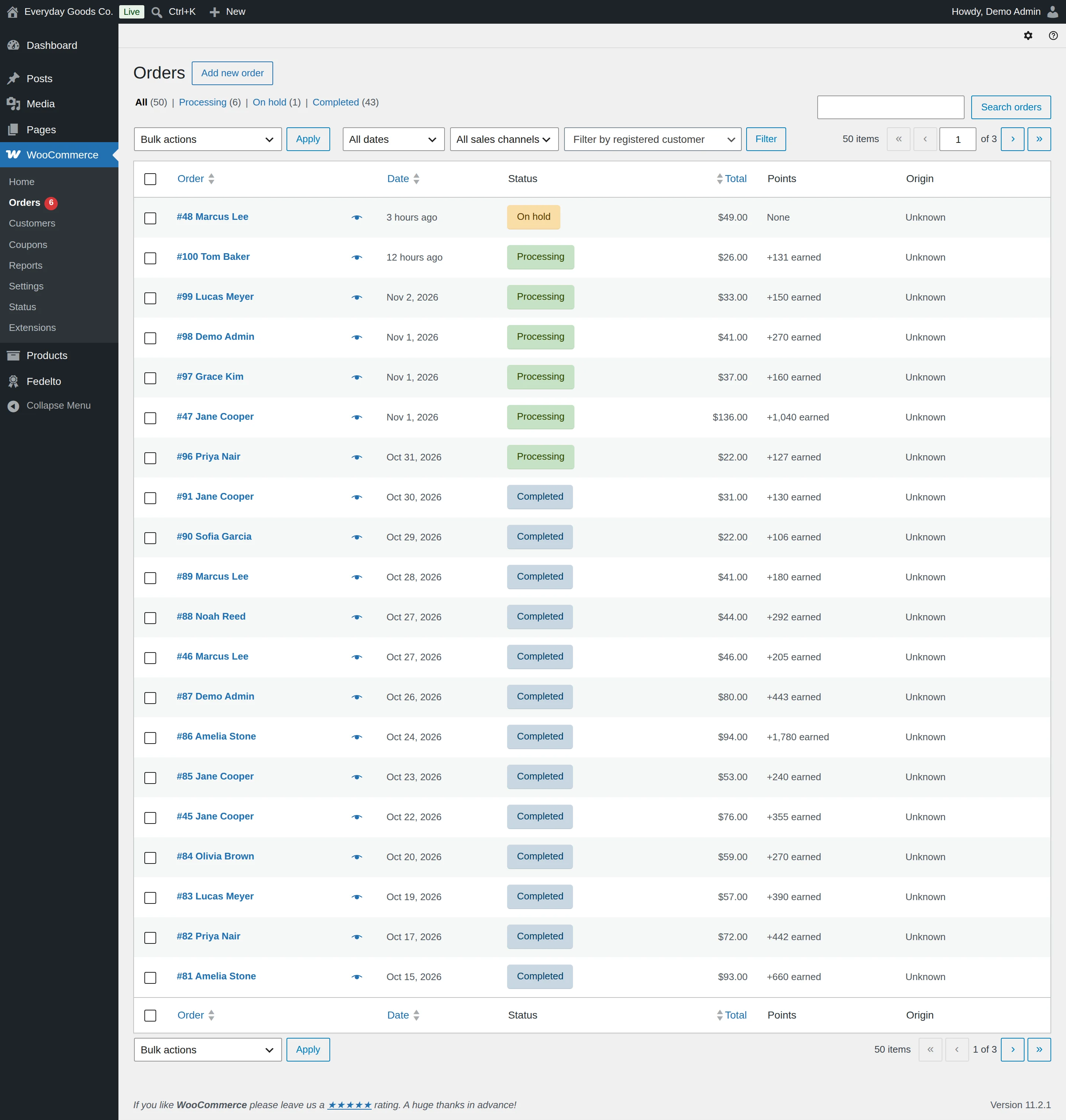
Orders
The Points column on WooCommerce > Orders shows what each order earned and redeemed. Each order has a Fedelto points box with the same rows, and Fedelto writes an order note for every award, hold, reversal and return.
#Redemption
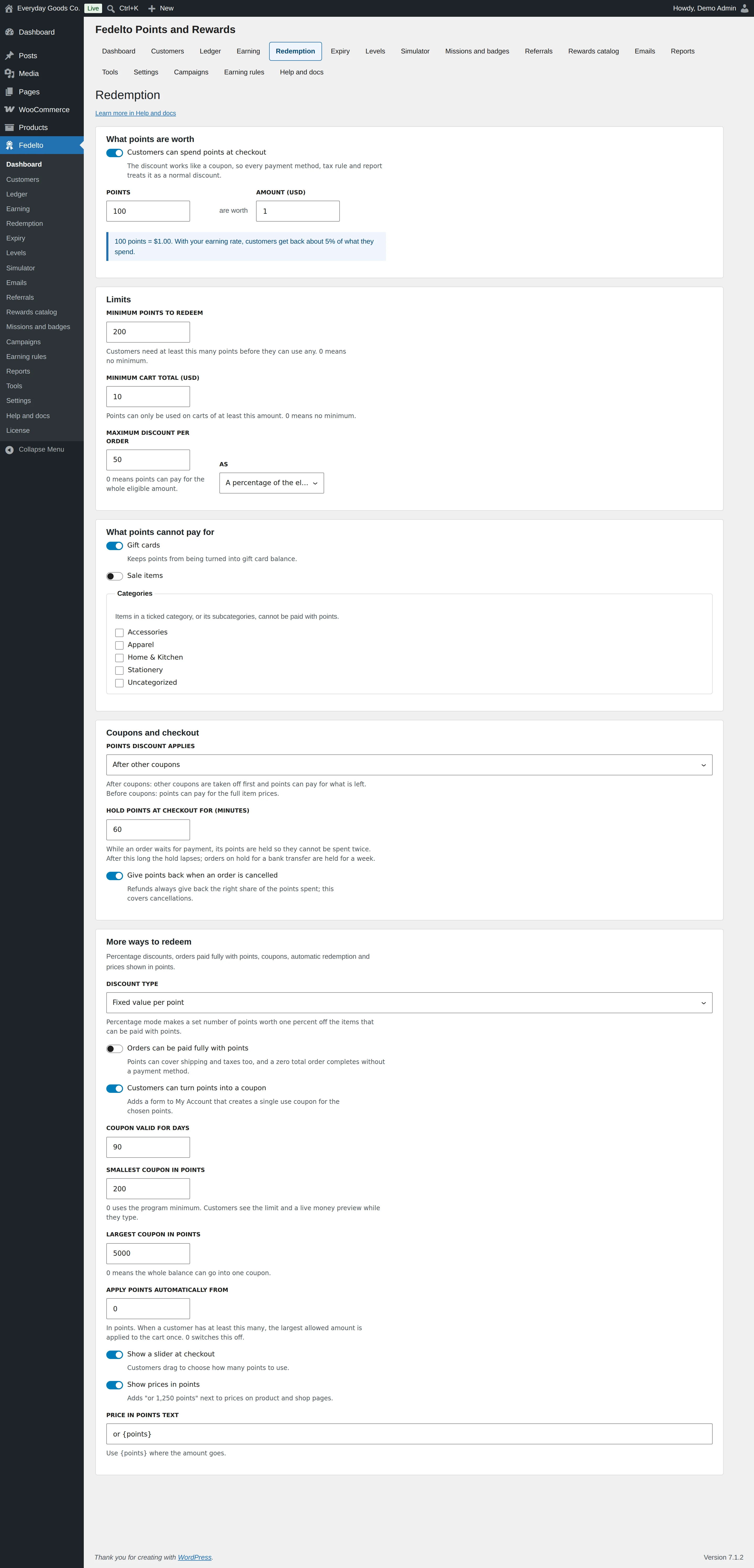
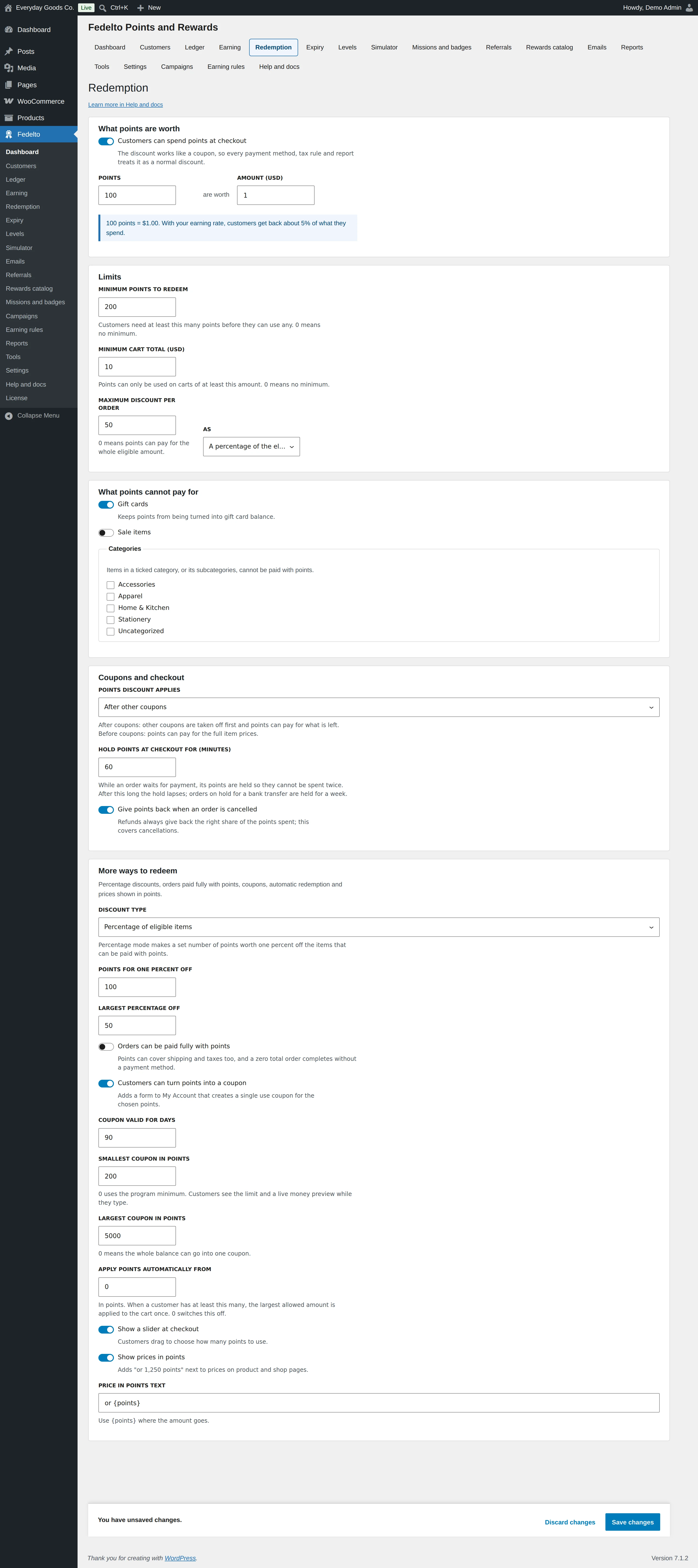
Use Fedelto > Redemption to set what points are worth and how customers spend them.
The discount works like a coupon, so payment methods, tax rules and reports treat it as a normal discount.
Set it up
- Tick Customers can spend points at checkout.
- Set what points are worth with POINTS and AMOUNT, for example 100 points are worth $1.
- Set the Limits: MINIMUM POINTS TO REDEEM, MINIMUM CART TOTAL and MAXIMUM DISCOUNT PER ORDER, with AS set to an amount or a percentage.
- Under What points cannot pay for, tick gift cards, sale items and any categories to exclude.
- Under Coupons and checkout, choose whether the points discount applies before or after other coupons, how long points are held, and whether cancelled orders give points back.
- Save your changes.
Fixed value or percentage
| DISCOUNT TYPE | How it works | Extra fields |
|---|---|---|
| Fixed value per point | Each point has a money value from What points are worth. | None |
| Percentage of eligible items | A set number of points is worth one percent off the items that can be paid with points. | POINTS FOR ONE PERCENT OFF, LARGEST PERCENTAGE OFF |
More ways to redeem
- Orders can be paid fully with points: points can cover shipping and taxes too, and a zero total order completes without a payment method.
- Customers can turn points into a coupon: adds a form to My Account that creates a single use coupon, between SMALLEST COUPON IN POINTS and LARGEST COUPON IN POINTS.
- APPLY POINTS AUTOMATICALLY FROM: when a customer has at least this many points, the largest allowed amount is applied to the cart once.
- Show a slider at checkout: customers drag to choose how many points to use.
- Show prices in points: adds text such as "or 1,250 points" next to prices.
Express payment buttons on product pages never apply points. Points are applied in the cart and at checkout only.
#Expiry
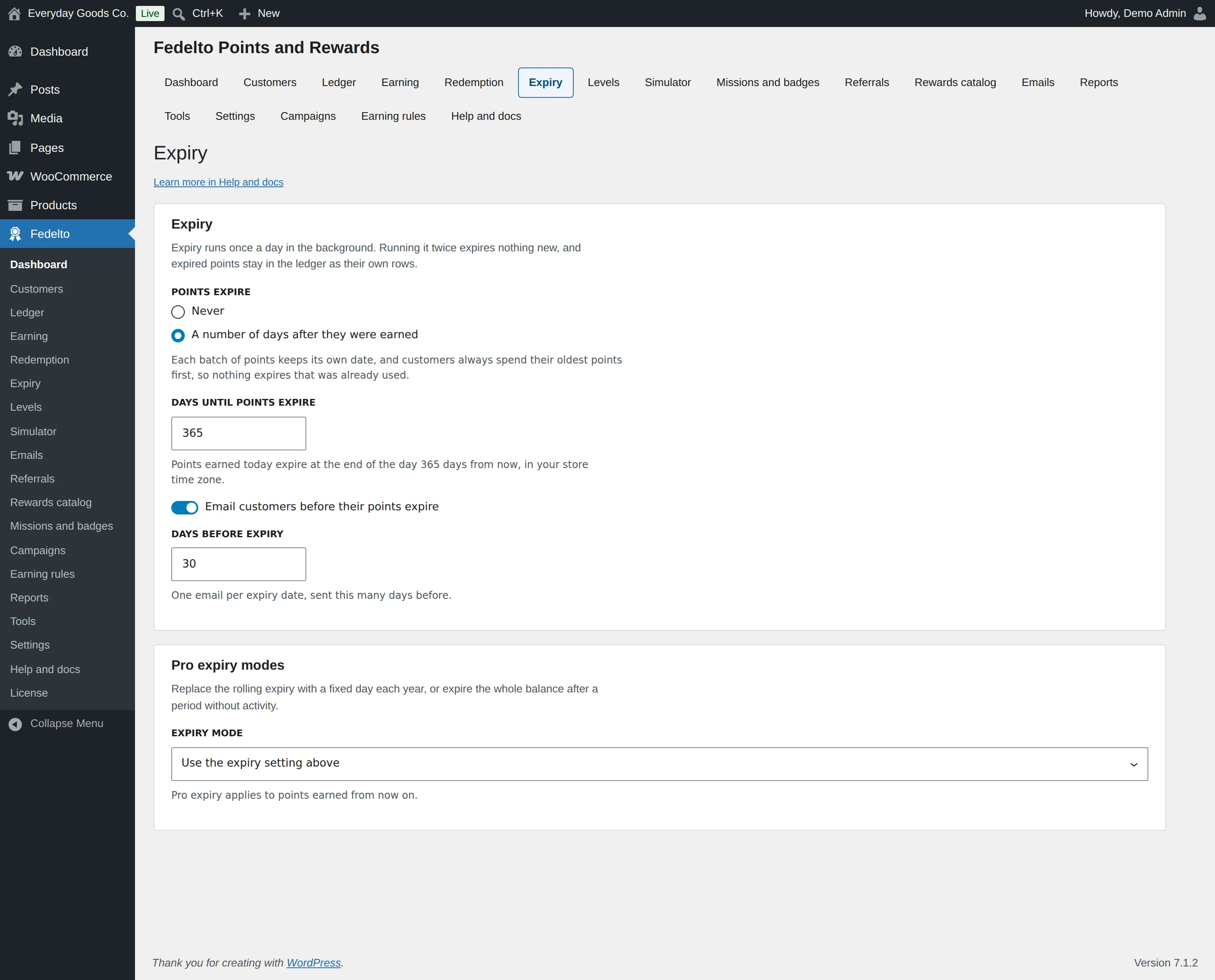
Use Fedelto > Expiry to decide if and when points expire.
Points are always spent from the batch that expires soonest, then from batches with no expiry date, so nothing expires that was already used.
The expiry modes
| Mode | How it works | Example |
|---|---|---|
| Never | Points stay until they are spent. | Points earned today have no end date. |
| A number of days after they were earned (rolling) | Each batch has its own date, at the end of that day in your store time zone. | With 365 days, points earned on March 1 expire 365 days later. |
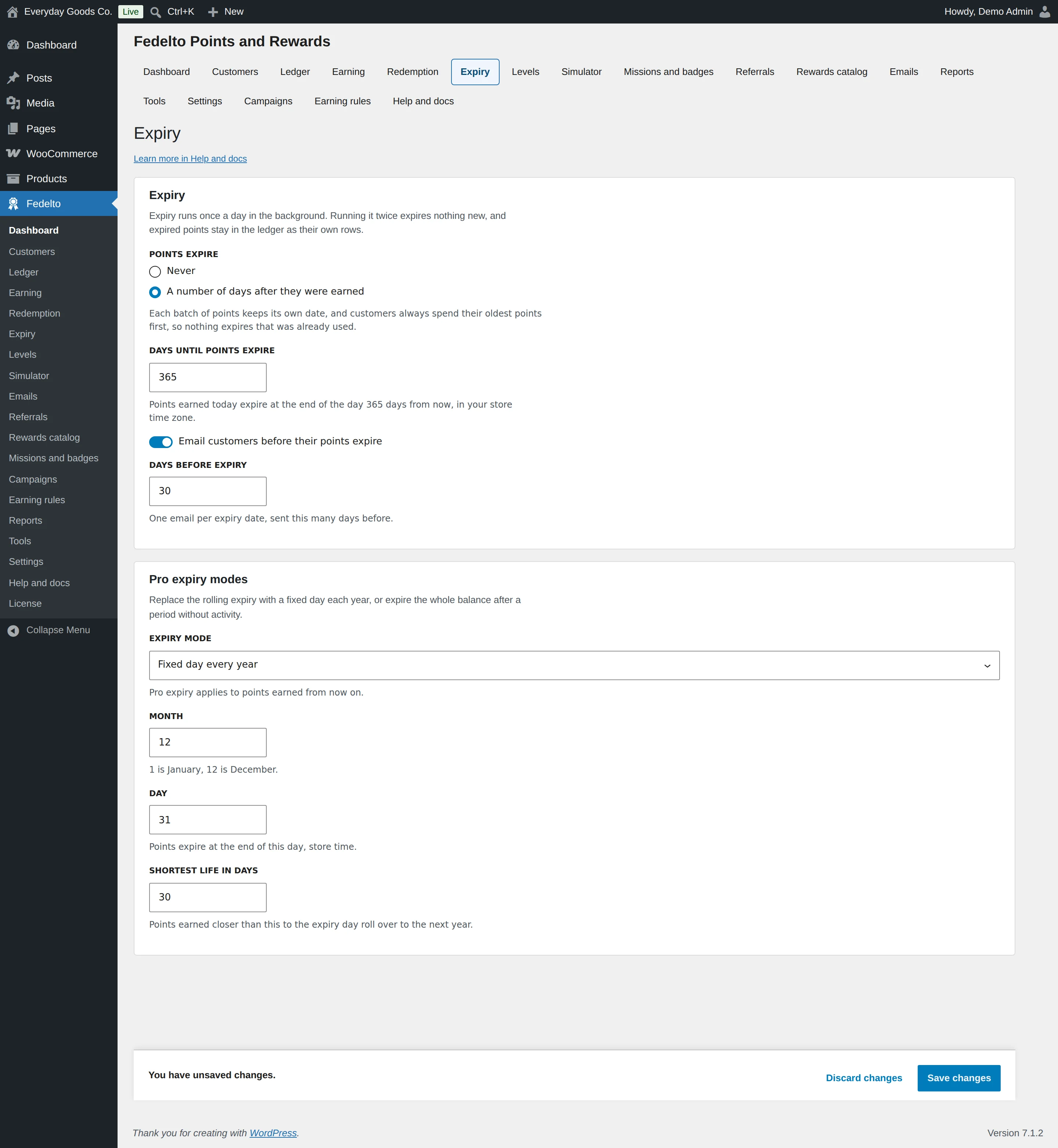
| Fixed day every year | All new points expire on the same date, at the end of the day. | With December 31 and a shortest life of 30 days, points earned on December 15 expire on December 31 of the next year, not 16 days later. |
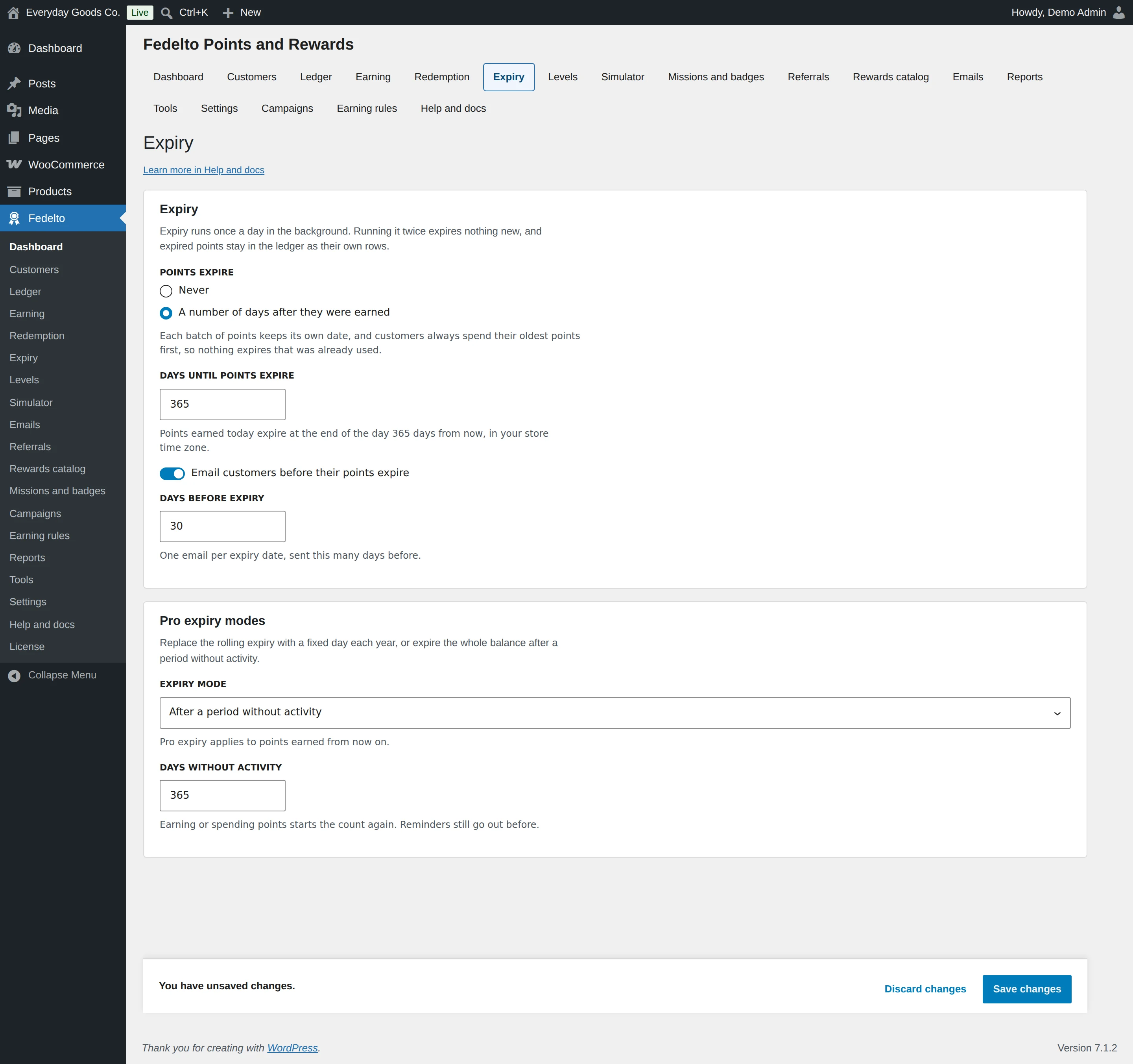
| After a period without activity | Points expire when a customer has had no activity for the set number of days. Earning or spending starts the count again. | With 365 days, a customer who earns or spends every few months keeps their points. |
Set it up
- Choose POINTS EXPIRE. For the rolling mode, enter DAYS UNTIL POINTS EXPIRE.
- For a fixed date or inactivity, choose it under EXPIRY MODE. Use the expiry setting above keeps the setting from step 1. Pro expiry applies to points earned from now on.
- Tick Email customers before their points expire and set DAYS BEFORE EXPIRY.
- To send several reminders, enter them in Emails > REMINDER LEAD TIMES IN DAYS, for example 30, 7, 1.
- Save your changes.
Expiry runs once a day in the background. Running it twice expires nothing new. Every expiry writes a history row the customer can see.
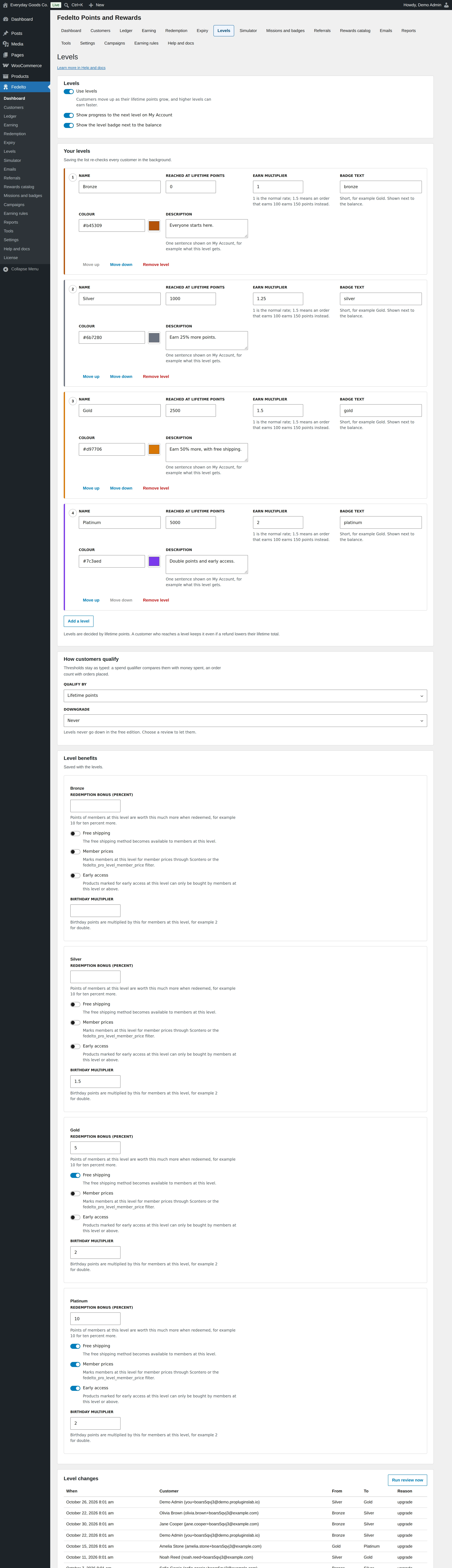
#Levels
Use Fedelto > Levels to reward your best customers with a higher earn rate and other benefits.
Set up your levels
- Tick Use levels.
- Under Your levels, enter each level's NAME, its threshold, EARN MULTIPLIER, BADGE TEXT, COLOUR and DESCRIPTION. The first level usually starts at 0.
- Use Add a level, Move up, Move down and Remove level to change the list.
- Save your changes. Saving re-checks every customer in the background.
The multiplier changes what an order earns: 1 is the normal rate, and 1.5 means an order that earns 100 earns 150 points instead.
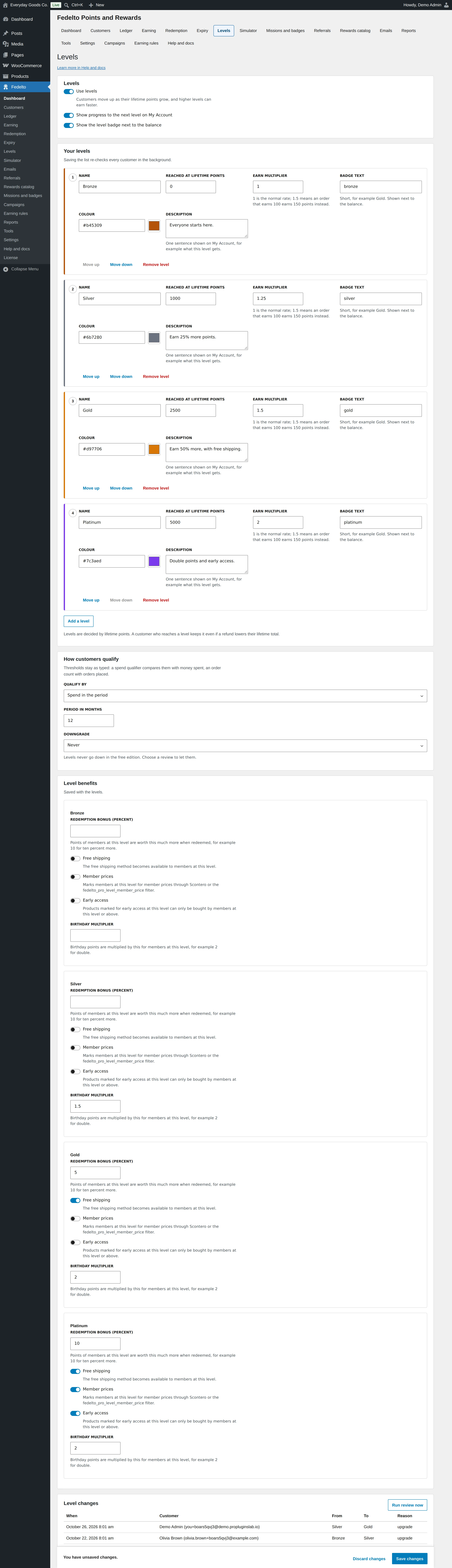
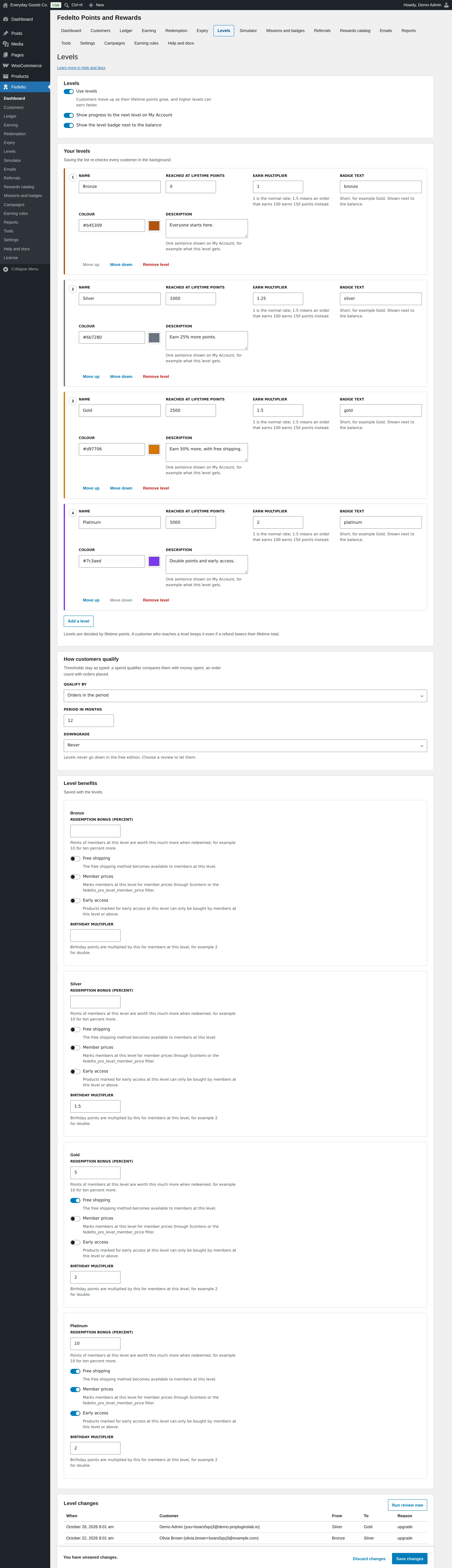
Every way to qualify
| QUALIFY BY | The threshold is compared with |
|---|---|
| Lifetime points | The customer's lifetime points. |
| Spend in the period | Money spent in PERIOD IN MONTHS. |
| Orders in the period | Orders placed in PERIOD IN MONTHS. |
| Custom (developer filter) | A value your developer supplies. |
Thresholds stay as typed. If you switch from lifetime points to spend, a threshold of 1000 now means 1,000 in money, so review them when you change this setting.
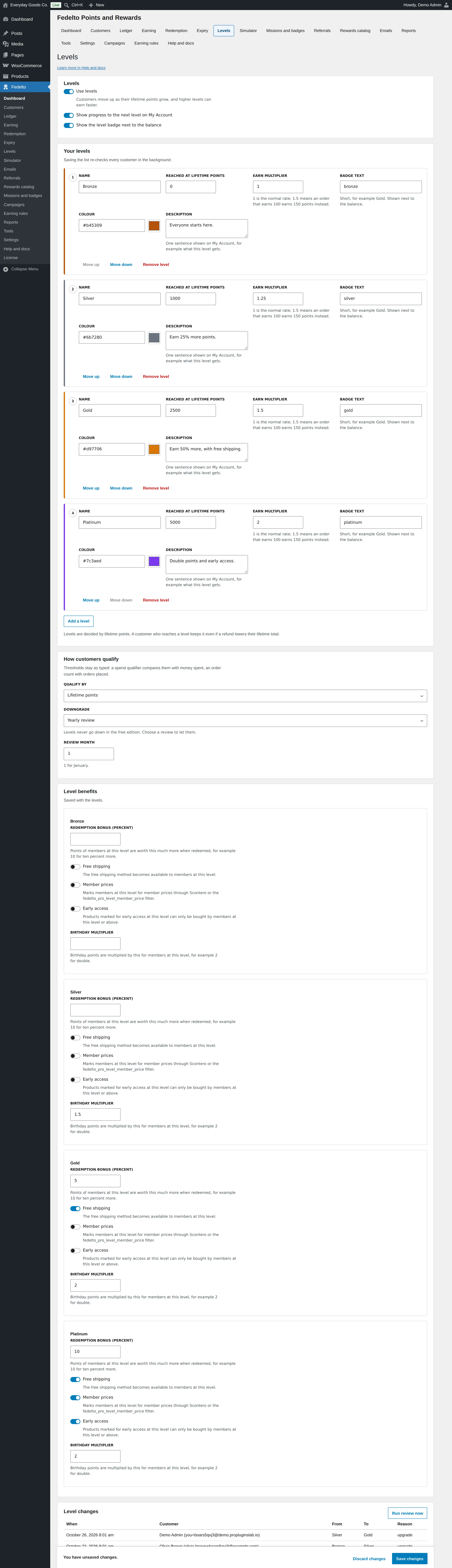
Downgrades
| DOWNGRADE | What happens |
|---|---|
| Never | Customers keep a level once they reach it, even if a refund lowers their lifetime total. |
| Yearly review | Levels are checked once a year in REVIEW MONTH. |
| Rolling 12 months, checked daily | Levels are checked every day. |
Every change is listed under Level changes with its date, customer, old and new level and reason. Run review now queues a review in the background.
Level benefits
Each level has its own benefits, saved with the levels:
- Redemption bonus (percent): points are worth this much more when redeemed. For example, 10 means ten percent more.
- Free shipping: the free shipping method becomes available to members at this level.
- Member prices: marks members for member prices through Scontero or a developer filter. Fedelto does not change prices by itself.
- Early access: products marked for early access at this level can only be bought by members at this level or above. Others see "Early access for ... members". Mark the product with Fedelto early access.
- Birthday multiplier: birthday points are multiplied by this number, for example 2 for double.
#Simulator
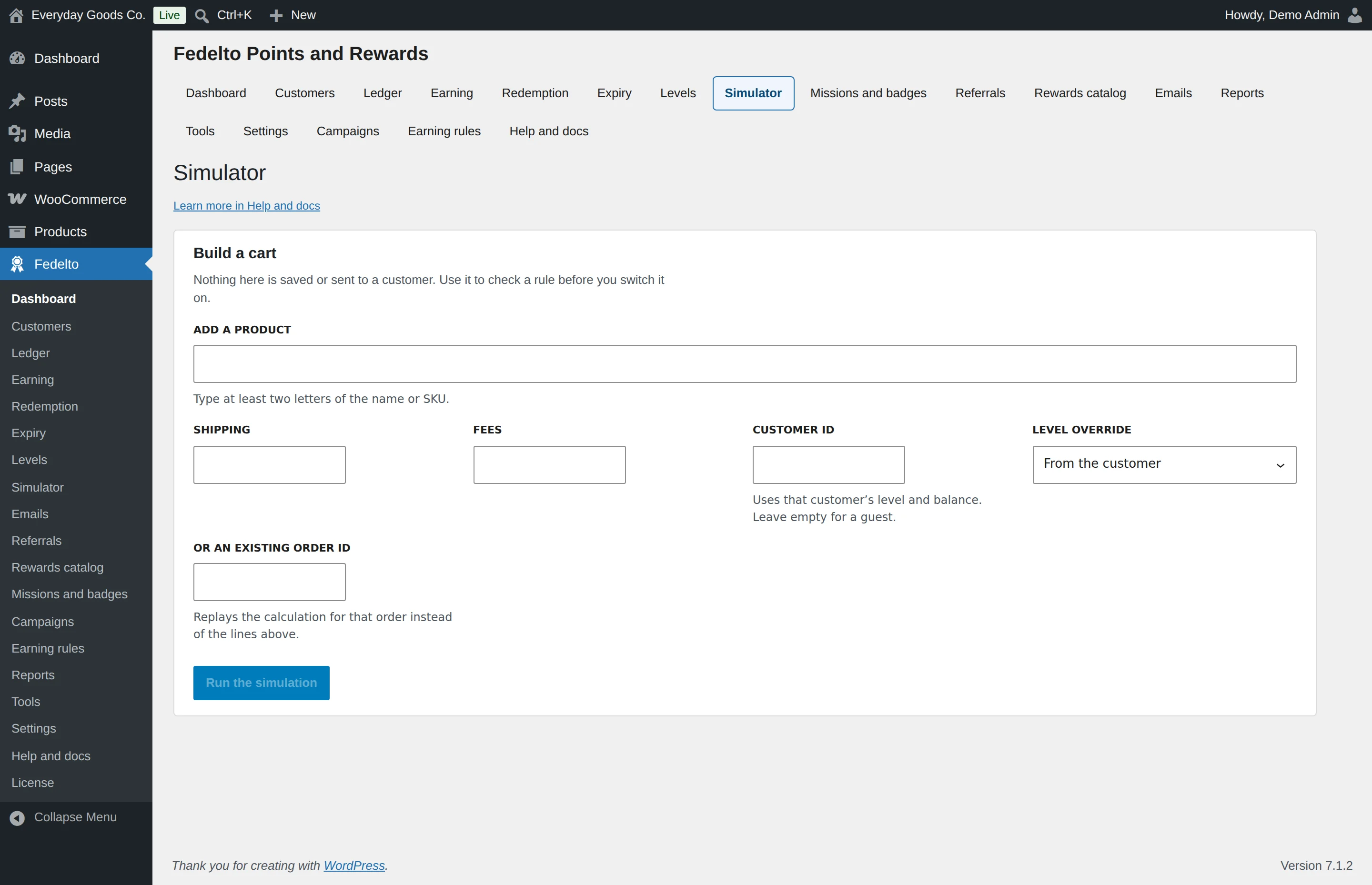
Use Fedelto > Simulator to test your setup before customers see it. It never writes anything.
- Under ADD A PRODUCT, type at least two letters of a product name or SKU and pick a product.
- Optionally add SHIPPING and FEES.
- Enter a CUSTOMER ID to use that customer's level and balance, or leave it empty for a guest.
- Optionally choose a LEVEL OVERRIDE.
- Click Run the simulation.
The result shows the points for each line, the rule behind them, the level multiplier, the rounding and any cap, plus what the customer could redeem on that cart. Rules and campaigns that matched are named too.
To check a real order, enter its number in OR AN EXISTING ORDER ID.
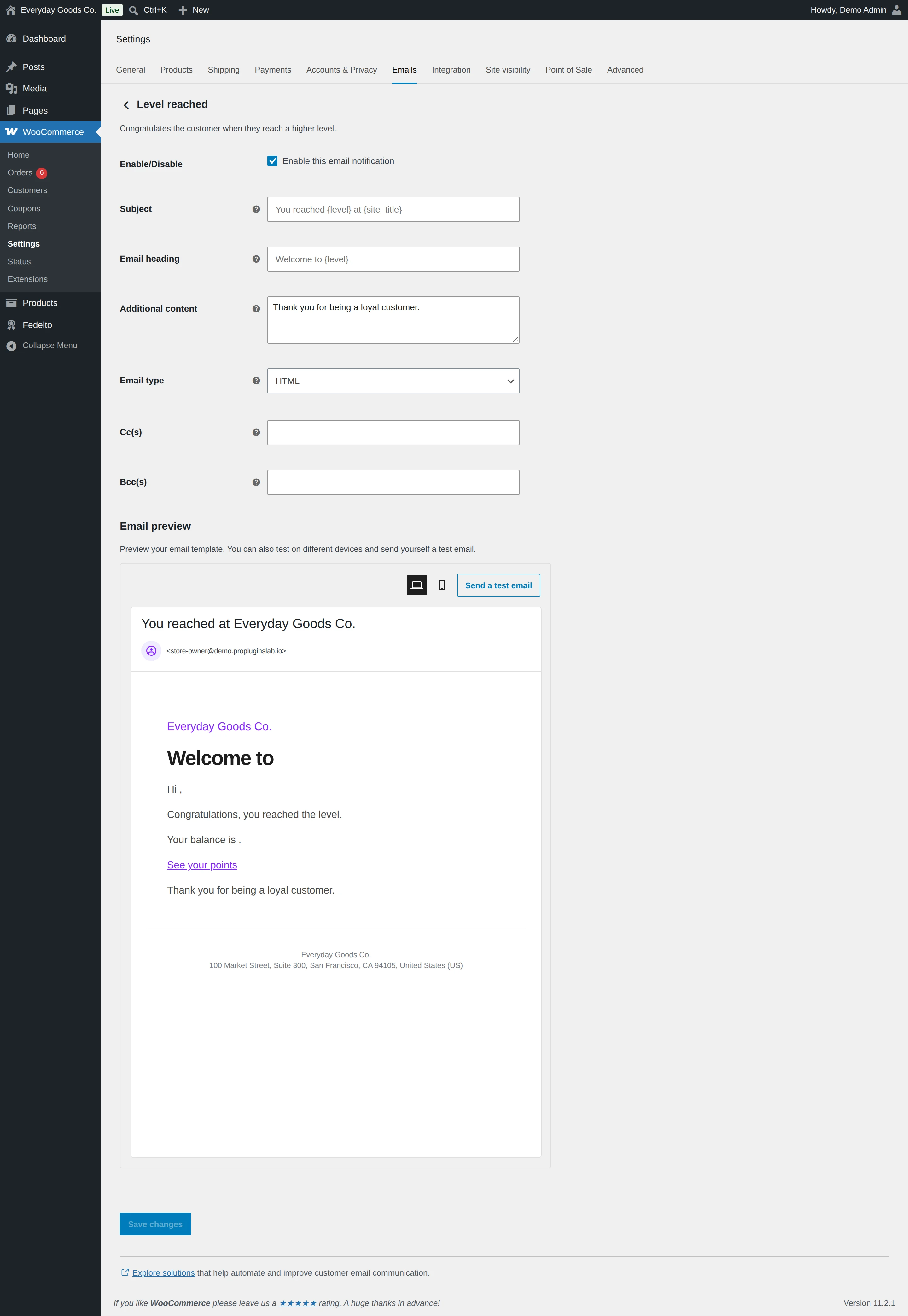
#Emails
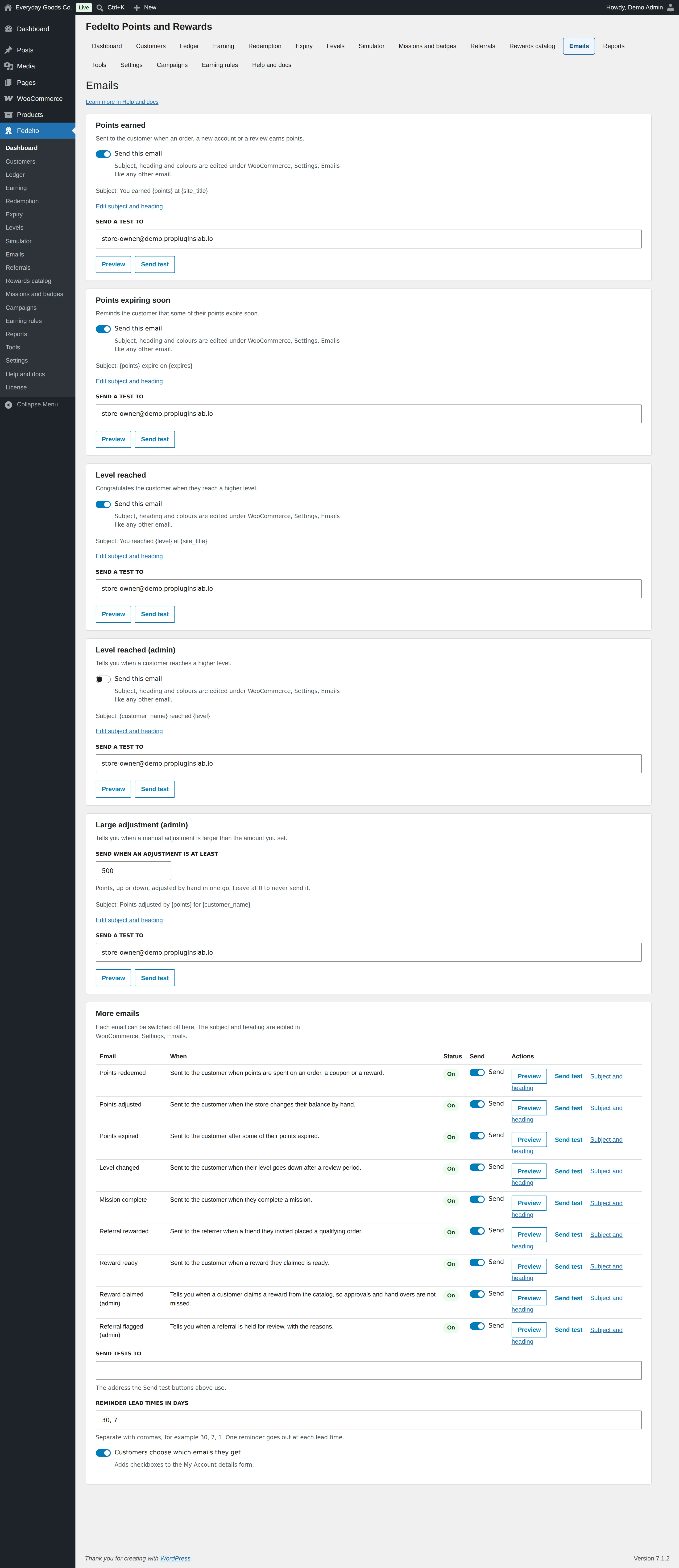
Use Fedelto > Emails to switch emails on or off, preview them and send tests.
The emails
| Sent when | |
|---|---|
| Points earned | An order awards points, or after sign up, first order or review points. |
| Points expiring soon | Before points expire, at the lead times you set. |
| Level reached | A customer moves up a level. |
| Level reached (admin) | Tells you when any customer moves up a level. Off until you switch it on. |
| Large adjustment (admin) | Tells you when a manual adjustment reaches SEND WHEN AN ADJUSTMENT IS AT LEAST. |
| More emails | Points redeemed, points adjusted, points expired, level changed, mission complete, referral rewarded and reward ready for customers, and reward claimed and referral flagged for you. |
Set them up
- Tick Send this email for each one you want.
- Enter an address in SEND TESTS TO and click Send test to check your mail setup. Preview shows the email in your browser.
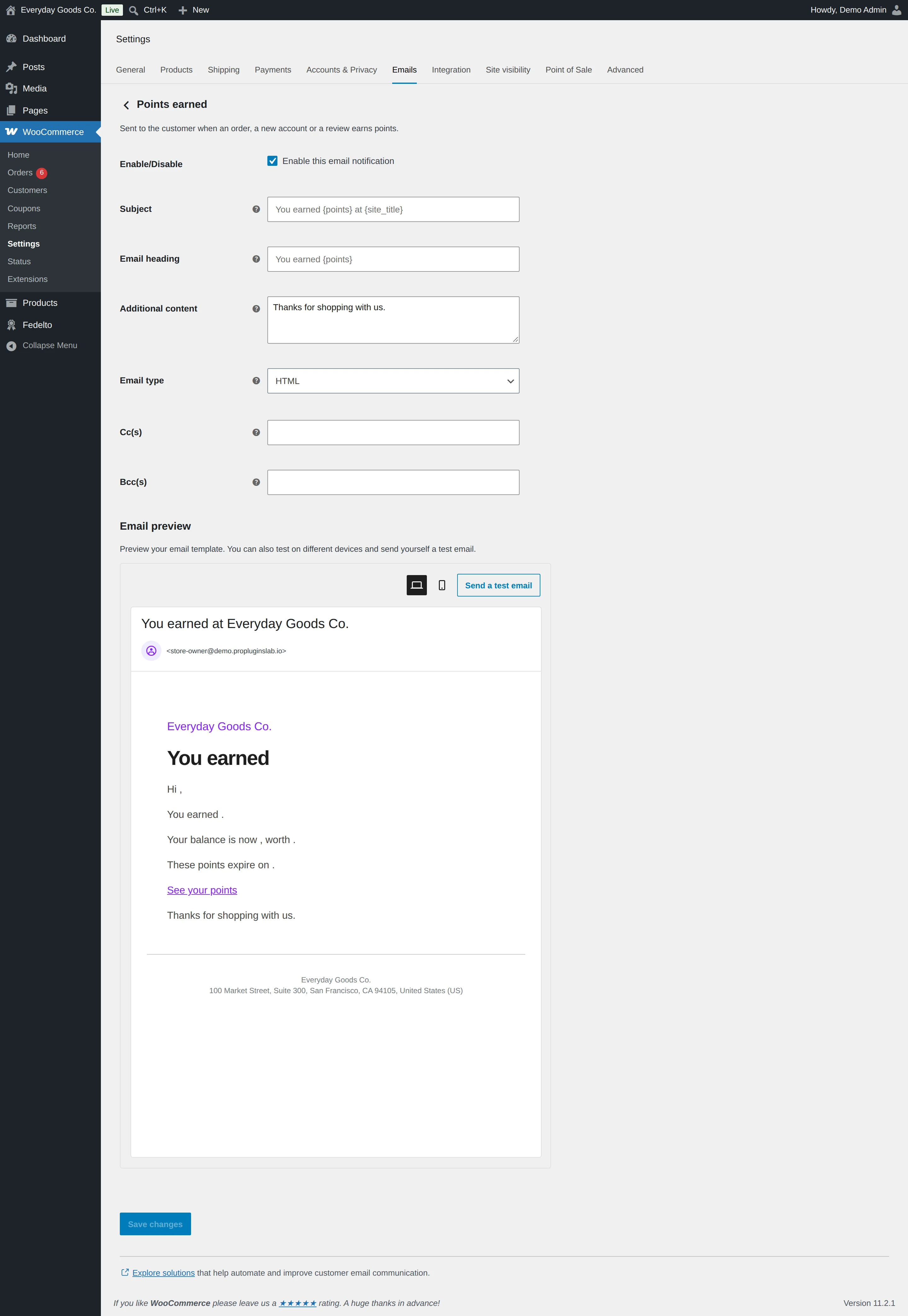
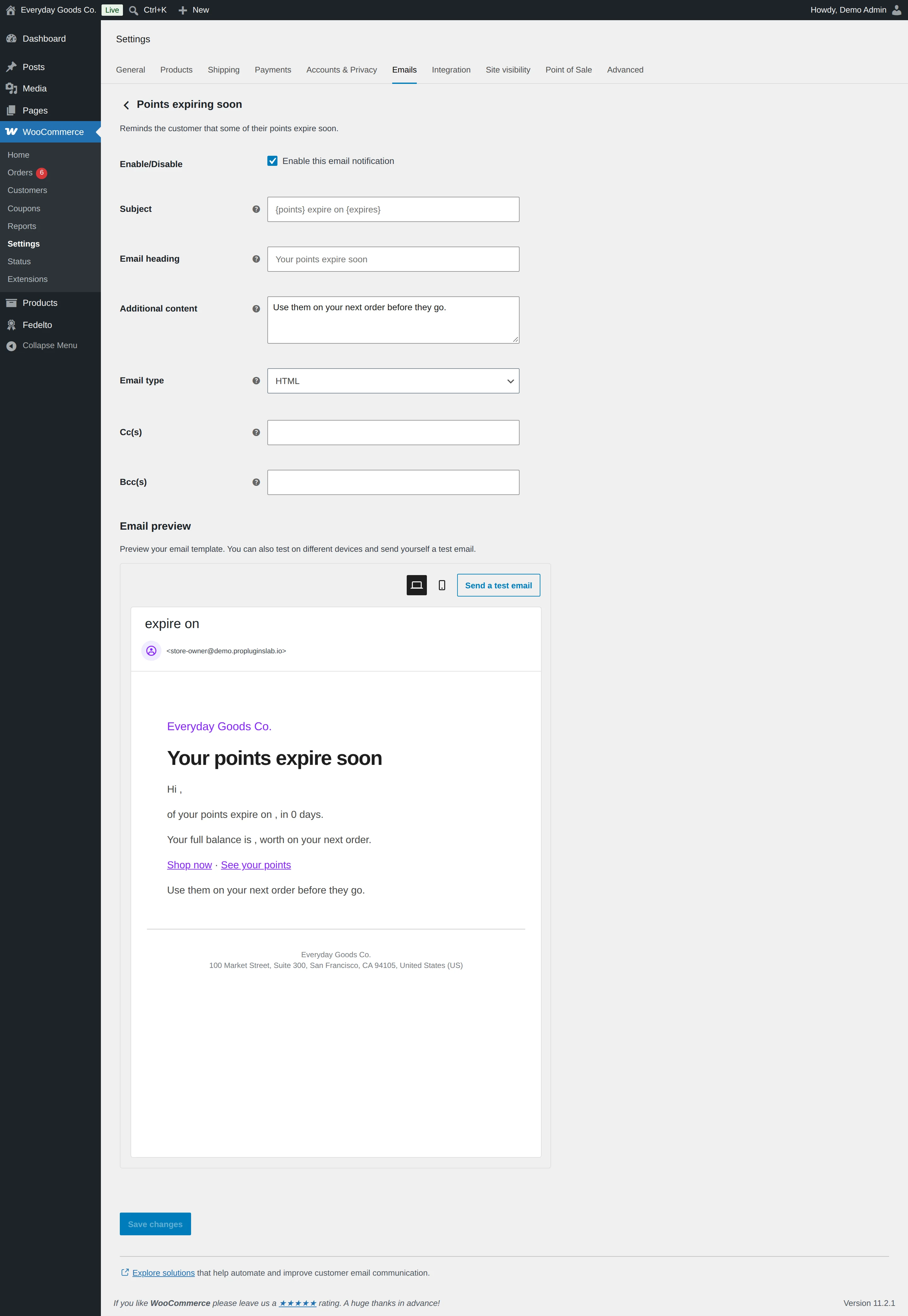
- To edit a subject, heading or colours, go to WooCommerce > Settings > Emails and open the email.
Turn on Customers choose which emails they get to add checkboxes to the My Account details form.
#Referrals
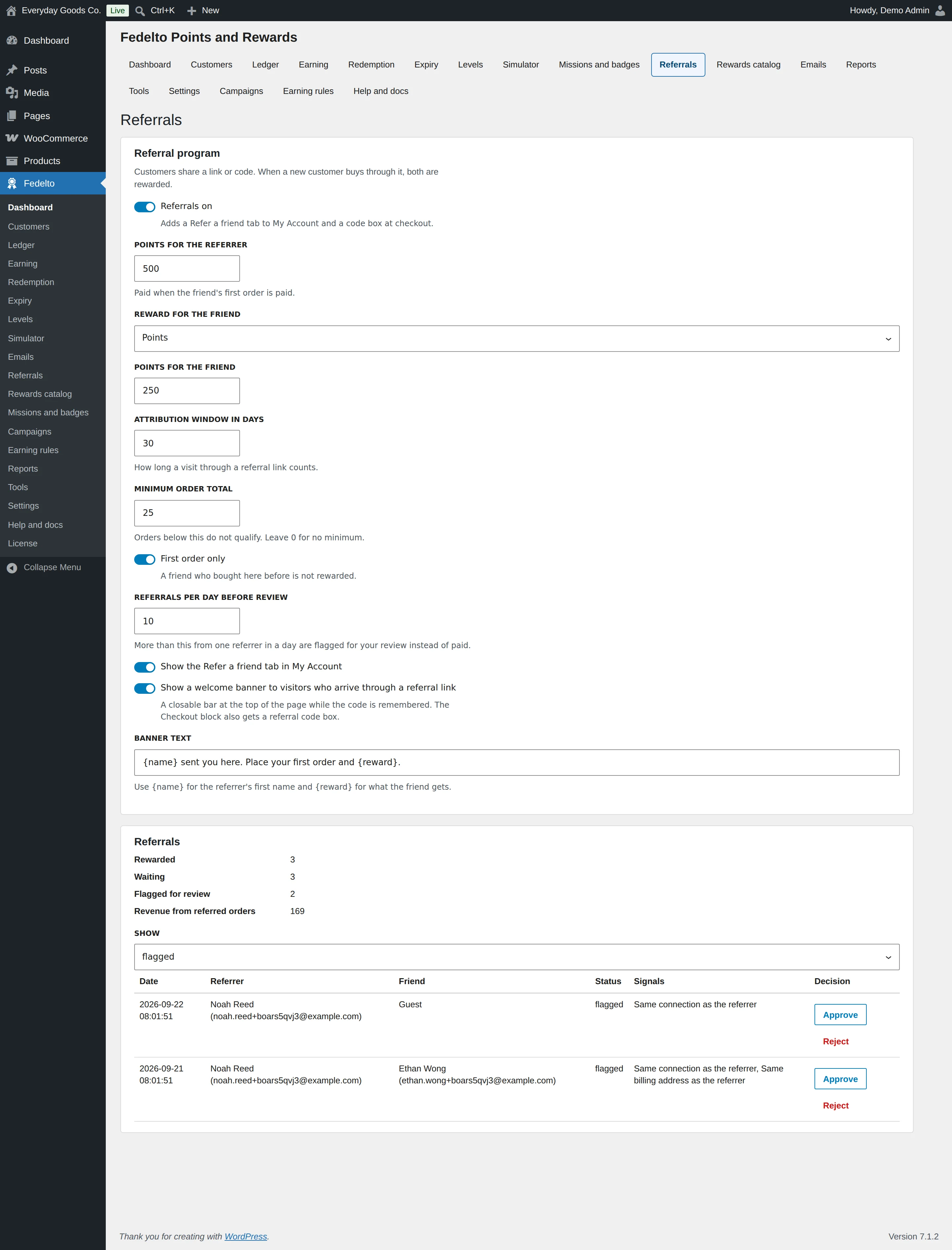
Use Fedelto > Referrals to reward customers who bring a friend. Each customer gets a unique link and code under Refer a friend on My Account.
Set it up
- Tick Referrals on.
- Set POINTS FOR THE REFERRER.
- Choose REWARD FOR THE FRIEND.
- Set ATTRIBUTION WINDOW IN DAYS, MINIMUM ORDER TOTAL and First order only.
- Set REFERRALS PER DAY BEFORE REVIEW.
- Choose whether to show the My Account tab and the welcome banner, then save.
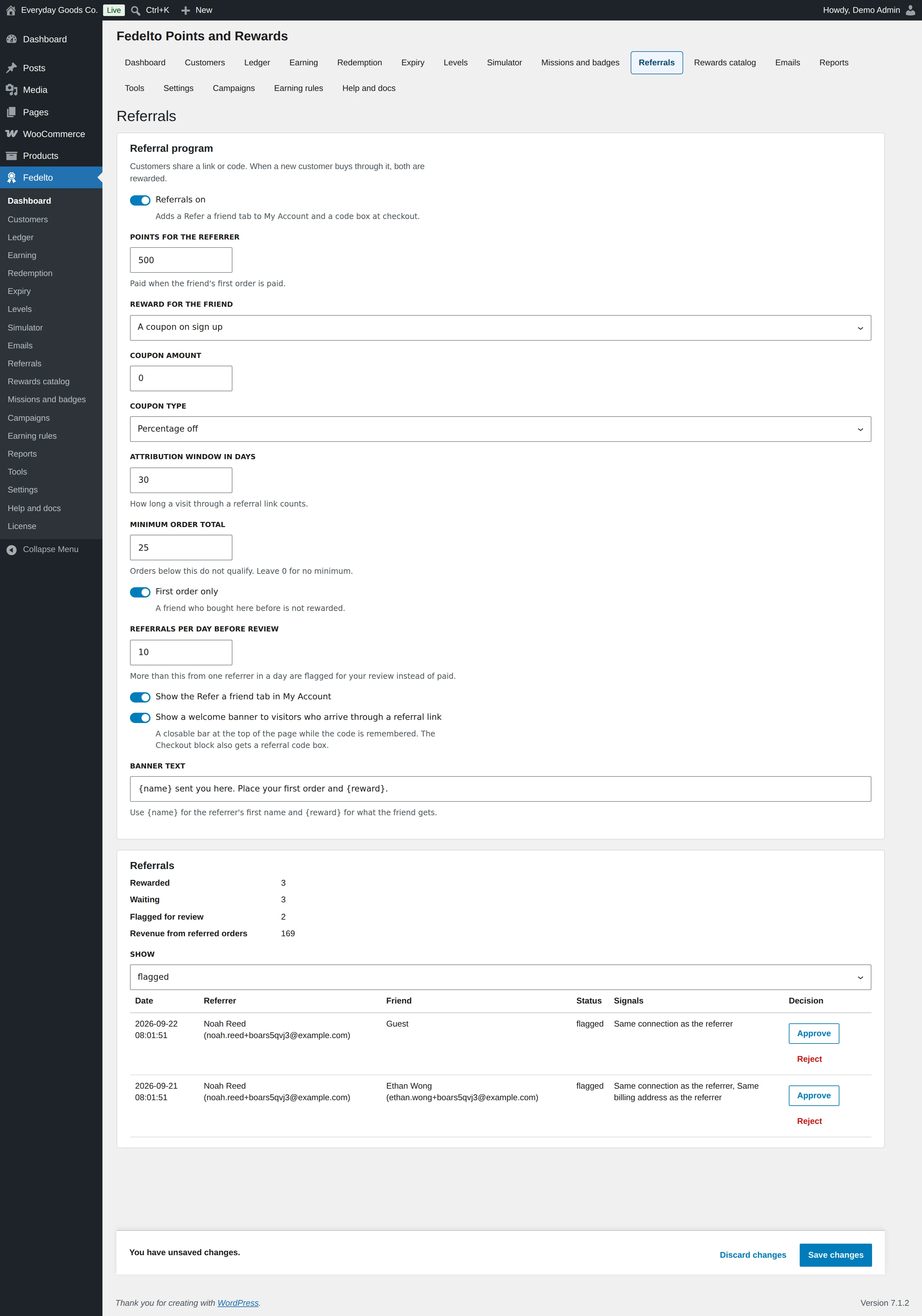
Both rewards
The referrer receives points when the friend's qualifying order is paid. The friend's reward depends on your choice:
| REWARD FOR THE FRIEND | What the friend gets |
|---|---|
| Points | POINTS FOR THE FRIEND, when the order qualifies. |
| A coupon on sign up | A single use coupon made when they register, using COUPON AMOUNT and COUPON TYPE. |
| Nothing | Only the referrer is rewarded. |
The rules
- Window: a visit through a referral link counts for the number of days you set. The friend can also enter the code at checkout.
- First order only: a friend who bought here before is not rewarded.
- Minimum order: orders below MINIMUM ORDER TOTAL do not qualify.
Flagged referrals
A referral where the referrer and friend are the same person is refused. These signals flag a referral for your review instead of paying it:
- Same connection as the referrer
- Same connection and address as the referrer
- Same billing address as the referrer
- Many referrals from this referrer today
- The friend bought here before
Use SHOW to list referrals by status. Check the Signals column, then click Approve or Reject. Rejecting a referral that was already rewarded takes its points back. The Referral flagged (admin) email tells you about flags.
Refunds
A refund of the friend's order takes both points rewards back in proportion. A 50 percent refund takes back half, and cancelling the order takes back all of it.
#Rewards catalog
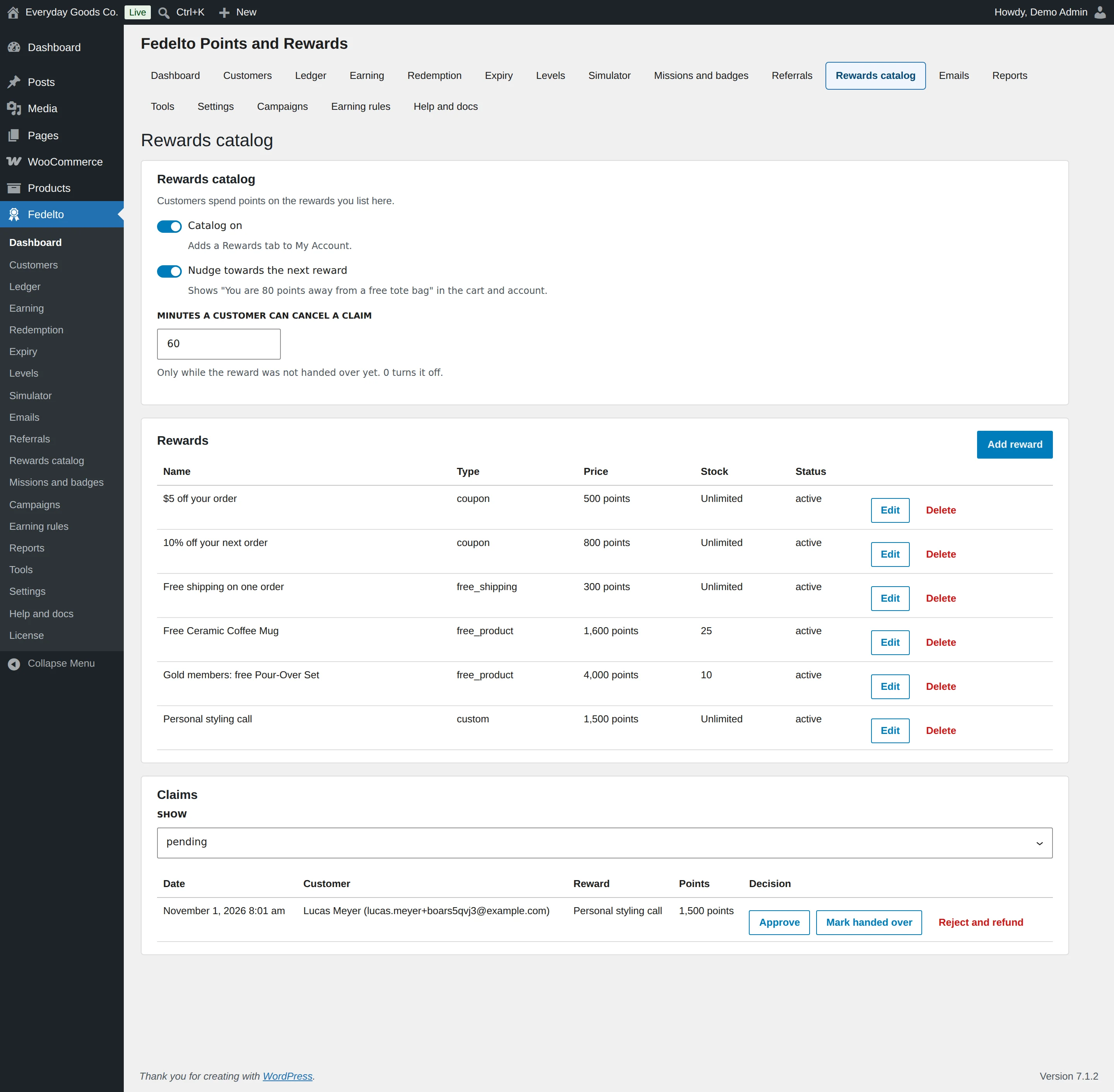
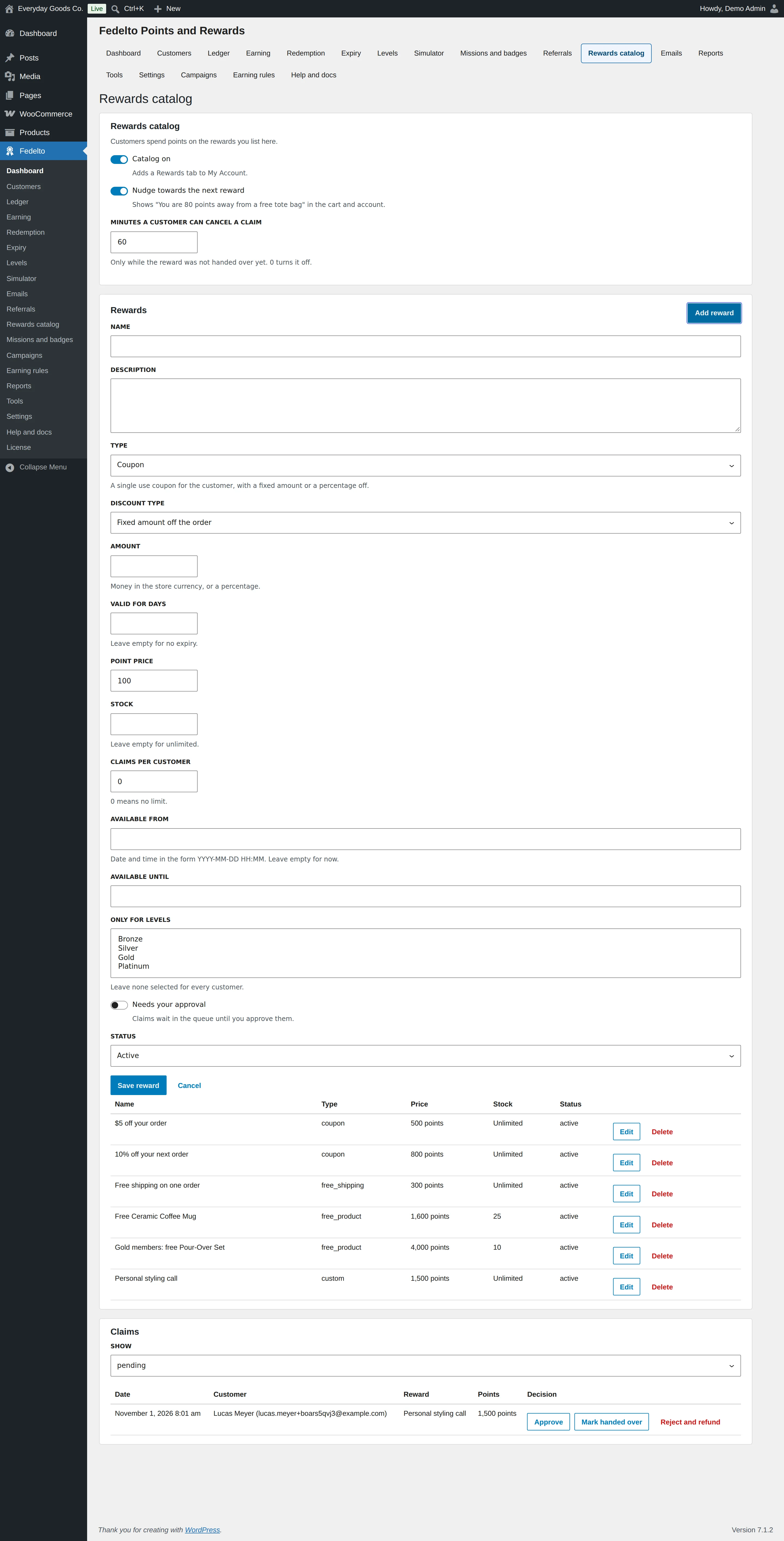
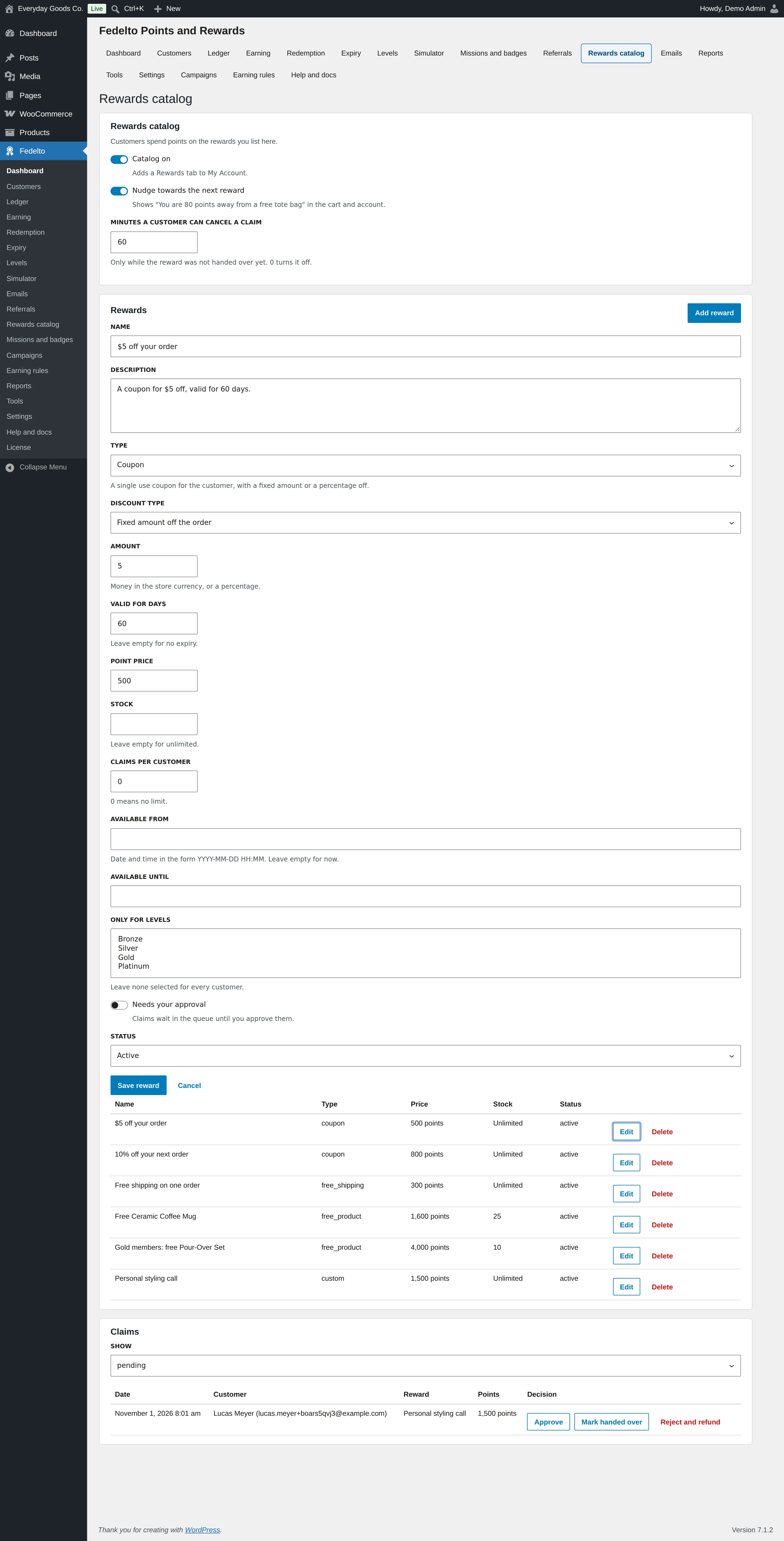
Use Fedelto > Rewards catalog to list things customers can buy with points. Rewards appear on a Rewards tab on My Account.
Add a reward
- Tick Catalog on.
- Click Add reward.
- Enter the NAME and DESCRIPTION, and choose the TYPE.
- Fill in the fields for that type.
- Set the POINT PRICE and any limits.
- Choose the STATUS and click Save reward.
Reward types
| Type | What the customer gets | Fields |
|---|---|---|
| Coupon | A single use coupon, fixed amount or percentage off. | DISCOUNT TYPE, AMOUNT, VALID FOR DAYS |
| Free shipping | A single use code for free shipping on one order. The free shipping method must allow coupons in its settings. | None |
| Free product | A code that makes one product free on the next order. The item is put in the customer's cart for them. | Product |
| Fee waiver | A single use code that removes extra fees from one order. | None |
| Gift card | A Presentero gift card, emailed and added to the customer's wallet. Without Presentero Gift Cards the customer gets a fixed amount coupon instead, and the type shows (plugin missing). | Card amount |
| Handled by you | Nothing happens automatically. The claim waits until you mark it handed over. Tick Needs your approval for a custom reward you want to review first. | What the customer is told |
Limit a reward
- Stock: STOCK sets how many can be claimed. Leave it empty for unlimited.
- Per customer: CLAIMS PER CUSTOMER sets the limit for each customer. 0 means no limit.
- Dates: AVAILABLE FROM and AVAILABLE UNTIL, as YYYY-MM-DD HH:MM.
- Level: ONLY FOR LEVELS limits the reward to chosen levels.
Approvals and claims
With Needs your approval on, claims wait in the queue until you approve them. Use SHOW under Claims to list claims by status:
- Approve approves a pending claim.
- Mark handed over marks a claim as fulfilled.
- Reject and refund refuses a claim and returns the points.
Customers can cancel a claim for MINUTES A CUSTOMER CAN CANCEL A CLAIM, while the reward was not handed over yet. The Reward claimed (admin) email tells you about claims.
#Missions and badges
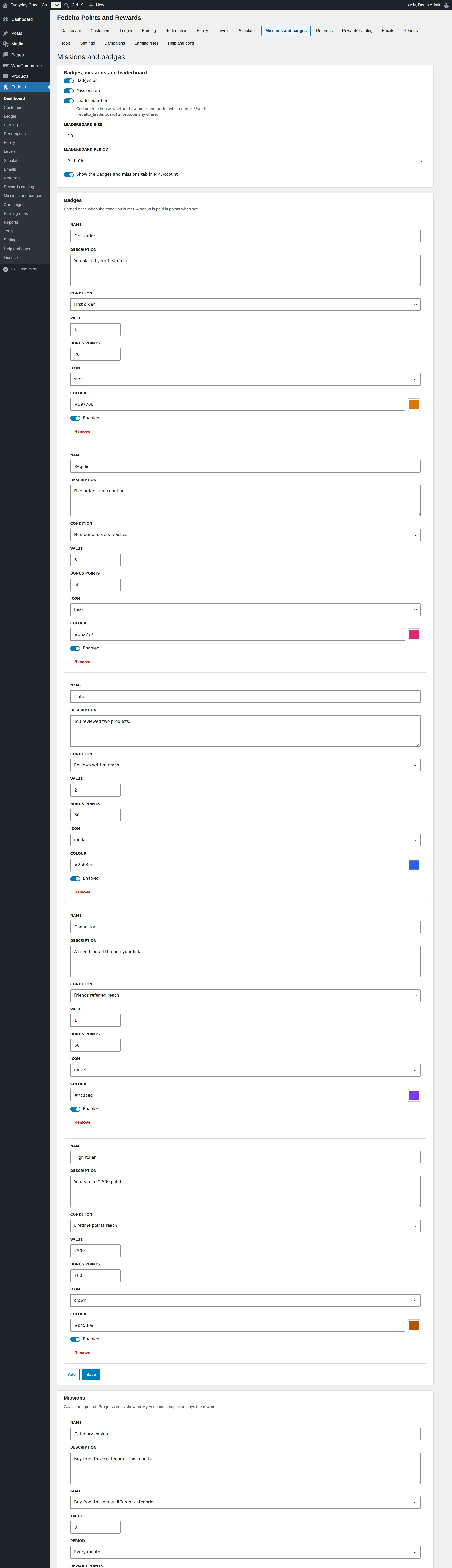
Use Fedelto > Missions and badges to add goals and a friendly ranking.
Badges
A badge is earned once when its condition is met, and can pay Bonus points. Tick Badges on, click Add, fill in the fields and click Save.
Missions
A mission is a goal for a period, for example three categories in a month. Customers see a progress ring on My Account, and completion pays Reward points. Tick Missions on, click Add, choose a Goal, Target and Period, and click Save.
Leaderboard
Tick Leaderboard on and set LEADERBOARD SIZE and LEADERBOARD PERIOD. Only customers who opt in appear, and they choose the name shown. Customers see it on the Badges and missions tab, and you can place it anywhere with [fedelto_leaderboard].
#Campaigns
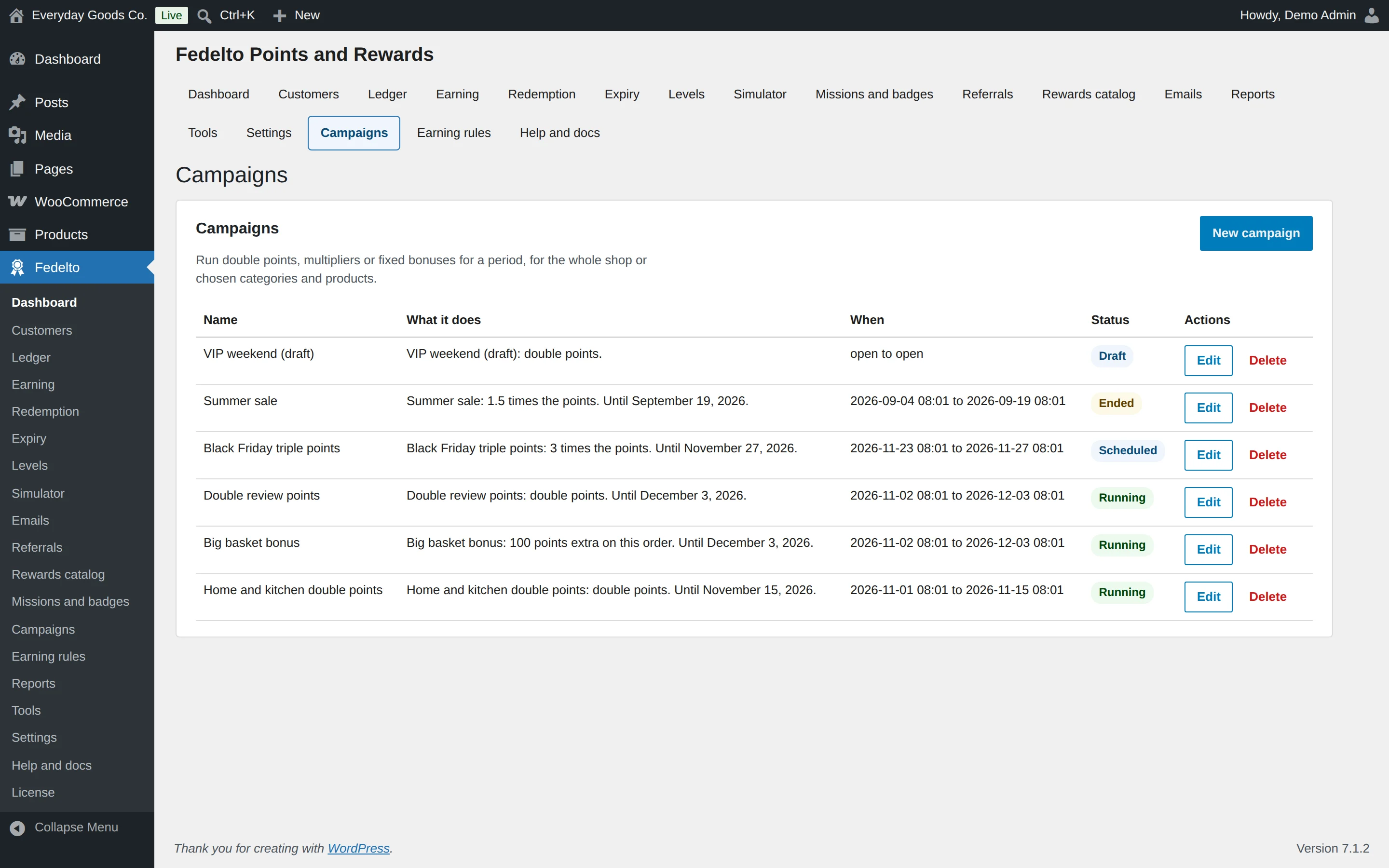
Use Fedelto > Campaigns to run points promotions for a set time.
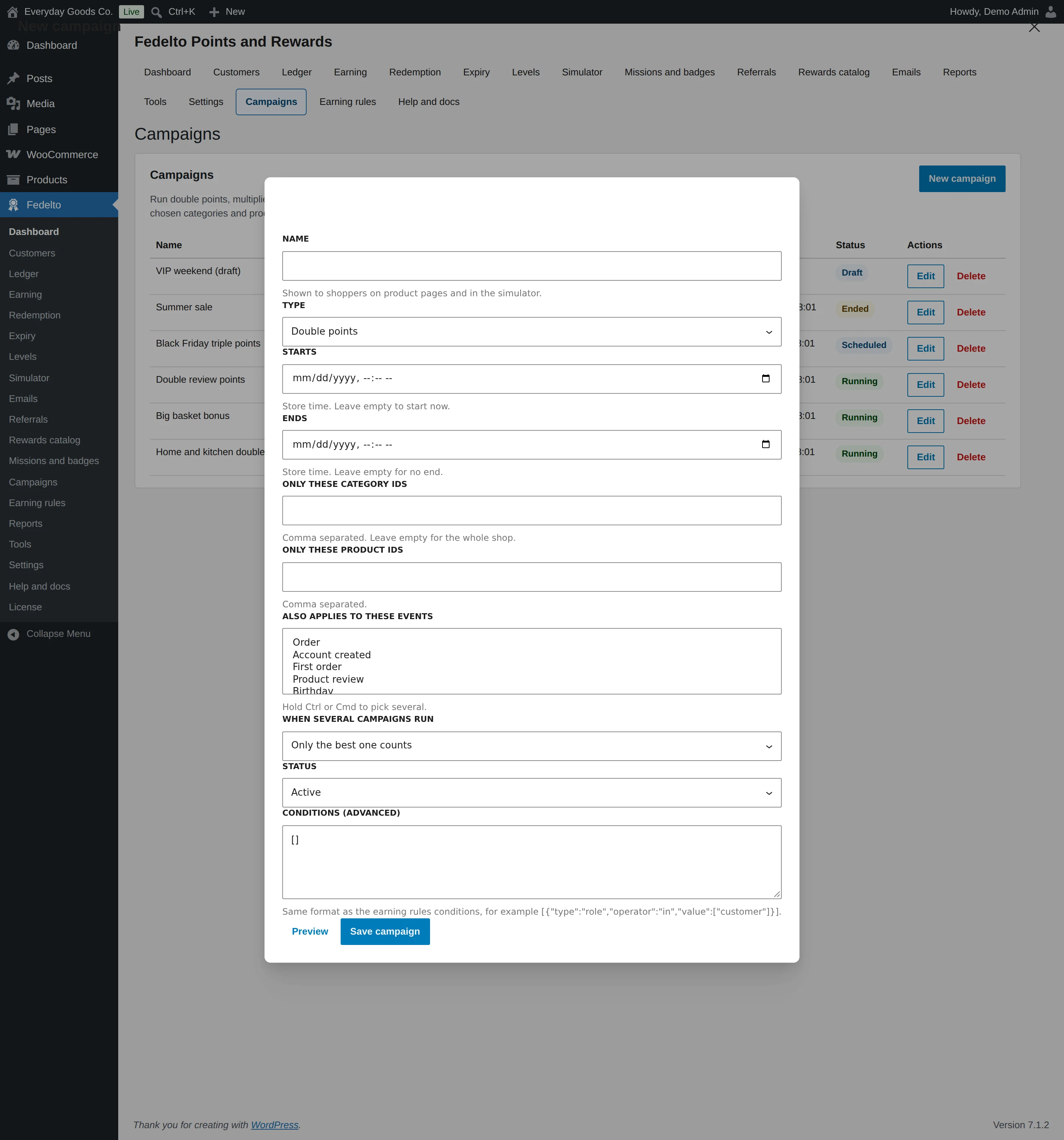
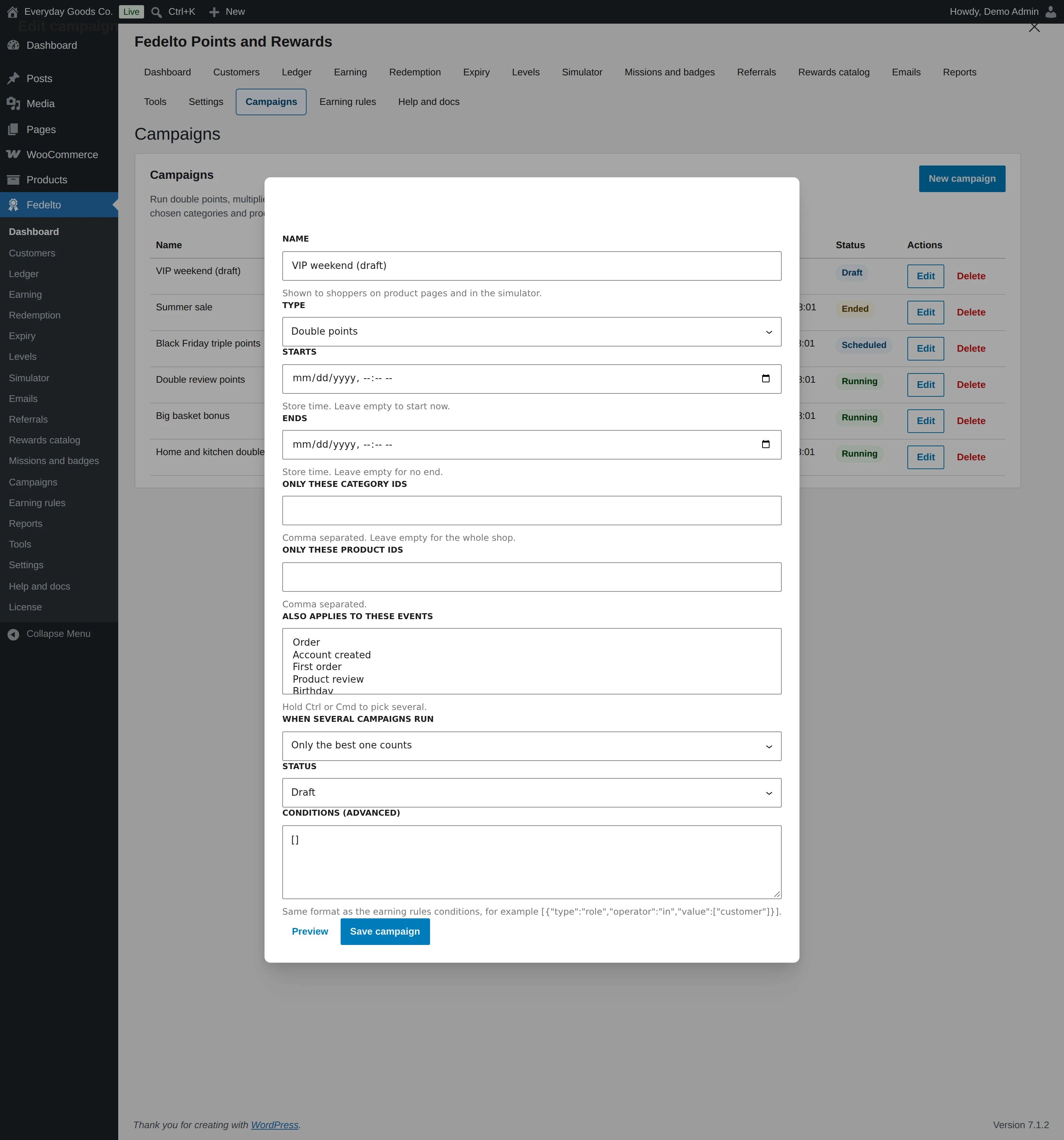
Create a campaign
- Click New campaign.
- Enter a NAME. Shoppers see it on product pages.
- Choose the TYPE.
- Set STARTS and ENDS in store time. Leave them empty to start now or have no end.
- Set the scope and stacking choice.
- Choose the STATUS.
- Click Preview to see what an order of 100 earns with and without the campaign.
- Click Save campaign.
Campaign types
| TYPE | Effect | Extra field |
|---|---|---|
| Double points | Points in scope are doubled. | None |
| Points times a number | Points in scope are multiplied. | Multiplier |
| Fixed bonus per order | A set number of extra points on each order. | Bonus points |
Scope
- ONLY THESE CATEGORY IDS: comma separated ids, including subcategories. Leave empty for the whole shop.
- ONLY THESE PRODUCT IDS: comma separated ids.
- ALSO APPLIES TO THESE EVENTS: also boosts events such as birthdays or reviews.
- CONDITIONS (ADVANCED): the same conditions as earning rules, in the format the field shows.
If you choose events but no categories or products, the campaign applies to those events and not to orders. A multiplier with a scope applies only to the matching lines.
When several campaigns run
- Only the best one counts: of the campaigns with this choice, the biggest one applies.
- Add this one to the others: its extra points are added to the others.
- This one replaces all others: it is the only campaign that applies.
#Earning rules
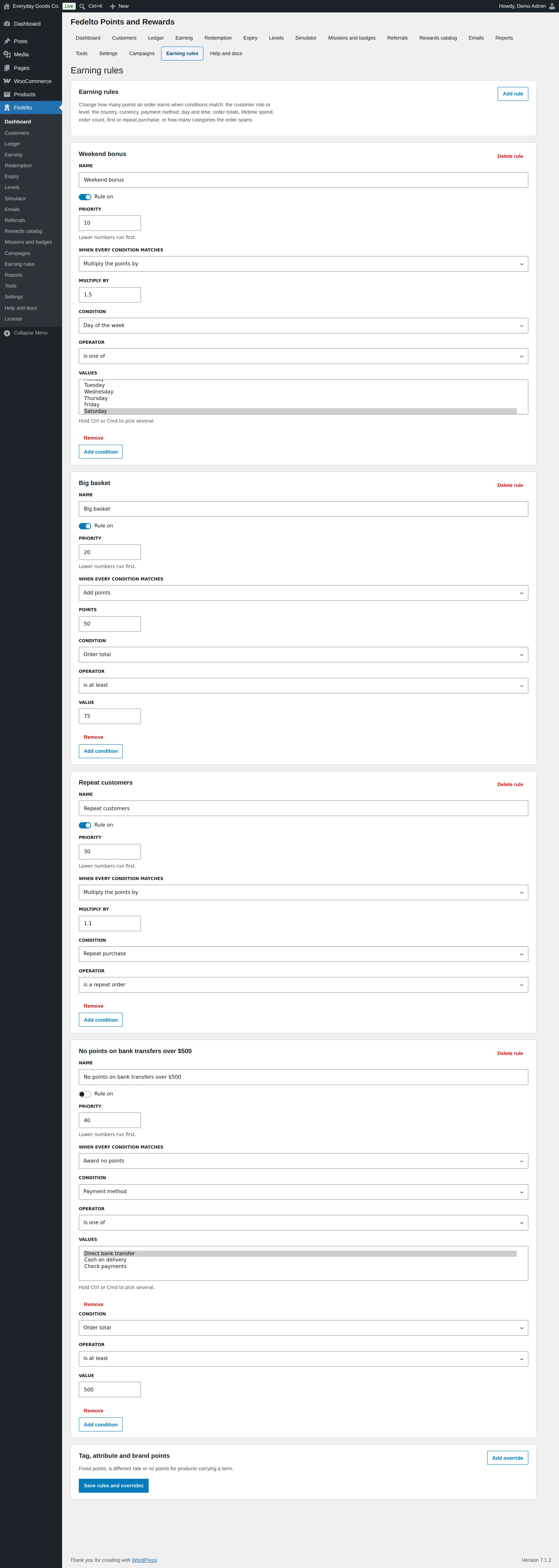
Use Fedelto > Earning rules to change how many points an order earns when conditions match. Unlike campaigns, rules have no start or end date.
Add a rule
- Click Add rule and enter a Name.
- Keep Rule on ticked and set the Priority. Lower numbers run first.
- Choose what happens in When every condition matches.
- Click Add condition and choose the Condition, Operator and value. All conditions must match. A rule with no conditions applies to every order.
- Click Save rules and overrides.
Actions
- Multiply the points by: multiplies the order's points.
- Add points: adds a fixed number of points.
- Use this many points per amount: replaces the store rate for that order.
- Award no points: the order earns nothing.
Conditions
| Condition | What it checks |
|---|---|
| Customer role | The customer's role, or Guest. |
| Customer level | The customer's level, or No level yet. |
| Billing country | The country on the order. |
| Currency | The order's currency. |
| Payment method | The gateway used. |
| Day of the week | The day of the order. |
| Time of day | Whether the time is between or outside two times. |
| Order total | The order amount. |
| Lifetime spend | What the customer has spent in total. |
| Earlier orders | How many orders the customer placed before. |
| First purchase | Whether this is the customer's first order. |
| Repeat purchase | Whether this is a repeat order. |
| Different categories in the order | How many categories the order spans. |
Tag, attribute and brand points
Click Add override to give products with a tag, attribute or brand Fixed points per item, Points per amount or No points.
#Reports
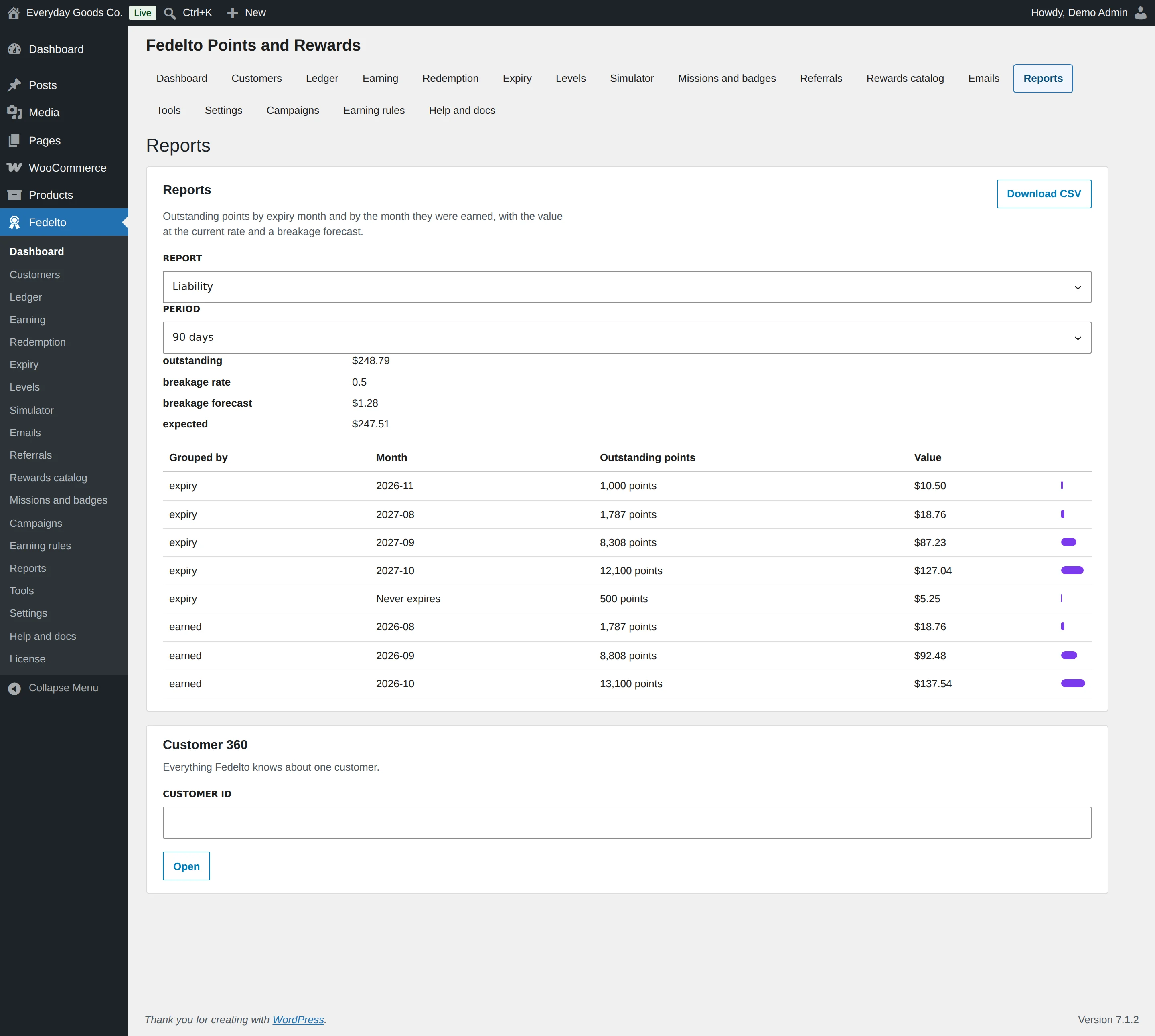
Use Fedelto > Reports to see what your program costs and how it performs. Choose a REPORT, and a PERIOD where it applies. Download CSV exports the report.
| Report | What it shows |
|---|---|
| Liability | Outstanding points by expiry month and by the month they were earned, with their value and a breakage forecast. |
| Redemption rate | Points issued, redeemed and the share redeemed, per month. |
| Active members | Members who earned or spent in the last 30, 90 and 365 days. |
| Referral revenue | Orders and revenue from referrals, with the points paid out. |
| Level distribution | How many members sit at each level and the points they hold. |
| Anomalies | Customers earning unusually often, referrals from the same connection, and negative balances. |
What liability and breakage mean
Liability is what your outstanding points could cost you: the points customers hold, valued at your current rate. Breakage is the share of points that expire without being spent.
The report shows four figures:
- outstanding: the value of all points customers hold.
- breakage rate: the percentage of points issued in the last 12 months that expired.
- breakage forecast: the value of outstanding points likely to expire at that rate.
- expected: the value you can expect customers to use.
Customer 360
Enter a CUSTOMER ID and click Open to see everything Fedelto knows about one customer: points, orders, referrals, badges and emails.
#Tools
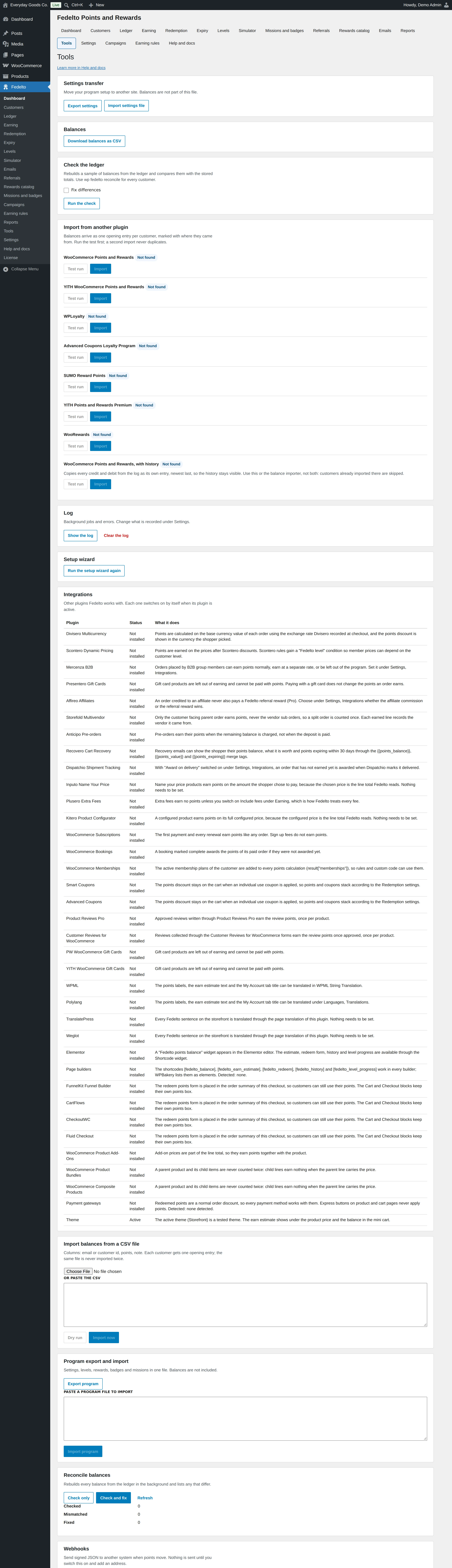
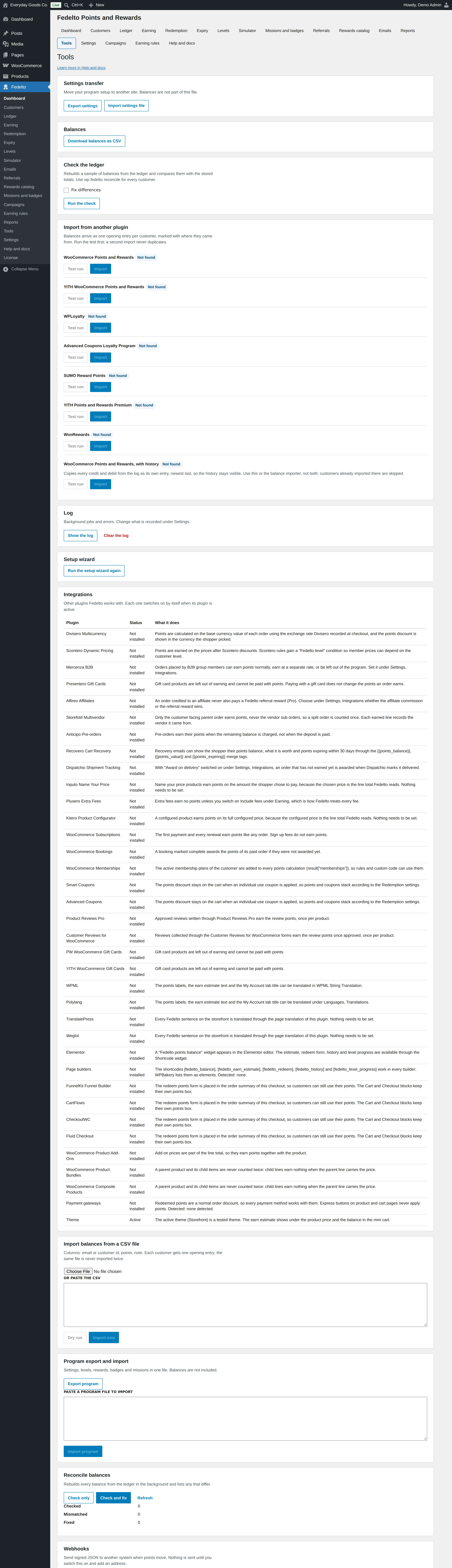
Fedelto > Tools holds maintenance, import and connection tools.
- Settings transfer: Export settings moves your settings between sites.
- Balances: Download balances as CSV.
- Check the ledger: Run the check compares balances with the ledger. Tick Fix differences to correct them.
- Import from another plugin: a Test run counts first, then Import. A second run skips customers already imported.
- Log: Show the log and Clear the log.
- Integrations: which other plugins Fedelto works with here, and their status.
- Reconcile balances: Check only or Check and fix rebuild every balance from the ledger in the background.
Import balances from a CSV file
- Prepare a file with these columns: email or customer id, points, note.
- Choose the file, or paste it into OR PASTE THE CSV.
- Click Dry run. You see the rows, matches and problems, and nothing is written.
- Click Import now.
Each customer gets one opening entry, and the same file is never imported twice. Importers exist for WooCommerce Points and Rewards, YITH Points and Rewards, WPLoyalty, Advanced Coupons Loyalty, SUMO Reward Points and WooRewards.
Program export and import
Export program saves settings, levels, rewards, badges and missions in one file. Paste that file into PASTE A PROGRAM FILE TO IMPORT on another site and click Import program. Balances are not included.
Webhooks
- Tick Webhooks on and click Add webhook.
- Enter a NAME, an ADDRESS (HTTPS) and a SECRET.
- Tick the events to send and click Save webhook.
- Use Send test in the list to check it.
Each delivery carries an X-Fedelto-Signature header, so the receiving system can check that it came from you. Nothing is sent until you switch this on and add an address.
#Settings
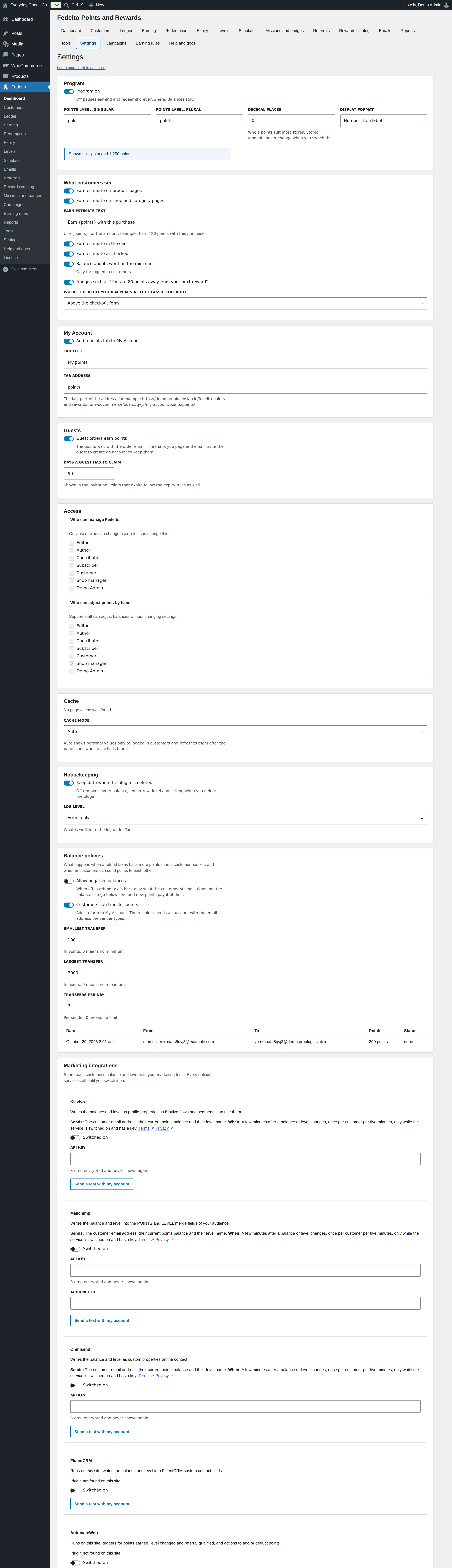
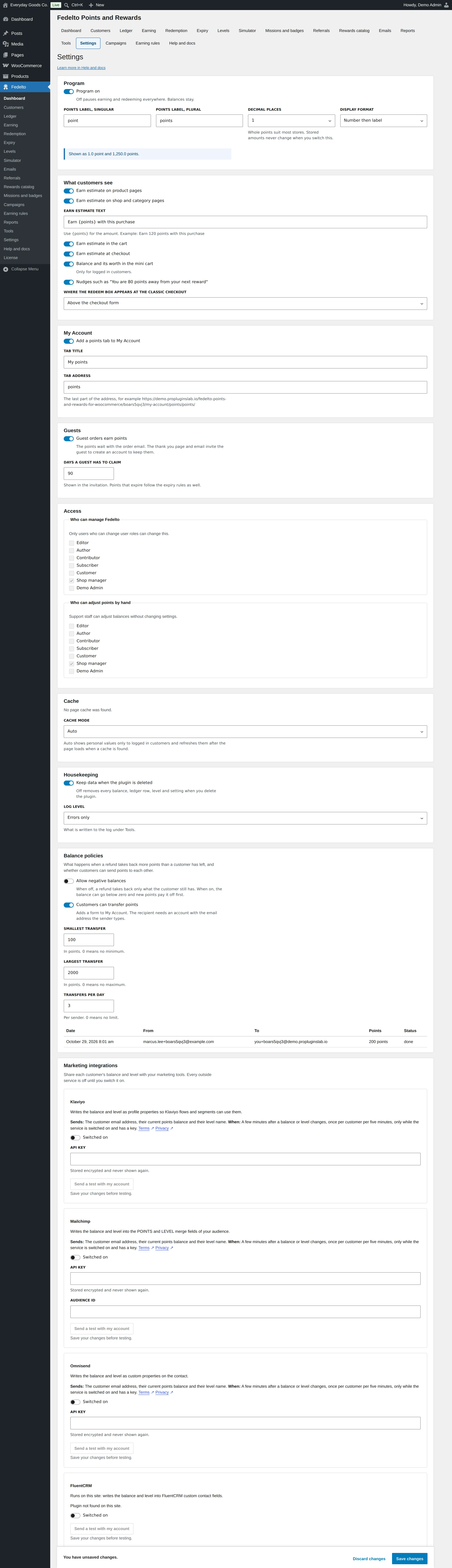
Fedelto > Settings holds program wide choices.
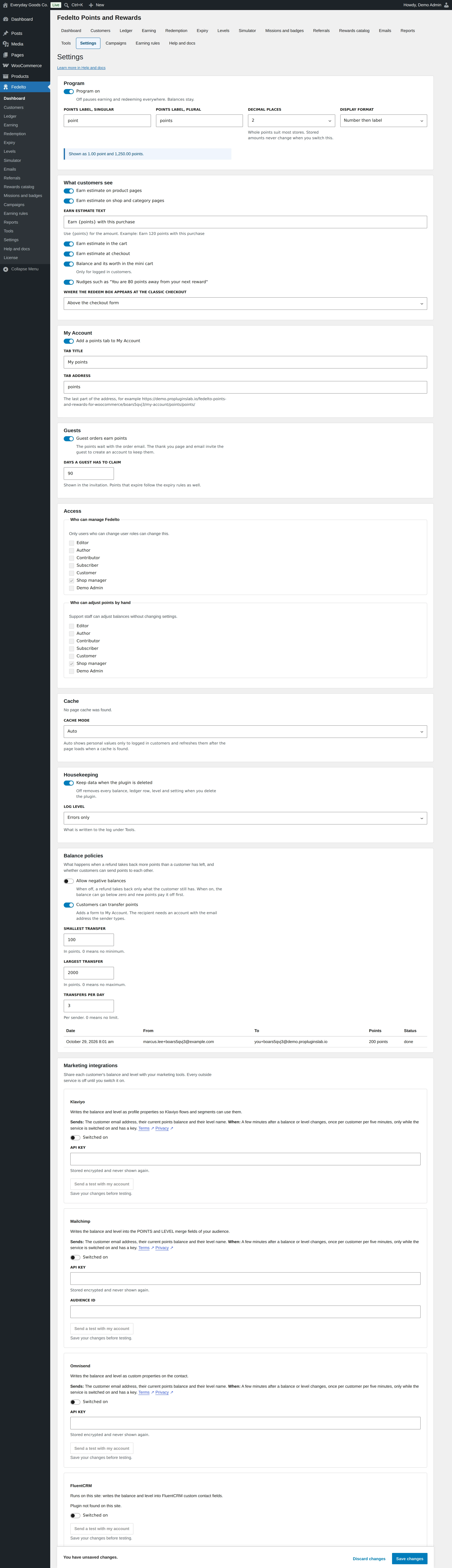
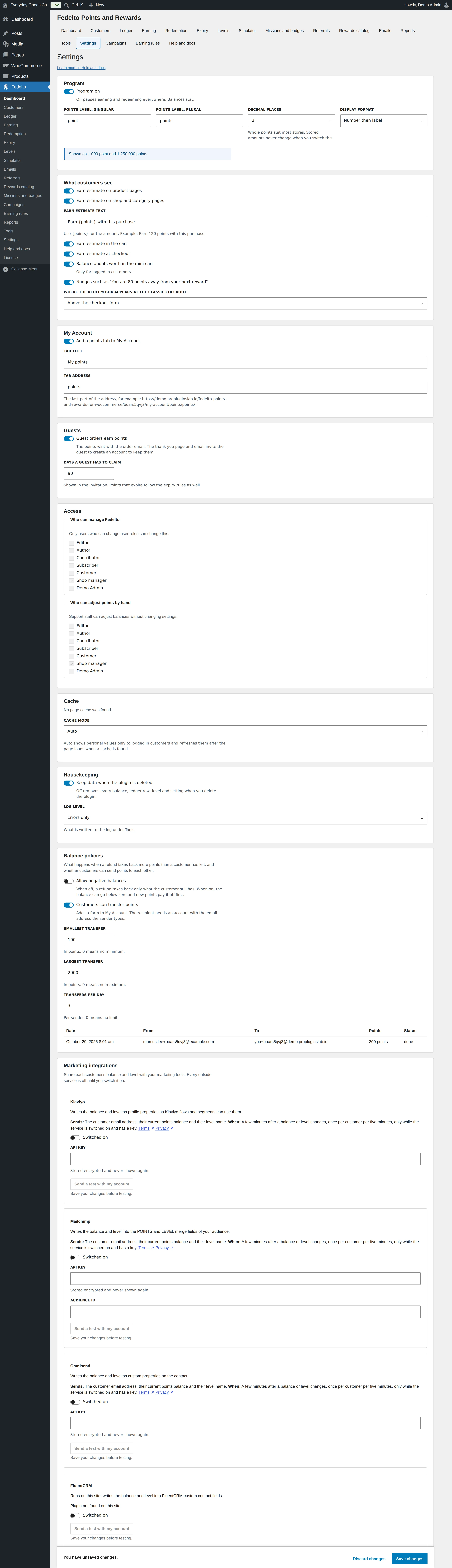
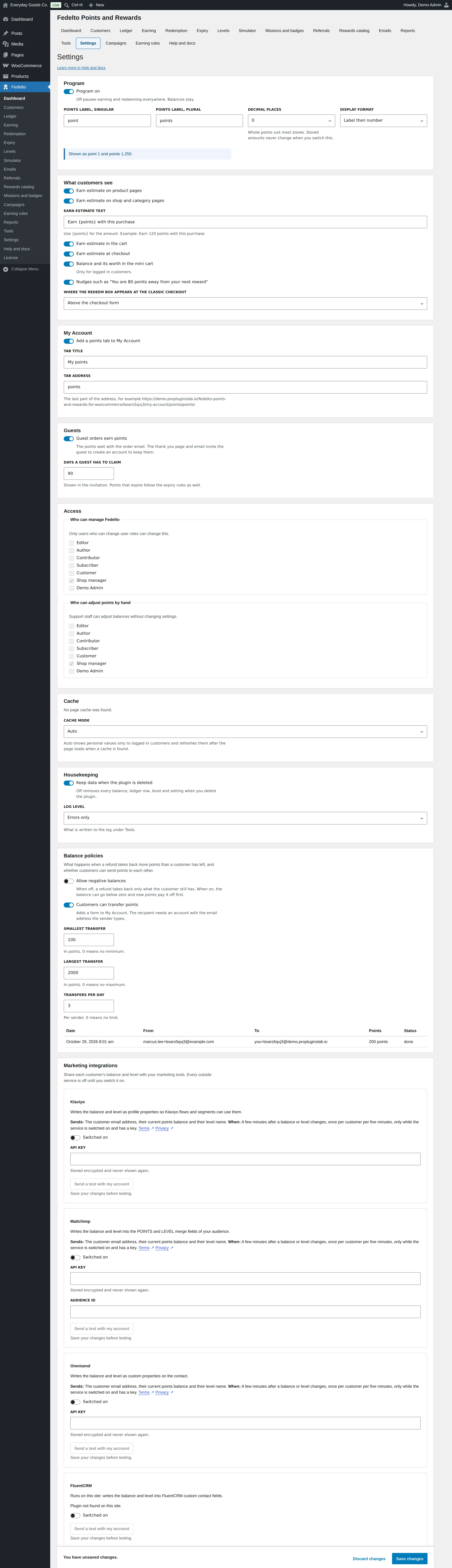
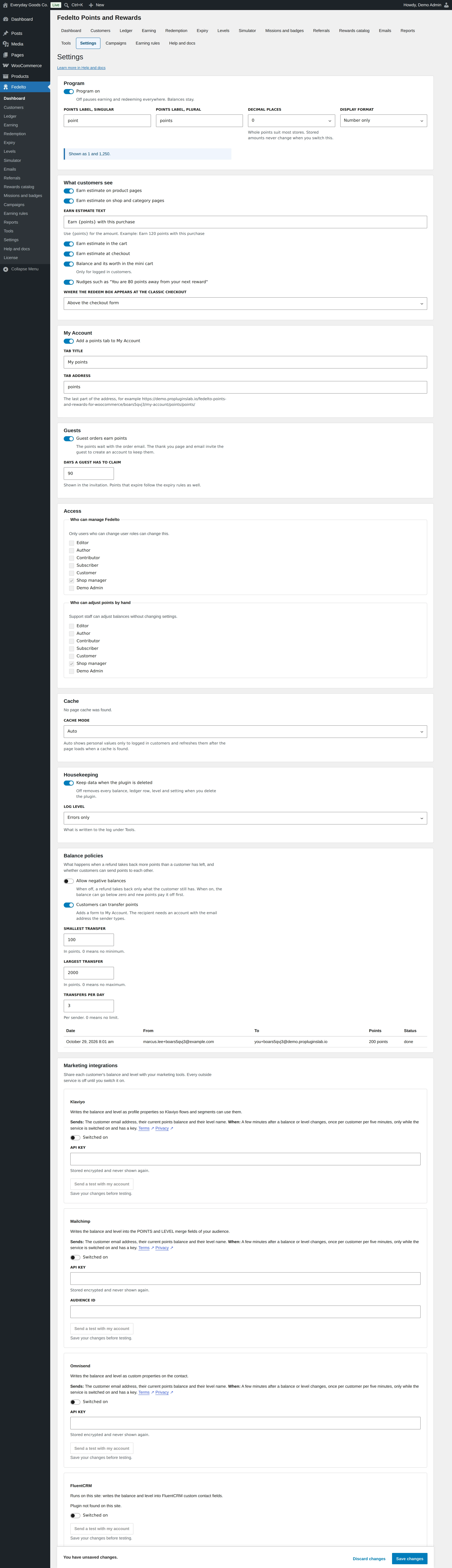
- Program: switch the program on or off, name your points and choose how they look. Turning it off pauses earning and redeeming everywhere, and balances stay.
- What customers see: where earn estimates, balances and nudges appear, and where the redeem box sits at the classic checkout.
- My Account: the points tab, its title and its address.
- Guests: whether guest orders earn points and how long guests have to claim them. Guest points wait with the order email and move to an account with that email once. Unclaimed points then expire.
- Access: who can manage Fedelto and who can adjust points by hand. Administrators always can.
- Cache: how personal values behave with a page cache.
- Housekeeping: whether data stays when the plugin is deleted, and how much is logged.
- Balance policies: negative balances and transfers.
Transfers between customers
With Customers can transfer points on, a form appears on My Account. The customer enters a friend's account email and an amount, then confirms. The transfer cannot be undone, and both histories show it. SMALLEST TRANSFER, LARGEST TRANSFER and TRANSFERS PER DAY set the limits. Past transfers are listed under the settings.
#Marketing integrations
Under Settings > Marketing integrations you can share each customer's balance and level with your marketing tools. Every service is off until you switch it on.
| Service | Where it runs | What it does | Needs |
|---|---|---|---|
| Klaviyo | Outside service | Writes the balance and level as profile properties. | API key |
| Mailchimp | Outside service | Writes them into the POINTS and LEVEL merge fields of your audience. | API key, Audience id |
| Omnisend | Outside service | Writes them as custom properties on the contact. | API key |
| FluentCRM | Your site | Writes them into custom contact fields. | The FluentCRM plugin |
| AutomateWoo | Your site | Triggers for points earned, level changed and referral qualified, and actions to add or deduct points. | The AutomateWoo plugin |
| Uncanny Automator | Your site | Triggers for points earned and level changed, and actions to add or deduct points. | The Uncanny Automator plugin |
Set up a service
- Tick Switched on on the service's card.
- Enter its key, and for Mailchimp the audience id. Keys are stored encrypted and never shown again.
- Save your changes.
- Click Send a test with my account where shown, then check the service for your own contact.
What is sent
Klaviyo, Mailchimp and Omnisend receive the customer email address, their current points balance and their level name. This happens a few minutes after a balance or level changes, once per customer per five minutes. FluentCRM, AutomateWoo and Uncanny Automator run inside your own site, and nothing leaves it.
#Text and WhatsApp notifications
Fedelto can send short messages through your own Twilio account. This is off until you switch it on, and only customers who tick the consent box on My Account receive anything.
Set it up
- Go to Settings > Text and WhatsApp notifications and tick Switched on.
- Enter your TWILIO ACCOUNT SID and TWILIO AUTH TOKEN. The token is stored encrypted.
- Under channels, tick Text message, WhatsApp or both.
- Enter the sender number for each channel in international format.
- Edit the CONSENT BOX TEXT.
- Choose which messages to send and edit each TEXT.
- Set MOST MESSAGES PER CUSTOMER PER DAY and the quiet hours.
- Save your changes, then use SEND A TEST TO, CHANNEL and Send test.
Text or WhatsApp
| Channel | Sender | Note |
|---|---|---|
| Text message | A Twilio number | Works with the texts you write here. |
| Your WhatsApp enabled Twilio number | WhatsApp requires approved message templates for messages the customer did not start. Keep your texts within your approved templates. |
Messages due during quiet hours wait until they end. A delivery log appears under the settings.
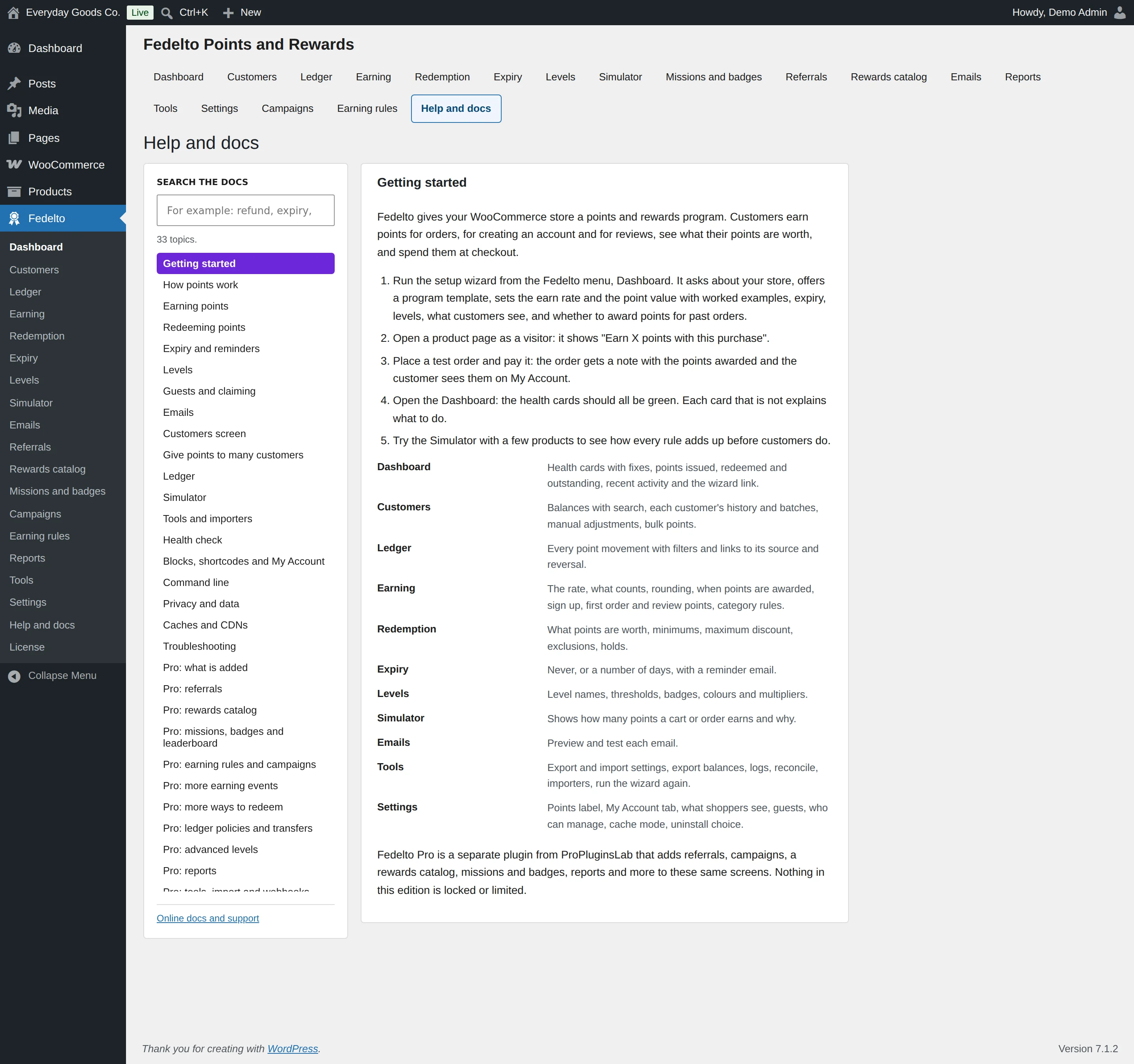
#Help and docs
Fedelto > Help and docs holds the built in documentation. Type in SEARCH THE DOCS to find a topic, or pick one from the list. There are topics for how points work, each screen, each Pro feature, troubleshooting and a settings reference.
Settings reference
Fedelto > Customers
Adjust one customer by hand, or give points to many customers at once. The role and level lists show the roles and levels on your own site.
#Points to add or take away
Shown on a customer's record.
On a customer's record. A positive number adds points, and a negative number takes them away and can take the balance below zero.
#Reason
Shown on a customer's record.
Required for a manual adjustment. The customer sees it in their points history.
When to change it
Write something the customer will understand.
#Count towards the lifetime total and levels
Shown on a customer's record.
Lets the adjustment change lifetime points and so the level.
When to change it
Untick it for corrections that should not move the customer up or down a level.
#Editor
Includes customers with the Editor role in the bulk action.
When to change it
Leave all roles unticked for every role.
#Author
Includes customers with the Author role in the bulk action.
#Contributor
Includes customers with the Contributor role in the bulk action.
#Subscriber
Includes customers with the Subscriber role in the bulk action.
#Customer
Includes customers with the Customer role in the bulk action.
When to change it
Tick it to reach only your shoppers.
#Shop manager
Includes users with the Shop manager role in the bulk action.
#Demo Admin
An example of a custom role. Your site lists its own custom roles here, and each one includes users with that role in the bulk action.
#Bronze
An example of a level. Your site lists your own levels here, and each one includes customers at that level in the bulk action.
#Silver
An example of a level. Ticking a level includes its customers.
#Gold
An example of a level. Ticking a level includes its customers.
#Platinum
An example of a level. Ticking a level includes its customers.
#LIFETIME POINTS AT LEAST
Only customers with at least this many lifetime points match.
#LIFETIME POINTS AT MOST
Only customers with at most this many lifetime points match.
#REGISTERED ON OR AFTER
Only customers who registered on or after this date match.
#REGISTERED ON OR BEFORE
Only customers who registered on or before this date match.
#Only customers who already hold points
Limits the action to customers who have points.
When to change it
Use it to reward active members only.
#POINTS TO GIVE EACH CUSTOMER
The amount each matching customer gets. A negative number takes points away.
#Count towards lifetime points and levels
Lets these points raise lifetime points and so levels.
When to change it
Untick it for goodwill points that should not change levels.
Fedelto > Earning
The store rate, what earns points, when they are available, other ways to earn and points codes.
#Customers earn points on orders
Switches order points on or off.
#POINTS EARNED
The points earned for every amount in the next field.
When to change it
Compare this with the value of points. The Dashboard shows the reward percentage it gives.
#AMOUNT SPENT (USD)
The amount that earns the points above. The label shows your store currency.
#Include tax
Counts tax in the amount that earns points.
#Include shipping
Counts shipping in the amount that earns points.
#Include fees
Counts extra fees added at checkout, for example a handling fee.
#Sale items earn no points
Products on sale earn nothing.
When to change it
Tick it if your sale margins are too thin for rewards.
#ROUNDING
How a fraction of a point is handled on each order.
#MAXIMUM POINTS PER ORDER
The most one order can earn. 0 means no limit.
When to change it
Set it to limit the cost of very large orders.
#AWARD POINTS WHEN THE ORDER IS
The status that awards points. An order that goes straight to completed is awarded too.
#POINTS BECOME AVAILABLE
Pending points show in the customer balance but cannot be spent yet, which protects you during a return period.
When to change it
Choose a delay if returns are common.
#RELEASE WHEN THE ORDER IS
Shown when POINTS BECOME AVAILABLE is set to When the order reaches a status.
The status that makes pending points available.
#RETURN PERIOD IN DAYS
Shown when POINTS BECOME AVAILABLE is set to After a number of days.
Points are released this many days after they were awarded.
When to change it
Match your return policy.
#POINTS FOR CREATING AN ACCOUNT
Given once, when a customer registers. Leave at 0 for none.
#POINTS FOR A PRODUCT REVIEW
Given once per product when the review is approved. Leave at 0 for none.
#WELCOME BONUS FOR A FIRST ORDER
Given once, on top of the order points, the first time a customer earns from an order.
#NOTE SHOWN IN THE HISTORY
The text customers see beside the welcome bonus.
#Only reviews from customers who bought the product
Keeps review points for real buyers.
#ADD A CATEGORY
Adds a points rule for a category. A rule on a parent category applies to its subcategories. The list shows your own categories.
When to change it
Use it when a whole category should earn differently.
#ADD A CURRENCY
The list holds the WooCommerce currencies. Adding one lets orders in that currency earn at their own rate instead of being converted to the base currency.
When to change it
Use it for multi currency stores that want a set rate per currency.
#BIRTHDAY
Once a year on the birthday the customer gave us.
When to change it
Turn on Ask for the birthday too.
#ACCOUNT ANNIVERSARY
Once a year on the day the account was created.
#DAILY LOGIN
Once per day the customer logs in.
#LOGIN STREAK BONUS
Every time the streak reaches the length below.
#COMPLETED PROFILE
Once, when name, phone and billing address are filled in.
#NEWSLETTER OPT IN
Once, when a newsletter plugin reports the opt in.
#SOCIAL SHARE
Once per network per day.
#FIRST SUBSCRIPTION PAYMENT
Points for a first subscription payment. Needs WooCommerce Subscriptions.
#RENEWAL BONUS
On top of the points the renewal order earns.
#RENEWAL MILESTONE
Points at the renewal counts listed in RENEWAL MILESTONES.
#COMPLETED BOOKING
Points for a completed booking. Needs WooCommerce Bookings.
#WHOLE ORDER REVIEWED
Once per order, when the customer has an approved review for every product in it. On top of the core review points.
#SURVEY ANSWERED
Once per customer for the one question survey, shown on My Account and with the [fedelto_survey] shortcode.
#SURVEY QUESTION
The question customers answer.
#SURVEY ANSWERS
The answer choices. Separate the answers with commas, up to twelve.
#STREAK LENGTH IN DAYS
How many days in a row earn the streak bonus.
#RENEWAL MILESTONES
Renewal counts separated by commas, for example 3, 6, 12.
#Ask for the birthday
Adds an optional birthday field to My Account and checkout.
When to change it
Needed for birthday points.
#SHARE NETWORKS
The share links customers see. Links are built on your site, and no outside script is loaded.
#Points codes on My Account
Customers can type a code you created to receive points.
#CODE
Shown after you click New code.
The code customers type. Letters, numbers and hyphens, 4 to 60 characters.
#POINTS
Shown after you click New code.
The points the code gives.
#TOTAL USES ALLOWED
Shown after you click New code.
How often the code can be used in total. 0 means unlimited.
#USES PER CUSTOMER
Shown after you click New code.
How often one customer can use the code.
#EXPIRES
Shown after you click New code.
When the code stops working. Leave empty for no expiry.
#STATUS
Shown after you click New code.
Whether the code can be used.
Products > Edit product
The Fedelto fields on each product.
#Points earned
How this product earns points.
When to change it
Change it for products that should earn more, less or nothing.
#Points value
For a fixed amount, the points each item earns. For a rate, the points earned per $1.00 spent, replacing the store rate.
#Fedelto early access
Only members at this level or above, whose level grants early access, can buy this product.
When to change it
Use it for launches. Turn on the Early access benefit on the level too.
#Most payable with points (%)
Leave empty to allow the store default. 50 means points can cover half of this product's price.
Fedelto > Redemption
What points are worth, the limits on spending them and the extra ways to redeem. The category list shows your own categories.
#Customers can spend points at checkout
The discount works like a coupon, so every payment method, tax rule and report treats it as a normal discount.
#POINTS
The number of points worth the amount in the next field.
#AMOUNT (USD)
What those points are worth. The label shows your store currency.
#MINIMUM POINTS TO REDEEM
Customers need at least this many points before they can use any. 0 means no minimum.
#MINIMUM CART TOTAL (USD)
Points can only be used on carts of at least this amount. 0 means no minimum.
#MAXIMUM DISCOUNT PER ORDER
The most points can pay for. 0 means points can pay for the whole eligible amount.
#AS
How the maximum discount is read.
#Gift cards
Keeps points from being turned into gift card balance.
#Sale items
Products on sale cannot be paid with points.
#Accessories
An example category. Your site lists your own categories, and ticking one means points cannot pay for it.
#Apparel
An example category. Ticking a category means points cannot pay for it.
#Home & Kitchen
An example category. Ticking a category means points cannot pay for it.
#Stationery
An example category. Ticking a category means points cannot pay for it.
#Uncategorized
The default category. Ticking it means points cannot pay for products in it.
#POINTS DISCOUNT APPLIES
The order of points and other coupons.
#HOLD POINTS AT CHECKOUT FOR (MINUTES)
While an order waits for payment, its points are held so they cannot be spent twice. After this long the hold lapses. Orders on hold for a bank transfer are held for a week.
#Give points back when an order is cancelled
Returns spent points on cancellation. Refunds always give back the right share of the points spent.
#DISCOUNT TYPE
How points turn into a discount.
#POINTS FOR ONE PERCENT OFF
Shown when DISCOUNT TYPE is set to Percentage of eligible items.
How many points buy one percent off.
#LARGEST PERCENTAGE OFF
Shown when DISCOUNT TYPE is set to Percentage of eligible items.
The highest percentage points can take off.
#Orders can be paid fully with points
Points can cover shipping and taxes too, and a zero total order completes without a payment method.
#Customers can turn points into a coupon
Adds a form to My Account that creates a single use coupon for the chosen points.
#COUPON VALID FOR DAYS
How long a converted coupon can be used.
#SMALLEST COUPON IN POINTS
0 uses the program minimum. Customers see the limit and a live money preview while they type.
#LARGEST COUPON IN POINTS
0 means the whole balance can go into one coupon.
#APPLY POINTS AUTOMATICALLY FROM
In points. When a customer has at least this many, the largest allowed amount is applied to the cart once. 0 switches this off.
#Show a slider at checkout
Customers drag to choose how many points to use.
#Show prices in points
Adds "or 1,250 points" next to prices on product and shop pages.
#PRICE IN POINTS TEXT
The text next to prices. Use {points} where the amount goes.
Fedelto > Expiry
When points expire and how customers are reminded.
#POINTS EXPIRE
Each batch of points keeps its own date, and points expiring soonest are spent first, so nothing expires that was already used.
#DAYS UNTIL POINTS EXPIRE
Points expire at the end of the day this many days after they were earned, in your store time zone.
#Email customers before their points expire
Sends the Points expiring soon email.
#DAYS BEFORE EXPIRY
One email per expiry date, sent this many days before.
When to change it
Keep it lower than the expiry period, or the reminder would never go out.
#EXPIRY MODE
Pro expiry applies to points earned from now on.
#MONTH
Shown when EXPIRY MODE is set to Fixed day every year.
1 is January, 12 is December.
#DAY
Shown when EXPIRY MODE is set to Fixed day every year.
Points expire at the end of this day, store time.
#SHORTEST LIFE IN DAYS
Shown when EXPIRY MODE is set to Fixed day every year.
Points earned closer than this to the expiry day roll over to the next year.
#DAYS WITHOUT ACTIVITY
Shown when EXPIRY MODE is set to After a period without activity.
Earning or spending points starts the count again. Reminders still go out before.
Fedelto > Levels
Your levels, how customers qualify and what each level gets. The level fields repeat for each level.
#Use levels
Customers move up as their lifetime points grow, and higher levels can earn faster.
#Show progress to the next level on My Account
Shows how far the customer is from the next level.
#Show the level badge next to the balance
Shows the badge text beside the points balance.
#NAME
The name of the level.
#REACHED AT LIFETIME POINTS
The threshold for this level. It is compared with what you choose in QUALIFY BY.
When to change it
Start the first level at 0.
#EARN MULTIPLIER
1 is the normal rate. 1.5 means an order that earns 100 earns 150 points instead.
#BADGE TEXT
Short, for example Gold. Shown next to the balance.
#COLOUR
The level colour as a colour code.
#DESCRIPTION
One sentence shown on My Account, for example what this level gets.
#QUALIFY BY
What the thresholds are compared with. Thresholds stay as typed.
When to change it
Check your thresholds after changing this.
#PERIOD IN MONTHS
Shown when QUALIFY BY is set to Spend in the period or Orders in the period.
The period for spend or orders, from 1 to 60 months.
#DOWNGRADE
Whether customers can lose a level.
When to change it
Choose a review if levels should reflect recent activity.
#REVIEW MONTH
Shown when DOWNGRADE is set to Yearly review.
The month of the yearly review. 1 for January.
#Redemption bonus (percent)
Points of members at this level are worth this much more when redeemed, for example 10 for ten percent more.
#Free shipping
The free shipping method becomes available to members at this level.
#Member prices
Marks members at this level for member prices through Scontero or a developer filter.
#Early access
Products marked for early access at this level can only be bought by members at this level or above.
#Birthday multiplier
Birthday points are multiplied by this for members at this level, for example 2 for double.
Fedelto > Simulator
Build a test cart. Nothing here is saved.
#ADD A PRODUCT
Type at least two letters of the name or SKU.
#SHIPPING
A test shipping amount.
#FEES
A test fee amount.
#CUSTOMER ID
Uses that customer's level and balance. Leave empty for a guest.
#LEVEL OVERRIDE
Tests the cart at a chosen level. The list shows your own levels.
#OR AN EXISTING ORDER ID
Replays the calculation for that order instead of the lines above.
When to change it
Use it when a customer asks why an order earned what it did.
Fedelto > Emails
Switch emails on, send tests and set reminder lead times. The first two fields repeat for each email.
#Send this email
Switches this email on or off. Subject, heading and colours are edited under WooCommerce, Settings, Emails.
When to change it
Points earned, Points expiring soon and Level reached are on by default. Level reached (admin) is off.
#SEND A TEST TO
The address for this email's test.
#SEND WHEN AN ADJUSTMENT IS AT LEAST
Points, up or down, adjusted by hand in one go. Leave at 0 to never send it.
#SEND TESTS TO
The address the Send test buttons above use.
#REMINDER LEAD TIMES IN DAYS
Separate with commas, for example 30, 7, 1. One reminder goes out at each lead time.
#Customers choose which emails they get
Adds checkboxes to the My Account details form.
WooCommerce > Settings > Email
Each Fedelto email has these standard WooCommerce settings.
#Enable/Disable
Switches the email on or off in WooCommerce.
When to change it
It must be on for the email to go out.
#Subject
The email subject. Leave empty to use the built in subject.
#Email heading
The heading inside the email. Leave empty to use the built in heading.
#Additional content
Text shown below the main email content.
#Email type
The format of the email.
#Cc(s)
Addresses that get a visible copy.
#Bcc(s)
Addresses that get a hidden copy.
Fedelto > Referrals
The rewards and rules of your referral program, plus the review list.
#Referrals on
Adds a Refer a friend tab to My Account and a code box at checkout.
#POINTS FOR THE REFERRER
Paid when the friend's first order is paid.
#REWARD FOR THE FRIEND
What the referred friend gets.
#POINTS FOR THE FRIEND
Shown when REWARD FOR THE FRIEND is not set to A coupon on sign up.
The points the friend receives.
#COUPON AMOUNT
Shown when REWARD FOR THE FRIEND is set to A coupon on sign up.
The value of the friend's coupon. It must be above 0 for a coupon to be created.
#COUPON TYPE
Shown when REWARD FOR THE FRIEND is set to A coupon on sign up.
How the coupon amount is read.
#ATTRIBUTION WINDOW IN DAYS
How long a visit through a referral link counts.
#MINIMUM ORDER TOTAL
Orders below this do not qualify. Leave 0 for no minimum.
#First order only
A friend who bought here before is not rewarded.
#REFERRALS PER DAY BEFORE REVIEW
More than this from one referrer in a day are flagged for your review instead of paid.
#Show the Refer a friend tab in My Account
Shows the tab with the customer's link and code.
#Show a welcome banner to visitors who arrive through a referral link
A closable bar at the top of the page while the code is remembered. The Checkout block also gets a referral code box.
#BANNER TEXT
Shown while the welcome banner is on.
Use {name} for the referrer's first name and {reward} for what the friend gets.
#SHOW
Filters the referral list by status.
Fedelto > Rewards catalog
Catalog settings, the reward form and the claims filter.
#Catalog on
Adds a Rewards tab to My Account.
#Nudge towards the next reward
Shows "You are 80 points away from a free tote bag" in the cart and account.
#MINUTES A CUSTOMER CAN CANCEL A CLAIM
Only while the reward was not handed over yet. 0 turns it off.
#NAME
The reward name customers see.
#DESCRIPTION
A short explanation shown on the reward card.
#TYPE
What the customer gets. The fields below change with this choice.
#Product
Shown when TYPE is set to Free product.
The product given away. For variable products pick a variation.
#Card amount
Shown when TYPE is set to Gift card.
The gift card value in the store currency.
#What the customer is told
Shown when TYPE is set to Handled by you.
Shown after claiming, for example "We will email you within two days".
#DISCOUNT TYPE
Shown when TYPE is set to Coupon.
How the coupon amount is read.
#AMOUNT
Shown when TYPE is set to Coupon.
Money in the store currency, or a percentage.
#VALID FOR DAYS
Shown when TYPE is set to Coupon.
How long the coupon works. Leave empty for no expiry.
#POINT PRICE
What the reward costs in points.
#STOCK
How many can be claimed. Leave empty for unlimited.
#CLAIMS PER CUSTOMER
How often one customer can claim it. 0 means no limit.
#AVAILABLE FROM
Date and time in the form YYYY-MM-DD HH:MM. Leave empty for now.
#AVAILABLE UNTIL
When the reward ends, in the same form.
#ONLY FOR LEVELS
Leave none selected for every customer. The list shows your own levels.
#Needs your approval
Claims wait in the queue until you approve them.
When to change it
Use it for costly or custom rewards.
#STATUS
Whether the reward is offered.
#SHOW
Filters the claims list by status.
Fedelto > Missions and badges
Switches, leaderboard settings, and the fields of each badge and mission.
#Badges on
Lets customers earn badges.
#Missions on
Shows missions and tracks progress.
#Leaderboard on
Customers choose whether to appear and under which name. Use the [fedelto_leaderboard] shortcode anywhere.
#LEADERBOARD SIZE
How many customers the board lists, from 3 to 100.
#LEADERBOARD PERIOD
The time the ranking covers.
#Show the Badges and missions tab in My Account
Adds the tab for customers.
#Condition
Shown on each badge.
What earns the badge.
#Bonus points
Shown on each badge.
Points paid when the badge is earned.
#Goal
Shown on each mission.
What the customer must do to complete the mission.
#Target
Shown on each mission.
The number to reach. It must be above zero.
#Product ids
Shown when Goal is set to Buy this many products from a list.
Comma separated product ids.
#Period
Shown on each mission.
How often the mission runs.
#Reward points
Shown on each mission.
Points paid when the mission is completed.
#Starts on
Shown on each mission.
YYYY-MM-DD, or empty.
#Ends on
Shown on each mission.
YYYY-MM-DD, or empty.
#Enabled
Shown on each badge and mission.
Switches one badge or mission on or off.
Fedelto > Campaigns
The fields of a campaign.
#NAME
Shown to shoppers on product pages and in the simulator.
#TYPE
How the campaign changes points.
#Multiplier
Shown when TYPE is set to Points times a number.
The number points are multiplied by.
#Bonus points
Shown when TYPE is set to Fixed bonus per order.
The extra points per order.
#STARTS
Store time. Leave empty to start now.
#ENDS
Store time. Leave empty for no end.
#ONLY THESE CATEGORY IDS
Comma separated. Leave empty for the whole shop.
#ONLY THESE PRODUCT IDS
Comma separated.
#ALSO APPLIES TO THESE EVENTS
Boosts these events too. Hold Ctrl or Cmd to pick several.
When to change it
If you pick events without categories or products, the campaign does not change order points.
#WHEN SEVERAL CAMPAIGNS RUN
What happens when campaigns overlap.
#STATUS
Whether the campaign can run.
#CONDITIONS (ADVANCED)
Same format as the earning rules conditions, for example [{"type":"role","operator":"in","value":["customer"]}].
When to change it
Leave it as [] unless you need a condition.
Fedelto > Earning rules
The fields of each rule and each tag, attribute or brand override.
#Name
A name for the rule.
#Rule on
Switches the rule on or off.
#Priority
Lower numbers run first.
#When every condition matches
What the rule does.
#Multiply by
Shown when the rule multiplies the points.
The number to multiply by.
#Points
Shown when the rule adds points or uses another rate.
The points to add, or the new rate.
#Condition
Shown after you click Add condition.
What the rule checks.
#Operator
Shown after you click Add condition.
How the condition compares. The choices change with the condition: is one of, is not one of, is at least, is at most, is exactly, is between, is outside.
#Values
Shown for conditions that use a list.
The choices to match. Hold Ctrl or Cmd to pick several.
#Value
Shown for conditions that use a number and for overrides.
The number to compare with, or the points for an override.
#From
Shown when Condition is set to Time of day.
The start of the time range.
#To
Shown when Condition is set to Time of day.
The end of the time range.
#Type
Shown after you click Add override.
Whether the override is for a tag, an attribute or a brand. The list follows what your store has.
#Term
Shown after you click Add override.
The tag, attribute value or brand.
#Mode
Shown after you click Add override.
How products with this term earn.
Fedelto > Reports
Choose a report and look up one customer.
Fedelto > Tools
The fields used by the check, imports and webhooks.
#Fix differences
Makes Run the check correct any balance that differs from the ledger.
#OR PASTE THE CSV
Paste CSV rows instead of choosing a file. Columns: email or customer id, points, note.
#PASTE A PROGRAM FILE TO IMPORT
Paste an exported program file. Balances are not included.
#Webhooks on
Each delivery carries an X-Fedelto-Signature header: HMAC SHA256 of "timestamp.body" with your secret.
#NAME
Shown after you click Add webhook.
A name for the webhook.
#ADDRESS (HTTPS)
Shown after you click Add webhook.
Where events are sent. It must start with https://.
#SECRET
Shown after you click Add webhook.
Shared with the receiving system to check signatures. Never shown again.
#Points earned
Shown after you click Add webhook.
Sends an event when points are earned.
#Points redeemed
Shown after you click Add webhook.
Sends an event when points are redeemed.
#Points expired
Shown after you click Add webhook.
Sends an event when points expire.
#Level changed
Shown after you click Add webhook.
Sends an event when a customer's level changes.
#Referral qualified
Shown after you click Add webhook.
Sends an event when a referral qualifies.
#Reward claimed
Shown after you click Add webhook.
Sends an event when a reward is claimed.
Fedelto > Settings
Program wide choices, access, balance policies, marketing integrations and notifications. The role lists show the roles on your own site.
#Program on
Off pauses earning and redeeming everywhere. Balances stay.
#POINTS LABEL, SINGULAR
The word for one point.
#POINTS LABEL, PLURAL
The word for several points.
#DECIMAL PLACES
Whole points suit most stores. Stored amounts never change when you switch this.
#DISPLAY FORMAT
How amounts are written.
#Earn estimate on product pages
Shows what a product earns on its page.
#Earn estimate on shop and category pages
Shows what each product earns in product lists.
#EARN ESTIMATE TEXT
Use {points} for the amount.
#Earn estimate in the cart
Shows what the cart earns.
#Earn estimate at checkout
Shows what the order earns at checkout.
#Balance and its worth in the mini cart
Only for logged in customers.
#Nudges such as "You are 80 points away from your next reward"
Shows short progress messages.
#WHERE THE REDEEM BOX APPEARS AT THE CLASSIC CHECKOUT
The position of the points box on the classic checkout page.
#Add a points tab to My Account
Adds the points tab for customers.
#TAB TITLE
The name of the tab.
#TAB ADDRESS
The last part of the tab's web address.
#Guest orders earn points
The points wait with the order email. The thank you page and email invite the guest to create an account to keep them.
#DAYS A GUEST HAS TO CLAIM
Shown in the invitation. Points that expire follow the expiry rules as well.
#Editor
Under Who can manage Fedelto: lets editors manage the program.
When to change it
Only users who can change user roles can change this.
#Author
Under Who can manage Fedelto: lets authors manage the program.
#Contributor
Under Who can manage Fedelto: lets contributors manage the program.
#Subscriber
Under Who can manage Fedelto: lets subscribers manage the program.
#Customer
Under Who can manage Fedelto: lets customers manage the program.
#Shop manager
Under Who can manage Fedelto: lets shop managers manage the program.
#Demo Admin
An example of a custom role under Who can manage Fedelto. Your site lists its own custom roles here.
#CACHE MODE
How personal values behave with a page cache.
#Keep data when the plugin is deleted
Off removes every balance, ledger row, level and setting when you delete the plugin.
When to change it
Keep it on unless you are sure you will not need the data again.
#LOG LEVEL
What is written to the log under Tools.
#Allow negative balances
When off, a refund takes back only what the customer still has. When on, the balance can go below zero and new points pay it off first.
#Customers can transfer points
Adds a form to My Account. The recipient needs an account with the email address the sender types.
#SMALLEST TRANSFER
In points. 0 means no minimum.
#LARGEST TRANSFER
In points. 0 means no maximum.
#TRANSFERS PER DAY
Per sender. 0 means no limit.
#Switched on
Switches on notifications, or one marketing service on its own card.
#API key
Shown on the Klaviyo, Mailchimp and Omnisend cards.
The key of the service. Stored encrypted and never shown again.
#Audience id
Shown on the Mailchimp card.
The Mailchimp audience to update.
#TWILIO ACCOUNT SID
The account SID of your Twilio account.
#TWILIO AUTH TOKEN
Stored encrypted and never shown again.
#Text message
Under Channels customers can choose: offers text messages to customers.
Under Channels customers can choose: offers WhatsApp messages to customers.
When to change it
Keep your texts within your approved WhatsApp templates.
#SENDER NUMBER FOR TEXTS
Shown when Text message is ticked.
A Twilio number in international format.
#Sender number for WhatsApp
Shown when WhatsApp is ticked.
Your WhatsApp enabled Twilio number.
#CONSENT BOX TEXT
Shown on the My Account details form above the channel boxes and the mobile number field.
#Message when points are earned
Sends a message when points are earned.
#Message when points are used
Sends a message when points are used.
#Message when points are about to expire
Sends a message before points expire.
#Message when a level is reached
Sends a message when a customer reaches a level.
#TEXT
Shown below each message while it is ticked.
The wording of that message. Placeholders: {points} {balance} {level} {expires} {site} {customer_name}
#MOST MESSAGES PER CUSTOMER PER DAY
The daily cap for each customer.
#QUIET HOURS START
Messages due during quiet hours wait until they end. Store time zone.
#QUIET HOURS END
When waiting messages can go out again. Store time zone.
#SEND A TEST TO
The number that receives the test, in international format.
When to change it
Save your changes before sending a test.
#CHANNEL
The channel for the test.
Fedelto > Help and docs
The built in documentation.
#SEARCH THE DOCS
Type a word to find matching help topics. It only searches the help and changes nothing in your program.
When to change it
Use it when you know what you want but not which topic covers it.
Shortcodes
[fedelto_balance]
Shows the logged in customer's balance card.
[fedelto_balance title="Your points" show_pending="yes"]| Attribute | Default | Description |
|---|---|---|
title | A title for the card. | |
show_value | yes | Shows what the points are worth. |
show_pending | yes | Shows pending points. |
show_nudges | yes | Shows nudges. |
[fedelto_earn_estimate]
Shows how many points a product earns. It uses the current product unless you give one.
[fedelto_earn_estimate product_id="123" quantity="2"]| Attribute | Default | Description |
|---|---|---|
product_id | 0 | The product to use. |
quantity | 1 | The quantity to count. |
text | The text to show. |
[fedelto_redeem]
Shows the box where logged in customers choose how many points to use on their cart.
[fedelto_redeem][fedelto_history]
Shows the logged in customer's points history.
[fedelto_history per_page="10"]| Attribute | Default | Description |
|---|---|---|
per_page | 20 | Rows per page. |
[fedelto_level_progress]
Shows the customer's level and how far they are from the next one.
[fedelto_level_progress show_bar="yes"]| Attribute | Default | Description |
|---|---|---|
show_bar | yes | Shows the progress bar. |
[fedelto_ways_to_earn]
Shows a card listing ways to earn and redeem points.
[fedelto_ways_to_earn title="Ways to earn and spend"]| Attribute | Default | Description |
|---|---|---|
title | A title for the card. | |
show_earn | yes | Shows the ways to earn. |
show_redeem | yes | Shows the ways to redeem. |
[fedelto_promo_code]
Shows the box where customers enter a points code. It shows nothing while points codes are off.
[fedelto_promo_code][fedelto_share]
Shows the social share links.
[fedelto_share url="https://example.com/sale/"]| Attribute | Default | Description |
|---|---|---|
url | The address to share. |
[fedelto_survey]
Shows the one question survey. It shows nothing while SURVEY ANSWERED is 0.
[fedelto_survey][fedelto_leaderboard]
Shows the opt in leaderboard. It shows nothing while the leaderboard is off.
[fedelto_leaderboard][fedelto_transfer]
Shows the form for sending points to another customer.
[fedelto_transfer][fedelto_convert_coupon]
Shows the form that turns points into a coupon. It shows nothing while coupon conversion is off.
[fedelto_convert_coupon][fedelto/points-balance]
The Points balance block. Place it on any page to show the logged in customer's balance, what it is worth and their level.
Add the Points balance block in the block editor.| Attribute | Default | Description |
|---|---|---|
showValue | true | Shows what the points are worth. |
showLevel | true | Shows the level. |
showPending | true | Shows pending points. |
[fedelto/earn-estimate]
The Earn estimate block. Shows how many points a product earns, using the current product unless one is chosen.
Add the Earn estimate block in the block editor.| Attribute | Default | Description |
|---|---|---|
productId | 0 | The product to use. |
showLabel | true | Shows the label. |
[fedelto/redeem-points]
The Redeem points block. A box where logged in customers choose how many points to use on their cart.
Add the Redeem points block in the block editor.| Attribute | Default | Description |
|---|---|---|
title | A title for the box. |
[fedelto/points-history]
The Points history block. Shows the logged in customer's history with the source of every row.
Add the Points history block in the block editor.| Attribute | Default | Description |
|---|---|---|
perPage | 10 | Rows per page. |
[fedelto/level-progress]
The Level progress block. Shows the logged in customer's level and how far they are from the next one.
Add the Level progress block in the block editor.| Attribute | Default | Description |
|---|---|---|
showDescription | true | Shows the level description. |
[fedelto/ways-to-earn]
The Ways to earn and redeem block. A card listing how customers earn points and what they can do with them.
Add the Ways to earn and redeem block in the block editor.| Attribute | Default | Description |
|---|---|---|
title | A title for the card. | |
showEarn | true | Shows the ways to earn. |
showRedeem | true | Shows the ways to redeem. |
On your site
Shoppers see Fedelto on your product, shop, cart and checkout pages and on My Account.
Product and shop pages
An earn estimate shows what a product earns, using your EARN ESTIMATE TEXT. Running campaigns can add a line below it. With Show prices in points on, a points price appears next to the price.
Cart and checkout
The Use your points box works on the classic pages and on the Cart and Checkout blocks. It shows a slider or field for the amount, Use all, Apply and the saving. Checkout can also show the birthday and referral code fields.
My points
The tab shows the balance and what it is worth, pending points, points expiring soon and the level with its progress. It can also show share links, the transfer form, the points code box, the survey, the coupon form, ways to earn and redeem, the full history and a statement download.
Rewards
Customers see each reward with its points price, click Claim and follow Your claims with their codes. A reward they cannot afford yet shows how many more points they need. A free product reward is added to the cart.
Refer a friend
Customers copy their invite link or code and see their referrals.
Badges and missions
Customers see their badges, mission progress and the leaderboard. They choose Show me on the leaderboard and the Name shown on the board.
Account details
The form can include the optional birthday field, the Points emails choices and, with notifications on, the consent box, channels and mobile number.
Pages you build
Use the blocks and shortcodes to build a page of your own, such as a rewards club page.
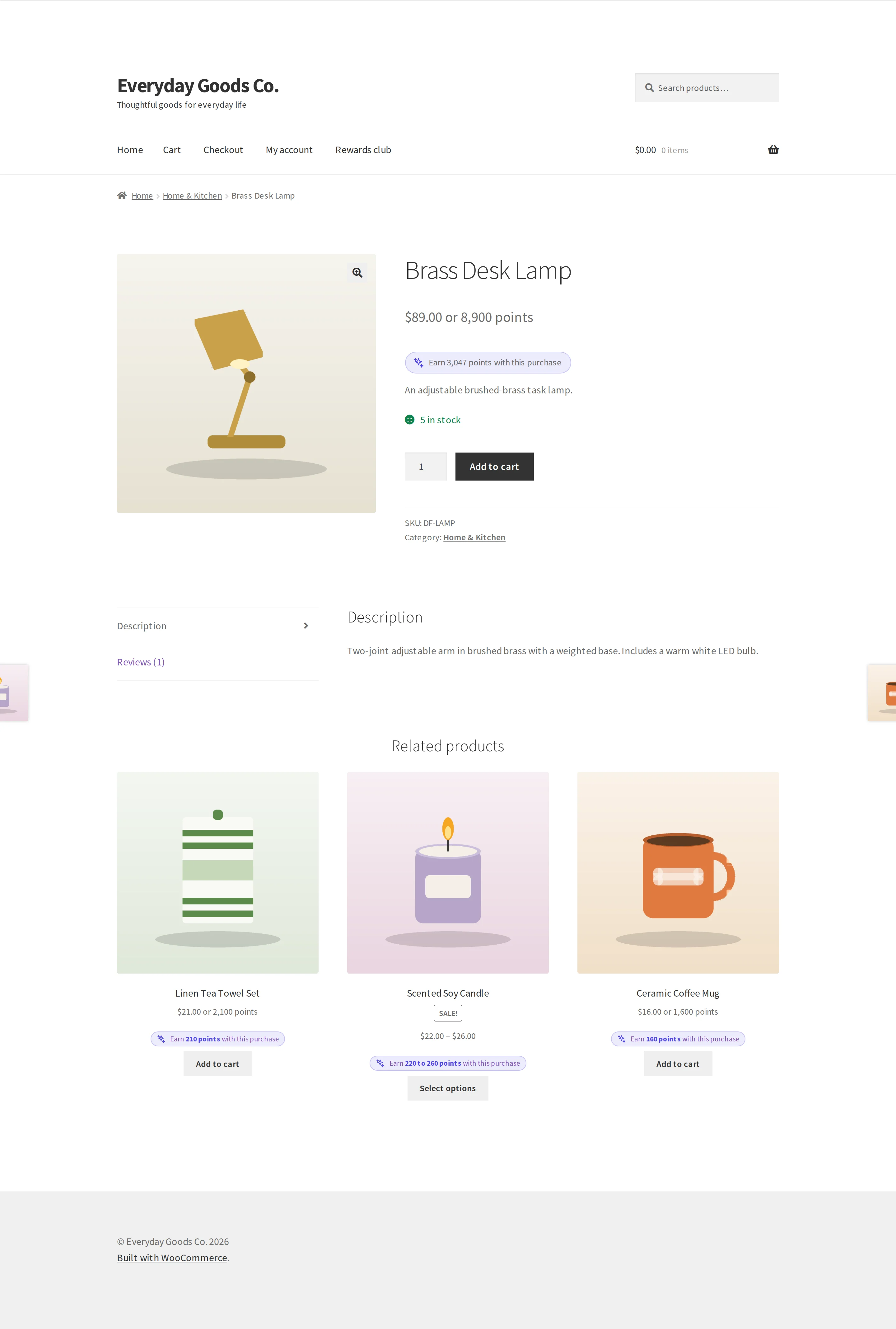
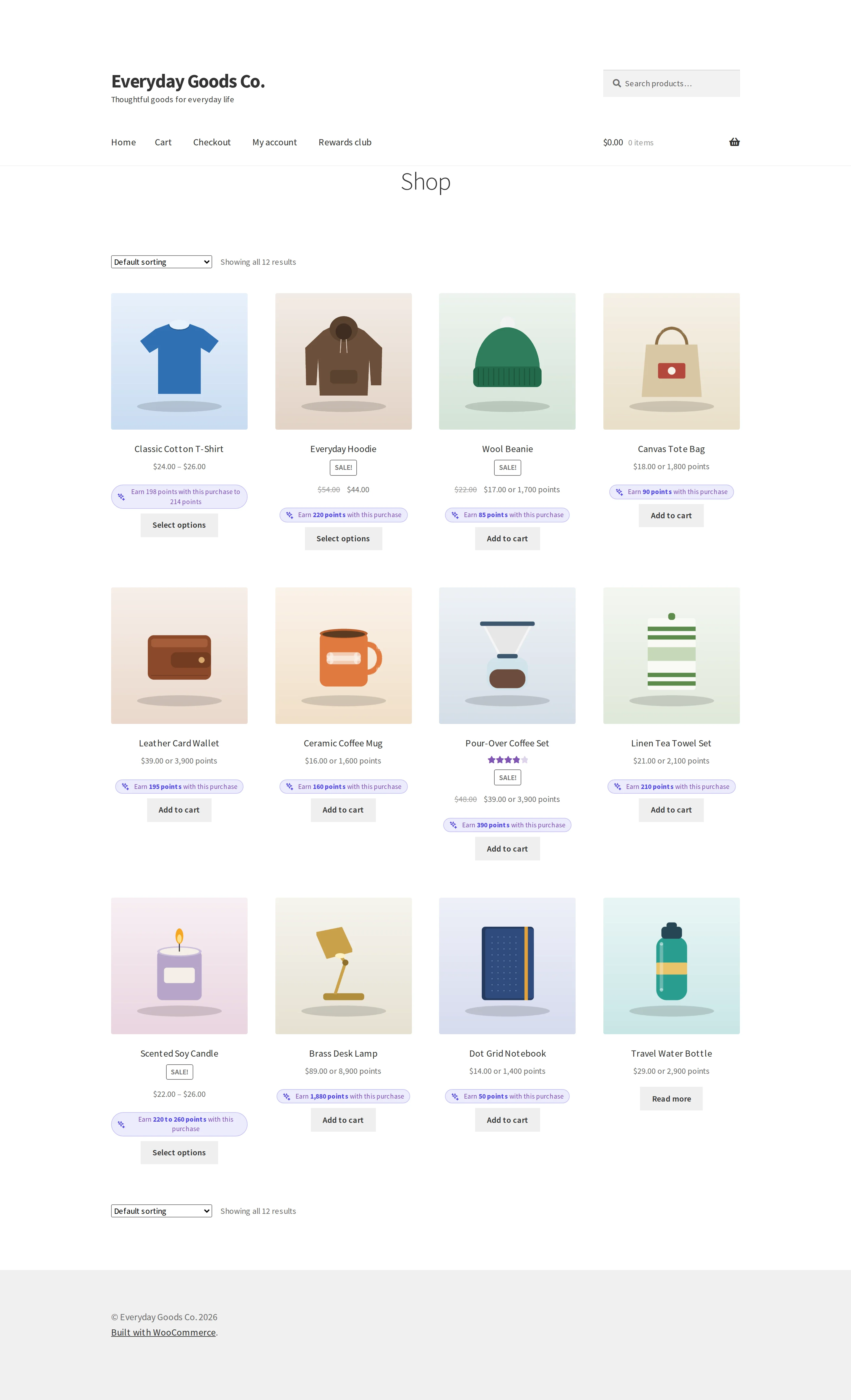
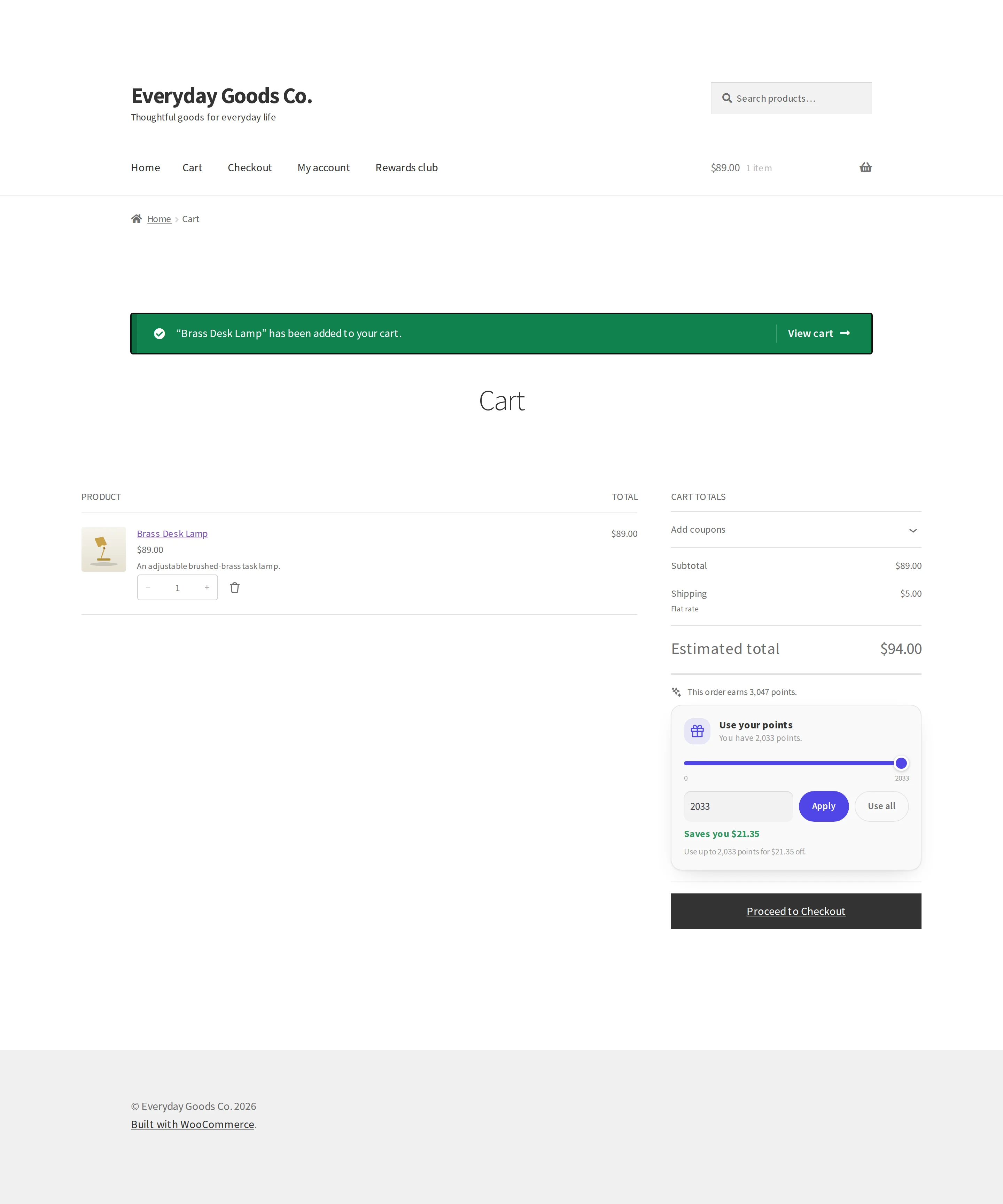
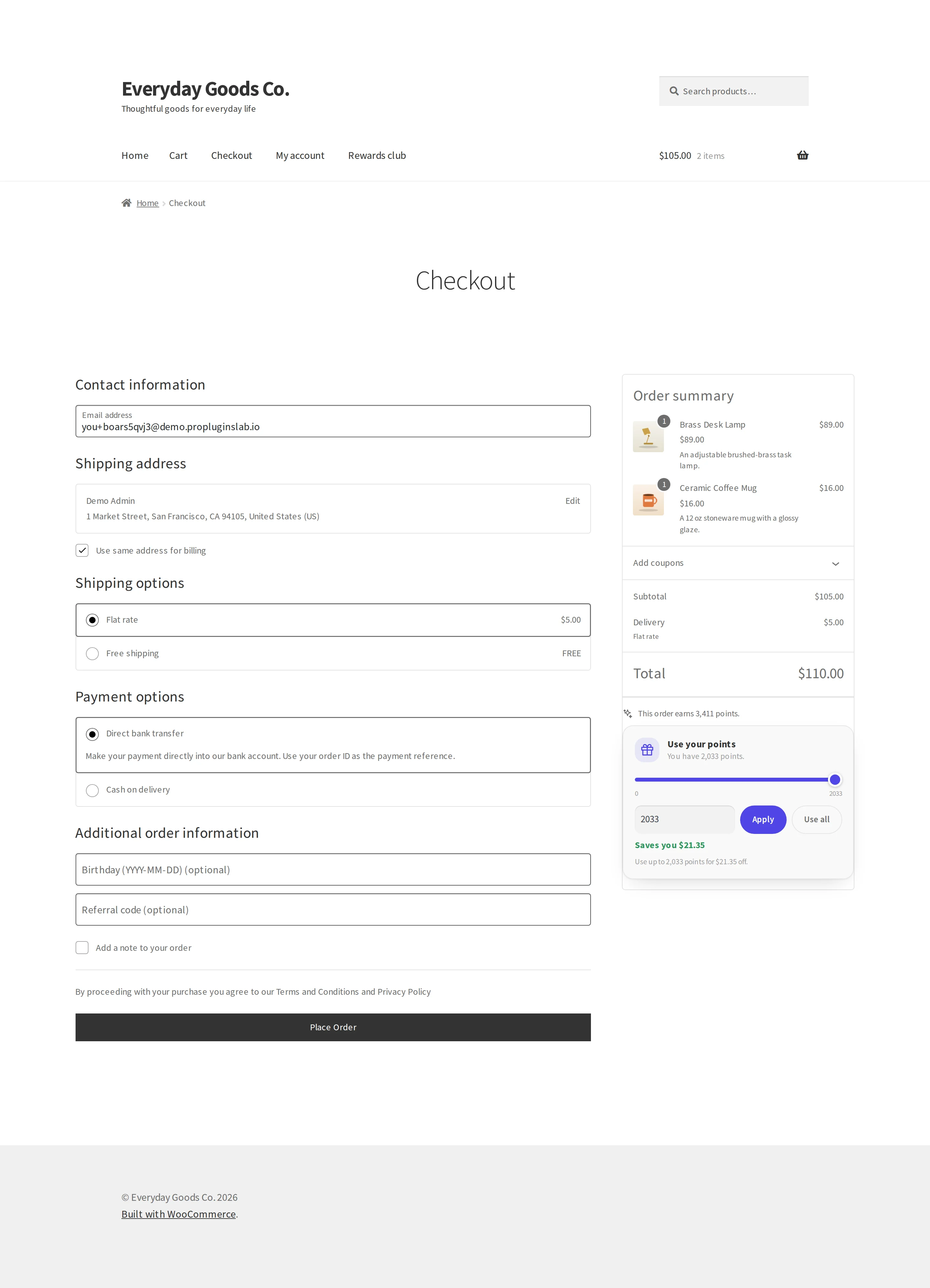
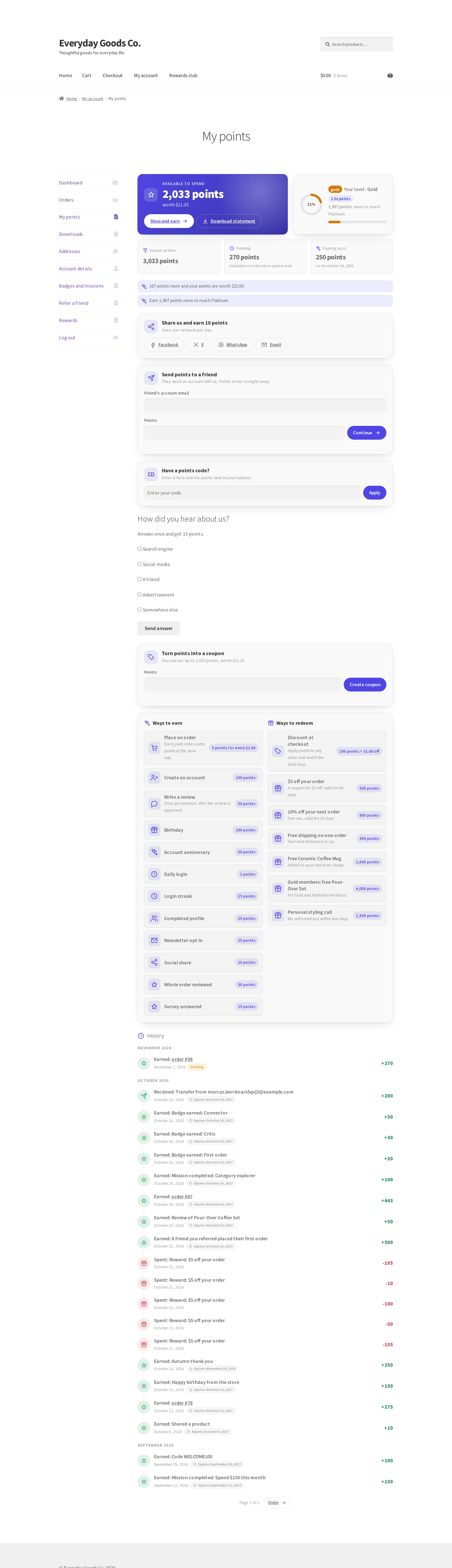
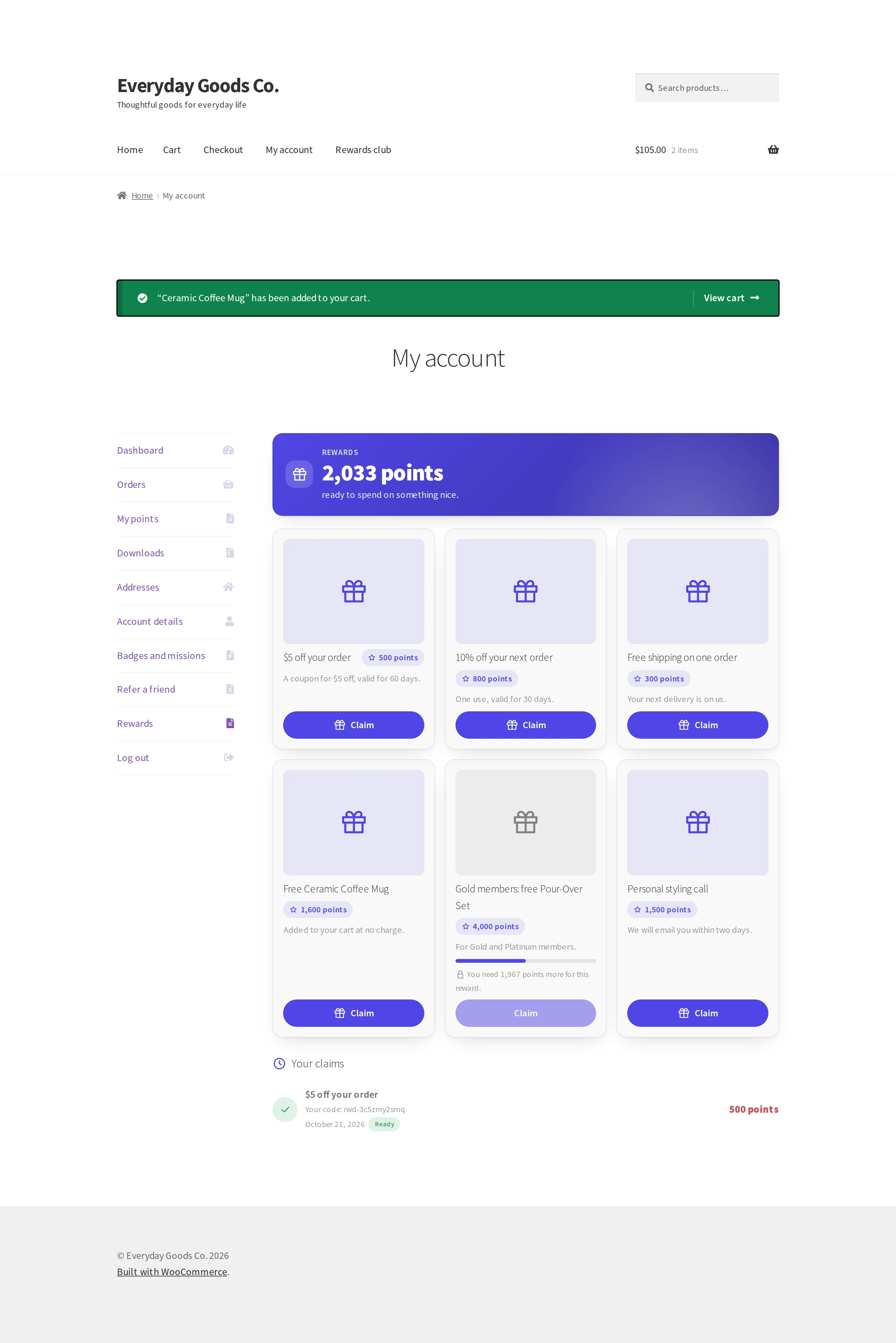
Frequently asked questions
Can customers lose points through a counting error?
Every movement is a permanent ledger row, and awards are keyed so that running a job twice changes nothing. A replayed webhook or a double click does not double points.
What happens when I switch from the free edition to Pro?
You keep every point. Pro uses the same ledger, levels and settings, and each Pro feature is off or neutral until you set it up. Deactivate the free edition from the Plugins screen.
Do guests earn points?
Yes, if Guest orders earn points is on. The points wait with the billing email, and the thank you page and order email invite the shopper to create an account with that email. Unclaimed points expire after DAYS A GUEST HAS TO CLAIM.
Which points are spent first?
The points expiring soonest, so a customer does not lose points they could have used.
What happens to points when an order is refunded?
A partial refund takes back the matching share of points, and a full refund takes back everything. If the customer has already spent the points, Allow negative balances decides whether the balance can go below zero or the refund stops at what they still have.
Does a points discount work with my payment gateway?
The discount works like a coupon, so every payment method, tax rule and report treats it as a normal discount. Express payment buttons on product pages do not apply points.
Does it work with the Cart and Checkout blocks?
Yes. The classic cart and checkout pages and the Cart and Checkout blocks all show the points box. The Checkout block also gets a referral code box.
Which marketing tools are supported?
Klaviyo, Mailchimp, Omnisend, FluentCRM, AutomateWoo and Uncanny Automator. Each is off until you turn it on. The outside services receive only the customer email address, points balance and level name.
Can I import points from another plugin?
Yes. Importers cover WooCommerce Points and Rewards, YITH Points and Rewards, WPLoyalty, Advanced Coupons Loyalty, SUMO Reward Points and WooRewards. You can also import balances from a CSV file with a dry run first.
Do I need Presentero for gift card rewards?
To issue a real gift card, yes. Without Presentero Gift Cards, the customer gets a fixed amount coupon instead.
Can a customer give points to someone else?
Yes, with Customers can transfer points on. The recipient needs an account with the email the sender types. You set the smallest and largest transfer and the number per day.
What happens to my data if I delete the plugin?
With Keep data when the plugin is deleted on, your data stays. With it off, every balance, ledger row, level and setting is removed when you delete the plugin.
Troubleshooting
- "Log in to use your points."
The shopper is not logged in. Points can only be redeemed by logged in customers.
- "You need at least ... to start redeeming." or "Points can be used on orders of ... or more."
The balance or cart is below MINIMUM POINTS TO REDEEM or MINIMUM CART TOTAL under Fedelto > Redemption. Lower the limit if you want to allow it.
- "Nothing in the cart can be paid with points."
Everything in the cart is excluded under What points cannot pay for, such as gift cards, sale items or chosen categories. Change those exclusions if needed.
- "Your points are no longer available, perhaps they were used in another order. The points discount was removed; please check your total and place the order again."
The points were spent elsewhere before the order went through. The customer should check the new total and place the order again.
- No points were awarded for an order
Check the order notes, because Fedelto writes a note for every award, hold, reversal and return. Points are awarded when the order reaches the status set in AWARD POINTS WHEN THE ORDER IS. To see what the order should earn and why, enter its number in the Simulator. An earning rule set to Award no points can also stop it.
- "Enter the Twilio account SID and auth token first."
Enter both values under Settings > Text and WhatsApp notifications, save your changes and send the test again.
- "Enter a sender number in international format, for example +15551234567."
Enter the sender number for the channel in international format and save. The test recipient number must use the same format.
- "Switch the service on and save its key first."
On the service's card under Settings > Marketing integrations, tick Switched on, enter its key, save your changes, then click Send a test with my account.
- A page cache shows another customer's balance
The cache stores pages for logged in users. Switch that off in your cache plugin, or set CACHE MODE under Settings > Cache to Always refresh personal values after the page loads.
- "Action Scheduler is not available, so pending points, expiry and reminders cannot run. It ships with WooCommerce; make sure WooCommerce is active and up to date."
Make sure WooCommerce is active and up to date. Pending points, expiry, reminders and checkout holds depend on these background jobs. Bulk points and reconciling need them too.