
Overview
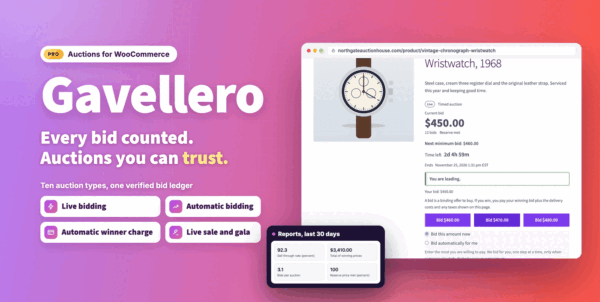
Auctions for WooCommerce with a tamper-evident bid ledger: ten auction types, events, galas, live sales, card on file, deposits and automatic winner payment.
Requirements
- WordPress 6.5 or later
- PHP 7.4 or later
- WooCommerce 8.5 or later
- Required plugins: woocommerce
Installation
Download Gavellero - Auctions for WooCommerce from your ProPluginsLab account, then upload it to WordPress.
Log in to your ProPluginsLab account and open My Account > Downloads.
Download the plugin zip file.
In your WordPress admin, go to Plugins > Add New Plugin > Upload Plugin.
Choose the zip file, click Install Now, then Activate.
License and automatic updates
Gavellero works fully as soon as it is activated. The license key turns on automatic updates, so new versions arrive in WordPress like any other plugin update. Pro features never depend on it.
Activate your license
Find your license key in My Account on propluginslab.io, in the license keys section. It is also in your order confirmation email.
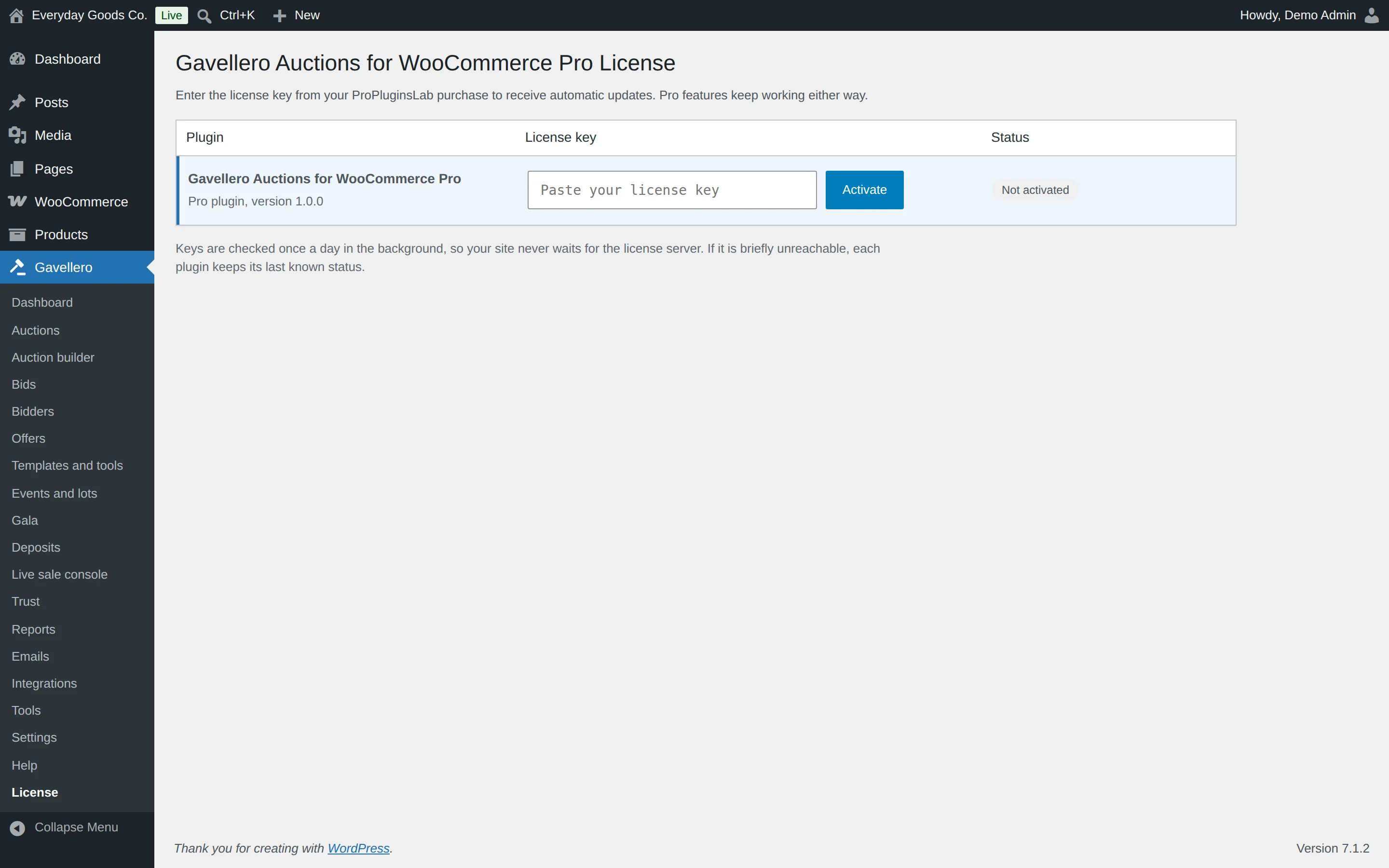
In WordPress, open Gavellero > License. When two or more ProPluginsLab plugins or add-ons are active on the site, WooCommerce > Licenses also appears and lists all of them in one place.
Paste the key into the Gavellero - Auctions for WooCommerce Pro row and click Activate. The status changes to Active and automatic updates are on.
Receive updates automatically
Once the license is active, new versions of Gavellero show up under Dashboard > Updates and on the Plugins screen. Click Update now, or click Enable auto-updates in the Gavellero row on the Plugins screen and WordPress installs every future release for you.
Good to know
- Keys are checked once a day in the background, so your site never waits for the license server. If the server is briefly unreachable, the plugin keeps its last known status.
- An expired key or a key that is not accepted only stops updates. Gavellero keeps working. After renewing, click Check now in its row.
- Moving to a new domain: click Deactivate on the old site first, then activate the key on the new one. The status shows Site address changed, checking until the new address is confirmed.
- On the command line:
wp ppl-license list,wp ppl-license activate <plugin> <key>,wp ppl-license checkandwp ppl-license deactivate <plugin>.
Quick start
- Open Dashboard
Go to
wp-admin/admin.php?page=gavelleroin your WordPress admin. - Open Gavellero Auctions for WooCommerce Pro License
Go to
wp-admin/admin.php?page=cwg-license-gavellero-auctions-for-woocommerce-proin your WordPress admin. - Open Auctions
Go to
wp-admin/admin.php?page=gavellero-auctionsin your WordPress admin. - Open Auction builder
Go to
wp-admin/admin.php?page=gavellero-builderin your WordPress admin.
#Dashboard
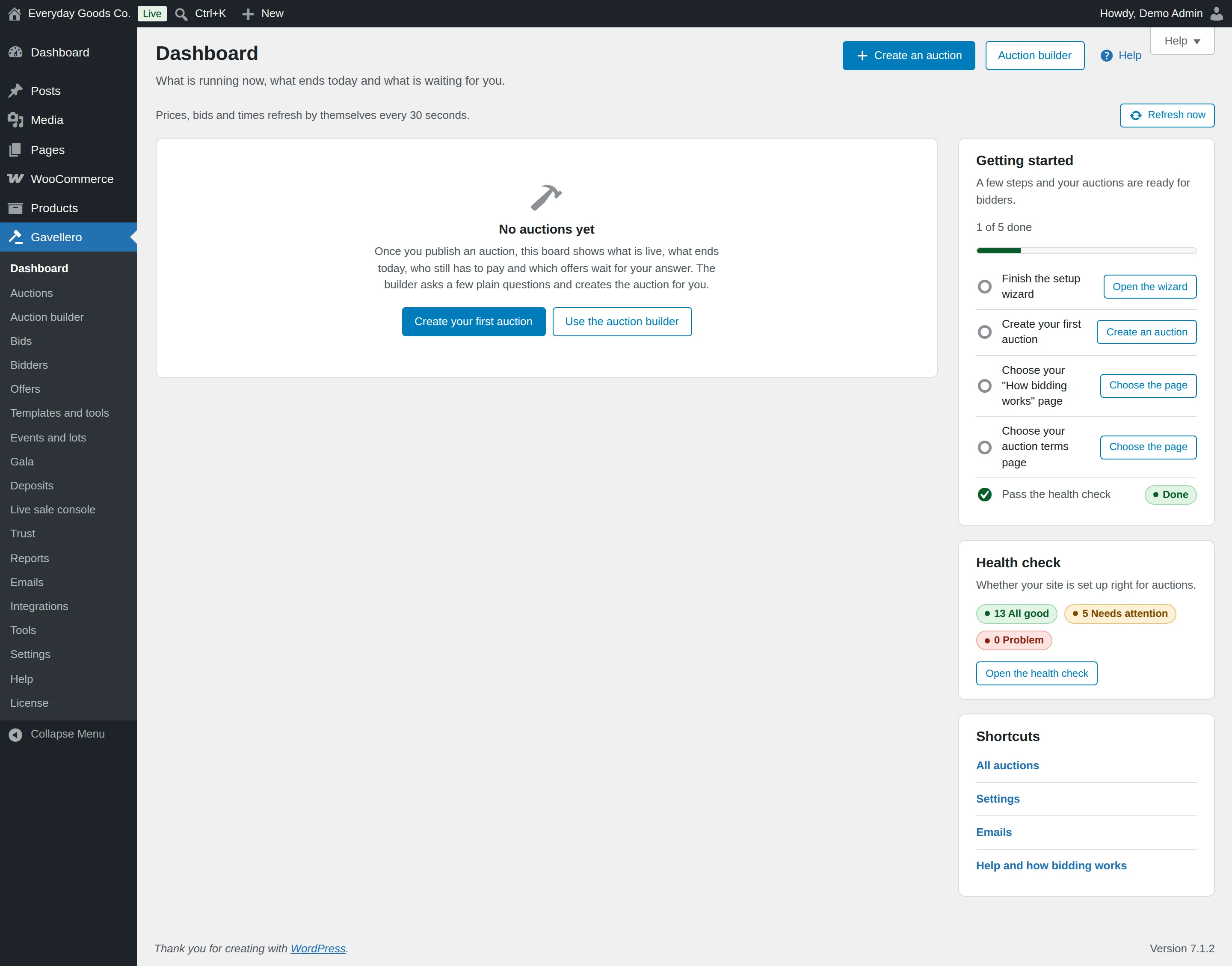
Location: wp-admin/admin.php?page=gavellero
On this screen:
- Dashboard
- Getting started
- Health check
- Shortcuts
#Gavellero Auctions for WooCommerce Pro License
Location: wp-admin/admin.php?page=cwg-license-gavellero-auctions-for-woocommerce-pro
On this screen:
- Gavellero Auctions for WooCommerce Pro License
#Auctions
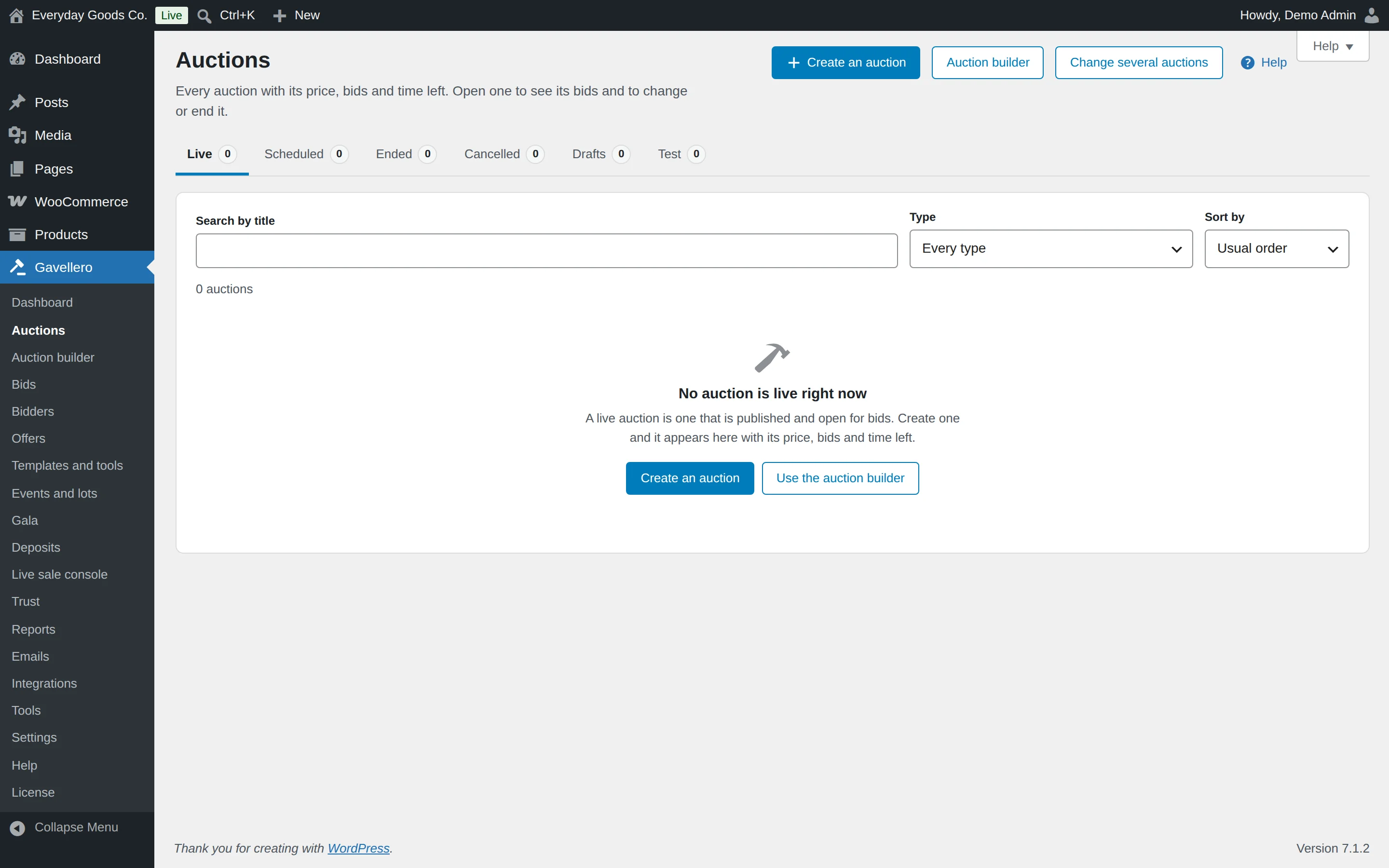
Location: wp-admin/admin.php?page=gavellero-auctions
On this screen:
- Auctions
#Auction builder
Location: wp-admin/admin.php?page=gavellero-builder
On this screen:
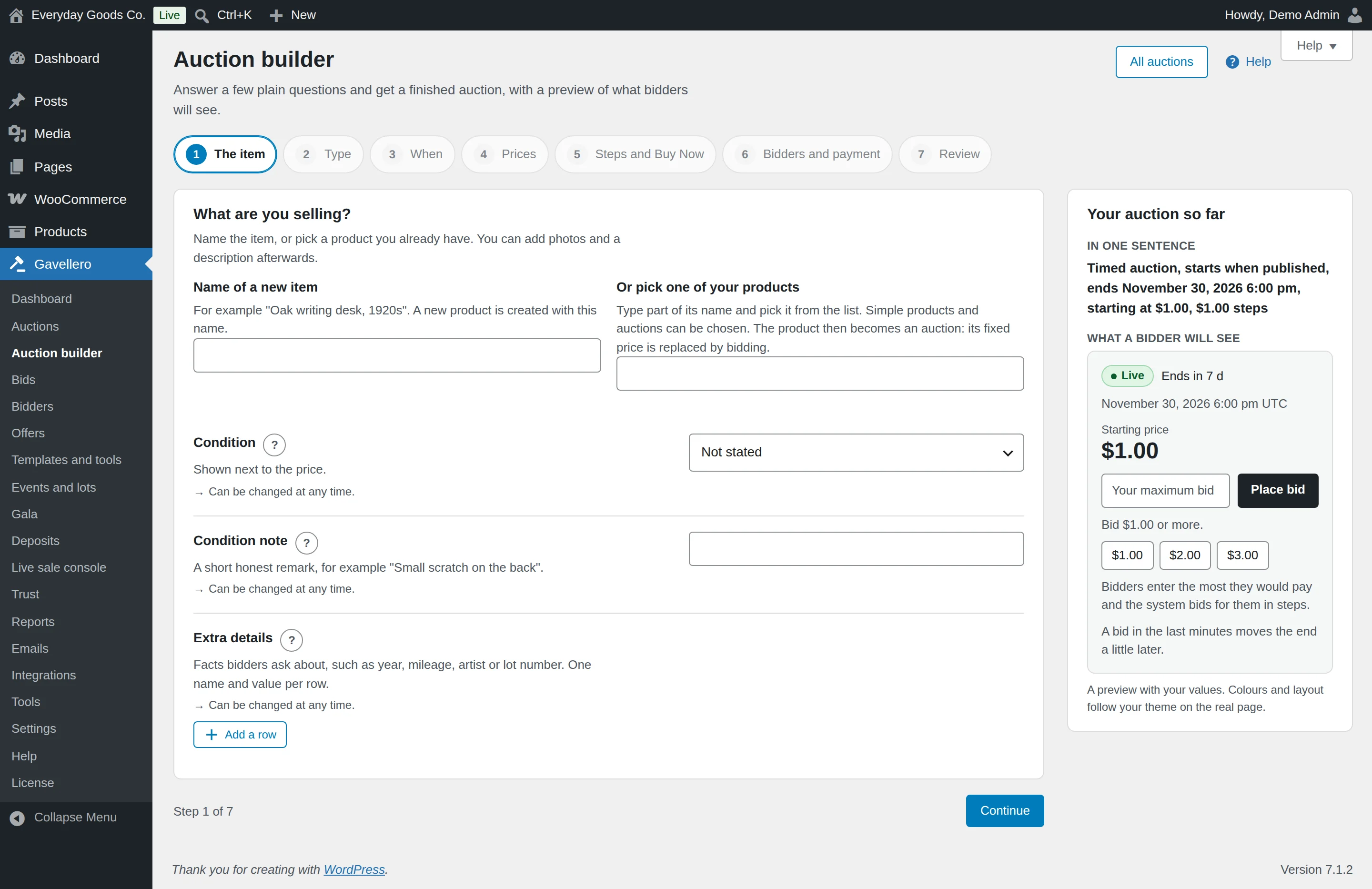
- Auction builder
- What are you selling?
- Your auction so far
#Bids
Location: wp-admin/admin.php?page=gavellero-bids
On this screen:
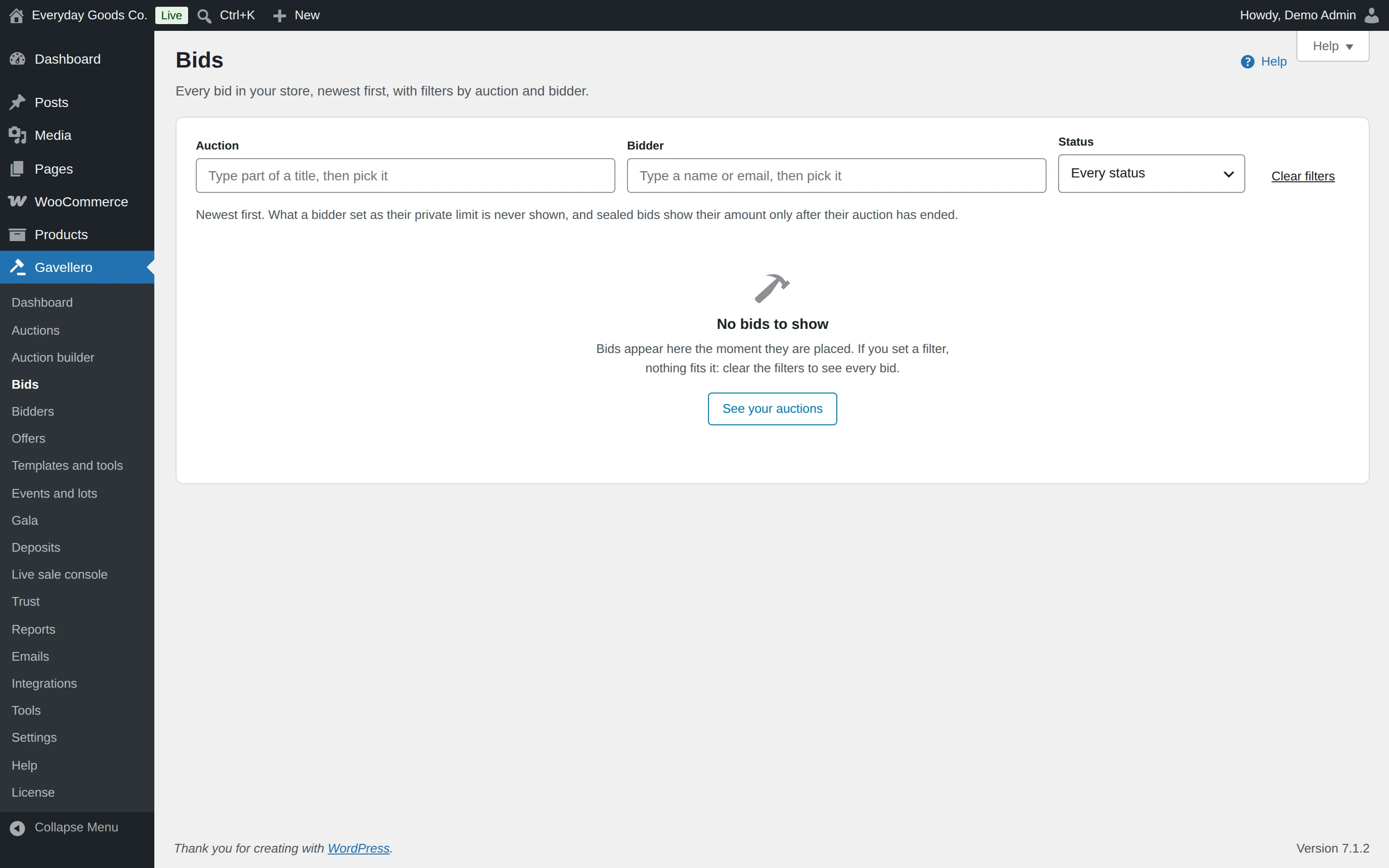
- Bids
#Bidders
Location: wp-admin/admin.php?page=gavellero-bidders
On this screen:
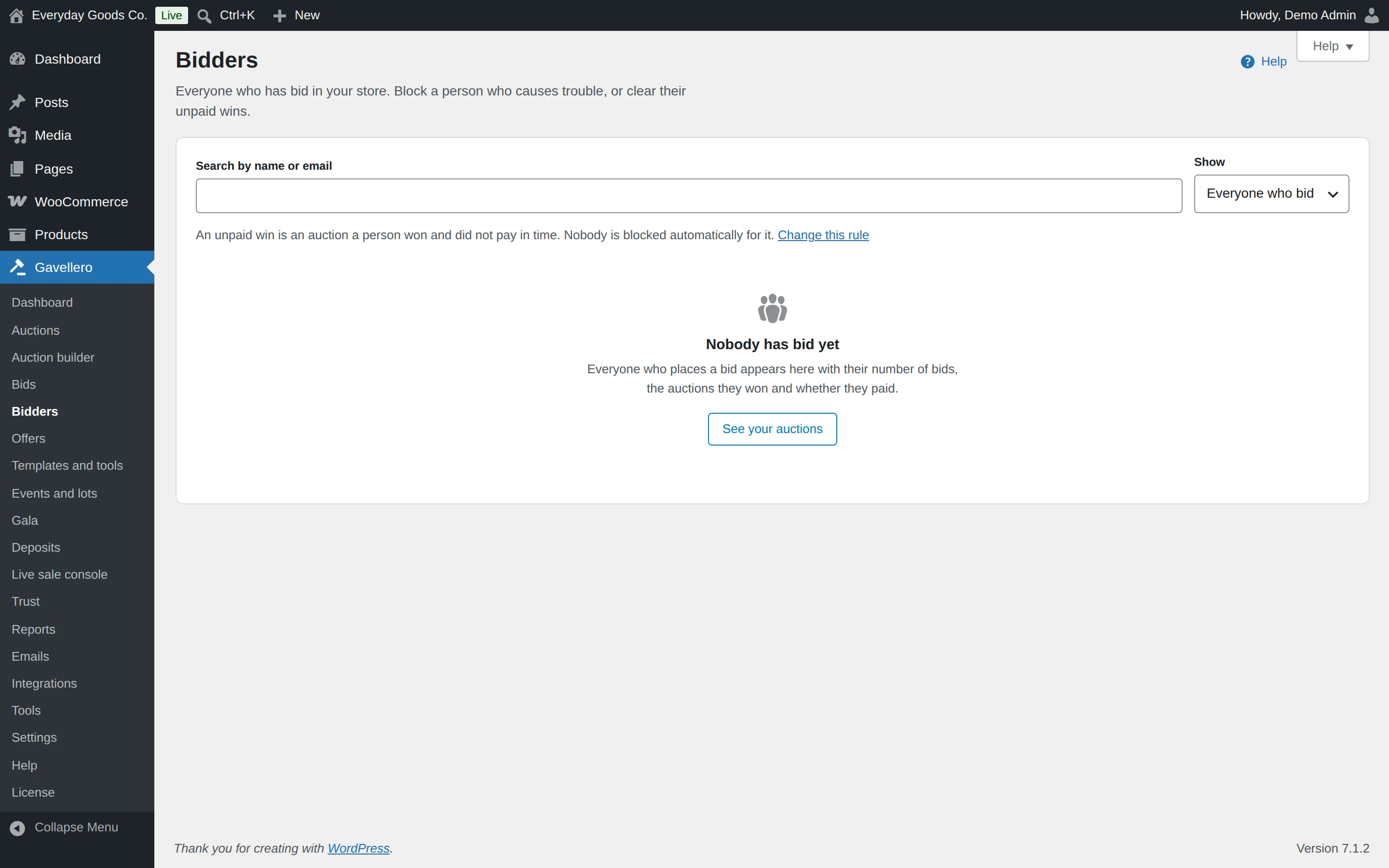
- Bidders
#Offers
Location: wp-admin/admin.php?page=gavellero-offers
On this screen:
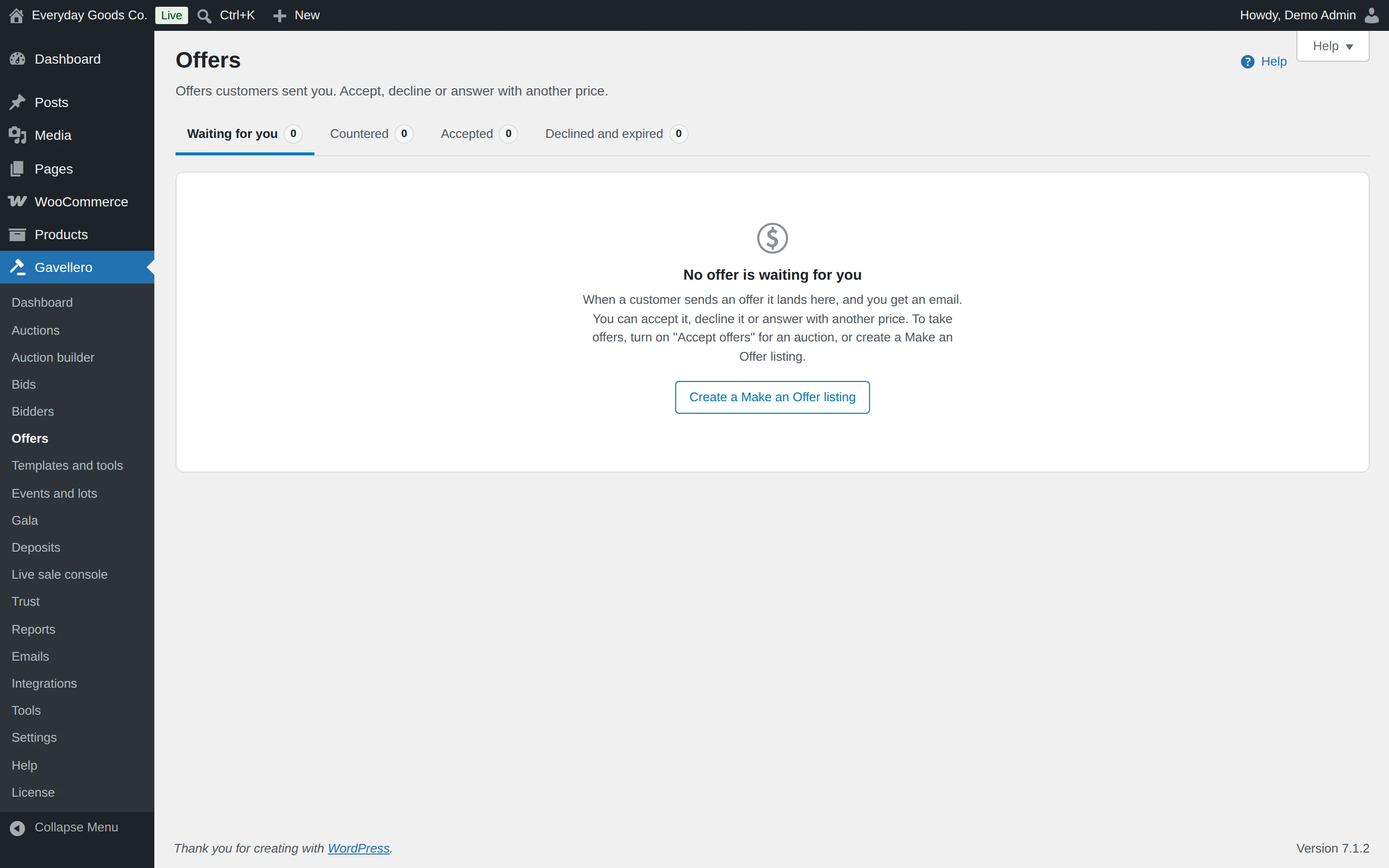
- Offers
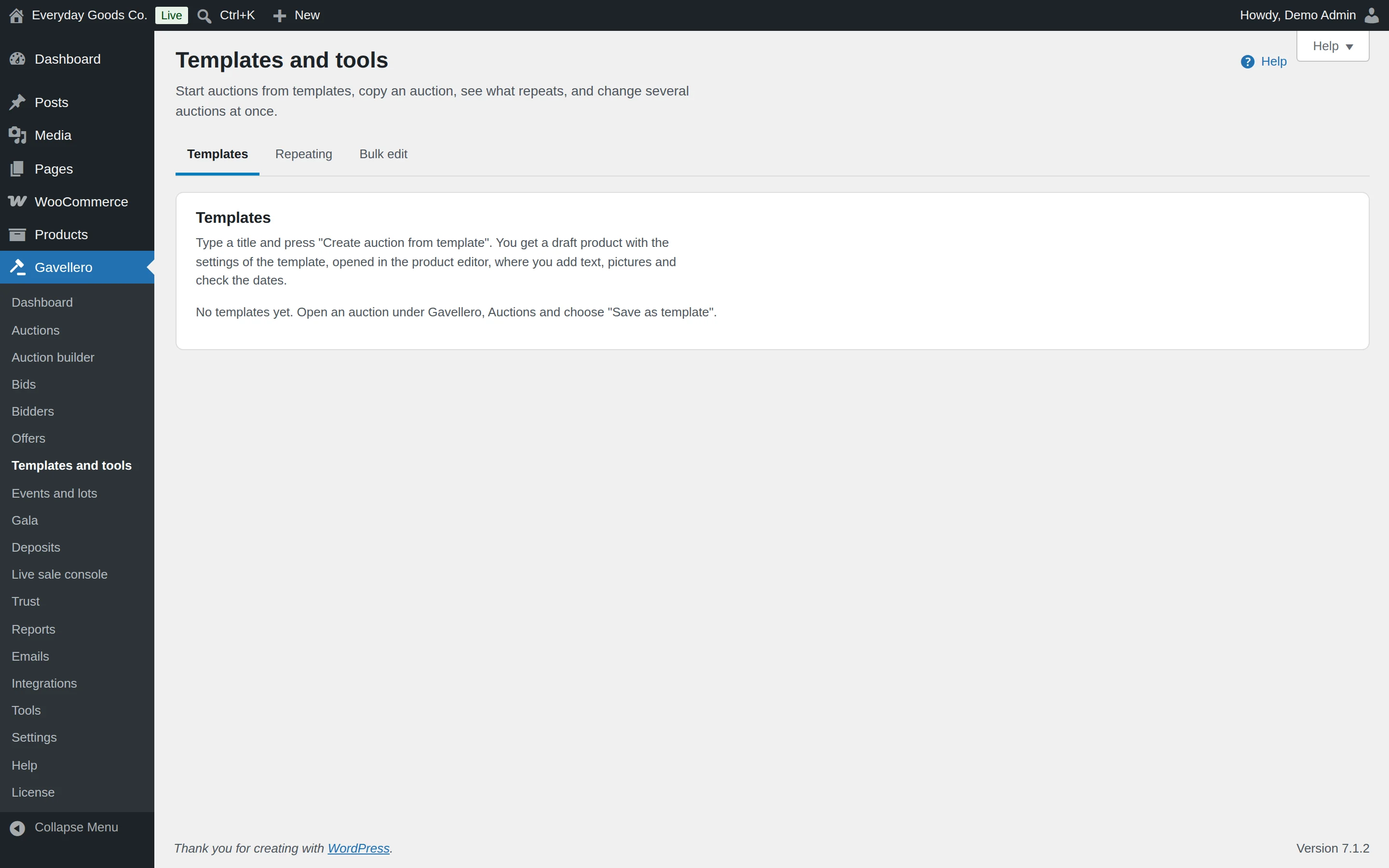
#Templates and tools
Location: wp-admin/admin.php?page=gavellero-authoring
On this screen:
- Templates and tools
- Templates
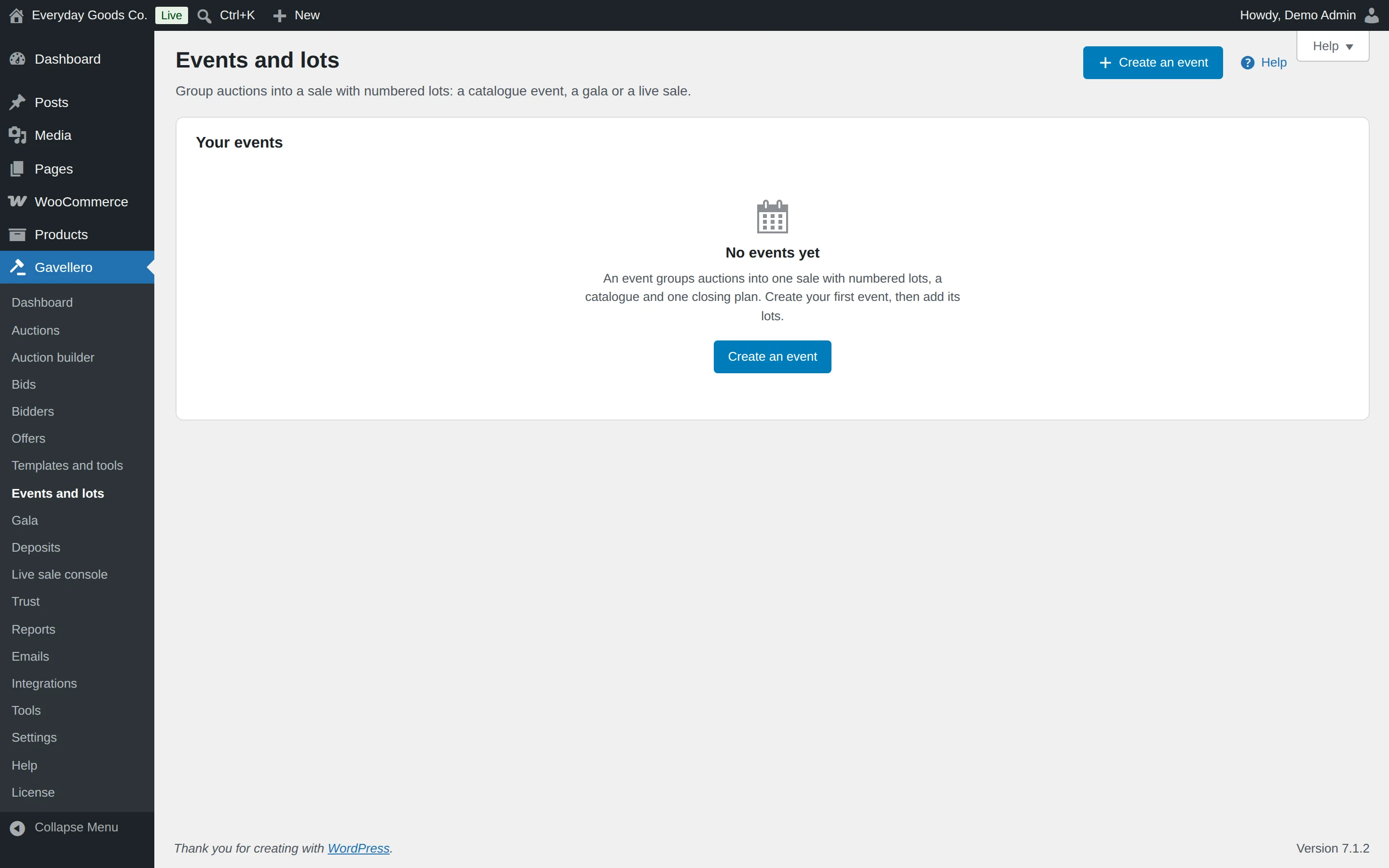
#Events and lots
Location: wp-admin/admin.php?page=gavellero-events
On this screen:
- Events and lots
- Your events
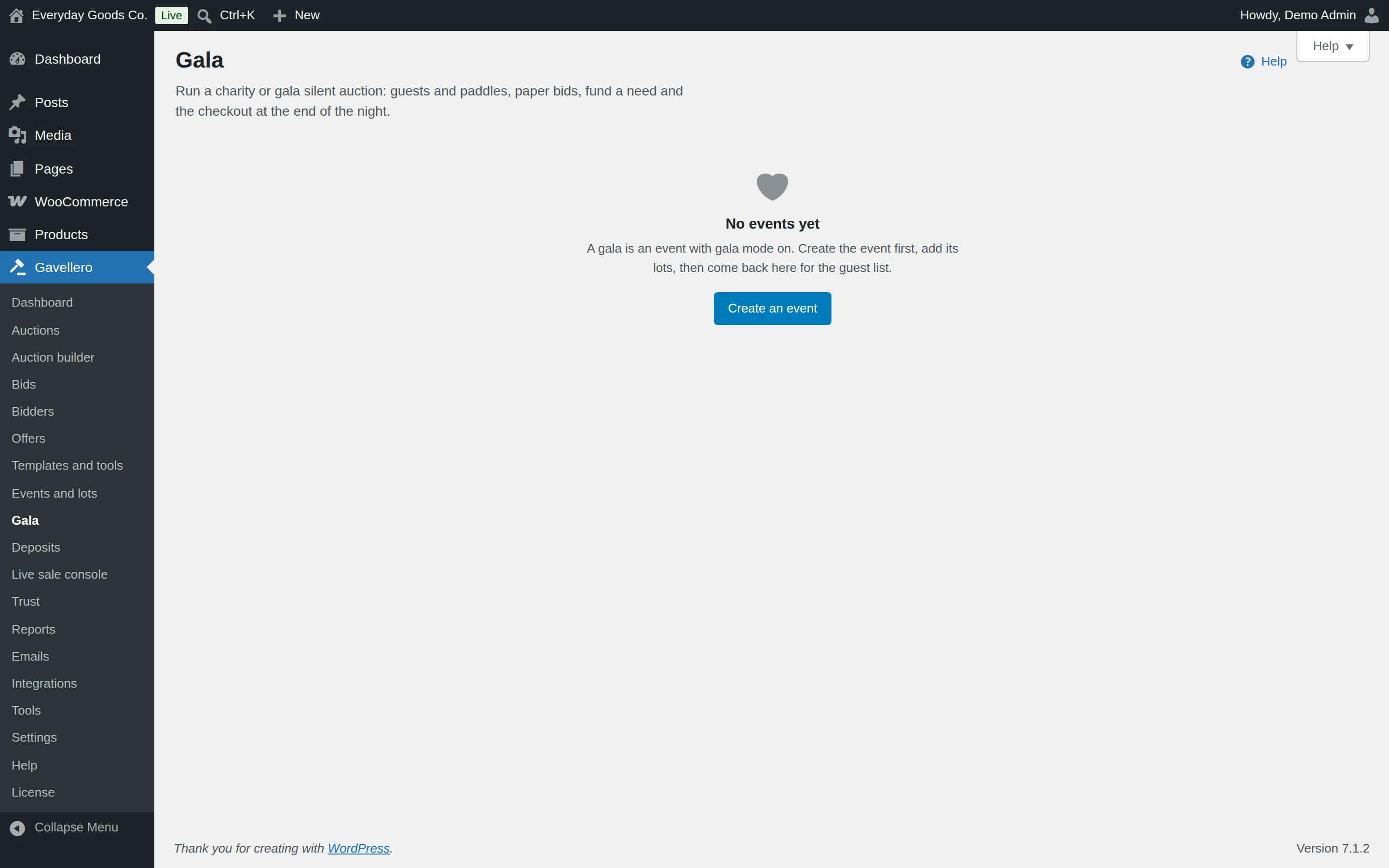
#Gala
Location: wp-admin/admin.php?page=gavellero-gala
On this screen:
- Gala
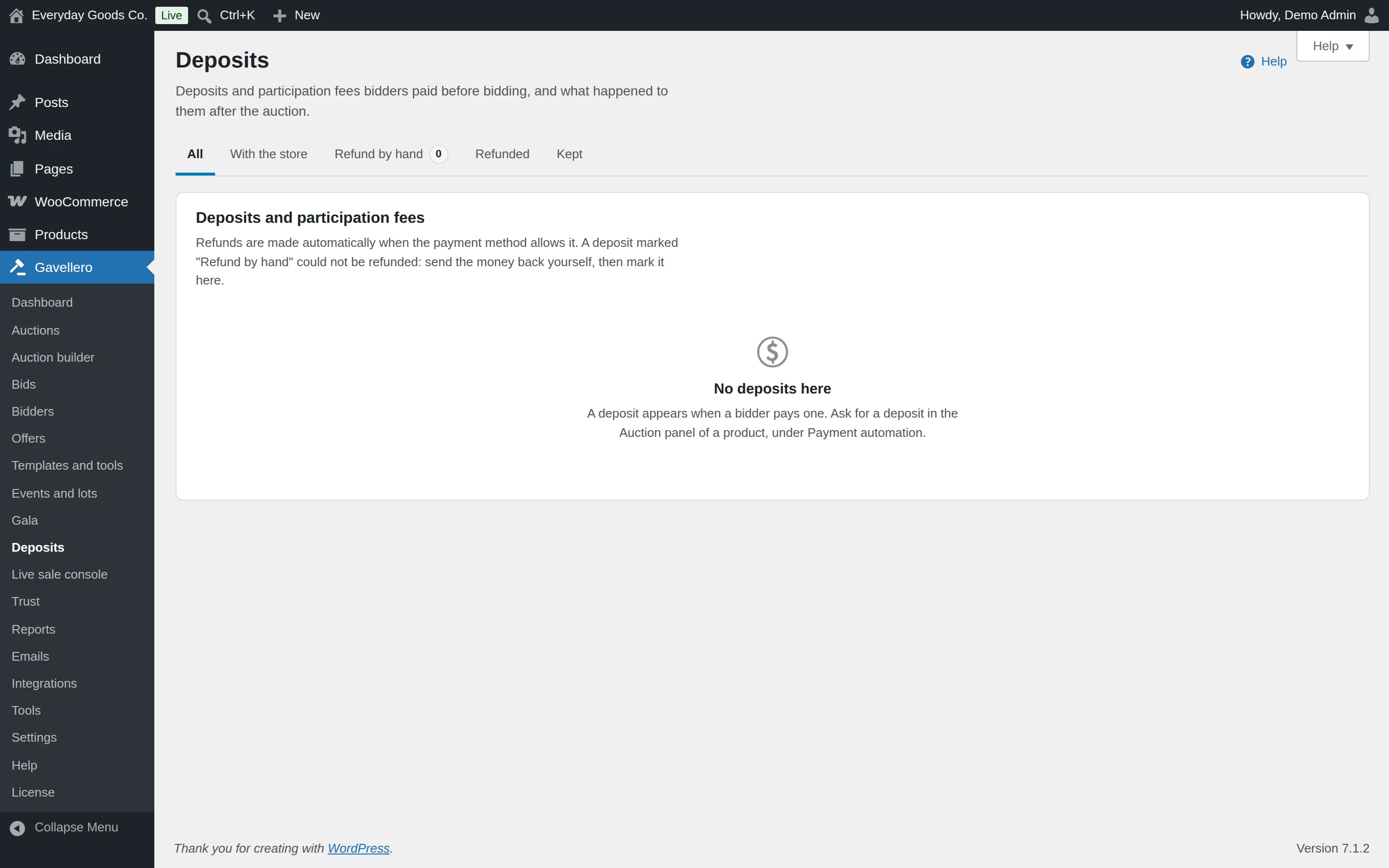
#Deposits
Location: wp-admin/admin.php?page=gavellero-deposits
On this screen:
- Deposits
- Deposits and participation fees
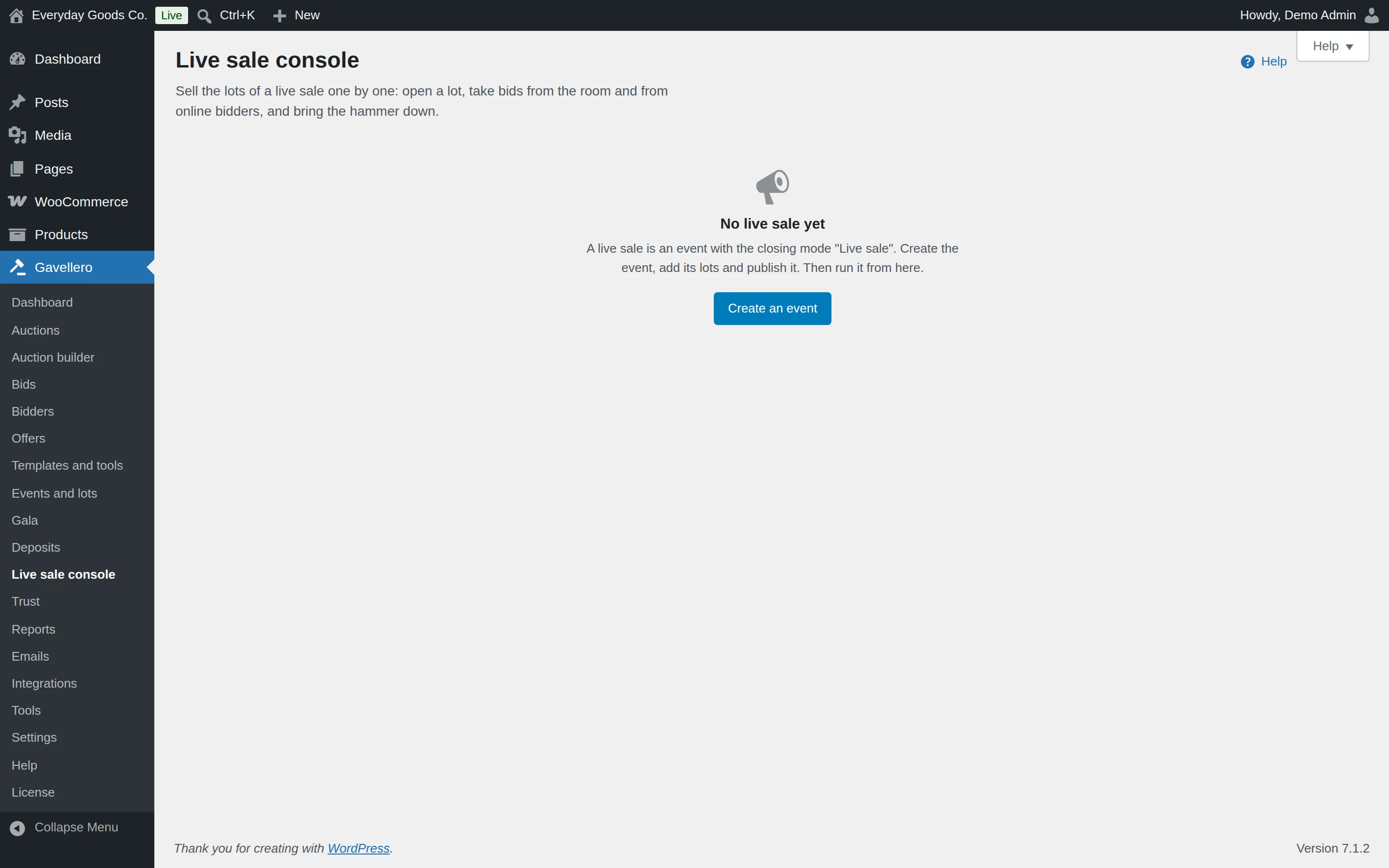
#Live sale console
Location: wp-admin/admin.php?page=gavellero-live-console
On this screen:
- Live sale console
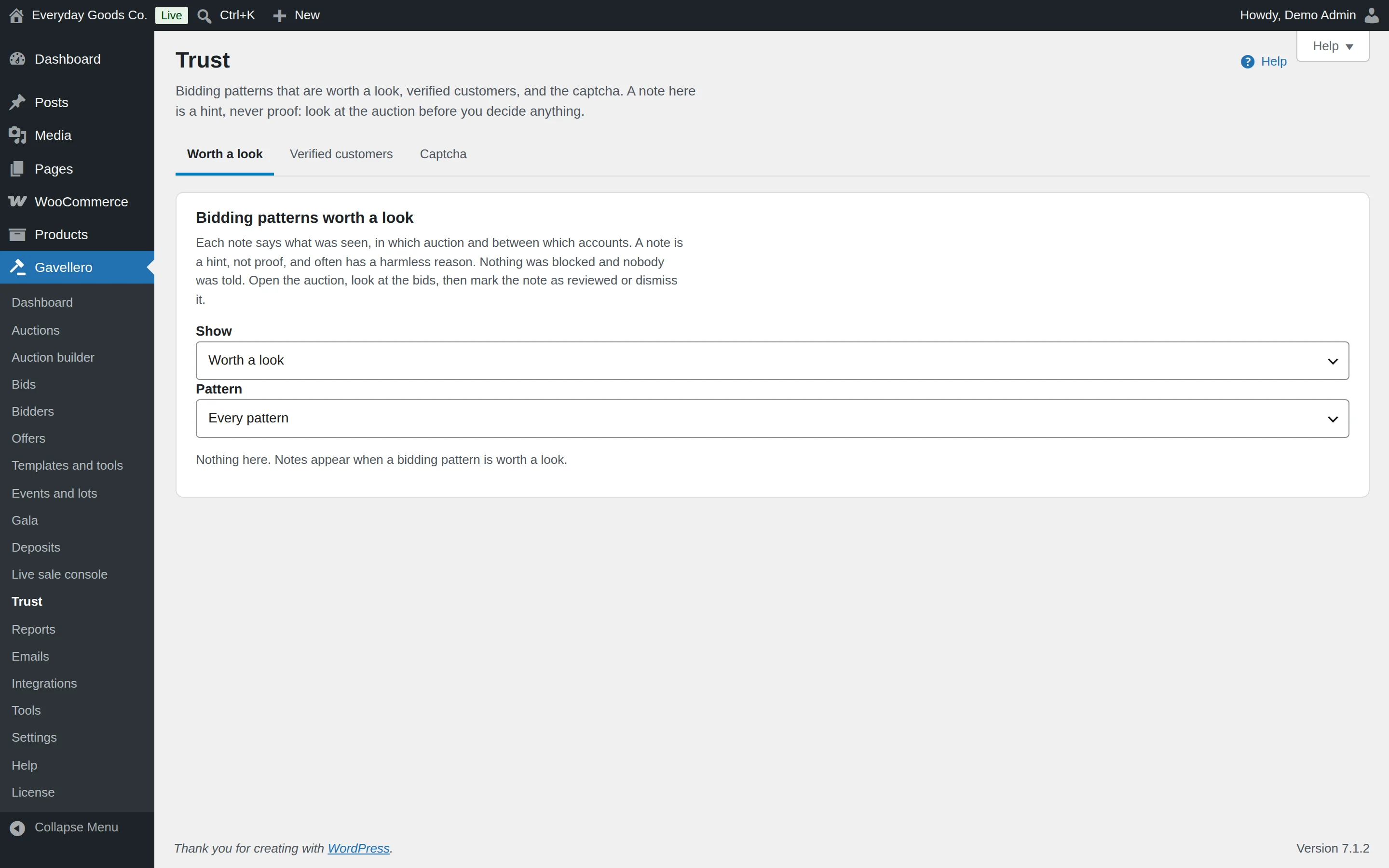
#Trust
Location: wp-admin/admin.php?page=gavellero-flags
On this screen:
- Trust
- Bidding patterns worth a look
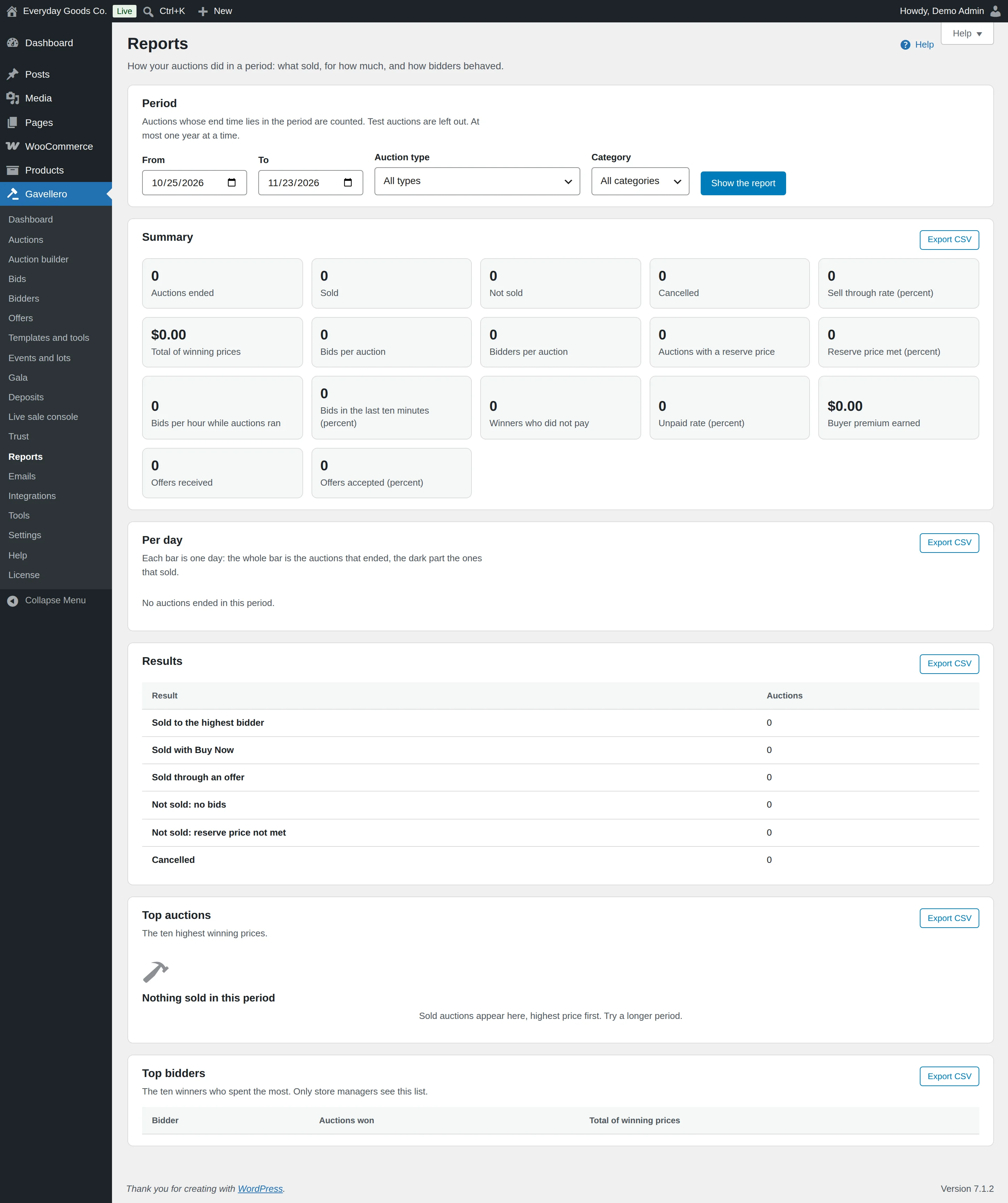
#Reports
Location: wp-admin/admin.php?page=gavellero-reports
On this screen:
- Reports
- Period
- Summary
- Per day
- Results
- Top auctions
- Top bidders
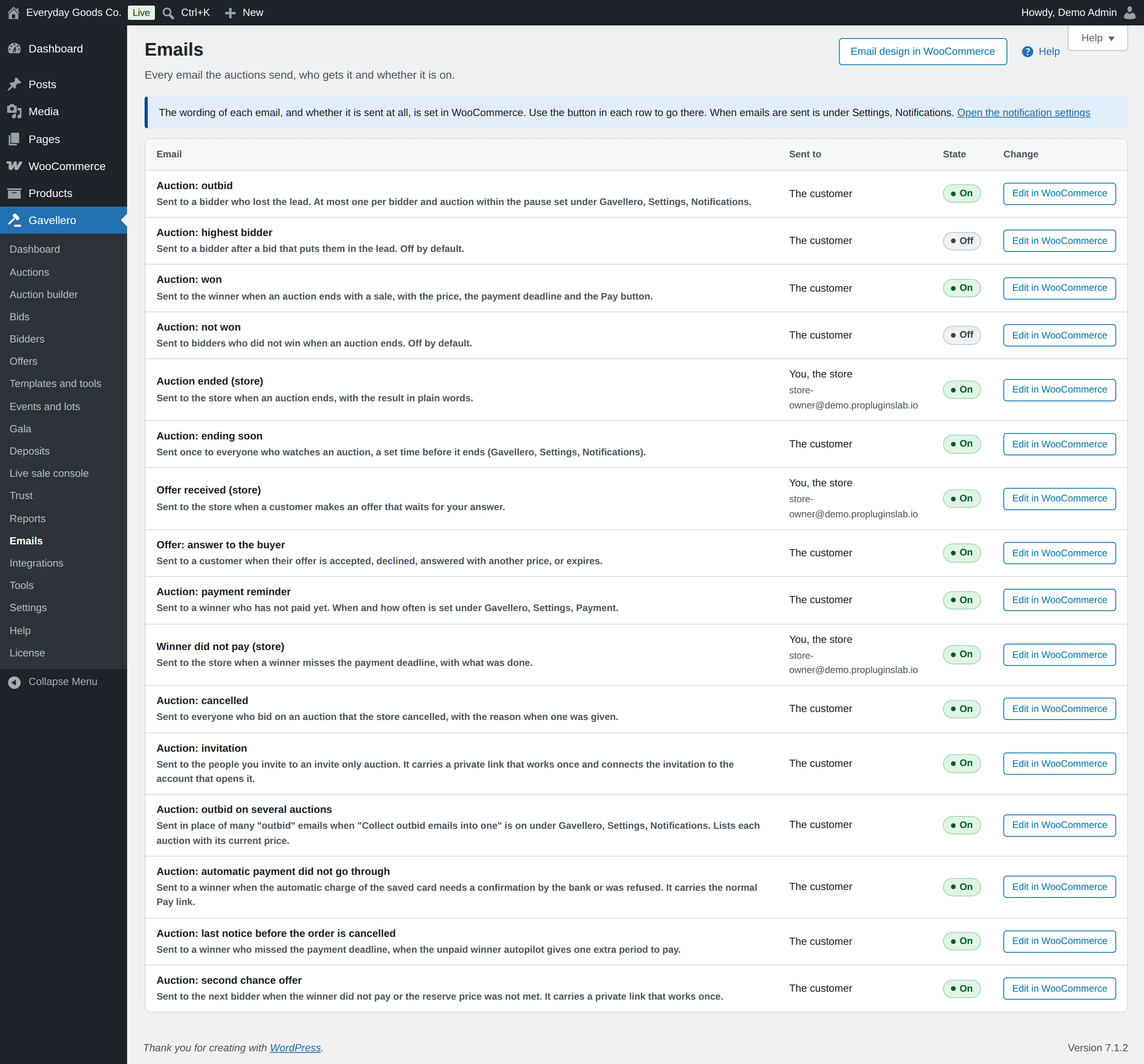
#Emails
Location: wp-admin/admin.php?page=gavellero-emails
On this screen:
- Emails
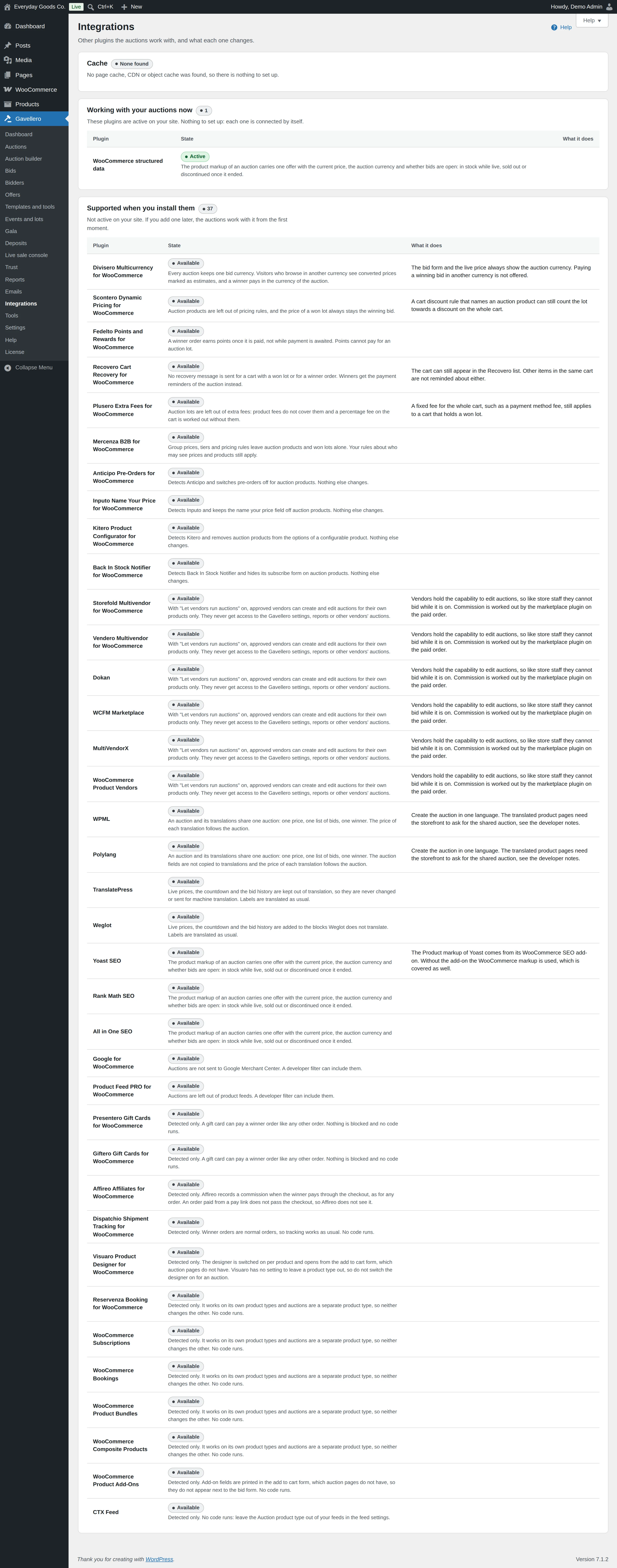
#Integrations
Location: wp-admin/admin.php?page=gavellero-integrations
On this screen:
- Integrations
- Cache None found
- Working with your auctions now 1
- Supported when you install them 37
#Tools
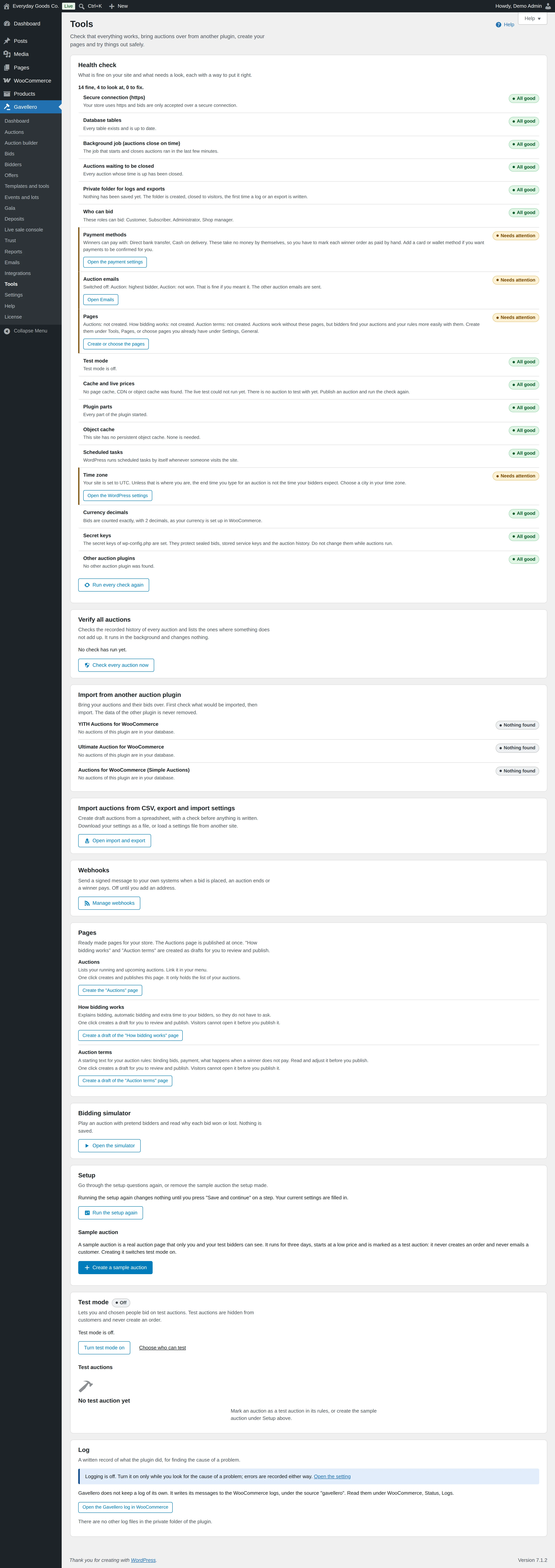
Location: wp-admin/admin.php?page=gavellero-tools
On this screen:
- Tools
- Health check
- Verify all auctions
- Import from another auction plugin
- Import auctions from CSV, export and import settings
- Webhooks
- Pages
- Bidding simulator
#Settings
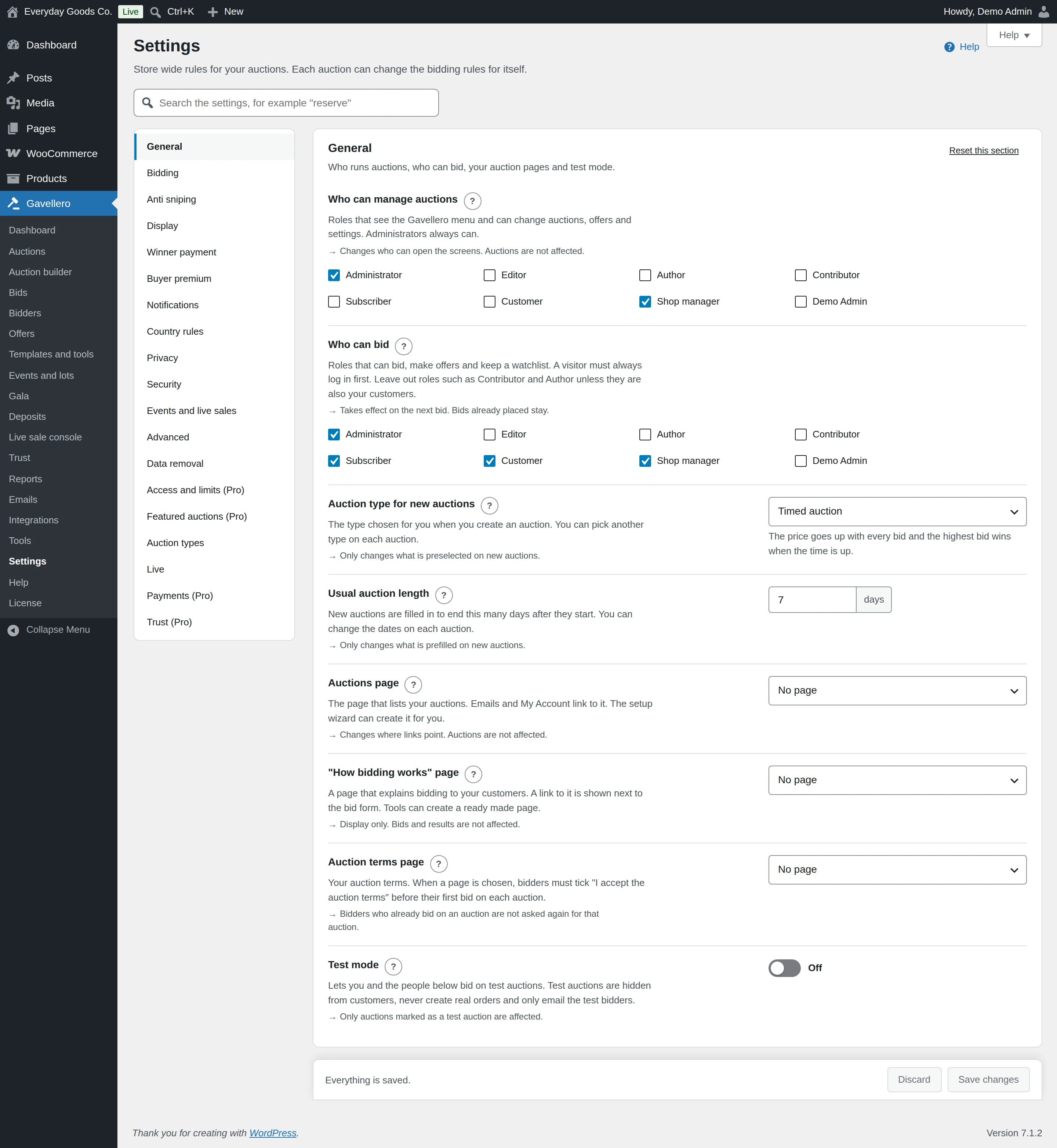
Location: wp-admin/admin.php?page=gavellero-settings
On this screen:
- Settings
- General
#Help
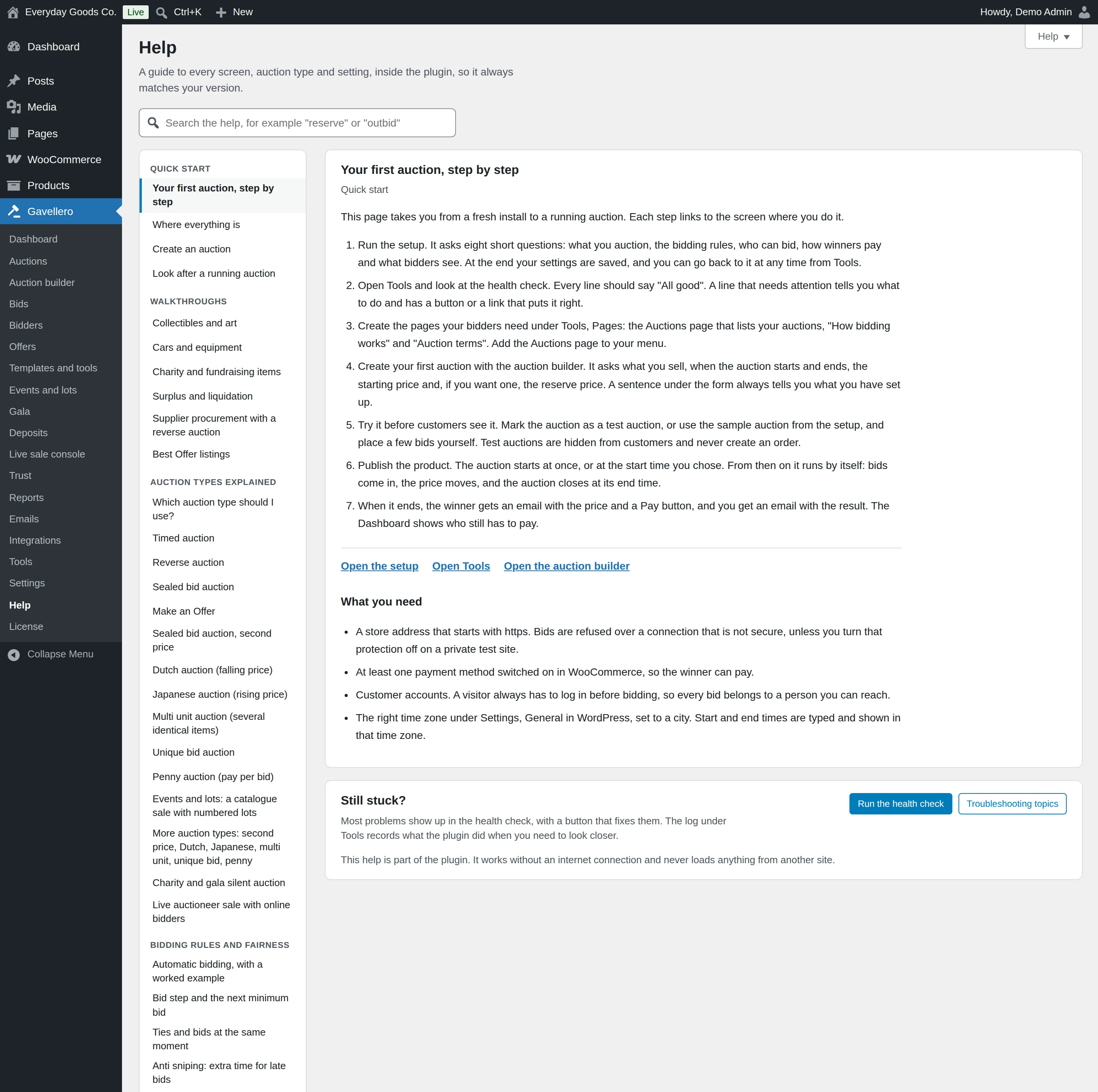
Location: wp-admin/admin.php?page=gavellero-help
On this screen:
- Help
- QUICK START
- WALKTHROUGHS
- AUCTION TYPES EXPLAINED
- BIDDING RULES AND FAIRNESS
- WINNER AND PAYMENT
- SECURITY AND PRIVACY
- SETUP AND TOOLS
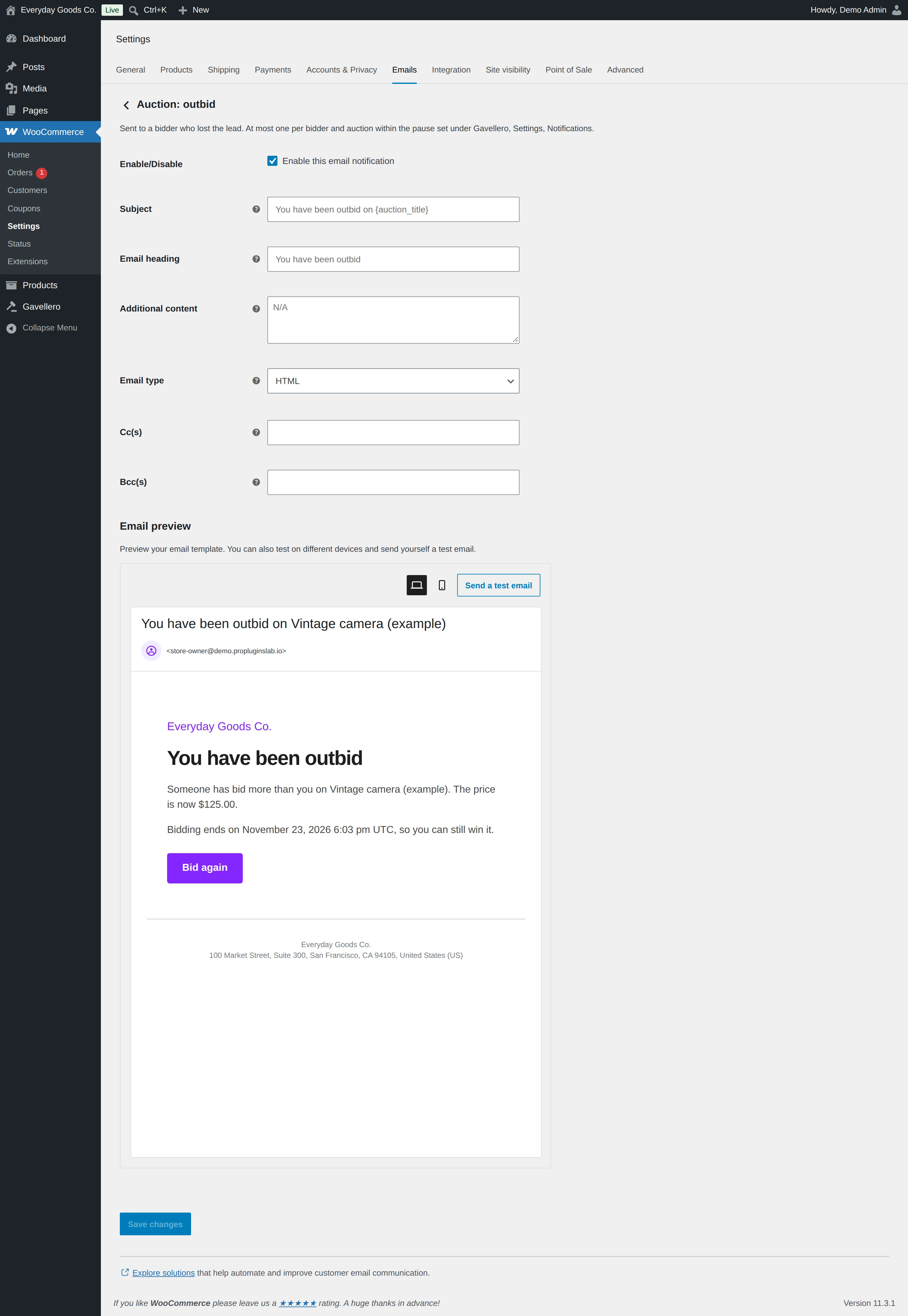
#WooCommerce > Settings > Email > Auction: outbid
Location: wp-admin/admin.php?page=wc-settings&tab=email§ion=gavellero_outbid
On this screen:
- Auction: outbid
- Email preview
- You have been outbid on Vintage camera (example)
#WooCommerce > Settings > Email > Auction: highest bidder
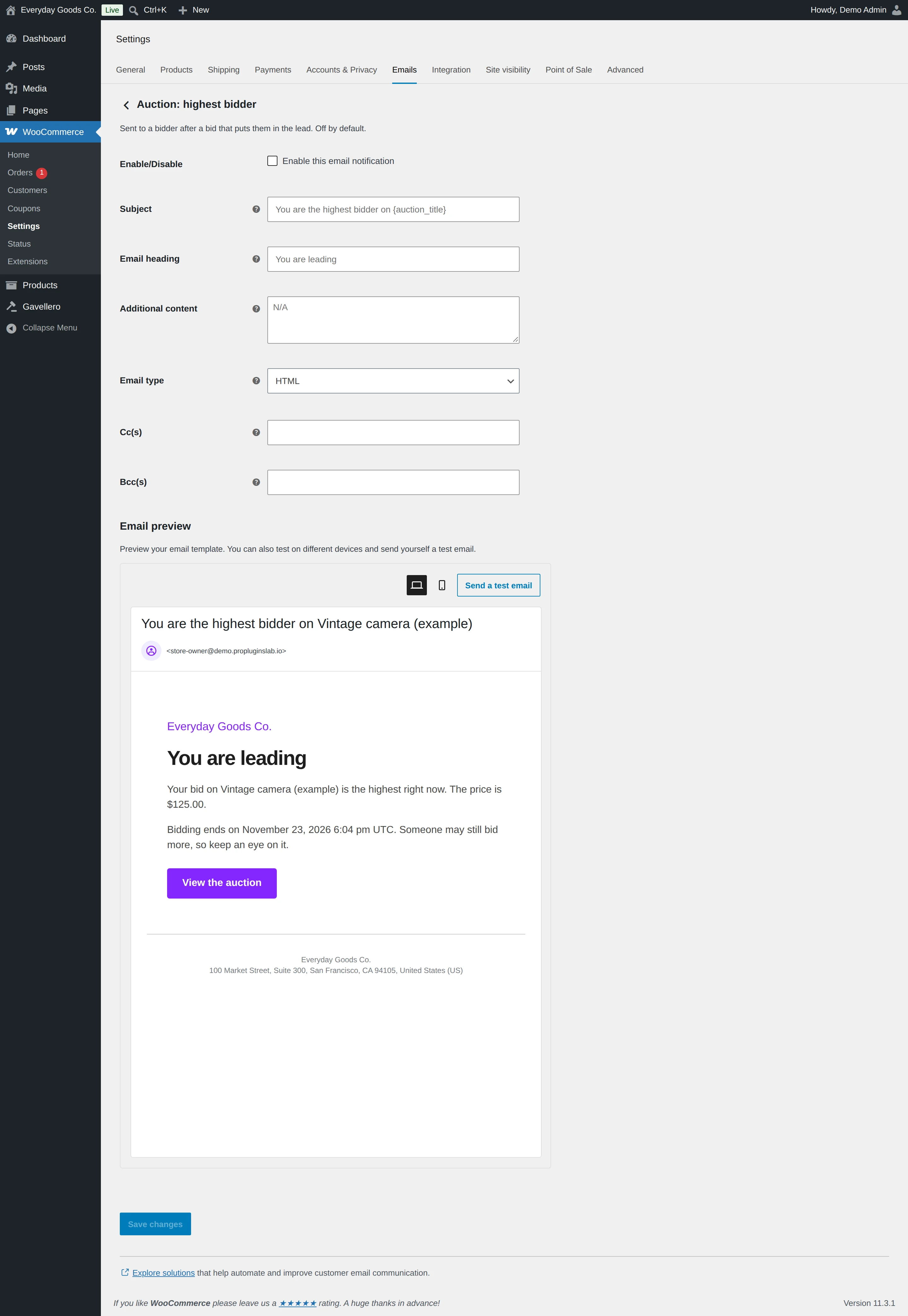
Location: wp-admin/admin.php?page=wc-settings&tab=email§ion=gavellero_leading
On this screen:
- Auction: highest bidder
- Email preview
- You are the highest bidder on Vintage camera (example)
#WooCommerce > Settings > Email > Auction: won
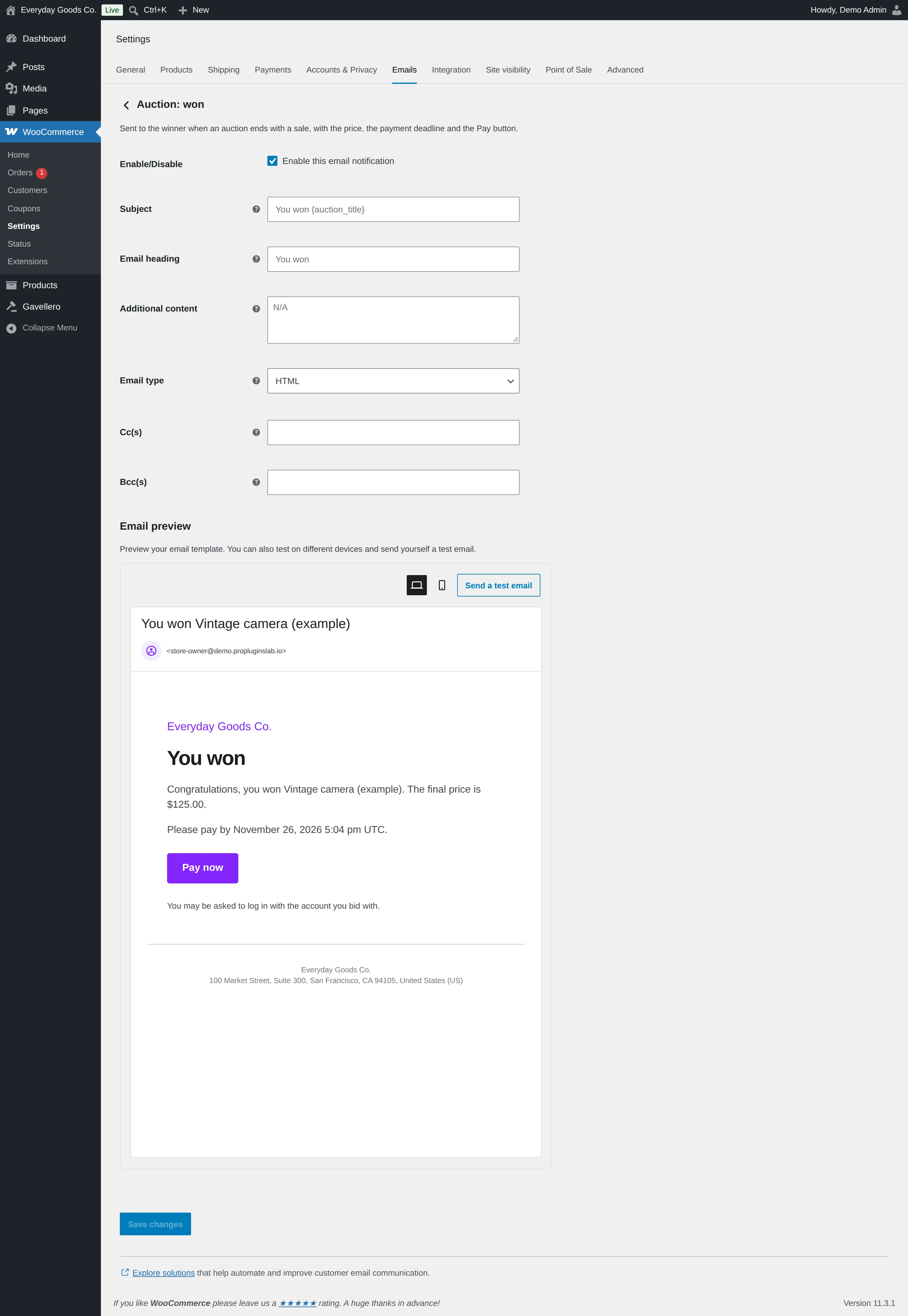
Location: wp-admin/admin.php?page=wc-settings&tab=email§ion=gavellero_won
On this screen:
- Auction: won
- Email preview
- You won Vintage camera (example)
Settings reference
Auction builder
#Name of a new item
For example "Oak writing desk, 1920s". A new product is created with this name.
#Or pick one of your products
Type part of its name and pick it from the list. Simple products and auctions can be chosen. The product then becomes an auction: its fixed price is replaced by bidding.
#Condition
Shown next to the price. Can be changed at any time.
#Condition note
A short honest remark, for example "Small scratch on the back". Can be changed at any time.
Settings
#Search the settings
#Auction type for new auctions
The type chosen for you when you create an auction. You can pick another type on each auction. Only changes what is preselected on new auctions.
#Usual auction length
New auctions are filled in to end this many days after they start. You can change the dates on each auction. Only changes what is prefilled on new auctions.
#Auctions page
The page that lists your auctions. Emails and My Account link to it. The setup wizard can create it for you. Changes where links point. Auctions are not affected.
#"How bidding works" page
A page that explains bidding to your customers. A link to it is shown next to the bid form. Tools can create a ready made page. Display only. Bids and results are not affected.
#Auction terms page
Your auction terms. When a page is chosen, bidders must tick "I accept the auction terms" before their first bid on each auction. Bidders who already bid on an auction are not asked again for that auction.
#Test mode
Lets you and the people below bid on test auctions. Test auctions are hidden from customers, never create real orders and only email the test bidders. Only auctions marked as a test auction are affected.
WooCommerce > Settings > Email > Auction: outbid
WooCommerce > Settings > Email > Auction: highest bidder
Shortcodes
[gavellero_auction]
Shortcode registered by the plugin.
[gavellero_auction][gavellero_auctions]
Shortcode registered by the plugin.
[gavellero_auctions][gavellero_ending_soon]
Shortcode registered by the plugin.
[gavellero_ending_soon][gavellero_my_auctions]
Shortcode registered by the plugin.
[gavellero_my_auctions][gavellero_watchlist]
Shortcode registered by the plugin.
[gavellero_watchlist][gavellero_featured]
Shortcode registered by the plugin.
[gavellero_featured][gavellero_event]
Shortcode registered by the plugin.
[gavellero_event][gavellero_gala]
Shortcode registered by the plugin.
[gavellero_gala][gavellero_auction_room]
Shortcode registered by the plugin.
[gavellero_auction_room][gavellero_live_now]
Shortcode registered by the plugin.
[gavellero_live_now][gavellero_ending_soon_live]
Shortcode registered by the plugin.
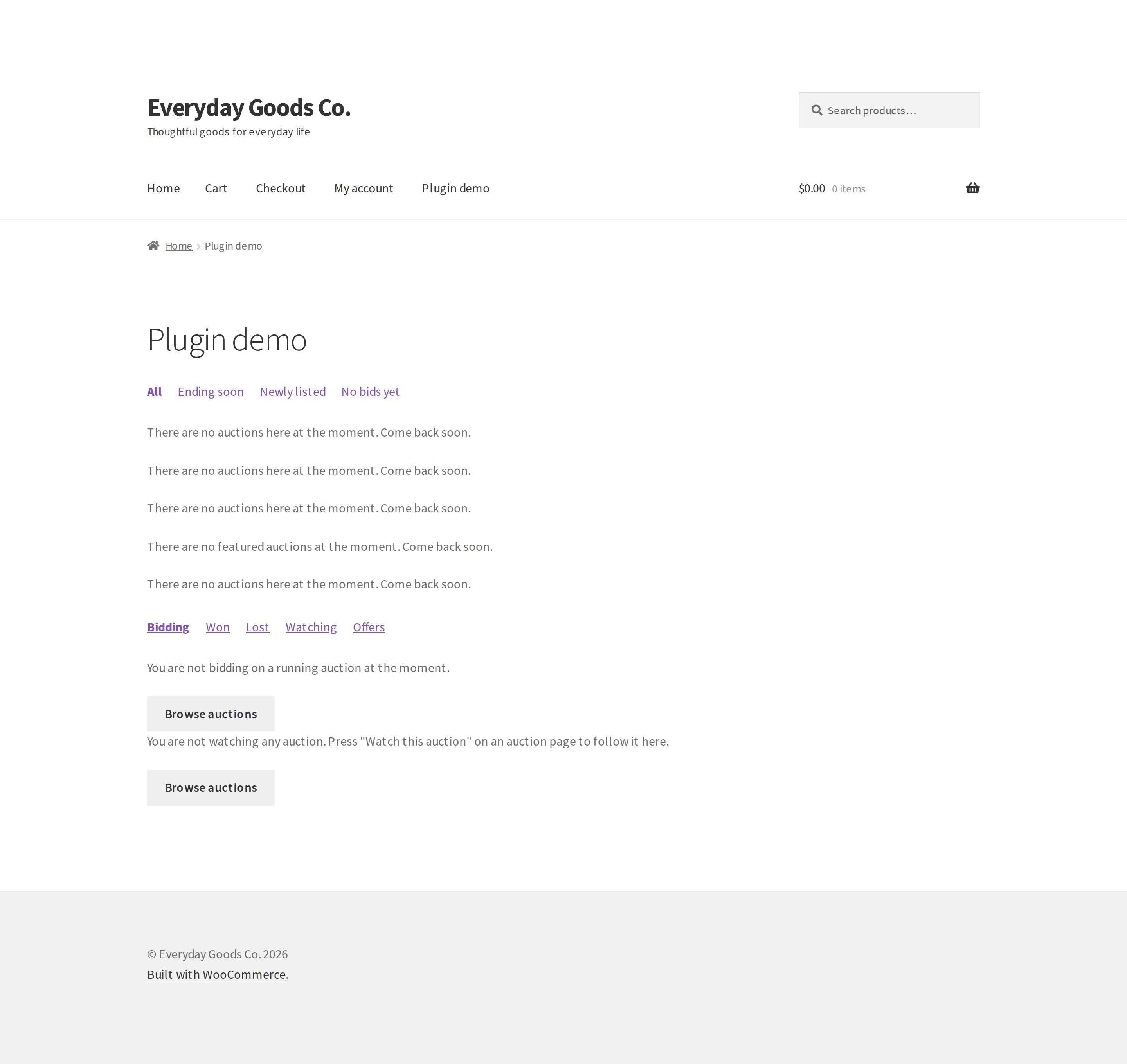
[gavellero_ending_soon_live]On your site
These pages show what visitors see on your site.
Frequently asked questions
Do I need the free plugin as well?
No. Pro contains the free features. Run one of the two.
Does the licence switch features off?
No. The licence only enables automatic updates. Every feature keeps working without it.
Are the payment gateways contacted by Gavellero?
Gavellero asks the payment gateway plugin you already use in WooCommerce to charge the winner's saved card. The gateway plugin talks to its own service with your own account, exactly as it does for a normal order. No card data touches Gavellero.
Where is the source of the JavaScript and CSS files?
The files in assets/js, assets/css and assets/pro are the readable source. Nothing is compiled or minified, so there is nothing to rebuild.
Which themes and plugins was it tested with?
Tested with: WordPress 7.1 and WooCommerce 11.2.1 on PHP 8.2 on our own site, and WordPress 7.1.5 with WooCommerce 11.3.1 on a fresh install, with the Storefold marketplace plugin and the WooCommerce Stripe Gateway in test mode. Support for other payment, marketplace, translation and SEO plugins is built, not yet tested against the live plugins. Gavellero, Integrations shows what was found on your site and how each plugin is handled.
What happens to my data if I delete the plugin?
By default everything is kept. Turn off "Keep auctions, bids and settings when the plugin is deleted" under Gavellero, Settings, and deleting the plugin removes every table, setting, capability, scheduled job and the plugin's uploads folder. While the free plugin is still installed, the shared data stays.