
Overview
Inputo adds pay what you want pricing to WooCommerce. On a named price product, the usual price is replaced by a price box. Customers type their own amount or pick a quick amount, and a price meter shows whether the amount is low, fair or generous. You decide the lowest amount you accept, the amount you suggest and, if you want one, a maximum.
The amounts can be typed on each product, or worked out from the product's regular price using shop wide percentages. Named prices work on simple products and on individual variations of variable products. The chosen amount becomes the item price in the block and classic cart and checkout, and it is checked again on the server before payment.
The Pro edition includes everything in the free edition. It adds quick amount buttons, a price slider, rules for whole categories or tags, access by customer or role, wording for a single product, celebration effects, a line showing what others paid, reports with CSV export, settings import and export, and bulk actions in the product list. It is for shops that sell donations, digital downloads, or any product where customers should choose the price.
Requirements
- WordPress 6.4 or later (tested up to 7.1)
- PHP 7.4 or later
- WooCommerce 8.0 or later, installed and active
Installation
Inputo Pro needs WooCommerce, so install and activate WooCommerce first. Pro is a complete plugin on its own, so you do not need the free edition. If the free edition is active, Pro switches it off automatically when you activate it, and every product and setting is kept.
Make sure WooCommerce is installed and active.
Download the Inputo Pro zip file from your ProPluginsLab account under My Account > Downloads.
In your WordPress admin, go to Plugins > Add New > Upload Plugin, choose the zip file and click Install Now.
Click Activate. If the free edition was active, it is switched off automatically and nothing is lost.
Go to Inputo in the sidebar. Open Tools and click Rebuild now once, so orders placed before Pro was installed are included in the reports.
Quick start
- Set your price guide
Go to Inputo > General. Under Price guide, enter the Minimum price, Suggested price and Generous price as percentages of a product's regular price. These are used whenever a product has no amounts of its own. Click Save changes.
- Choose how customers pick a price
Go to Inputo > Price input and choose an option in How customers choose, for example Buttons, slider and the field. Set the quick Amounts if you use buttons. The live preview on the right shows the result as you type.
- Switch on a product
Open Products and edit a simple product, or create one. In the Product data box, open the Name your price tab and switch on Name your price. Leave the amounts empty to use your percentages, or type your own minimum, suggested and generous amounts. Update the product.
- Or switch on a whole category
To make every product in a category or tag a named price product, go to Inputo > Rules, click Add a rule, set it up and click Save rules.
- Check the product page
View the product in your shop. The price box appears above the Add to cart button. Try a few amounts to see the price meter and its messages.
#Setting up a named price product
Shop wide settings live under Inputo in the sidebar. Each product also has its own amounts on its Name your price tab, and those always win over the shop wide percentages.
Simple products
- Open Products and edit a simple product, or create one.
- In the Product data box, open the Name your price tab.
- Switch on Name your price.
- Leave the amounts empty to use your default percentages, or type your own minimum, suggested and generous amounts.
- Update the product and view it. The price box appears above the Add to cart button.
Variable products
- Edit the variable product and open the Variations tab.
- Expand a variation and tick Name your price in its header, next to Enabled and Virtual.
- Optionally type amounts in the Name your price fields under the pricing fields.
- Save changes.
Some variations can have a named price while others keep a fixed price. The price box appears only when the customer picks a named price variation. With a mix, the product keeps the usual price range in lists.
Products with no regular price
A named price product does not need a regular price. Without one, type the amounts on the product itself. If the minimum is also empty, any amount above zero is accepted.
Bulk actions and filtering
From the product list you can switch named price on or off for many products at once with bulk actions. You can also filter the admin product list to named price or fixed price products.
#General
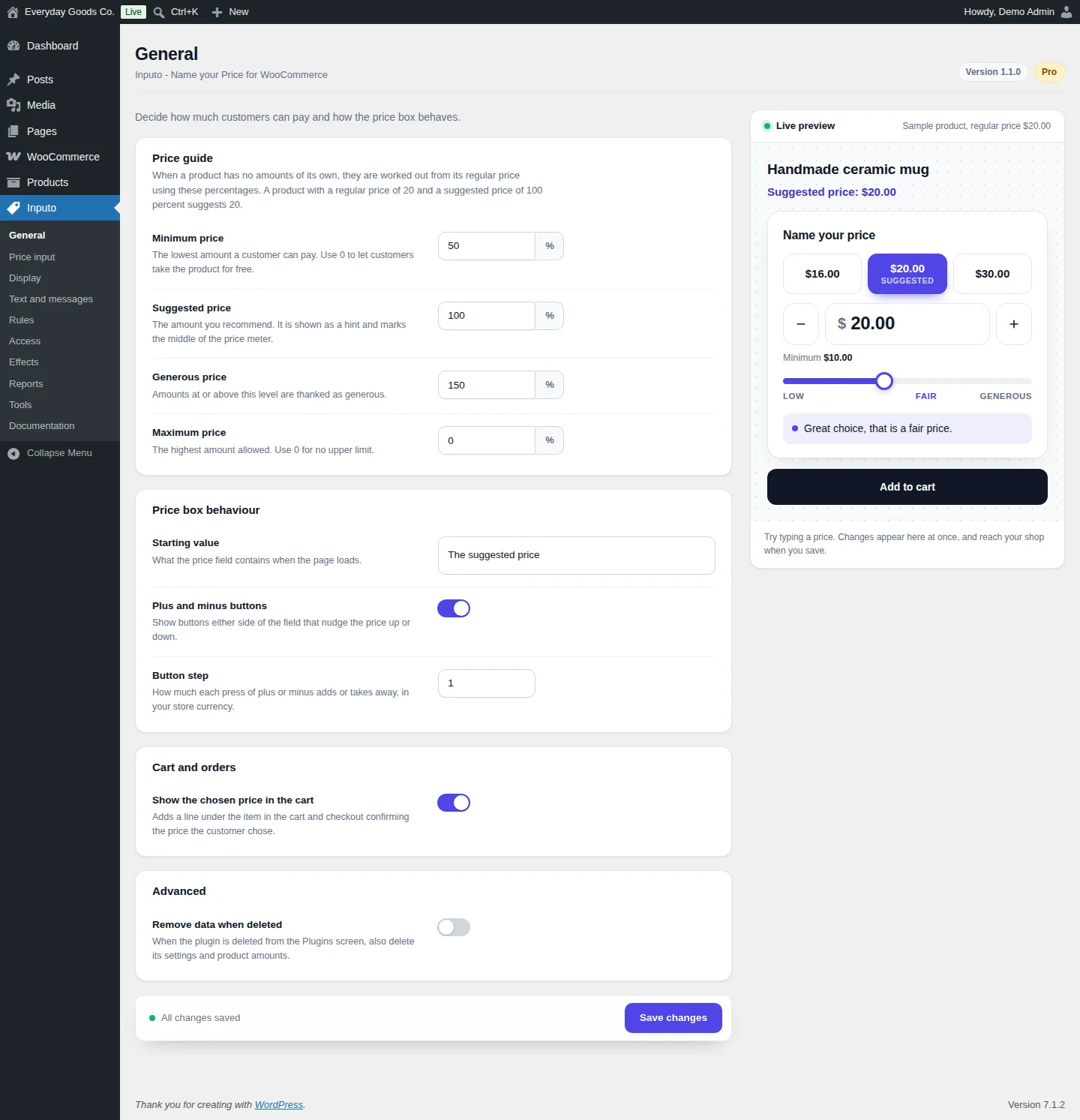
Go to Inputo > General to decide how much customers can pay and how the price box behaves. A Live preview on the right shows a sample product and updates as you type. Changes reach your shop when you click Save changes.
Price guide
When a product has no amounts of its own, the four amounts are worked out from its regular price using these percentages. For example, a product with a regular price of 20 and the percentages 50, 100 and 150 accepts anything from 10, suggests 20, and calls 30 or more generous.
- Minimum price: the lowest amount a customer can pay. Nothing lower is accepted, in the browser or on the server. Use
0to let customers take the product for free. - Suggested price: the amount you recommend. It is shown as a hint and marks the middle of the price meter.
- Generous price: amounts at or above this level are thanked as generous.
- Maximum price: the highest amount allowed. Use
0for no upper limit.
Only a minimum of exactly zero allows a free order line, so an empty field never does it by accident. Amounts that do not make sense are tidied: the suggested amount is never below the minimum, the generous amount is never below the suggestion, nothing is above the maximum, and a maximum lower than the minimum is ignored.
Price box behaviour
- Starting value: what the price field contains when the page loads. Choose the suggested price, the minimum price, or an empty field with the suggested price as a hint.
- Plus and minus buttons: shows buttons either side of the field that nudge the price up or down.
- Button step: how much each press of plus or minus adds or takes away, in your store currency.
Cart and orders
Show the chosen price in the cart adds a line under the item in the cart and checkout confirming the price the customer chose.
Advanced
Remove data when deleted: when the plugin is deleted from the Plugins screen, also delete its settings and product amounts. Leave it off if you might install the plugin again.
#Price input
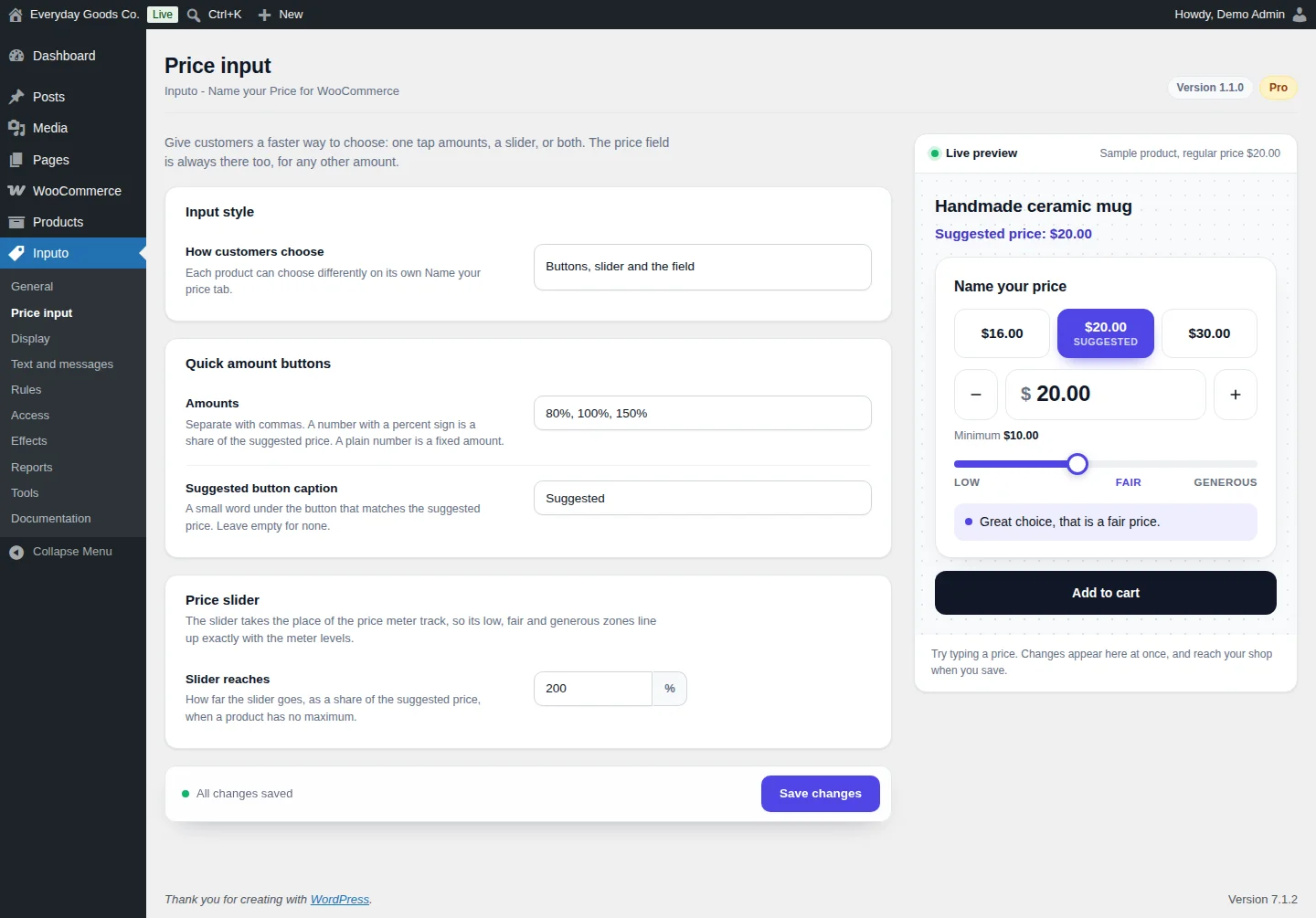
Go to Inputo > Price input to give customers a faster way to choose: one tap amounts, a slider, or both. The price field is always there too, for any other amount.
Input style
How customers choose sets the default for your shop:
- Price field only
- Quick amount buttons and the field
- Price slider and the field
- Buttons, slider and the field
Each product can choose differently on its own Name your price tab.
Quick amount buttons
- Amounts: separate the amounts with commas. A number with a percent sign is a share of the suggested price (for example
80%, 100%, 150%). A plain number is a fixed amount (for example5, 10, 25). - Suggested button caption: a small word under the button that matches the suggested price. Leave it empty for none.
Buttons that do not fit the product's limits are left out.
Price slider
The slider takes the place of the price meter track, so its low, fair and generous zones line up exactly with the meter levels. Slider reaches sets how far the slider goes, as a share of the suggested price, when a product has no maximum.
#Display
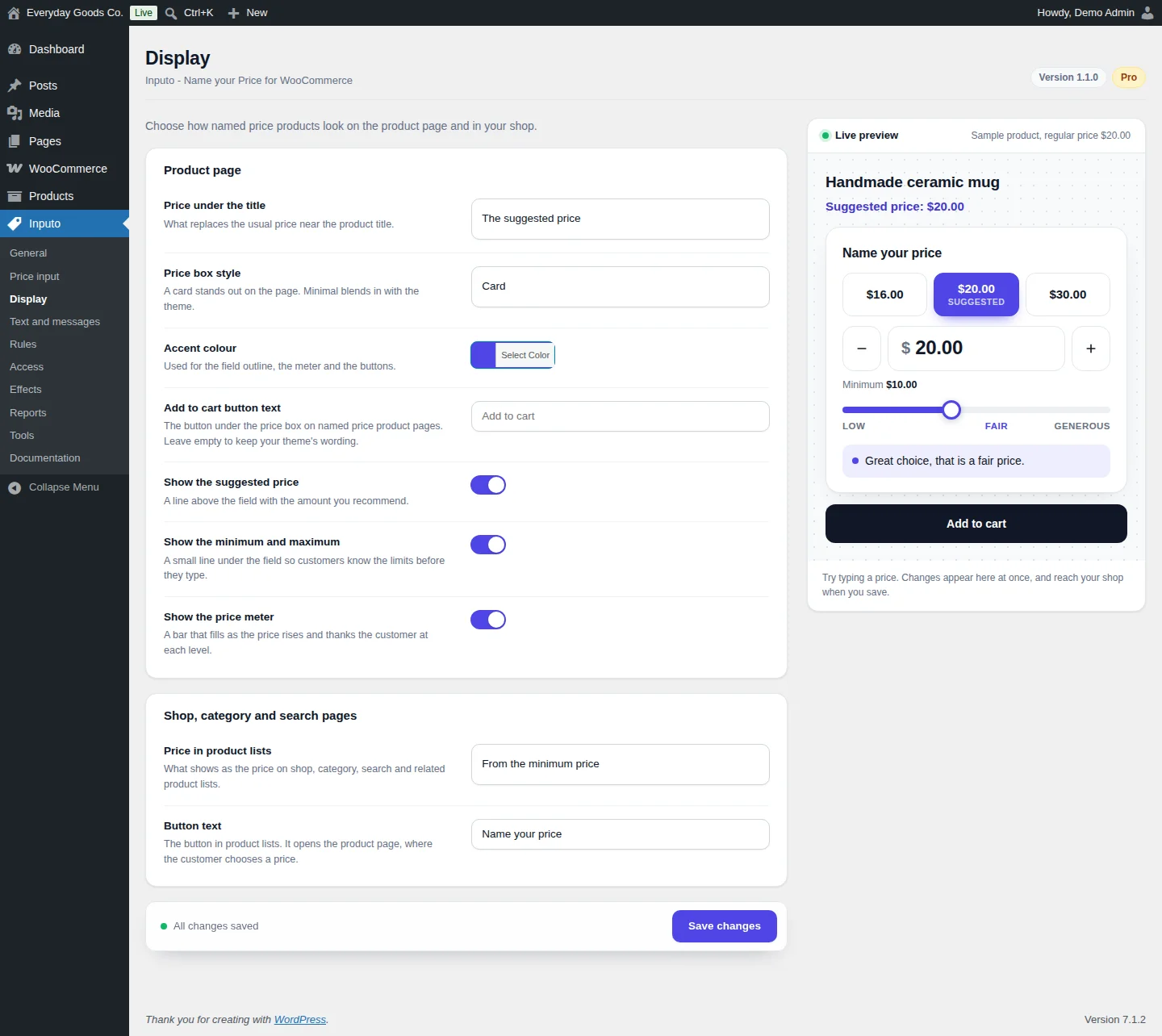
Go to Inputo > Display to choose how named price products look on the product page and in your shop.
Product page
- Price under the title: what replaces the usual price near the product title. Choose the suggested price, a "from" line with the minimum price, the regular price unchanged, or nothing.
- Price box style: Card stands out on the page. Minimal blends in with the theme.
- Accent colour: used for the field outline, the meter and the buttons.
- Add to cart button text: the button under the price box on named price product pages. Leave it empty to keep your theme's wording.
- Show the suggested price: a line above the field with the amount you recommend.
- Show the minimum and maximum: a small line under the field so customers know the limits before they type.
- Show the price meter: a bar that fills as the price rises and thanks the customer at each level. The meter appears only for products with a suggested amount.
Shop, category and search pages
- Price in product lists: what shows as the price on shop, category, search and related product lists.
- Button text: the button in product lists. It opens the product page, because the customer still needs to choose a price there.
#Text and messages
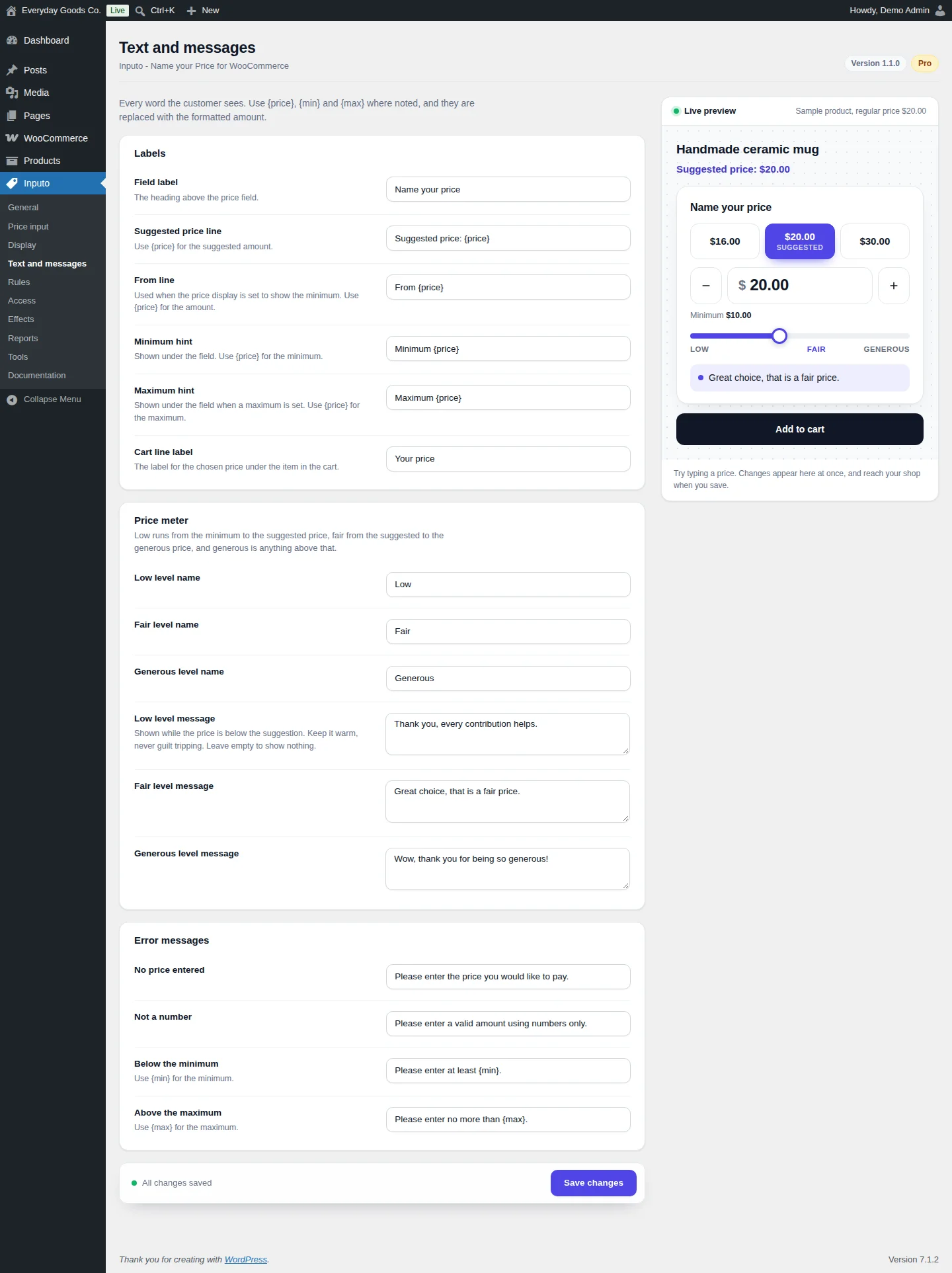
Go to Inputo > Text and messages to change every word the customer sees. Use {price}, {min} and {max} where noted. They are replaced with the formatted amount.
Labels
- Field label: the heading above the price field.
- Suggested price line: use
{price}for the suggested amount. - From line: used when the price display is set to show the minimum. Use
{price}for the amount. - Minimum hint and Maximum hint: shown under the field. The maximum hint appears only when a maximum is set.
- Cart line label: the label for the chosen price under the item in the cart.
Price meter
Low runs from the minimum to the suggested price, fair from the suggested to the generous price, and generous is anything above that. You can rename each level and write the message shown at each level. The low level message is shown while the price is below the suggestion. Leave it empty to show nothing.
Error messages
These are shown when the amount is missing, is not a number, is below the minimum (use {min}) or is above the maximum (use {max}). The product is not added to the cart until the amount is fixed, and the same message appears if the browser check is bypassed, because the server checks again.
To change the label, the suggested line or the meter messages on one product only, use that product's Name your price tab.
#Rules
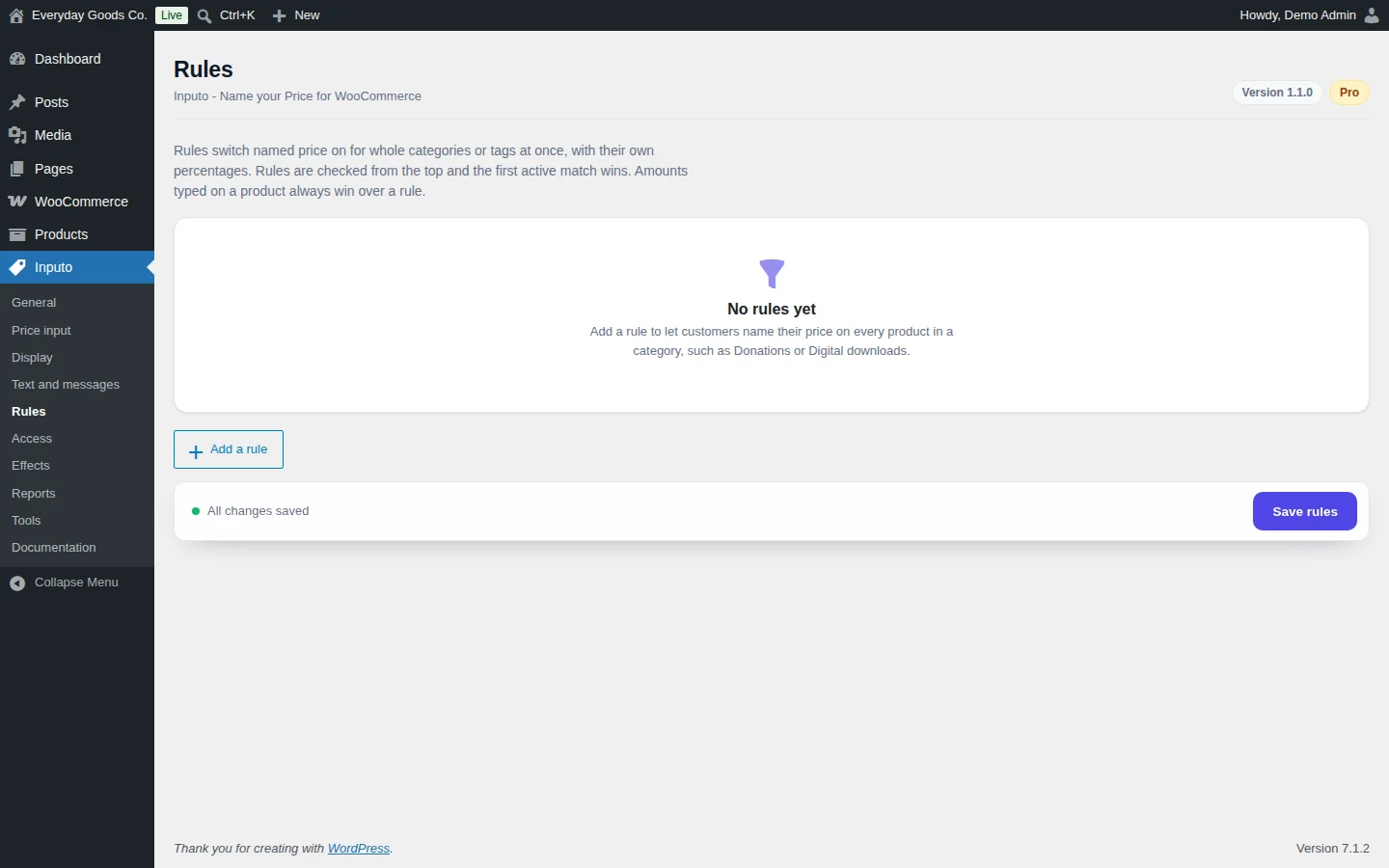
Go to Inputo > Rules to switch named price on for whole categories or tags at once, for example a Donations or Digital downloads category. Each rule has its own percentages.
- Click Add a rule.
- Choose the categories or tags the rule reaches and set its percentages.
- Click Save rules.
Rules are checked from the top and the first active match wins, so put the most specific rules first.
A rule does not override a product's own amounts. It switches named price on and sets the percentages used for empty amounts. Any amount typed on a product still wins. The built in Documentation screen explains how to keep one product out of a rule.
#Access
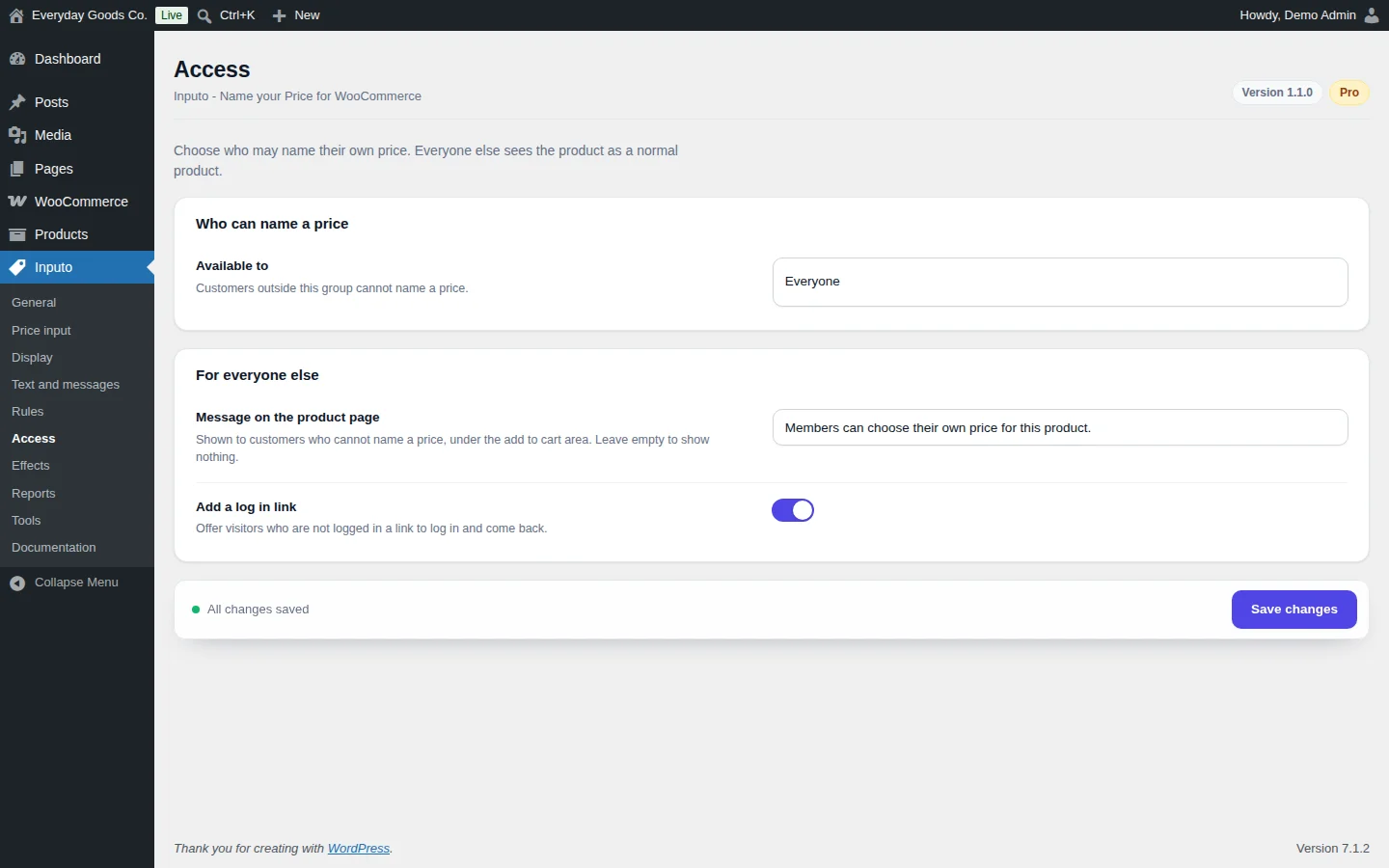
Go to Inputo > Access to choose who may name their own price. Everyone else sees the product as a normal product.
Who can name a price
Available to can be Everyone, Logged in customers or Customers with chosen roles. Customers outside this group cannot name a price.
For everyone else
- Message on the product page: shown to customers who cannot name a price, under the add to cart area. Leave it empty to show nothing.
- Add a log in link: offers visitors who are not logged in a link to log in and come back.
If you limit access and use page caching, read the Page caching topic under Access by customer on the Inputo > Documentation screen.
#Effects
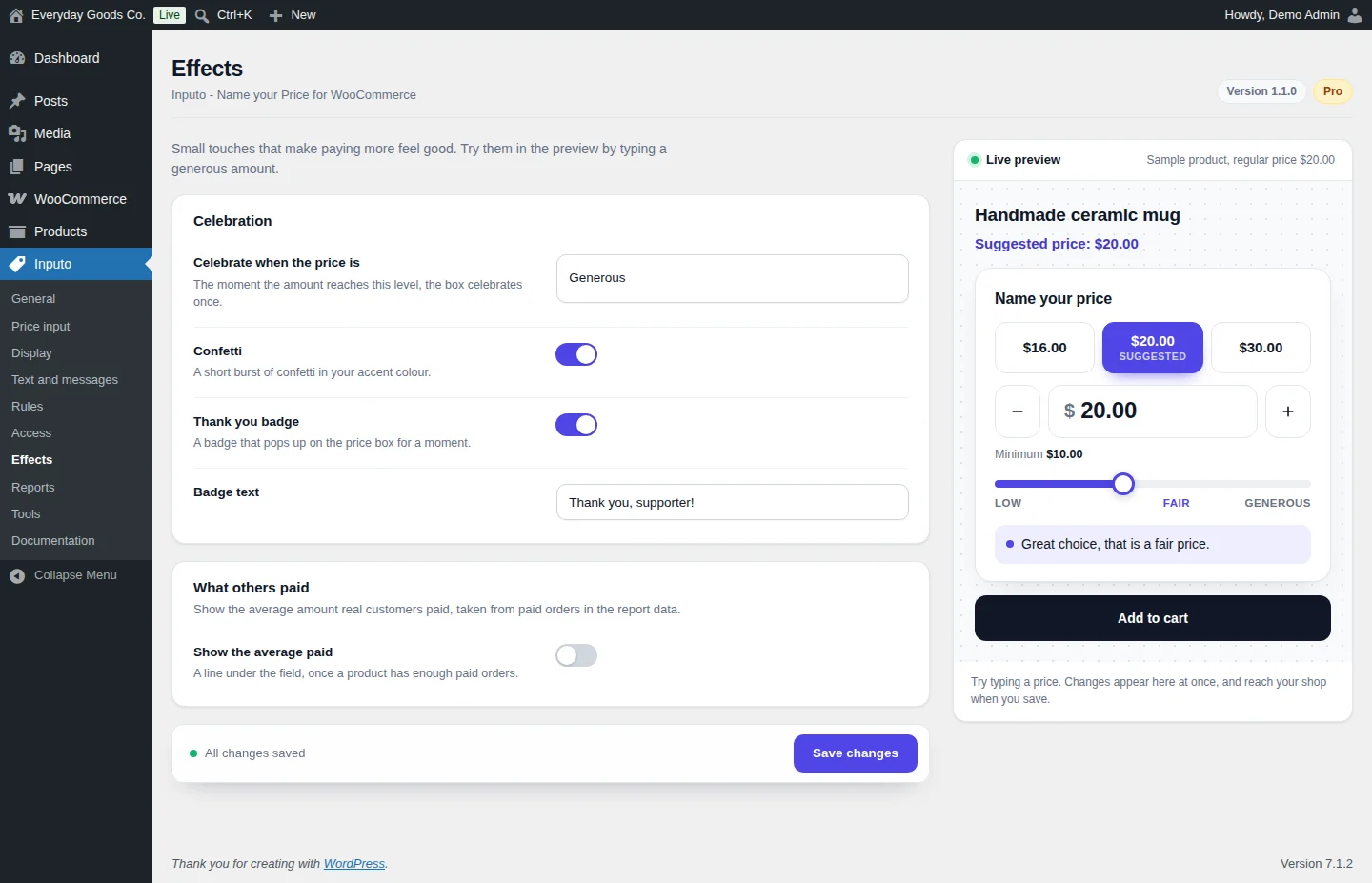
Go to Inputo > Effects for small touches that make paying more feel good. Try them in the live preview by typing a generous amount.
Celebration
- Celebrate when the price is: Never, Generous, or Fair or generous. The moment the amount reaches this level, the price box celebrates once.
- Confetti: a short burst of confetti in your accent colour.
- Thank you badge: a badge that pops up on the price box for a moment.
- Badge text: the words on the badge.
The effects are drawn locally. Nothing is loaded from other servers.
What others paid
Show the average paid adds a line under the field with the average amount real customers paid, taken from paid orders in the report data. It appears only once a product has enough paid orders, never fewer than three.
#Reports
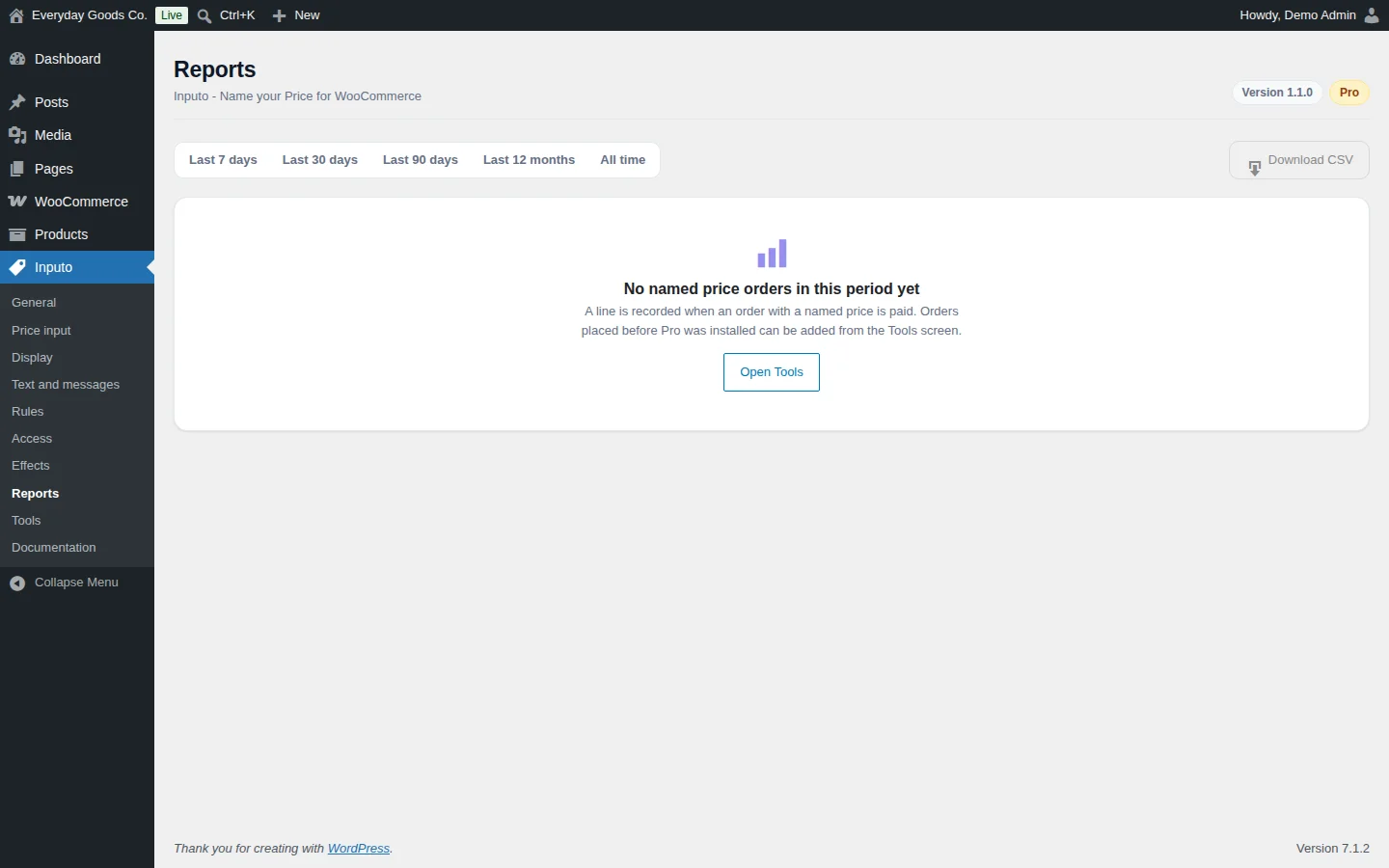
Go to Inputo > Reports to see how customers use named prices. A line is recorded when an order with a named price is paid.
Pick a period at the top: Last 7 days, Last 30 days, Last 90 days, Last 12 months or All time. The report shows orders, takings, the average named price, how customers compare with your suggestion, a chart over time and the top products. Click Download CSV to export the figures.
Orders placed before Pro was installed are not in the report until you rebuild the report data. Click Open Tools and use Rebuild now.
The report data is stored in a table in your own database. It holds order and product numbers and amounts, never names or addresses.
#Tools
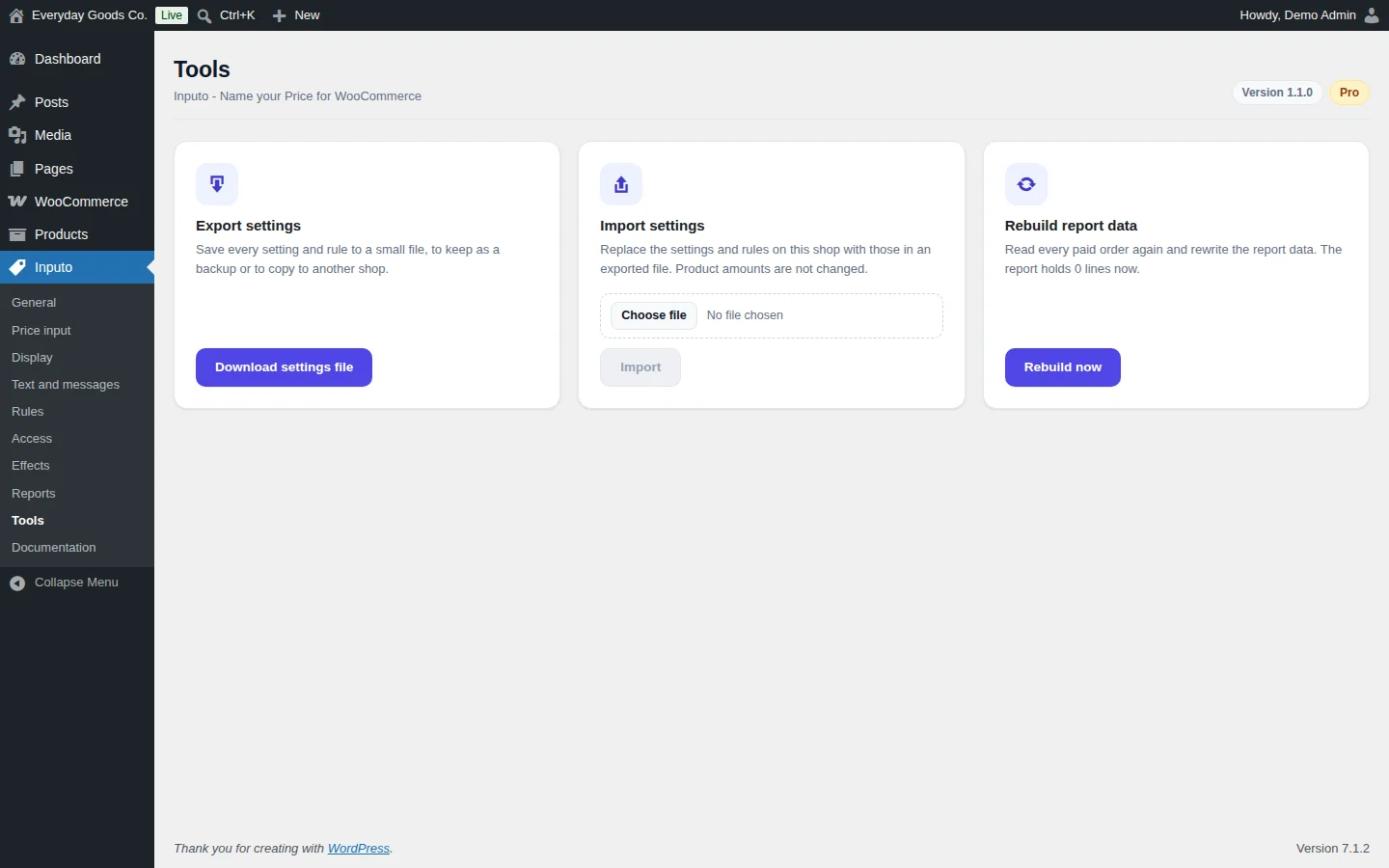
Go to Inputo > Tools to back up, move or rebuild your data.
- Export settings: click Download settings file to save every setting and rule to a small file. Keep it as a backup or use it to copy your setup to another shop.
- Import settings: choose an exported file and click Import. This replaces the settings and rules on this shop with those in the file. Product amounts are not changed.
- Rebuild report data: click Rebuild now to read every paid order again and rewrite the report data. The card shows how many lines the report holds. Run it once after installing Pro to include earlier orders.
#Built in documentation
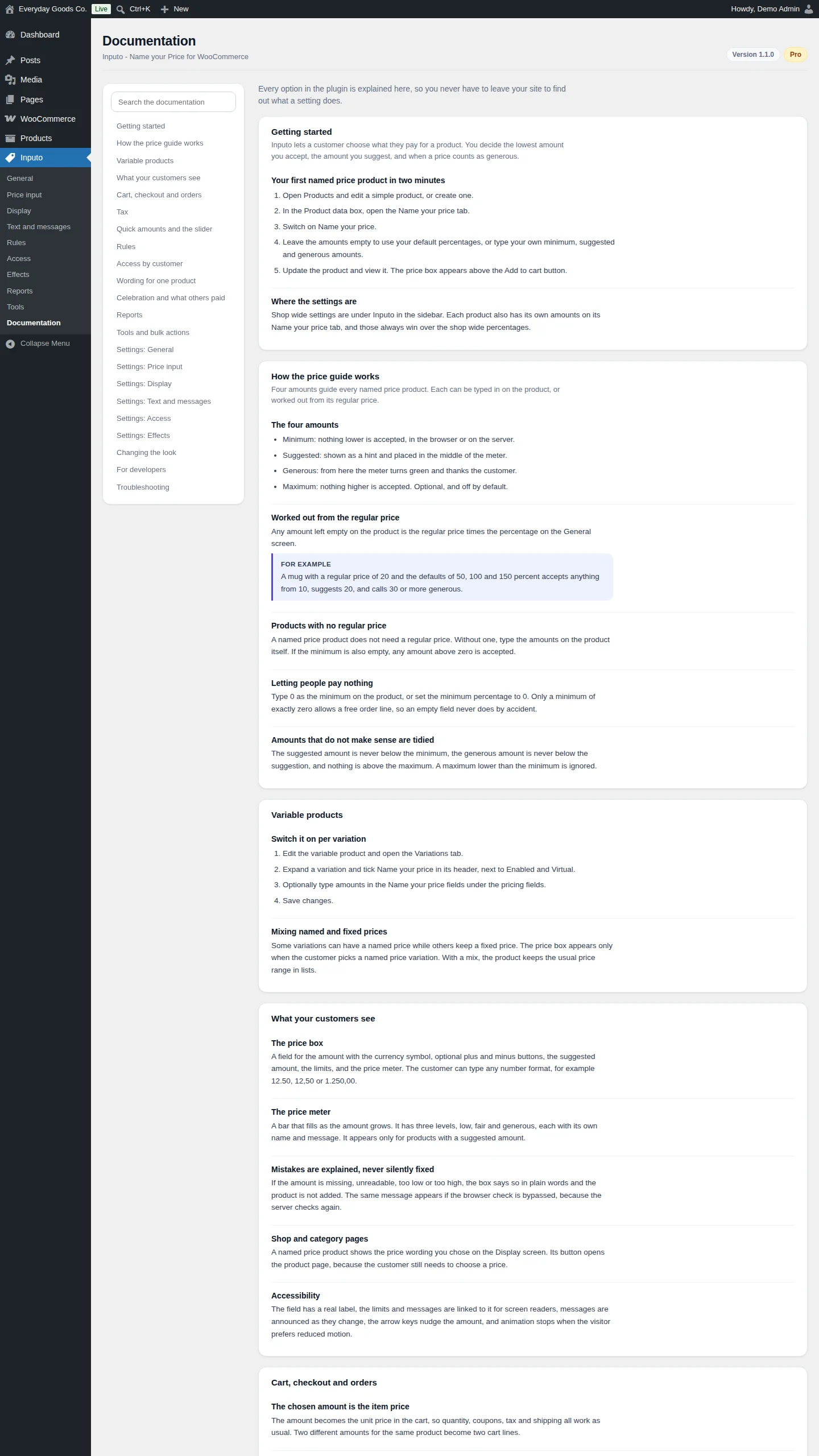
Go to Inputo > Documentation for a guide to every option, with examples, without leaving your site. Use Search the documentation or the topic list on the left. Topics include getting started, how the price guide works, variable products, what your customers see, cart and checkout, tax, quick amounts and the slider, rules, access by customer, wording for one product, celebration, reports, tools and bulk actions, a reference for each settings screen, changing the look, developers and troubleshooting.
Settings reference
Inputo > General
| Setting | Type | Default | What it does |
|---|---|---|---|
| Minimum price | number | 50 |
The lowest amount a customer can pay, as a percentage of the regular price. Use 0 to let customers take the product for free. |
| Suggested price | number | 100 |
The amount you recommend, as a percentage of the regular price. Shown as a hint and marks the middle of the price meter. |
| Generous price | number | 150 |
Amounts at or above this percentage of the regular price are thanked as generous. |
| Maximum price | number | 0 |
The highest amount allowed, as a percentage of the regular price. Use 0 for no upper limit. |
| Starting value | select | The suggested price |
What the price field contains when the page loads: empty with the suggested price as a hint, the suggested price, or the minimum price. |
| Plus and minus buttons | checkbox | on |
Show buttons either side of the field that nudge the price up or down. |
| Button step | number | 1 |
How much each press of plus or minus adds or takes away, in your store currency. |
| Show the chosen price in the cart | checkbox | on |
Adds a line under the item in the cart and checkout confirming the price the customer chose. |
| Remove data when deleted | checkbox | off |
When the plugin is deleted from the Plugins screen, also delete its settings and product amounts. |
Inputo > Price input
| Setting | Type | Default | What it does |
|---|---|---|---|
| How customers choose | select | - | Price field only, Quick amount buttons and the field, Price slider and the field, or Buttons, slider and the field. Each product can choose differently on its own Name your price tab. |
| Amounts | text | 80%, 100%, 150% |
Quick amounts separated by commas. A number with a percent sign is a share of the suggested price. A plain number is a fixed amount. |
| Suggested button caption | text | Suggested |
A small word under the button that matches the suggested price. Leave empty for none. |
| Slider reaches | number | 200 |
How far the slider goes, as a percentage of the suggested price, when a product has no maximum. |
Inputo > Display
| Setting | Type | Default | What it does |
|---|---|---|---|
| Price under the title | select | The suggested price |
What replaces the usual price near the product title: the suggested price, from the minimum price, the regular price unchanged, or nothing. |
| Price box style | select | Card |
Card stands out on the page. Minimal blends in with the theme. |
| Accent colour | color | - | Used for the field outline, the meter and the buttons. |
| Add to cart button text | text | - | The button under the price box on named price product pages. Leave empty to keep your theme's wording. |
| Show the suggested price | checkbox | on |
A line above the field with the amount you recommend. |
| Show the minimum and maximum | checkbox | on |
A small line under the field so customers know the limits before they type. |
| Show the price meter | checkbox | on |
A bar that fills as the price rises and thanks the customer at each level. |
| Price in product lists | select | From the minimum price |
What shows as the price on shop, category, search and related product lists. |
| Button text | text | Name your price |
The button in product lists. It opens the product page, where the customer chooses a price. |
Inputo > Text and messages
| Setting | Type | Default | What it does |
|---|---|---|---|
| Field label | text | Name your price |
The heading above the price field. |
| Suggested price line | text | Suggested price: {price} |
Use {price} for the suggested amount. |
| From line | text | From {price} |
Used when the price display is set to show the minimum. Use {price} for the amount. |
| Minimum hint | text | Minimum {price} |
Shown under the field. Use {price} for the minimum. |
| Maximum hint | text | Maximum {price} |
Shown under the field when a maximum is set. Use {price} for the maximum. |
| Cart line label | text | Your price |
The label for the chosen price under the item in the cart. |
| Low level name | text | Low |
Name of the price meter level from the minimum to the suggested price. |
| Fair level name | text | Fair |
Name of the price meter level from the suggested to the generous price. |
| Generous level name | text | Generous |
Name of the price meter level above the generous price. |
| Low level message | textarea | Thank you, every contribution helps. |
Shown while the price is below the suggestion. Leave empty to show nothing. |
| Fair level message | textarea | Great choice, that is a fair price. |
Shown while the price is in the fair level. |
| Generous level message | textarea | Wow, thank you for being so generous! |
Shown while the price is in the generous level. |
| No price entered | text | Please enter the price you would like to pay. |
Error shown when the price field is empty. |
| Not a number | text | Please enter a valid amount using numbers only. |
Error shown when the amount cannot be read. |
| Below the minimum | text | Please enter at least {min}. |
Error shown when the amount is too low. Use {min} for the minimum. |
| Above the maximum | text | Please enter no more than {max}. |
Error shown when the amount is too high. Use {max} for the maximum. |
Inputo > Access
| Setting | Type | Default | What it does |
|---|---|---|---|
| Available to | select | Everyone |
Who may name a price: Everyone, Logged in customers, or Customers with chosen roles. Customers outside this group cannot name a price. |
| Message on the product page | text | - | Shown to customers who cannot name a price, under the add to cart area. Leave empty to show nothing. |
| Add a log in link | checkbox | - | Offer visitors who are not logged in a link to log in and come back. |
Inputo > Effects
| Setting | Type | Default | What it does |
|---|---|---|---|
| Celebrate when the price is | select | Generous |
Never, Generous, or Fair or generous. The moment the amount reaches this level, the box celebrates once. |
| Confetti | checkbox | on |
A short burst of confetti in your accent colour. |
| Thank you badge | checkbox | on |
A badge that pops up on the price box for a moment. |
| Badge text | text | Thank you, supporter! |
The words on the thank you badge. |
| Show the average paid | checkbox | off |
A line under the field with the average amount real customers paid, once a product has enough paid orders. |
On your site
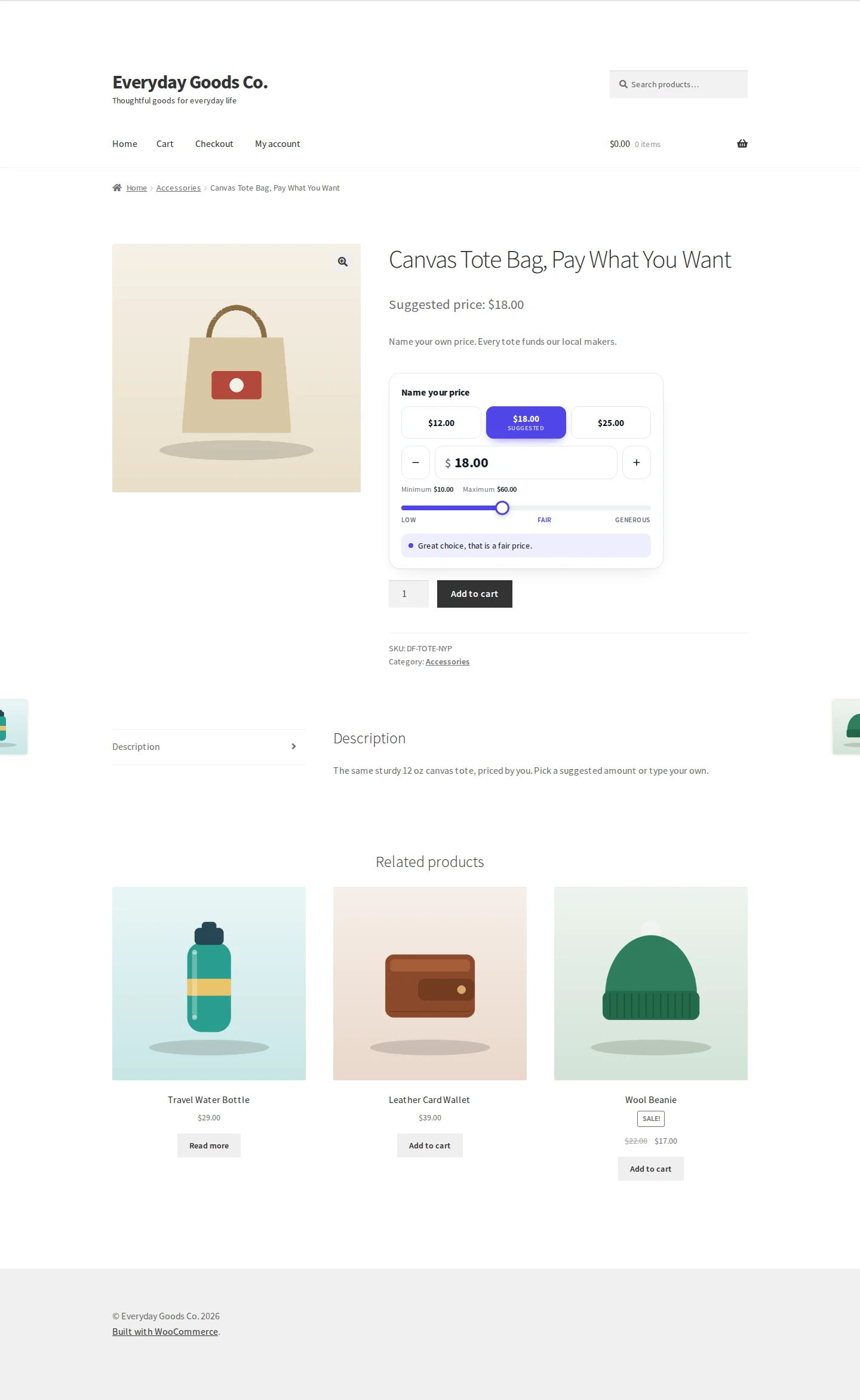
On a named price product page, the usual price is replaced by the price box. Depending on your settings, shoppers see:
- A Suggested price line under the product title (or a "from" line, the regular price, or nothing, as set on the Display screen).
- The field label, such as Name your price.
- Quick amount buttons, with a small caption under the button that matches the suggested price.
- A price field with the currency symbol, and plus and minus buttons either side.
- The minimum and maximum hints under the field.
- The price meter or slider with its Low, Fair and Generous levels, and the message for the current level.
- The Add to cart button, with your own text if you set one.
Shoppers can type any number format, for example 12.50, 12,50 or 1.250,00. If the amount is missing, unreadable, too low or too high, the box says so in plain words and the product is not added to the cart. When a customer reaches the level you chose on the Effects screen, the box can celebrate with confetti and a thank you badge.
On shop, category, search and related product lists, a named price product shows the price wording chosen on the Display screen, and its button opens the product page so the customer can choose a price. In the cart and checkout, the chosen amount is the item price, and a line such as Your price confirms it. Two different amounts for the same product become two cart lines.
Customers who are not allowed to name a price (see Access) see a normal product and your message.
The field has a real label, the limits and messages are linked to it for screen readers, messages are announced as they change, the arrow keys nudge the amount, and animation stops when the visitor prefers reduced motion.
Frequently asked questions
Do I keep my settings when I move from the free edition?
Yes. Pro reads the same settings and product amounts. Activating Pro switches the free edition off and everything carries on as it was.
Can I go back to the free edition?
Yes. Deactivate Pro and activate the free edition. Your products and shared settings stay. Pro only features, such as rules and reports, stop working until Pro is active again.
Does a rule override a product's own amounts?
No. A rule switches named price on and sets the percentages used for empty amounts. Any amount typed on a product still wins.
Can customers pay nothing?
Yes, if you allow it. Type 0 as the minimum on the product, or set Minimum price to 0 on Inputo > General. Only a minimum of exactly zero allows a free order line, so an empty field never does it by accident.
Does it work with the block cart and checkout?
Yes. Inputo supports the block and classic cart and checkout, High Performance Order Storage and the Store API. The chosen amount is always checked on the server before payment.
Where does the average paid line get its figure?
From paid orders recorded in the report data. It only appears once a product has at least the number of orders you choose, never fewer than three. Switch it on with Show the average paid on Inputo > Effects.
Does the plugin contact external services?
No. Inputo Pro makes no requests to external services and loads nothing from third party servers. The report data is stored in a table in your own database and holds order and product numbers and amounts, never names or addresses.
Can I use different wording on one product?
Yes. On the product's Name your price tab you can change the label, the suggested line and the meter messages for that product only.
Troubleshooting
- The Inputo menu does not appear or the plugin will not activate.
Inputo needs WooCommerce 8.0 or later. Install and activate WooCommerce, then activate Inputo again under Plugins.
- The price box does not show on a product.
Edit the product, open the Name your price tab in the Product data box and switch on Name your price, or add a rule on Inputo > Rules that covers its category or tag. For a variable product, tick Name your price in the header of each variation, then pick that variation on the product page. Also check Available to on Inputo > Access: customers outside the chosen group see a normal product.
- Reports are empty or the average paid line never appears.
Only paid orders with a named price are recorded. Orders placed before Pro was installed are not included until you go to Inputo > Tools and click Rebuild now. The average paid line also needs Show the average paid switched on and at least three paid orders for the product.
- A rule does not change a product's amounts.
Amounts typed on a product always win over a rule. Clear the amounts on the product's Name your price tab to use the rule's percentages. Also remember that rules are checked from the top and the first active match wins, so move the rule higher if another rule matches first.
- Some quick amount buttons are missing.
Buttons that do not fit the product's limits are left out. Check the product's minimum and maximum, and the Amounts on Inputo > Price input. Also check that How customers choose includes quick amount buttons, both on that screen and on the product's own Name your price tab.
- Logged out visitors see the wrong version of a product when access is limited.
If you set Available to to logged in customers or chosen roles and use page caching, read the Page caching topic under Access by customer on Inputo > Documentation.