
Overview
Inputo turns a WooCommerce product into a pay what you want product. You decide the lowest amount you accept and the amount you suggest, and your customers choose what they pay. It suits digital downloads, donations, courses, artwork, tickets, tips and anything else where a flexible price makes sense.
Every named price product has a price guide with four amounts: a minimum, a suggested, a generous and an optional maximum price. You can type them on each product, or let Inputo work them out from the regular price using shop wide percentages. As the customer types, a price meter fills and shows a short thank you message at three levels you name yourself: low, fair and generous.
Named prices work on simple products and on individual variations of variable products. The amount is checked in the browser and again on the server before checkout, so a named price product can never reach an order without a valid amount. The plugin works with the block and classic cart and checkout, and with High Performance Order Storage.
Requirements
- WordPress 6.4 or later
- PHP 7.4 or later
- WooCommerce 8.0 or later, installed and active
Installation
Inputo is a free plugin on WordPress.org. It needs WooCommerce, so install and activate WooCommerce first.
Make sure WooCommerce is installed and active.
In your WordPress admin, go to Plugins > Add New.
Search for
Inputo.Click Install Now on Inputo - Name your Price for WooCommerce.
Click Activate.
Open Inputo in the admin sidebar to review the default percentages and wording.
Quick start
- Check the price guide
Go to Inputo > General. The Price guide percentages decide the minimum, suggested and generous amounts for products that have no amounts of their own. With the values
50,100and150, a product with a regular price of 20 accepts anything from 10, suggests 20 and calls 30 or more generous. Click Save changes when you are happy. - Choose how the price box looks
Go to Inputo > Display. Pick a Price box style (Card or Minimal), an Accent colour, and what shows as the price on the product page and in shop lists. The Live preview on the right updates as you change things.
- Switch on Name your price for a product
- Go to Products and edit a simple product, or create one.
- In the Product data box, open the Name your price tab.
- Switch on Name your price.
- Leave the amounts empty to use your default percentages, or type your own minimum, suggested and generous amounts.
- Click Update.
- View the product
Open the product on your site. The price box appears above the Add to cart button. Type an amount to see the price meter and its messages.
- Adjust the wording
Go to Inputo > Text and messages to change every word the customer sees, from the field label to the meter messages and error messages.
#General settings
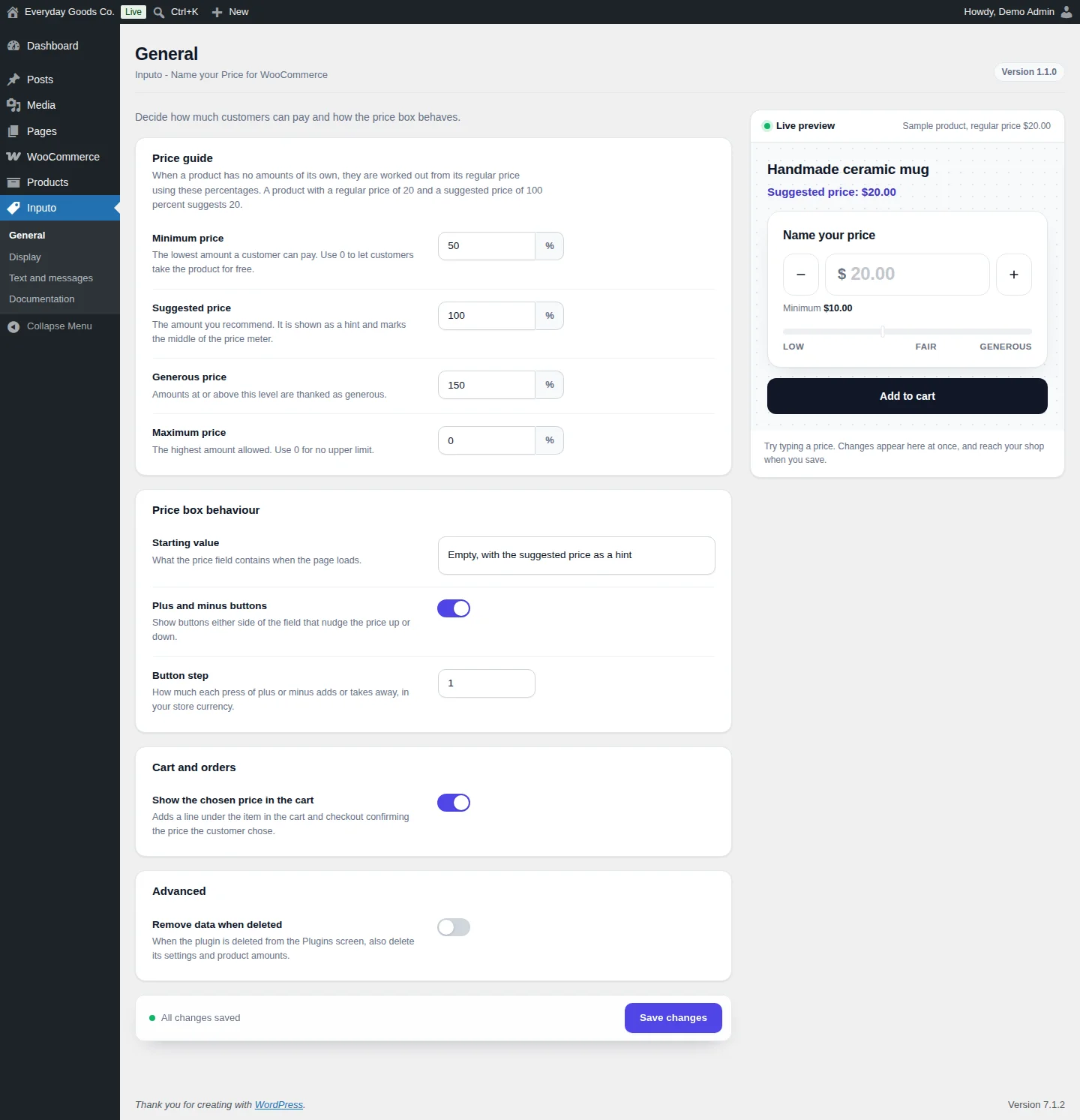
Go to Inputo > General to decide how much customers can pay and how the price box behaves. A Live preview on the right shows a sample product with the price box. Try typing a price there: changes appear at once and reach your shop when you click Save changes.
Price guide
When a product has no amounts of its own, they are worked out from its regular price using these percentages. A product with a regular price of 20 and a suggested price of 100 percent suggests 20.
- Minimum price: the lowest amount a customer can pay. Use
0to let customers take the product for free. - Suggested price: the amount you recommend. It is shown as a hint and marks the middle of the price meter.
- Generous price: amounts at or above this level are thanked as generous.
- Maximum price: the highest amount allowed. Use
0for no upper limit.
Amounts that do not make sense are tidied: the suggested amount is never below the minimum, the generous amount is never below the suggestion, and nothing is above the maximum. A maximum lower than the minimum is ignored.
Price box behaviour
- Starting value: what the price field contains when the page loads. Choose between an empty field with the suggested price as a hint, the suggested price, or the minimum price.
- Plus and minus buttons: shows buttons on either side of the field that nudge the price up or down.
- Button step: how much each press of plus or minus adds or takes away, in your store currency.
Cart and orders
- Show the chosen price in the cart: adds a line under the item in the cart and checkout confirming the price the customer chose.
Advanced
- Remove data when deleted: when the plugin is deleted from the Plugins screen, also delete its settings and product amounts. Leave this off if you might reinstall Inputo later.
#Display settings
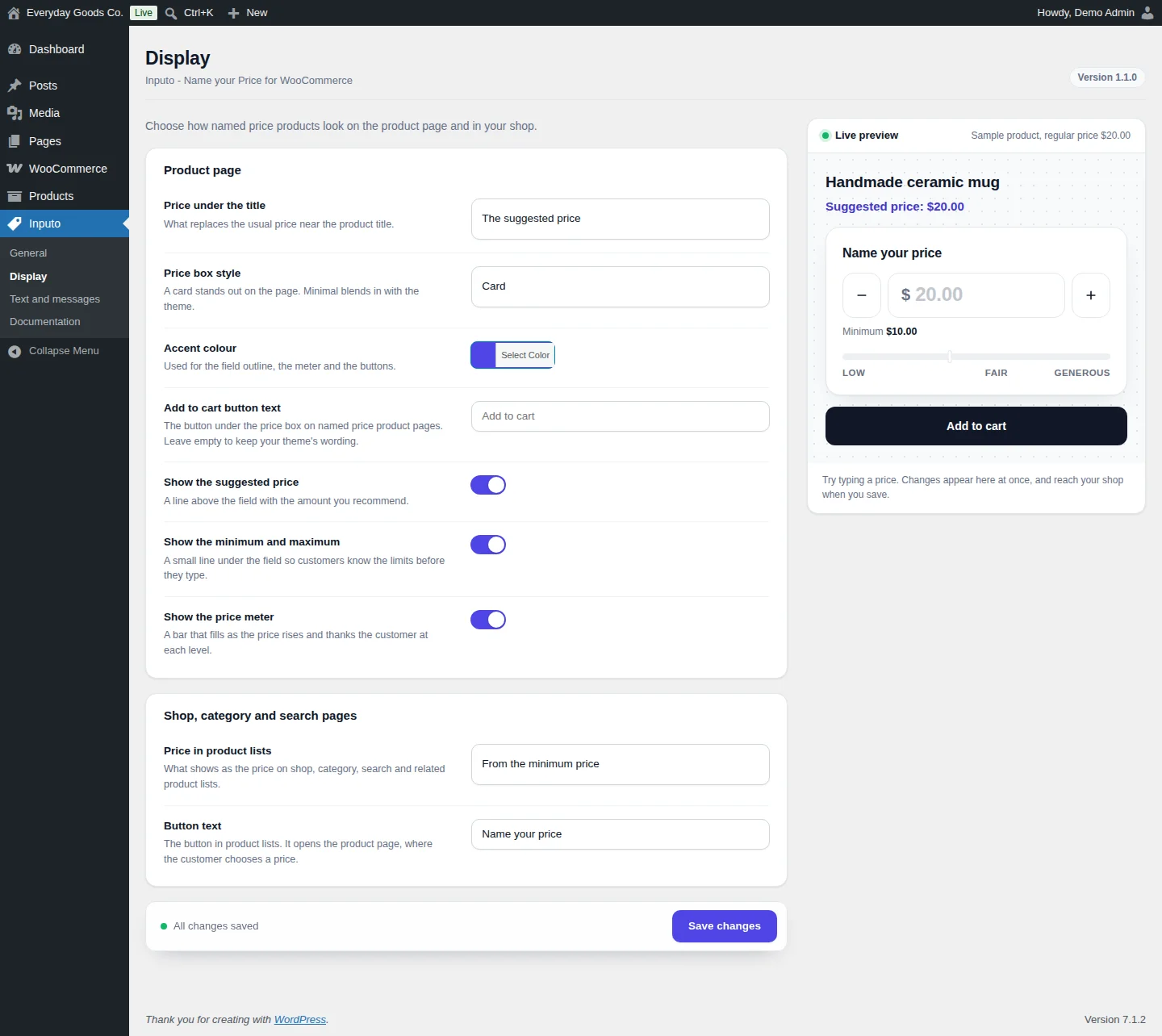
Go to Inputo > Display to choose how named price products look on the product page and in your shop. The Live preview updates as you change the settings.
Product page
- Price under the title: what replaces the usual price near the product title. Options are The suggested price, From the minimum price, The regular price, unchanged and Nothing, hide the price.
- Price box style: Card stands out on the page. Minimal blends in with the theme.
- Accent colour: used for the field outline, the meter and the buttons. Click Select Color to pick one.
- Add to cart button text: the button under the price box on named price product pages. Leave it empty to keep your theme's wording.
- Show the suggested price: a line above the field with the amount you recommend.
- Show the minimum and maximum: a small line under the field so customers know the limits before they type.
- Show the price meter: a bar that fills as the price rises and thanks the customer at each level.
Shop, category and search pages
- Price in product lists: what shows as the price on shop, category, search and related product lists. It uses the same four options as Price under the title.
- Button text: the button in product lists. It opens the product page, where the customer chooses a price.
#Text and messages
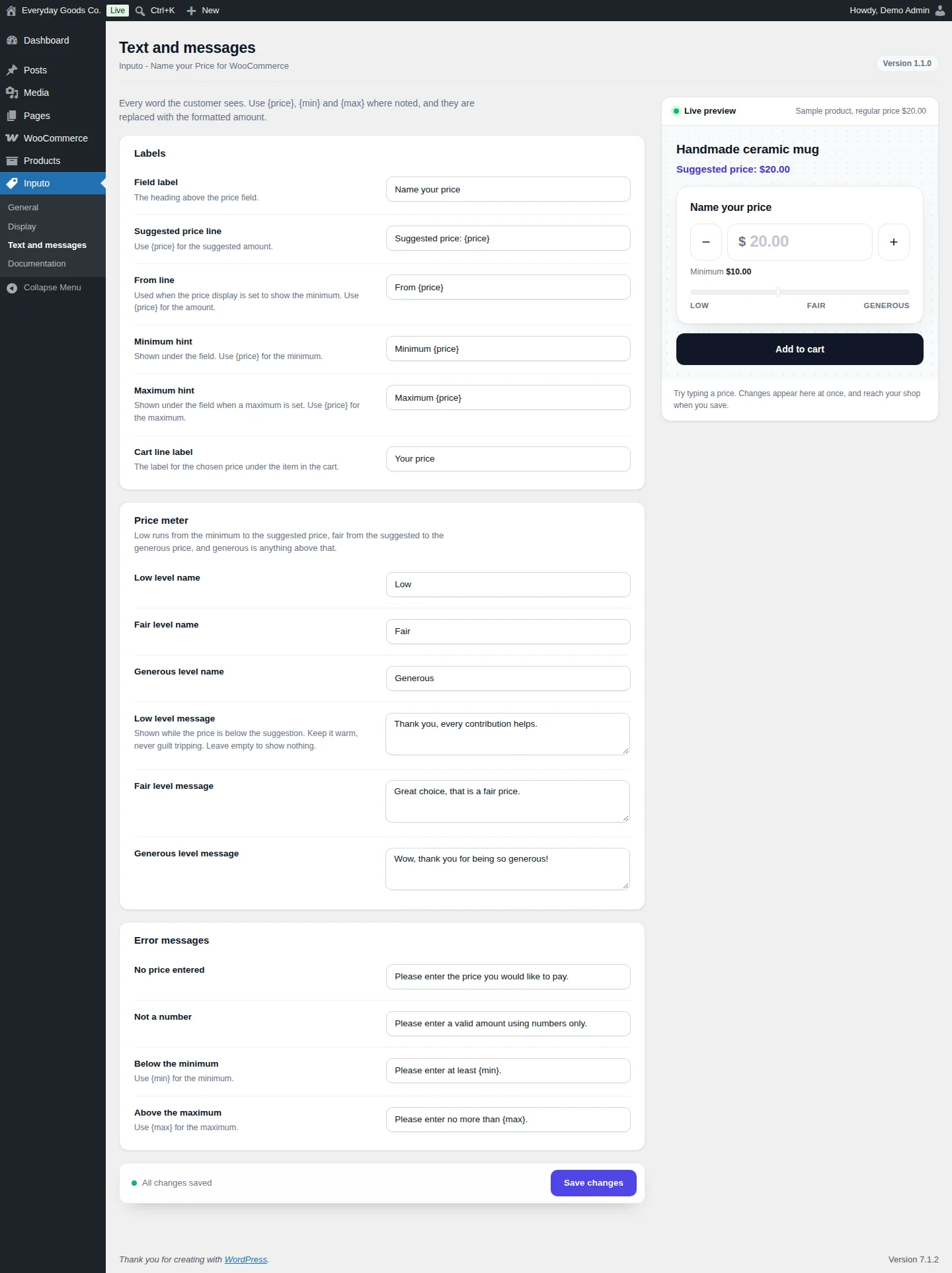
Go to Inputo > Text and messages to edit every word the customer sees. Use {price}, {min} and {max} where noted, and they are replaced with the formatted amount.
Labels
- Field label: the heading above the price field.
- Suggested price line: use
{price}for the suggested amount. - From line: used when the price display is set to show the minimum. Use
{price}for the amount. - Minimum hint: shown under the field. Use
{price}for the minimum. - Maximum hint: shown under the field when a maximum is set. Use
{price}for the maximum. - Cart line label: the label for the chosen price under the item in the cart.
Price meter
Low runs from the minimum to the suggested price, fair from the suggested to the generous price, and generous is anything above that. You can rename each level with Low level name, Fair level name and Generous level name, and set the message shown at each level. The low level message is shown while the price is below the suggestion, so keep it warm. Leave it empty to show nothing.
Error messages
These appear when the amount is missing, is not a number, is below the minimum (use {min}) or is above the maximum (use {max}). The product is not added to the cart until the amount is valid.
#Built in documentation
Go to Inputo > Documentation for a guide inside the plugin. It explains every option with examples, so you do not have to leave your site to find out what a setting does.
Use Search the documentation or the topic list on the left to jump to a topic, for example Getting started, How the price guide works, Variable products, What your customers see, Cart, checkout and orders, Tax, the settings of each screen, Changing the look, For developers and Troubleshooting.
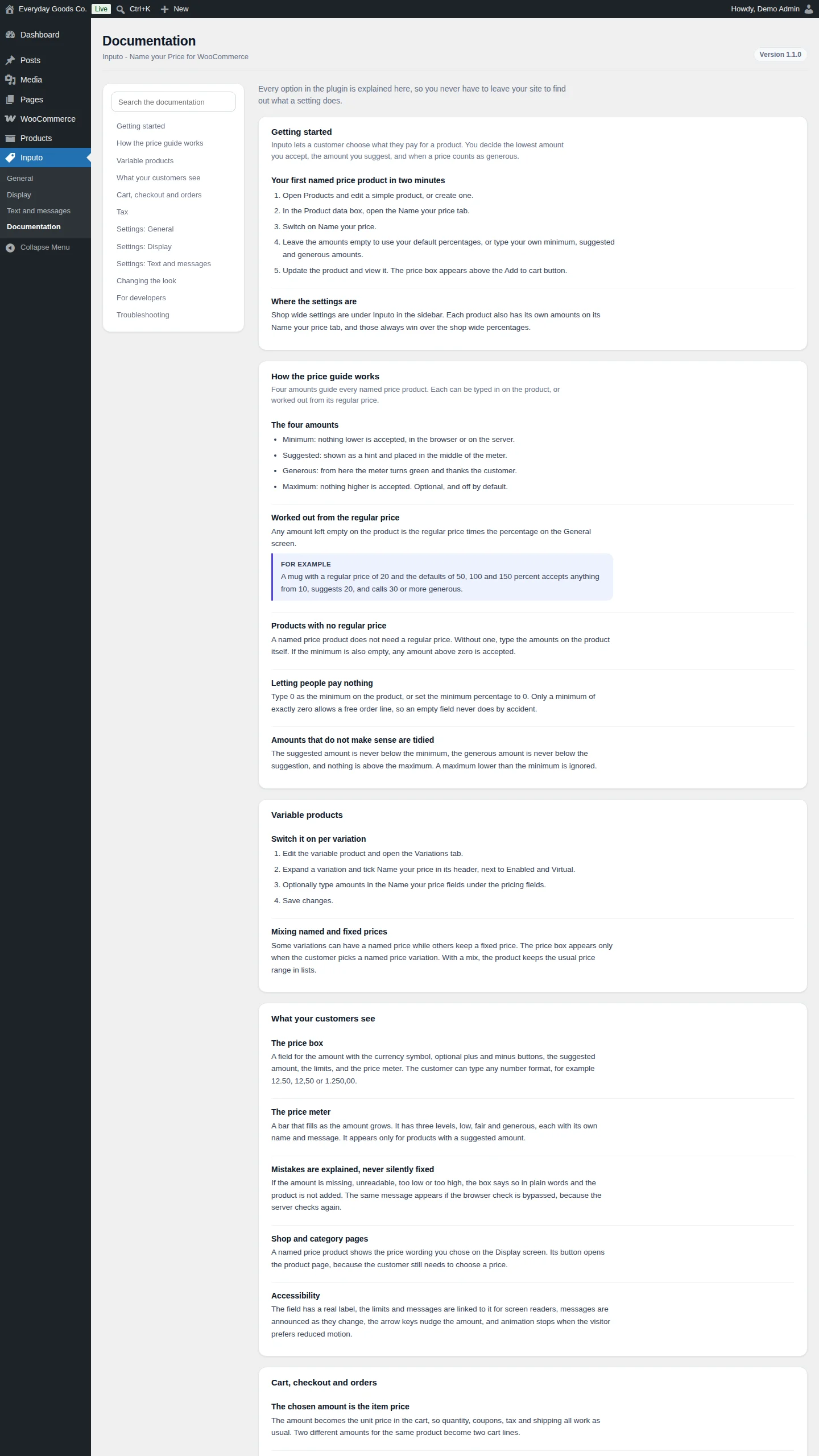
#Setting up a named price product
Shop wide settings live under Inputo in the sidebar. Each product also has its own amounts on its Name your price tab, and those always win over the shop wide percentages.
- Go to Products and edit a simple product, or create one.
- In the Product data box, open the Name your price tab.
- Switch on Name your price.
- Leave the amounts empty to use your default percentages, or type your own minimum, suggested and generous amounts.
- Update the product and view it. The price box appears above the Add to cart button.
Products with no regular price
A named price product does not need a regular price. Without one, type the amounts on the product itself. If the minimum is also empty, any amount above zero is accepted.
Letting people pay nothing
Type 0 as the minimum on the product, or set the Minimum price percentage on Inputo > General to 0. Only a minimum of exactly zero allows a free order line, so an empty field never does by accident.
Finding named price products
In the admin product list, named price products are marked, and you can filter the list to named price or fixed price products.
#Variable products
You switch named prices on per variation.
- Edit the variable product and open the Variations tab.
- Expand a variation and tick Name your price in its header, next to Enabled and Virtual.
- Optionally type amounts in the Name your price fields under the pricing fields.
- Click Save changes.
Some variations can have a named price while others keep a fixed price. The price box appears only when the customer picks a named price variation. With a mix, the product keeps the usual price range in lists.
#Cart, checkout and orders
The amount the customer chooses becomes the unit price in the cart, so quantity, coupons, tax and shipping all work as usual. Two different amounts for the same product become two cart lines.
- The chosen amount is applied to the cart on the server, which both the block and the classic cart and checkout use.
- The amount is checked when the product is added to the cart, every time the cart is checked, and before checkout, including for the block checkout and the Store API.
- When Show the chosen price in the cart is on, a line under the item confirms the price the customer chose. You can rename it with Cart line label.
- The named price and the suggested price at the time are recorded on every order line and shown on the order screen.
- Order again brings back the same amount.
Tax
The customer types an amount the way your shop shows prices. If your shop shows prices including tax, the typed amount includes tax too, even when you enter product prices without tax. The limits follow the same rule.
#Changing the look
Start with the Price box style and Accent colour on Inputo > Display. For more control:
- Use the CSS custom properties on
.inputo-nypin your theme's CSS. - Copy
templates/price-input.phpfrom the plugin toyourtheme/inputo/price-input.phpand edit the copy.
Settings reference
Inputo > General
| Setting | Type | Default | What it does |
|---|---|---|---|
| Minimum price | number | 50 |
Percentage of the regular price. The lowest amount a customer can pay. Use 0 to let customers take the product for free. |
| Suggested price | number | 100 |
Percentage of the regular price. The amount you recommend, shown as a hint and marking the middle of the price meter. |
| Generous price | number | 150 |
Percentage of the regular price. Amounts at or above this level are thanked as generous. |
| Maximum price | number | 0 |
Percentage of the regular price. The highest amount allowed. Use 0 for no upper limit. |
| Starting value | select | Empty, with the suggested price as a hint |
What the price field contains when the page loads: `Empty, with the suggested price as a hint`, `The suggested price` or `The minimum price`. |
| Plus and minus buttons | checkbox | on |
Shows buttons on either side of the field that nudge the price up or down. |
| Button step | number | 1 |
How much each press of plus or minus adds or takes away, in your store currency. |
| Show the chosen price in the cart | checkbox | on |
Adds a line under the item in the cart and checkout confirming the price the customer chose. |
| Remove data when deleted | checkbox | off |
When the plugin is deleted from the Plugins screen, also deletes its settings and product amounts. |
Inputo > Display
| Setting | Type | Default | What it does |
|---|---|---|---|
| Price under the title | select | The suggested price |
What replaces the usual price near the product title: `The suggested price`, `From the minimum price`, `The regular price, unchanged` or `Nothing, hide the price`. |
| Price box style | select | Card |
`Card` stands out on the page. `Minimal` blends in with the theme. |
| Accent colour | color | #4f46e5 |
Used for the field outline, the meter and the buttons. |
| Add to cart button text | text | - | The button under the price box on named price product pages. Leave empty to keep your theme's wording. |
| Show the suggested price | checkbox | on |
A line above the field with the amount you recommend. |
| Show the minimum and maximum | checkbox | on |
A small line under the field so customers know the limits before they type. |
| Show the price meter | checkbox | on |
A bar that fills as the price rises and thanks the customer at each level. |
| Price in product lists | select | From the minimum price |
What shows as the price on shop, category, search and related product lists. Same options as Price under the title. |
| Button text | text | Name your price |
The button in product lists. It opens the product page, where the customer chooses a price. |
Inputo > Text and messages
| Setting | Type | Default | What it does |
|---|---|---|---|
| Field label | text | Name your price |
The heading above the price field. |
| Suggested price line | text | Suggested price: {price} |
Use `{price}` for the suggested amount. |
| From line | text | From {price} |
Used when the price display is set to show the minimum. Use `{price}` for the amount. |
| Minimum hint | text | Minimum {price} |
Shown under the field. Use `{price}` for the minimum. |
| Maximum hint | text | Maximum {price} |
Shown under the field when a maximum is set. Use `{price}` for the maximum. |
| Cart line label | text | Your price |
The label for the chosen price under the item in the cart. |
| Low level name | text | Low |
Name of the meter level from the minimum to the suggested price. |
| Fair level name | text | Fair |
Name of the meter level from the suggested to the generous price. |
| Generous level name | text | Generous |
Name of the meter level above the generous price. |
| Low level message | textarea | Thank you, every contribution helps. |
Shown while the price is below the suggestion. Leave empty to show nothing. |
| Fair level message | textarea | Great choice, that is a fair price. |
Shown when the price reaches the fair level. |
| Generous level message | textarea | Wow, thank you for being so generous! |
Shown when the price reaches the generous level. |
| No price entered | text | Please enter the price you would like to pay. |
Error shown when the customer has not entered an amount. |
| Not a number | text | Please enter a valid amount using numbers only. |
Error shown when the amount cannot be read as a number. |
| Below the minimum | text | Please enter at least {min}. |
Error shown when the amount is too low. Use `{min}` for the minimum. |
| Above the maximum | text | Please enter no more than {max}. |
Error shown when the amount is too high. Use `{max}` for the maximum. |
On your site
On a named price product page, shoppers see a price box above the Add to cart button. It contains:
- A field for the amount with the currency symbol, and optional plus and minus buttons.
- The suggested amount and the minimum and maximum limits, when you choose to show them.
- The price meter, a bar that fills as the amount grows, with three levels (low, fair and generous), each with its own name and message. It appears only for products with a suggested amount.
Customers can type any number format, for example 12.50, 12,50 or 1.250,00. If the amount is missing, unreadable, too low or too high, the box says so in plain words and the product is not added. The same message appears if the browser check is bypassed, because the server checks again.
On shop, category and search pages, a named price product shows the price wording you chose on the Display screen. Its button opens the product page, because the customer still needs to choose a price.
The price box is accessible: the field has a real label, the limits and messages are linked to it for screen readers, messages are announced as they change, the arrow keys nudge the amount, and animation stops when the visitor prefers reduced motion.
Frequently asked questions
Does a named price product need a regular price?
No. If it has one, empty amounts are worked out from it using your default percentages on Inputo > General. If it has none, type the amounts on the product itself. With no minimum either, any amount above zero is accepted.
Can customers pay nothing?
Only if you allow it on purpose, by setting a minimum of exactly 0 on the product or a Minimum price percentage of 0 on the General screen. An empty minimum never allows a free order line.
Can a customer get around the minimum?
No. The browser check is only there to help. The server checks the amount when the product is added to the cart, every time the cart is checked, and before checkout, including for the block checkout and the Store API.
How does it handle tax?
The customer types an amount the way your shop shows prices. If your shop shows prices including tax, the typed amount includes tax too, even when you enter product prices without tax.
Does it work with the block cart and checkout?
Yes. The chosen amount is applied to the cart on the server, which both the block and the classic cart and checkout use. It also works with High Performance Order Storage.
Can I use a named price on only some variations?
Yes. Tick Name your price in the header of each variation you want. Other variations keep their fixed price, and the price box appears only when the customer picks a named price variation.
Can I change how the price box looks?
Yes. Choose a Card or Minimal style and an Accent colour on Inputo > Display. For more, use the CSS custom properties on .inputo-nyp, or copy templates/price-input.php to yourtheme/inputo/price-input.php and edit it.
Does Inputo send data to external services?
No. Inputo makes no requests to external services, loads nothing from third party servers, and collects no data about you or your customers. It only stores its settings, the amounts you set on products, and the amount a customer chose on each order line.
Troubleshooting
- Inputo will not activate, or the Inputo menu is missing
Inputo requires WooCommerce 8.0 or later. Install and activate WooCommerce first, then activate Inputo under Plugins. Also check that your site runs WordPress 6.4 or later and PHP 7.4 or later.
- The price box does not appear on a product page
Edit the product, open the Name your price tab in the Product data box, switch on Name your price and click Update. For a variable product, tick Name your price in the header of each variation instead. The box appears only when the customer picks a named price variation.
- The shop page button opens the product page instead of adding to the cart
This is expected. The customer has not chosen a price yet, so a named price product cannot be added to the cart from a list in one click. You can change the button wording with Button text on Inputo > Display.
- The price meter does not show
Check that Show the price meter is on under Inputo > Display. The meter appears only for products with a suggested amount, so make sure the product has a regular price (for the percentages to work from) or a suggested amount typed on its Name your price tab.
- Customers cannot check out with a price of zero
A free order line is only allowed when the minimum is exactly
0. Type0as the minimum on the product, or set the Minimum price percentage on Inputo > General to0. An empty minimum never allows it.- The chosen price is not shown under the item in the cart
Turn on Show the chosen price in the cart under Inputo > General and click Save changes. You can change the wording of that line with Cart line label under Inputo > Text and messages.
Upgrade
Upgrade to Inputo - Name Your Price for WooCommerce
This free plugin is complete on its own and nothing in it is locked or limited. Inputo Pro is a separate plugin from ProPluginsLab that includes everything in the free plugin and adds:
- Quick price buttons and a price slider
- Turn it on for whole categories or tags
- Limit name your price to chosen customer roles
- Custom wording and amounts on each product
- Confetti and a thank you badge for generous payments
- Reports on what customers paid, with CSV export