Overview
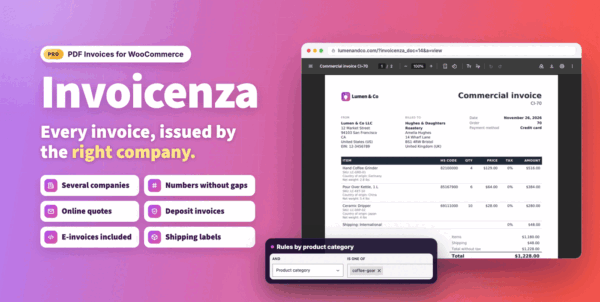
PDF invoices for WooCommerce from the right company: quotes accepted online, deposit and final invoices, debit notes, customs invoices, labels and e-invoices.
Requirements
- WordPress 6.5 or later
- PHP 7.4 or later
- WooCommerce 8.5 or later
- Required plugins: woocommerce
Installation
Download Invoicenza - PDF Invoices for WooCommerce from your ProPluginsLab account, then upload it to WordPress.
Log in to your ProPluginsLab account and open My Account > Downloads.
Download the plugin zip file.
In your WordPress admin, go to Plugins > Add New Plugin > Upload Plugin.
Choose the zip file, click Install Now, then Activate.
License and automatic updates
Invoicenza works fully as soon as it is activated. The license key turns on automatic updates, so new versions arrive in WordPress like any other plugin update. Pro features never depend on it.
Activate your license
Find your license key in My Account on propluginslab.io, in the license keys section. It is also in your order confirmation email.
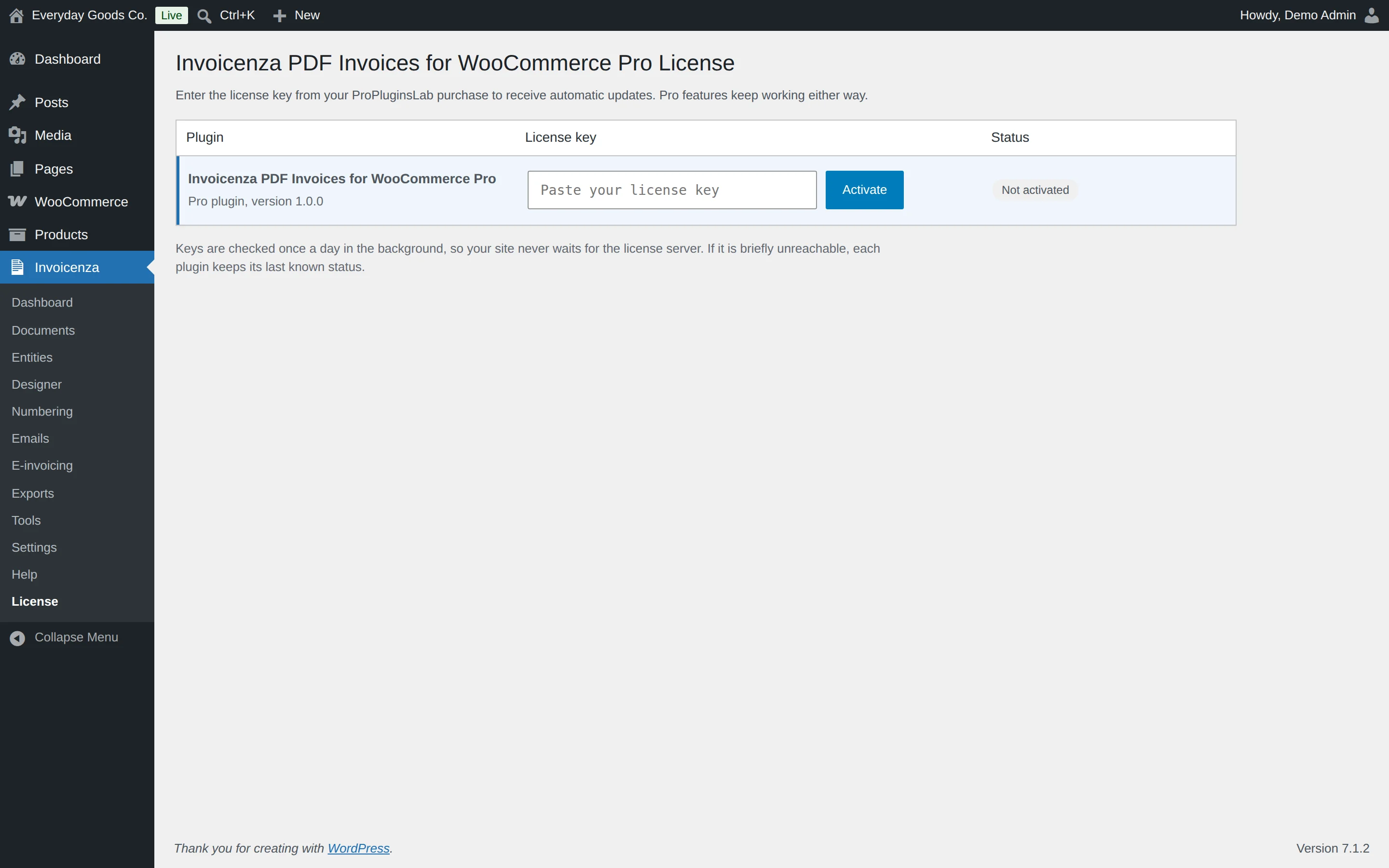
In WordPress, open the License item in the Invoicenza menu. When two or more ProPluginsLab plugins or add-ons are active on the site, WooCommerce > Licenses also appears and lists all of them in one place.
Paste the key into the Invoicenza - PDF Invoices for WooCommerce Pro row and click Activate. The status changes to Active and automatic updates are on.
Receive updates automatically
Once the license is active, new versions of Invoicenza show up under Dashboard > Updates and on the Plugins screen. Click Update now, or click Enable auto-updates in the Invoicenza row on the Plugins screen and WordPress installs every future release for you.
Good to know
- Keys are checked once a day in the background, so your site never waits for the license server. If the server is briefly unreachable, the plugin keeps its last known status.
- An expired key or a key that is not accepted only stops updates. Invoicenza keeps working. After renewing, click Check now in its row.
- Moving to a new domain: click Deactivate on the old site first, then activate the key on the new one. The status shows Site address changed, checking until the new address is confirmed.
- On the command line:
wp ppl-license list,wp ppl-license activate <plugin> <key>,wp ppl-license checkandwp ppl-license deactivate <plugin>.
Quick start
- Open Invoicenza
Go to
wp-admin/admin.php?page=invoicenzain your WordPress admin. - Open Invoicenza PDF Invoices for WooCommerce Pro License
Go to
wp-admin/admin.php?page=cwg-license-invoicenza-pdf-invoices-for-woocommerce-proin your WordPress admin.
#Invoicenza
Location: wp-admin/admin.php?page=invoicenza
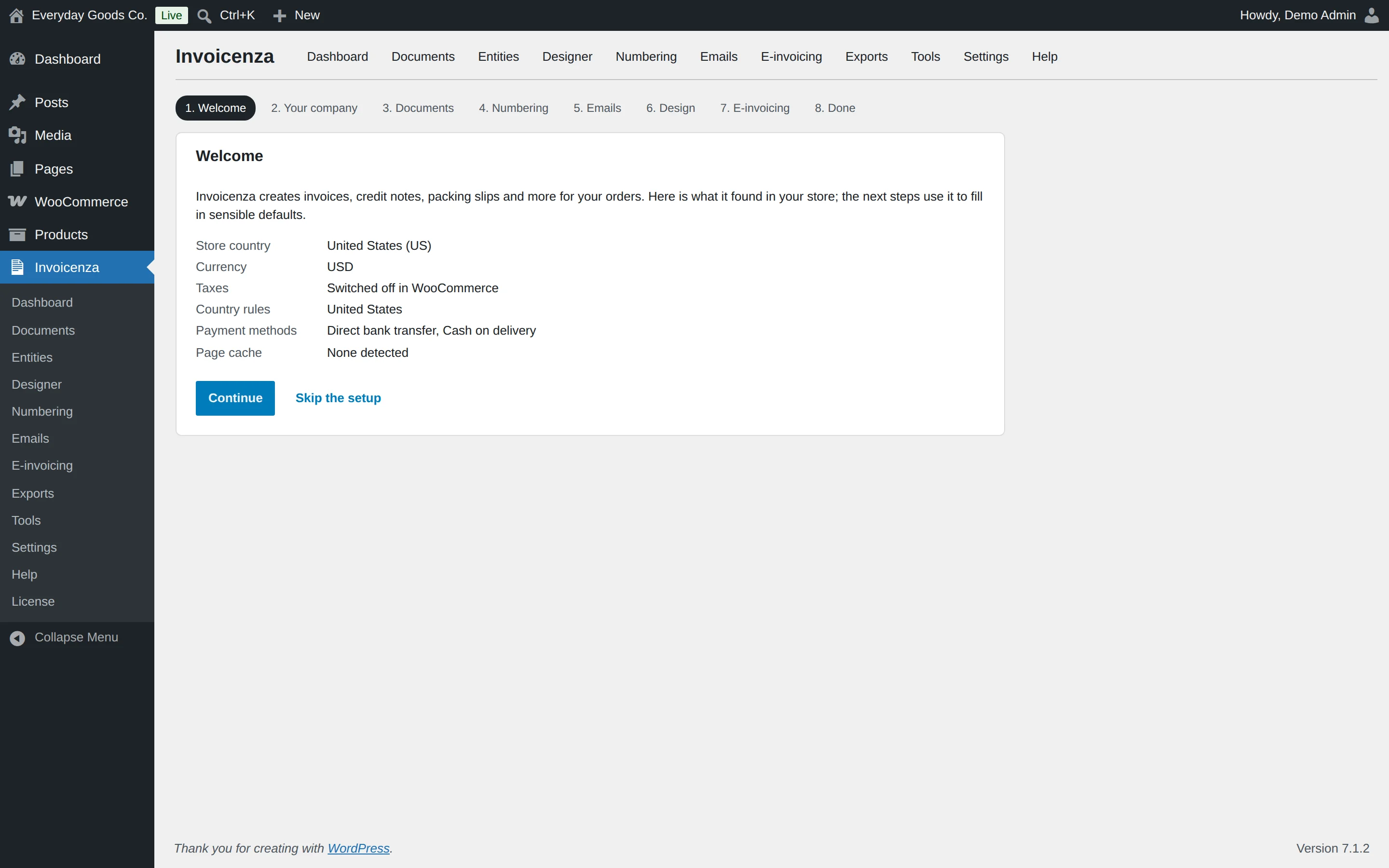
On this screen:
- Welcome
#Invoicenza PDF Invoices for WooCommerce Pro License
Location: wp-admin/admin.php?page=cwg-license-invoicenza-pdf-invoices-for-woocommerce-pro
On this screen:
- Invoicenza PDF Invoices for WooCommerce Pro License
On your site
These pages show what visitors see on your site.