

Overview
Kitero adds a Composite product type to WooCommerce. A composite product is made of components. Each component is one choice the shopper makes, such as a mug or a candle, and you fill it with existing products from your catalog. The shopper picks an option in each component and sees the total update as they go. The configuration then goes through the cart, checkout, order and emails with every chosen item listed.
It is for stores that sell made to order kits, gift boxes or any product that is put together from other products. Stock is handled at component level, so each chosen product keeps its own stock.
Kitero Pro is a complete plugin. It contains every feature of the free edition, so you do not need both. Pro adds bundle mode, conditional logic rules, fixed and hybrid pricing, per option price overrides, a step by step wizard and a tabbed layout, ten more kit templates and a composite insights report.
Requirements
- WordPress 6.4 or later (tested up to 7.1)
- PHP 7.4 or later
- WooCommerce 8.0 or later, installed and active
Installation
Kitero Pro needs WooCommerce. Install and activate WooCommerce 8.0 or newer before you install Kitero Pro. You do not need the free edition: if it is active, Pro switches it off for you when you activate Pro and keeps all of your components, settings and products.
Log in to your ProPluginsLab account and open My Account > Downloads.
Download the Kitero Pro zip file.
In WordPress, go to Plugins > Add New > Upload Plugin.
Choose the zip file and click Install Now.
Click Activate Plugin. If the free edition was active, a notice confirms that it has been switched off.
Open the new Kitero menu in the WordPress admin to get started.
Quick start
- Run the setup
Go to Kitero > Setup. Pick how shoppers move through the choices (the layout) and click Continue through the remaining steps. You can change any of it later, or click Skip for now.
- Check the global settings
Go to Kitero > Settings and review the default layout, option style, catalog price display and default pricing. Click Save settings.
- Create a composite product
Create a product as usual, then set the product type dropdown to Composite product. The composite product itself does not need a price: the total is worked out from the products the shopper chooses.
- Add components
Open the Composite tab and press Add component. Give the component a name, then search for the products the shopper can pick from by name or SKU. Add as many components as you need and drag them into the order you want.
- Choose the display and publish
On the Composite display tab, choose the layout for this product and, if needed, the minimum and maximum items for the whole kit. Press Update, then visit the product page to see the configuration form with a live total.
#Dashboard
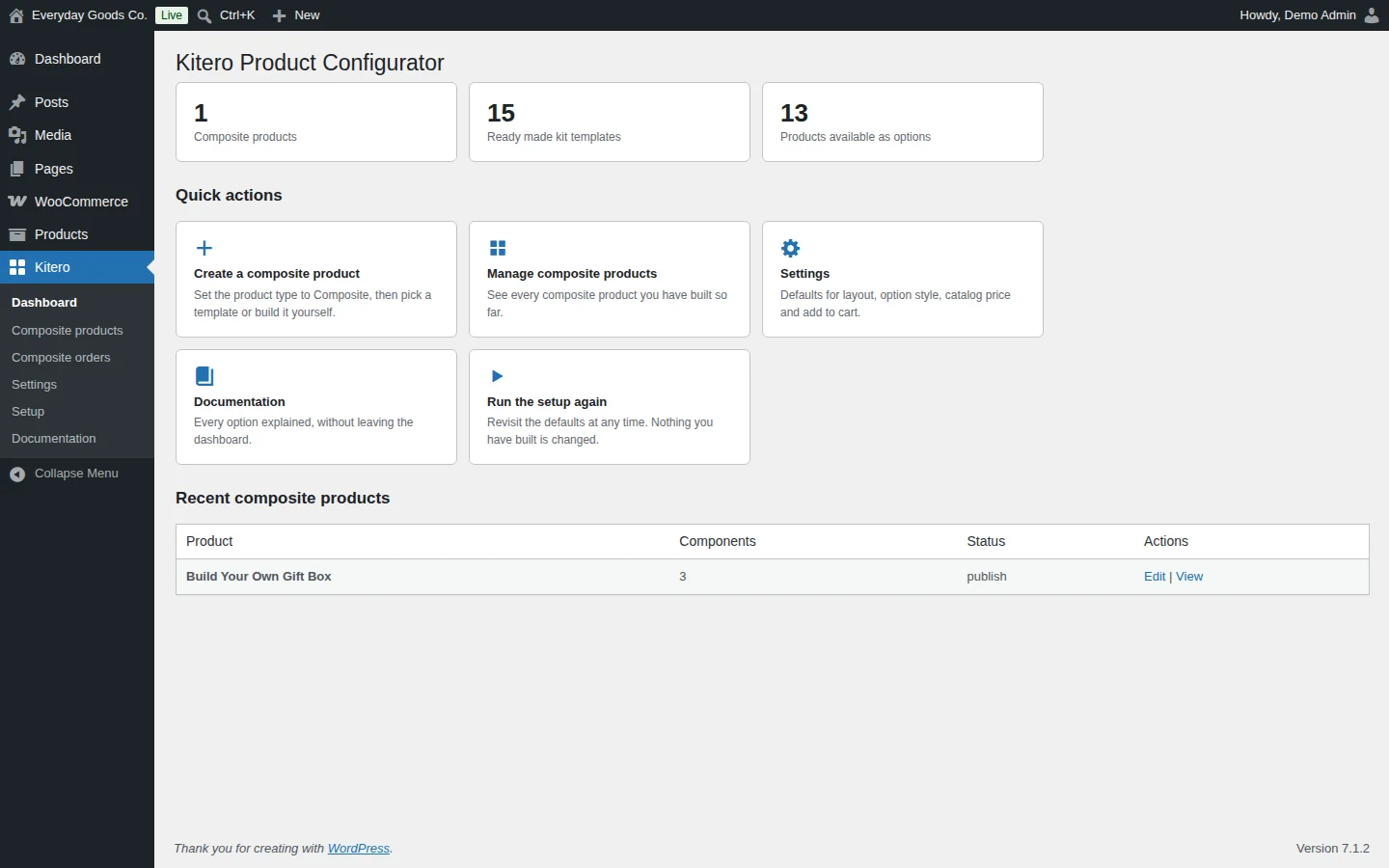
Kitero > Dashboard is the starting point of the plugin. At the top it shows counters for your composite products, the ready made kit templates and the products available as options.
Under Quick actions you find shortcuts to:
- Create a composite product: set the product type to Composite, then pick a template or build it yourself.
- Manage composite products: see every composite product you have built so far.
- Settings: defaults for layout, option style, catalog price and add to cart.
- Documentation: every option explained, without leaving the dashboard.
- Run the setup again: revisit the defaults at any time. Nothing you have built is changed.
The Recent composite products table lists your latest composite products with their number of components, their status and Edit and View links.
#Composite products
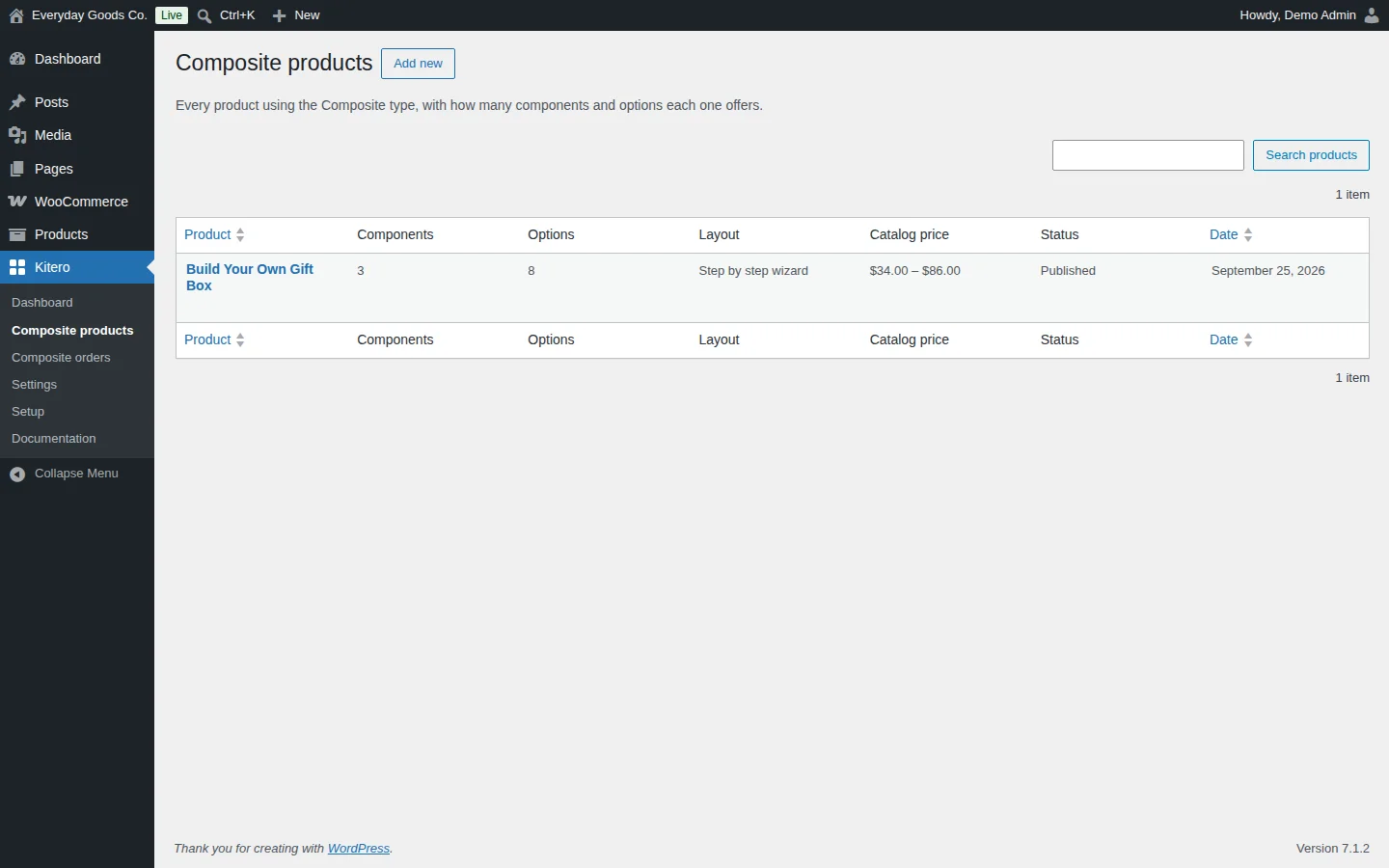
Kitero > Composite products lists every product that uses the Composite type, with how many components and options each one offers.
The table shows, for each product:
- Product (sortable), linking to the product editor
- Components and Options
- Layout used on the product page
- Catalog price, as shown on shop and category pages
- Status and Date (sortable)
Use the search box and Search products to find a product, or click Add new to create one.
#Building a composite product
Composite products are edited in the normal WooCommerce product editor.
- Create a product as usual, then set the product type dropdown to Composite product.
- Open the Composite tab and press Add component. A component is one choice the shopper makes.
- Give the component a name, then search for the products the shopper can pick from. You can search by product name or by SKU, including variation SKUs.
- Add as many components as you need and drag them into the order you want.
- Press Update. The product page now shows the configuration form with a live total.
The composite product itself does not need a price.
Component options
Each component card on the Composite tab has these fields:
| Option | What it does |
|---|---|
| Component name | The heading the shopper sees for this step, and the label used in the cart, the order and the confirmation email. Required. |
| Short description | Optional helper text under the heading, for example a sizing note. |
| How options are shown | Thumbnail grid, larger cards with a description, a compact radio list or a dropdown. Set per component. |
| Required | When ticked, the shopper cannot add the product to the cart until they choose an option here. When unticked, the component is optional. |
| Minimum quantity | How many units of the chosen option are included. |
| Maximum quantity | The highest quantity the shopper can pick. Leave it equal to the minimum for a fixed quantity. |
| Let the shopper change the quantity | Shows plus and minus buttons, only when the maximum is higher than the minimum. |
| Adjust the price of whatever is chosen here | A discount or an extra fee on the chosen option, as a percentage or a fixed amount. A discount can never take a line below zero. |
| Amount | The size of that change. The catalog price range and the live total both take it into account. |
| Products | The options the shopper picks from. A variable product is listed as its individual variations. Drag the rows to reorder them. |
Composite display tab
On the Composite display tab you choose the layout for this product, which overrides the Default layout setting. You can also set the minimum and maximum number of items for the whole kit, for example at least 3 and at most 6. Items are counted by quantity across every component. The product page shows the limit and a running count, and the cart checks it again. Leave both empty for no limit.
Pricing and stock
- With per item pricing, the total is the sum of the chosen options, each multiplied by its quantity. It updates live and is calculated again on the server before anything is added to the cart.
- The lowest catalog price counts required components only, because optional components can be skipped. The highest price counts every component at its dearest option and highest quantity.
- Stock is held by the chosen products, not by the composite product. When an order reduces stock, the stock of each chosen item is reduced by its quantity.
Restyling the form
To restyle the configuration form, copy templates/single-product/composite-form.php from the plugin into a folder called kitero-product-configurator inside your theme. Your copy is used instead and survives updates.
#Pro features
Kitero Pro adds these features on top of the free edition:
- Bundle mode. You decide the contents yourself. The shopper sees what is in the box and adds it in one click. Optional items get a tick box so they can be dropped, and the total follows.
- Fixed and hybrid pricing. Charge one flat price whatever is chosen, or a base price with the chosen items added on top. The default for new products is set with Default pricing under Kitero > Settings, and you can change it for one product on the General tab.
- Per option price overrides. Charge a different price for a product inside one component, without touching the product itself.
- Logic rules. Show, hide or narrow one component based on what was chosen in another. Rules are enforced in the browser and again on the server.
- Two extra layouts. A step by step wizard with a progress bar, and a tabbed layout with one tab per component.
- Ten more kit templates. Fifteen in total, three of which also set bundle mode, fixed pricing or hybrid pricing for you.
- Composite insights. A report of your customers' choices, described below.
#Composite orders
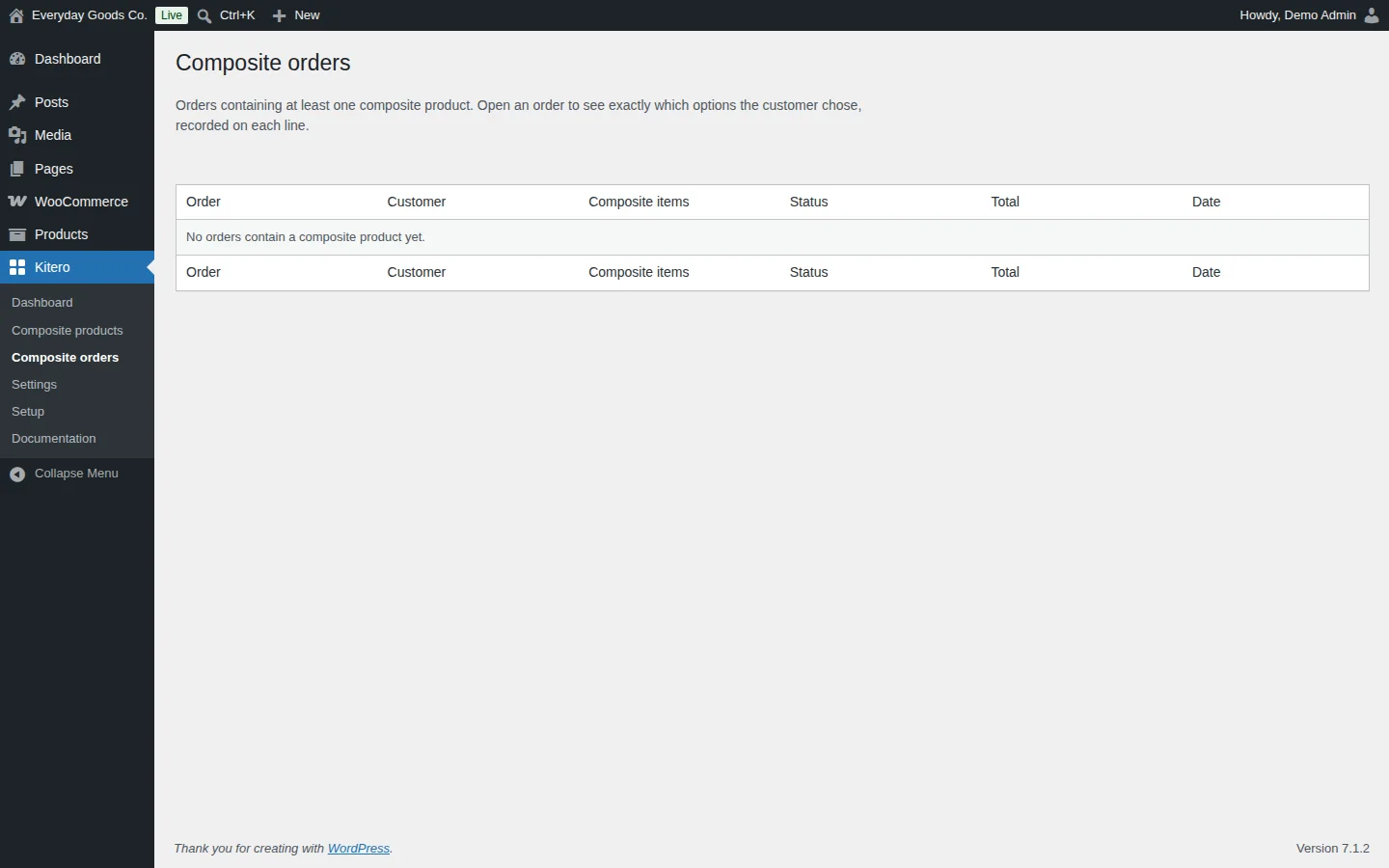
Kitero > Composite orders lists the orders that contain at least one composite product. The table shows the Order, Customer, Composite items, Status, Total and Date.
Open an order to see exactly which options the customer chose. The choices are recorded on each order line. Until the first order with a composite product comes in, the table shows "No orders contain a composite product yet."
#Settings
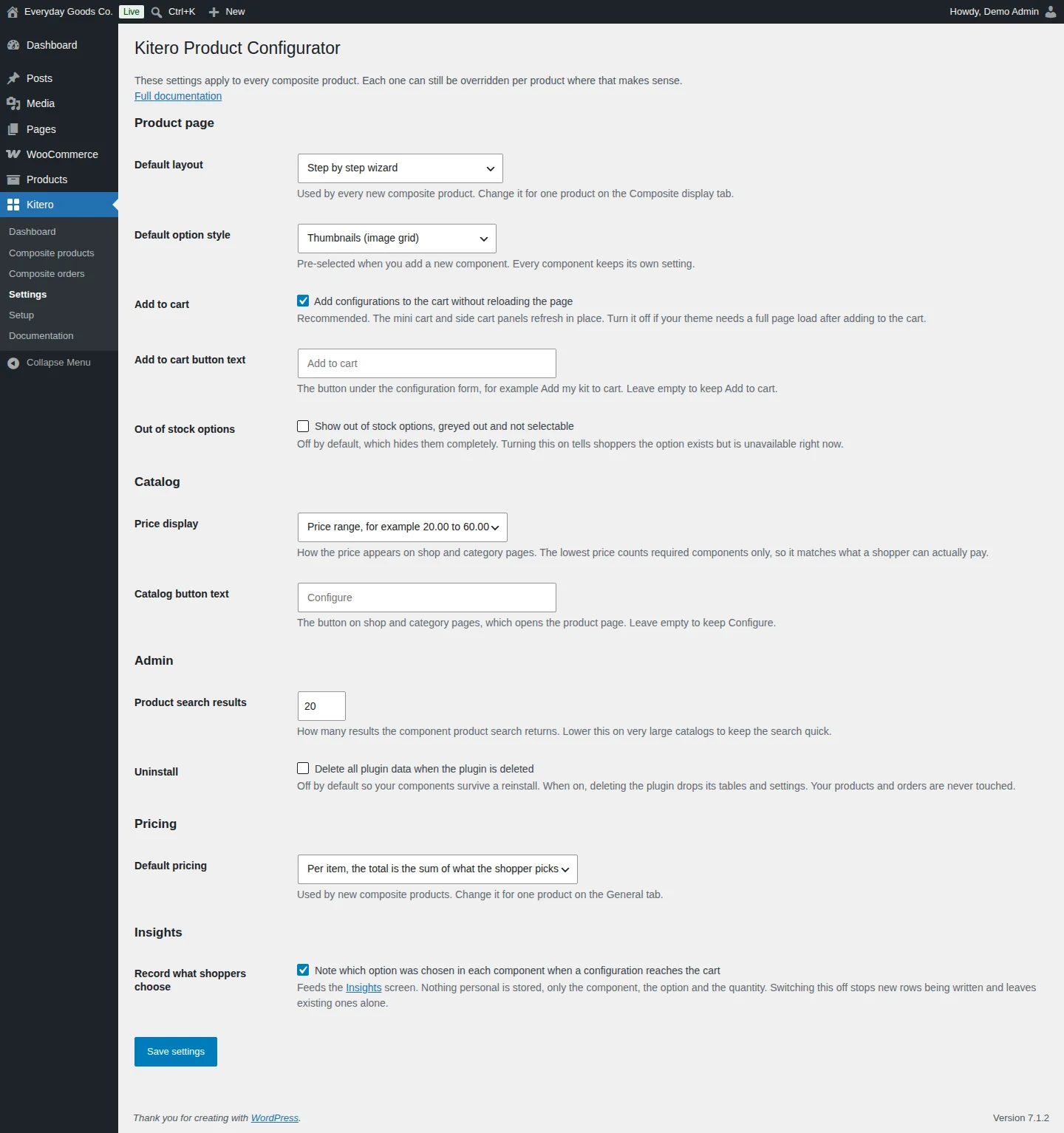
Kitero > Settings holds the defaults that apply to every composite product. Some of them can be overridden per product where that makes sense. The screen is split into five groups:
- Product page: default layout, default option style, add to cart behavior and button text, and out of stock options.
- Catalog: how the price and the button appear on shop and category pages.
- Admin: the number of component product search results, and whether plugin data is deleted when you delete the plugin.
- Pricing: the default pricing strategy for new composite products.
- Insights: whether shoppers' choices are recorded for the Insights screen.
Click Save settings when you are done. Every field is described in the settings reference below.
#Setup
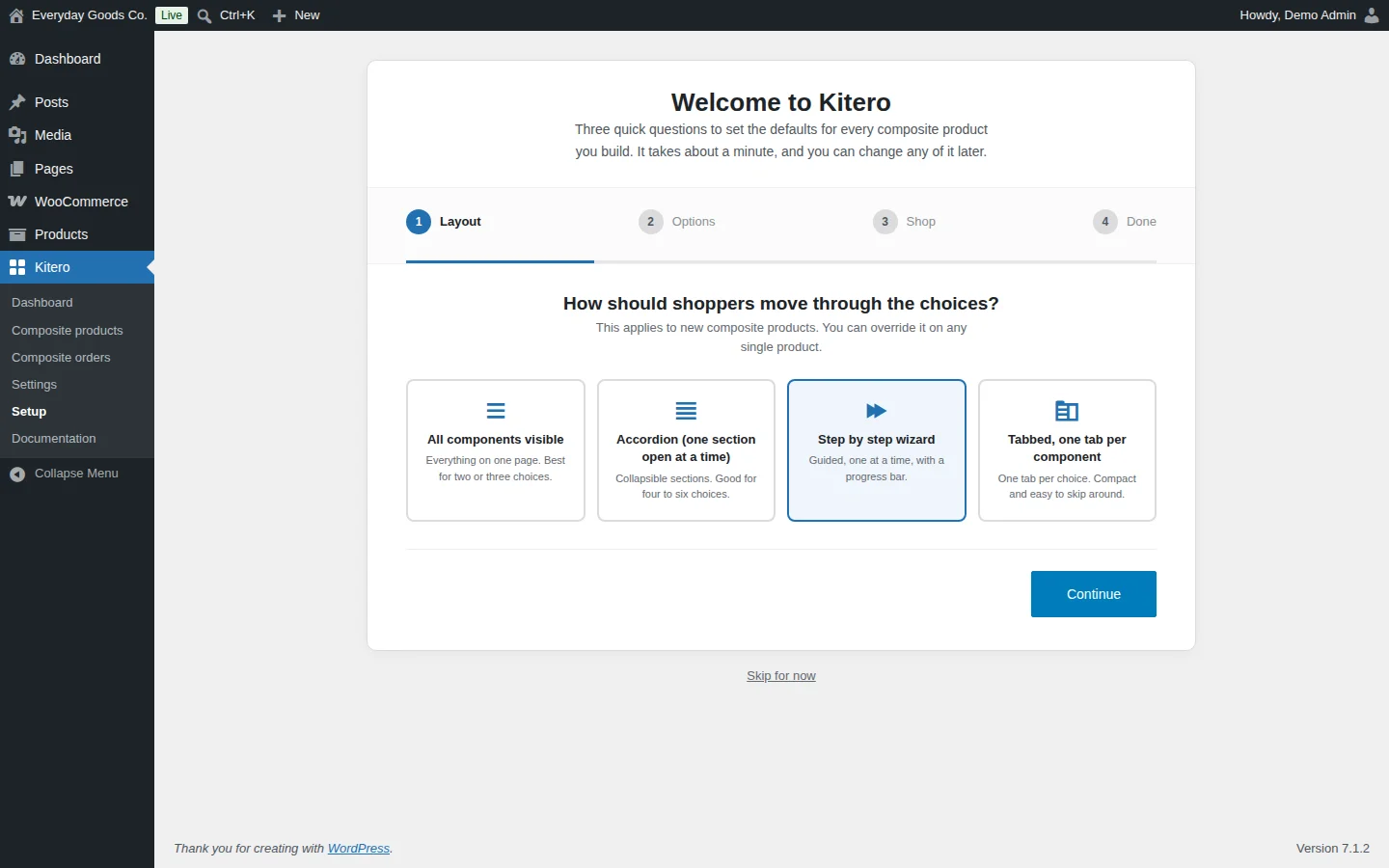
Kitero > Setup is a short wizard that asks three quick questions to set the defaults for every composite product you build. It takes about a minute, and you can change any answer later in Kitero > Settings.
The steps are Layout, Options, Shop and Done. The first step asks how shoppers move through the choices:
- All components visible: everything on one page. Best for two or three choices.
- Accordion (one section open at a time): collapsible sections. Good for four to six choices.
- Step by step wizard: guided, one at a time, with a progress bar.
- Tabbed, one tab per component: one tab per choice. Compact and easy to skip around.
The layout applies to new composite products, and you can override it on any single product. Click Continue to move on, or Skip for now to leave the wizard. You can run it again from the dashboard at any time without changing anything you have built.
#Documentation
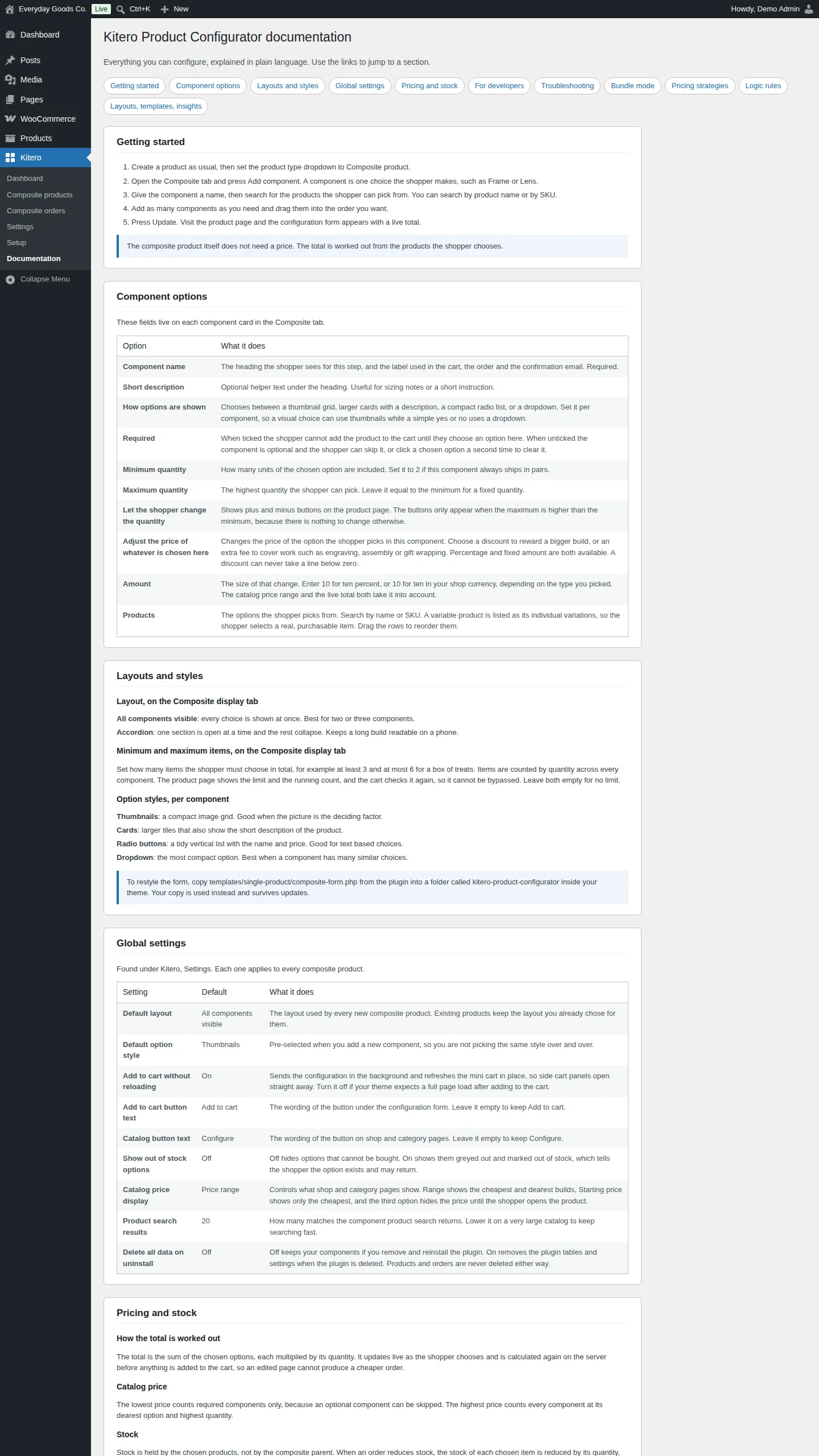
Kitero > Documentation explains every option without leaving the WordPress admin. Use the links at the top to jump to a section: Getting started, Component options, Layouts and styles, Global settings, Pricing and stock, For developers, Troubleshooting, Bundle mode, Pricing strategies, Logic rules, and Layouts, templates and insights.
The For developers section lists the hooks the plugin provides, with the purpose of each one.
#Composite insights
The Insights screen (Pro) reports on composite sales: configurations built, revenue from composite lines, how many builds became an order, and a share bar for every option showing how often it wins its component.
It is fed by the Note which option was chosen in each component when a configuration reaches the cart setting under Kitero > Settings. Nothing personal is stored, only the component, the option and the quantity. Switching the setting off stops new rows being written and leaves existing ones alone.
Settings reference
Kitero > Settings
| Setting | Type | Default | What it does |
|---|---|---|---|
| Default layout | select | - | Layout used by every new composite product: All components visible, Accordion (one section open at a time), Step by step wizard, or Tabbed, one tab per component. Change it for one product on the Composite display tab. |
| Default option style | select | Thumbnails (image grid) |
Pre-selected when you add a new component: Thumbnails (image grid), Cards (image, name and description), Radio buttons (compact list) or Dropdown (select box). Every component keeps its own setting. |
| Add configurations to the cart without reloading the page | checkbox | on |
Recommended. The mini cart and side cart panels refresh in place. Turn it off if your theme needs a full page load after adding to the cart. |
| Add to cart button text | text | - | Text of the button under the configuration form, for example `Add my kit to cart`. Leave empty to keep Add to cart. |
| Show out of stock options, greyed out and not selectable | checkbox | off |
Off hides out of stock options completely. On tells shoppers the option exists but is unavailable right now. |
| Price display | select | Price range, for example 20.00 to 60.00 |
How the price appears on shop and category pages: a price range, a starting price, or no price. The lowest price counts required components only. |
| Catalog button text | text | - | Text of the button on shop and category pages, which opens the product page. Leave empty to keep Configure. |
| Product search results | number | 20 |
How many results the component product search returns. Lower this on very large catalogs to keep the search quick. |
| Delete all plugin data when the plugin is deleted | checkbox | off |
Off keeps your components through a reinstall. When on, deleting the plugin drops its tables and settings. Products and orders are never touched. |
| Default pricing | select | Per item, the total is the sum of what the shopper picks |
Pricing used by new composite products: per item, fixed (one flat price), or hybrid (a base price plus the items picked). Change it for one product on the General tab. |
| Note which option was chosen in each component when a configuration reaches the cart | checkbox | on |
Feeds the Insights screen. Only the component, the option and the quantity are stored. Switching it off stops new rows being written and leaves existing ones alone. |
On your site
On the shop and category pages, a composite product shows its price as set by Price display (a range, a starting price or no price) and a button that opens the product page. The button text is Configure unless you change it.
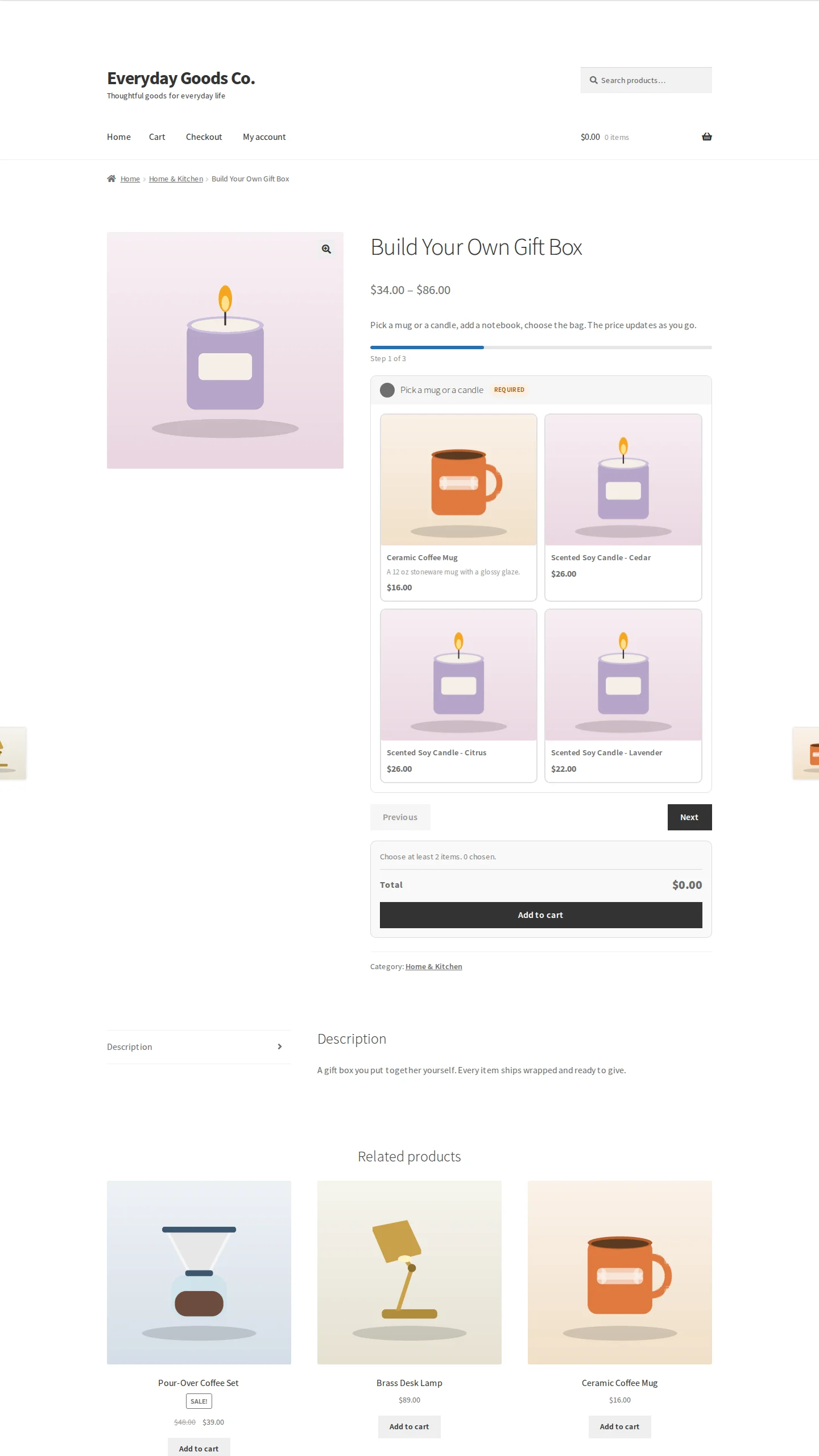
On the product page, the configuration form replaces the usual add to cart area. With the step by step wizard layout, shoppers see:
- A progress bar with the current step, for example "Step 1 of 3".
- The component name, with a Required badge when the component must be filled.
- The options in the component's style, for example a thumbnail grid with each product's image, name, short description and price.
- Previous and Next buttons to move between components.
- When you set a minimum or maximum number of items, the limit and a running count, for example "Choose at least 2 items. 0 chosen."
- A live Total and the Add to cart button (or your own button text).
The total updates as the shopper chooses and is checked again on the server when the configuration is added to the cart. In the cart, checkout, order and emails, each chosen option is listed under the component name.
Frequently asked questions
Do I need the free plugin as well?
No. Pro contains everything the free edition does. Running both would register the product type twice, so Pro switches the free one off on activation. The free edition also stands down on its own if it is activated later while Pro is running.
Will I lose my components if I move from free to Pro?
No. Both editions use the same tables and the same settings. Pro adds its own columns to the existing tables without touching the data already there.
Can I go back to the free edition?
Yes. Deactivate Pro and activate the free plugin. Your components and settings stay. Pro only settings, such as logic rules and pricing strategy, are kept in the database but stop being applied.
Does the composite product need its own price?
No. With per item pricing, the total is worked out from the products the shopper chooses. With Pro you can also use fixed pricing (one flat price) or hybrid pricing (a base price plus the items picked).
How is stock handled?
Stock is held by the chosen products, not by the composite product. When an order reduces stock, the stock of each chosen item is reduced by its quantity. Out of stock options are hidden unless you turn on Show out of stock options, greyed out and not selectable under Kitero > Settings.
Can one product use a different layout than my default?
Yes. Default layout under Kitero > Settings only applies to new composite products. Change the layout for a single product on its Composite display tab.
Where can I see what a customer chose?
Go to Kitero > Composite orders and open the order. The options the customer chose are recorded on each order line. The cart, checkout and emails also list them under each component name.
What happens to my data if I delete the plugin?
By default your components and settings are kept so they survive a reinstall. If you turn on Delete all plugin data when the plugin is deleted, deleting the plugin drops its tables and settings. Your products and orders are never touched.
Troubleshooting
- The Composite tab is missing in the product editor
Make sure WooCommerce 8.0 or newer is installed and active. Then edit the product and set the product type dropdown to Composite product. The Composite tab appears once that type is selected.
- A product does not show in the component search
Search by the product name or by its SKU. A variable product is listed as its individual variations, so search for the variation SKU if needed. The search returns at most the number set in Product search results under Kitero > Settings, so type a more specific term or raise that number.
- The catalog shows no price or a lower price than expected
Check Price display under Kitero > Settings. If it is set to Do not show a price in the catalog, no price appears on shop and category pages. The lowest price counts required components only, because optional components can be skipped, so a product with few required components can show a low starting price.
- Shoppers cannot add the configuration to the cart
Every component marked Required must have an option chosen. If you set a minimum or maximum number of items on the Composite display tab, the shopper must stay within it: the form shows the limit and a running count, and the cart checks it again.
- The cart does not update correctly after adding a configuration
Some themes need a full page load after adding to the cart. Go to Kitero > Settings, turn off Add configurations to the cart without reloading the page and click Save settings.
- Some options are missing on the product page
Out of stock options are hidden by default. To show them greyed out and not selectable, turn on Show out of stock options, greyed out and not selectable under Kitero > Settings. If you use Pro logic rules, check whether a rule hides or narrows that component based on another choice.