

Overview
Kitero adds a Composite product type to WooCommerce. You define the choices, called components, and list the products a shopper can pick for each one. The shopper builds their product on the product page, and the total updates as they choose.
A gift hamper, a build your own skincare routine, a made to order desk setup and a spare parts kit all work the same way. Each one is a parent product made of choices, and its price comes from what the customer selected. Every choice is written to the cart, the checkout, the order and the confirmation email.
The plugin is for WooCommerce store owners who want to sell configurable products without setting up a separate product for every combination. Stock stays on the products the shopper picks, so your inventory stays accurate.
Requirements
- WordPress 6.4 or later (tested up to 7.1)
- PHP 7.4 or later
- WooCommerce 8.0 or later, installed and active
Installation
Kitero is a free plugin on WordPress.org. It needs WooCommerce, so install and activate WooCommerce 8.0 or newer first.
Make sure WooCommerce 8.0 or newer is installed and active.
In your WordPress admin, go to Plugins > Add New.
Search for Kitero Composite Products.
Click Install Now on Kitero - Composite Products for WooCommerce.
Click Activate. A new Kitero menu appears in the admin sidebar.
Quick start
- Run the setup
Go to Kitero > Setup. Answer the short questions (Layout, Options, Shop) to set the defaults for every composite product you build. You can change any of them later under Kitero > Settings.
- Create a composite product
Go to Products > Add New (or use Create a composite product on the Kitero dashboard). Set the product type dropdown to Composite product. You can start from a ready made kit template or build it yourself.
- Add your components
Open the Composite tab and press Add component. Give the component a name, then search for the products the shopper can pick from, by product name or by SKU. Add as many components as you need and drag them into the order you want.
- Choose the layout
On the Composite display tab, pick the layout for this product and, if you need one, a minimum and maximum number of items for the whole kit.
- Publish and check the product page
Press Update or Publish. Visit the product page: the configuration form appears with a live total. The composite product itself does not need a price.
#Dashboard
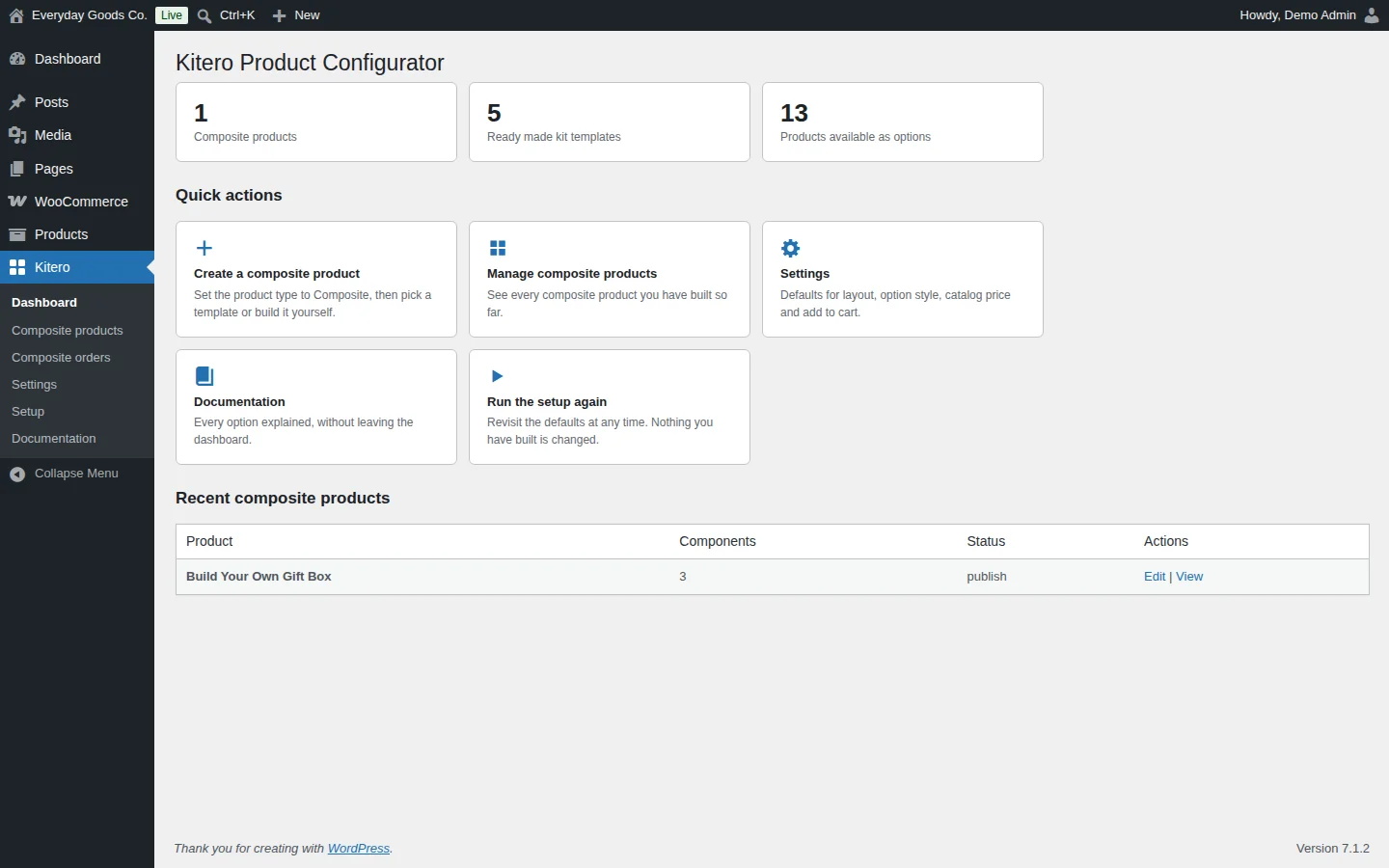
Go to Kitero > Dashboard for an overview of the plugin.
At the top you see counts of your composite products, the ready made kit templates and the products available as options.
Quick actions link to the main tasks:
- Create a composite product: set the product type to Composite, then pick a template or build it yourself.
- Manage composite products: opens the list of every composite product.
- Settings: defaults for layout, option style, catalog price and add to cart.
- Documentation: every option explained inside the dashboard.
- Run the setup again: revisit the defaults at any time. Nothing you have built is changed.
Recent composite products lists your latest composite products with their number of components, status, and Edit and View links.
#Building a composite product
Composite products are edited in the normal WooCommerce product editor. Set the product type to Composite product. Two tabs then appear: Composite and Composite display.
Composite tab
Press Add component to add a choice the shopper makes. Each component card has these fields:
- Component name: the heading the shopper sees for this step. It is also the label used in the cart, the order and the confirmation email. Required.
- Short description: optional helper text under the heading, for example a sizing note.
- How options are shown: a thumbnail grid, larger cards with a description, a compact radio list or a dropdown. You set this per component.
- Required: when ticked, the shopper cannot add the product to the cart until they choose an option here. When unticked, the shopper can skip the component or click a chosen option again to clear it.
- Minimum quantity and Maximum quantity: how many units of the chosen option are included. Set both to the same value for a fixed quantity.
- Let the shopper change the quantity: shows plus and minus buttons on the product page. They only appear when the maximum is higher than the minimum.
- Adjust the price of whatever is chosen here and Amount: apply a discount or an extra fee to the option picked in this component, as a percentage or a fixed amount. A discount can never take a line below zero.
- Products: the options the shopper picks from. Search by name or SKU. A variable product is listed as its individual variations. Drag the rows to reorder them.
The composite product itself does not need a price. The total comes from the products the shopper chooses.
Composite display tab
- Layout: All components visible shows every choice at once and suits two or three components. Accordion keeps one section open at a time and keeps a long build readable on a phone.
- Minimum and maximum items: how many items the shopper must choose in total, for example at least 3 and at most 6 for a box of treats. Items are counted by quantity across every component. The product page shows the limit and a running count, and the cart checks it again. Leave both empty for no limit.
Kit templates
Five ready made kit templates build the components in one click: custom PC, gift hamper, meal kit, skincare routine and coffee kit. You then edit the product as usual.
#Composite products
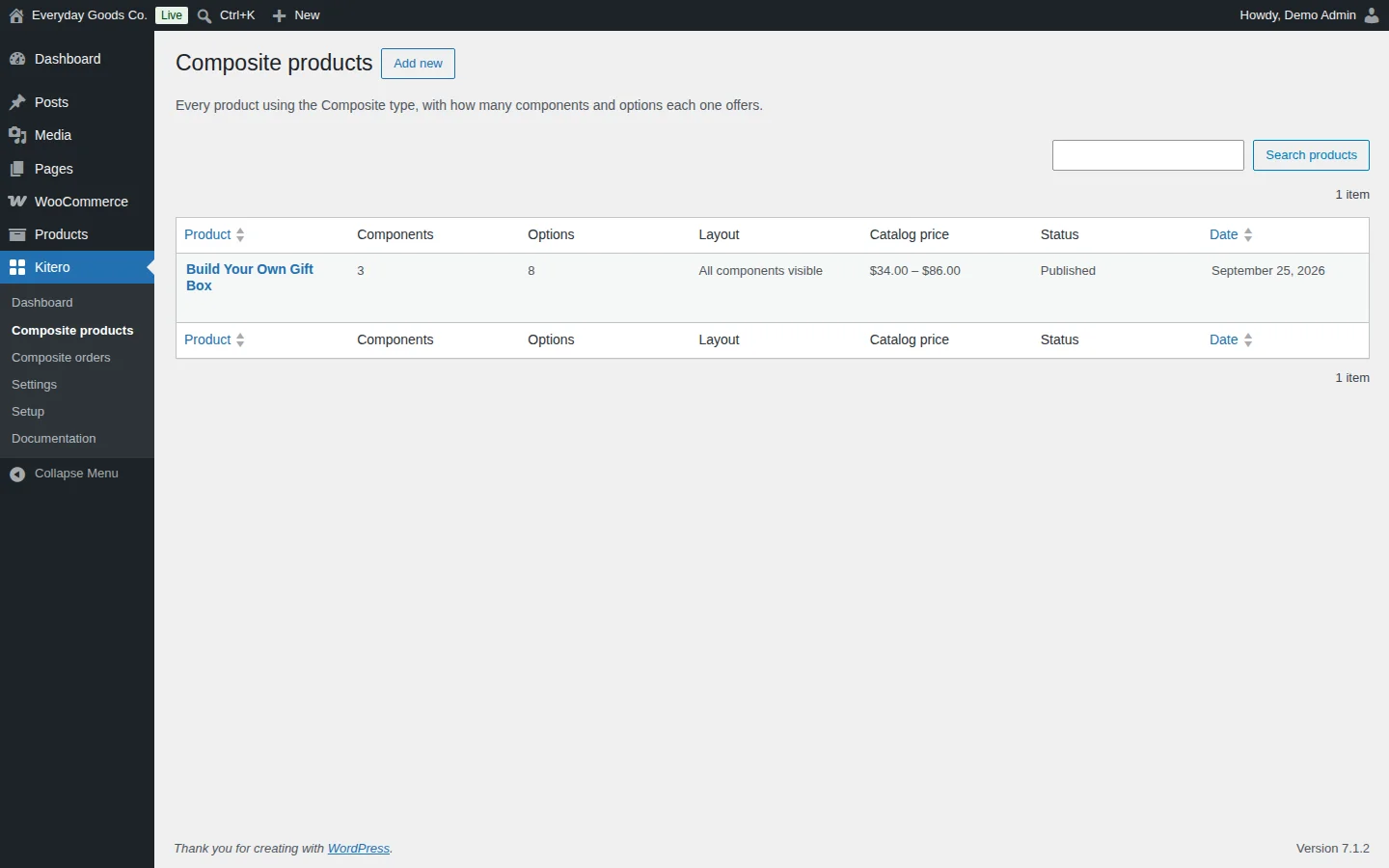
Go to Kitero > Composite products to see every product that uses the Composite type.
The table shows each product's number of Components and Options, its Layout, its Catalog price, its Status and its Date. You can sort by product name and date, and use Search products to find a product.
Click Add new to create another composite product, or click a product name to edit it.
#Composite orders
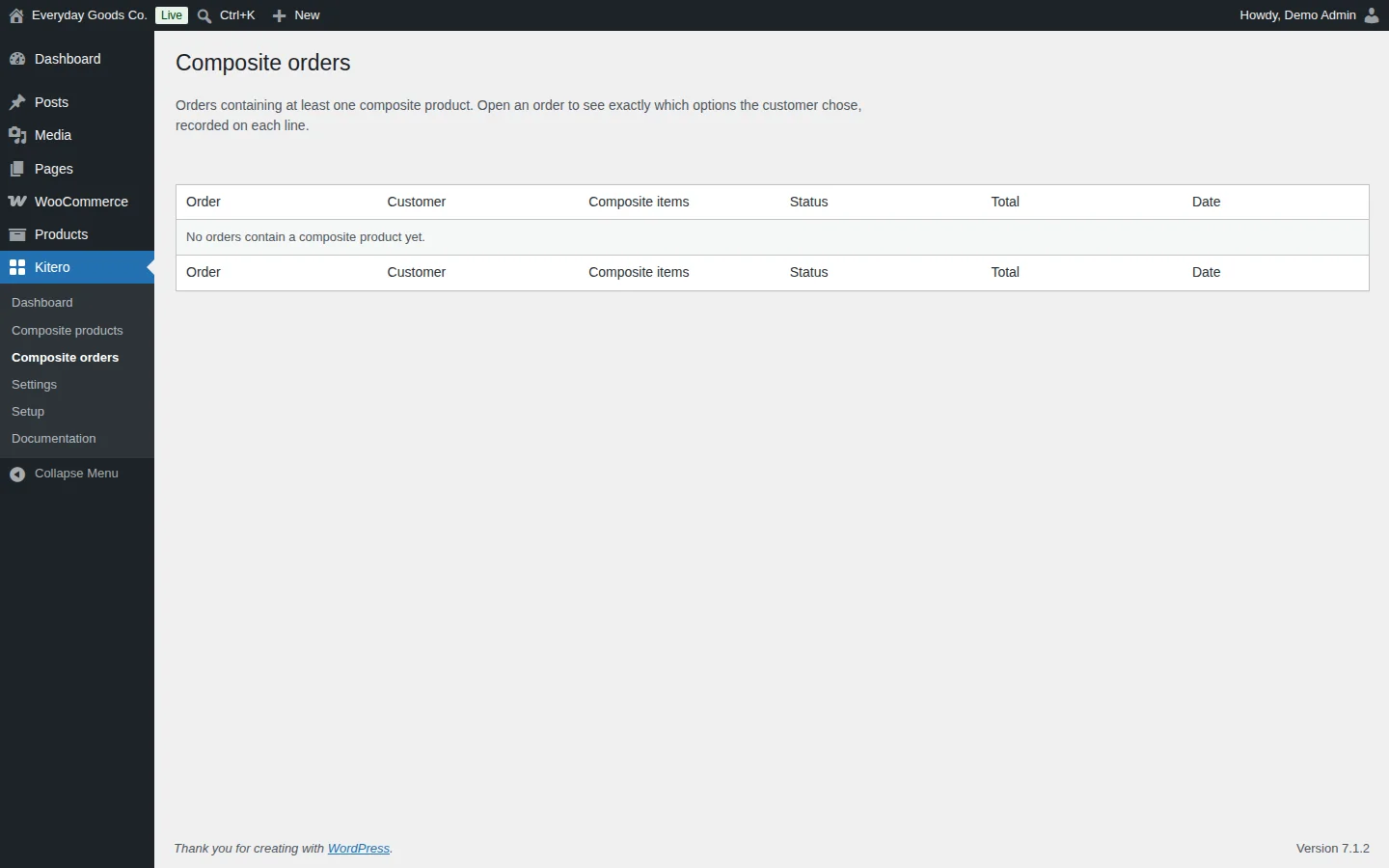
Go to Kitero > Composite orders to see orders that contain at least one composite product.
The table lists the Order, Customer, Composite items, Status, Total and Date. Open an order to see exactly which options the customer chose. Each choice is recorded on its own line.
Until your first composite product is sold, the table shows "No orders contain a composite product yet."
#Settings
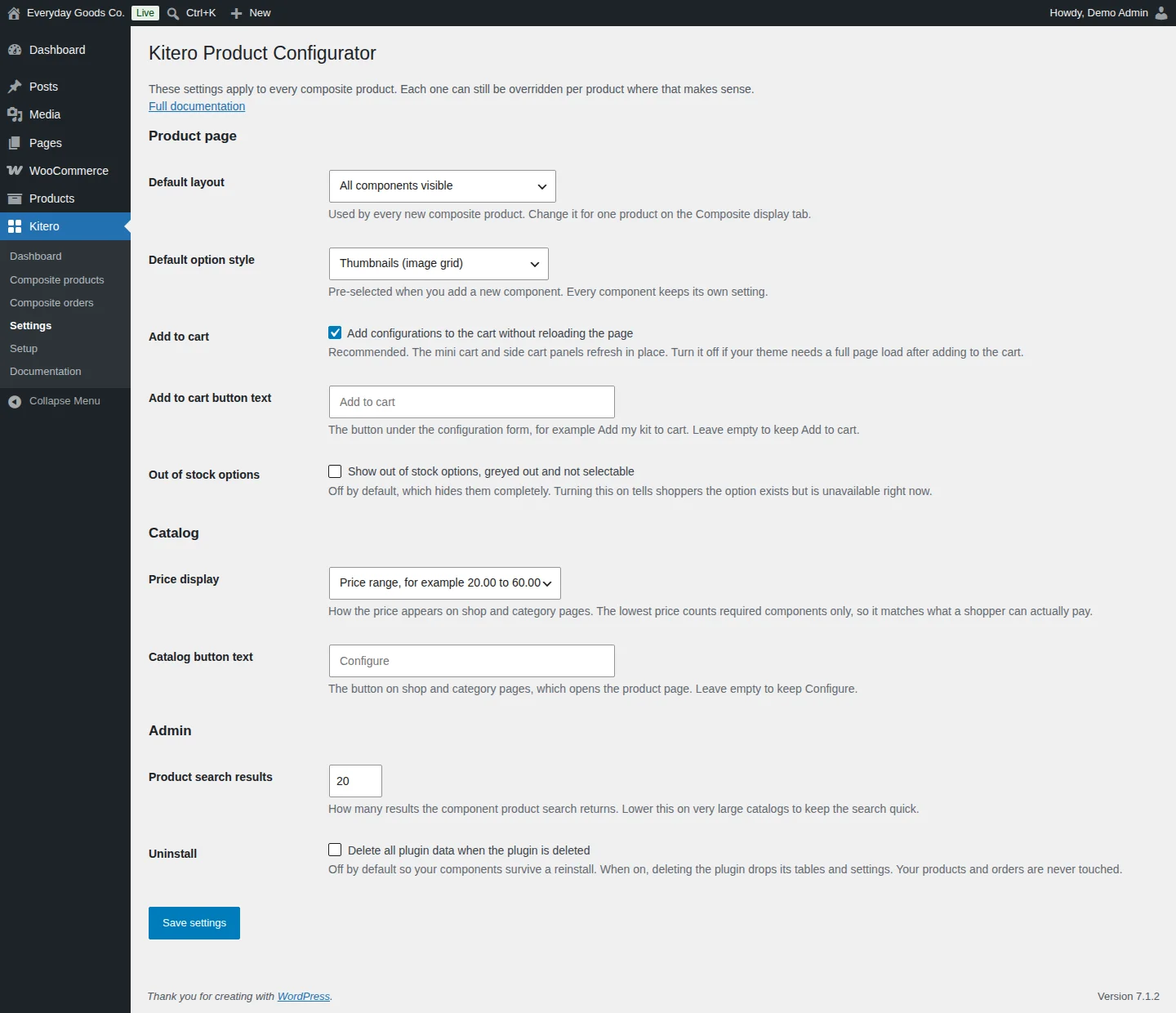
Go to Kitero > Settings for the defaults that apply to every composite product. Some can still be changed per product where that makes sense.
The screen has three groups:
- Product page: the default layout and option style for new products and components, whether configurations are added to the cart without a page reload, the Add to cart button text, and whether out of stock options are shown greyed out.
- Catalog: how the price appears on shop and category pages, and the text of the catalog button that opens the product page.
- Admin: how many results the component product search returns, and whether plugin data is deleted when you delete the plugin.
Click Save settings when you are done. See the settings reference below for every field.
#Setup
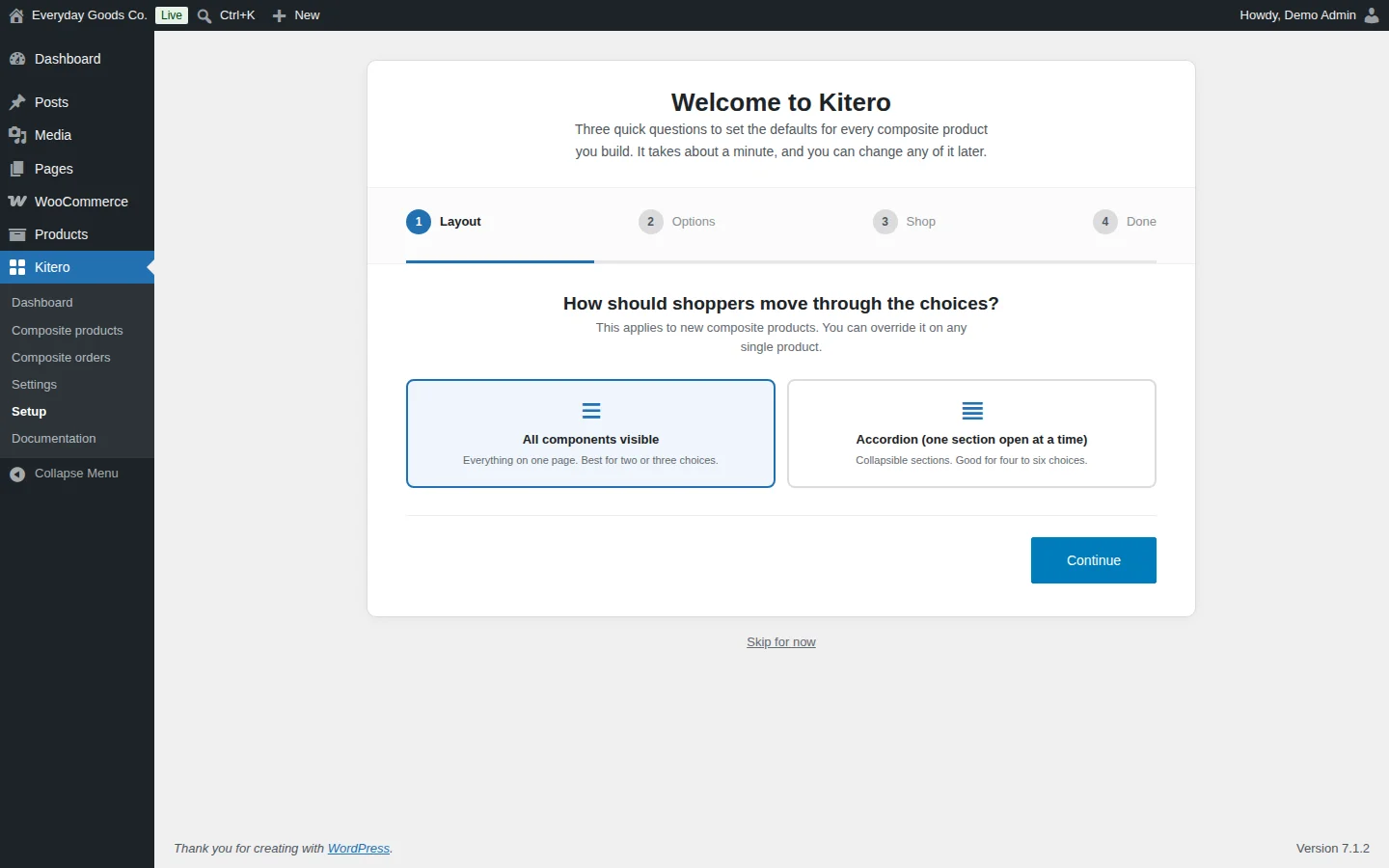
Go to Kitero > Setup to run the welcome wizard. It asks a few quick questions to set the defaults for every composite product you build. It takes about a minute, and you can change any of it later.
The wizard has four steps: Layout, Options, Shop and Done.
The first step asks how shoppers should move through the choices:
- All components visible: everything on one page. Best for two or three choices.
- Accordion (one section open at a time): collapsible sections. Good for four to six choices.
This applies to new composite products. You can override it on any single product. Click Continue to move on, or Skip for now to leave the wizard. You can run it again from the dashboard at any time, and nothing you have built is changed.
#Documentation
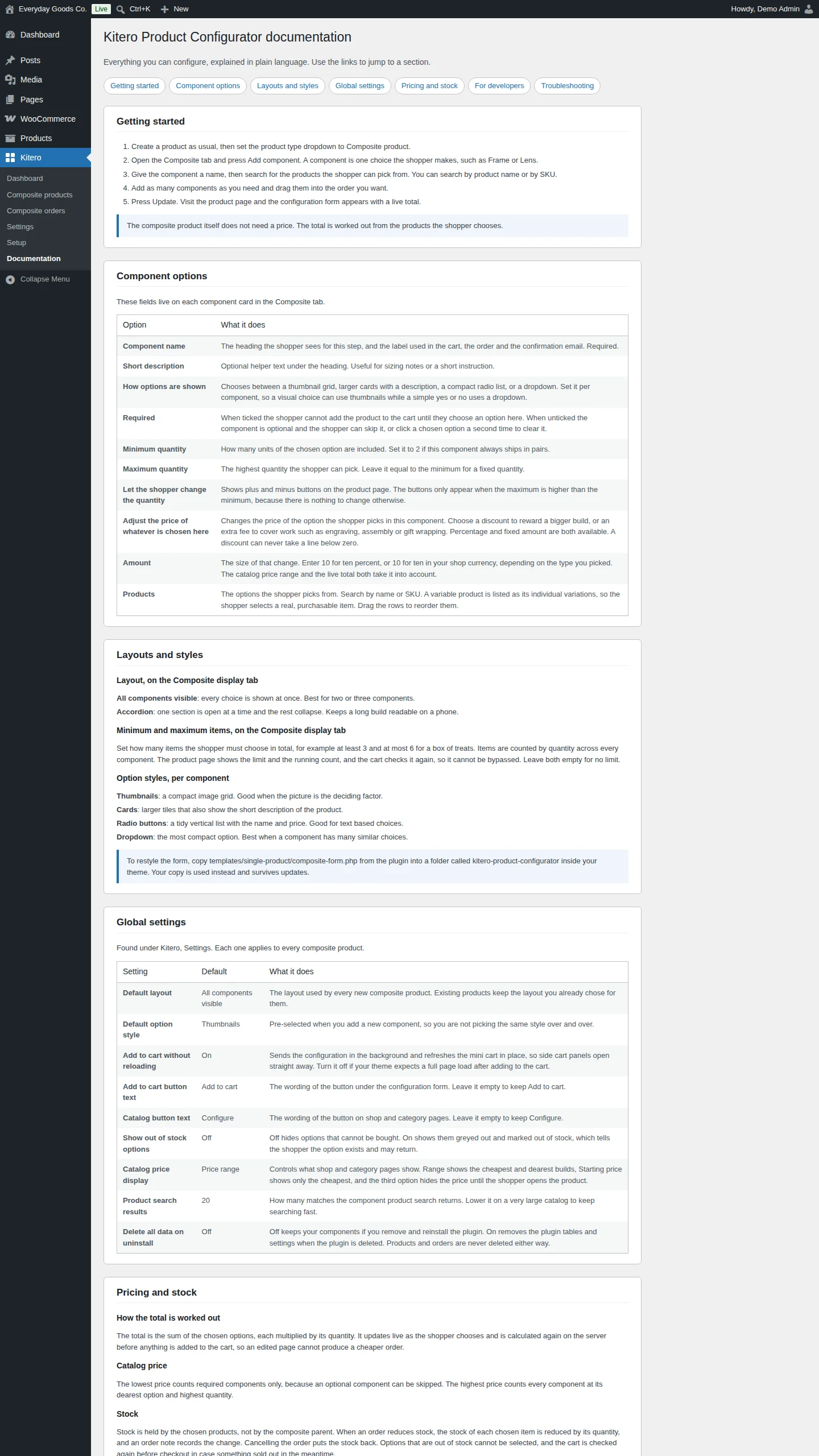
Go to Kitero > Documentation to read the built in guide without leaving your site. It covers:
- Getting started
- Component options
- Layouts and styles
- Global settings, with the default of each setting
- Pricing and stock
- For developers, with a list of hooks
- Troubleshooting
Use the links at the top of the page to jump to a section.
#Pricing and stock
How the total is worked out
The total is the sum of the chosen options, each multiplied by its quantity. It updates live as the shopper chooses. It is calculated again on the server before anything is added to the cart, so an edited page cannot produce a cheaper order.
Catalog price
The lowest price counts required components only, because an optional component can be skipped. The highest price counts every component at its dearest option and highest quantity. Choose how this appears in the shop with Price display under Kitero > Settings.
Stock
Stock is held by the chosen products, not by the composite parent. When an order reduces stock, the stock of each chosen item is reduced by its quantity and an order note records the change. Cancelling the order puts the stock back. Options that are out of stock cannot be selected, and the cart is checked again before checkout.
Settings reference
Kitero > Settings
| Setting | Type | Default | What it does |
|---|---|---|---|
| Default layout | select | All components visible |
Used by every new composite product. Options: All components visible, Accordion (one section open at a time). Change it for one product on the Composite display tab. |
| Default option style | select | Thumbnails (image grid) |
Pre-selected when you add a new component. Options: Thumbnails (image grid), Cards (image, name and description), Radio buttons (compact list), Dropdown (select box). Every component keeps its own setting. |
| Add configurations to the cart without reloading the page | checkbox | on |
Recommended. The mini cart and side cart panels refresh in place. Turn it off if your theme needs a full page load after adding to the cart. |
| Add to cart button text | text | - | The button under the configuration form, for example Add my kit to cart. Leave empty to keep Add to cart. |
| Show out of stock options, greyed out and not selectable | checkbox | off |
Off hides out of stock options completely. On tells shoppers the option exists but is unavailable right now. |
| Price display | select | Price range, for example 20.00 to 60.00 |
How the price appears on shop and category pages. Options: Price range, Starting price, or Do not show a price in the catalog. The lowest price counts required components only. |
| Catalog button text | text | - | The button on shop and category pages, which opens the product page. Leave empty to keep Configure. |
| Product search results | number | 20 |
How many results the component product search returns. Lower this on very large catalogs to keep the search quick. |
| Delete all plugin data when the plugin is deleted | checkbox | off |
Off keeps your components if you reinstall. When on, deleting the plugin drops its tables and settings. Your products and orders are never touched. |
On your site
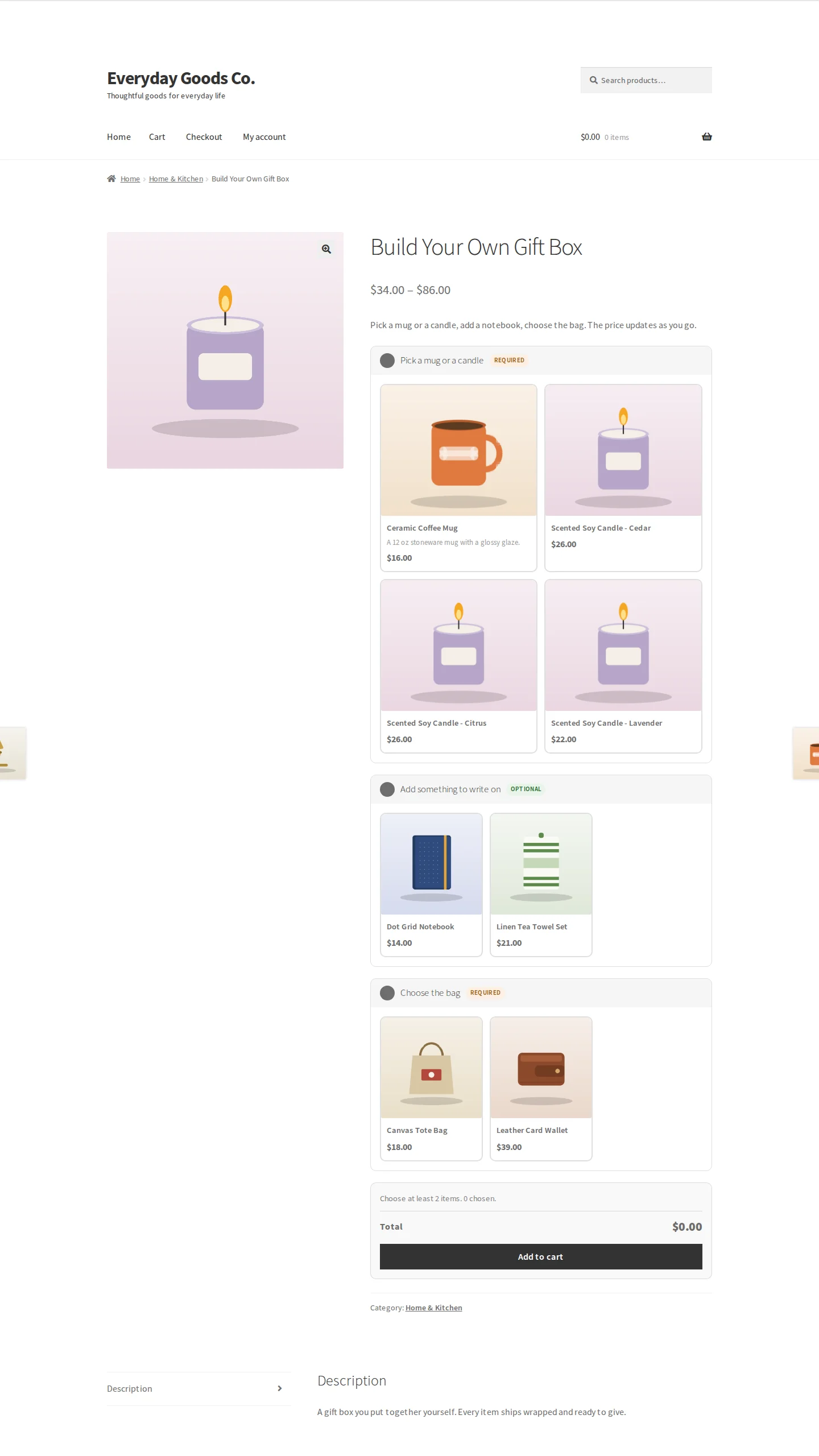
Kitero replaces the standard add to cart area on a composite product page with a configuration form.
- Each component appears as its own section with its name and a Required or Optional label.
- Options are shown in the style you chose for that component: thumbnails, cards, a radio list or a dropdown. Each option shows its name and price, and cards also show the short description.
- An optional choice can be cleared by clicking the selected option again.
- When you set a minimum or maximum number of items for the kit, the form shows the limit and a running count of chosen items.
- A Total updates as the shopper chooses, above the Add to cart button (or your own button text).
On shop and category pages, composite products show a price range, a starting price or no price, depending on the Price display setting. The catalog button (Configure unless you change it) opens the product page.
After adding to the cart, each choice is listed on its own line in the cart, and the choices are carried through to checkout, the order and the confirmation email.
Frequently asked questions
Do I need to give the composite product a price?
No. The total is the sum of the options the shopper chooses. The catalog price is worked out from the cheapest and dearest possible builds.
Can a component use variations of a variable product?
Yes. A variable product is listed as its individual variations, so the shopper picks a concrete, purchasable item and stock stays accurate.
What happens if an option sells out after it was added to a cart?
The cart is validated again on the cart page and before checkout. The shopper is told which item is unavailable so they can pick something else.
Can I limit how many items go into a kit, for example a box of six?
Yes. Set the minimum and maximum items on the product's Composite display tab. Items are counted by quantity across every component. The product page shows the limit and a running count, and the cart checks it again.
Can I change how the form looks?
Yes. Copy templates/single-product/composite-form.php from the plugin into a folder called kitero-product-configurator inside your theme. Your copy is used instead and is not affected by plugin updates.
Does it work with High Performance Order Storage (HPOS)?
Yes. The plugin declares compatibility with HPOS and stores order data through the WooCommerce CRUD layer.
Will it slow down my shop?
No. Component data is cached per request, so a page that needs the same product several times only builds it once.
Does the plugin send data to an external service?
No. The plugin does not connect to any external service. It makes no remote requests and sends no data anywhere.
Troubleshooting
- The Composite tab is missing in the product editor
Make sure WooCommerce 8.0 or newer is active. Then edit the product and set the product type dropdown to Composite product. The Composite and Composite display tabs only appear for that product type.
- A product does not show in the component product search
Search by product name or by SKU, including variation SKUs. A variable product is listed as its individual variations, so search for the variation. The search returns a limited number of results (Product search results under Kitero > Settings), so type a more specific name or the SKU to narrow it down.
- The catalog shows no price or a zero price
Check Price display under Kitero > Settings. If it is set to Do not show a price in the catalog, no price appears. The lowest price counts required components only, so if every component is optional the starting price can be zero. Mark at least one component as Required to raise it.
- An option is missing on the product page
Out of stock options are hidden by default. To show them greyed out and not selectable, tick Show out of stock options, greyed out and not selectable under Kitero > Settings.
- The mini cart or side cart does not update correctly after adding a kit
Your theme may need a full page load after adding to the cart. Untick Add configurations to the cart without reloading the page under Kitero > Settings and save.
- Shoppers cannot add the product to the cart
Check that every component marked Required has an option chosen, and that the chosen items meet the minimum and maximum items set on the Composite display tab. The product page shows the limit and the running count.
Upgrade
Upgrade to Kitero - Composite Products for WooCommerce
This free plugin is complete on its own, and nothing in it is limited or time restricted. Kitero Pro is a separate plugin that includes everything in the free plugin and adds:
- Bundle mode: ready made kits with optional items
- Conditional logic to show, hide or limit options
- Fixed and hybrid pricing, plus a base price
- Price overrides and default picks per option
- Step by step wizard and tabbed layouts
- Insights report on the options shoppers pick