
Overview
Mercenza lets you sell wholesale from your existing WooCommerce store without running a second shop. Buyers apply for a trade account, you approve them, and from then on they see their own prices, their own minimum quantities and only the products you want them to see. Retail customers notice nothing: a visitor who is not in a group sees your normal WooCommerce price.
The plugin is built around customer groups. Each group has its own prices, price display, catalog mode, stock display, tax display and order limits. On top of group prices you can add quantity tiers, prices for one customer or company, and dynamic pricing rules. Catalog rules hide products or block buying for guests, groups or everyone, and quantity rules set minimums, maximums, steps and pack sizes.
For buyers, Mercenza adds a B2B area in My Account with a quick order form (by name, SKU, barcode or a pasted list), shopping lists, reorders, recurring orders, company profiles and sub accounts. For you, there is a setup wizard, a dashboard, an approval queue, a price inspector, CSV import and export, migration from other wholesale plugins and an audit log. Everything is explained inside the plugin under Mercenza > Help.
Requirements
- WordPress 6.4 or later
- PHP 7.4 or later with the json, fileinfo and mbstring extensions
- WooCommerce 8.2 or later, installed and active
- The libsodium functions (included in PHP 7.2 and newer; WordPress bundles the sodium_compat polyfill for hosts that omit the extension)
- Unique AUTH_KEY and SECURE_AUTH_KEY values in wp-config.php (placeholder salts block activation)
Installation
Mercenza needs WooCommerce. Install and activate WooCommerce first, then install Mercenza from WordPress.org. If a requirement is missing, activation stops and the message names the unmet requirement.
Make sure WooCommerce 8.2 or later is installed and active.
In your WordPress admin, go to Plugins > Add New.
Search for Mercenza B2B for WooCommerce.
Click Install Now on Mercenza - B2B for WooCommerce, then click Activate.
The setup wizard opens. Follow it to create your first wholesale group, or open it later from Mercenza > Dashboard.
Quick start
- Run the setup wizard
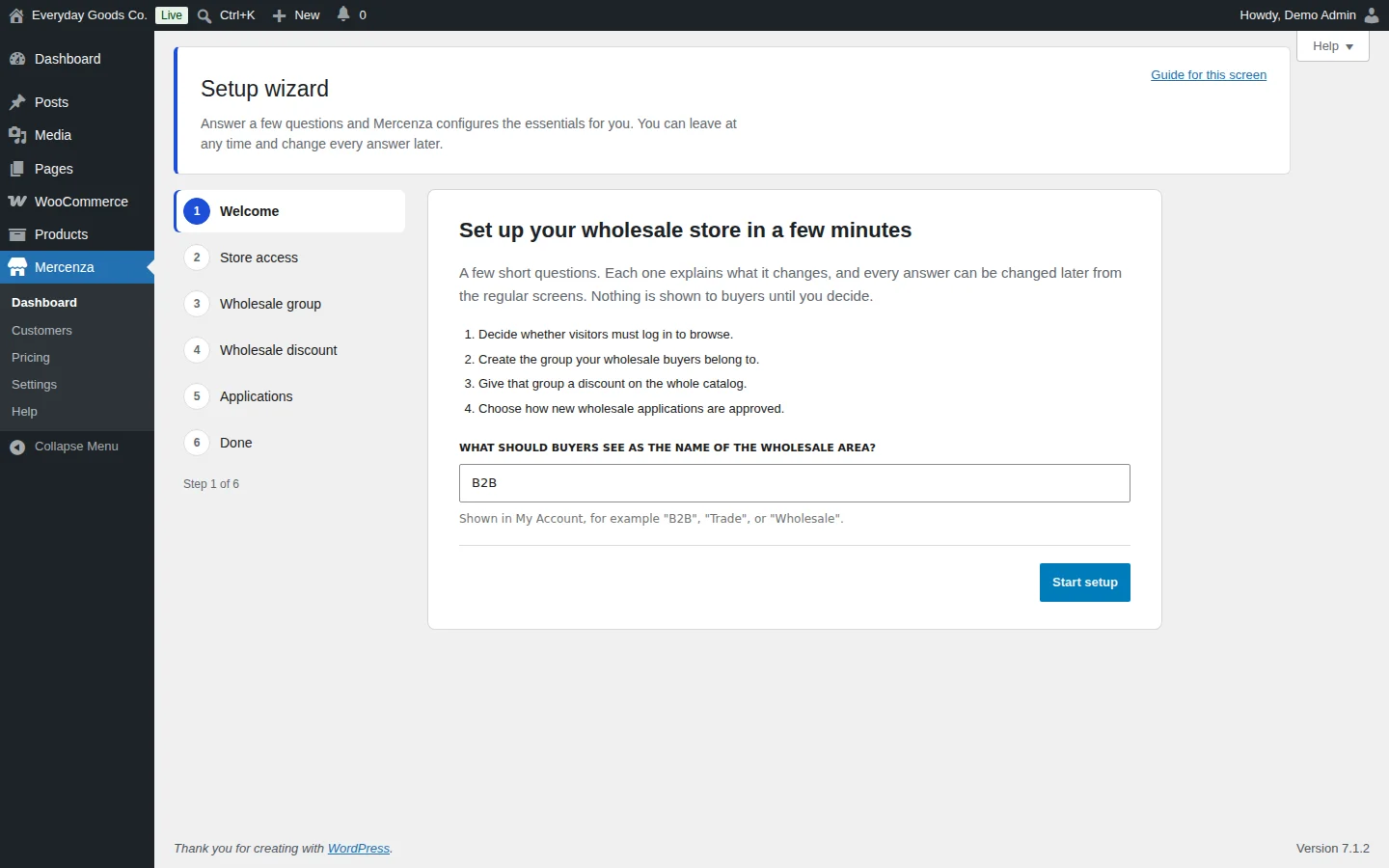
After activation the Setup wizard opens. Enter the name buyers see for the wholesale area (for example
B2B,TradeorWholesale) and click Start setup. Each answer is saved as you go, and you can change everything later on the regular screens. - Decide who can browse and create your wholesale group
In Store access, choose whether everyone can browse or only logged in visitors. In Wholesale group, use an existing group or create a new one, and choose how the group sees prices and whether it can buy online.
- Give the group a discount
In Wholesale discount, enter a Percent off the regular price for the whole catalog (for example
20makes a 100.00 product cost 80.00 for that group). Leave it empty to skip. You can set exact prices per product later under Mercenza > Pricing. - Publish the application form
In Applications, choose I review every application (recommended) or Approve everyone automatically, then click Create the application page. You can also place
[mercenza_registration_form form="wholesale-application"]or the Mercenza Registration Form block on any page. - Approve your first buyer
When someone applies, the dashboard shows it under Needs your attention. Open Mercenza > Customers > Registrations, review the application and approve it. The buyer joins the target group and sees wholesale prices right away.
- Check what the buyer sees
Open Mercenza > Pricing > Inspector, pick a product and the customer, and click Inspect to see the exact price and every step that produced it. Or use Log in as on the Customers screen to browse the store as that buyer.
#Setup wizard
The setup wizard configures the essentials in six steps: Welcome, Store access, Wholesale group, Wholesale discount, Applications and Done. It opens the first time you activate Mercenza and stays available from the dashboard checklist until you finish. You can use Back and Skip this step at any time, and nothing is shown to buyers until you decide.
- Welcome: enter the name of the wholesale area shown in My Account (default
B2B) and click Start setup. - Store access: choose between "Everyone can browse. Wholesale prices only appear for wholesale buyers." and "Only logged in visitors can browse. Everyone else is sent to the login page." The login, registration, privacy and terms pages always stay open. You can allow more pages later under Settings > Catalog.
- Wholesale group: use an existing group or Create a new group, then choose how the group sees prices and whether it can buy online.
- Wholesale discount: enter a Percent off the regular price for the whole catalog, or leave it empty to skip.
- Applications: choose I review every application (recommended) or Approve everyone automatically. Approved buyers join the group you set up. If no page shows the application form yet, click Create the application page.
- Done: a summary lists what is set up and what is left, with a link to each screen. Click Go to the dashboard.
#Dashboard
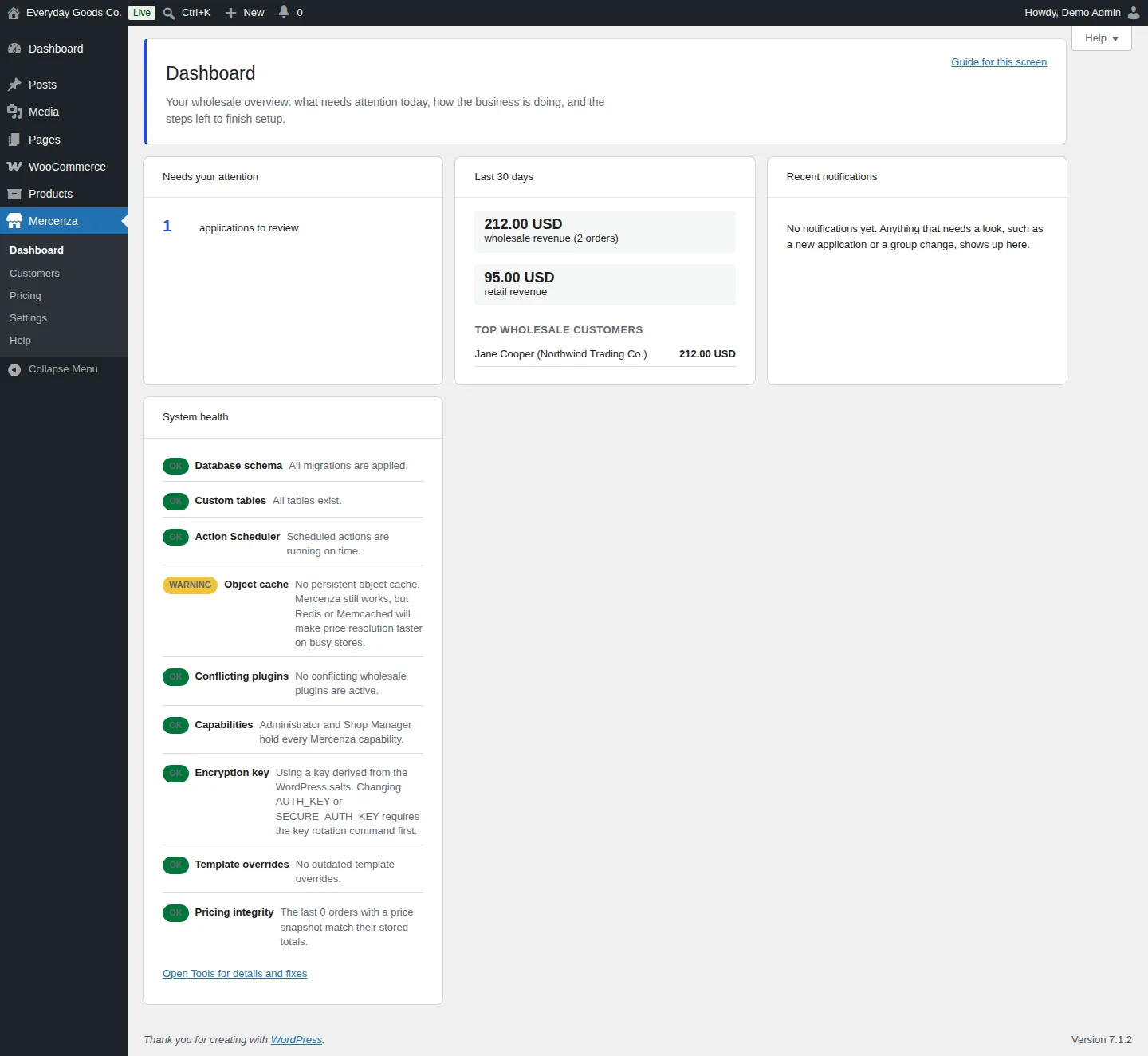
Mercenza > Dashboard is your wholesale overview: what needs attention today, how the business is doing and the steps left to finish setup.
- Needs your attention: for example the number of applications waiting for review. A notice at the top of every Mercenza screen also links to pending applications.
- Last 30 days: wholesale revenue and order count, retail revenue, and your top wholesale customers.
- Recent notifications: new applications, group changes and other events.
- System health: checks for the database schema, custom tables, Action Scheduler, object cache, conflicting wholesale plugins, capabilities, the encryption key, outdated template overrides and pricing integrity. Click Open Tools for details and fixes to go to the diagnostics screen.
A WARNING on Object cache only means price resolution could be faster with Redis or Memcached on busy stores. Mercenza still works without it.
#Customers
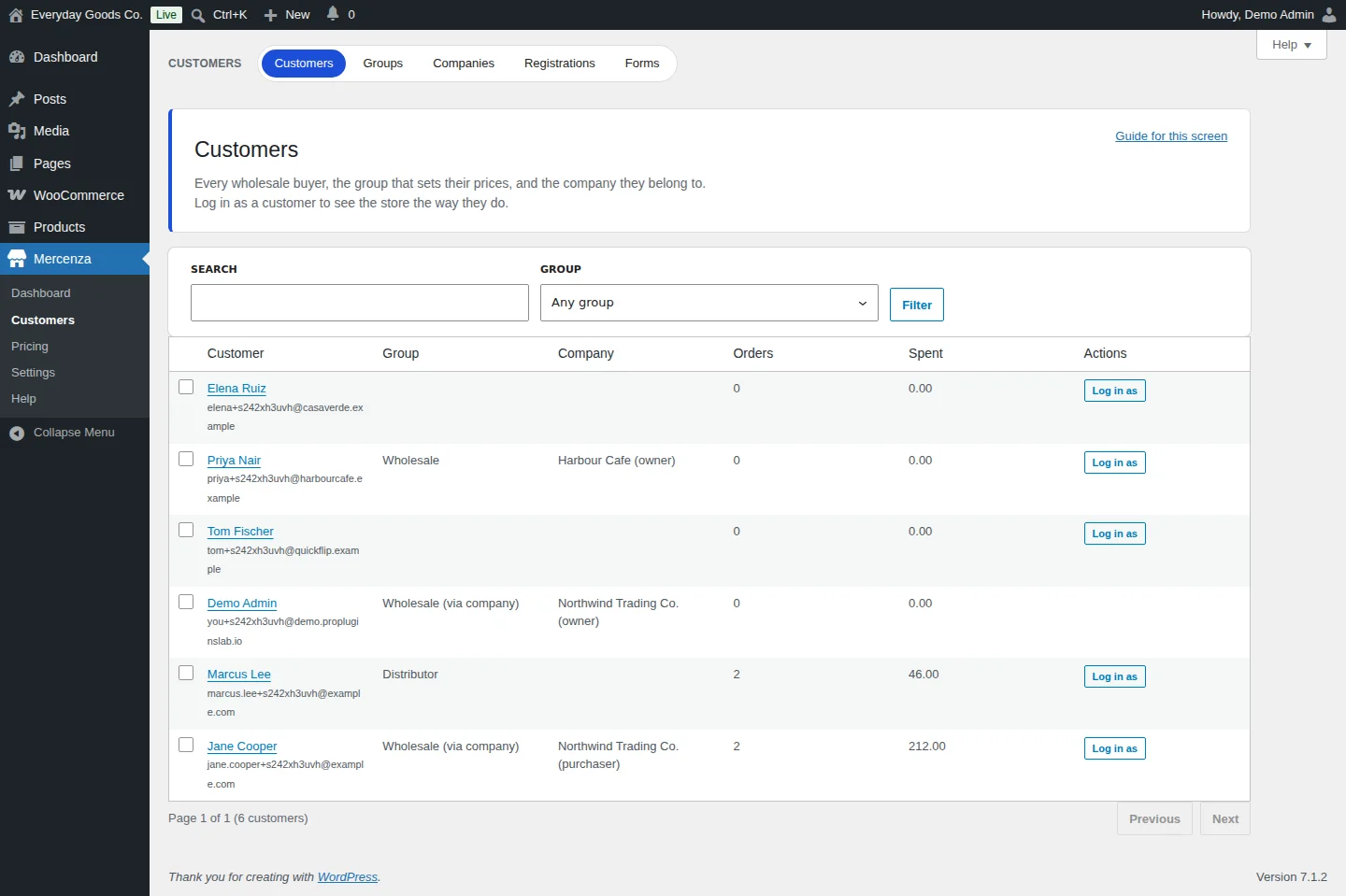
Mercenza > Customers lists every customer with their group, company, order count and amount spent. Use SEARCH and the GROUP filter (any group, No group, or a specific group), then click Filter.
- Select customers with the checkboxes to assign a group to many people at once.
- Click a name to open the profile, change the group or set Setting overrides for that one customer (any group setting can be overridden for a single customer).
- When a customer belongs to a company, the Group column shows "(via company)" and the Company column shows their role.
Log in as lets staff see the store exactly as that customer does. The session lasts one hour, a banner with a return link is shown on every page, and start and end are written to the audit log. Administrators and shop managers can never be impersonated, and attempts are rate limited under Settings > Security.
The WordPress user edit screen shows the same group selector, the company and a summary of overrides.
#Groups
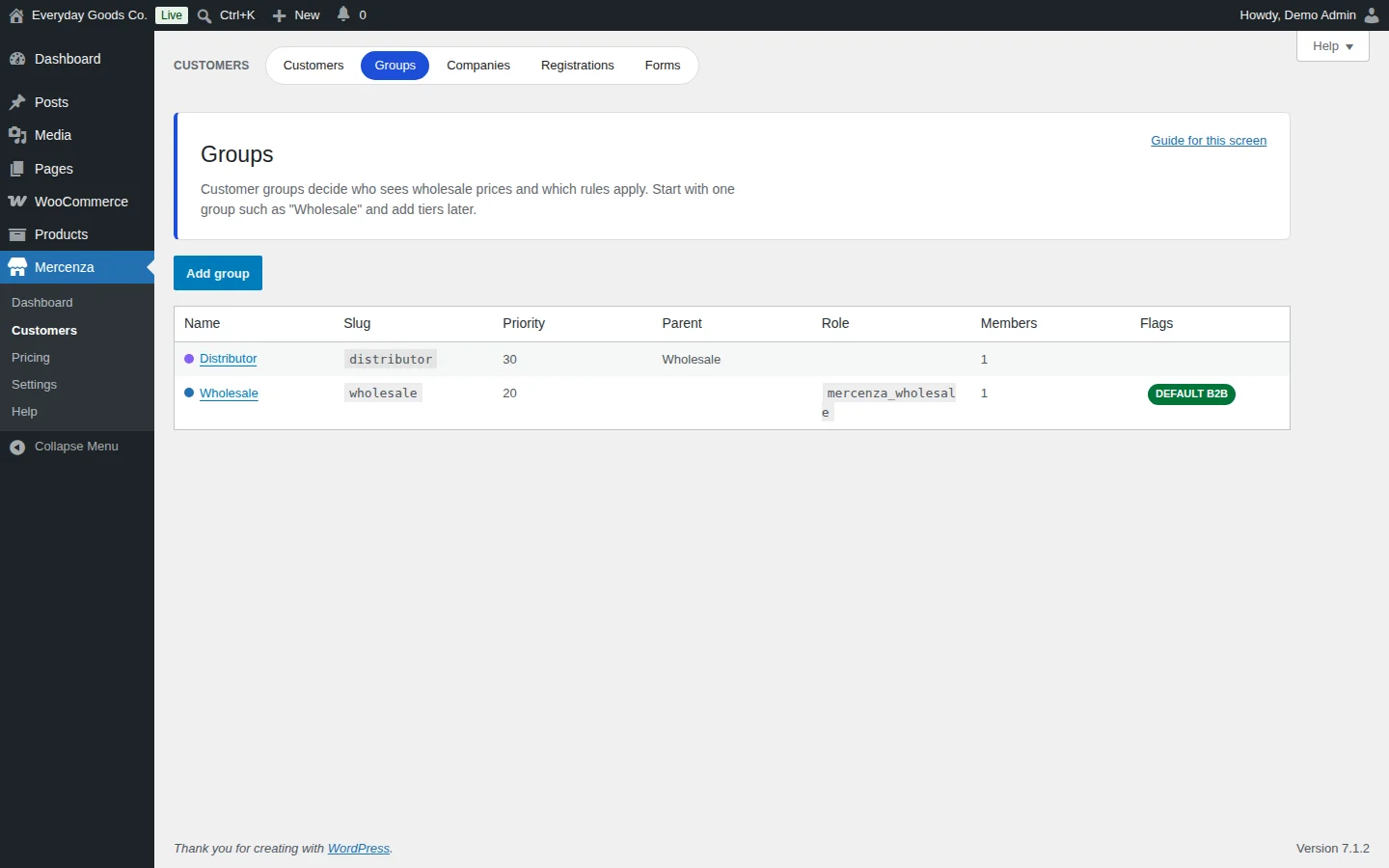
Customer groups decide who sees wholesale prices and which rules apply. Start with one group such as "Wholesale" and add tiers later. Open Mercenza > Customers > Groups and click Add group.
The group editor has five tabs: General, Settings, Members, Rules and Onboarding.
General
- Name, Slug (leave empty to generate it from the name), Description and Color tag.
- Priority: higher wins when rules for several groups match.
- Inherits from: a parent group. Settings left as inherit take the parent's value. A price set on a nearer group beats its parent.
- WordPress role sync: members receive this role for plugins that work with roles. You can pick an existing role or create a dedicated one.
- Default group for approved B2B registrations and Guest fallback group (visitors who are not logged in use this group). Only one group can hold each flag. The Groups list shows them as DEFAULT B2B and Guests.
- Status: inactive groups are ignored.
Settings (each can inherit from the parent)
- Ordering: Minimum order value, Maximum order value, Minimum order quantity, Maximum order quantity, Order notes required, Backorders (Product setting, Always allow backorders, Never allow backorders).
- Pricing and catalog: Price display (Wholesale price only, Retail struck through with wholesale, Wholesale with savings percentage, "Login to see prices", Hidden completely), Price suffix (for example "ex VAT"), Catalog mode (Normal shopping, Hide add to cart, Show enquiry button instead of add to cart, Read only browsing), Stock display (Exact quantity, In stock or low stock only, Hidden), Tax display (Store default, Including tax, Excluding tax).
- My Account: Buyer portal mode (an app like My Account with a quick order bar, live cart and keyboard shortcuts) and Allow recurring orders (on by default).
Members: add or remove members one by one.
Rules: assignment rules place customers into the group automatically by total spend, order count, email domain, billing country, a registration field value, a purchased product or a purchased category. Rules never override a manual assignment. They run when an order is completed or processing, when a user registers, and once a day for everyone.
Onboarding: emails sent after a customer is approved into the group, each with a subject, body, delay in days and active flag. You can use {first_name}, {last_name}, {group_name}, {site_title}, {my_account_url} and {shop_url}.
When you delete a group that has members, you choose where they go, for example No group (retail).
#Companies
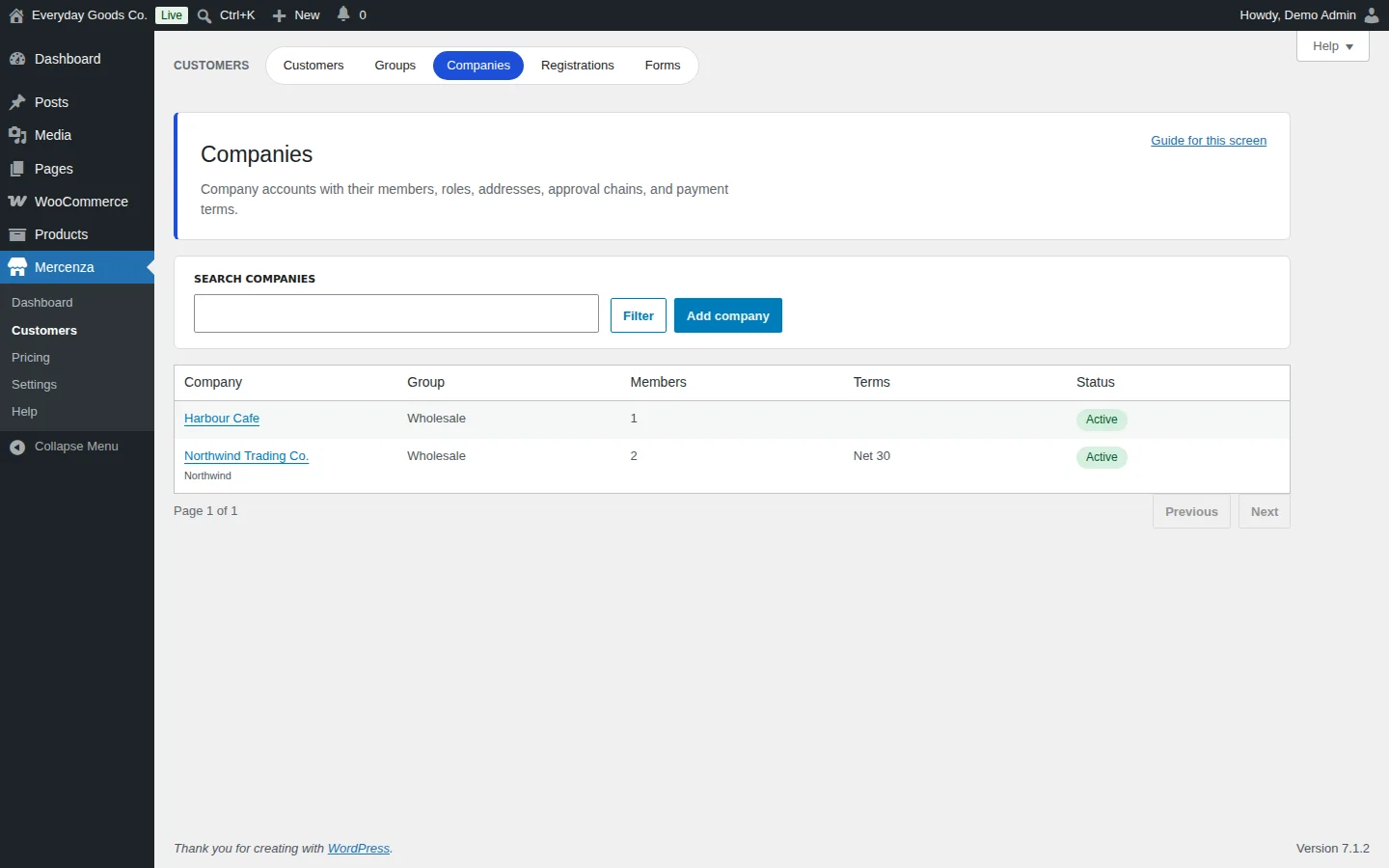
A company groups several users under one business with a shared group and address book. Open Mercenza > Customers > Companies, search with SEARCH COMPANIES, or click Add company.
A company record holds the legal name, trading name, VAT number, registration number, addresses and notes. Tax id and VAT number are encrypted at rest.
Members have one of these roles: Owner, Purchaser, Approver, Viewer or Custom. Each role maps to permissions: place orders, view company orders, manage addresses, manage sub accounts and edit the company profile. Custom roles pick permissions one by one, and each member can have an order limit (orders above it are blocked).
- A user belongs to at most one company.
- The owner cannot be removed or demoted. Change the owner on the company first.
- Owners and members who can manage sub accounts invite people by email from My Account > B2B > Sub accounts, or you invite them from this screen. The invitation link works once, expires after seven days and only works for a logged in user whose email matches the invitation.
#Registrations
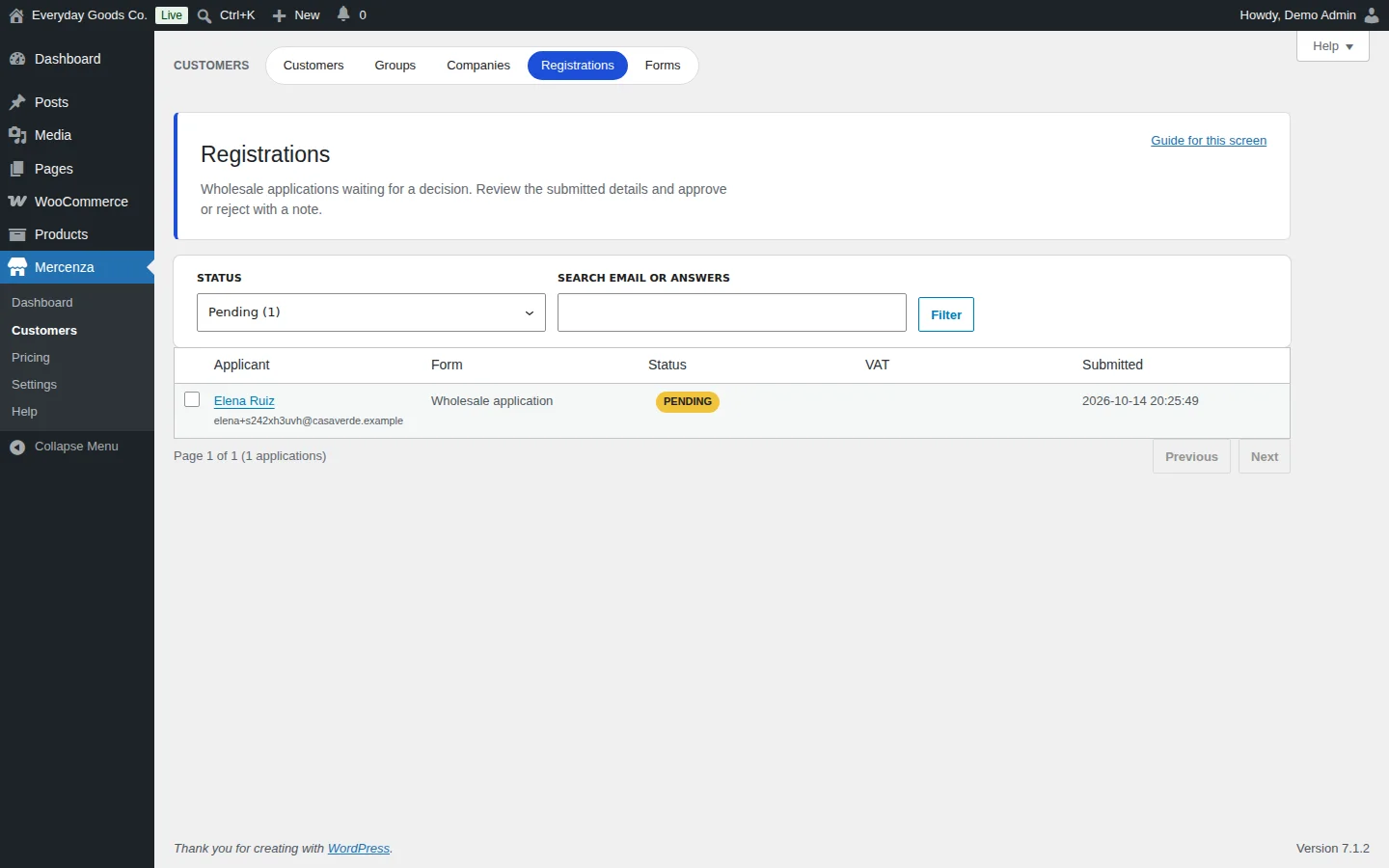
Mercenza > Customers > Registrations is the approval queue for trade applications. Filter by STATUS (All, Pending, Approved, Rejected, with counts) and SEARCH EMAIL OR ANSWERS, then click Filter.
Click an applicant to see every submitted value, uploaded documents, the VAT status, consent records, internal notes and reviewer history. Select several rows to approve or reject them in bulk.
- Approve: the applicant joins the form's target group (or the default B2B group) right away and receives the approval email.
- Reject: pick a reason from the templates set under Settings > Registration or write your own. The reason is emailed to the applicant, and the account is deleted after the number of days in Delete rejected accounts after (days).
Applicants can follow their status under My Account > B2B > Application.
#Registration forms
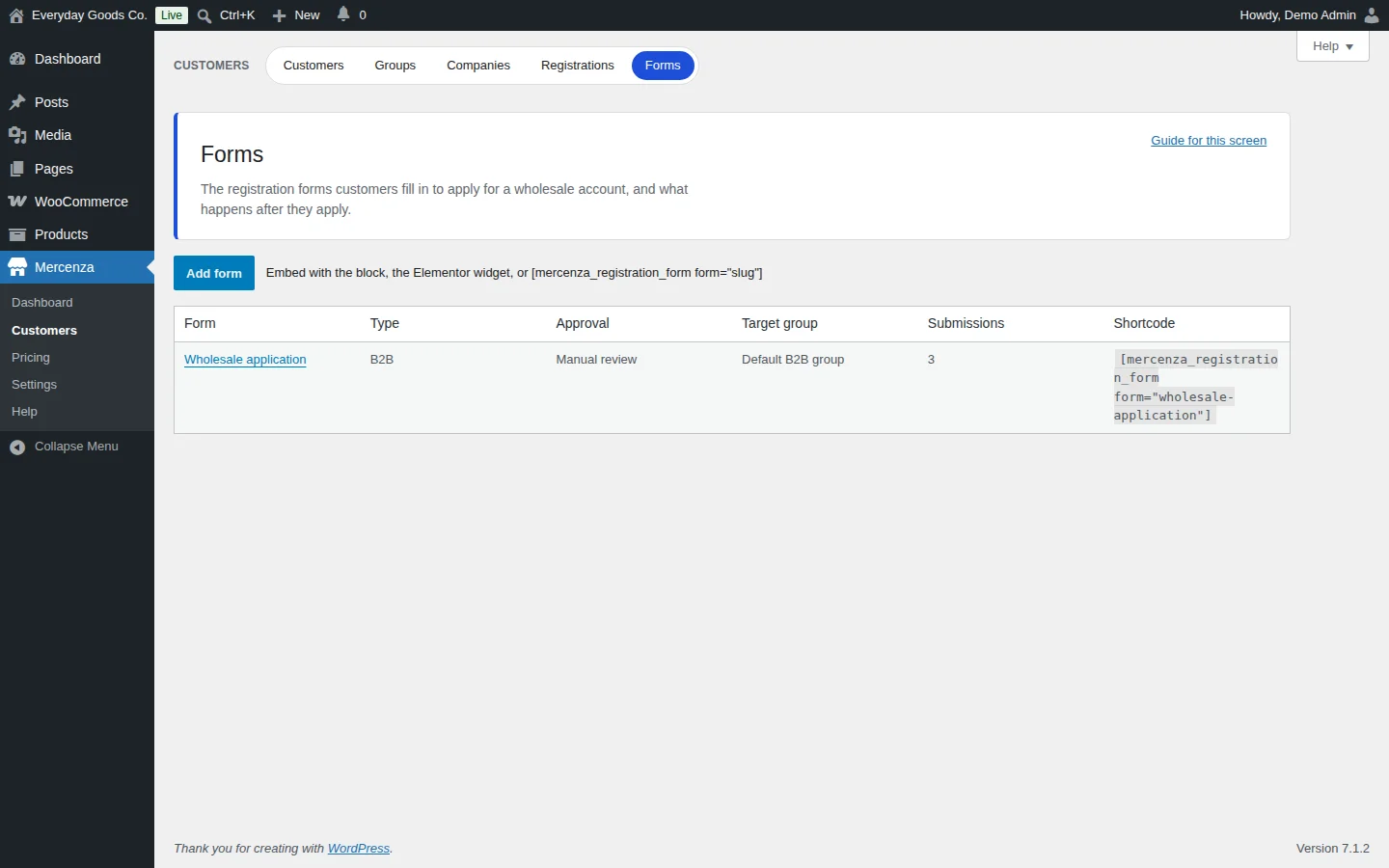
Mercenza > Customers > Forms holds the forms customers fill in to apply. A Wholesale application form is created on activation. Click Add form to create another one.
Each form has:
- Type: B2B forms put the approved user in the target group (or the group flagged as default for B2B registrations). B2C forms create a retail customer.
- Fields: text, textarea, email, password, phone, number, select, multiselect, radio, checkbox, date, file, country, state, address, VAT number, company name, business type, website, hidden, heading, HTML, consent, first name and last name. Each field has a label, placeholder, help text, required flag, width, validation rules and conditions. Every form needs an email field.
- Conditions: show a field only when other fields match. Hidden fields are never validated or stored.
- Steps: assign fields to steps and turn on Multi step for a progress indicator.
- Approval mode: manual review, automatic, email domain allow list, valid VAT number, or referral code (from a hidden field with id
referral_code, filled from thereflink parameter). When an automatic mode does not match, the application falls back to manual review. - Reviewer approvals required: more than one turns on multi reviewer approval.
- Settings: introduction, submit label, success message, pending page, redirect after approval, upgrade requests from logged in retail customers, login while the application is pending (use the default, block or allow), bot protection, allow disposable email domains, policy version recorded with consent, company creation on approval, and admin notification recipients.
The Shortcode column shows the code to place the form on a page, for example [mercenza_registration_form form="wholesale-application"]. You can also use the Mercenza Registration Form block.
#Pricing: bulk editor
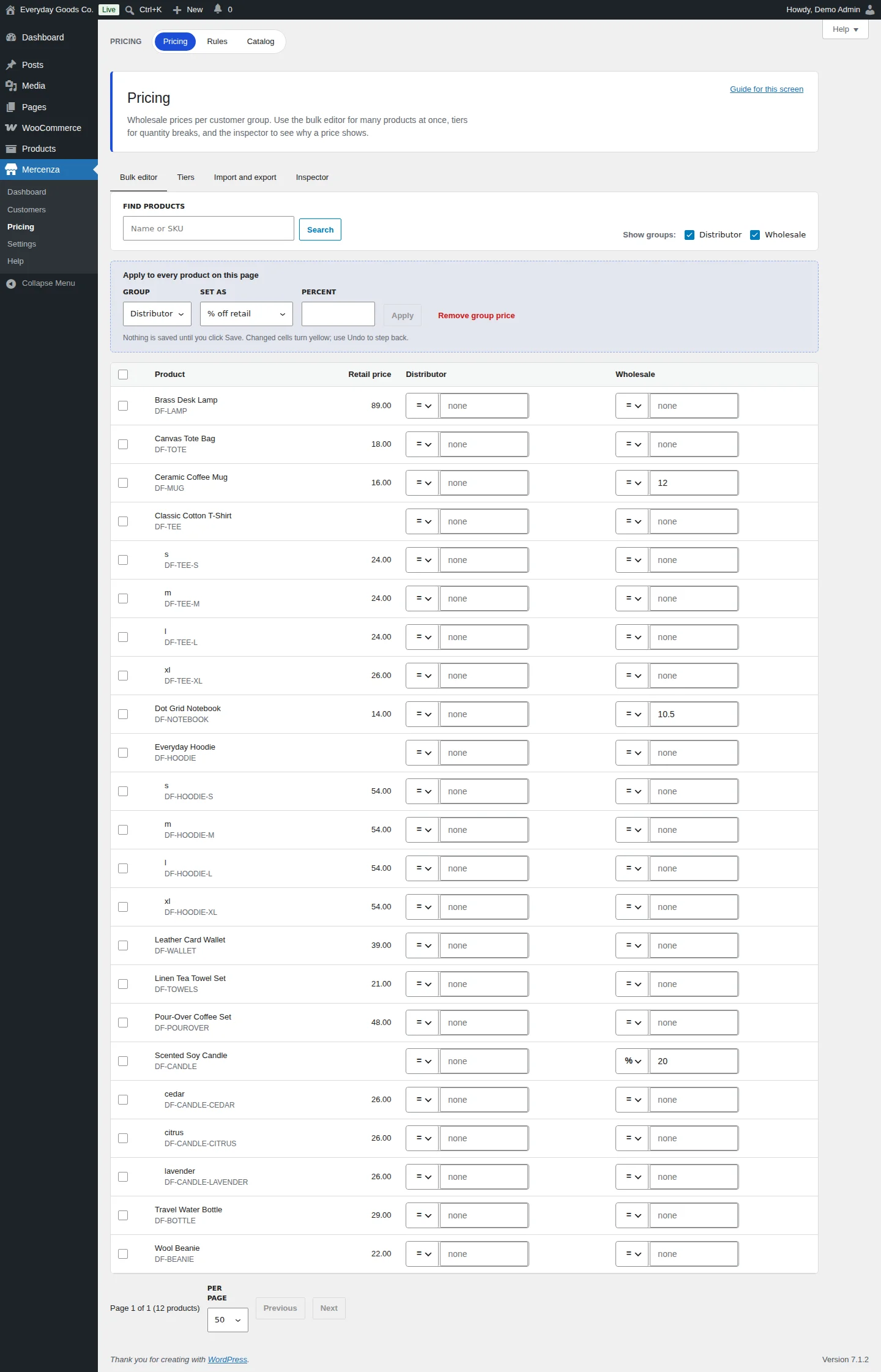
Mercenza > Pricing sets wholesale prices per customer group. The Bulk editor tab lists products and variations with their Retail price and one column per group. Use FIND PRODUCTS (name or SKU) and Show groups to choose which groups appear.
In each cell, pick a price type and type an amount:
=a fixed price for that group.%a percentage off the retail price.-an amount off the retail price.
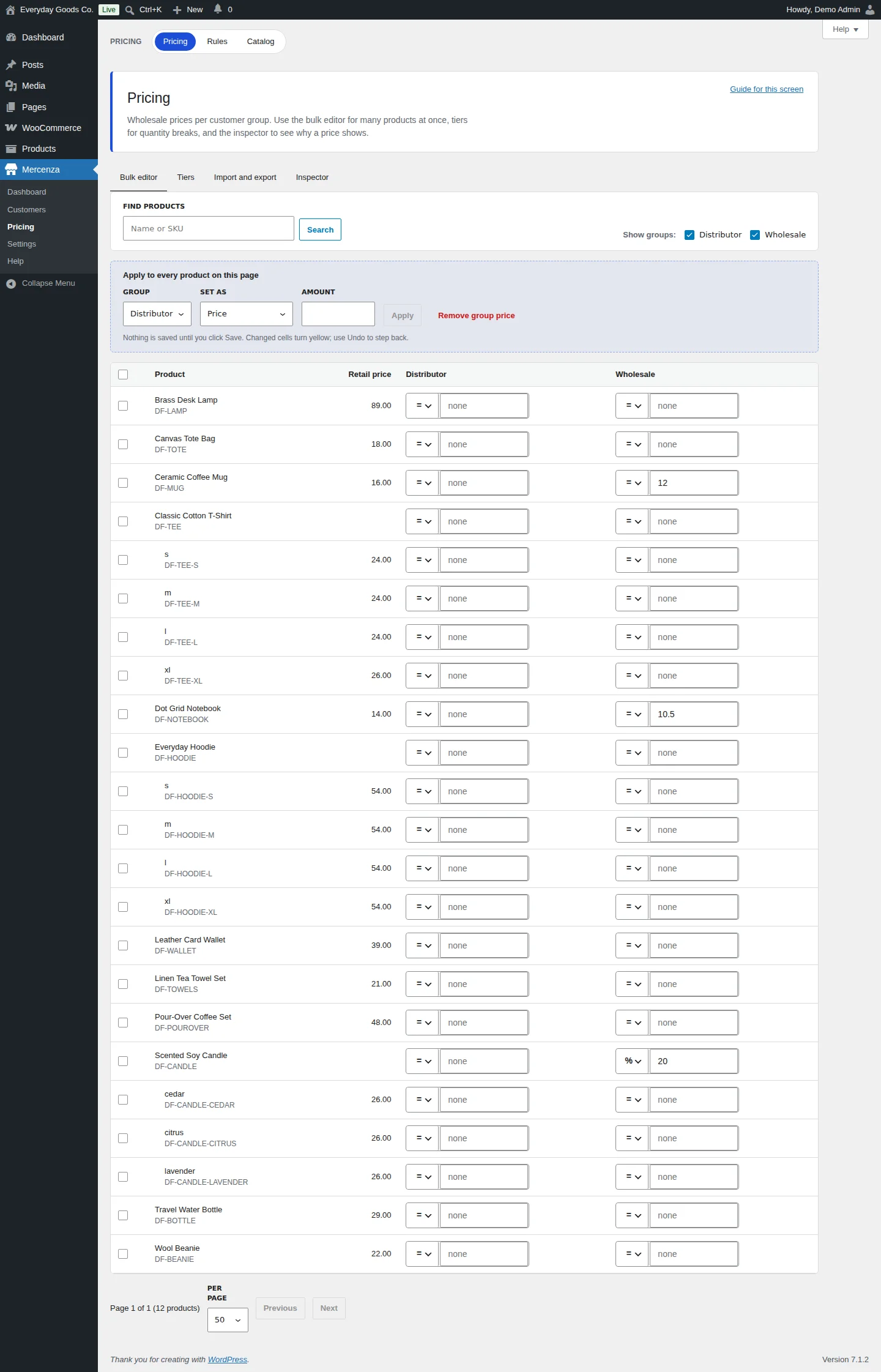
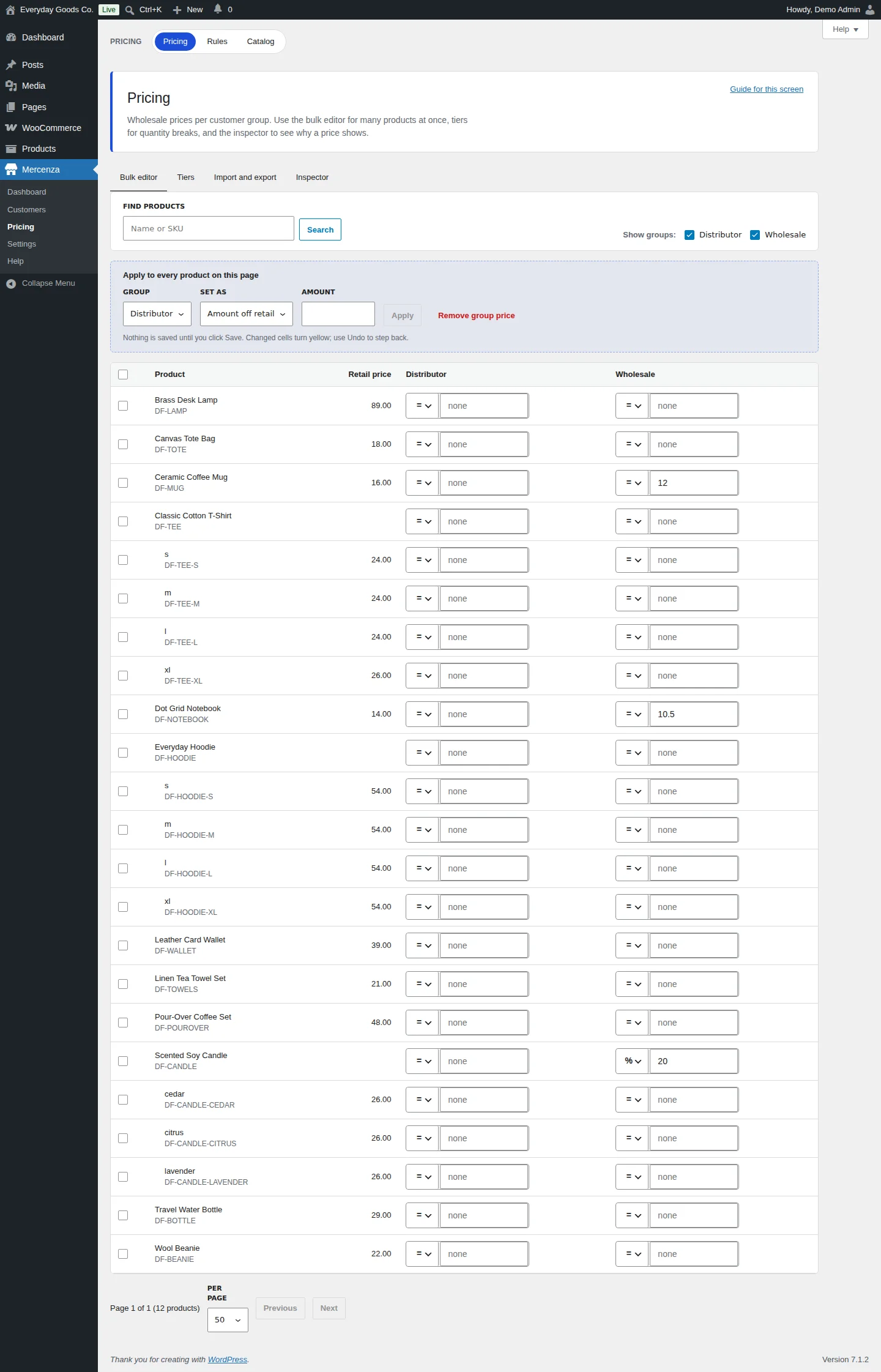
Apply to every product on this page changes many products at once. Choose the GROUP, choose SET AS, enter the value and click Apply:
| SET AS | Field that appears | Result |
|---|---|---|
| Price | AMOUNT | The same fixed price for every product on the page |
| % off retail | PERCENT | A percentage off each product's retail price |
| Amount off retail | AMOUNT | A fixed amount off each product's retail price |
Remove group price clears the selected group's prices on the page. Nothing is saved until you click Save. Changed cells turn yellow, and you can use Undo to step back. Cells that fail are highlighted with the reason.
You can also set prices on each product's Mercenza tab in the product editor, including per variation prices and prices for one customer or company.
#Pricing: quantity tiers
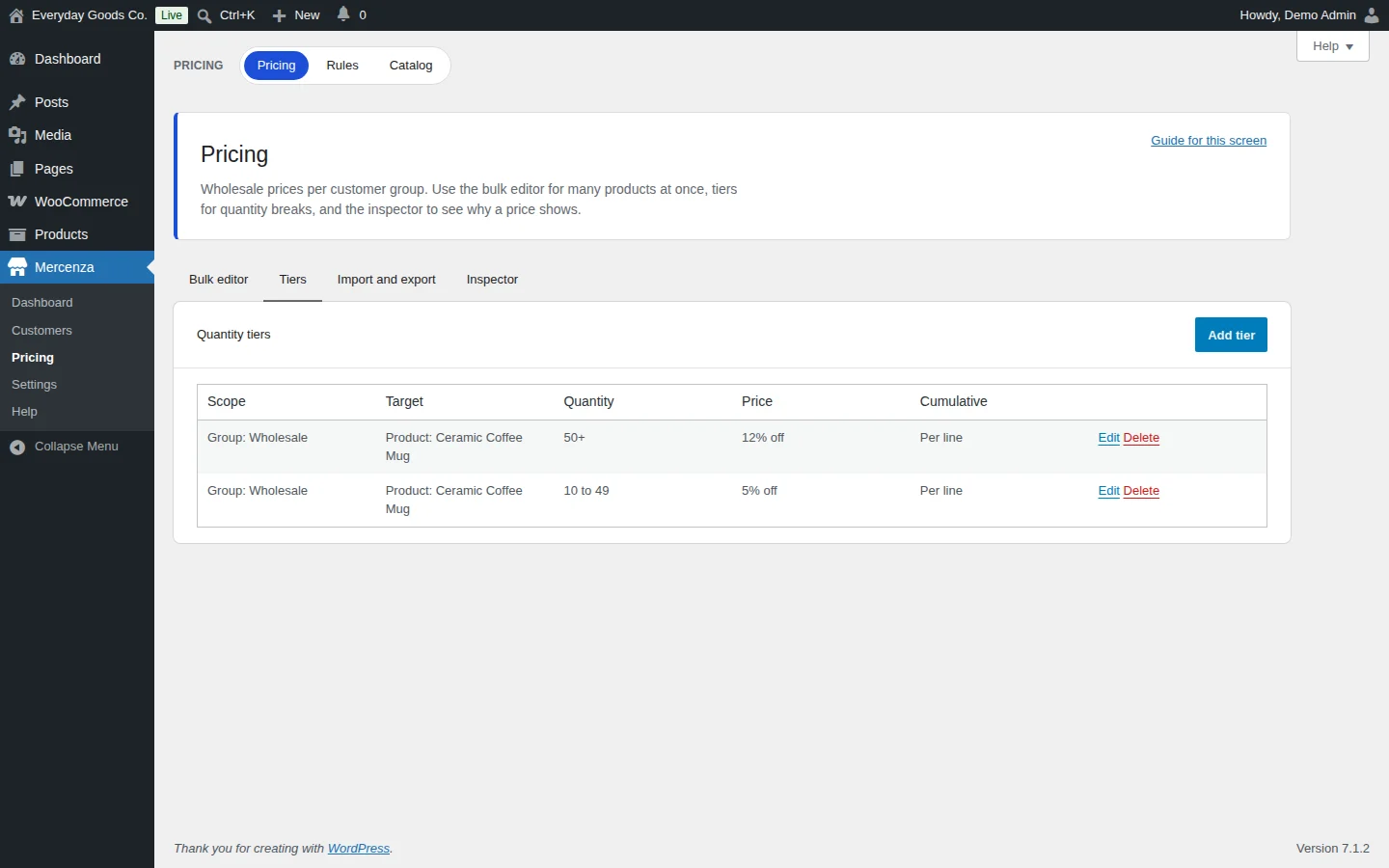
The Tiers tab under Mercenza > Pricing lists quantity breaks such as "10 to 49: 5% off". Click Add tier to create one, or Edit and Delete on a row.
A tier has:
- Scope: everyone, a group, a company or a customer.
- Target: a product, a variation, a category or the whole catalog.
- Quantity: the range, for example 10 to 49, or 50 and more.
- Price: a fixed price, a percentage off or an amount off the resolved price.
- Cumulative: per line, or counted across all variations of the product or across a whole category in the cart.
The most specific scope with a tier wins, then the most specific target. When Show tier table on product pages is on (Settings > Pricing), the product page shows a Volume pricing table and a "buy X more" hint. The cart uses the same tiers.
#Pricing: import and export
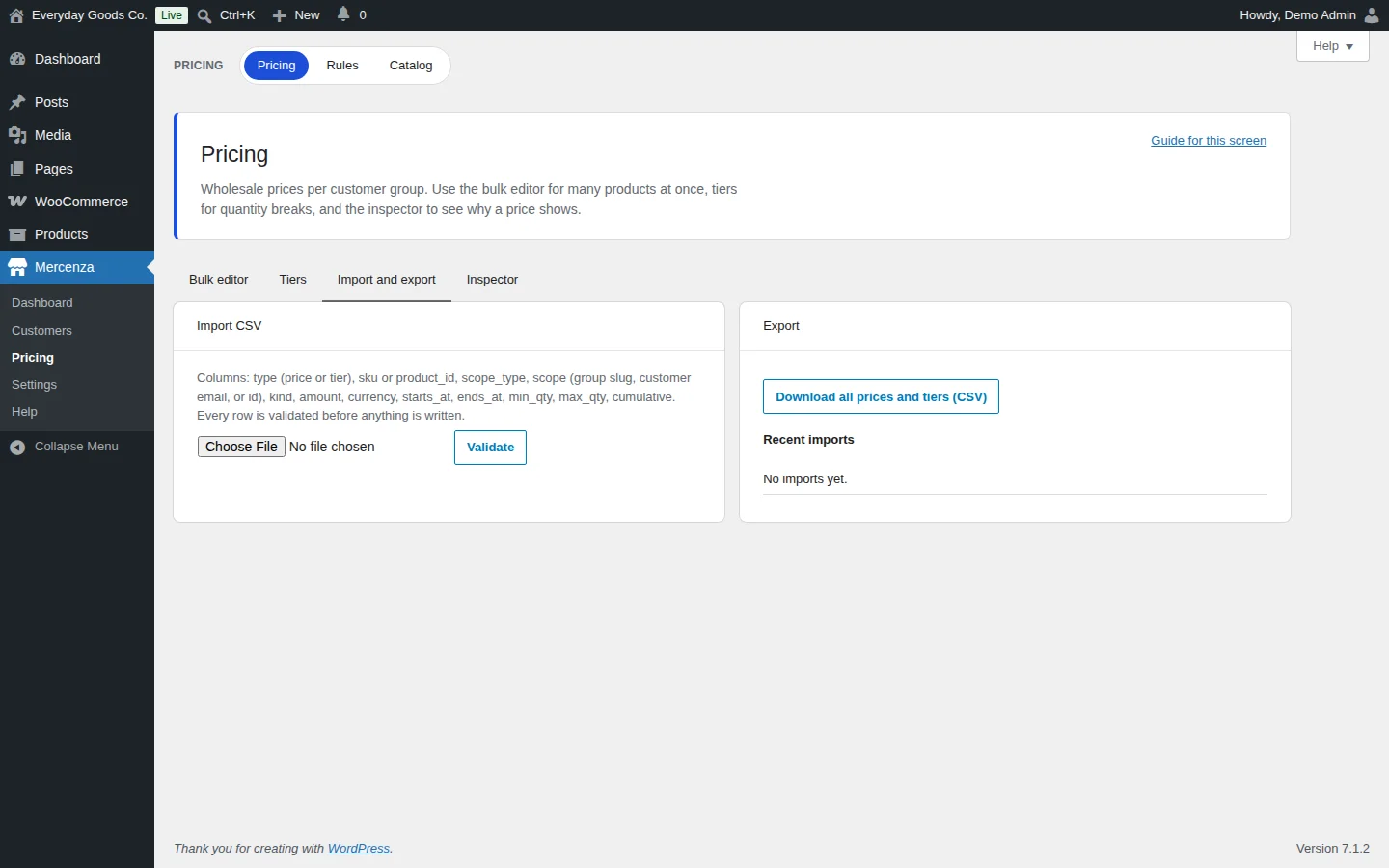
The Import and export tab moves prices and tiers in CSV files.
Import CSV: the columns are type (price or tier), sku or product_id (an id, category:ID or all), scope_type, scope (group slug, customer email or id, or company id), kind, amount, currency, starts_at, ends_at, min_qty, max_qty and cumulative. Choose the file and click Validate. Every row is checked and previewed before anything is written. The import then runs in the background, can resume, and reports errors per row. Recent imports lists past imports.
Export: click Download all prices and tiers (CSV).
The maximum number of rows per file is set in Settings > Pricing > CSV import row limit. With starts_at and ends_at you can schedule promotional prices or future increases ahead of time.
#Pricing: inspector
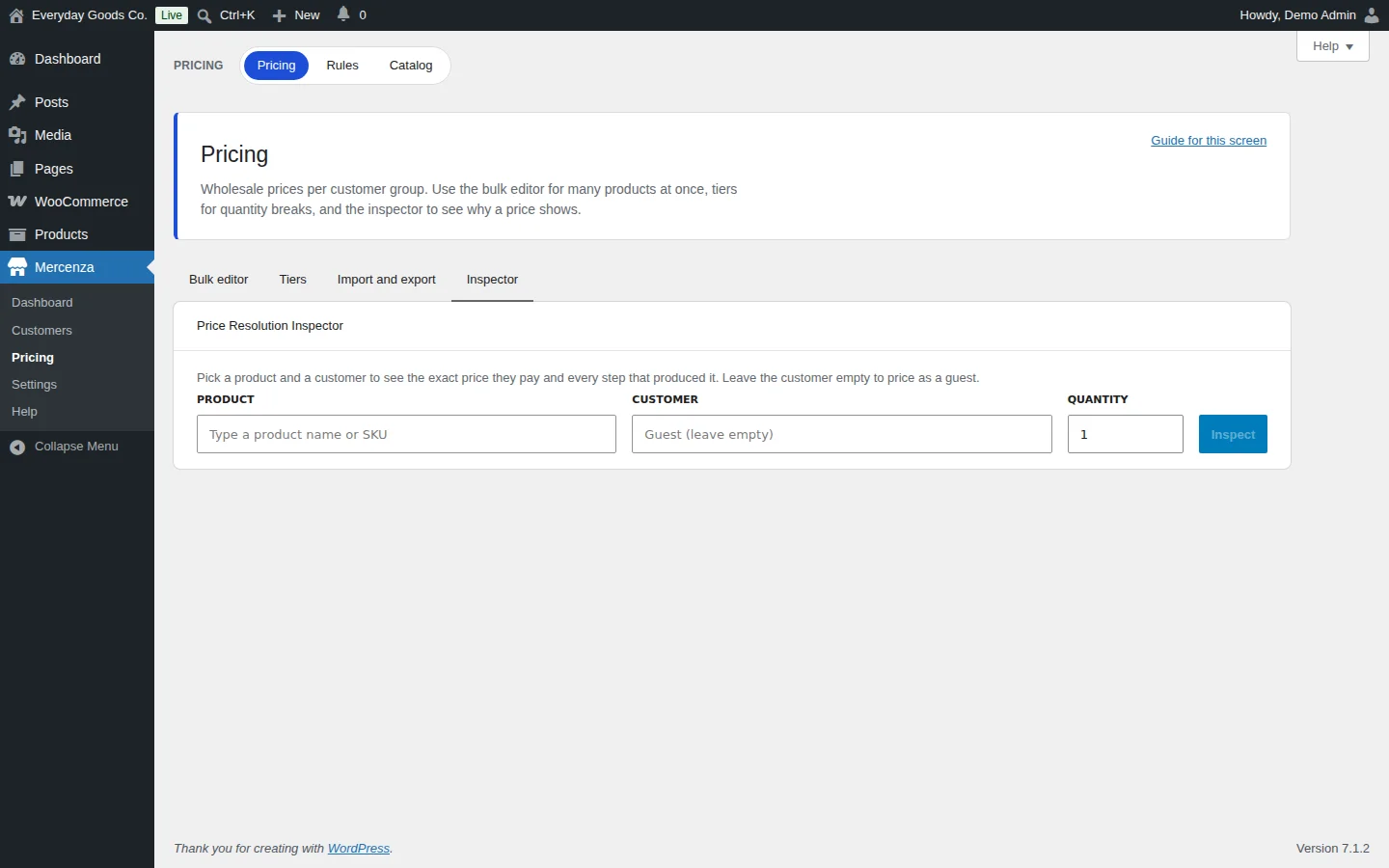
The Inspector tab (Price Resolution Inspector) explains any price. Pick a PRODUCT, a CUSTOMER (leave it empty to price as a guest) and a QUANTITY, then click Inspect.
The result shows the base price source, the tier, the rules that ran, the final price and the other candidates that were considered. Use it whenever a buyer reports a price you did not expect.
Prices are resolved in the order set in Settings > Pricing > Price source order: a customer price, a company price, a group price (or the nearest parent group with one), a group discount, a category rule, a catalog wide rule, and finally the regular price. Quantity tiers apply next, then dynamic rules.
#Pricing rules
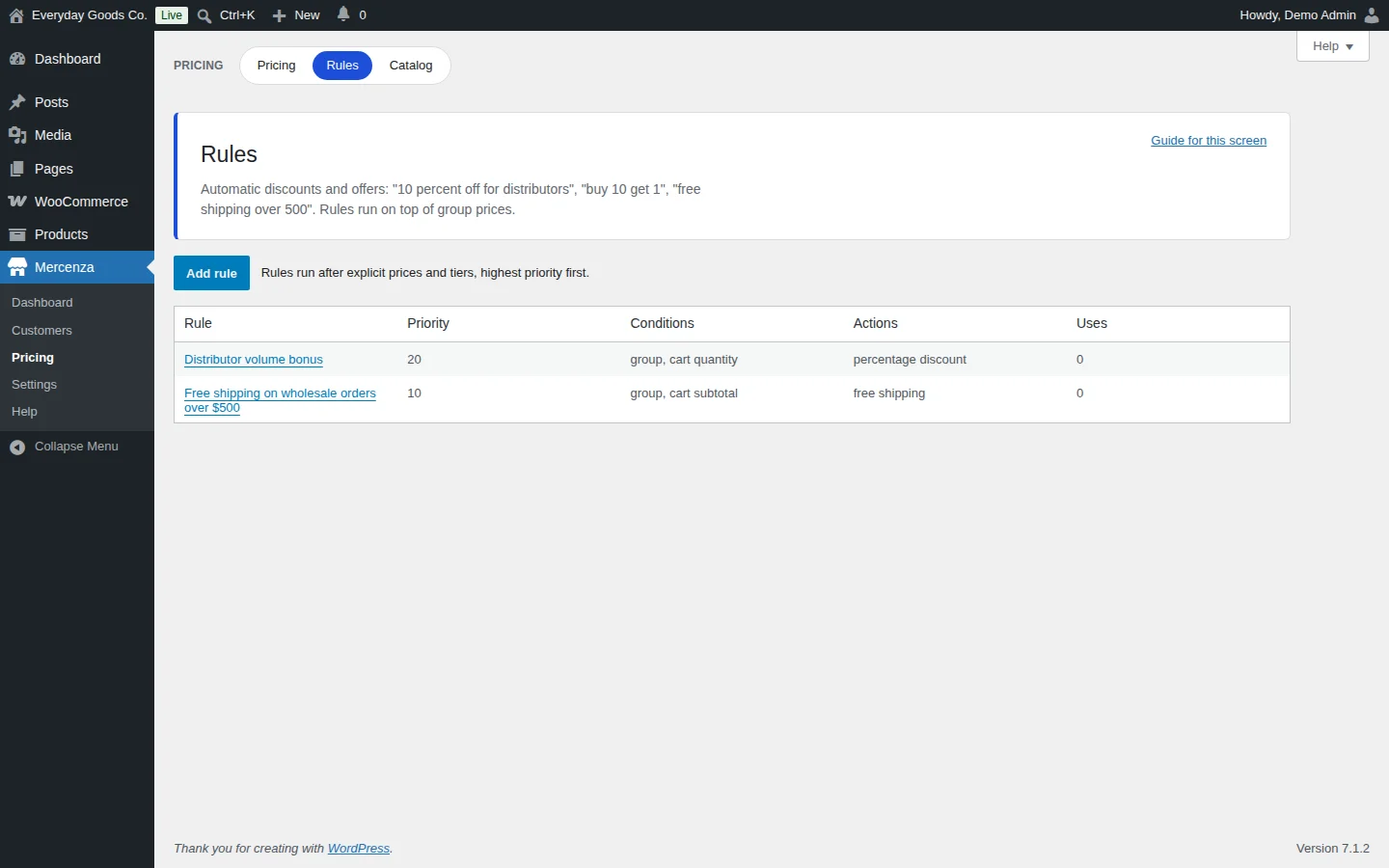
Mercenza > Pricing > Rules holds automatic discounts and offers, for example "10 percent off for distributors", "buy 10 get 1" or "free shipping over 500". Rules run after explicit prices and tiers, highest priority first. Click Add rule to create one.
- Conditions: group, user, company, product, category, tag, attribute, cart subtotal, cart quantity, date range, day of week, first order, order count, lifetime spend, shipping country and currency.
- Actions: percentage discount, fixed discount, fixed price, buy X get Y, free shipping, gift product, and exclude from other rules.
- Priority, a stop processing flag, a total usage limit and a per customer limit.
The Uses column counts how often each rule was used in orders.
#Catalog: visibility rules
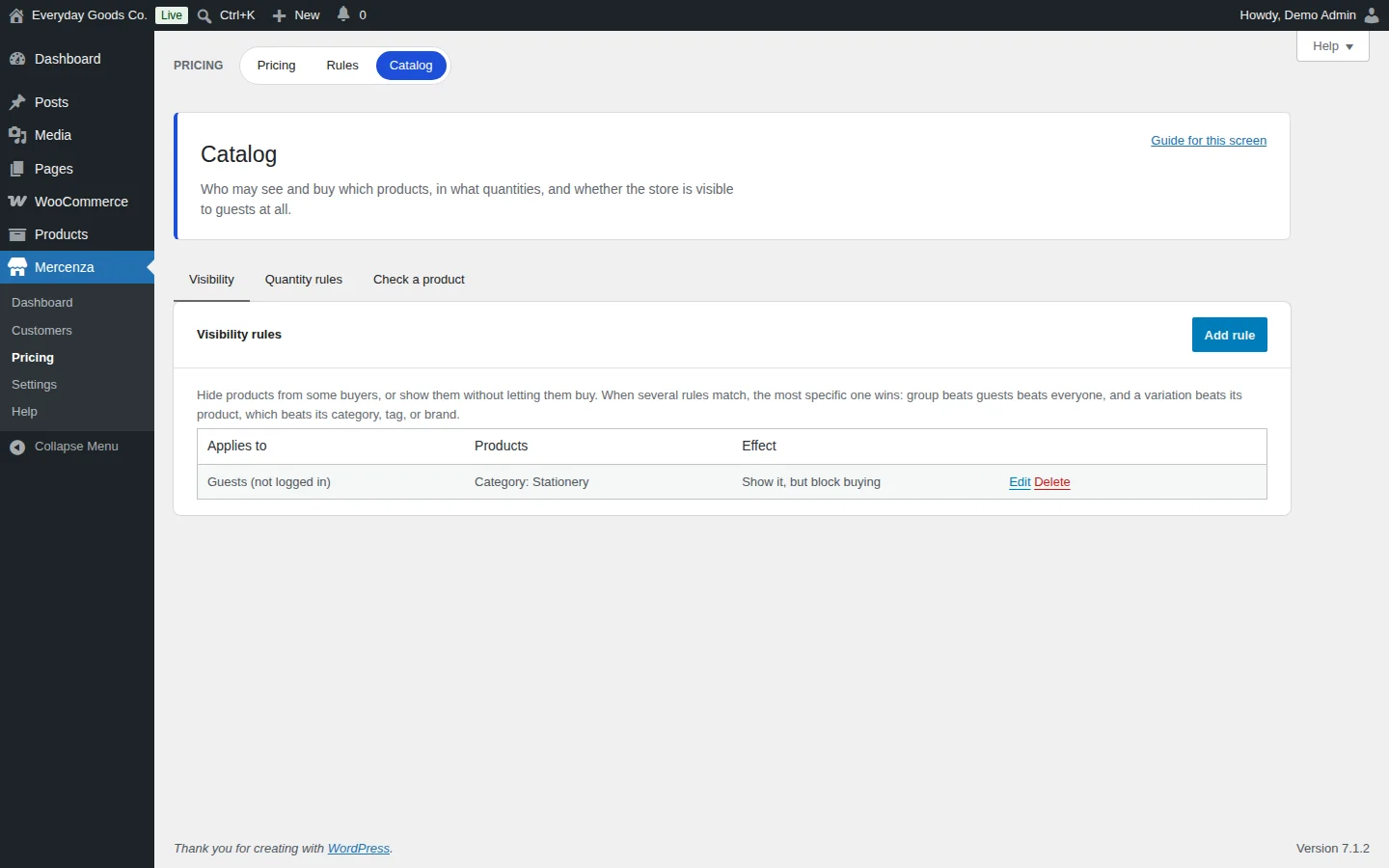
Mercenza > Pricing > Catalog controls who may see and buy which products. On the Visibility tab, click Add rule and choose:
- Who it applies to: Everyone, Guests (not logged in) or A customer group.
- What it targets: A product, A single variation, A category, A tag or A brand.
- The effect: Hide it, Show it, Show it, but block buying or Allow buying.
When several rules match, the most specific one wins: group beats guests beats everyone, and a variation beats its product, which beats its category, tag or brand. Use Show it to make exceptions inside a broader hidden rule.
Hidden products disappear from the shop, search, feeds, sitemaps, related products and the REST and Store API for that buyer. Opening one directly returns a 404 or redirects to the shop (see Settings > Catalog). Products that cannot be bought stay visible, and a cart line that becomes unavailable blocks checkout with a message.
You can also set an audience on a product's Mercenza tab (everyone, wholesale customers only, or retail customers only), or on a product category under Products > Categories with Mercenza audience. A category audience applies to all products in it and its child categories, and a product's own audience wins over its categories.
#Catalog: quantity rules
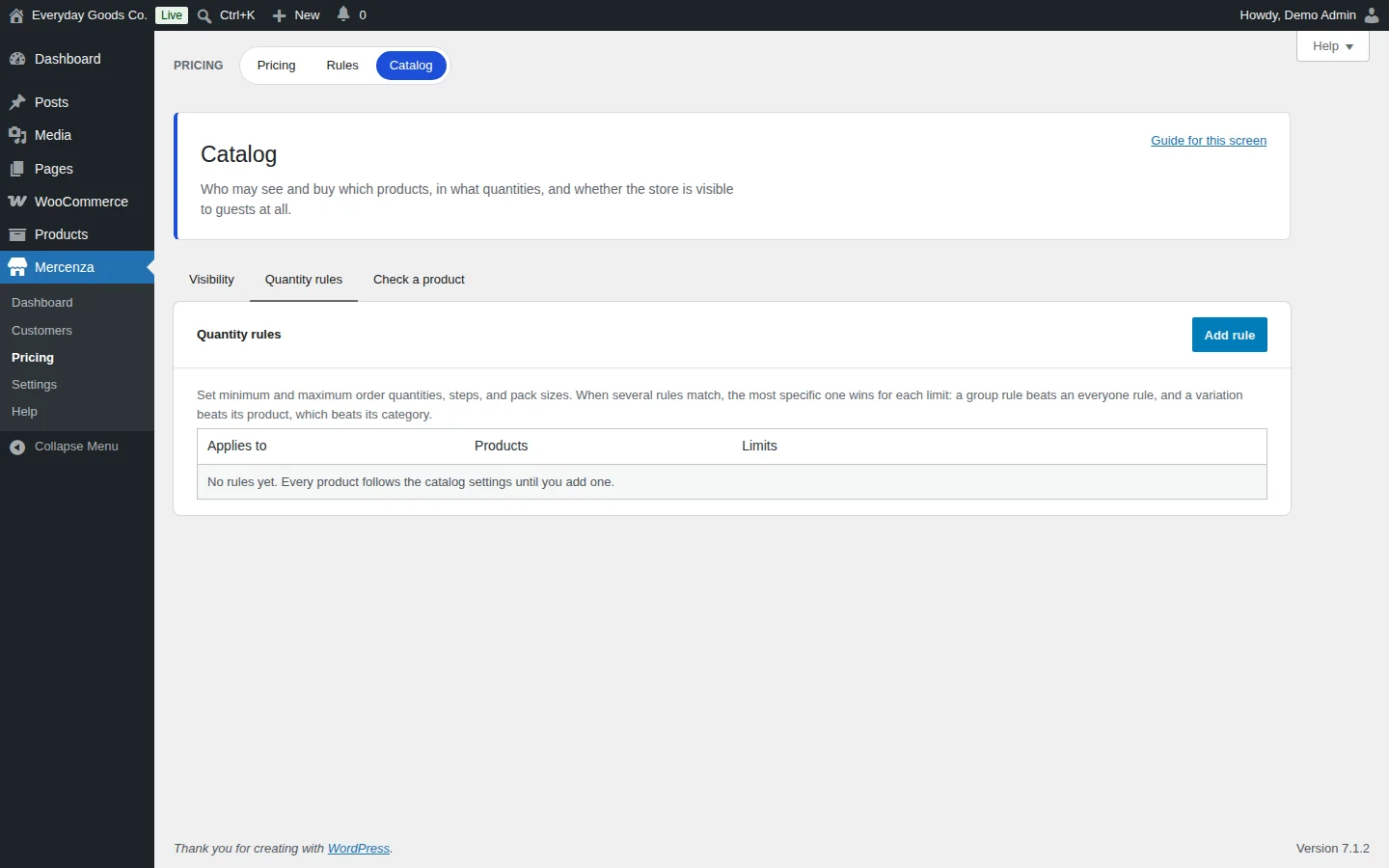
The Quantity rules tab sets minimum and maximum order quantities, steps (multiples) and pack sizes. Click Add rule, choose who it applies to and which products, then set at least one of minimum, maximum, step or pack size.
When several rules match, the most specific one wins for each limit: a group rule beats an everyone rule, and a variation beats its product, which beats its category. Quantity fields on a product's Mercenza tab apply to everyone.
A pack size implies the step and a minimum of one pack, and the product page shows "Sold in packs of X (price per pack)". Rules are checked on the product page, when adding to the cart, in the cart and at checkout, and in the Store API.
#Catalog: check a product
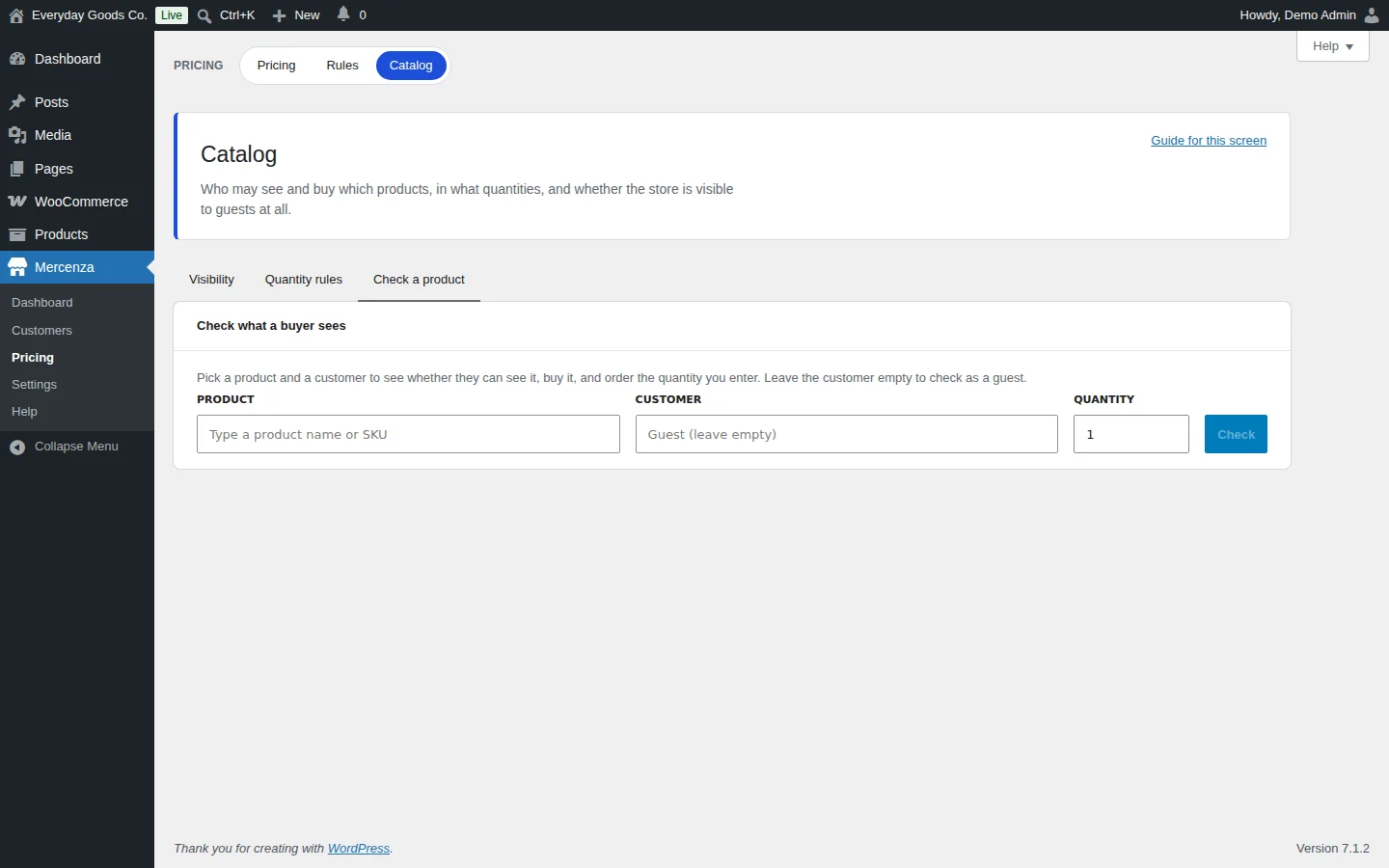
The Check a product tab (Check what a buyer sees) tells you whether a customer can see a product, buy it and order a given quantity. Pick a PRODUCT, a CUSTOMER (leave it empty to check as a guest) and a QUANTITY, then click Check. Use it to confirm visibility and quantity rules before you announce them.
#Settings: General
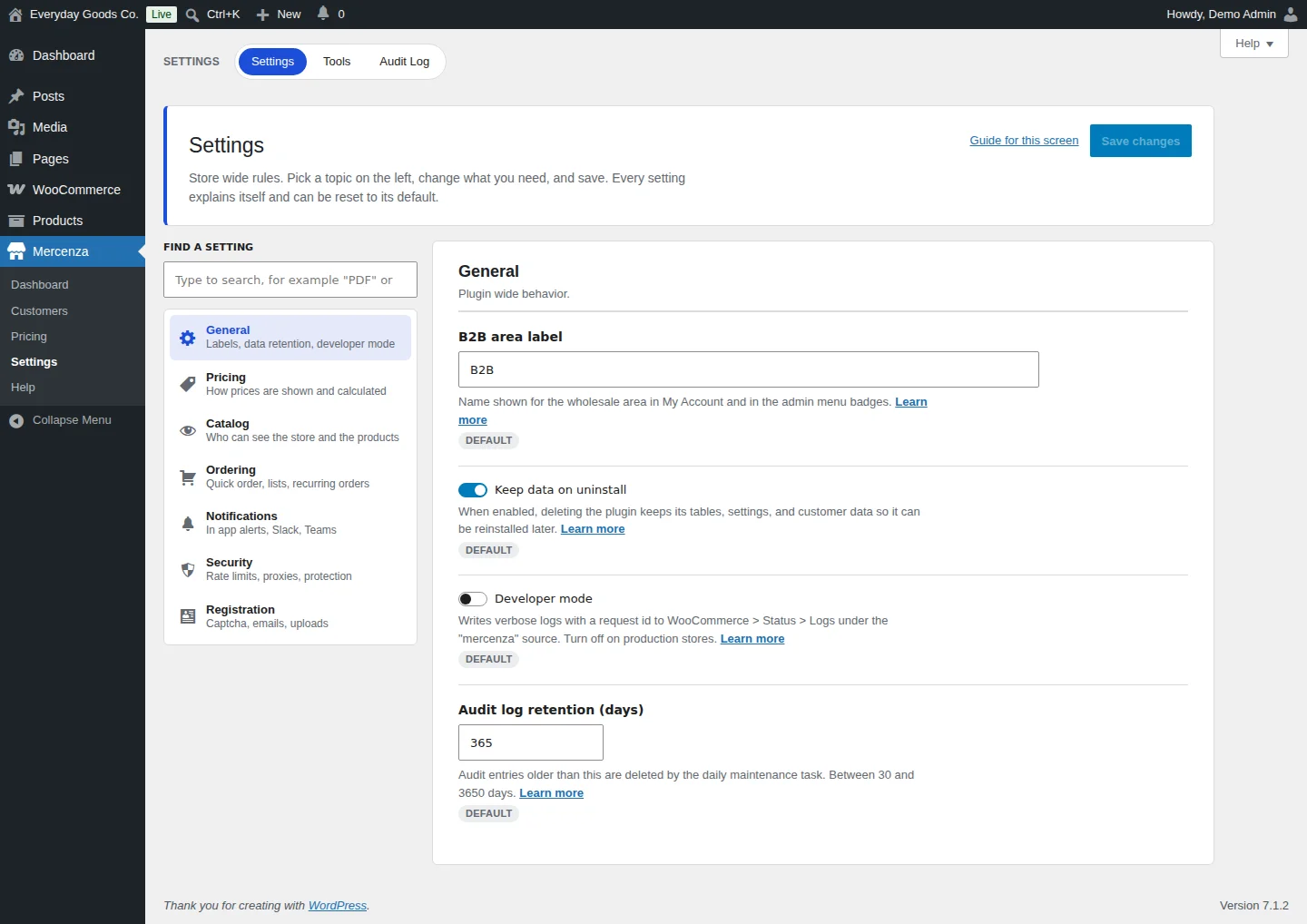
Mercenza > Settings holds store wide rules. Pick a topic on the left, change what you need and click Save changes. Use FIND A SETTING to search for any setting by name. Every field has a description, a Learn more link and a way to reset it to its default.
The General topic covers labels, data retention and developer mode:
- B2B area label: the name of the wholesale area in My Account and in the admin menu badges.
- Keep data on uninstall: when on, deleting the plugin keeps its tables, settings and customer data so you can reinstall later. Turn it off only if you want everything removed when you delete the plugin. WooCommerce data and users are never removed.
- Developer mode: writes detailed logs to WooCommerce > Status > Logs under the "mercenza" source. Turn it off on production stores.
- Audit log retention (days): entries older than this are deleted by the daily maintenance task. Between 30 and 3650 days.
#Settings: Pricing
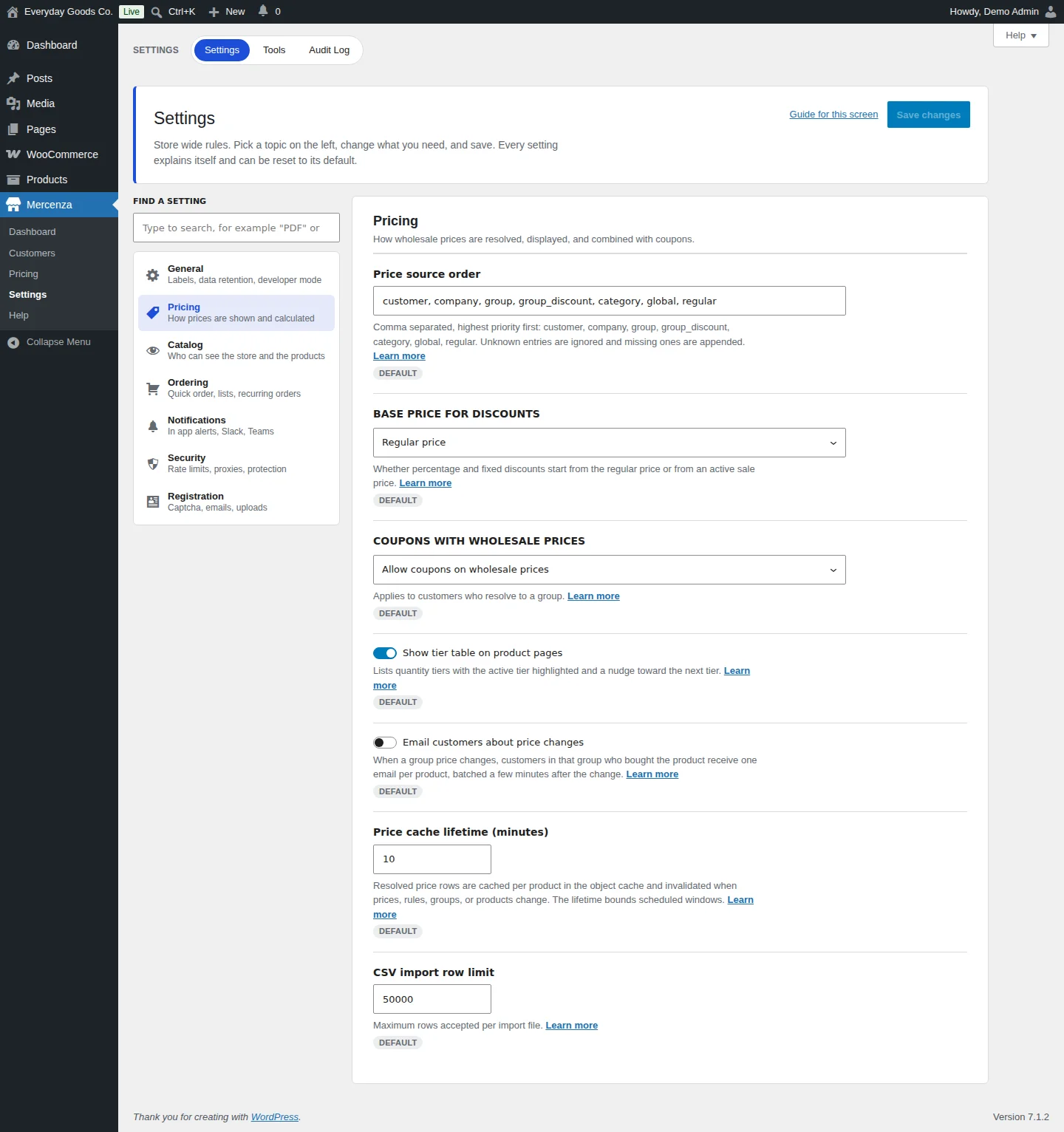
The Pricing topic controls how wholesale prices are resolved, shown and combined with coupons.
- Price source order: the order in which price sources are checked, highest priority first. Allowed values:
customer,company,group,group_discount,category,global,regular. Unknown entries are ignored and missing ones are added at the end. - Base price for discounts: Regular price, or Sale price when set to start percentage and amount discounts from an active sale price.
- Coupons with wholesale prices: Allow coupons on wholesale prices, Block coupons for wholesale customers, or Apply coupons to the retail price only. This applies to customers in a group.
- Show tier table on product pages: shows quantity tiers with the active tier highlighted and a hint toward the next tier.
- Email customers about price changes: when a group price changes, customers in that group who bought the product get one email per product, sent in a batch a few minutes after the change.
- Price cache lifetime (minutes): how long resolved prices are cached. The cache is cleared when prices, rules, groups or products change. The lifetime also limits how late a scheduled price can start.
- CSV import row limit: the maximum number of rows per import file.
#Settings: Catalog
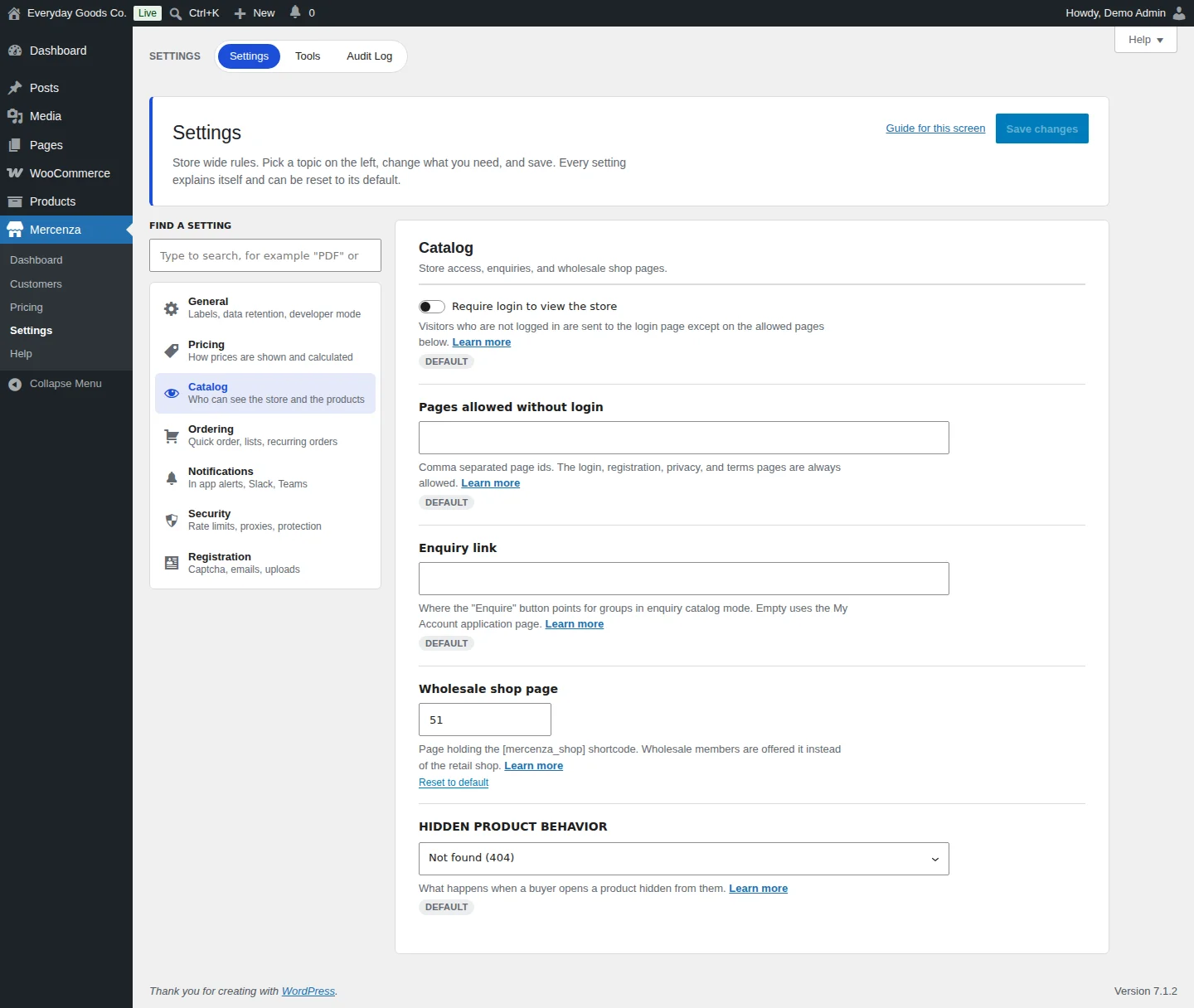
The Catalog topic covers store access, enquiries and the wholesale shop page.
- Require login to view the store: visitors who are not logged in are sent to the login page, except on the allowed pages.
- Pages allowed without login: comma separated page ids. The login, registration, privacy and terms pages are always allowed.
- Enquiry link: where the "Enquire" button points for groups in enquiry catalog mode. When empty, it uses the My Account application page.
- Wholesale shop page: the id of the page that holds the
[mercenza_shop]shortcode. Wholesale members are offered it instead of the retail shop, for example when they return from an empty cart. - Hidden product behavior: what happens when a buyer opens a product hidden from them: Not found (404) or Redirect to the shop page.
#Settings: Ordering
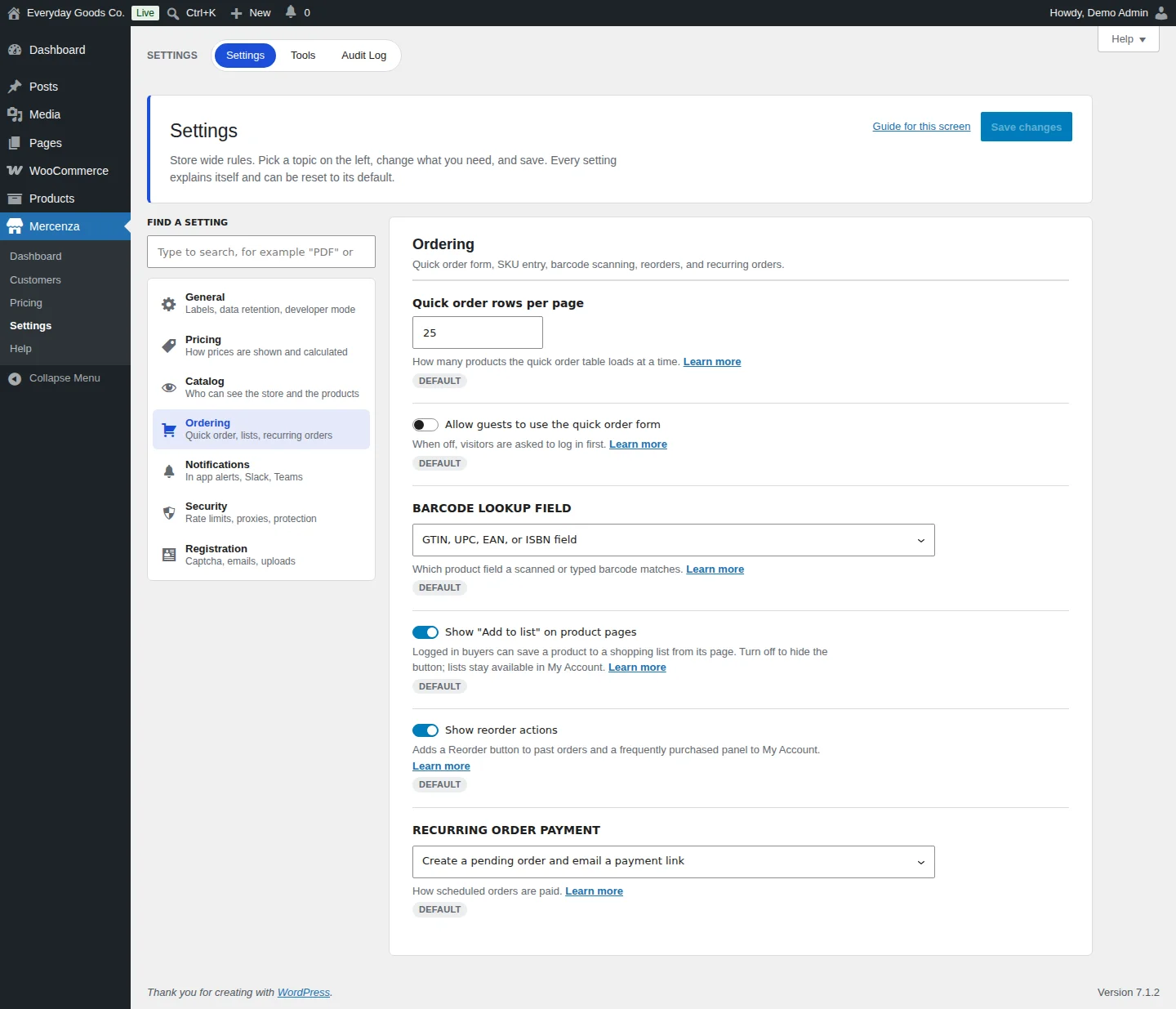
The Ordering topic covers the quick order form, barcode lookup, reorders and recurring orders.
- Quick order rows per page: how many products the quick order table loads at a time (5 to 200).
- Allow guests to use the quick order form: when off, visitors are asked to log in first.
- Barcode lookup field: which product field a scanned or typed barcode matches: GTIN, UPC, EAN, or ISBN field, SKU, or GTIN first, then SKU.
- Show "Add to list" on product pages: logged in buyers can save a product to a shopping list from its page. When off, lists stay available in My Account.
- Show reorder actions: adds a Reorder button to past orders and a frequently purchased panel to My Account.
- Recurring order payment: how scheduled orders are paid. Create a pending order and email a payment link creates each due order as pending payment and emails the customer an invoice.
#Settings: Notifications (in app, Slack and Teams)
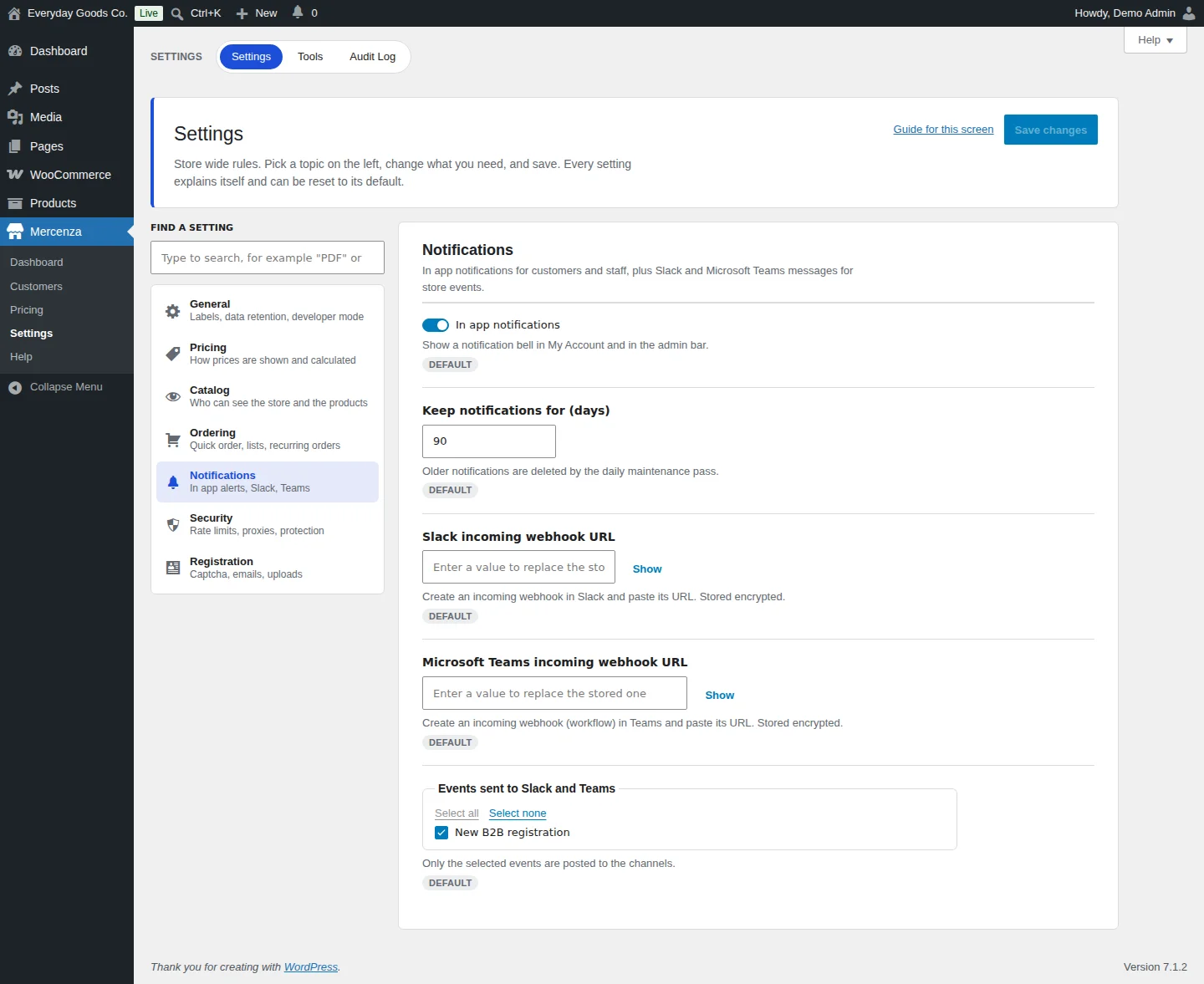
The Notifications topic controls in app notifications and messages to Slack and Microsoft Teams.
- In app notifications: shows a notification bell in My Account and in the admin bar. Store staff receive new registrations, and customers receive updates about their application.
- Keep notifications for (days): older notifications are deleted by the daily maintenance task (7 to 3650 days).
- Slack incoming webhook URL and Microsoft Teams incoming webhook URL: paste the URL of an incoming webhook. Both are stored encrypted. The field shows "Enter a value to replace the stored one" and a Show link.
- Events sent to Slack and Teams: only the selected events are posted. In this edition the event is New B2B registration. Use Select all or Select none.
| Channel | What you need | Where to create it |
|---|---|---|
| Slack | An incoming webhook URL | Create an incoming webhook in Slack and paste its URL |
| Microsoft Teams | An incoming webhook (workflow) URL | Create an incoming webhook (workflow) in Teams and paste its URL |
Set up a channel
- Create the incoming webhook in Slack or Teams and copy its URL.
- Paste it in the matching field.
- Tick the events to send.
- Click Save changes.
Nothing is sent until you add a URL. Each selected event posts a short message with a title, a summary, a few facts (such as the customer or company name) and a link back to your admin. To check the setup, submit a test application on your registration page and confirm the message arrives.
Mercenza also adds webhook topics under WooCommerce > Settings > Advanced > Webhooks, for example registration received, approved or rejected. WooCommerce delivers them to the URL you enter there.
#Settings: Security
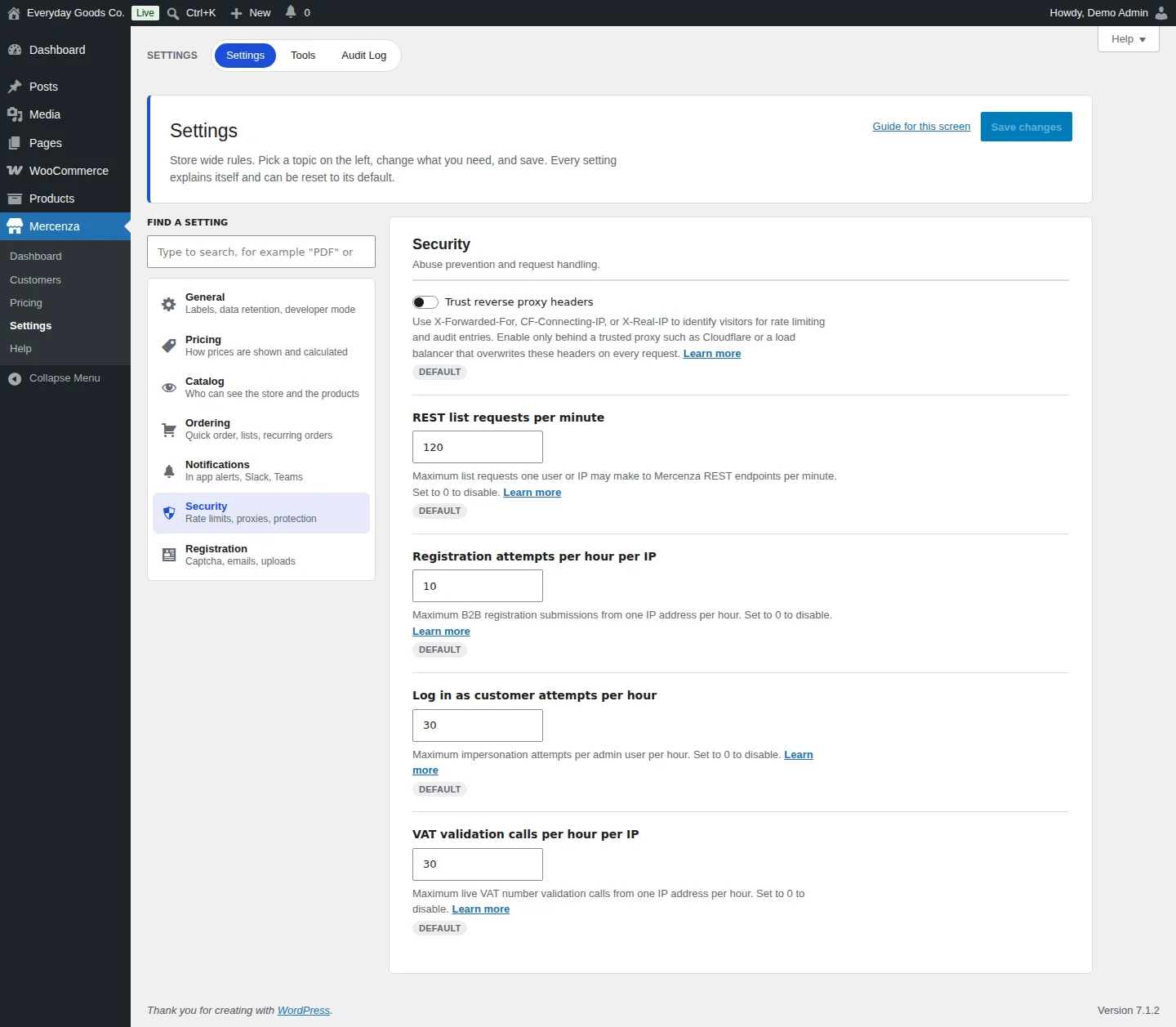
The Security topic covers rate limits and how visitors are identified.
- Trust reverse proxy headers: use X-Forwarded-For, CF-Connecting-IP or X-Real-IP to identify visitors for rate limiting and audit entries. Turn it on only behind a trusted proxy, such as Cloudflare or a load balancer, that overwrites these headers on every request.
- REST list requests per minute: the maximum list requests one user or IP can make to Mercenza REST endpoints per minute.
- Registration attempts per hour per IP: the maximum B2B registration submissions from one IP address per hour.
- Log in as customer attempts per hour: the maximum impersonation attempts per admin user per hour.
- VAT validation calls per hour per IP: the maximum live VAT number checks from one IP address per hour.
Set any limit to 0 to turn it off.
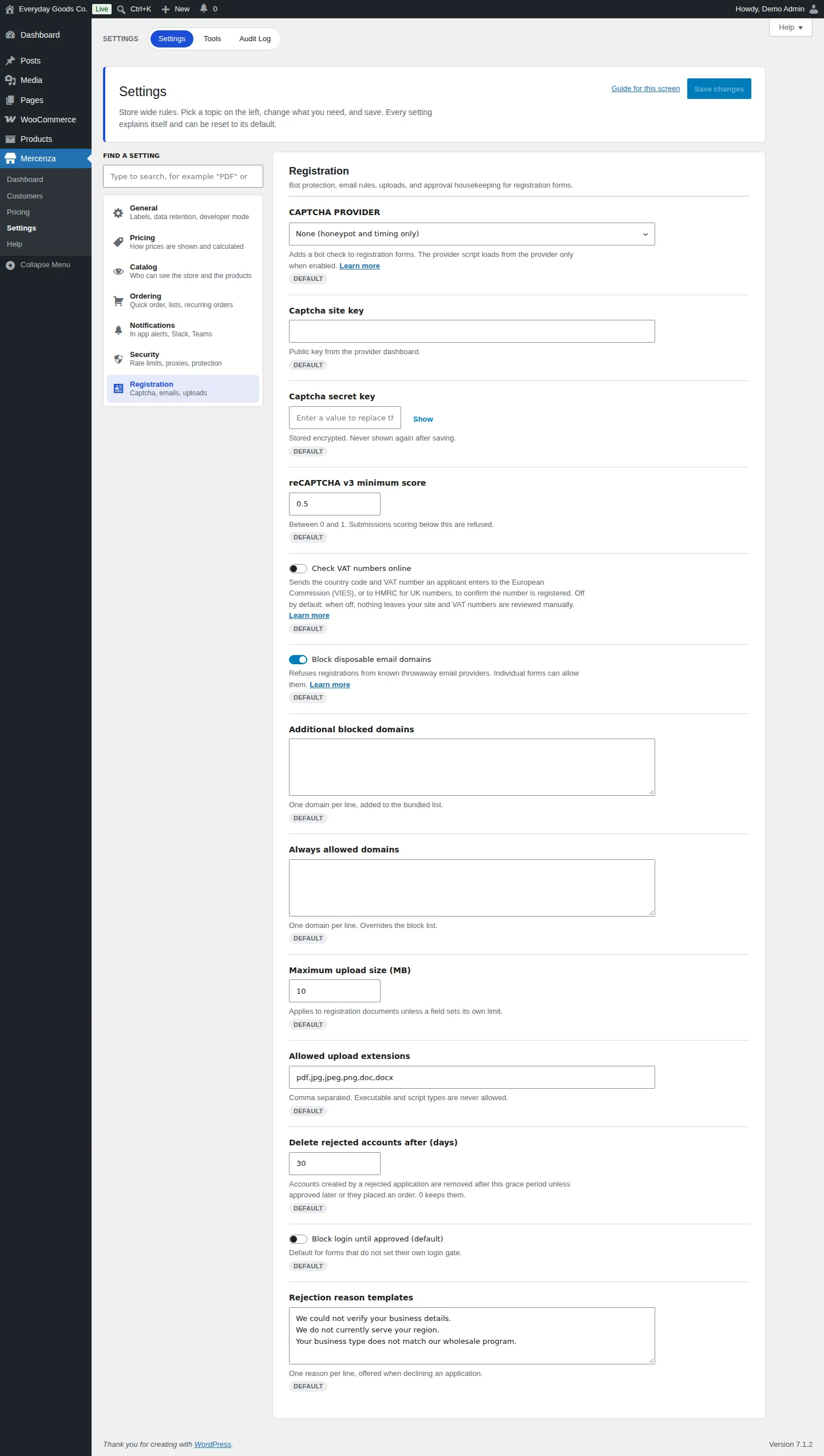
#Settings: Registration (captcha, VAT checks, emails, uploads)
The Registration topic covers bot protection, email rules, uploads and approval housekeeping for registration forms.
Captcha
Every form already has a honeypot field and a signed timing check (forms sent faster than three seconds or older than a day are refused). CAPTCHA PROVIDER adds a bot check from an outside provider:
| Option | Keys needed | Extra setting |
|---|---|---|
| None (honeypot and timing only) | None | None |
| Google reCAPTCHA v3 | Site key and secret key | reCAPTCHA v3 minimum score (0 to 1). Submissions scoring below it are refused |
| hCaptcha | Site key and secret key | None |
| Cloudflare Turnstile | Site key and secret key | None |
To set up a provider:
- In the provider's dashboard, create keys for your site.
- Choose the provider in CAPTCHA PROVIDER.
- Paste the public key in Captcha site key and the private key in Captcha secret key. The secret key is stored encrypted and never shown again after saving.
- For reCAPTCHA v3, adjust reCAPTCHA v3 minimum score if needed.
- Click Save changes, then submit a test application on your registration page.
The provider's script only loads when a provider is selected. On submit, the visitor's captcha response, IP address and your site address are sent to the provider for verification.
VAT numbers
Check VAT numbers online is off by default. When on, an EU VAT number is checked with the European Commission's VIES service and a UK number (starting with GB) with HMRC's "Check a UK VAT number" API. The check runs when the applicant pauses typing and again on submit, the result (valid, invalid or unknown) is stored with the application, and a valid result is cached for a day. When off, nothing leaves your site and VAT numbers are reviewed manually. Numbers from Australia, New Zealand, the United States, India and Canada are checked for the right format on your own site.
Email rules
- Block disposable email domains: refuses registrations from known throwaway email providers. Individual forms can allow them.
- Additional blocked domains: one domain per line, added to the bundled list.
- Always allowed domains: one domain per line. Overrides the block list.
Uploads
- Maximum upload size (MB): applies to registration documents unless a field sets its own limit.
- Allowed upload extensions: comma separated. Executable and script types are never allowed. Files are stored in a protected folder under random names, and only the owner or staff who can approve registrations can download them.
Approval housekeeping
- Delete rejected accounts after (days): accounts created by a rejected application are removed after this period unless approved later or they placed an order.
0keeps them. - Block login until approved (default): the default for forms that do not set their own login gate.
- Rejection reason templates: one reason per line, offered when you decline an application.
#Tools: diagnostics
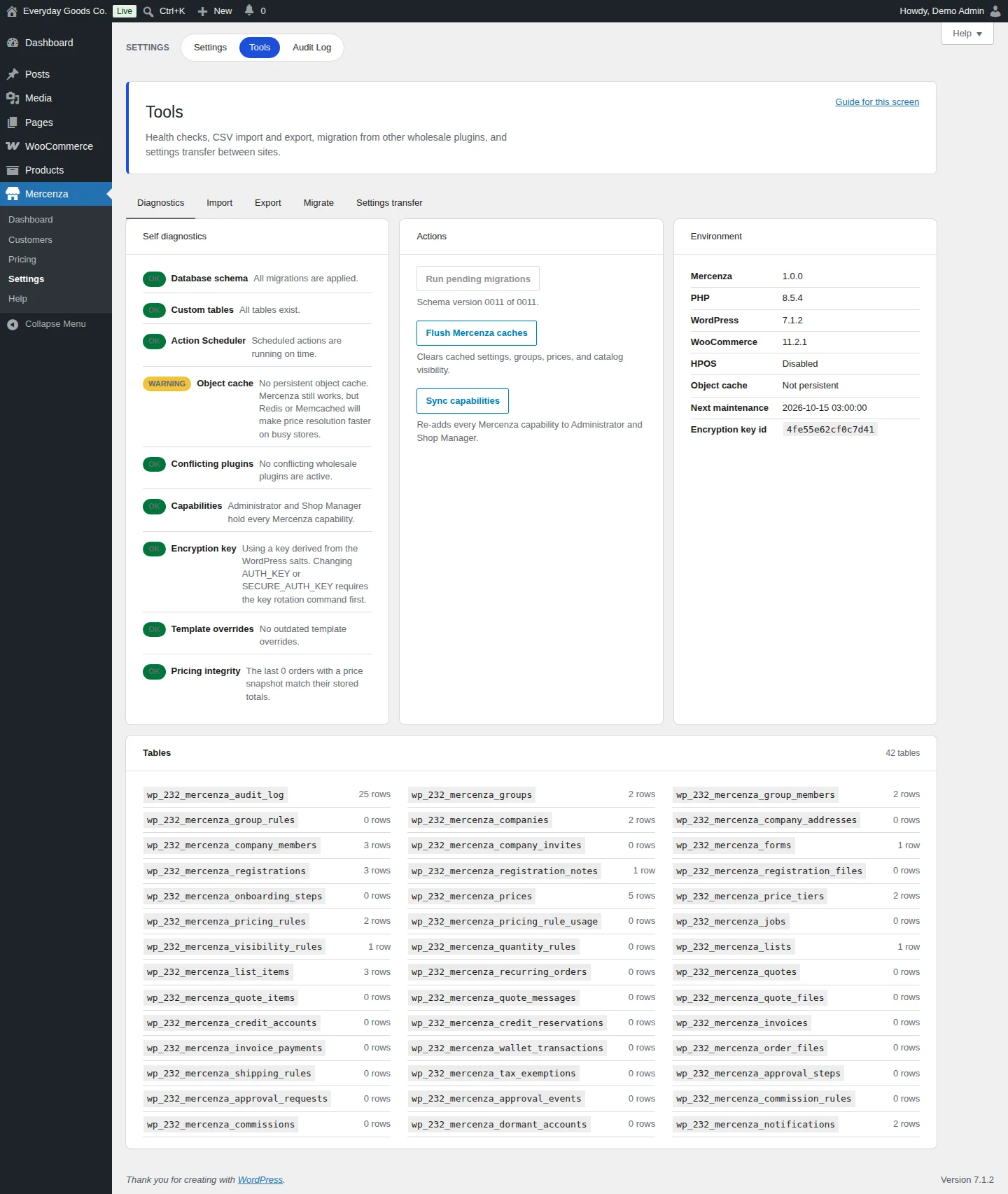
Mercenza > Settings > Tools holds health checks, CSV import and export, migration from other wholesale plugins and settings transfer.
The Diagnostics tab shows:
- Self diagnostics: database schema, custom tables, Action Scheduler, object cache, conflicting plugins, capabilities, encryption key, template overrides and pricing integrity (recent orders with a price snapshot compared with their stored totals).
- Actions: Run pending migrations (with the current schema version), Flush Mercenza caches (clears cached settings, groups, prices and catalog visibility) and Sync capabilities (re-adds every Mercenza capability to Administrator and Shop Manager).
- Environment: Mercenza, PHP, WordPress and WooCommerce versions, HPOS status, object cache, next maintenance run and encryption key id.
- Tables: every Mercenza table with its row count.
#Tools: import
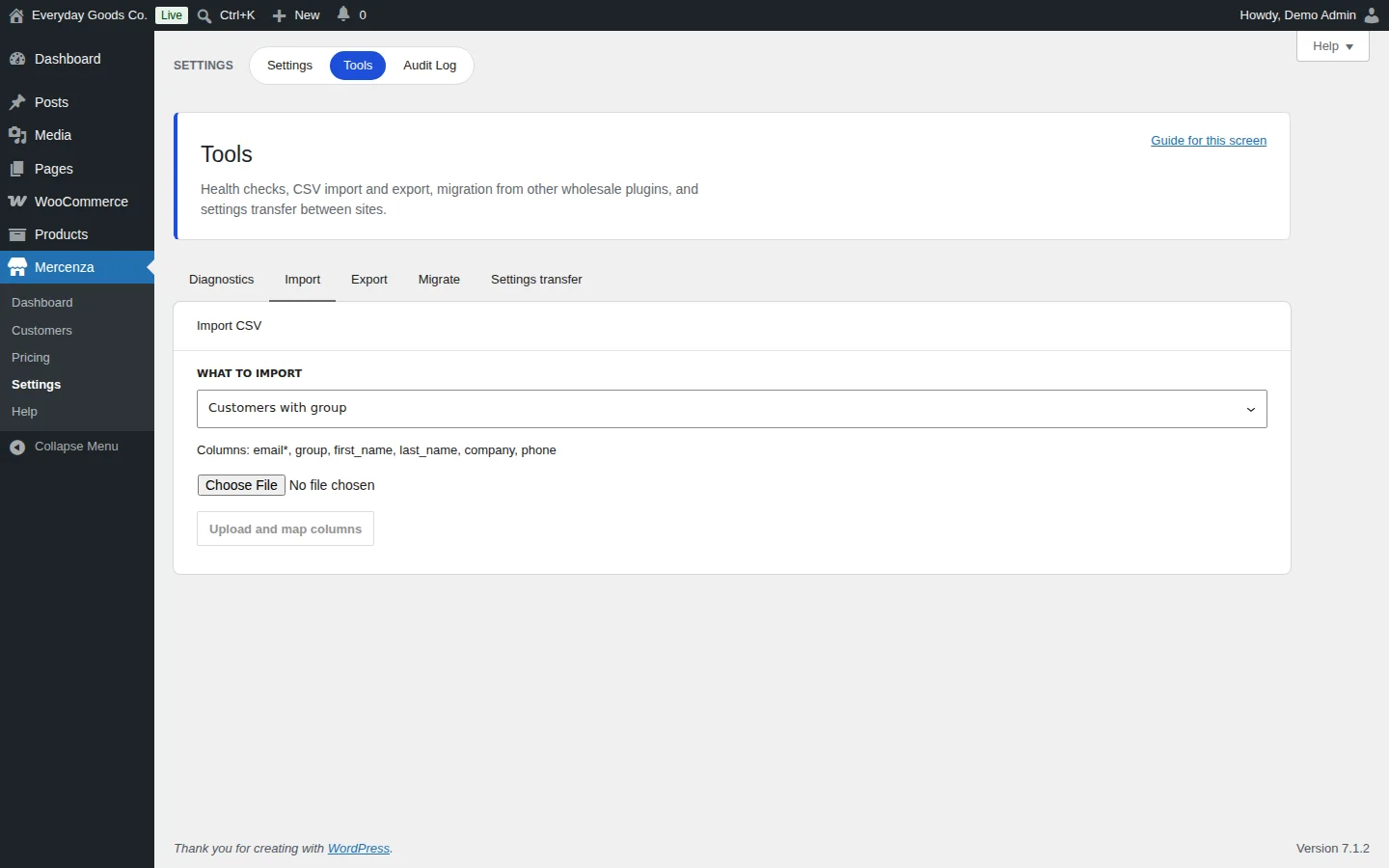
The Import tab imports CSV files. Choose WHAT TO IMPORT: Customers with group, Companies, Sub accounts, Registration submissions, Pricing rules, Group prices, Customer prices or Tiered prices. The columns for the chosen type are listed under the selector (fields marked with * are required).
- Choose the file and click Upload and map columns.
- Map the file's columns to the importer's columns. Headers that match are mapped for you.
- Run a dry run to validate every row and download the error report.
- Start the import. It runs in the background in chunks of 100 rows, survives timeouts and resumes from the last processed row.
Groups can be referenced by slug, name or id, customers and owners by email, and products by SKU or id.
#Tools: export
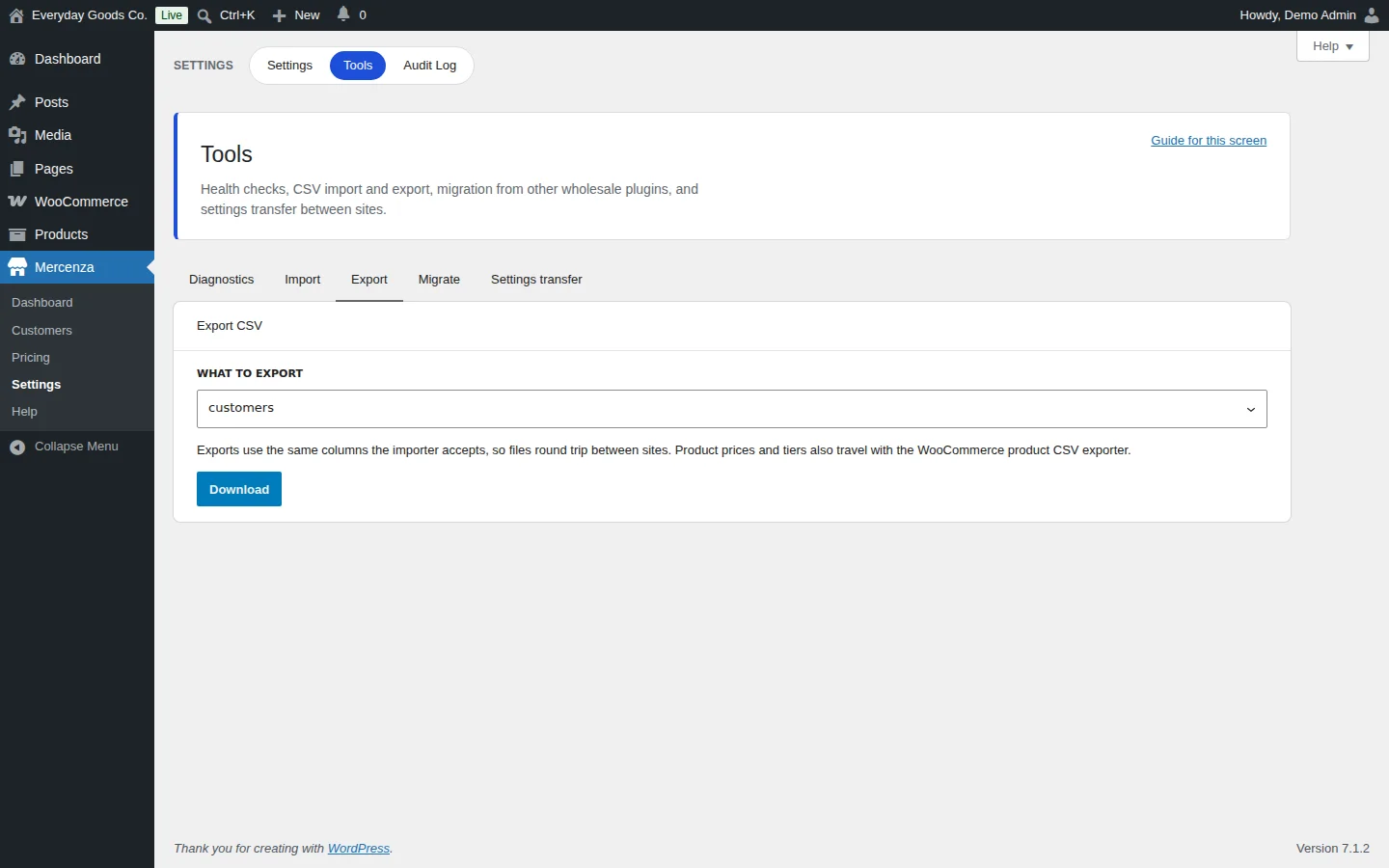
The Export tab downloads the same record types as the importer: choose WHAT TO EXPORT (customers, companies, sub accounts, registrations, pricing rules, group prices, customer prices or tiers) and click Download. Files use the columns the importer accepts, so a file exported on one site can be imported on another.
The WooCommerce product exporter and importer also gain columns for Mercenza group prices, tiers and the minimum, maximum, step and pack size quantity rules.
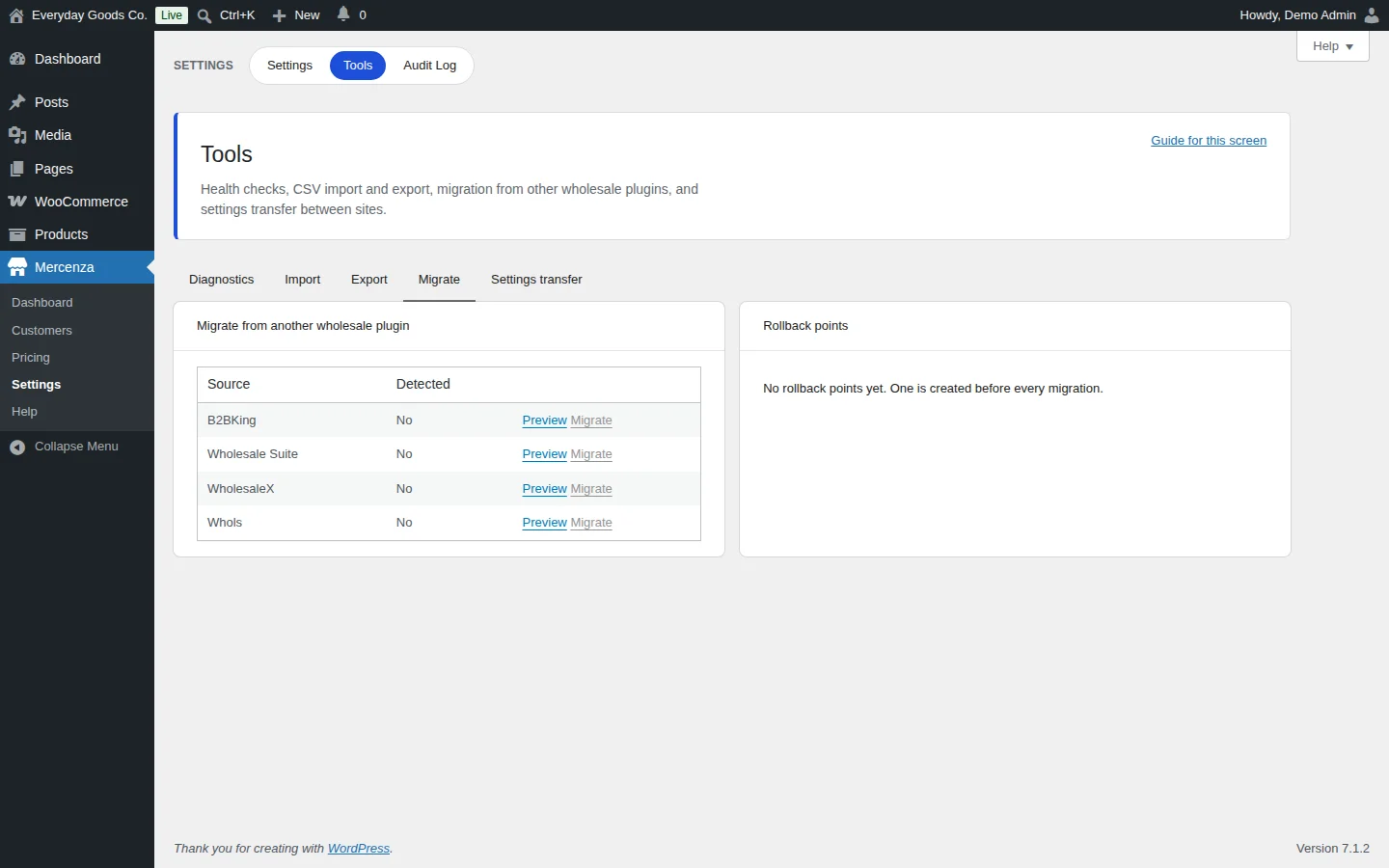
#Tools: migrate from another wholesale plugin
The Migrate tab detects data from B2BKing, Wholesale Suite, WholesaleX and Whols. The Detected column shows whether data was found.
- Click Preview to see what would move (groups, customers and prices).
- Click Migrate. A rollback point is created first, and groups, customer assignments and fixed product prices are migrated.
- If needed, restore a rollback point from the Rollback points panel.
Tiers and dynamic rules of other plugins are not migrated. Recreate them under Mercenza > Pricing.
#Tools: settings transfer
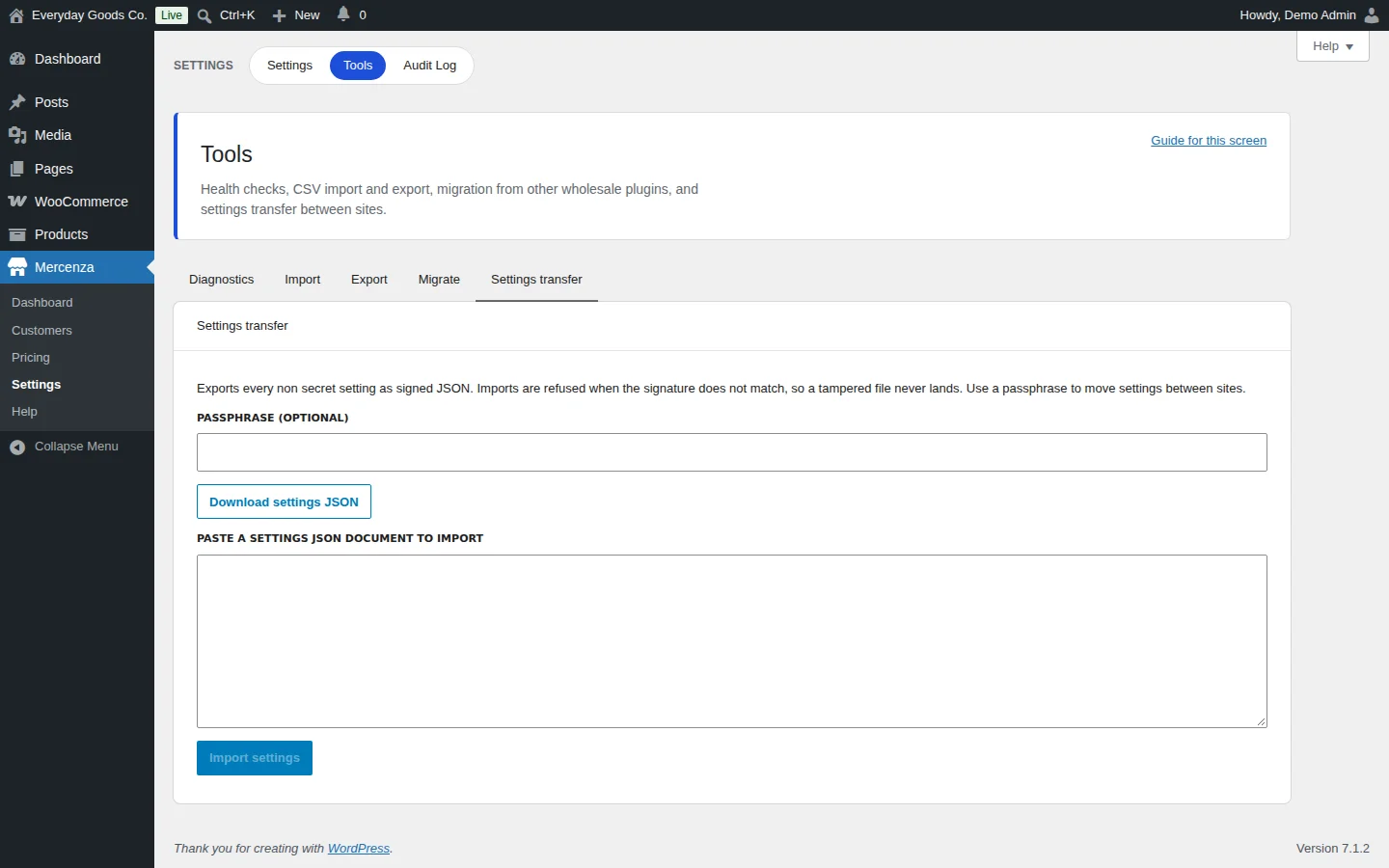
The Settings transfer tab exports every setting except secrets as signed JSON.
- Export: optionally enter a PASSPHRASE (OPTIONAL) and click Download settings JSON. Without a passphrase the file can only be restored on the same site. With a passphrase it can move between sites.
- Import: enter the same passphrase, paste the file content into PASTE A SETTINGS JSON DOCUMENT TO IMPORT and click Import settings.
Imports are refused when the signature does not match, when the plugin or format differs, or when the file was made by a newer Mercenza. Keys that fail validation on the target site are skipped and reported. Secrets such as captcha and webhook keys are not included, so enter them again on the new site.
#Audit log
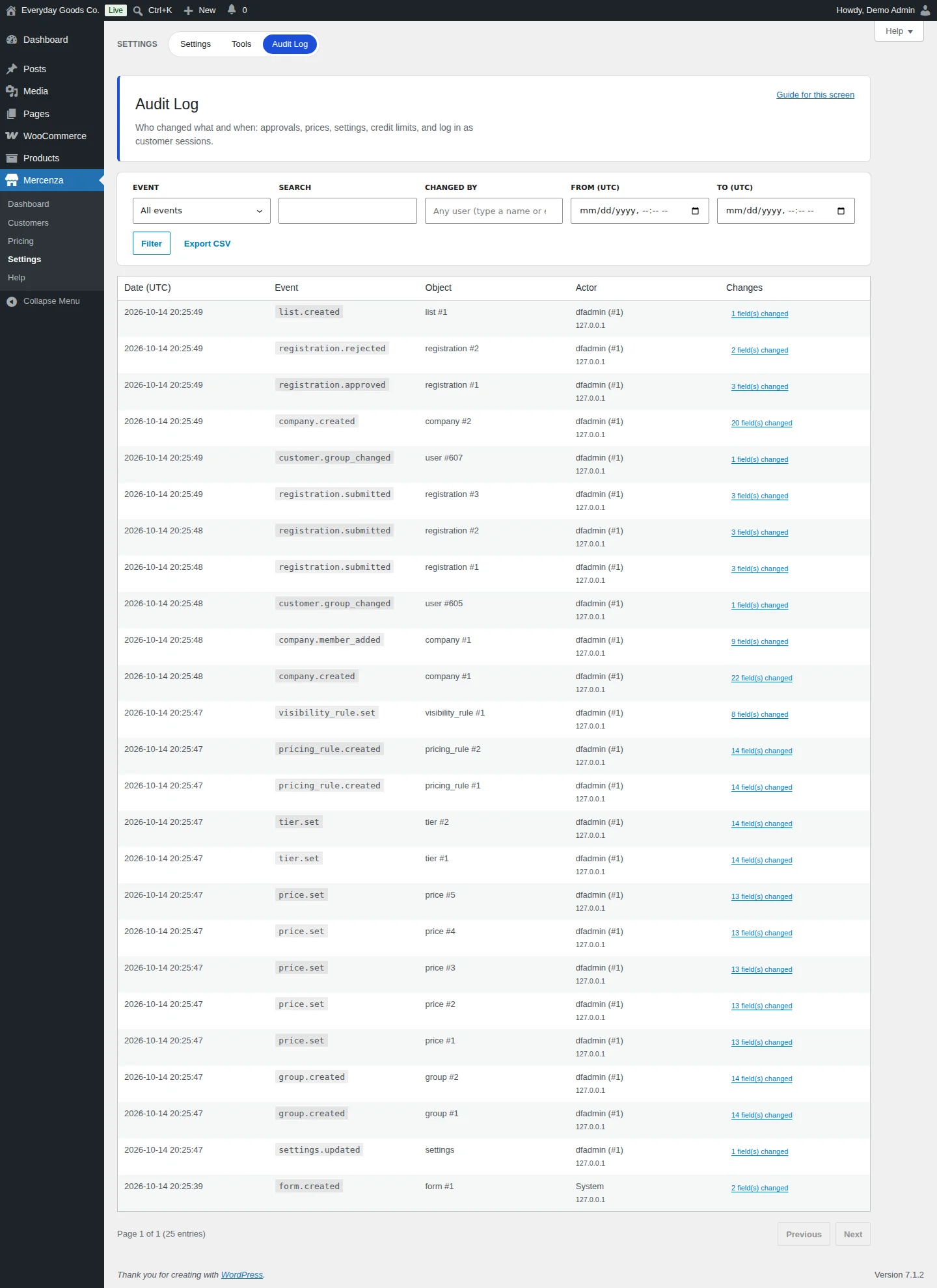
Mercenza > Settings > Audit Log records who changed what and when: approvals, prices, settings and log in as customer sessions. The log is append only.
Filter by EVENT (for example registration.approved, price.set or settings.updated), SEARCH, CHANGED BY, FROM (UTC) and TO (UTC), then click Filter. Click "field(s) changed" in the Changes column to see a diff. Export CSV downloads the filtered entries. Entries older than Audit log retention (days) are deleted automatically.
#Built in help
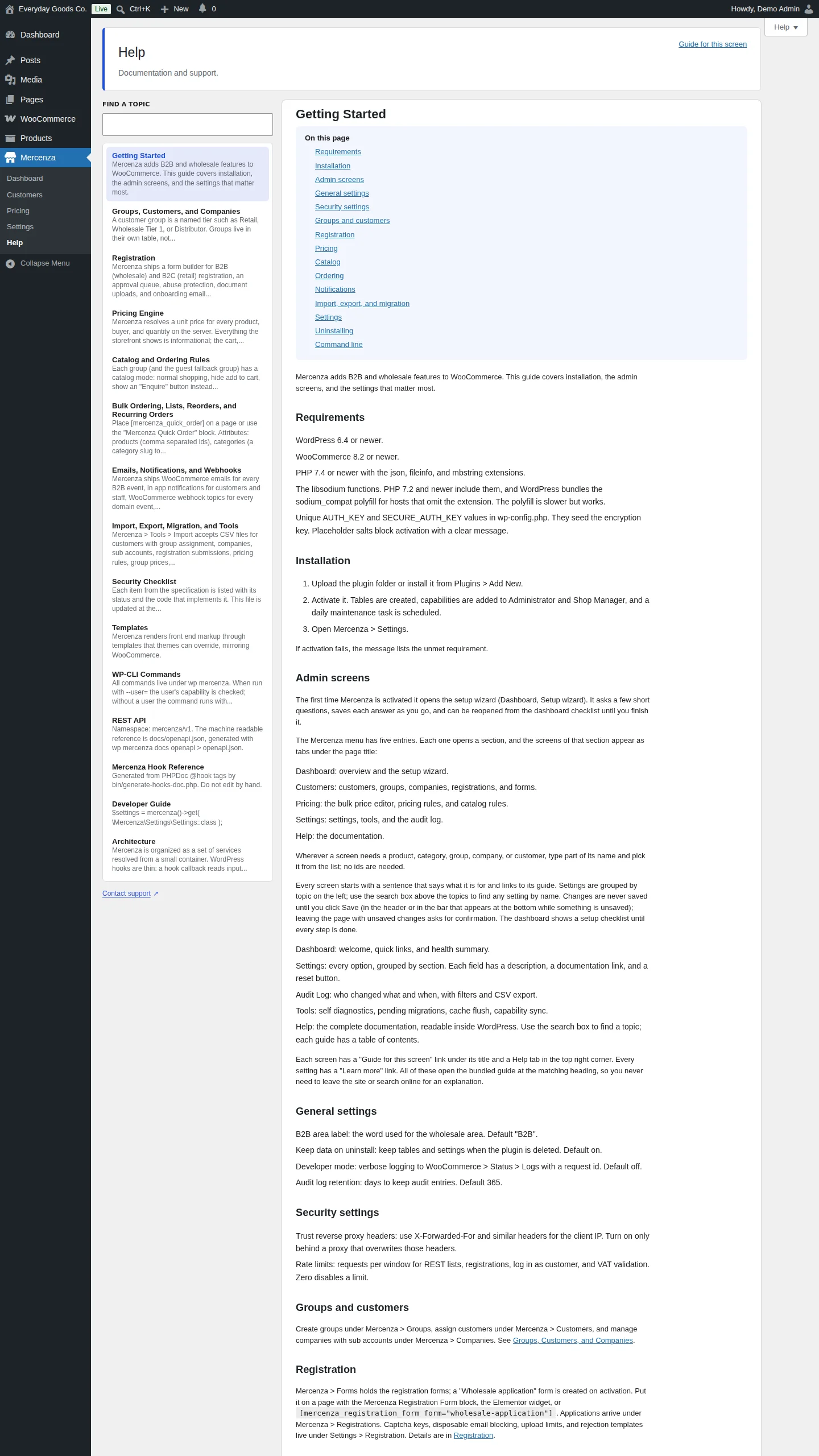
Mercenza > Help holds the complete documentation inside WordPress. Use FIND A TOPIC to search, and each guide has its own table of contents. Topics include Getting Started, Groups, Customers, and Companies, Registration, Pricing Engine, Catalog and Ordering Rules, Bulk Ordering, Lists, Reorders, and Recurring Orders, Emails, Notifications, and Webhooks, Import, Export, Migration, and Tools, Templates, WP-CLI Commands and the REST API.
Every screen also has a Guide for this screen link and a Help tab in the top right corner, and every setting has a Learn more link that opens the matching guide.
#Emails
Every Mercenza email is a WooCommerce email. Find them under WooCommerce > Settings > Emails with names starting with "Mercenza:". They cover: registration received, new application (for the store team), registration approved, registration rejected, account already exists, onboarding steps, group changed, sub account invited, sub account permissions changed, and price change.
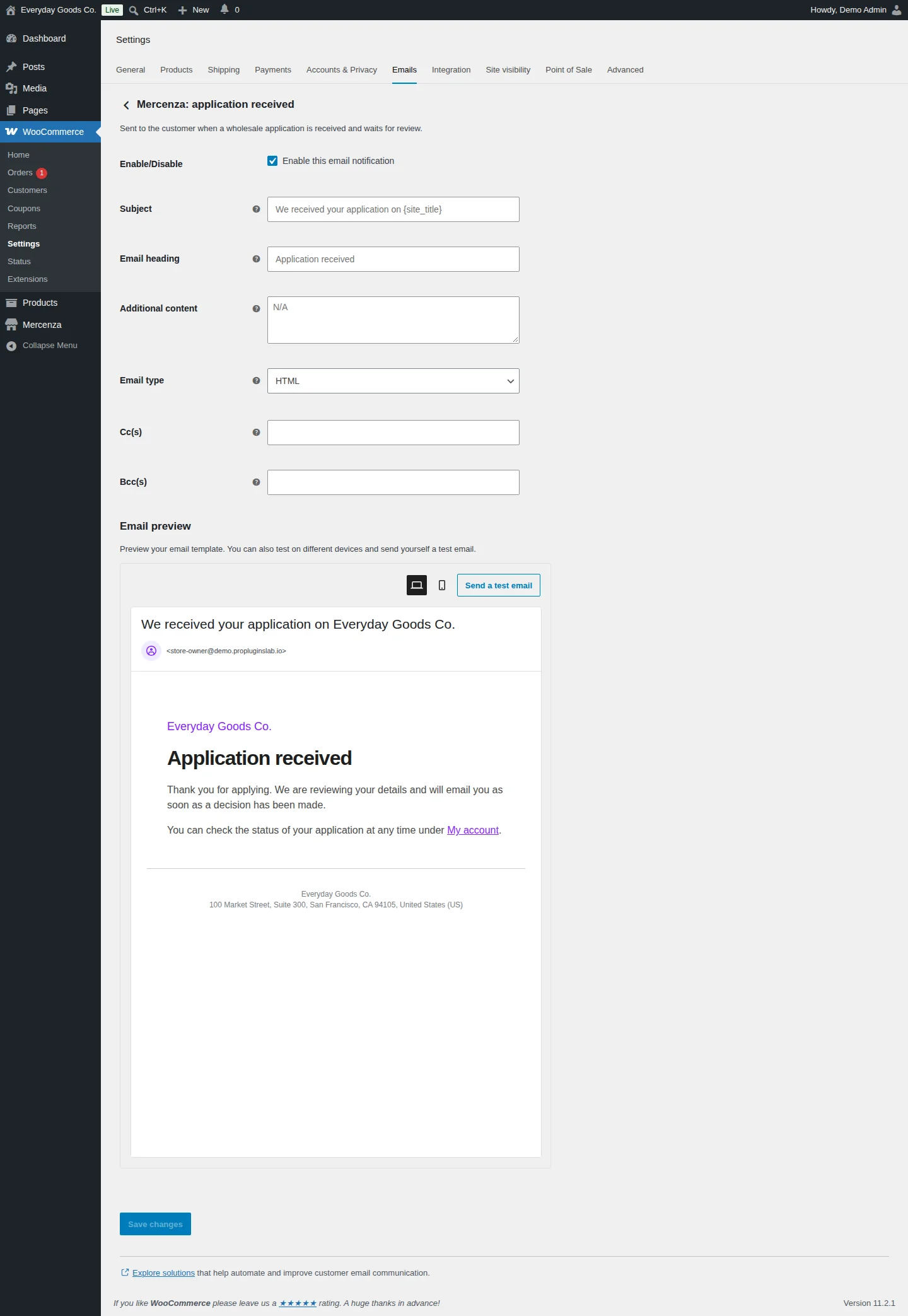
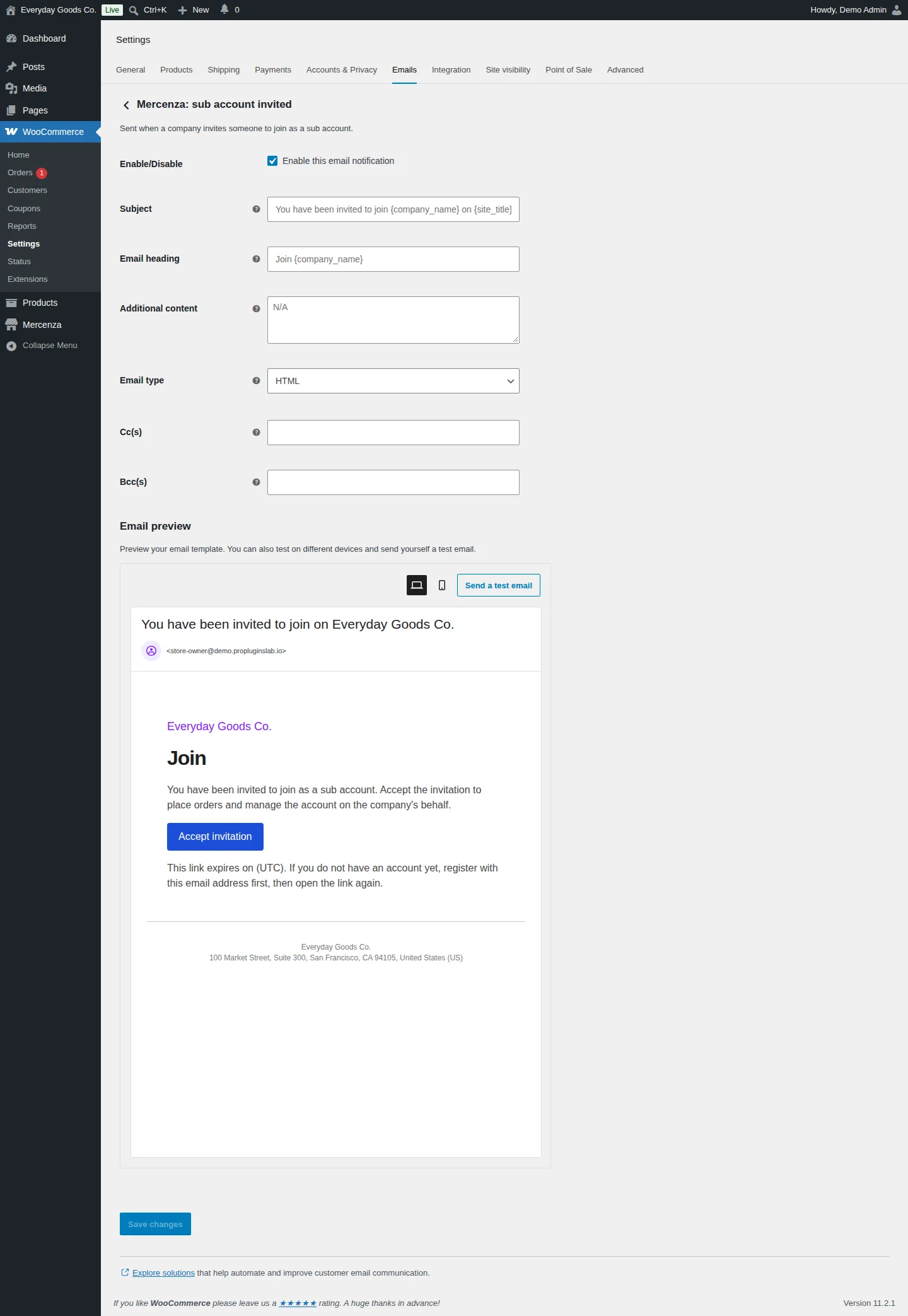
Each email has the standard fields: Enable/Disable, Subject, Email heading, Additional content, Email type (Plain text, HTML or Multipart), Cc(s) and Bcc(s). The Email preview shows the email, and Send a test email sends it to you.
- Mercenza: application received is sent to the customer when a wholesale application is received and waits for review.
- Mercenza: sub account invited is sent when a company invites someone to join as a sub account. It contains an Accept invitation button and the link's expiry date.
When someone registers with an email that already has an account, they see the same success message as a new applicant, and the account holder receives the "account already exists" email instead. To change the layout, copy the template files to yourtheme/mercenza/emails/.
#Quick order form
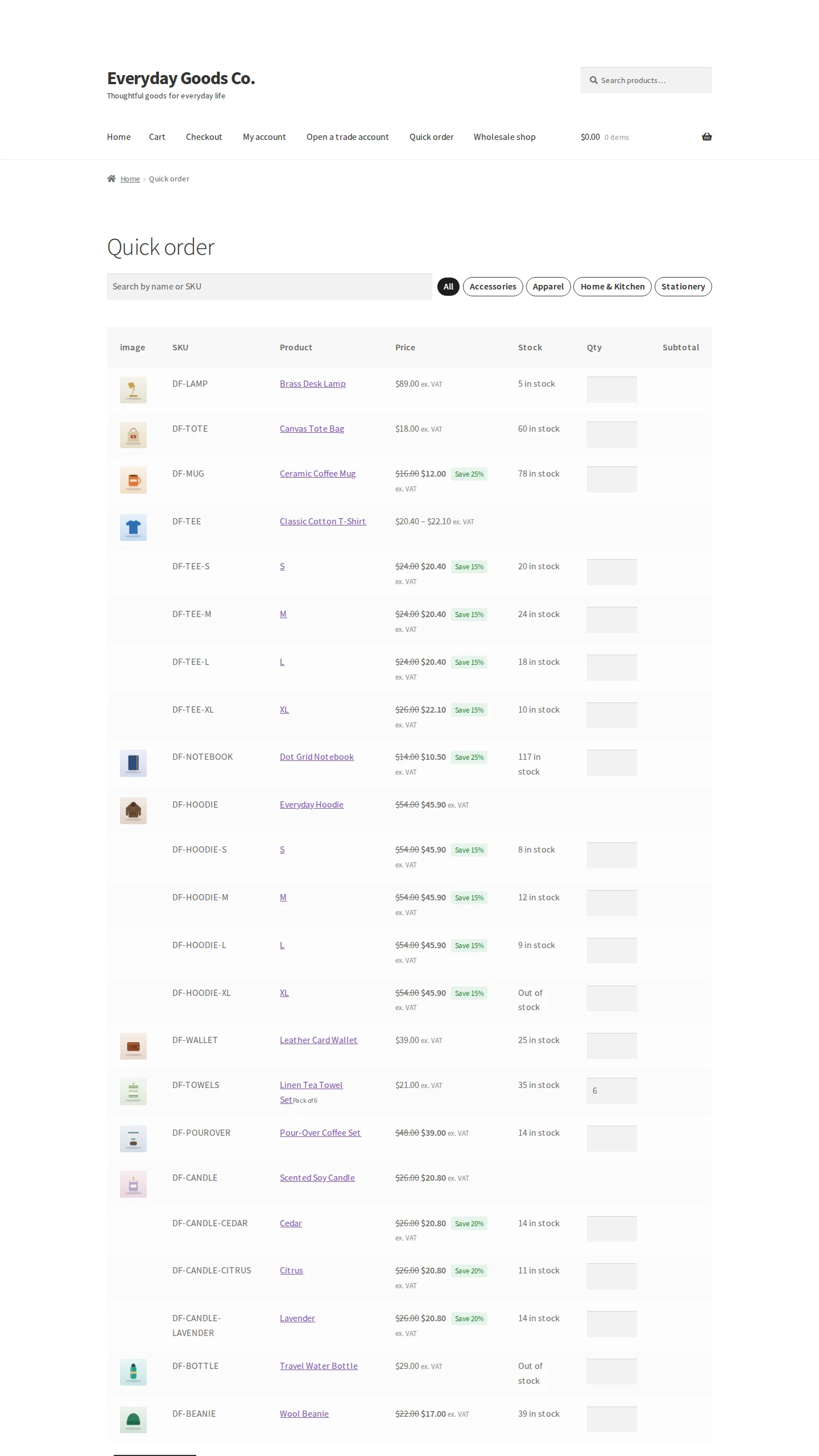
The quick order form lets buyers add many products at once. Place [mercenza_quick_order] or the Mercenza Quick Order block on a page. It is also available under My Account > B2B > Quick order.
- The table lists only products the buyer may see, with their price, stock text and quantity rules. Variations appear on their own rows.
- Buyers search by name or SKU, filter by category, type quantities and click Add all to cart. Hidden, unavailable and off rule quantities are refused with the same messages as the product page.
- SKU quick entry: paste lines like
ABC-123, 12(comma, semicolon, tab or space separated, up to 500 lines) or upload a CSV. Duplicate SKUs are merged and unknown SKUs are reported. - Barcode: on browsers that support it, "Start camera" scans with the device camera. Other browsers get a plain code input. Settings > Ordering decides which product field the code matches.
- Save quantities to a list saves the entered quantities to a shopping list.
Guests can use the form only when Allow guests to use the quick order form is on. On phones, rows collapse into a two column grid.
#Wholesale shop page
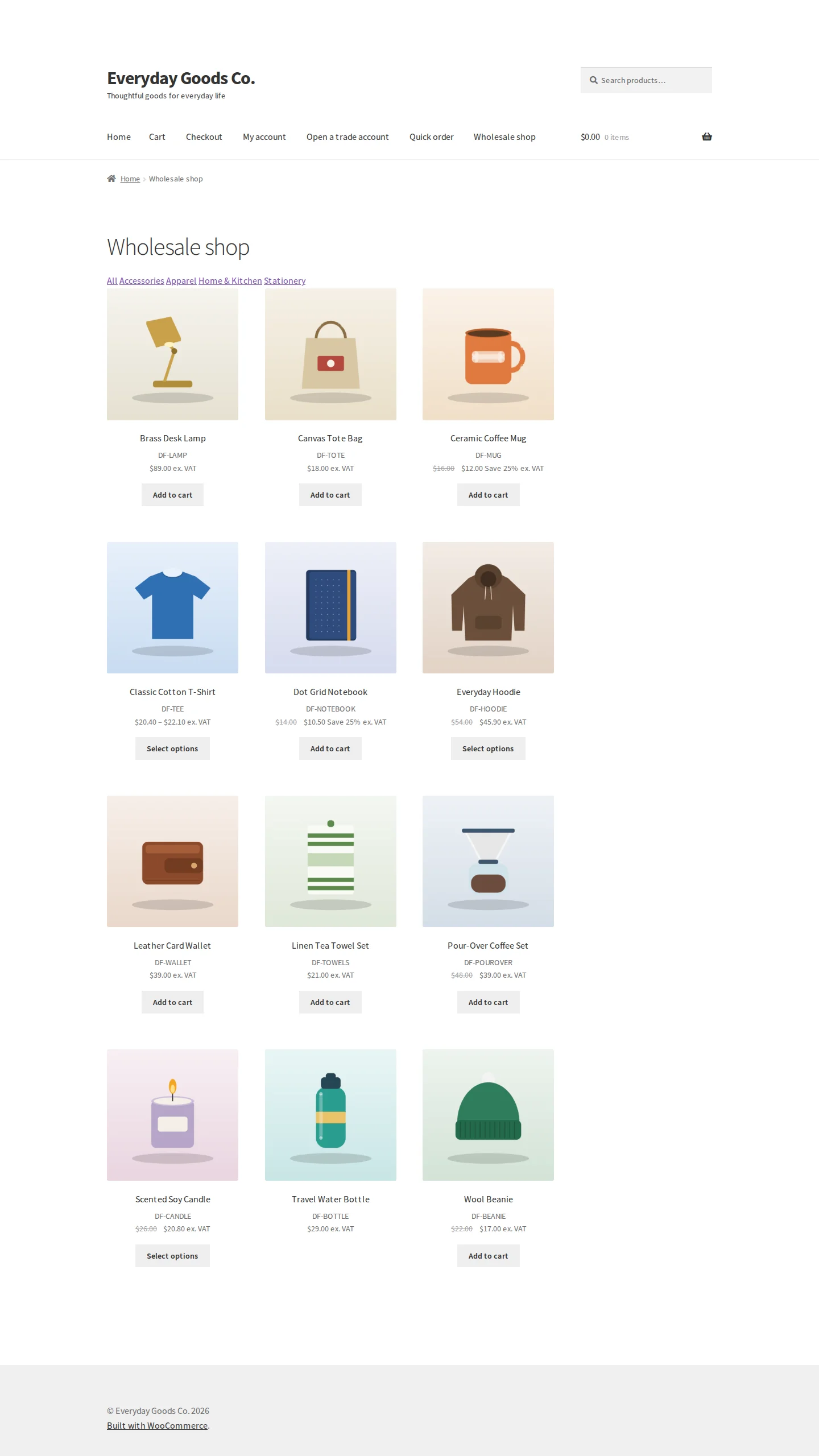
The [mercenza_shop] shortcode shows a separate wholesale shop: the products the buyer may see, category links, the buyer's prices and pagination.
- Create a page, for example "Wholesale shop", and add
[mercenza_shop]. - Publish it and note its page id.
- Enter the id in Settings > Catalog > Wholesale shop page and save.
Wholesale members are then offered this page instead of the retail shop, for example when they return from an empty cart.
#B2B area in My Account
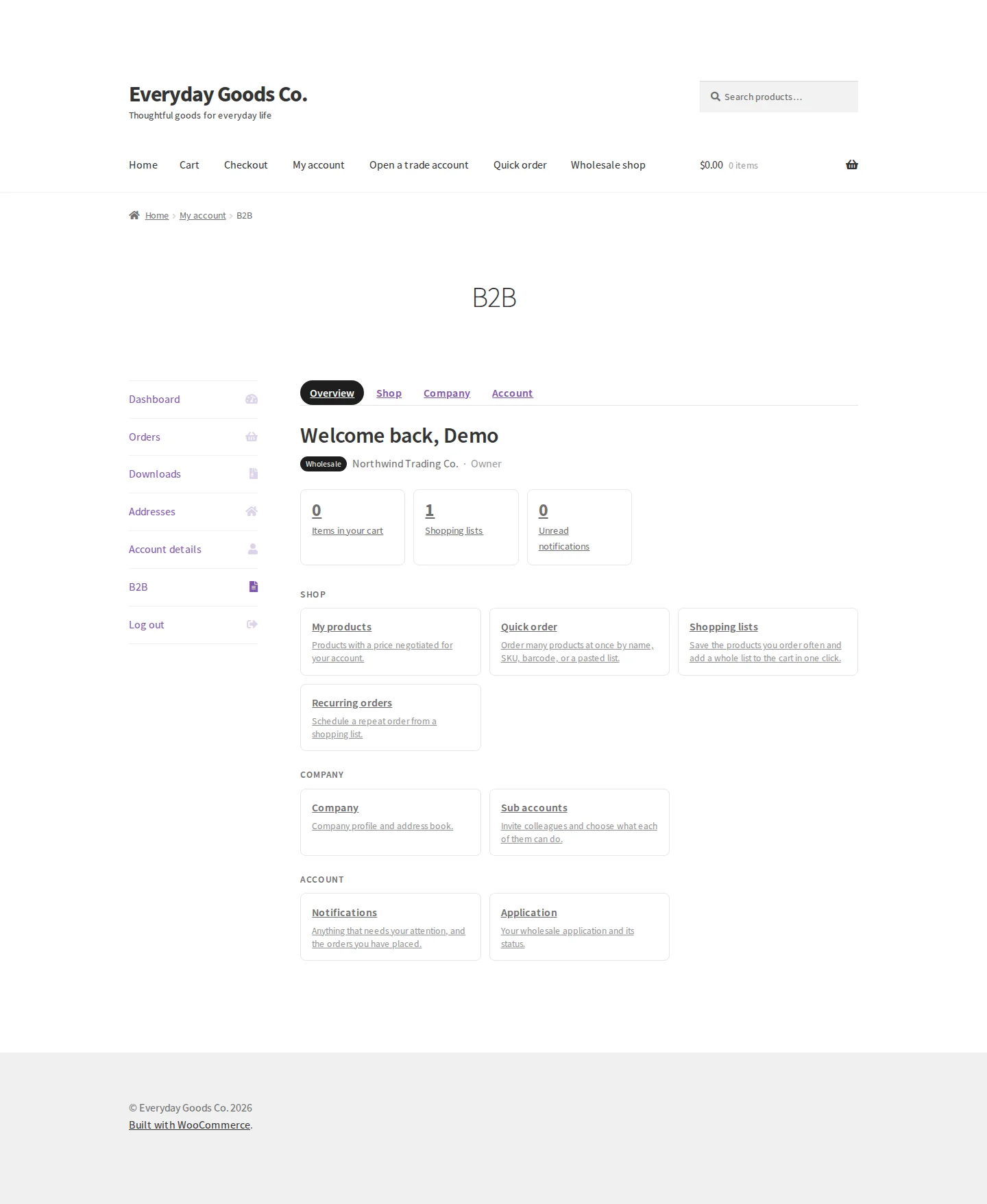
Approved buyers get a B2B tab in My Account (the label comes from B2B area label). It follows your theme and has four parts: Overview, Shop, Company and Account.
- Overview: a welcome with the buyer's group, company and role, plus counts of items in the cart, shopping lists and unread notifications. A "Frequently purchased" panel appears when reorder actions are on.
- Shop: My products (products with a price negotiated for the account), Quick order, Shopping lists and Recurring orders.
- Company: Company (profile and address book) and Sub accounts (invite colleagues and choose what each can do).
- Account: Notifications and Application (the wholesale application and its status).
Shopping lists can be private or shared with the company. A list goes into the cart in one click. Recurring orders (for groups with Allow recurring orders) schedule repeat orders from a list weekly, every two weeks, monthly or every N days. The daily maintenance task creates each due order at the customer's current prices, sets it to pending payment and emails the invoice. Schedules can be paused, resumed or deleted.
To change the look, copy any file from the plugin's templates folder to yourtheme/mercenza/ and edit the copy.
Settings reference
Mercenza > Settings > General
| Setting | Type | Default | What it does |
|---|---|---|---|
| B2B area label | text | B2B |
Name shown for the wholesale area in My Account and in the admin menu badges. |
| Keep data on uninstall | checkbox | on |
When enabled, deleting the plugin keeps its tables, settings and customer data so it can be reinstalled later. |
| Developer mode | checkbox | off |
Writes detailed logs with a request id to WooCommerce > Status > Logs under the "mercenza" source. Turn off on production stores. |
| Audit log retention (days) | number | 365 |
Audit entries older than this are deleted by the daily maintenance task. Between 30 and 3650 days. |
Mercenza > Settings > Pricing
| Setting | Type | Default | What it does |
|---|---|---|---|
| Price source order | text | customer, company, group, group_discount, category, global, regular |
Comma separated, highest priority first. Unknown entries are ignored and missing ones are added at the end. |
| BASE PRICE FOR DISCOUNTS | select | Regular price |
Whether percentage and fixed discounts start from the regular price or from an active sale price (Sale price when set). |
| COUPONS WITH WHOLESALE PRICES | select | Allow coupons on wholesale prices |
Allow coupons on wholesale prices, Block coupons for wholesale customers, or Apply coupons to the retail price only. Applies to customers in a group. |
| Show tier table on product pages | checkbox | on |
Lists quantity tiers with the active tier highlighted and a nudge toward the next tier. |
| Email customers about price changes | checkbox | off |
When a group price changes, customers in that group who bought the product receive one email per product, batched a few minutes after the change. |
| Price cache lifetime (minutes) | number | 10 |
How long resolved prices are cached per product (1 to 1440). The cache is cleared when prices, rules, groups or products change. |
| CSV import row limit | number | 50000 |
Maximum rows accepted per import file. |
Mercenza > Settings > Catalog
| Setting | Type | Default | What it does |
|---|---|---|---|
| Require login to view the store | checkbox | off |
Visitors who are not logged in are sent to the login page except on the allowed pages. |
| Pages allowed without login | text | - | Comma separated page ids. The login, registration, privacy and terms pages are always allowed. |
| Enquiry link | url | - | Where the "Enquire" button points for groups in enquiry catalog mode. Empty uses the My Account application page. |
| Wholesale shop page | number | 0 |
Id of the page holding the [mercenza_shop] shortcode. Wholesale members are offered it instead of the retail shop. |
| HIDDEN PRODUCT BEHAVIOR | select | Not found (404) |
What happens when a buyer opens a product hidden from them: Not found (404) or Redirect to the shop page. |
Mercenza > Settings > Ordering
| Setting | Type | Default | What it does |
|---|---|---|---|
| Quick order rows per page | number | 25 |
How many products the quick order table loads at a time (5 to 200). |
| Allow guests to use the quick order form | checkbox | off |
When off, visitors are asked to log in first. |
| BARCODE LOOKUP FIELD | select | GTIN, UPC, EAN, or ISBN field |
Which product field a scanned or typed barcode matches: GTIN, UPC, EAN, or ISBN field, SKU, or GTIN first, then SKU. |
| Show "Add to list" on product pages | checkbox | on |
Logged in buyers can save a product to a shopping list from its page. Lists stay available in My Account when off. |
| Show reorder actions | checkbox | on |
Adds a Reorder button to past orders and a frequently purchased panel to My Account. |
| RECURRING ORDER PAYMENT | select | Create a pending order and email a payment link |
How scheduled orders are paid. |
Mercenza > Settings > Notifications
| Setting | Type | Default | What it does |
|---|---|---|---|
| In app notifications | checkbox | on |
Show a notification bell in My Account and in the admin bar. |
| Keep notifications for (days) | number | 90 |
Older notifications are deleted by the daily maintenance pass (7 to 3650 days). |
| Slack incoming webhook URL | password | - | Create an incoming webhook in Slack and paste its URL. Stored encrypted. |
| Microsoft Teams incoming webhook URL | password | - | Create an incoming webhook (workflow) in Teams and paste its URL. Stored encrypted. |
| New B2B registration | checkbox | on |
Under Events sent to Slack and Teams. Only the selected events are posted to the channels. |
Mercenza > Settings > Security
| Setting | Type | Default | What it does |
|---|---|---|---|
| Trust reverse proxy headers | checkbox | off |
Use X-Forwarded-For, CF-Connecting-IP or X-Real-IP to identify visitors. Enable only behind a trusted proxy that overwrites these headers on every request. |
| REST list requests per minute | number | 120 |
Maximum list requests one user or IP may make to Mercenza REST endpoints per minute. 0 disables the limit. |
| Registration attempts per hour per IP | number | 10 |
Maximum B2B registration submissions from one IP address per hour. 0 disables the limit. |
| Log in as customer attempts per hour | number | 30 |
Maximum impersonation attempts per admin user per hour. 0 disables the limit. |
| VAT validation calls per hour per IP | number | 30 |
Maximum live VAT number validation calls from one IP address per hour. 0 disables the limit. |
Mercenza > Settings > Registration
| Setting | Type | Default | What it does |
|---|---|---|---|
| CAPTCHA PROVIDER | select | None (honeypot and timing only) |
Adds a bot check to registration forms: None (honeypot and timing only), Google reCAPTCHA v3, hCaptcha or Cloudflare Turnstile. |
| Captcha site key | text | - | Public key from the provider dashboard. |
| Captcha secret key | password | - | Stored encrypted. Never shown again after saving. |
| reCAPTCHA v3 minimum score | number | 0.5 |
Between 0 and 1. Submissions scoring below this are refused. Used with Google reCAPTCHA v3. |
| Check VAT numbers online | checkbox | off |
Sends the country code and VAT number to VIES (EU) or HMRC (UK) to confirm it is registered. When off, nothing leaves your site. |
| Block disposable email domains | checkbox | on |
Refuses registrations from known throwaway email providers. Individual forms can allow them. |
| Additional blocked domains | textarea | - | One domain per line, added to the bundled list. |
| Always allowed domains | textarea | - | One domain per line. Overrides the block list. |
| Maximum upload size (MB) | number | 10 |
Applies to registration documents unless a field sets its own limit. |
| Allowed upload extensions | text | pdf,jpg,jpeg,png,doc,docx |
Comma separated. Executable and script types are never allowed. |
| Delete rejected accounts after (days) | number | 30 |
Accounts created by a rejected application are removed after this period unless approved later or they placed an order. 0 keeps them. |
| Block login until approved (default) | checkbox | off |
Default for forms that do not set their own login gate. |
| Rejection reason templates | textarea | We could not verify your business details. We do not currently serve your region. Your business type does not match our wholesale program. |
One reason per line, offered when declining an application. |
Mercenza > Pricing > Bulk editor (Apply to every product on this page)
| Setting | Type | Default | What it does |
|---|---|---|---|
| GROUP | select | - | The group whose prices you change. |
| SET AS | select | - | Price, % off retail or Amount off retail. |
| PERCENT | text | - | Shows when SET AS is % off retail. The percentage taken off each retail price. |
| AMOUNT | text | - | Shows when SET AS is Price (the fixed price) or Amount off retail (the amount taken off each retail price). |
WooCommerce > Settings > Emails > Mercenza: application received
| Setting | Type | Default | What it does |
|---|---|---|---|
| Enable/Disable | checkbox | on |
Sends this email to the customer when a wholesale application is received and waits for review. |
| Subject | text | - | Leave empty to use "We received your application on {site_title}". |
| Email heading | text | - | Leave empty to use "Application received". |
| Additional content | textarea | - | Text shown below the main email content. |
| Email type | select | HTML |
Plain text, HTML or Multipart. |
| Cc(s) | text | - | Extra recipients in copy. |
| Bcc(s) | text | - | Extra recipients in blind copy. |
WooCommerce > Settings > Emails > Mercenza: sub account invited
| Setting | Type | Default | What it does |
|---|---|---|---|
| Enable/Disable | checkbox | on |
Sends this email when a company invites someone to join as a sub account. |
| Subject | text | - | Leave empty to use "You have been invited to join {company_name} on {site_title}". |
| Email heading | text | - | Leave empty to use "Join {company_name}". |
| Additional content | textarea | - | Text shown below the main email content. |
| Email type | select | HTML |
Plain text, HTML or Multipart. |
| Cc(s) | text | - | Extra recipients in copy. |
| Bcc(s) | text | - | Extra recipients in blind copy. |
Shortcodes
[mercenza_registration_form]
Shows a registration (trade account application) form. Logged in customers who already have an application see its status instead. You can also use the Mercenza Registration Form block.
[mercenza_registration_form form="wholesale-application"]| Attribute | Default | Description |
|---|---|---|
form | The slug of the form from Mercenza > Customers > Forms. When empty or not found, the first active B2B form is used. |
[mercenza_quick_order]
Shows the quick order table where buyers add many products at once by name, SKU, barcode or a pasted list. You can also use the Mercenza Quick Order block.
[mercenza_quick_order categories="stationery" columns="sku,name,price,stock,quantity,subtotal" barcode="no"]| Attribute | Default | Description |
|---|---|---|
products | Comma separated product ids to limit the table to. | |
categories | A category slug to lock the table to. Otherwise category tabs appear. | |
columns | image,sku,name,price,stock,quantity,subtotal | Columns to show, any of image, sku, name, price, stock, quantity, subtotal. |
layout | table | table or compact. |
per_page | 0 | Rows per page. |
sku_entry | yes | Show the SKU quick entry box: yes or no. |
barcode | yes | Show barcode entry: yes or no. |
[mercenza_shop]
Shows the wholesale shop: visible products with category links, the buyer's prices and pagination. Set the page in Settings > Catalog > Wholesale shop page.
[mercenza_shop per_page="12" columns="3"]| Attribute | Default | Description |
|---|---|---|
category | A category slug to start on. | |
per_page | 24 | Products per page. |
columns | 4 | Number of columns. |
On your site
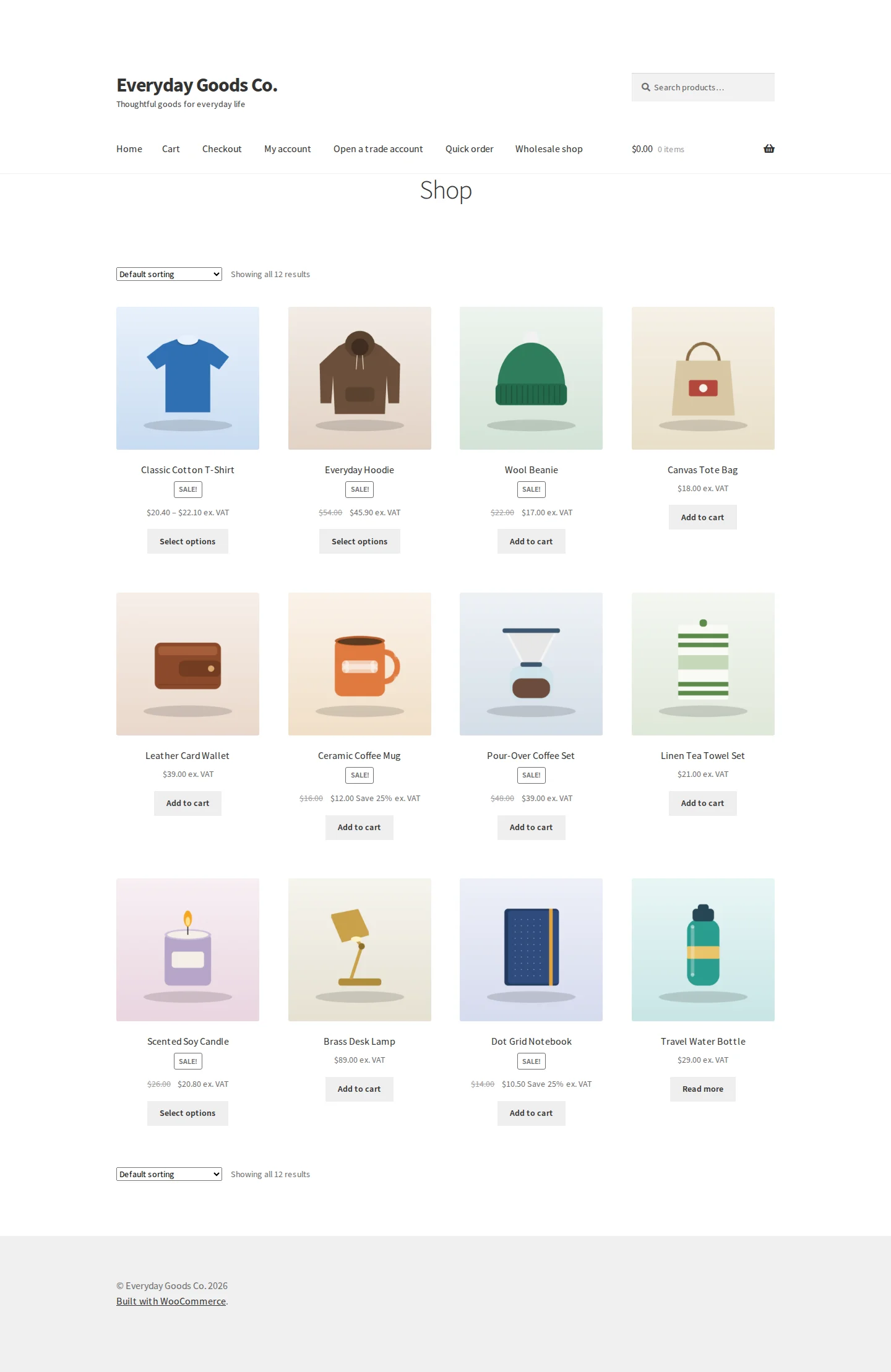
Shoppers who are not in a group see your normal store. Approved wholesale buyers see their own prices everywhere: in the shop, on product pages, in the cart and at checkout.
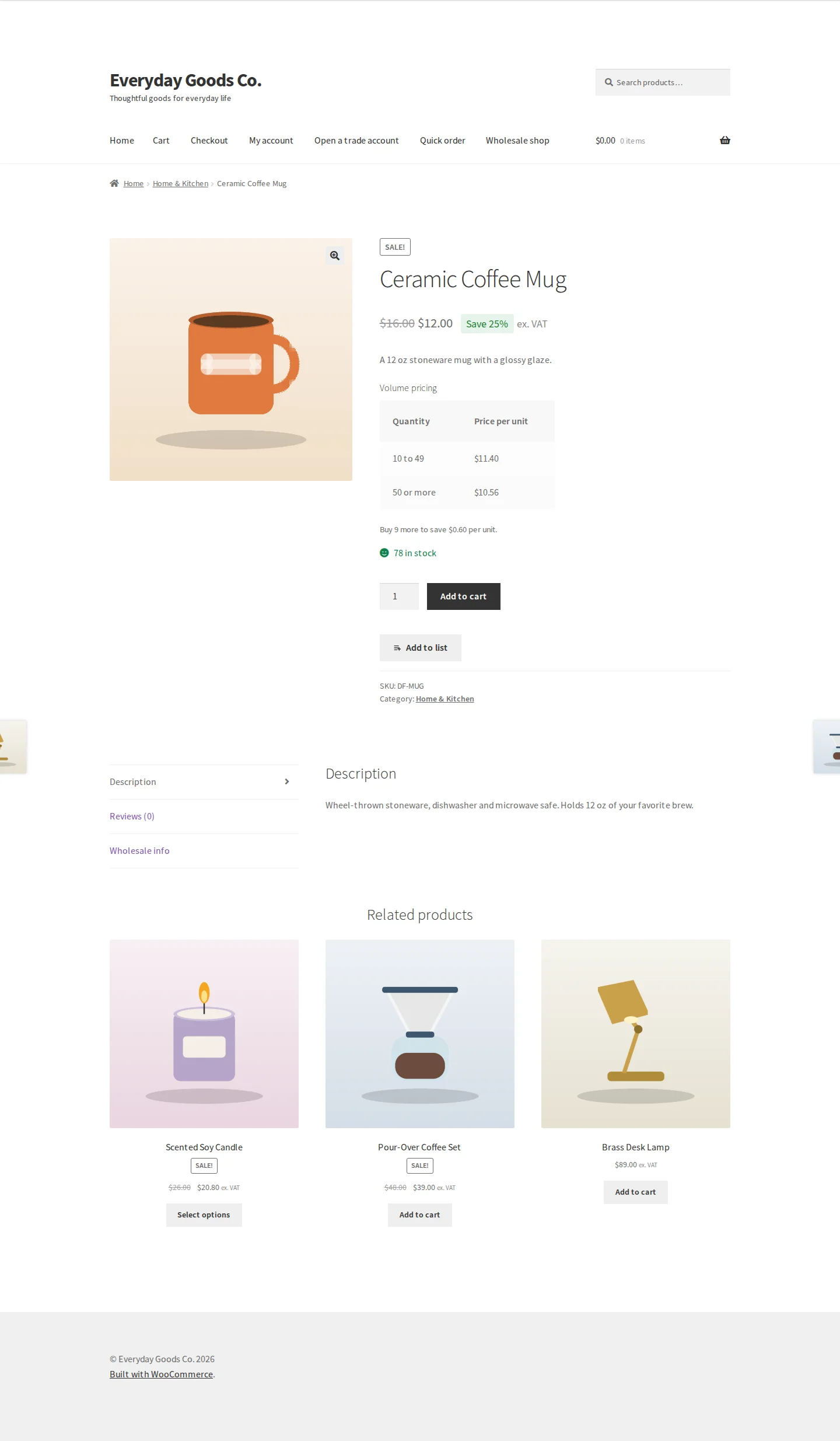
- Shop and product pages: depending on the group's Price display, buyers see the wholesale price only, the retail price struck through, a savings percentage (for example "Save 25%"), "Login to see prices", or no price. A Price suffix such as "ex VAT" can follow the price.
- Volume pricing: product pages with quantity tiers show a table of quantities and unit prices, with a hint such as "Buy 9 more to save" that follows the quantity.
- Add to list: logged in buyers can save a product to a shopping list.
- Wholesale info: products with lead time, case dimensions and weight, HS code, country of origin or custom fields show a Wholesale info tab.
- Packs and limits: products with a pack size show "Sold in packs of X (price per pack)". Minimums, maximums and steps are checked in the cart.
- Catalog modes: groups in hide cart or enquiry mode cannot add to cart (enquiry mode shows an "Enquire" button), and read only groups are sent back from the cart and checkout.
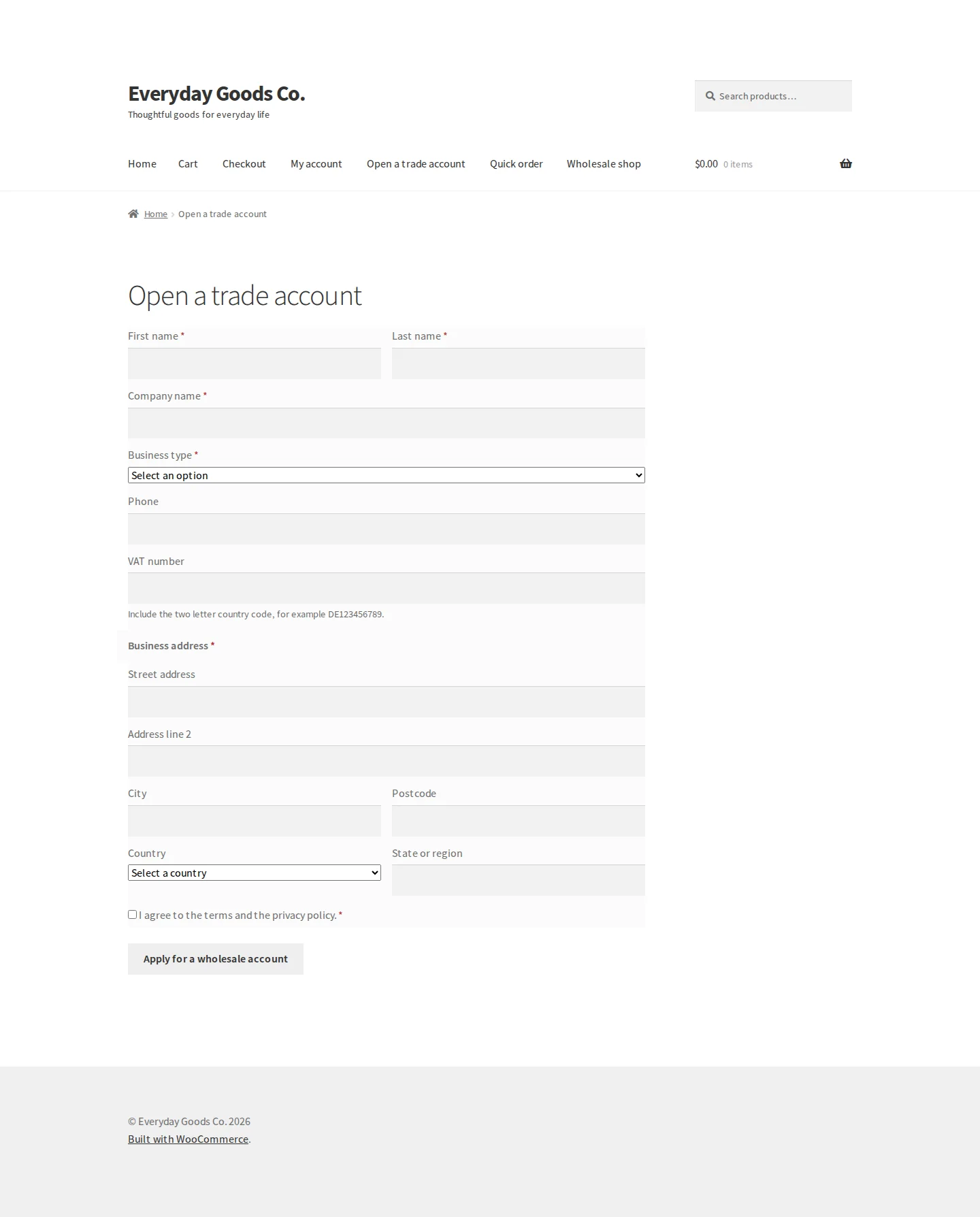
- Trade account application: the registration form collects the details you configure, for example name, company, business type, VAT number (with the two letter country code), business address and a consent checkbox. After submitting, the applicant sees a confirmation and can follow the status in My Account.
Frequently asked questions
Do retail customers see wholesale prices?
No. A price belongs to a group, and a visitor who is not in a group sees your normal WooCommerce price.
Can I hide products or a whole category from retail customers?
Yes. Set the audience on a product in its Mercenza tab, or on a product category when you edit it (Mercenza audience). You can also add visibility rules under Mercenza > Pricing > Catalog. Wholesale only products disappear from the shop, search, feeds and the API for everyone else, and their links return a 404 (or redirect to the shop, if you choose that in Settings > Catalog).
Which price wins when a customer is in two groups or has several prices?
The most specific one: a price for that customer beats a company price, which beats a group price, and a nearer group beats a parent group. You can change the order in Settings > Pricing > Price source order. The Inspector on the Pricing screen shows the decision for any product and customer.
Does it work with variable products?
Yes. Prices and tiers can be set per variation, and variations get their own rows in the bulk editor and the quick order form.
Can I import existing wholesale prices or move from another wholesale plugin?
Yes. Mercenza > Settings > Tools > Import has CSV importers for customers, companies, sub accounts, applications, group prices, customer prices, tiers and pricing rules, each with a dry run and an error report. Tools > Migrate moves groups, customer assignments and fixed product prices from B2BKing, Wholesale Suite, WholesaleX and Whols, with a rollback point. Tiers and dynamic rules from other plugins are not migrated.
Which captcha services can I use on the registration form?
Google reCAPTCHA v3, hCaptcha and Cloudflare Turnstile. Each needs a site key and a secret key from the provider's dashboard, entered under Settings > Registration. Without a provider, forms are still protected by a honeypot field and a timing check.
Are VAT numbers checked automatically?
Only if you turn on Settings > Registration > Check VAT numbers online. EU numbers are then checked with the European Commission's VIES service and UK numbers with HMRC, and the result is stored with the application. When the setting is off, nothing is sent and you review VAT numbers manually. Numbers from Australia, New Zealand, the United States, India and Canada are checked for the right format on your own site.
Does Mercenza send data to outside services?
Only for features you turn on: online VAT checks (VIES and HMRC), a captcha provider, and Slack or Microsoft Teams webhooks. Each is off until you set it up, and no usage data is collected.
Can buyers order by SKU or barcode?
Yes. The quick order form accepts a search by name or SKU, a pasted list of SKU, quantity lines (up to 500) or a CSV, and barcodes typed in or scanned with the device camera on browsers that support it.
Is it compatible with High-Performance Order Storage and the block checkout?
Yes. Mercenza works with HPOS (custom order tables) and with the Cart and Checkout blocks.
How do I change the look of the B2B pages?
Copy any file from the plugin's templates folder to yourtheme/mercenza/ and edit the copy. The Diagnostics tab warns you when an override becomes outdated.
What happens if I install Mercenza Pro later?
Pro is a separate plugin that uses the same settings and data. While Pro is active, the free plugin stays idle and shows a notice, so you can deactivate it yourself. Nothing is deactivated for you.
Troubleshooting
- Activation fails with "Mercenza requires WooCommerce to be installed and active."
Install and activate WooCommerce 8.2 or later first, then activate Mercenza again. Similar messages name other unmet requirements, such as the PHP, WordPress or WooCommerce version, or a missing PHP extension.
- Activation fails with "Mercenza requires a unique AUTH_KEY value in wp-config.php. It seeds the key that protects sensitive data."
Your wp-config.php still has placeholder salts. Replace AUTH_KEY and SECURE_AUTH_KEY with unique random values, then activate again. Once Mercenza is in use, changing these keys requires the key rotation command first, as the Encryption key check on the dashboard explains.
- The registration page shows "Mercenza: no active registration form found. Create one under Mercenza > Forms."
The shortcode points to a form slug that does not exist, or the form is not active. Open Mercenza > Customers > Forms, check the slug in the Shortcode column and make sure the form is active. Only administrators see this message. Visitors see nothing.
- Applicants see "Please use a permanent business email address."
The email domain is on the disposable email list. If the domain is legitimate, add it to Settings > Registration > Always allowed domains, or allow disposable domains on that form. To block more domains, add them to Additional blocked domains.
- Applicants see "Too many attempts from your network. Please try again later."
The Registration attempts per hour per IP limit was reached. Raise it under Settings > Security. If your site runs behind Cloudflare or a load balancer, all visitors may appear to share one IP: turn on Trust reverse proxy headers only if the proxy overwrites those headers on every request.
- Applicants see "The security check could not be verified. Please try again." or "The security check failed. Please try again."
Check that CAPTCHA PROVIDER matches the keys you entered, and that Captcha site key and Captcha secret key come from the same provider and site. For reCAPTCHA v3, a too high reCAPTCHA v3 minimum score can refuse real people. Try a lower value such as 0.5.
- The VAT field says "The VAT validation service is not available right now." or "Live validation is not available for this country. The number will be reviewed manually."
The VIES or HMRC service did not answer, or the country has no live check. The application is still saved and the number is reviewed manually in Mercenza > Customers > Registrations. Also check that Check VAT numbers online is on and that VAT validation calls per hour per IP is not set too low.
- The quick order page shows "Please log in to use quick ordering."
Guests cannot use the form by default. Ask buyers to log in, or turn on Settings > Ordering > Allow guests to use the quick order form.
- A wholesale buyer sees the retail price or an unexpected price
Open Mercenza > Pricing > Inspector, pick the product and the customer, and click Inspect to see which source and rules produced the price. Check that the customer is in an active group on the Customers screen. If the page is cached by a page cache plugin, exclude logged in users and pages with Mercenza shortcodes from the cache. After large changes, click Flush Mercenza caches under Tools > Diagnostics.
- An approved customer cannot log in and sees "Your account is waiting for approval. You will receive an email once it has been reviewed."
The application is still pending and login is blocked until approval, either by the form's own setting or by Block login until approved (default). Approve the application under Mercenza > Customers > Registrations, or change the login setting on the form.
- The admin shows "Mercenza Pro is active, so the free Mercenza plugin is not running. Pro uses the same settings and data, so you can deactivate the free plugin on the Plugins screen."
This is expected. Pro replaces the free plugin and keeps your data. Deactivate the free plugin on the Plugins screen.
Free vs Pro
Mercenza Free vs Pro
The free plugin already covers customer groups, wholesale prices and tiers, catalog and quantity rules, trade registration, company accounts and quick ordering. Pro adds quotes, net terms and invoices, company approvals, B2B tax and shipping, sales reps with reports and plugin integrations.
23 of 30 features in Free7 more with Pro
| Feature | Free | Pro |
|---|---|---|
| Customers and companies | ||
| Customer groups with inheritance and role sync | Included | Included |
| Automatic group assignment rules | Included | Included |
| Onboarding emails after approval into a group | Included | Included |
| Company accounts with member roles and sub accounts | Included | Included |
| Log in as a customer to check their view | Included | Included |
| Trade registration | ||
| Registration form builder with conditions and steps | Included | Included |
| Approval queue with bulk approve and reject | Included | Included |
| Captcha and disposable email blocking | Included | Included |
| Pricing and catalog | ||
| Group prices with a bulk price editor | Included | Included |
| Quantity tier pricing with product page table | Included | Included |
| Dynamic pricing rules such as buy X get Y | Included | Included |
| Price inspector showing how a price was calculated | Included | Included |
| Hide products and require login to browse | Included | Included |
| Minimum, maximum, step and pack size rules | Included | Included |
| Ordering | ||
| Quick order form by SKU, barcode or pasted list | Included | Included |
| Shopping lists and one click reorders | Included | Included |
| Recurring orders on a schedule | Included | Included |
| Tools and notifications | ||
| CSV import, export and migration from other plugins | Included | Included |
| Audit log of approvals, prices and settings | Included | Included |
| Slack and Microsoft Teams notifications Free posts only the New B2B registration event. | Limited | Included |
| Integrations with page builders, currency and translation plugins | Not included | Included |
| Quotes, payments, tax and shipping | ||
| Quotes with negotiation, counter offers and PDF | Not included | Included |
| Net terms, purchase orders, invoices and store credit | Not included | Included |
| Tax exemption certificates, VAT checks and reverse charge Free checks VAT numbers on trade applications only. No exemption certificates or reverse charge. | Limited | Included |
| Shipping rules, freight and pickup slots | Not included | Included |
| Approvals, sales team and reports | ||
| Company approvals and spending limits Free has a per member order limit that blocks larger orders. No approval chains or approval thresholds. | Limited | Included |
| Sales reps, commissions and B2B reports Free dashboard shows 30 day wholesale revenue and top customers only. No sales reps, commissions or full reports. | Limited | Included |
| Buyer price lists in CSV or PDF | Not included | Included |
| Dormant account detection and winback emails | Not included | Included |
| Import phone and email orders from CSV | Not included | Included |
Upgrade
Upgrade to Mercenza - B2B for WooCommerce
The free edition is complete and nothing in it is locked. Mercenza - B2B for WooCommerce (Pro) is a separate plugin that uses the same settings and data, and adds these features on top:
- Quotes with negotiation, counter offers and PDF
- Net terms, purchase orders, invoices and store credit
- Company approvals and spending limits
- Tax exemption certificates, VAT checks and reverse charge
- Shipping rules, freight and pickup slots
- Sales reps, commissions and B2B reports