
Overview
Presentero lets you sell gift cards as a WooCommerce product and accept them as payment at the cart and checkout. When someone buys a card, Presentero creates it once the order is paid and emails the code to the recipient. The recipient enters the code at the cart or checkout. The amount comes off the order total, and anything left stays on the card for next time.
A gift card is a way to pay, not a discount. Presentero takes the card amount off the final total after tax has been worked out, so your tax reports stay correct.
The Pro edition includes everything in the free plugin. It adds physical cards, scheduled delivery, several recipients per purchase, customer photo designs, discounted cards, top ups, expiry reminders, PIN protection, transfers, usage limits, store credit refunds, bulk generation, import and export, automations, reports, printable cards and a REST API. It is for store owners who want to sell gift cards, reward customers with store credit and track every balance from one place.
Requirements
- WordPress 6.5 or later
- PHP 7.4 or later
- WooCommerce 8.0 or later (required plugin)
- Tested up to WordPress 7.1
Installation
Presentero Pro needs WooCommerce. Install and activate WooCommerce first. You do not need the free edition of Presentero. If the free edition is active, Pro switches it off for you and keeps the same cards, designs and settings, so you have nothing to move.
Log in to your ProPluginsLab account and open My Account > Downloads.
Download the Presentero - Gift Cards for WooCommerce Pro zip file.
In WordPress, go to Plugins > Add New > Upload Plugin, choose the zip file and click Install Now.
Click Activate to activate Presentero - Gift Cards for WooCommerce Pro. If the free edition is active, it is switched off automatically.
Open Presentero > Settings and review the tabs, including Delivery, Personalise, Notifications, Security, Usage limits and Extras.
Every option is explained under Presentero > Documentation.
Quick start
- Create a gift card product
Open Presentero > Dashboard and click Create a gift card product. A draft product opens with the Gift card product type already chosen. You can also go to Products > Add New and pick Gift card in the Product data dropdown.
- Set the amounts
In the Gift card tab of the product, enter the amounts you want to offer, separated by commas. Leave the field blank to use the store amounts from Presentero > Settings > Selling.
- Publish the product
Give the product a name, description and image for your shop pages, then click Publish.
- Check the gift card email
Go to WooCommerce > Settings > Emails > Gift card received and make sure Enable/Disable is ticked. The Setup checklist on the Presentero dashboard also shows whether the email is switched on.
- Place a test order
Buy a card for yourself, then spend it on a second order. The card is emailed, appears under Presentero > Gift cards, and can be used at the cart or checkout. This shows you the whole journey from both sides.
#Dashboard
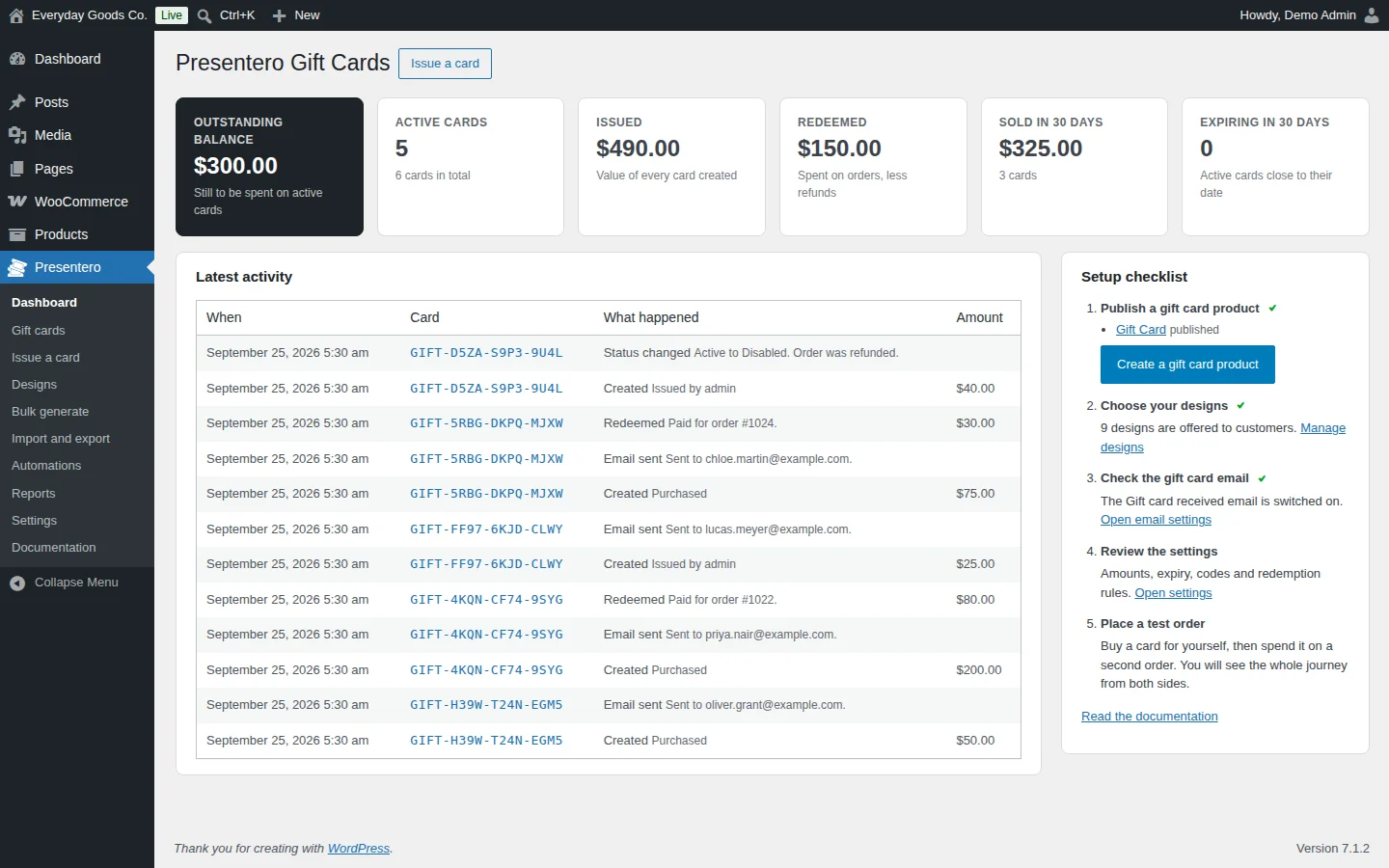
Presentero > Dashboard gives you a quick view of your gift card program.
At the top you see headline figures:
- Outstanding balance: what is still to be spent on active cards.
- Active cards: how many cards can still be used, plus the total number of cards.
- Issued: the value of every card created.
- Redeemed: the amount spent on orders, less refunds.
- Sold in 30 days: the value and number of cards sold recently.
- Expiring in 30 days: active cards close to their expiry date.
Latest activity lists recent events for each card, with the columns When, Card, What happened and Amount. You see when a card was created, emailed, redeemed on an order or changed status.
The Setup checklist walks you through five steps: publish a gift card product, choose your designs, check the gift card email, review the settings and place a test order. Use the Issue a card button to create a card by hand, or Create a gift card product to start a new product.
#Gift card products
A gift card product is an ordinary WooCommerce product with the Gift card product type. Its options are in the Gift card tab of the Product data box. Any field you leave blank uses the store default from Presentero > Settings.
When you choose Gift card as the product type, the General and Shipping tabs are hidden, because the price comes from the amount the customer picks. The Inventory tab stays available, so you can set a SKU.
In the Gift card tab you can set:
- Amounts: the values shown as buttons on the product page, separated by commas. The first one is selected when the page loads. For example,
20, 50, 100shows three buttons. - Other amount: use the store setting, let customers type any amount, or allow only the amounts above.
- Smallest amount and Largest amount: the range a typed amount must fall in. They do not limit the preset amounts.
- Valid for (days): how long cards from this product can be used. Use
0for cards that never expire. - Designs offered: tick the designs this product offers, for example only the holiday designs on a seasonal card. Leave everything unticked to offer every active design.
- Delivered as: an emailed card, or a printed card shipped to the customer.
- Layout: the purchase form layout for this product, or the store setting from Settings > Personalise.
- Scheduled delivery, Several recipients, Customer photos and Top ups: each can follow the store setting, be switched on for this product only, or be switched off for this product.
- Discounted cards: rows of card value and the price the customer pays, for example 100 and 90. An Other amount discount applies a percentage to amounts customers type.
Shop and category pages show From and the smallest amount a customer can choose. The button reads Choose amount and opens the product page. Gift cards are sold without tax, because tax is charged later on the products bought with them.
Physical gift cards are printed, shipped with your shipping methods, and switched on when the order is completed or when you mark them as shipped.
#Gift cards
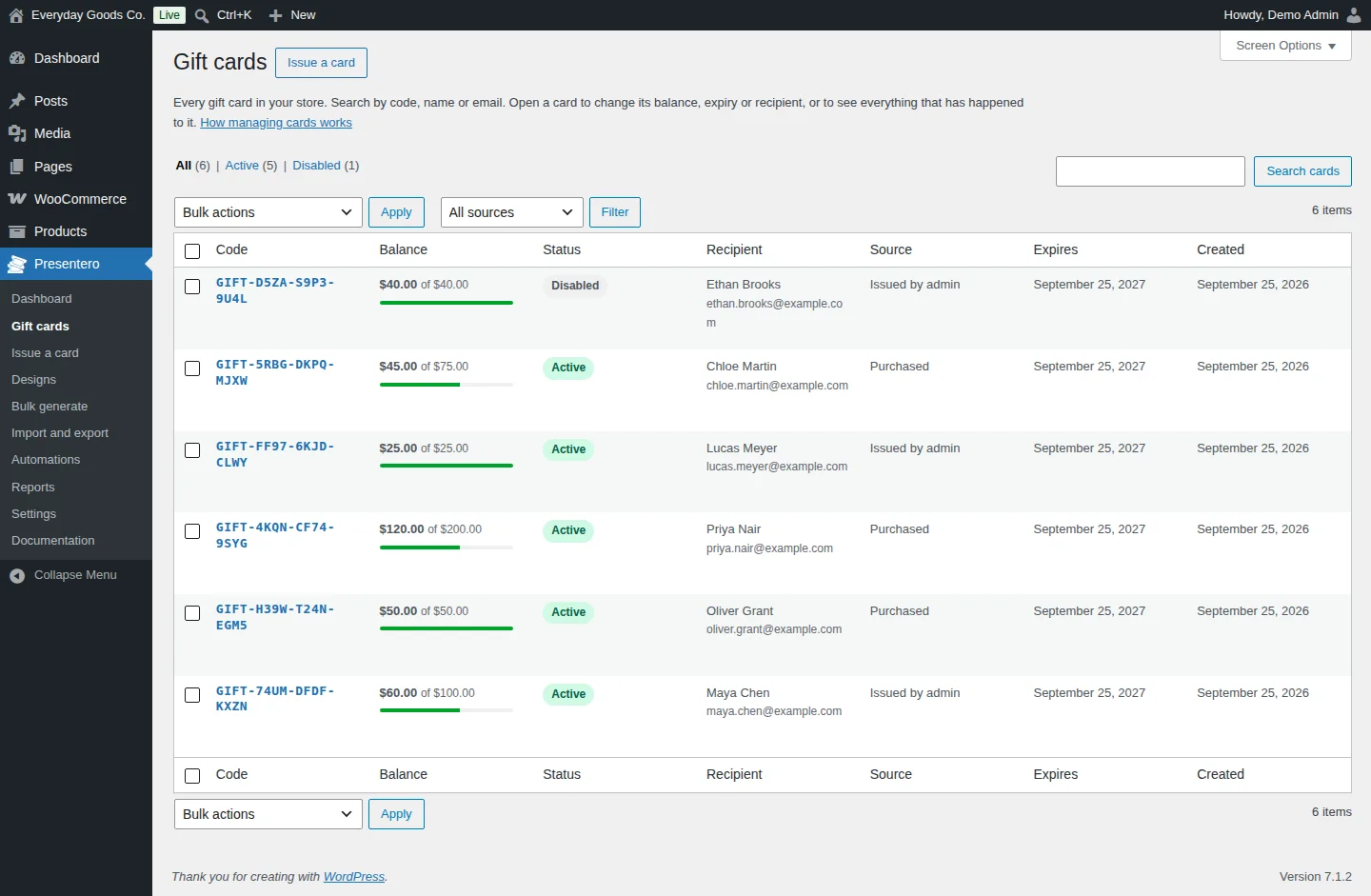
Presentero > Gift cards lists every gift card in your store.
- Use the All, Active and Disabled links to filter by status.
- Search by code, name or email with Search cards.
- Filter by where cards came from with the sources dropdown and Filter.
- Select cards and use Bulk actions with Apply to act on several cards at once.
The table shows Code, Balance (what is left of the original value, with a progress bar), Status, Recipient, Source, Expires and Created. Use Screen Options to adjust the list.
Open a card to change its balance, expiry or recipient, or to see everything that has happened to it. A card can be Active, Used up, Expired or Disabled.
#Issue a card
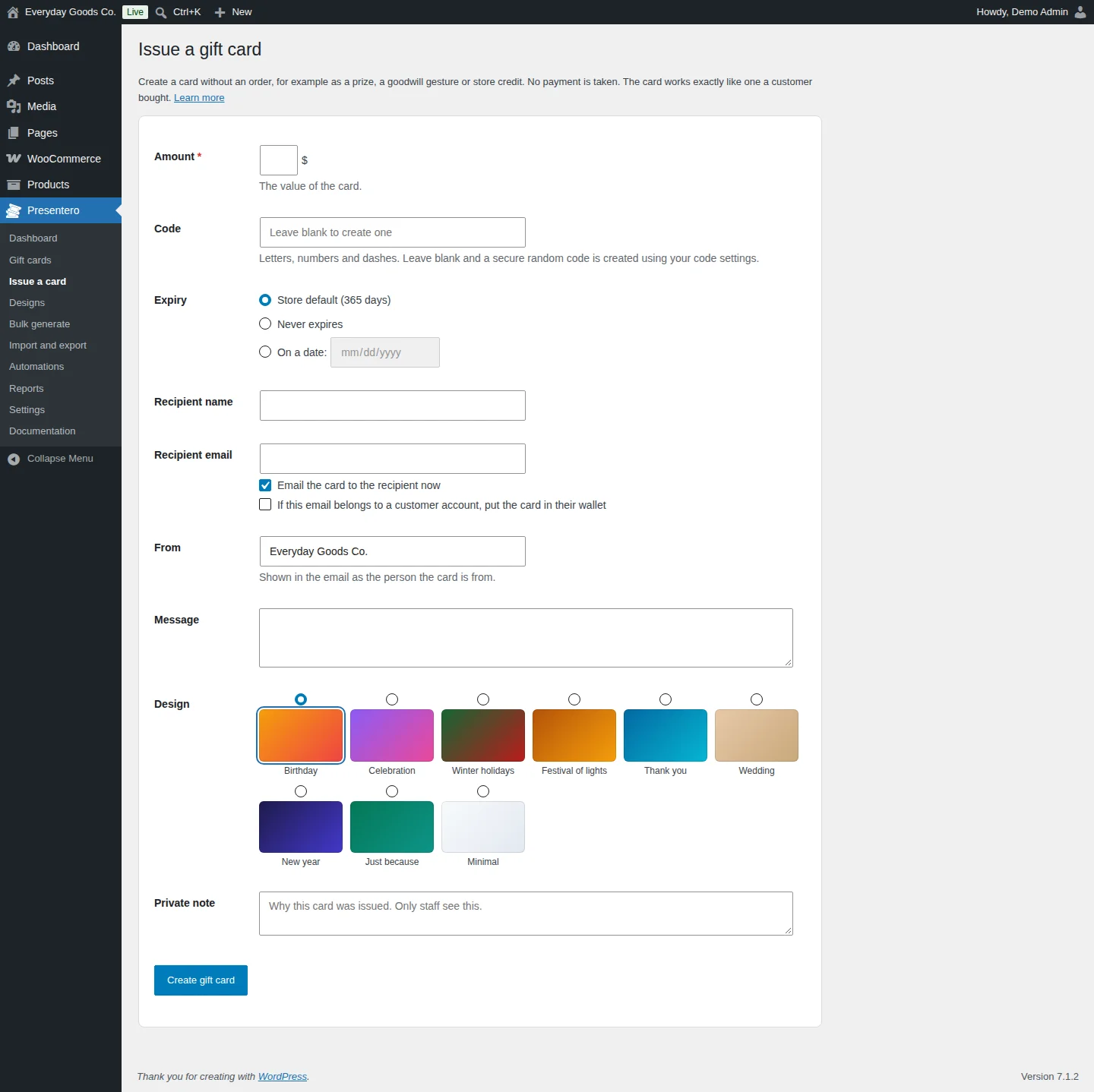
Presentero > Issue a card creates a card without an order, for example as a prize, a goodwill gesture or store credit. No payment is taken. The card works exactly like one a customer bought.
- Enter the Amount. This is the only required field.
- Enter a Code, or leave it blank and a secure random code is created using your code settings. Codes can use letters, numbers and dashes.
- Choose the Expiry: Store default, Never expires or On a date.
- Fill in Recipient name and Recipient email.
- Keep Email the card to the recipient now ticked to send it straight away. Tick If this email belongs to a customer account, put the card in their wallet to add it to that customer's wallet.
- Set From (shown in the email as the person the card is from) and an optional Message.
- Pick a Design.
- Add a Private note explaining why the card was issued. Only staff see this.
- Click Create gift card.
#Designs
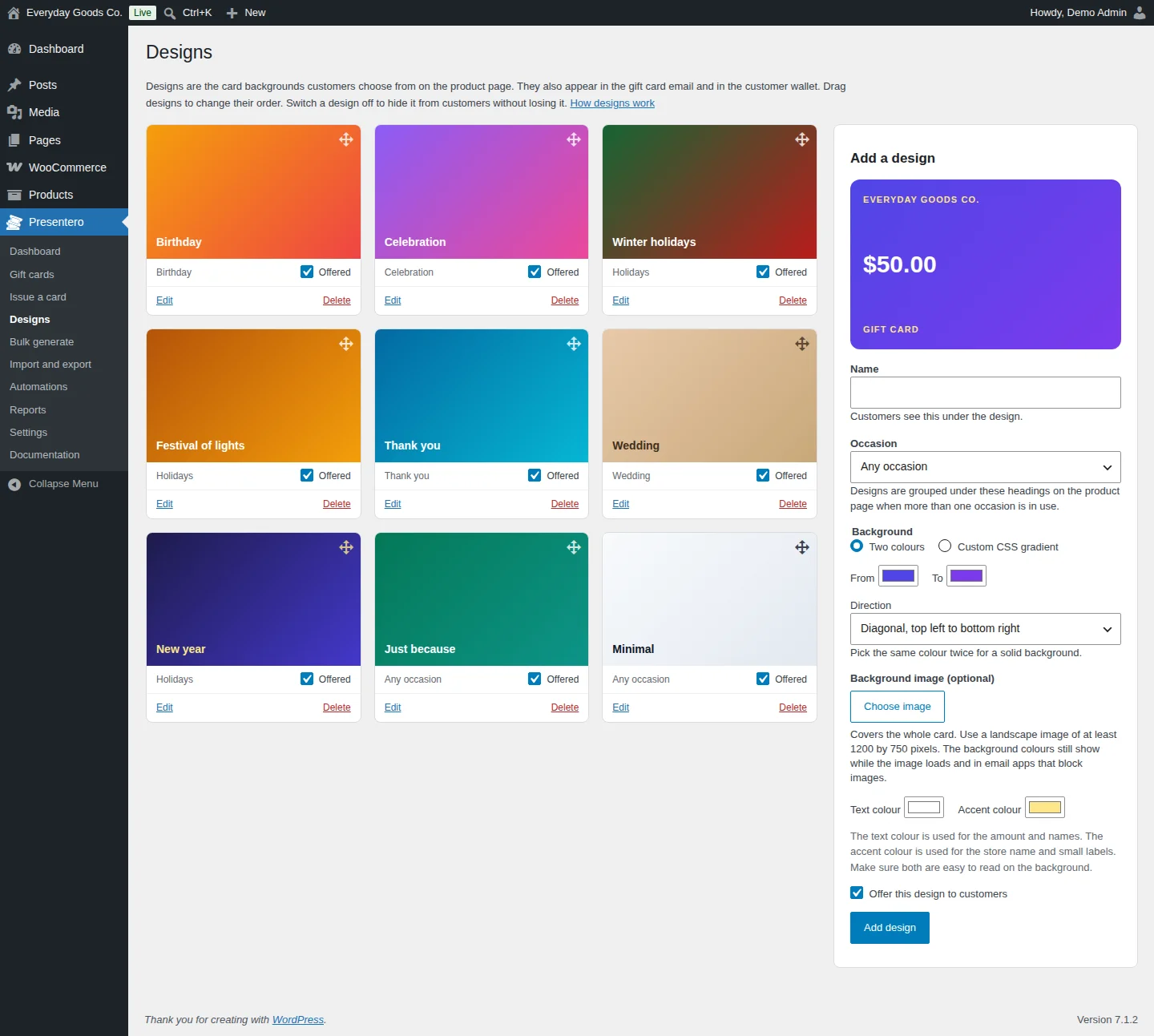
Designs are the card backgrounds customers choose from on the product page. They also appear in the gift card email and in the customer wallet.
Each design shows its name, its occasion and an Offered checkbox. Untick Offered to hide a design from customers without losing it. Drag designs to change their order. Use Edit or Delete to change or remove a design.
To add a design, use the Add a design panel. The live preview updates as you work.
- Name: customers see this under the design.
- Occasion: designs are grouped under these headings on the product page when more than one occasion is in use.
- Background: Two colours (pick From, To and a Direction) or Custom CSS gradient. Pick the same colour twice for a solid background.
- Background image (optional): click Choose image. The image covers the whole card. Use a landscape image of at least 1200 by 750 pixels. The background colours still show while the image loads and in email apps that block images.
- Text colour is used for the amount and names. Accent colour is used for the store name and small labels. Make sure both are easy to read on the background.
- Offer this design to customers: untick to save the design without showing it.
Click Add design to save.
#Bulk generate
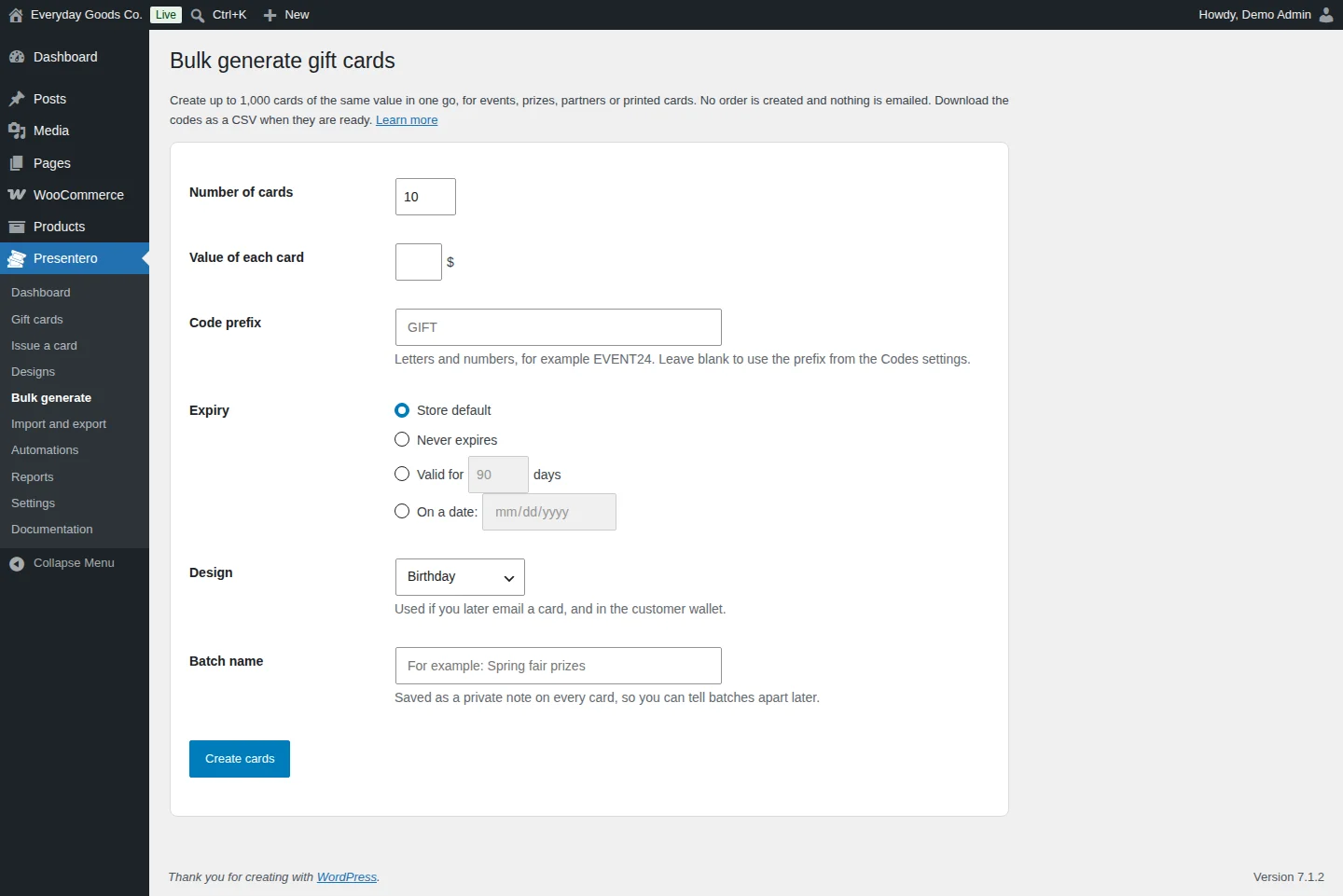
Presentero > Bulk generate creates up to 1,000 cards of the same value in one go. Use it for events, prizes, partners or printed cards. No order is created and nothing is emailed. You can download the codes as a CSV when they are ready.
- Set the Number of cards and the Value of each card.
- Enter a Code prefix, for example
EVENT24, or leave it blank to use the prefix from the Codes settings. - Choose the Expiry: Store default, Never expires, Valid for a number of days, or On a date.
- Pick a Design. It is used if you later email a card, and in the customer wallet.
- Enter a Batch name. It is saved as a private note on every card, so you can tell batches apart later.
- Click Create cards.
#Import and export
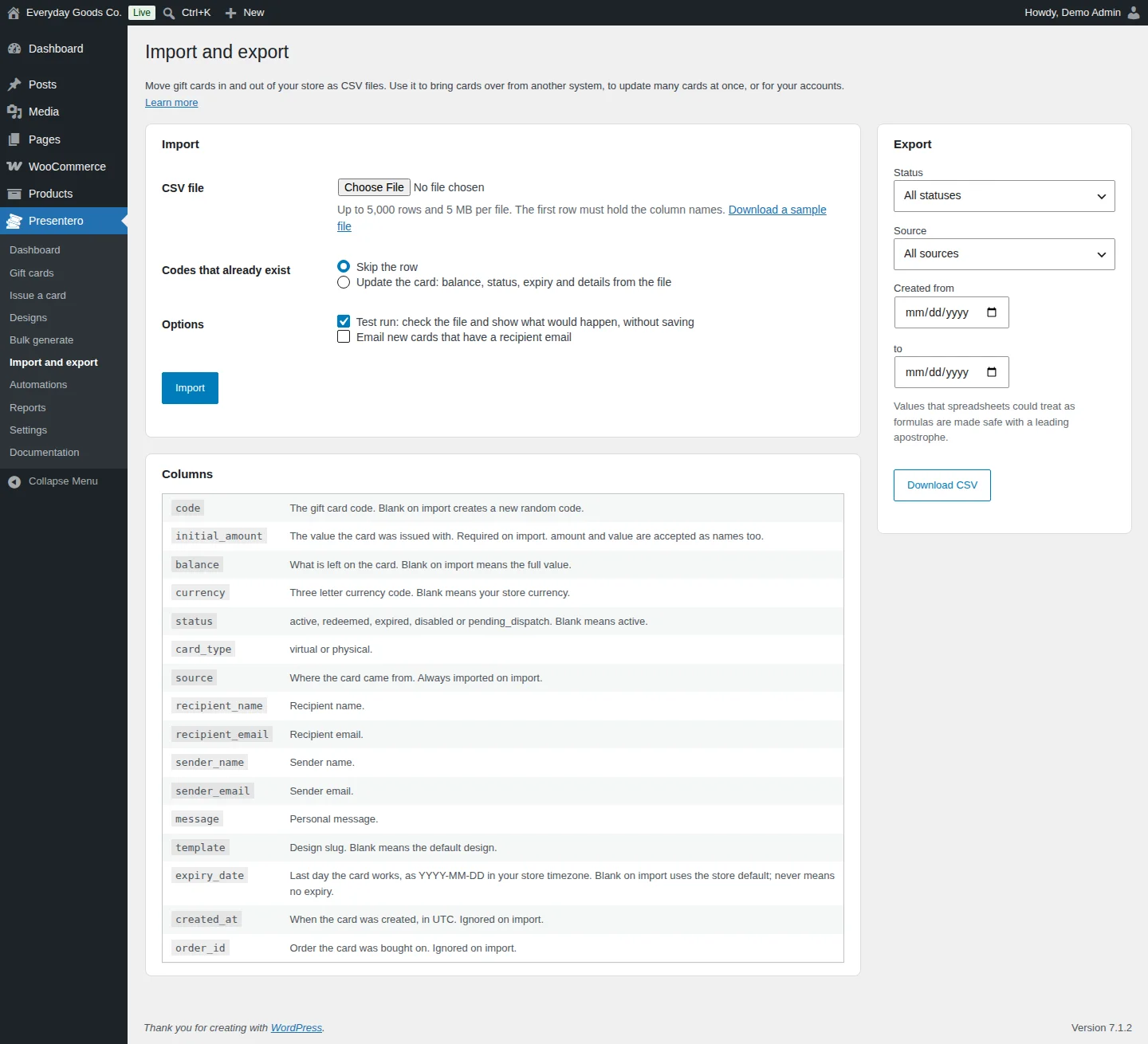
Presentero > Import and export moves gift cards in and out of your store as CSV files. Use it to bring cards over from another system, to update many cards at once, or for your accounts.
Import
- Choose a CSV file. Files can have up to 5,000 rows and 5 MB. The first row must hold the column names. Use Download a sample file to see the format.
- Under Codes that already exist, choose Skip the row or Update the card: balance, status, expiry and details from the file.
- Keep Test run: check the file and show what would happen, without saving ticked the first time, to check your file safely.
- Tick Email new cards that have a recipient email if you want new cards sent out.
- Click Import. When the test run looks right, untick Test run and import again.
The Columns table explains each column:
| Column | What it holds |
|---|---|
code |
The gift card code. Blank on import creates a new random code. |
initial_amount |
The value the card was issued with. Required on import. amount and value are accepted as names too. |
balance |
What is left on the card. Blank on import means the full value. |
currency |
Three letter currency code. Blank means your store currency. |
status |
active, redeemed, expired, disabled or pending_dispatch. Blank means active. |
card_type |
virtual or physical. |
source |
Where the card came from. Always imported on import. |
recipient_name, recipient_email |
Recipient details. |
sender_name, sender_email |
Sender details. |
message |
Personal message. |
template |
Design slug. Blank means the default design. |
expiry_date |
Last day the card works, as YYYY-MM-DD in your store timezone. Blank on import uses the store default; never means no expiry. |
created_at |
When the card was created, in UTC. Ignored on import. |
order_id |
Order the card was bought on. Ignored on import. |
Export
Filter by Status, Source and a Created from and to date range, then click Download CSV. Values that spreadsheets could treat as formulas are made safe with a leading apostrophe.
#Automations
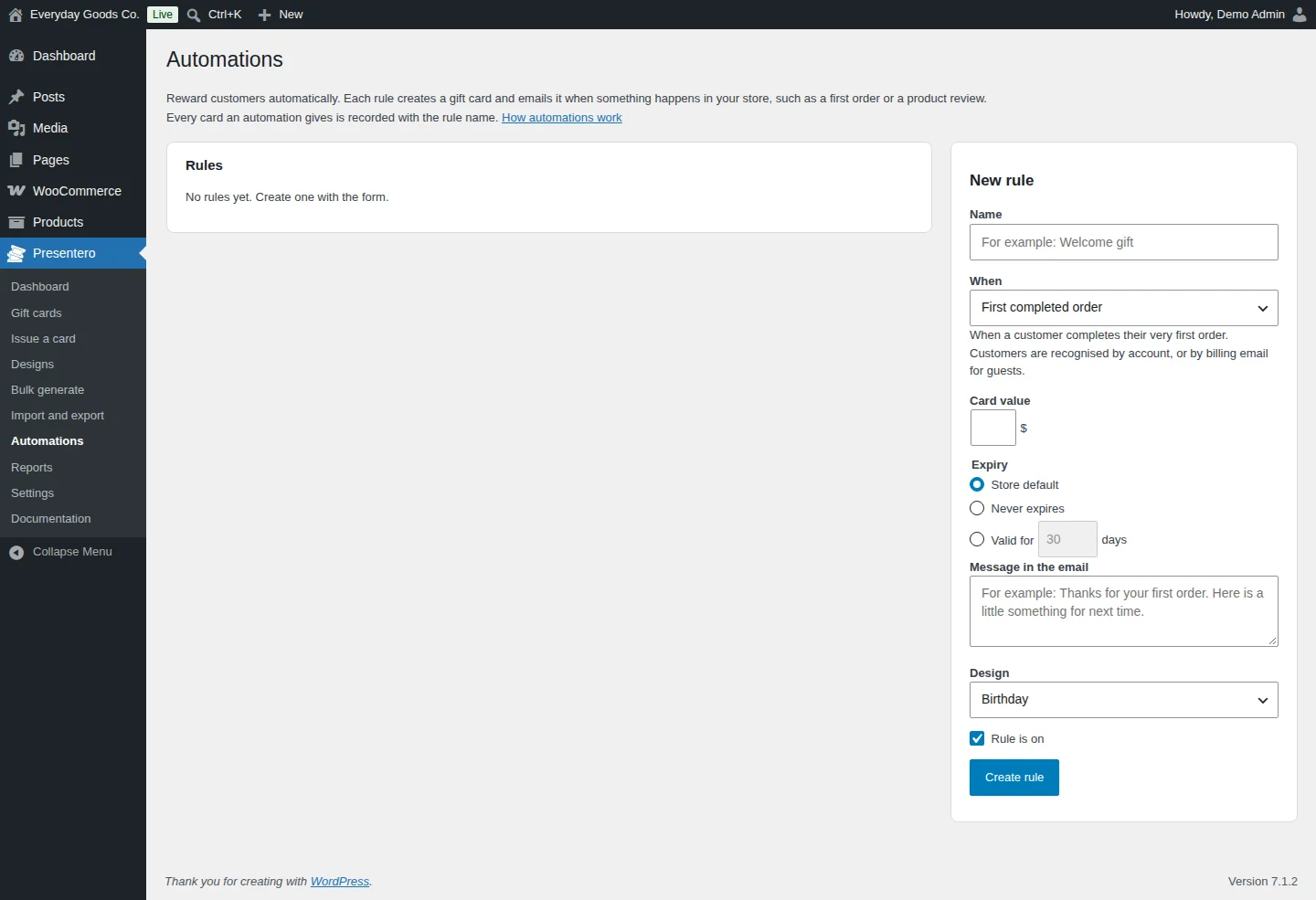
Presentero > Automations rewards customers automatically. Each rule creates a gift card and emails it when something happens in your store. Every card an automation gives is recorded with the rule name.
To create a rule, fill in the New rule panel:
- Give it a Name, for example
Welcome gift. - Choose When the rule runs: First completed order, Order over an amount, Every so many orders, Lifetime spend reached, New account or Product review approved. For First completed order, customers are recognised by account, or by billing email for guests.
- Set the Card value.
- Choose the Expiry: Store default, Never expires or Valid for a number of days.
- Write the Message in the email.
- Pick a Design.
- Keep Rule is on ticked so the rule starts working, then click Create rule.
Your rules appear in the Rules list.
#Reports
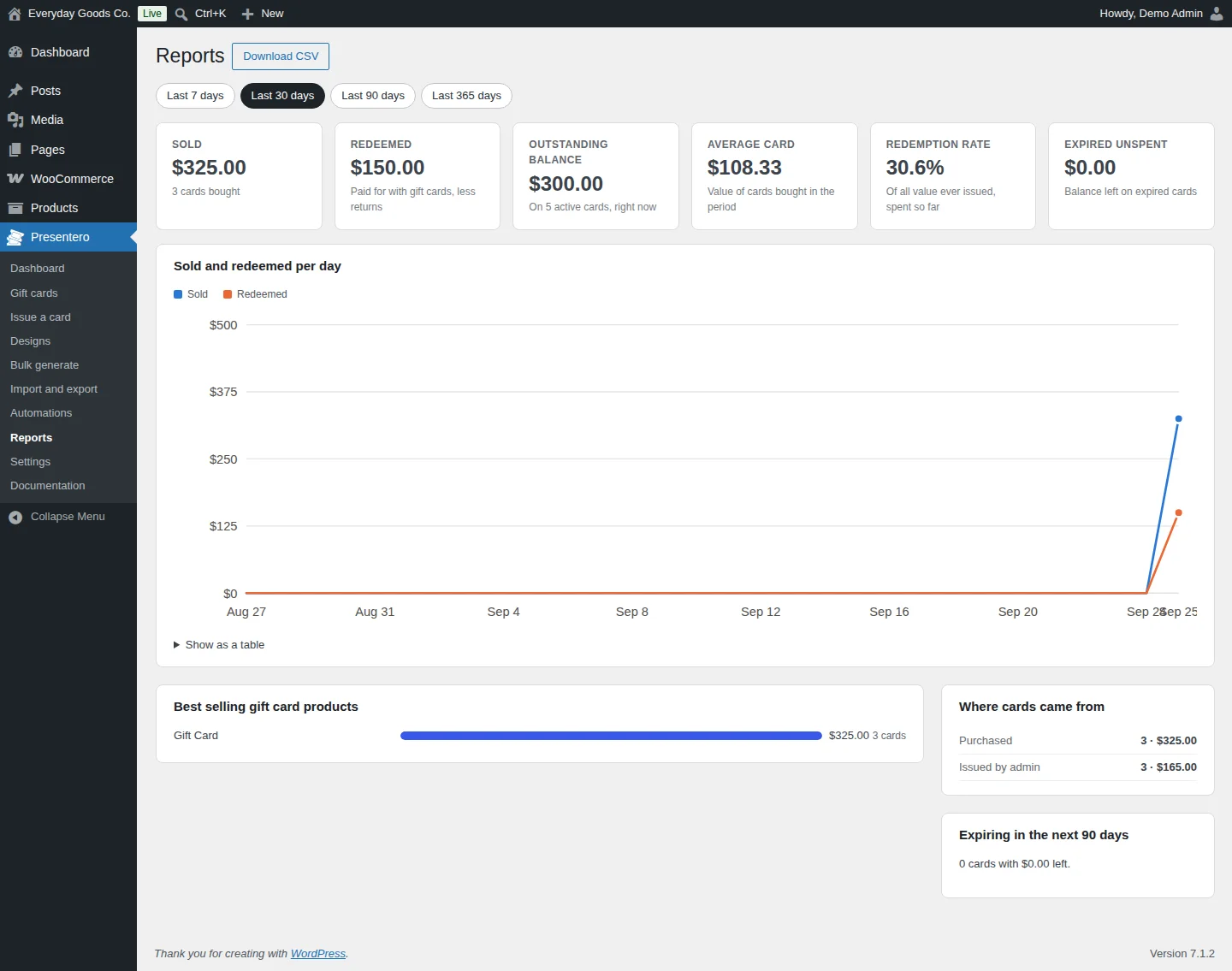
Presentero > Reports shows how your gift cards perform. Pick a period with Last 7 days, Last 30 days, Last 90 days or Last 365 days.
The summary shows:
- Sold: value of cards bought, and how many.
- Redeemed: paid for with gift cards, less returns.
- Outstanding balance: balance on active cards right now.
- Average card: value of cards bought in the period.
- Redemption rate: how much of all value ever issued has been spent so far.
- Expired unspent: balance left on expired cards.
Below that you find a Sold and redeemed per day chart (open Show as a table to see the numbers), Best selling gift card products, Where cards came from and Expiring in the next 90 days. Click Download CSV to export the report.
#Settings: Selling
Presentero > Settings holds your store wide options in tabs: Selling, Codes, Expiry, Redeeming, Refunds, My Account, Delivery, Personalise, Notifications, Security, Usage limits, Extras, Advanced and Emails. Each field shows its default value under the description, and Every option on this tab explained links to the matching part of the built in documentation.
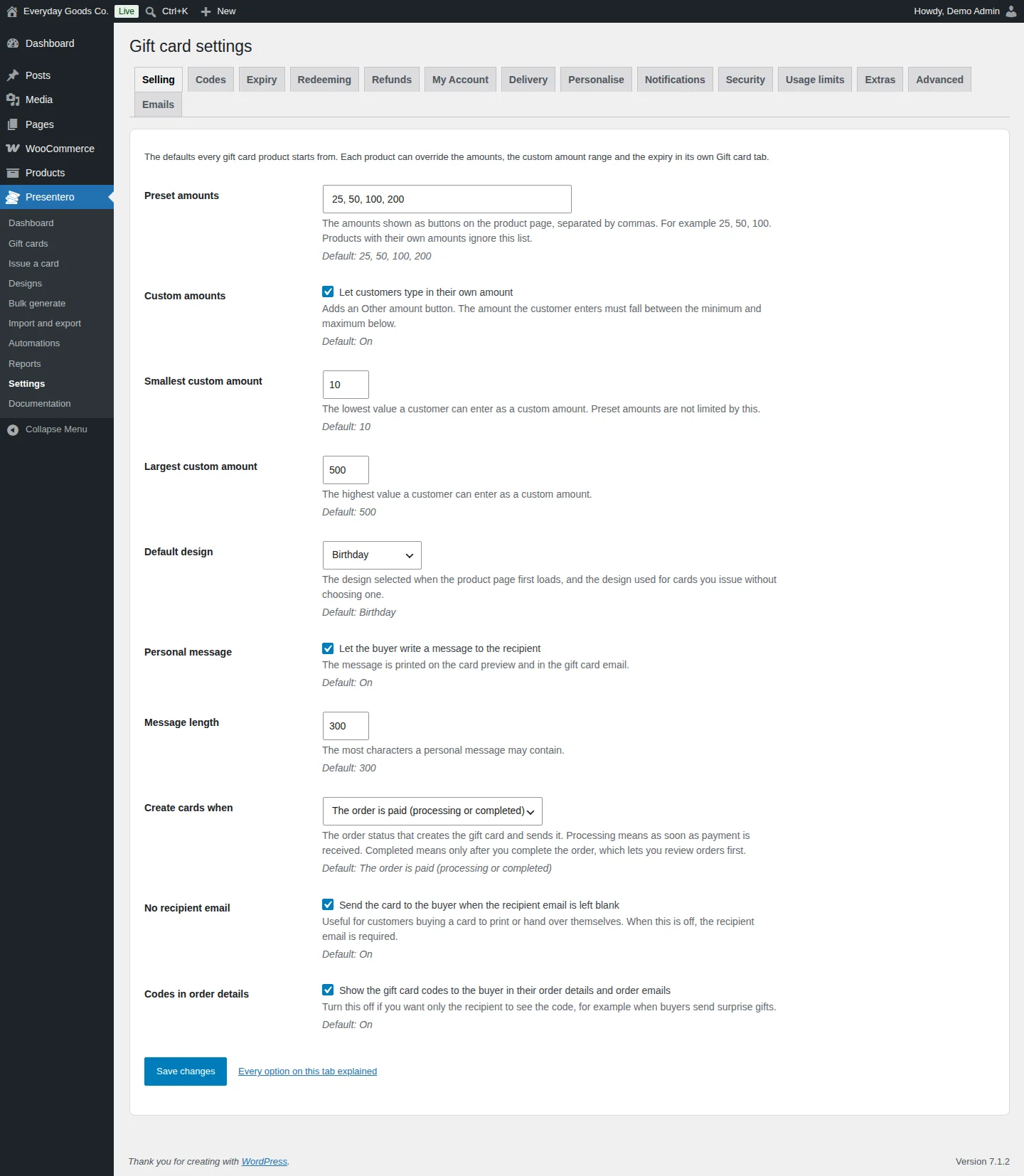
The Selling tab sets the defaults every gift card product starts from. Each product can override the amounts, the custom amount range and the expiry in its own Gift card tab.
- Preset amounts: the amount buttons on the product page.
- Custom amounts, Smallest custom amount and Largest custom amount: whether customers can type their own amount, and the range it must fall in.
- Default design: the design selected when the product page loads.
- Personal message and Message length: whether buyers can write a message, and how long it can be.
- Create cards when: choose The order is paid (processing or completed), or The order is completed if you want to review orders first.
- No recipient email: send the card to the buyer when the recipient email is left blank.
- Codes in order details: turn this off for surprise gifts, so only the recipient sees the code.
#Settings: Codes and Expiry
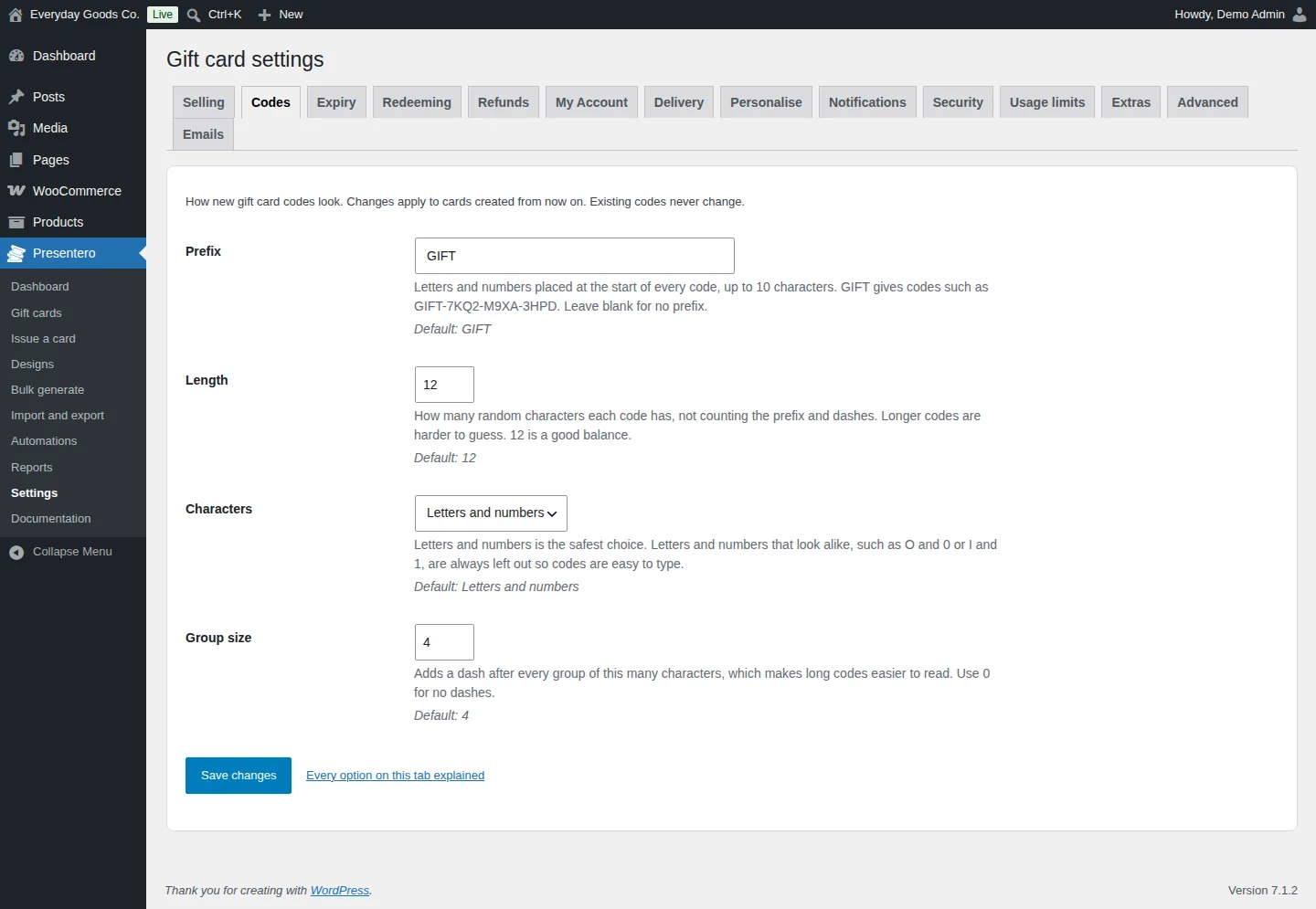
The Codes tab controls how new gift card codes look. Changes apply to cards created from now on. Existing codes never change.
- Prefix: letters and numbers at the start of every code, up to 10 characters.
GIFTgives codes such asGIFT-7KQ2-M9XA-3HPD. - Length: the number of random characters, not counting the prefix and dashes. Longer codes are harder to guess.
- Characters: letters and numbers, letters only or numbers only. Characters that look alike, such as O and 0, are always left out.
- Group size: adds a dash after every group of this many characters. Use
0for no dashes.
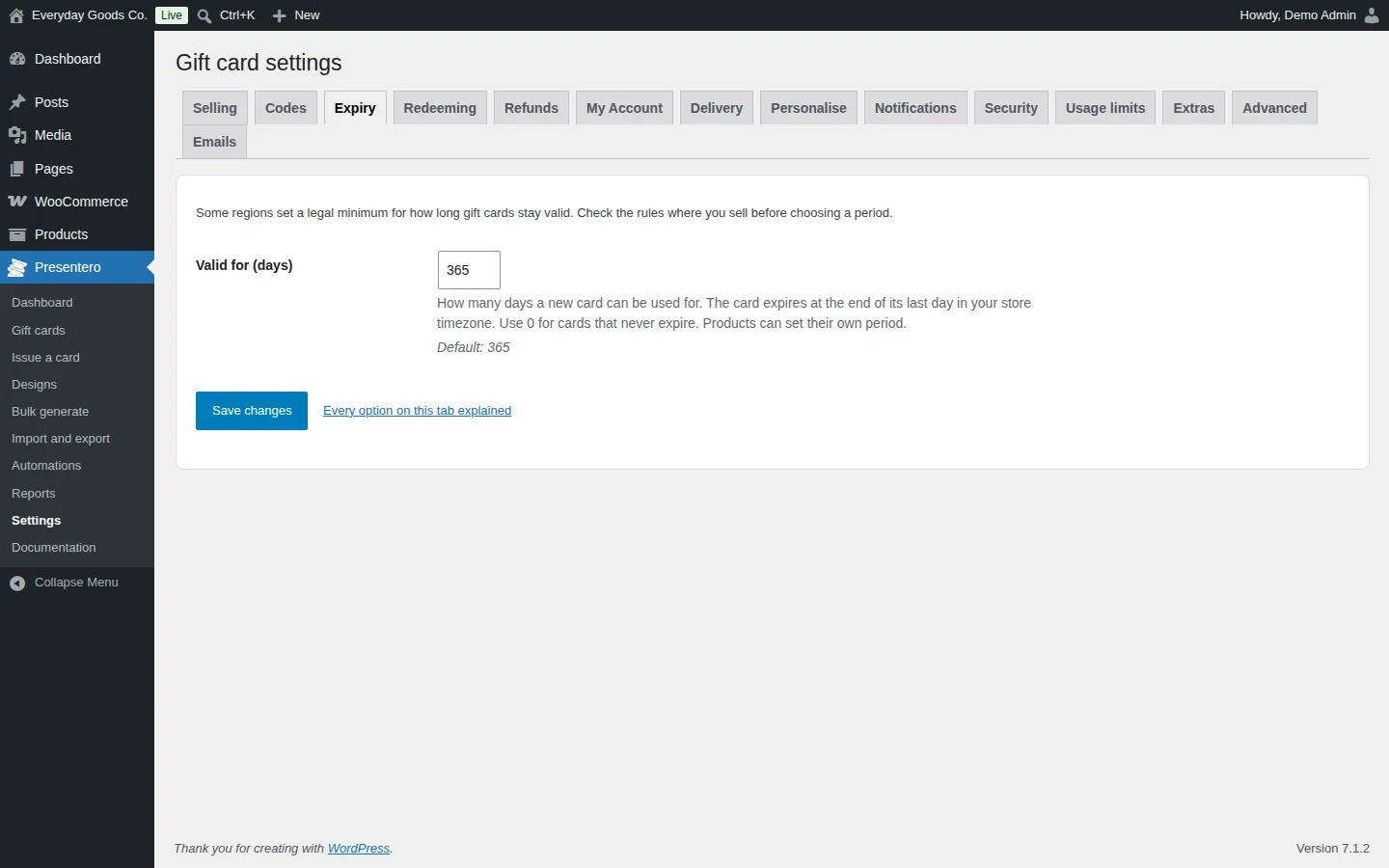
The Expiry tab sets Valid for (days), how many days a new card can be used for. The card expires at the end of its last day in your store timezone. Use 0 for cards that never expire. Products can set their own period. Some regions set a legal minimum for how long gift cards stay valid, so check the rules where you sell before choosing a period.
#Settings: Redeeming
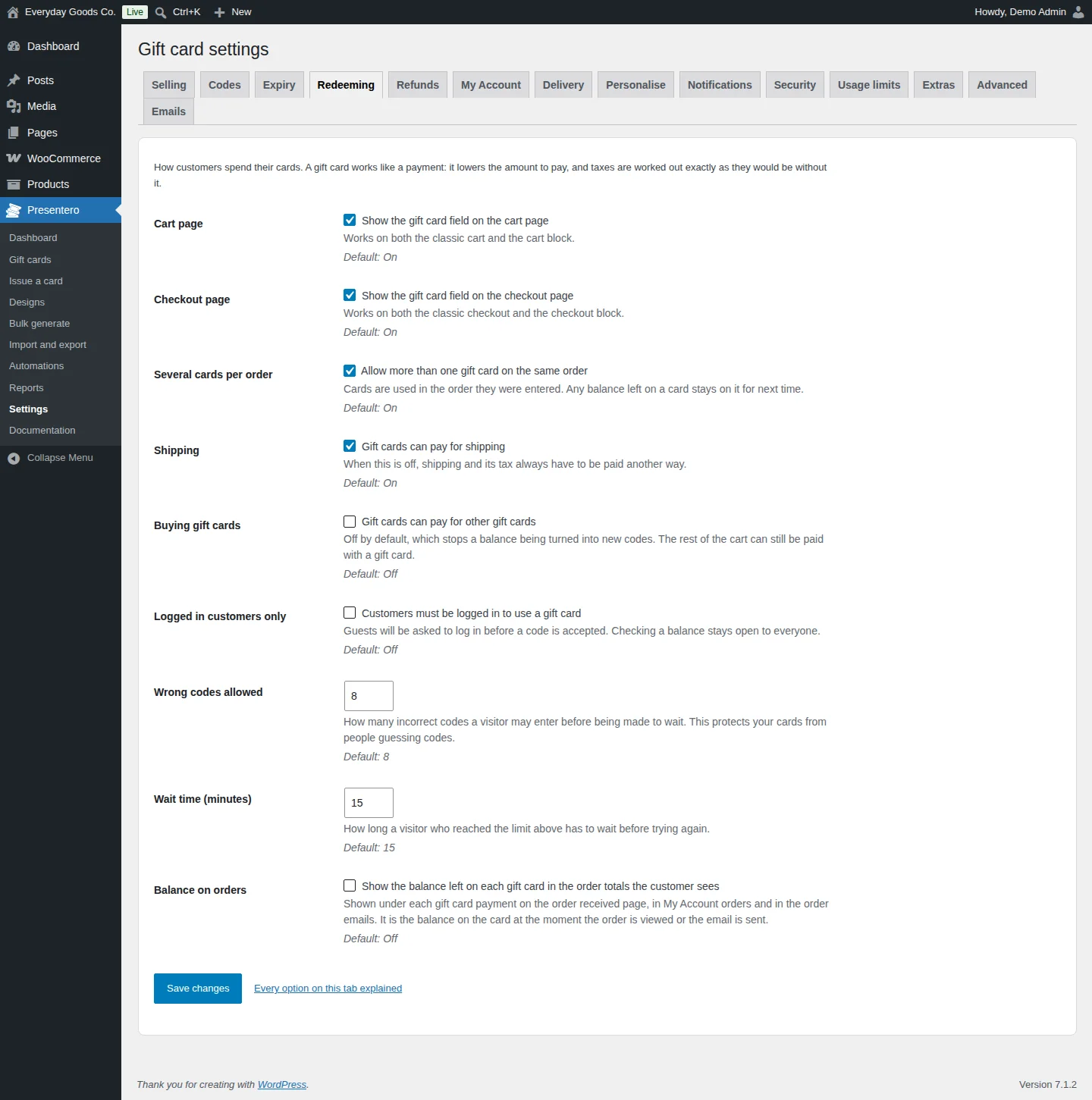
The Redeeming tab controls how customers spend their cards. A gift card works like a payment: it lowers the amount to pay, and taxes are worked out exactly as they would be without it.
- Cart page and Checkout page: show the gift card field on the classic cart and checkout and on the cart and checkout blocks.
- Several cards per order: allow more than one gift card on the same order. Cards are used in the order they were entered.
- Shipping: let gift cards pay for shipping. When this is off, shipping and its tax have to be paid another way.
- Buying gift cards: let gift cards pay for other gift cards. Off by default, which stops a balance being turned into new codes.
- Logged in customers only: guests are asked to log in before a code is accepted. Checking a balance stays open to everyone.
- Wrong codes allowed and Wait time (minutes): protect your cards from people guessing codes by making visitors wait after too many wrong codes.
- Balance on orders: show the balance left on each gift card under its payment on the order received page, in My Account orders and in order emails.
#Settings: Refunds
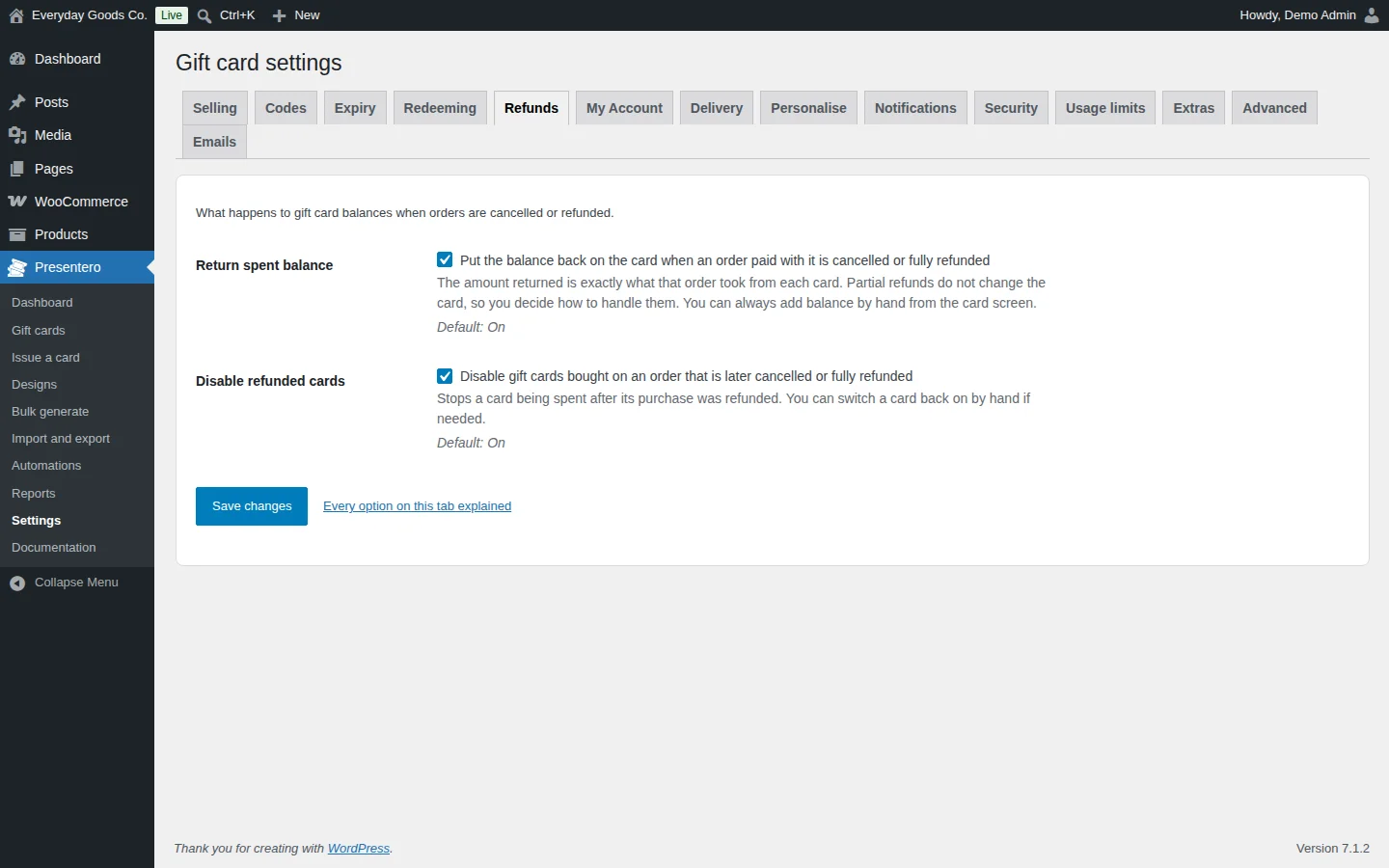
The Refunds tab decides what happens to gift card balances when orders are cancelled or refunded.
- Return spent balance: puts the balance back on the card when an order paid with it is cancelled or fully refunded. The amount returned is exactly what that order took from each card. Partial refunds do not change the card, so you decide how to handle them. You can always add balance by hand from the card screen.
- Disable refunded cards: disables gift cards bought on an order that is later cancelled or fully refunded. You can switch a card back on by hand if needed.
#Settings: My Account
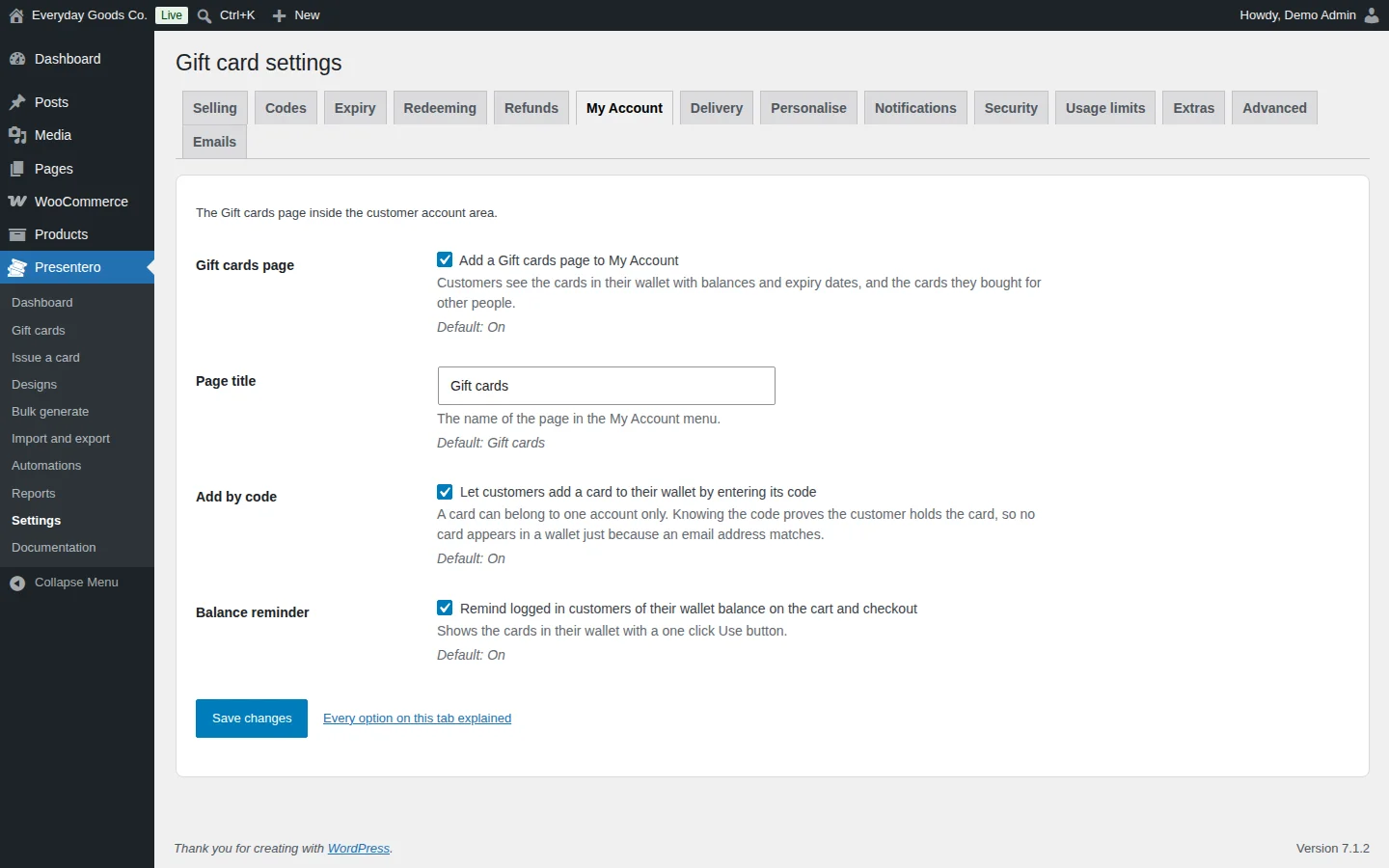
The My Account tab controls the Gift cards page in the customer account area, also called the wallet.
- Gift cards page: adds the page to My Account. Customers see the cards in their wallet with balances and expiry dates, and the cards they bought for other people.
- Page title: the name of the page in the My Account menu.
- Add by code: lets customers add a card to their wallet by entering its code. A card can belong to one account only, and no card appears in a wallet just because an email address matches.
- Balance reminder: reminds logged in customers of their wallet balance on the cart and checkout, with a one click Use button.
#Settings: Delivery and Personalise
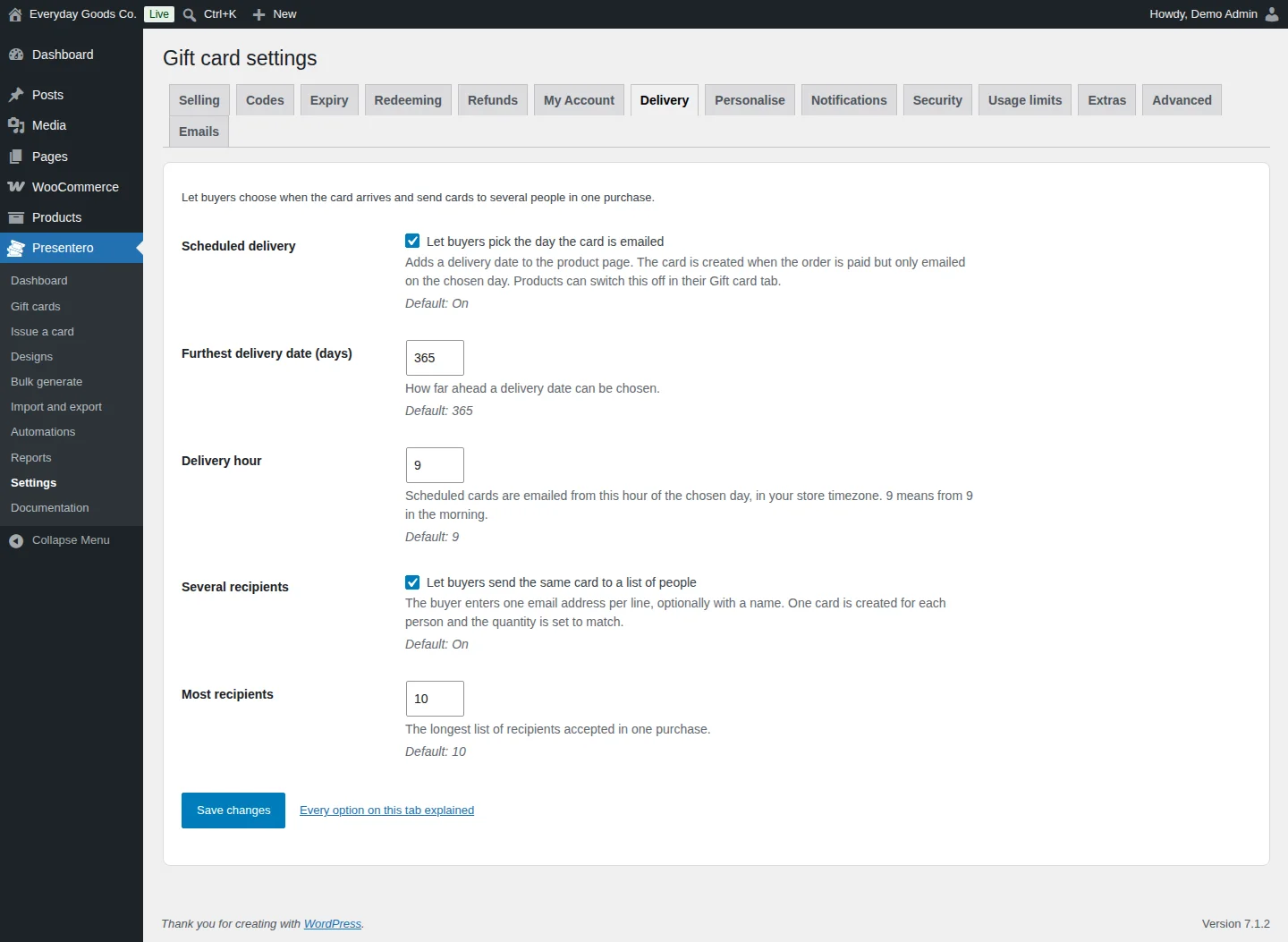
The Delivery tab lets buyers choose when the card arrives and send cards to several people in one purchase.
- Scheduled delivery: adds a delivery date to the product page. The card is created when the order is paid but only emailed on the chosen day. Products can switch this off in their Gift card tab.
- Furthest delivery date (days): how far ahead a delivery date can be chosen.
- Delivery hour: scheduled cards are emailed from this hour of the chosen day, in your store timezone.
- Several recipients: the buyer enters one email address per line, optionally with a name. One card is created for each person and the quantity is set to match.
- Most recipients: the longest list accepted in one purchase.
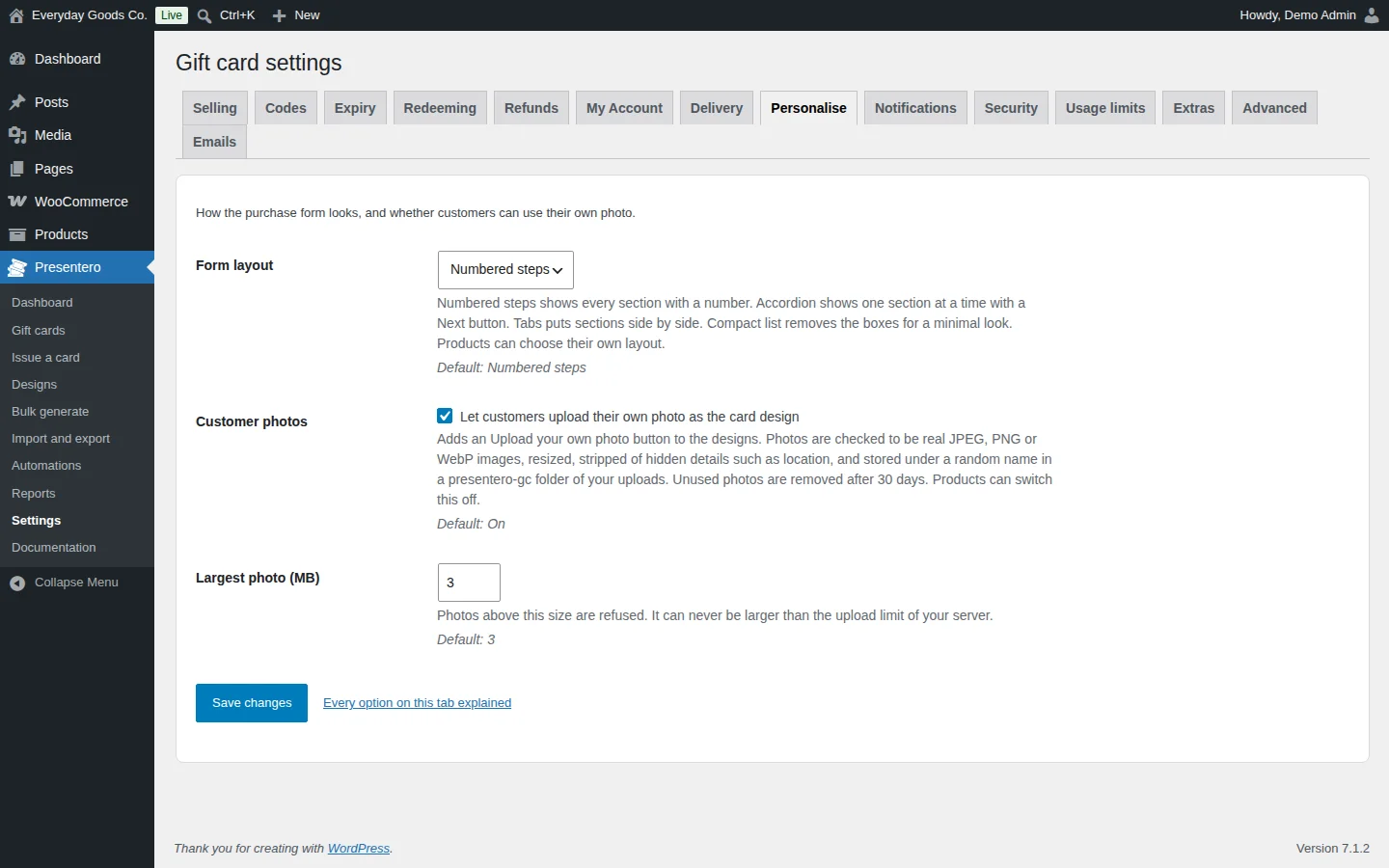
The Personalise tab sets how the purchase form looks and whether customers can use their own photo.
- Form layout: Numbered steps, Accordion, Tabs or Compact list. Products can choose their own layout.
- Customer photos: adds an Upload your own photo button to the designs. Photos are checked to be real JPEG, PNG or WebP images, resized, stripped of hidden details such as location, and stored under a random name in a
presentero-gcfolder of your uploads. Unused photos are removed after 30 days. - Largest photo (MB): photos above this size are refused. It can never be larger than your server's upload limit.
#Settings: Notifications and Security
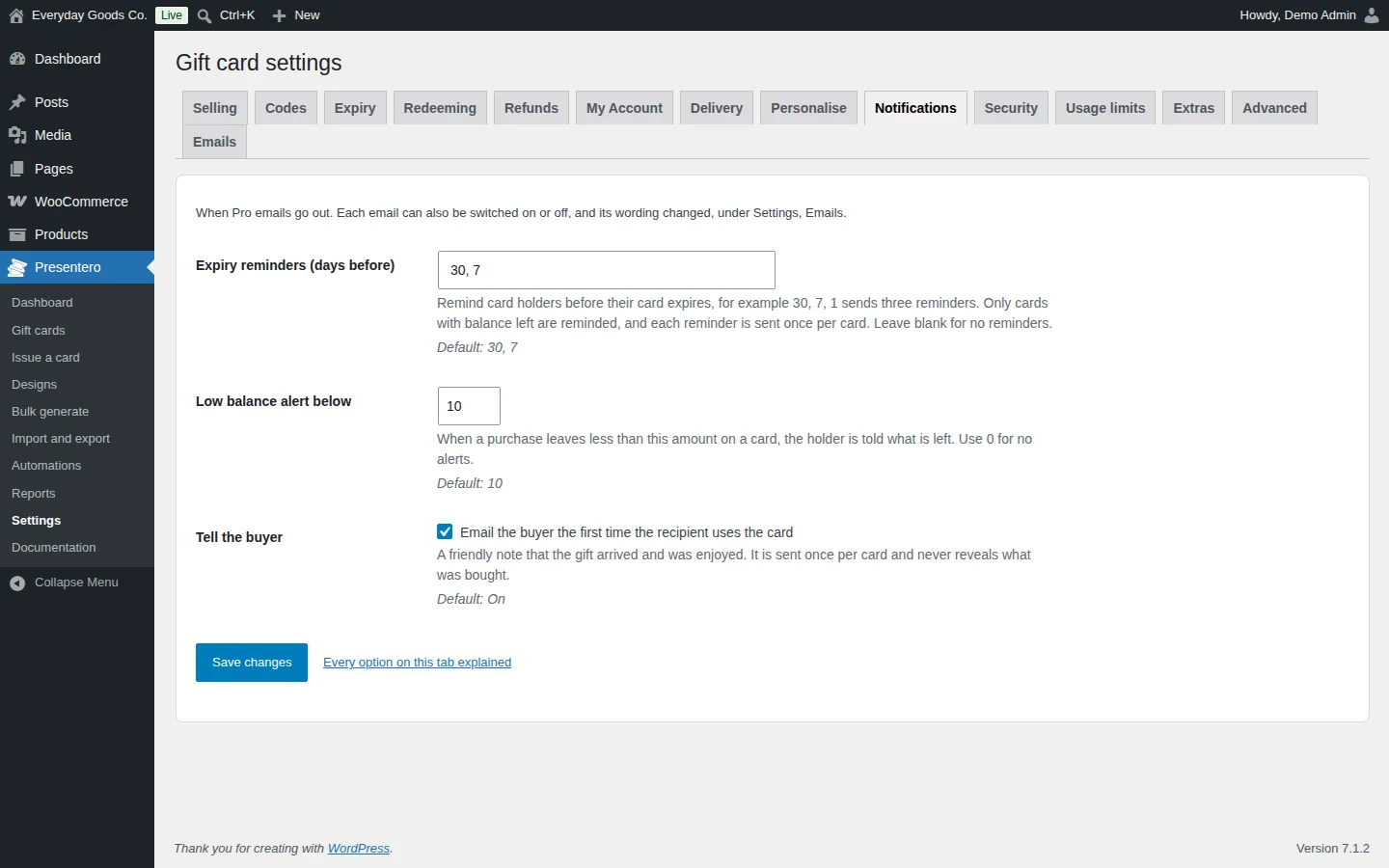
The Notifications tab controls when the Pro emails go out. You can switch each email on or off, and change its wording, under the Emails tab or in WooCommerce > Settings > Emails.
- Expiry reminders (days before): for example
30, 7, 1sends three reminders. Only cards with balance left get reminders, and each reminder is sent once per card. Leave blank for no reminders. - Low balance alert below: when a purchase leaves less than this amount on a card, the holder is told what is left. Use
0for no alerts. - Tell the buyer: emails the buyer the first time the recipient uses the card. It is sent once per card and never reveals what was bought.
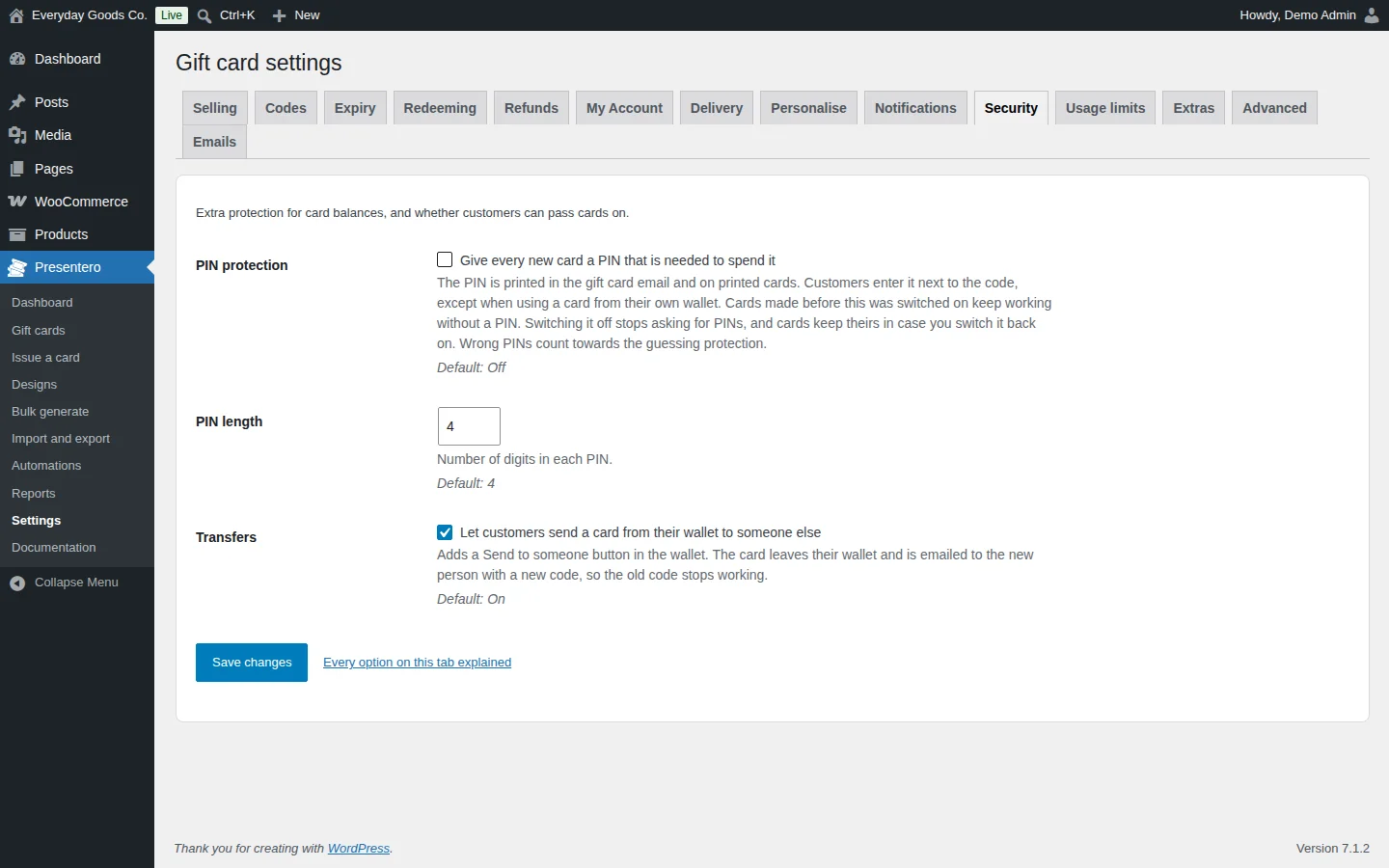
The Security tab adds extra protection and controls whether customers can pass cards on.
- PIN protection: gives every new card a PIN that is needed to spend it. The PIN is printed in the gift card email and on printed cards. Customers enter it next to the code, except when using a card from their own wallet. Cards made before you switched this on keep working without a PIN. Wrong PINs count towards the guessing protection.
- PIN length: the number of digits in each PIN.
- Transfers: adds a Send to someone button in the wallet. The card leaves the customer's wallet and is emailed to the new person with a new code, so the old code stops working.
#Settings: Usage limits
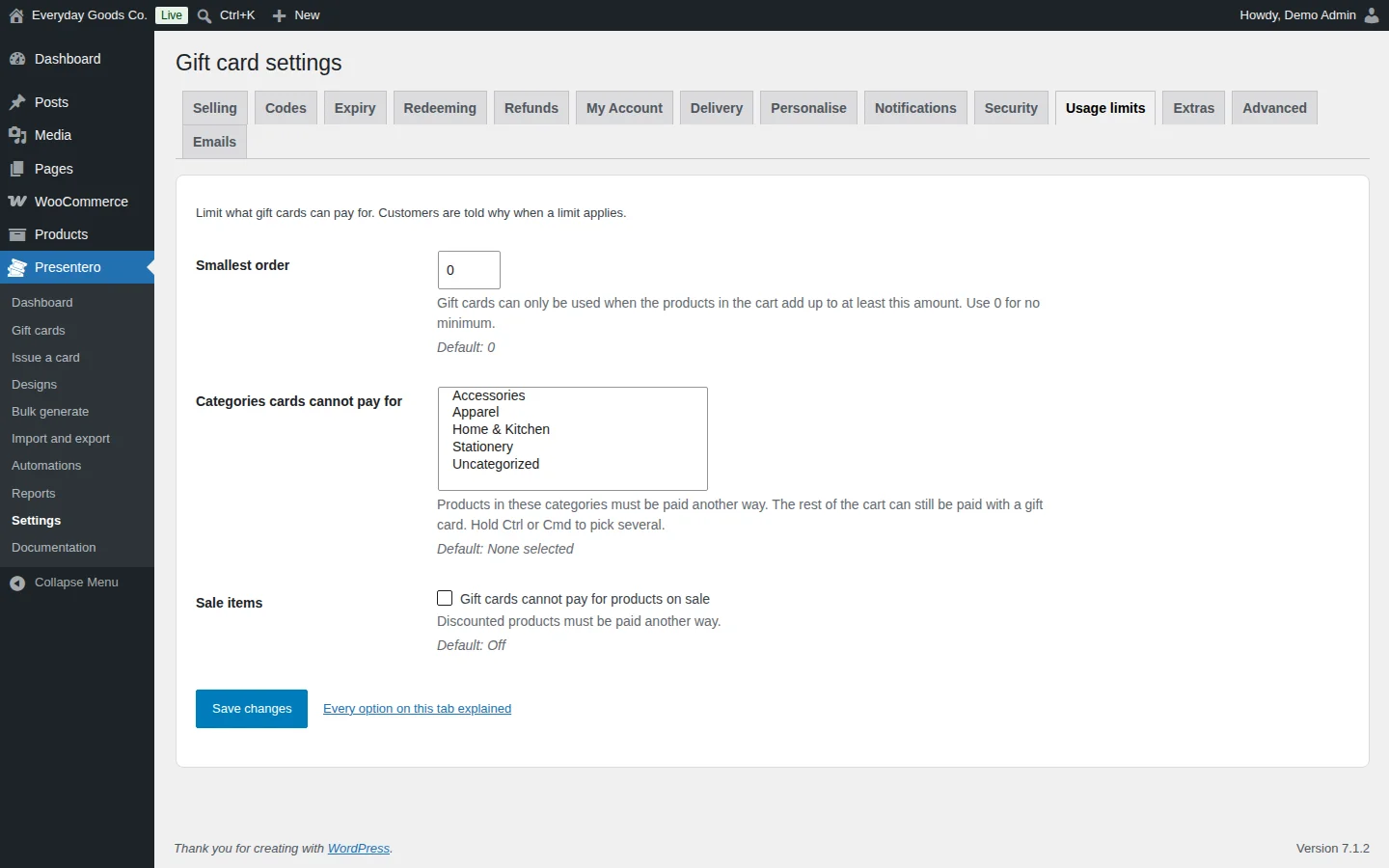
The Usage limits tab limits what gift cards can pay for. Customers are told why when a limit applies.
- Smallest order: gift cards can only be used when the products in the cart add up to at least this amount. Use
0for no minimum. - Categories cards cannot pay for: products in these categories must be paid another way. The rest of the cart can still be paid with a gift card. Hold Ctrl or Cmd to pick several.
- Sale items: when ticked, gift cards cannot pay for products on sale.
#Gift card emails
Presentero adds its emails to WooCommerce > Settings > Emails, where you can switch each one on or off, change the wording and send a test.
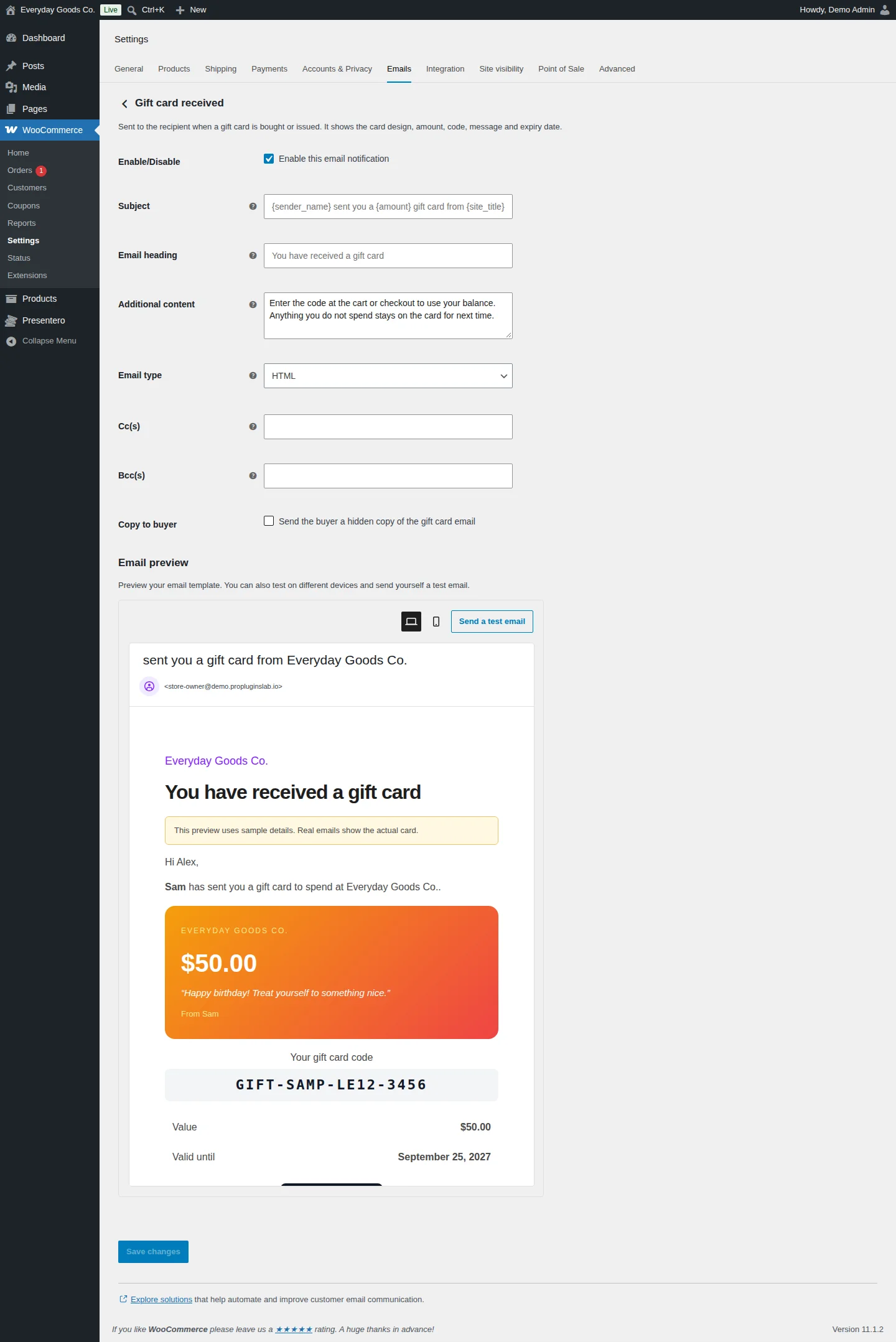
Gift card received is sent to the recipient when a gift card is bought or issued. It shows the card design, amount, code, message and expiry date. As well as the standard WooCommerce email fields, it has Copy to buyer, which sends the buyer a hidden copy of the gift card email.
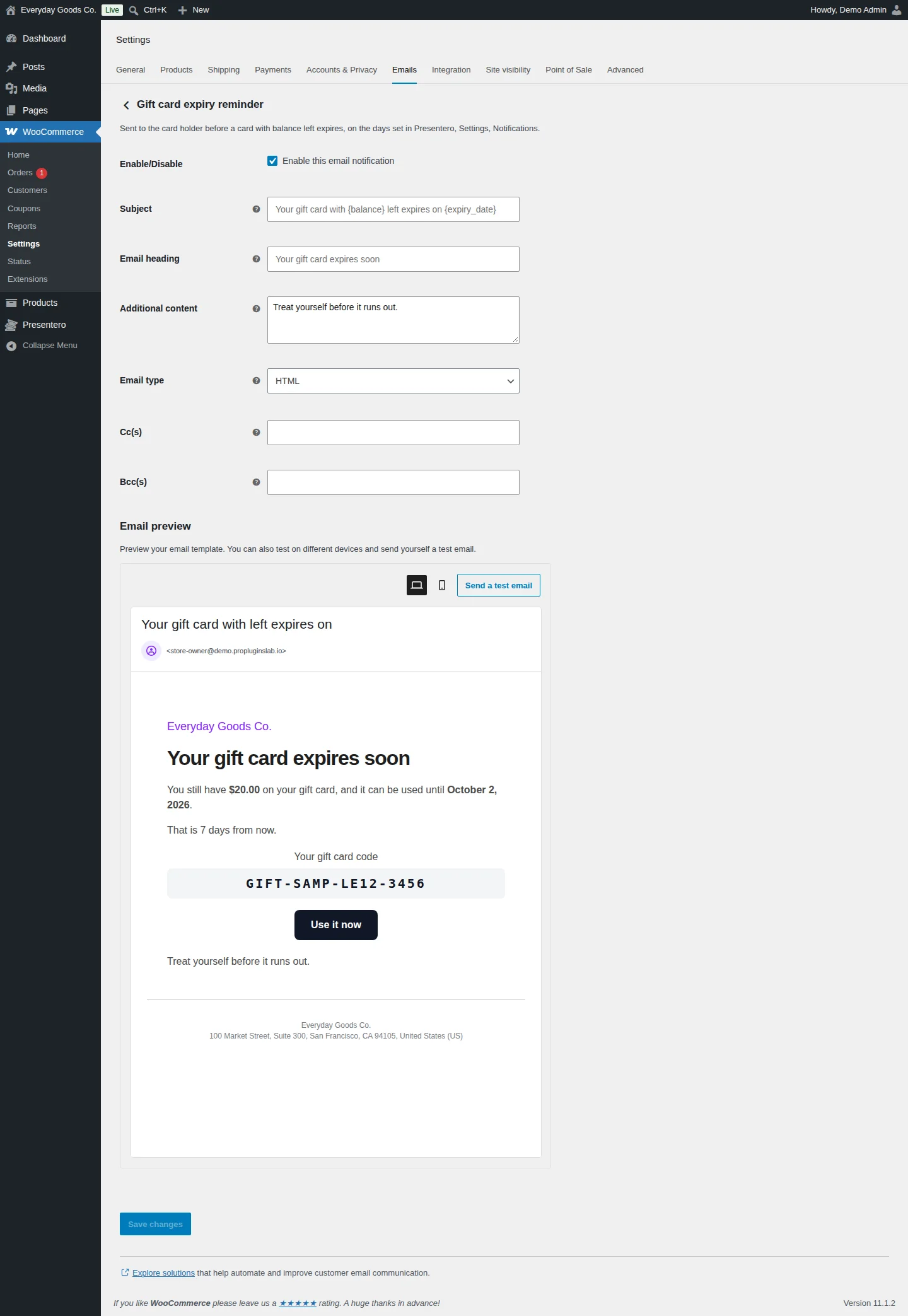
Gift card expiry reminder is sent to the card holder before a card with balance left expires, on the days set in Presentero > Settings > Notifications. It shows the balance, the expiry date, the code and a Use it now button.
The Subject and Email heading fields show their default wording as placeholders, such as {sender_name} sent you a {amount} gift card from {site_title}. Use the Email preview to check the layout on desktop and mobile, and Send a test email to see it in your inbox. The preview uses sample details. Real emails show the actual card.
#Documentation
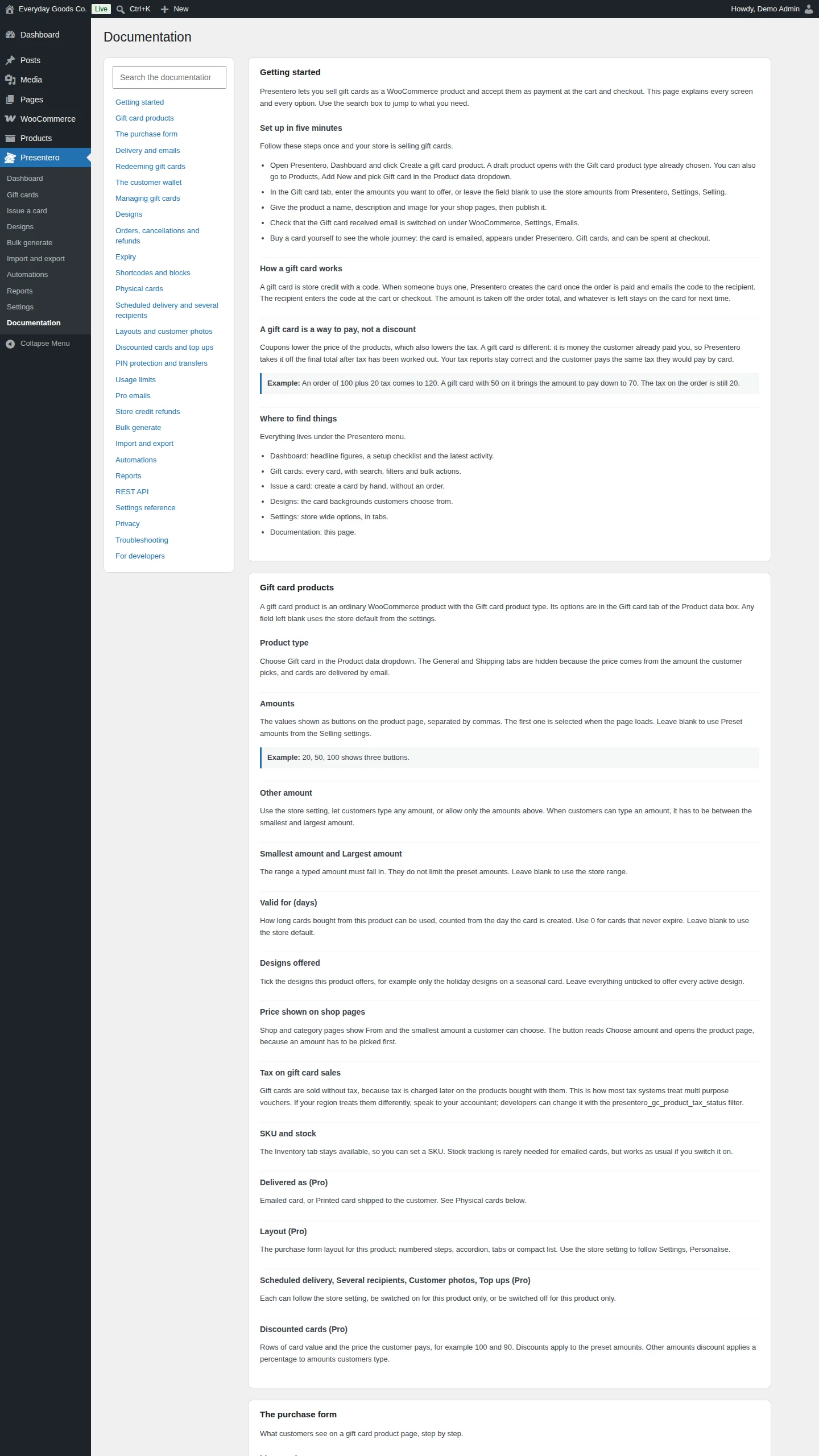
Presentero > Documentation is a built in guide that explains every screen and every option. Use Search the documentation to jump to a topic, or pick one from the list on the left. Topics include getting started, gift card products, the purchase form, delivery and emails, redeeming, the customer wallet, managing cards, designs, shortcodes and blocks, physical cards, PIN protection and transfers, usage limits, store credit refunds, bulk generate, import and export, automations, reports, the REST API, a settings reference, privacy and troubleshooting.
Settings reference
Presentero > Settings > Selling
| Setting | Type | Default | What it does |
|---|---|---|---|
| Preset amounts | text | 25, 50, 100, 200 |
The amounts shown as buttons on the product page, separated by commas. For example 25, 50, 100. Products with their own amounts ignore this list. |
| Custom amounts | checkbox | On |
Let customers type in their own amount. Adds an Other amount button. The amount the customer enters must fall between the minimum and maximum below. |
| Smallest custom amount | number | 10 |
The lowest value a customer can enter as a custom amount. Preset amounts are not limited by this. |
| Largest custom amount | number | 500 |
The highest value a customer can enter as a custom amount. |
| Default design | select | Birthday |
The design selected when the product page first loads, and the design used for cards you issue without choosing one. |
| Personal message | checkbox | On |
Let the buyer write a message to the recipient. The message is printed on the card preview and in the gift card email. |
| Message length | number | 300 |
The most characters a personal message may contain. |
| Create cards when | select | The order is paid (processing or completed) |
The order status that creates the gift card and sends it. Processing means as soon as payment is received. Completed means only after you complete the order, which lets you review orders first. |
| No recipient email | checkbox | On |
Send the card to the buyer when the recipient email is left blank. Useful for customers buying a card to print or hand over themselves. When this is off, the recipient email is required. |
| Codes in order details | checkbox | On |
Show the gift card codes to the buyer in their order details and order emails. Turn this off if you want only the recipient to see the code, for example when buyers send surprise gifts. |
Presentero > Settings > Codes
| Setting | Type | Default | What it does |
|---|---|---|---|
| Prefix | text | GIFT |
Letters and numbers placed at the start of every code, up to 10 characters. GIFT gives codes such as GIFT-7KQ2-M9XA-3HPD. Leave blank for no prefix. |
| Length | number | 12 |
How many random characters each code has, not counting the prefix and dashes. Longer codes are harder to guess. 12 is a good balance. |
| Characters | select | Letters and numbers |
Letters and numbers, Letters only or Numbers only. Letters and numbers is the safest choice. Characters that look alike, such as O and 0 or I and 1, are always left out so codes are easy to type. |
| Group size | number | 4 |
Adds a dash after every group of this many characters, which makes long codes easier to read. Use 0 for no dashes. |
Presentero > Settings > Expiry
| Setting | Type | Default | What it does |
|---|---|---|---|
| Valid for (days) | number | 365 |
How many days a new card can be used for. The card expires at the end of its last day in your store timezone. Use 0 for cards that never expire. Products can set their own period. |
Presentero > Settings > Redeeming
| Setting | Type | Default | What it does |
|---|---|---|---|
| Cart page | checkbox | On |
Show the gift card field on the cart page. Works on both the classic cart and the cart block. |
| Checkout page | checkbox | On |
Show the gift card field on the checkout page. Works on both the classic checkout and the checkout block. |
| Several cards per order | checkbox | On |
Allow more than one gift card on the same order. Cards are used in the order they were entered. Any balance left on a card stays on it for next time. |
| Shipping | checkbox | On |
Gift cards can pay for shipping. When this is off, shipping and its tax always have to be paid another way. |
| Buying gift cards | checkbox | Off |
Gift cards can pay for other gift cards. Off by default, which stops a balance being turned into new codes. The rest of the cart can still be paid with a gift card. |
| Logged in customers only | checkbox | Off |
Customers must be logged in to use a gift card. Guests will be asked to log in before a code is accepted. Checking a balance stays open to everyone. |
| Wrong codes allowed | number | 8 |
How many incorrect codes a visitor may enter before being made to wait. This protects your cards from people guessing codes. |
| Wait time (minutes) | number | 15 |
How long a visitor who reached the limit above has to wait before trying again. |
| Balance on orders | checkbox | Off |
Show the balance left on each gift card in the order totals the customer sees: under each gift card payment on the order received page, in My Account orders and in the order emails. It is the balance at the moment the order is viewed or the email is sent. |
Presentero > Settings > Refunds
| Setting | Type | Default | What it does |
|---|---|---|---|
| Return spent balance | checkbox | On |
Put the balance back on the card when an order paid with it is cancelled or fully refunded. The amount returned is exactly what that order took from each card. Partial refunds do not change the card. You can always add balance by hand from the card screen. |
| Disable refunded cards | checkbox | On |
Disable gift cards bought on an order that is later cancelled or fully refunded. You can switch a card back on by hand if needed. |
Presentero > Settings > My Account
| Setting | Type | Default | What it does |
|---|---|---|---|
| Gift cards page | checkbox | On |
Add a Gift cards page to My Account. Customers see the cards in their wallet with balances and expiry dates, and the cards they bought for other people. |
| Page title | text | Gift cards |
The name of the page in the My Account menu. |
| Add by code | checkbox | On |
Let customers add a card to their wallet by entering its code. A card can belong to one account only, so no card appears in a wallet just because an email address matches. |
| Balance reminder | checkbox | On |
Remind logged in customers of their wallet balance on the cart and checkout. Shows the cards in their wallet with a one click Use button. |
Presentero > Settings > Delivery
| Setting | Type | Default | What it does |
|---|---|---|---|
| Scheduled delivery | checkbox | On |
Let buyers pick the day the card is emailed. The card is created when the order is paid but only emailed on the chosen day. Products can switch this off in their Gift card tab. |
| Furthest delivery date (days) | number | 365 |
How far ahead a delivery date can be chosen. |
| Delivery hour | number | 9 |
Scheduled cards are emailed from this hour of the chosen day, in your store timezone. 9 means from 9 in the morning. |
| Several recipients | checkbox | On |
Let buyers send the same card to a list of people. The buyer enters one email address per line, optionally with a name. One card is created for each person and the quantity is set to match. |
| Most recipients | number | 10 |
The longest list of recipients accepted in one purchase. |
Presentero > Settings > Personalise
| Setting | Type | Default | What it does |
|---|---|---|---|
| Form layout | select | Numbered steps |
Numbered steps shows every section with a number. Accordion shows one section at a time with a Next button. Tabs puts sections side by side. Compact list removes the boxes for a minimal look. Products can choose their own layout. |
| Customer photos | checkbox | On |
Let customers upload their own photo as the card design. Photos are checked to be real JPEG, PNG or WebP images, resized, stripped of hidden details such as location, and stored under a random name in a presentero-gc folder of your uploads. Unused photos are removed after 30 days. Products can switch this off. |
| Largest photo (MB) | number | 3 |
Photos above this size are refused. It can never be larger than the upload limit of your server. |
Presentero > Settings > Notifications
| Setting | Type | Default | What it does |
|---|---|---|---|
| Expiry reminders (days before) | text | 30, 7 |
Remind card holders before their card expires, for example 30, 7, 1 sends three reminders. Only cards with balance left are reminded, and each reminder is sent once per card. Leave blank for no reminders. |
| Low balance alert below | number | 10 |
When a purchase leaves less than this amount on a card, the holder is told what is left. Use 0 for no alerts. |
| Tell the buyer | checkbox | On |
Email the buyer the first time the recipient uses the card. It is sent once per card and never reveals what was bought. |
Presentero > Settings > Security
| Setting | Type | Default | What it does |
|---|---|---|---|
| PIN protection | checkbox | Off |
Give every new card a PIN that is needed to spend it. The PIN is printed in the gift card email and on printed cards. Customers enter it next to the code, except when using a card from their own wallet. Cards made before this was switched on keep working without a PIN. Wrong PINs count towards the guessing protection. |
| PIN length | number | 4 |
Number of digits in each PIN. |
| Transfers | checkbox | On |
Let customers send a card from their wallet to someone else. Adds a Send to someone button in the wallet. The card is emailed to the new person with a new code, so the old code stops working. |
Presentero > Settings > Usage limits
| Setting | Type | Default | What it does |
|---|---|---|---|
| Smallest order | number | 0 |
Gift cards can only be used when the products in the cart add up to at least this amount. Use 0 for no minimum. |
| Categories cards cannot pay for | select | None selected |
Products in these categories must be paid another way. The rest of the cart can still be paid with a gift card. Hold Ctrl or Cmd to pick several. |
| Sale items | checkbox | Off |
Gift cards cannot pay for products on sale. Discounted products must be paid another way. |
WooCommerce > Settings > Emails > Gift card received
| Setting | Type | Default | What it does |
|---|---|---|---|
| Enable/Disable | checkbox | On |
Enable this email notification. Sent to the recipient when a gift card is bought or issued. |
| Subject | text | - | The email subject. The placeholder shows the default wording, {sender_name} sent you a {amount} gift card from {site_title}. |
| Email heading | text | - | The main heading in the email. The placeholder shows the default, You have received a gift card. |
| Additional content | textarea | Enter the code at the cart or checkout to use your balance. Anything you do not spend stays on the card for next time. |
Text shown below the main email content. |
| Email type | select | HTML |
Plain text, HTML or Multipart. |
| Cc(s) | text | - | Extra addresses that receive a copy of the email. |
| Bcc(s) | text | - | Extra addresses that receive a hidden copy of the email. |
| Copy to buyer | checkbox | Off |
Send the buyer a hidden copy of the gift card email. |
WooCommerce > Settings > Emails > Gift card expiry reminder
| Setting | Type | Default | What it does |
|---|---|---|---|
| Enable/Disable | checkbox | On |
Enable this email notification. Sent to the card holder before a card with balance left expires, on the days set in Presentero > Settings > Notifications. |
| Subject | text | - | The email subject. The placeholder shows the default wording, Your gift card with {balance} left expires on {expiry_date}. |
| Email heading | text | - | The main heading in the email. The placeholder shows the default, Your gift card expires soon. |
| Additional content | textarea | Treat yourself before it runs out. |
Text shown below the main email content. |
| Email type | select | HTML |
Plain text, HTML or Multipart. |
| Cc(s) | text | - | Extra addresses that receive a copy of the email. |
| Bcc(s) | text | - | Extra addresses that receive a hidden copy of the email. |
Shortcodes
[presentero_balance]
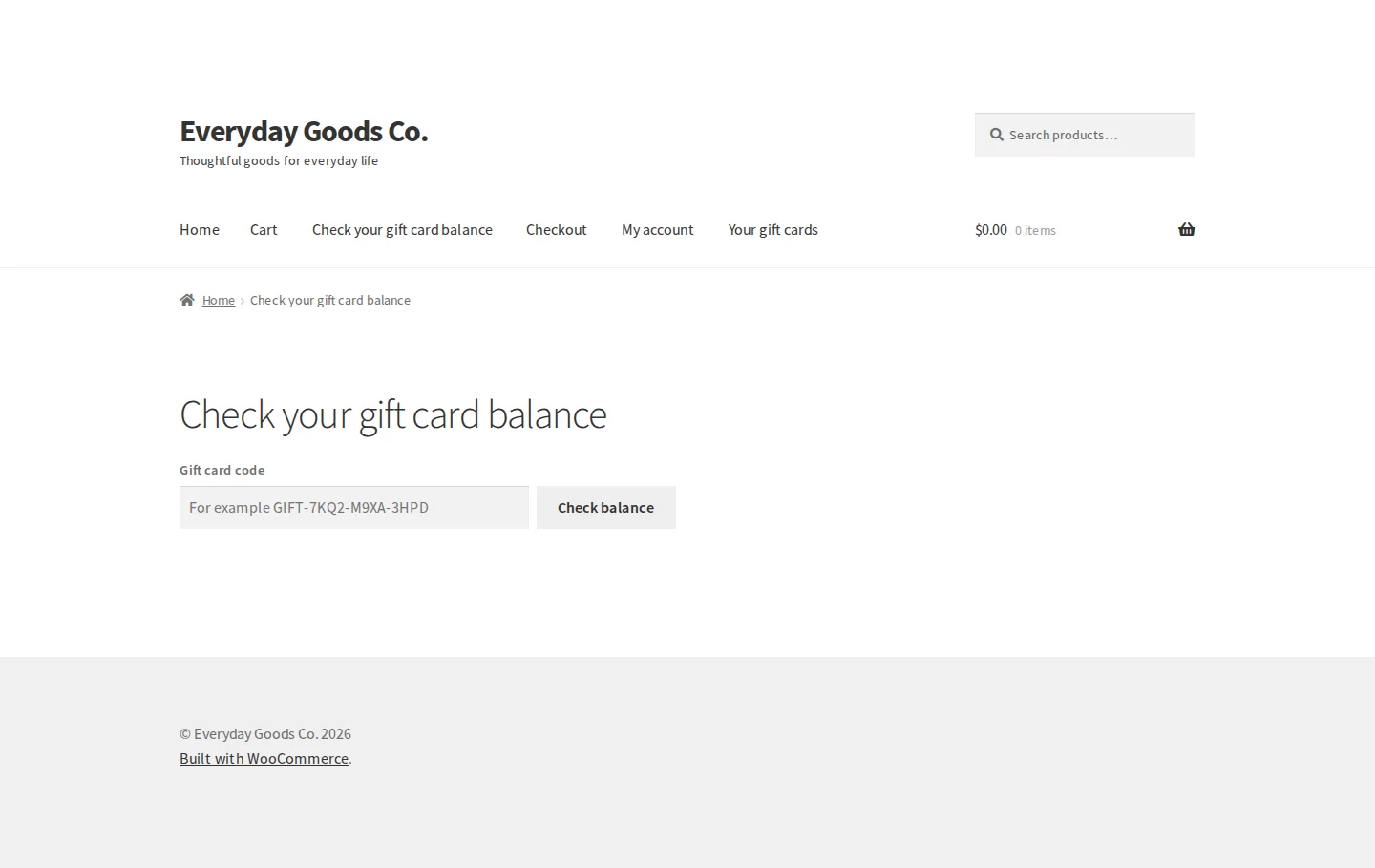
Shows a gift card balance check form. Visitors enter a gift card code and click Check balance. Checking a balance is open to everyone, even when Logged in customers only is switched on.
[presentero_balance title="Check your gift card balance"]| Attribute | Default | Description |
|---|---|---|
title | - | A heading shown above the form. |
[presentero_wallet]
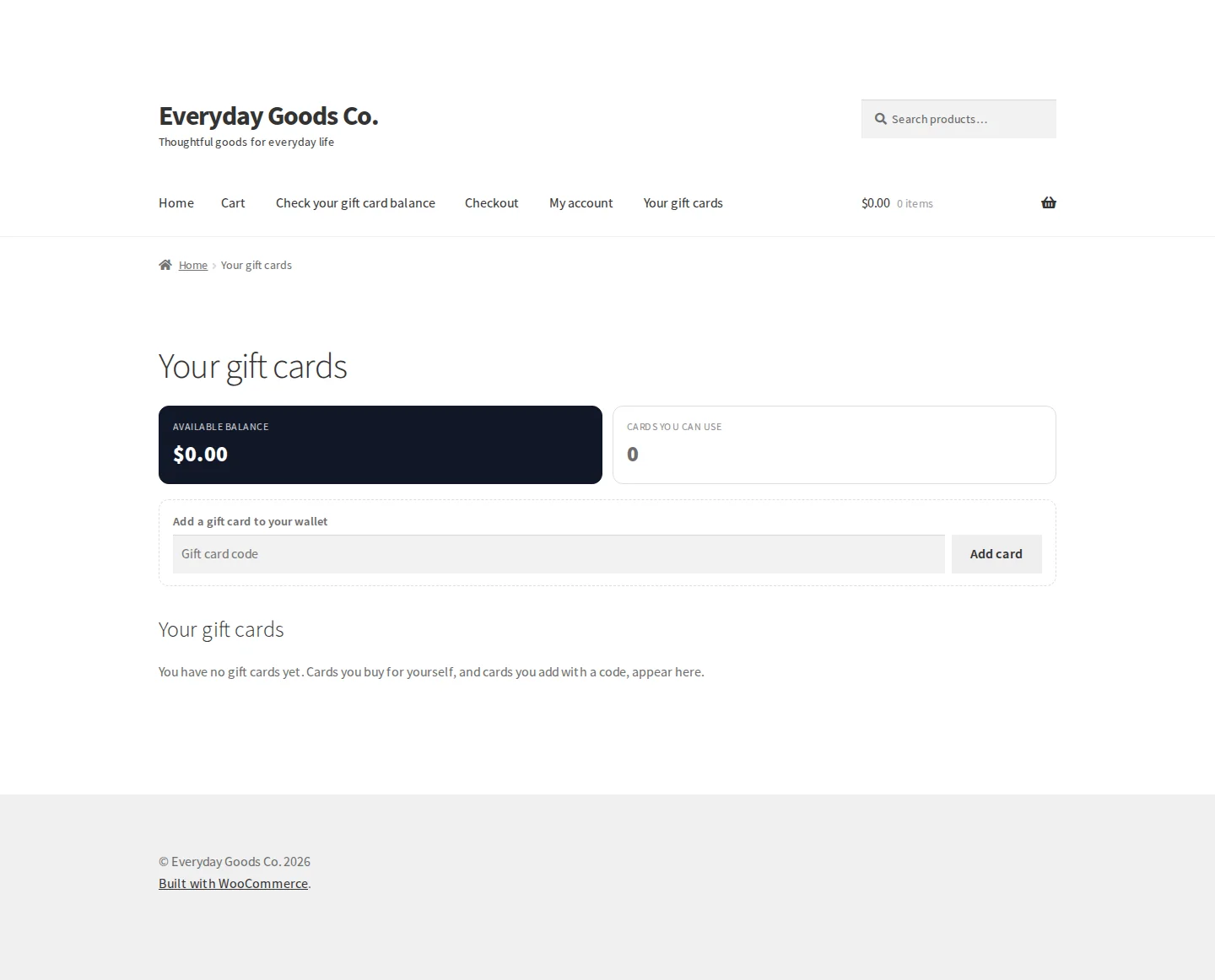
Shows the customer's gift card wallet on any page: the available balance, the cards they can use, their list of gift cards and, when Add by code is on, a field to add a card by its code.
[presentero_wallet title="My gift cards"]| Attribute | Default | Description |
|---|---|---|
title | - | A heading shown above the wallet. |
On your site
The gift card product page
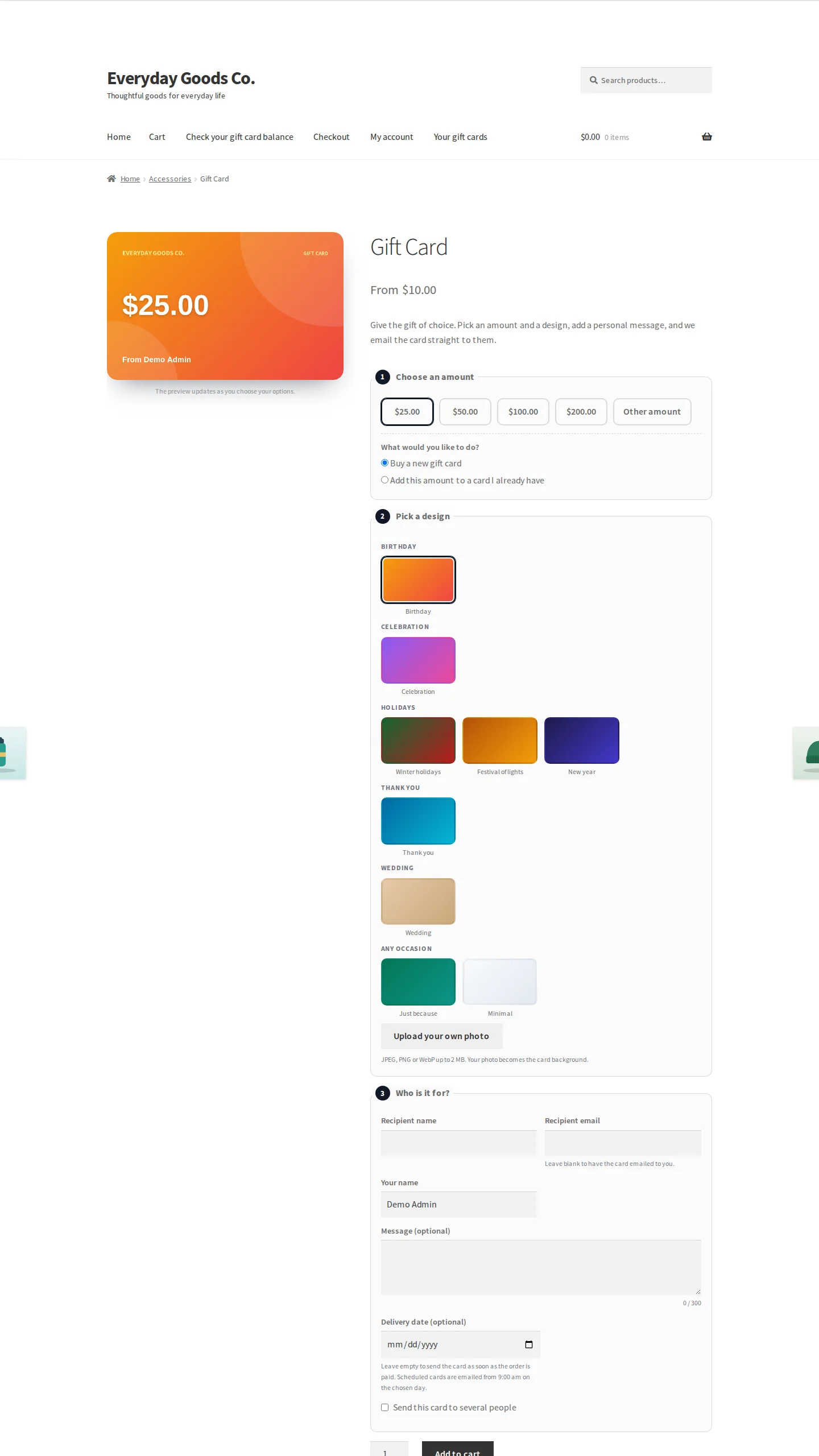
Shoppers buy gift cards through a step by step purchase form. A live card preview next to the form updates as they choose their options.
- Choose an amount: preset amount buttons, plus Other amount when custom amounts are on. When top ups are available, shoppers can choose Buy a new gift card or Add this amount to a card I already have.
- Pick a design: designs are grouped by occasion. With customer photos on, an Upload your own photo button lets shoppers use their own photo as the card background.
- Who is it for?: Recipient name, Recipient email, Your name and an optional Message with a character counter. If the recipient email is left blank, the card is emailed to the buyer. With scheduled delivery on, shoppers can pick a Delivery date (optional). Leave it empty to send the card as soon as the order is paid. With several recipients on, Send this card to several people lets them enter a list of people.
The form uses the layout set in Settings > Personalise or on the product.
Checking a balance
A page with the [presentero_balance] shortcode lets anyone enter a Gift card code and click Check balance.
The customer wallet
The wallet shows the customer's Available balance and the number of Cards you can use. Customers can type a code under Add a gift card to your wallet and click Add card. Their cards are listed below. Cards they buy for themselves, and cards they add with a code, appear here. The same wallet appears on the Gift cards page in My Account when that page is switched on.
Frequently asked questions
Is a gift card treated as a discount?
No. A gift card works like a payment. It lowers the amount to pay, and taxes are worked out exactly as they would be without it. For example, an order of 100 plus 20 tax comes to 120. A gift card with 50 on it brings the amount to pay down to 70, and the tax on the order is still 20.
I already use the free edition. Will I lose my cards when I switch to Pro?
No. When you activate Pro, the free edition is switched off automatically. Pro uses the same cards, designs and settings, so nothing needs to be moved.
Can customers use more than one gift card on an order?
Yes, when Several cards per order is ticked under Presentero > Settings > Redeeming. Cards are used in the order they were entered, and any balance left on a card stays on it for next time.
Do gift cards work with the WooCommerce cart and checkout blocks?
Yes. The Cart page and Checkout page options under Settings > Redeeming work on both the classic cart and checkout and the cart and checkout blocks. PIN protection also works in the blocks.
Can buyers choose when the card is delivered?
Yes. Tick Scheduled delivery under Presentero > Settings > Delivery. The buyer picks a delivery date on the product page. The card is created when the order is paid but only emailed on the chosen day, from the Delivery hour in your store timezone.
What happens to a gift card balance when an order is refunded?
With Return spent balance ticked under Settings > Refunds, the balance goes back on the card when an order paid with it is cancelled or fully refunded. Partial refunds do not change the card. You can add balance by hand from the card screen. With Disable refunded cards ticked, cards bought on a cancelled or fully refunded order are disabled.
Can I give gift cards without a customer buying one?
Yes. Use Presentero > Issue a card for a single card, Bulk generate for up to 1,000 cards of the same value, or Automations to reward customers automatically, for example after their first order or an approved review.
Can I make gift cards that never expire?
Yes. Set Valid for (days) to 0 under Settings > Expiry for all new cards. Products can set their own period, and you can choose Never expires when you issue or bulk generate cards.
Troubleshooting
- The plugin will not activate, or the Presentero menu is missing.
Presentero Pro requires WooCommerce 8.0 or later, WordPress 6.5 or later and PHP 7.4 or later. Install and activate WooCommerce first, then activate Presentero again.
- Recipients are not receiving their gift card.
- Check that Enable/Disable is ticked under WooCommerce > Settings > Emails > Gift card received.
- Check Create cards when under Settings > Selling. If it is set to The order is completed, cards are only created and sent after you complete the order.
- If the buyer picked a delivery date, the card is only emailed on that day, from the Delivery hour set under Settings > Delivery.
- Use Send a test email on the email settings screen to confirm your store can send email.
- The gift card field does not appear on the cart or checkout.
Tick Cart page and Checkout page under Presentero > Settings > Redeeming. If Logged in customers only is ticked, guests are asked to log in before a code is accepted.
- A customer's gift card will not cover part of their cart.
Check the limits that apply:
- Settings > Usage limits: Smallest order, Categories cards cannot pay for and Sale items.
- Settings > Redeeming: when Shipping is off, shipping and its tax must be paid another way. When Buying gift cards is off, gift cards cannot pay for other gift cards.
The rest of the cart can still be paid with the gift card.
- A customer is told to wait before entering another code.
This is the protection against guessing codes. After the number of wrong codes set in Wrong codes allowed, the visitor must wait for the Wait time (minutes) under Settings > Redeeming. With PIN protection on, wrong PINs count too. Ask the customer to check the code and try again after the wait.
- Expiry reminders are not being sent.
Make sure Expiry reminders (days before) under Settings > Notifications is not blank, and that Enable/Disable is ticked under WooCommerce > Settings > Emails > Gift card expiry reminder. Only cards with balance left get reminders, and each reminder is sent once per card.