
Overview
Presentero adds a Gift card product type to WooCommerce. Customers choose an amount and a design and add the recipient and a personal message. The card preview updates as they go. Once the order is paid, the card is created and emailed. The recipient enters the code at the cart or checkout, and the balance comes off the order total. Any balance left over stays on the card for next time.
A gift card works like a payment, not a discount. It is taken off the final total after tax, so your tax figures stay correct. Customers can use several cards on one order. They can keep their cards in a wallet on the Gift cards page in My Account, and check a balance on any page where you add the balance checker.
The plugin is for store owners who want to sell gift cards, or give them out as prizes, goodwill gestures or store credit. Everything is managed under the Presentero menu in your WordPress admin. The plugin makes no remote requests. Gift card emails are sent through WooCommerce using your own mail setup.
Requirements
- WordPress 6.5 or later (tested up to 7.1)
- PHP 7.4 or later
- WooCommerce 8.0 or later (required plugin)
Installation
Presentero is a free plugin on WordPress.org. It needs WooCommerce, so install and activate WooCommerce 8.0 or newer first.
In your WordPress admin, go to Plugins > Add New.
Search for Presentero - Gift Cards for WooCommerce.
Click Install Now on the plugin card.
Click Activate.
Open Presentero > Dashboard in the admin menu to see the setup checklist.
Quick start
- Create a gift card product
Go to Presentero > Dashboard and click Create a gift card product in the Setup checklist. A draft product opens with the Gift card product type already chosen.
- Set the amounts and publish
In the Gift card tab of the product, enter the amounts you want to offer, for example
25, 50, 100. You can also leave the field blank to use the store amounts from Presentero > Settings > Selling. Add a product name, description and image, then publish the product. - Check the gift card email
Go to WooCommerce > Settings > Emails and open Gift card received. Make sure Enable this email notification is ticked.
- Review the settings
Open Presentero > Settings and look through the tabs: amounts, codes, expiry and redemption rules. Each option shows its default value below the description.
- Place a test order
Buy a card for yourself. It arrives by email and appears under Presentero > Gift cards. Then add something to the cart, enter the code in the gift card field and check that the balance comes off the total.
#Dashboard
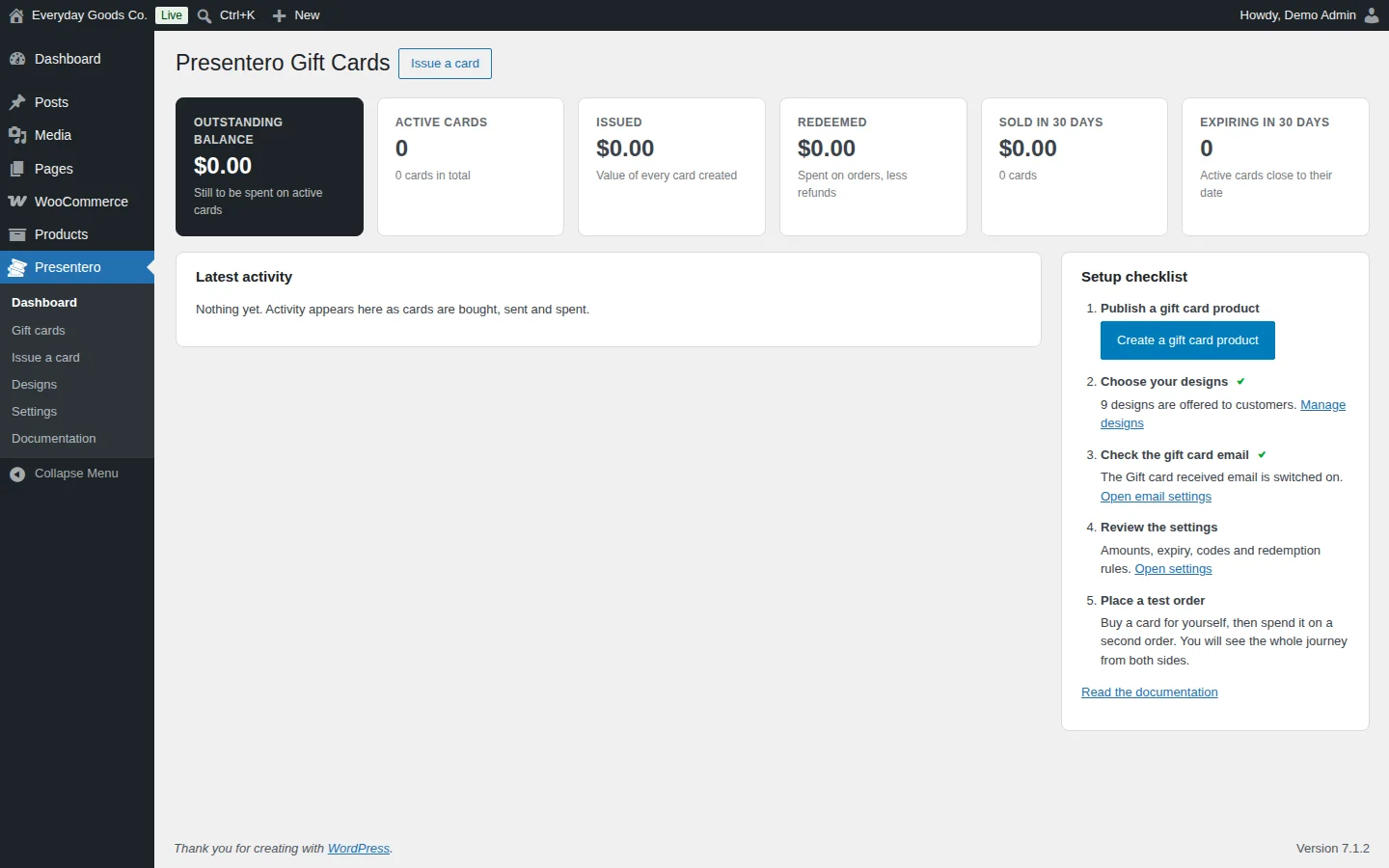
Presentero > Dashboard gives you an overview of your gift cards. The headline figures at the top are:
- Outstanding balance: money still to be spent on active cards.
- Active cards: the number of cards that can be used.
- Issued: the value of every card created.
- Redeemed: the amount spent on orders, less refunds.
- Sold in 30 days: the value and number of cards sold recently.
- Expiring in 30 days: active cards close to their expiry date.
Latest activity lists what happens as cards are bought, sent and spent.
The Setup checklist walks you through the first steps: publish a gift card product, choose your designs, check the gift card email, review the settings and place a test order. Each step links to the screen you need. Use the Issue a card button at the top to create a card by hand.
#Gift card products
A gift card product is an ordinary WooCommerce product with the Gift card product type. You can create one from the dashboard with Create a gift card product, or go to Products > Add New and pick Gift card in the Product data dropdown.
The General and Shipping tabs are hidden for this product type. The price comes from the amount the customer picks, and cards are delivered by email. The product options are in the Gift card tab of the Product data box. Any field you leave blank uses the store default from Presentero > Settings.
- Amounts: the values shown as buttons on the product page, separated by commas. The first one is selected when the page loads. For example,
20, 50, 100shows three buttons. - Other amount: use the store setting, let customers type any amount, or allow only the amounts above.
- Smallest amount and Largest amount: the range a typed amount must fall in. They do not limit the preset amounts.
- Valid for (days): how long cards bought from this product can be used, counted from the day the card is created. Use
0for cards that never expire. - Designs offered: tick the designs this product offers, for example only the holiday designs on a seasonal card. Leave everything unticked to offer every active design.
Shop and category pages show From and the smallest amount a customer can choose. The button reads Choose amount and opens the product page.
Gift cards are sold without tax, because tax is charged later on the products bought with them. The Inventory tab stays available, so you can set a SKU and use stock tracking if you need it.
#Gift cards
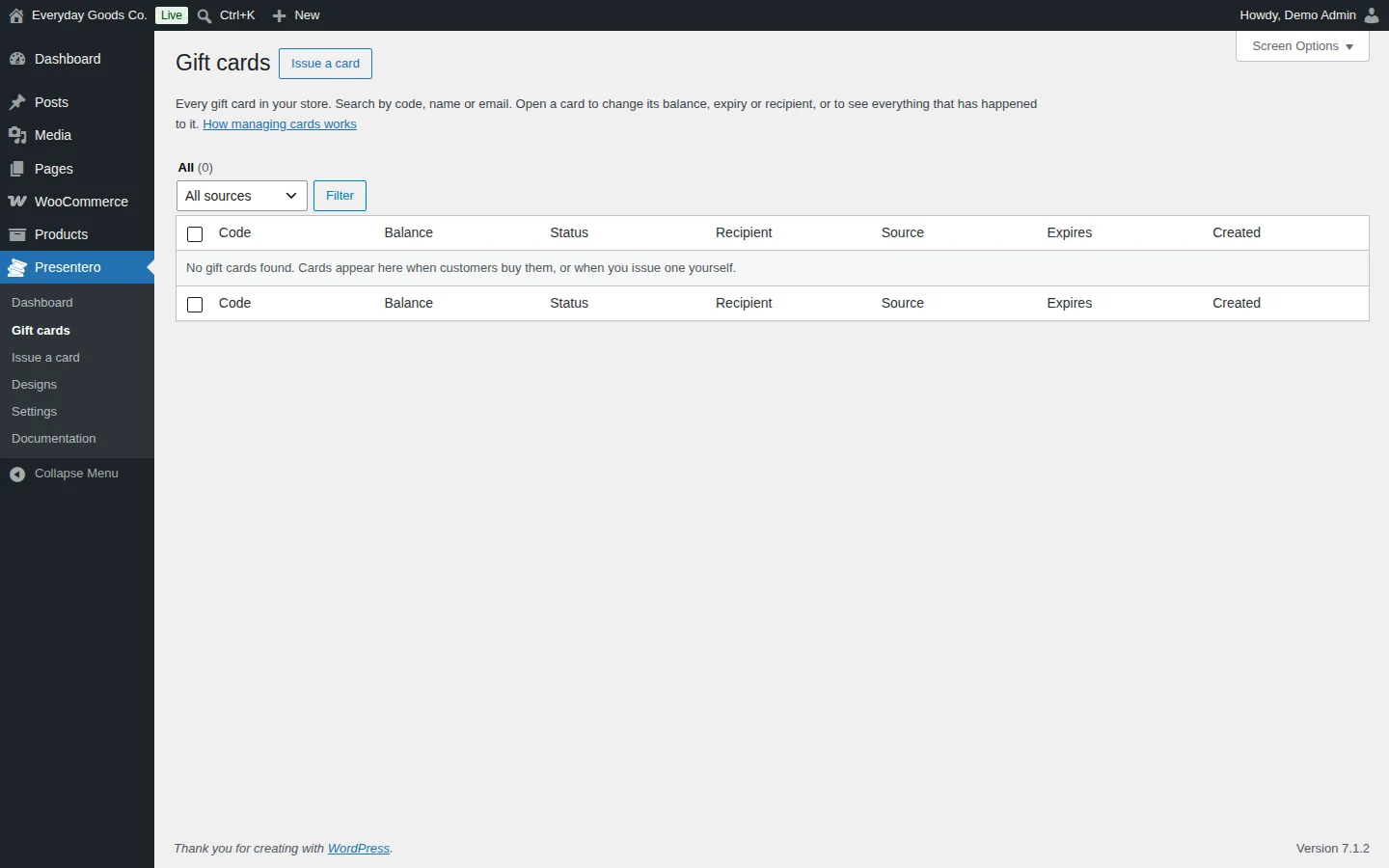
Presentero > Gift cards lists every gift card in your store. The table shows the Code, Balance, Status, Recipient, Source, Expires and Created date for each card.
- Search by code, name or email.
- Use the sources dropdown and Filter to show only cards from one source.
- Tick cards and use the bulk actions to work on several at once.
A card can be Active, Used up, Expired or Disabled.
Open a card to change its balance (with a reason), its expiry date, recipient, message, design and status. The card screen also shows a full history of everything that happened to the card. From an order, the Gift cards box on the order screen shows when each card was emailed and has a Send again link.
#Issue a card
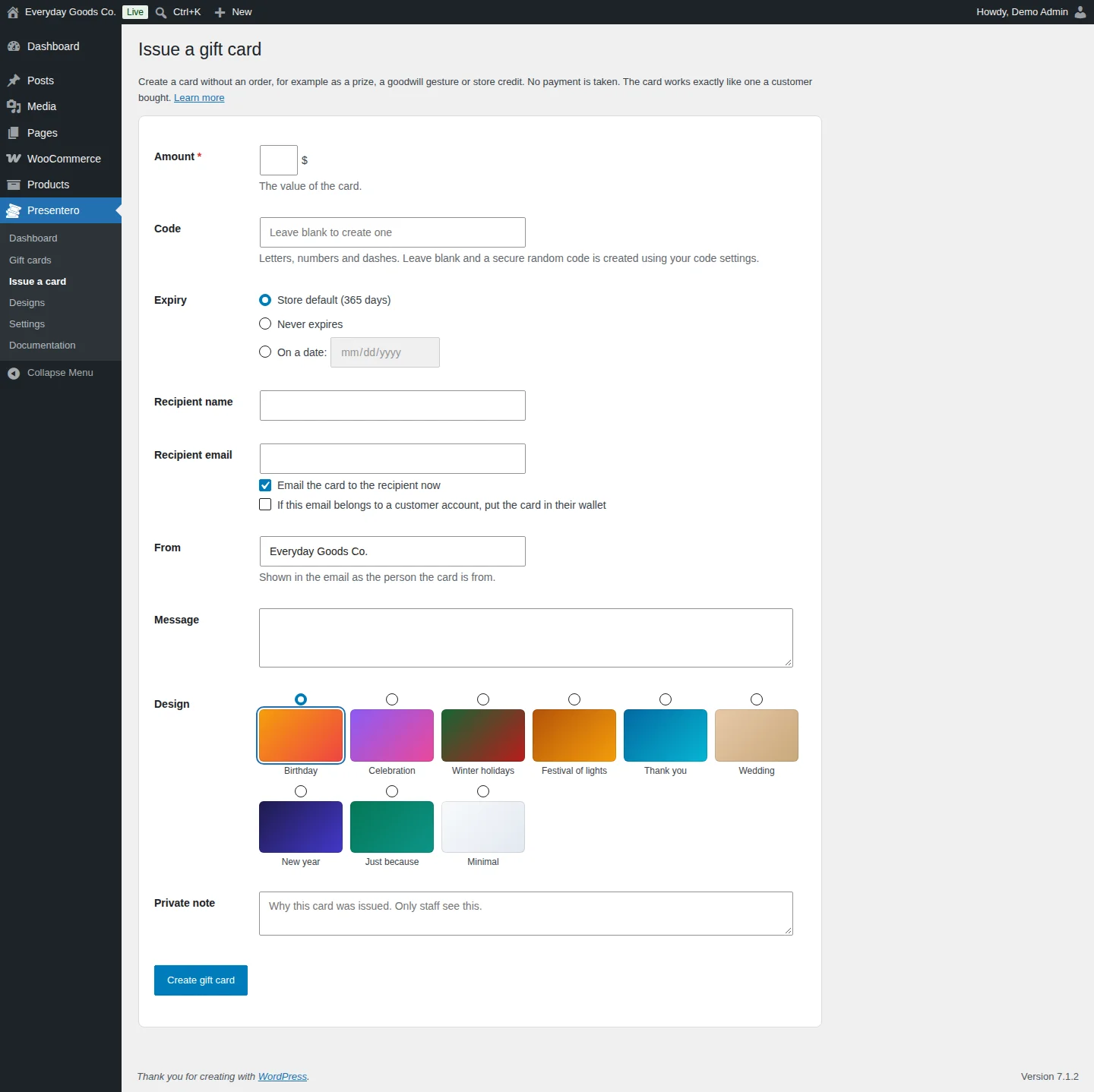
Presentero > Issue a card creates a card without an order, for example as a prize, a goodwill gesture or store credit. No payment is taken. The card works exactly like one a customer bought.
- Enter the Amount. This is the value of the card and is required.
- Enter a Code, or leave it blank. A blank code creates a secure random code using your code settings. Codes can use letters, numbers and dashes.
- Choose the Expiry: Store default (the period set under Settings > Expiry), Never expires, or On a date: with a date you pick.
- Add the Recipient name and Recipient email.
- Leave Email the card to the recipient now ticked to send the card straight away. Tick If this email belongs to a customer account, put the card in their wallet to add it to that customer's wallet.
- Check From. This is shown in the email as the person the card is from.
- Add an optional Message and choose a Design.
- Use Private note to record why the card was issued. Only staff see this note.
- Click Create gift card.
#Designs
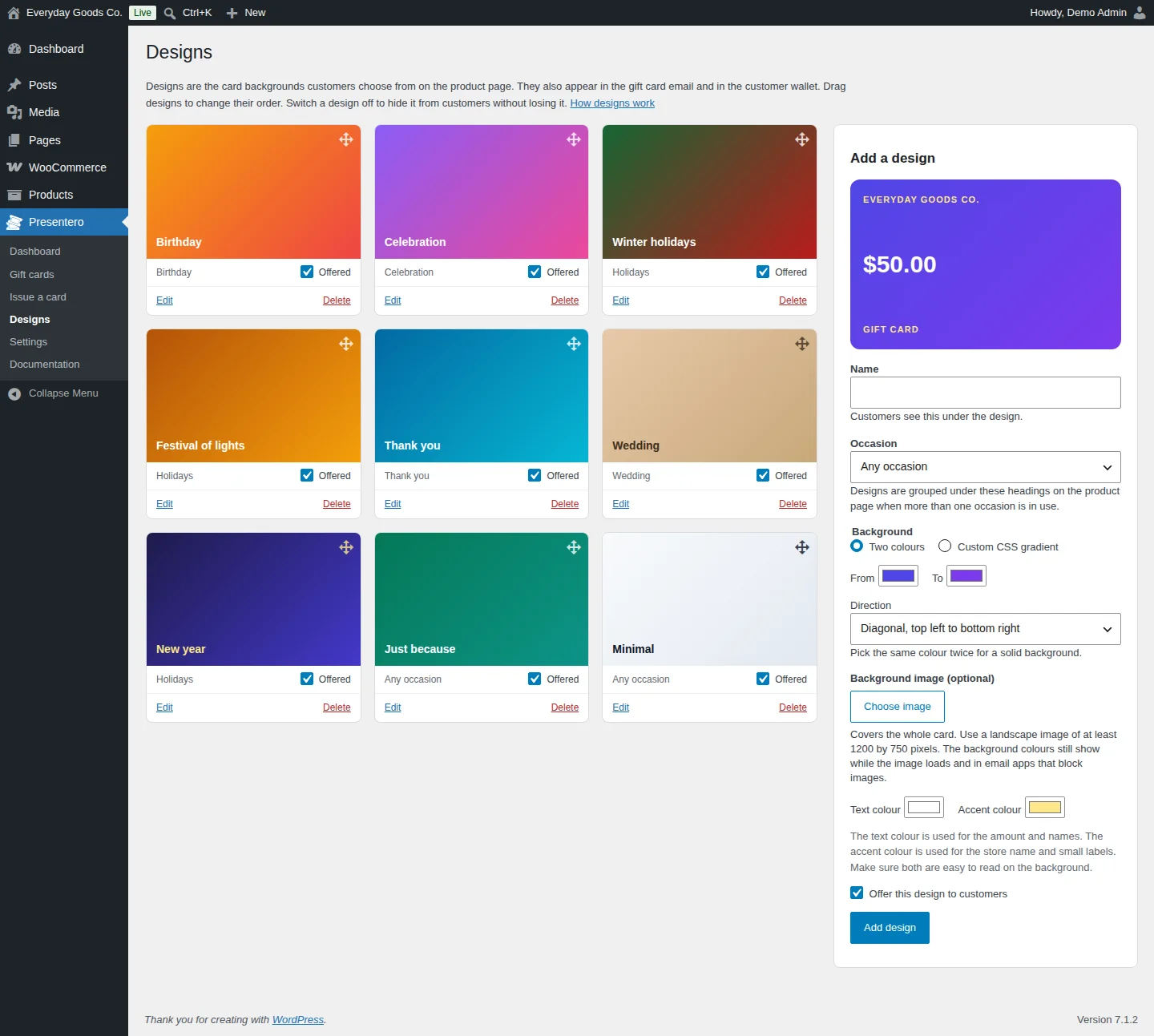
Designs are the card backgrounds customers choose from on the product page. They also appear in the gift card email and in the customer wallet. The plugin comes with nine starter designs.
Each design card shows its occasion, an Offered checkbox, and Edit and Delete links. Untick Offered to hide a design from customers without losing it. Drag designs to change their order.
To add your own design, fill in the Add a design panel. The preview at the top updates as you change the fields.
- Name: customers see this under the design.
- Occasion: designs are grouped under these headings on the product page when more than one occasion is in use.
- Background: choose Two colours and set From, To and Direction, or choose Custom CSS gradient. Pick the same colour twice for a solid background.
- Background image (optional): click Choose image. The image covers the whole card. Use a landscape image of at least 1200 by 750 pixels. The background colours still show while the image loads and in email apps that block images.
- Text colour is used for the amount and names. Accent colour is used for the store name and small labels. Make sure both are easy to read on the background.
- Offer this design to customers: untick it to save the design without offering it yet.
Click Add design to save it.
#Settings: Selling
Presentero > Settings holds your store wide options in eight tabs: Selling, Codes, Expiry, Redeeming, Refunds, My Account, Advanced and Emails. Every option shows its default value under its description, and each tab has an Every option on this tab explained link to the built in documentation.
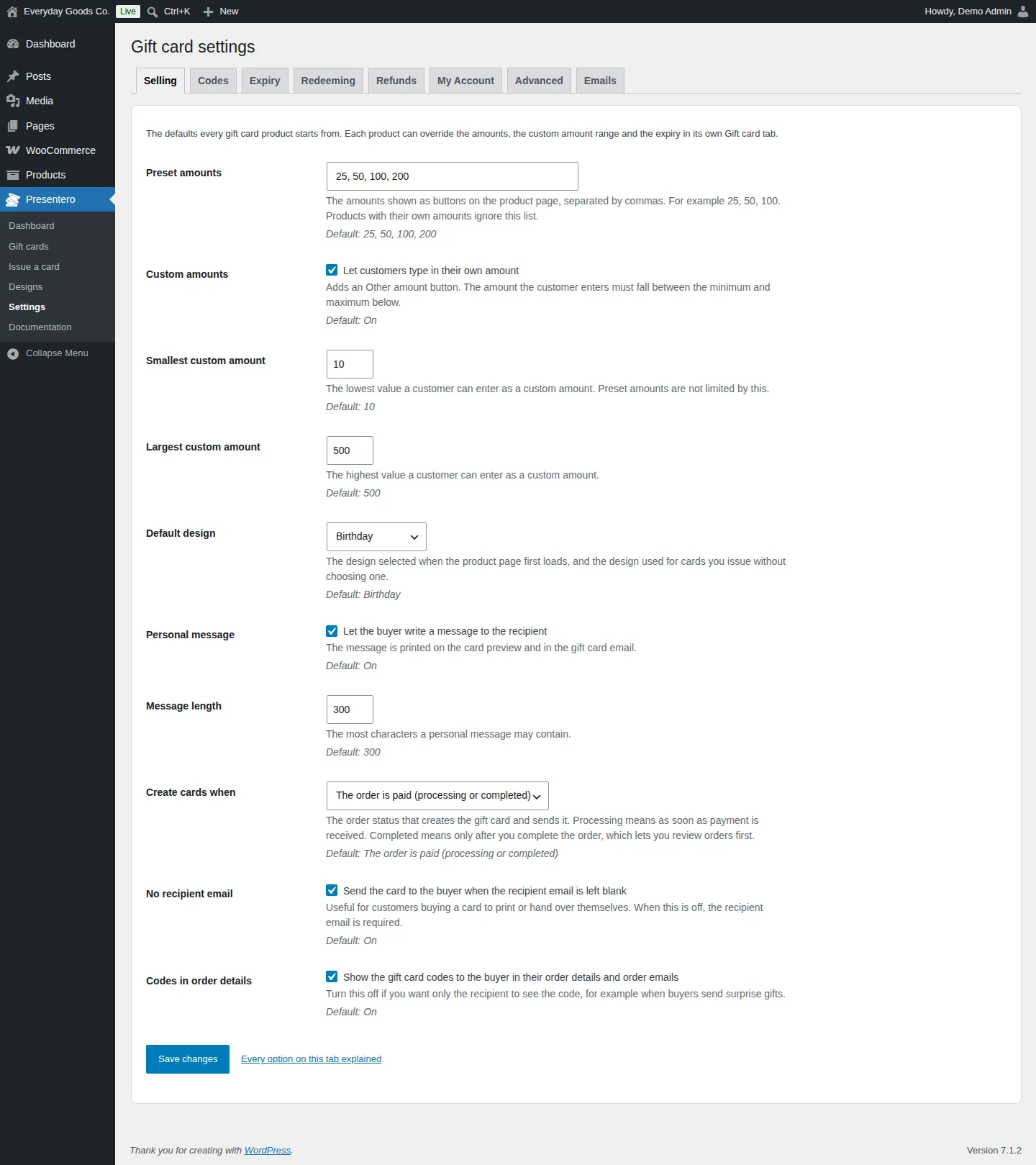
The Selling tab sets the defaults every gift card product starts from. Each product can override the amounts, the custom amount range and the expiry in its own Gift card tab.
- Preset amounts and Custom amounts control the amount buttons and the Other amount button on the product page. Smallest custom amount and Largest custom amount set the range for typed amounts.
- Default design is selected when the product page first loads, and is used for cards you issue without choosing one.
- Personal message and Message length control the buyer's message to the recipient.
- Create cards when decides whether cards are created as soon as the order is paid, or only after you complete the order.
- No recipient email sends the card to the buyer when the recipient email is left blank.
- Codes in order details shows the codes to the buyer in their order details and order emails. Turn it off for surprise gifts.
#Settings: Codes
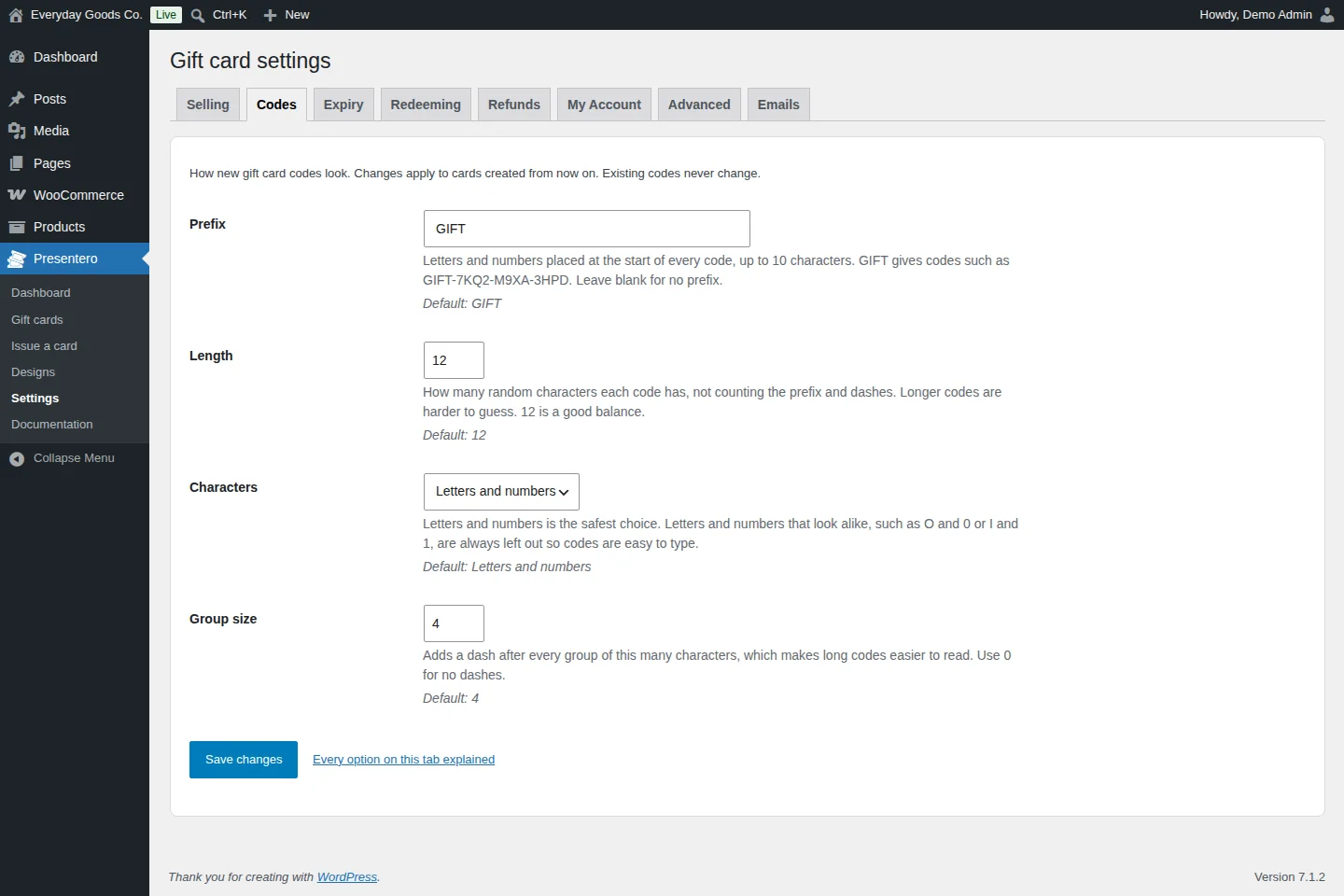
The Codes tab controls how new gift card codes look. Changes apply to cards created from now on. Existing codes never change.
- Prefix: letters and numbers at the start of every code, up to 10 characters.
GIFTgives codes such asGIFT-7KQ2-M9XA-3HPD. Leave it blank for no prefix. - Length: how many random characters each code has, not counting the prefix and dashes. Longer codes are harder to guess.
- Characters: Letters and numbers, Letters only or Numbers only. Characters that look alike, such as O and 0 or I and 1, are always left out.
- Group size: adds a dash after every group of this many characters. Use
0for no dashes.
#Settings: Expiry
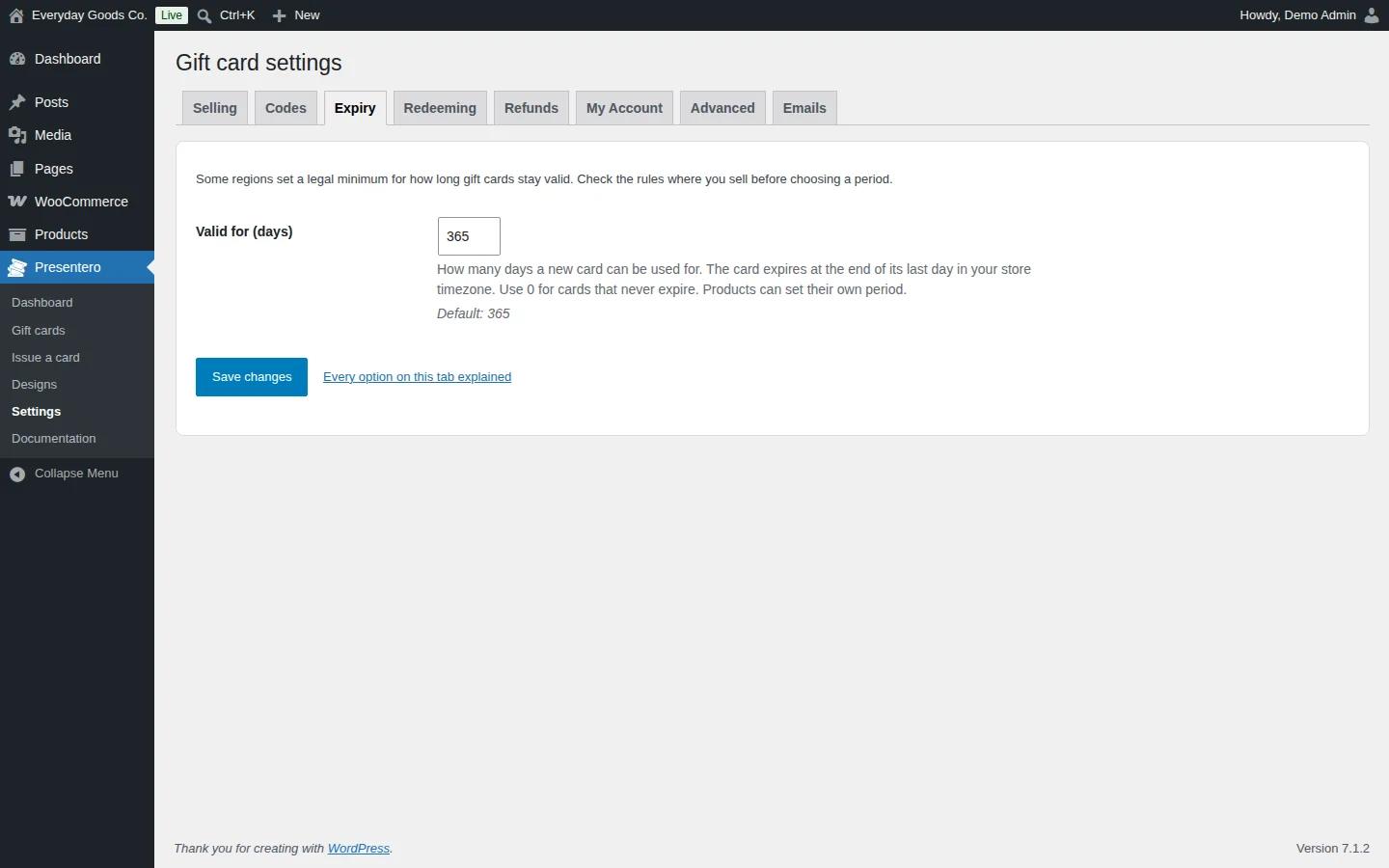
The Expiry tab has one option, Valid for (days). It sets how many days a new card can be used for. The card expires at the end of its last day in your store timezone. Use 0 for cards that never expire. Products can set their own period.
Some regions set a legal minimum for how long gift cards stay valid. Check the rules where you sell before you choose a period.
#Settings: Redeeming
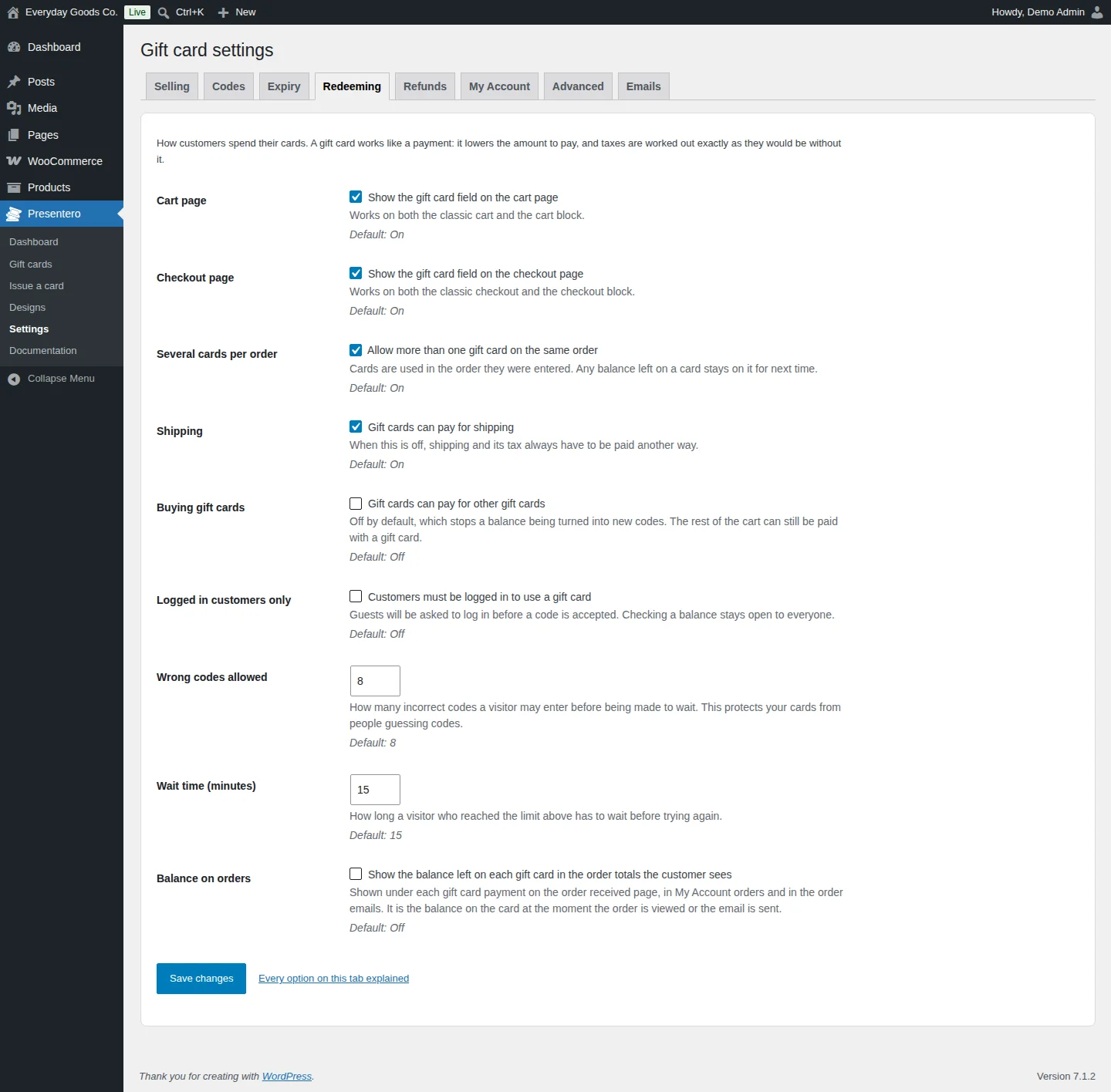
The Redeeming tab controls how customers spend their cards. A gift card works like a payment: it lowers the amount to pay, and taxes are worked out exactly as they would be without it.
- Cart page and Checkout page show the gift card field. Both work on the classic pages and on the cart and checkout blocks.
- Several cards per order allows more than one card on the same order. Cards are used in the order they were entered.
- Shipping lets gift cards pay for shipping. When it is off, shipping and its tax always have to be paid another way.
- Buying gift cards lets gift cards pay for other gift cards. It is off by default, which stops a balance being turned into new codes.
- Logged in customers only asks guests to log in before a code is accepted. Checking a balance stays open to everyone.
- Wrong codes allowed and Wait time (minutes) protect your cards from people guessing codes. After too many wrong codes, the visitor has to wait before trying again.
- Balance on orders shows the balance left on each card under its payment on the order received page, in My Account orders and in the order emails.
#Settings: Refunds
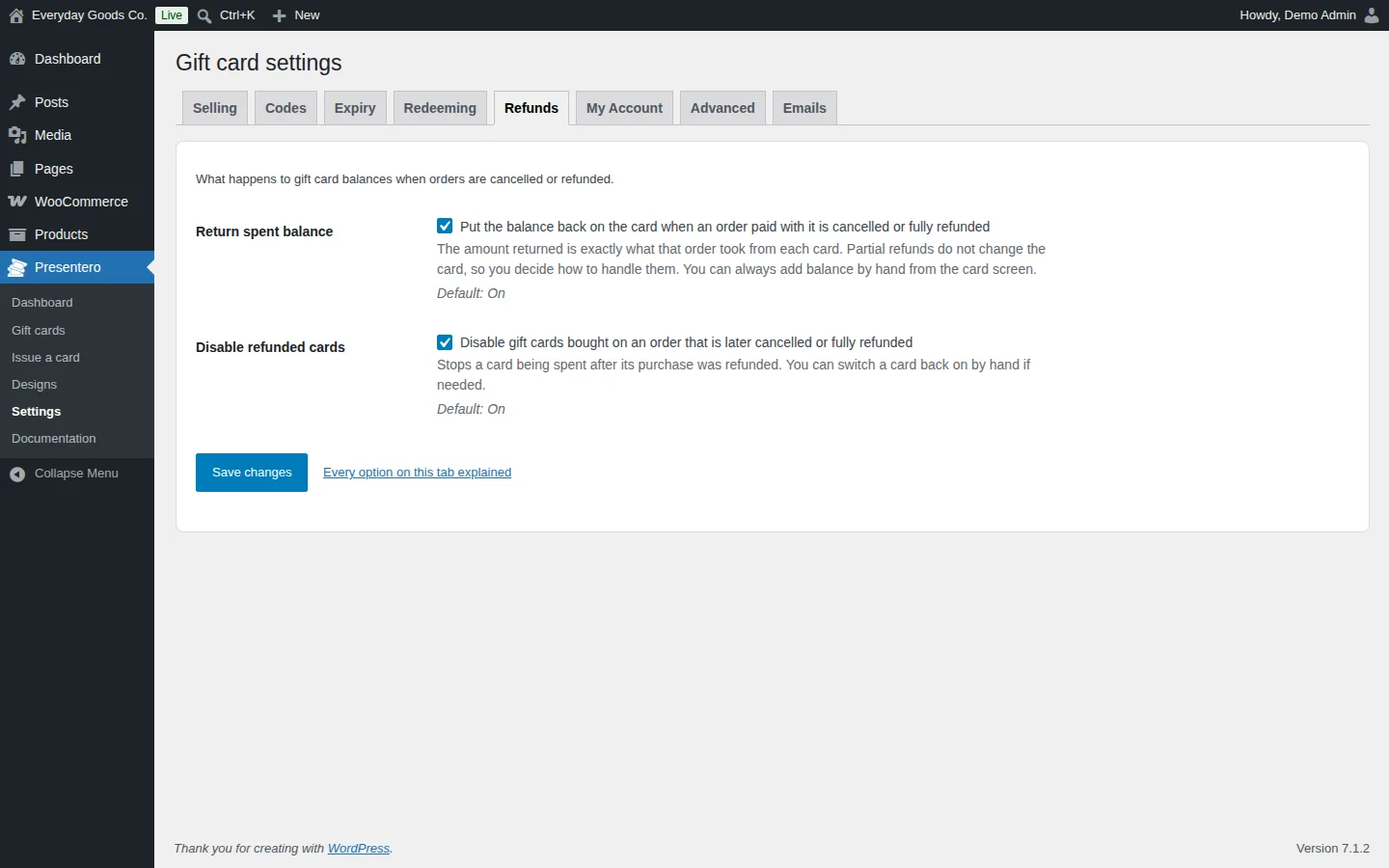
The Refunds tab decides what happens to gift card balances when orders are cancelled or refunded.
- Return spent balance puts the balance back on the card when an order paid with it is cancelled or fully refunded. The amount returned is exactly what that order took from each card. Partial refunds do not change the card. You can add balance by hand from the card screen.
- Disable refunded cards disables gift cards bought on an order that is later cancelled or fully refunded. You can switch a card back on by hand if needed.
#Settings: My Account
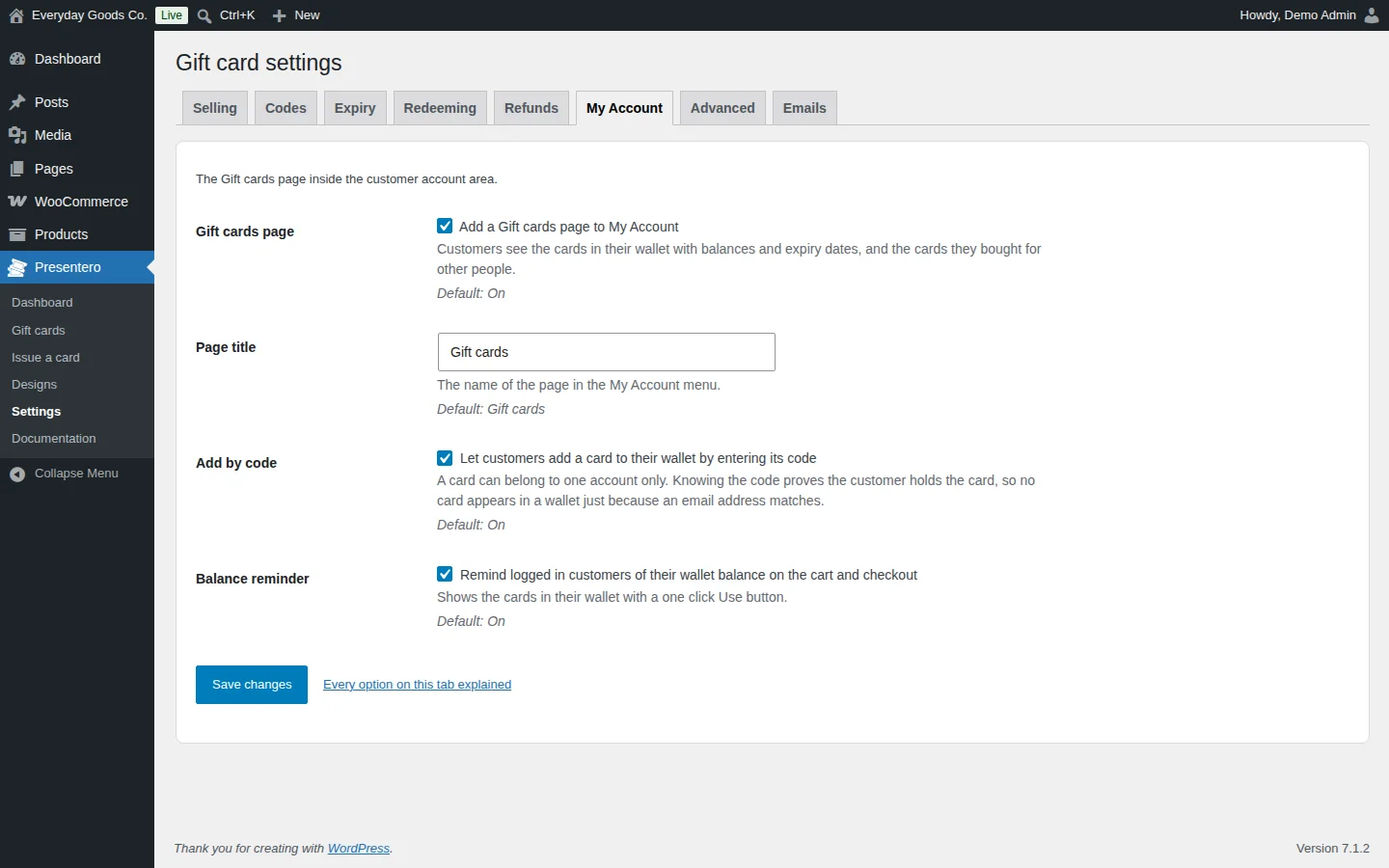
The My Account tab controls the Gift cards page inside the customer account area.
- Gift cards page adds the page to My Account. Customers see the cards in their wallet with balances and expiry dates, and the cards they bought for other people.
- Page title is the name of the page in the My Account menu.
- Add by code lets customers add a card to their wallet by entering its code. A card can belong to one account only. No card appears in a wallet just because an email address matches.
- Balance reminder reminds logged in customers of their wallet balance at the cart and checkout, with a one click Use button.
#Settings: Advanced
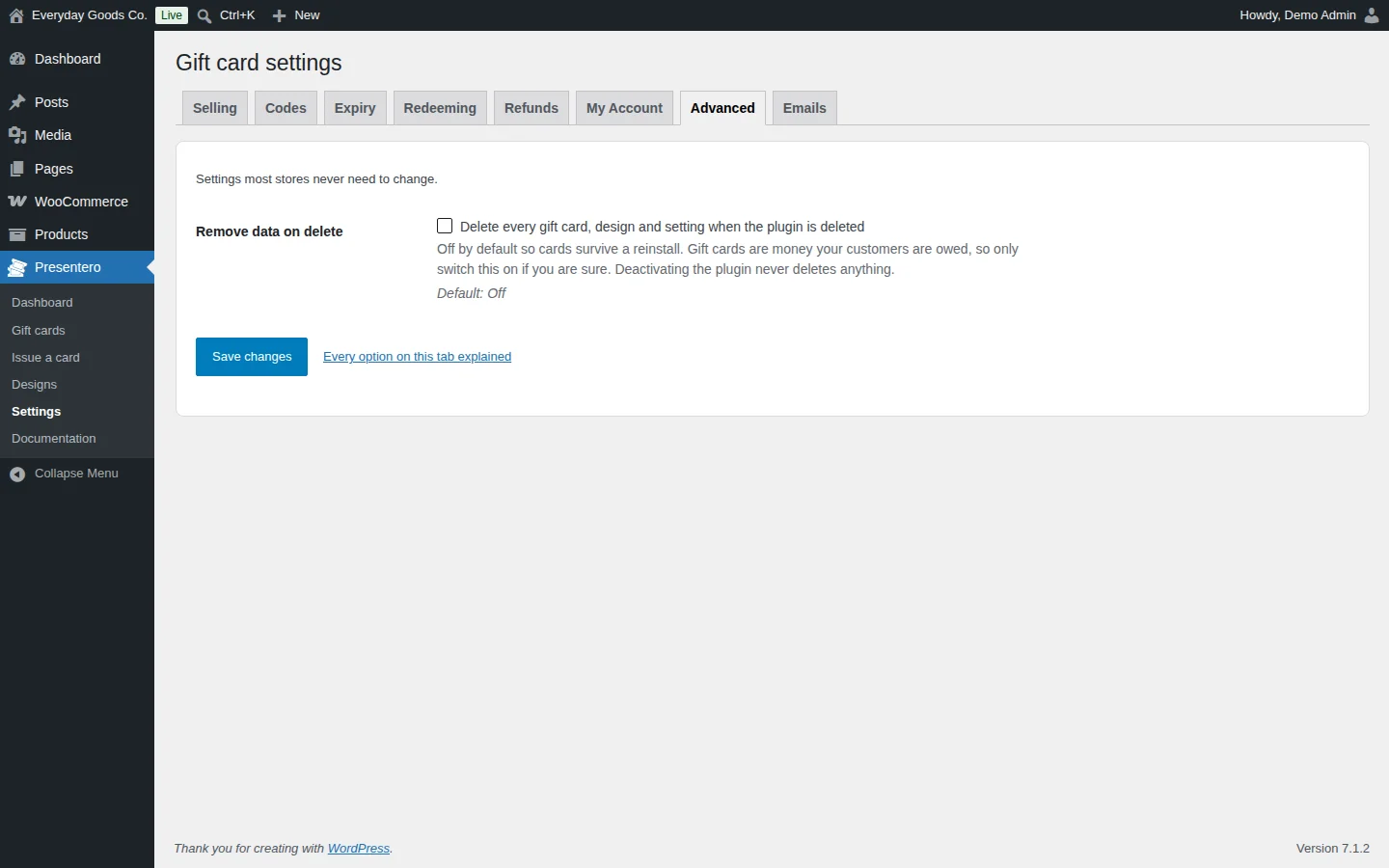
The Advanced tab has one option, Remove data on delete. When it is on, every gift card, design and setting is deleted when you delete the plugin.
It is off by default so cards survive a reinstall. Gift cards are money your customers are owed, so only switch this on if you are sure. Deactivating the plugin never deletes anything.
#Settings: Emails
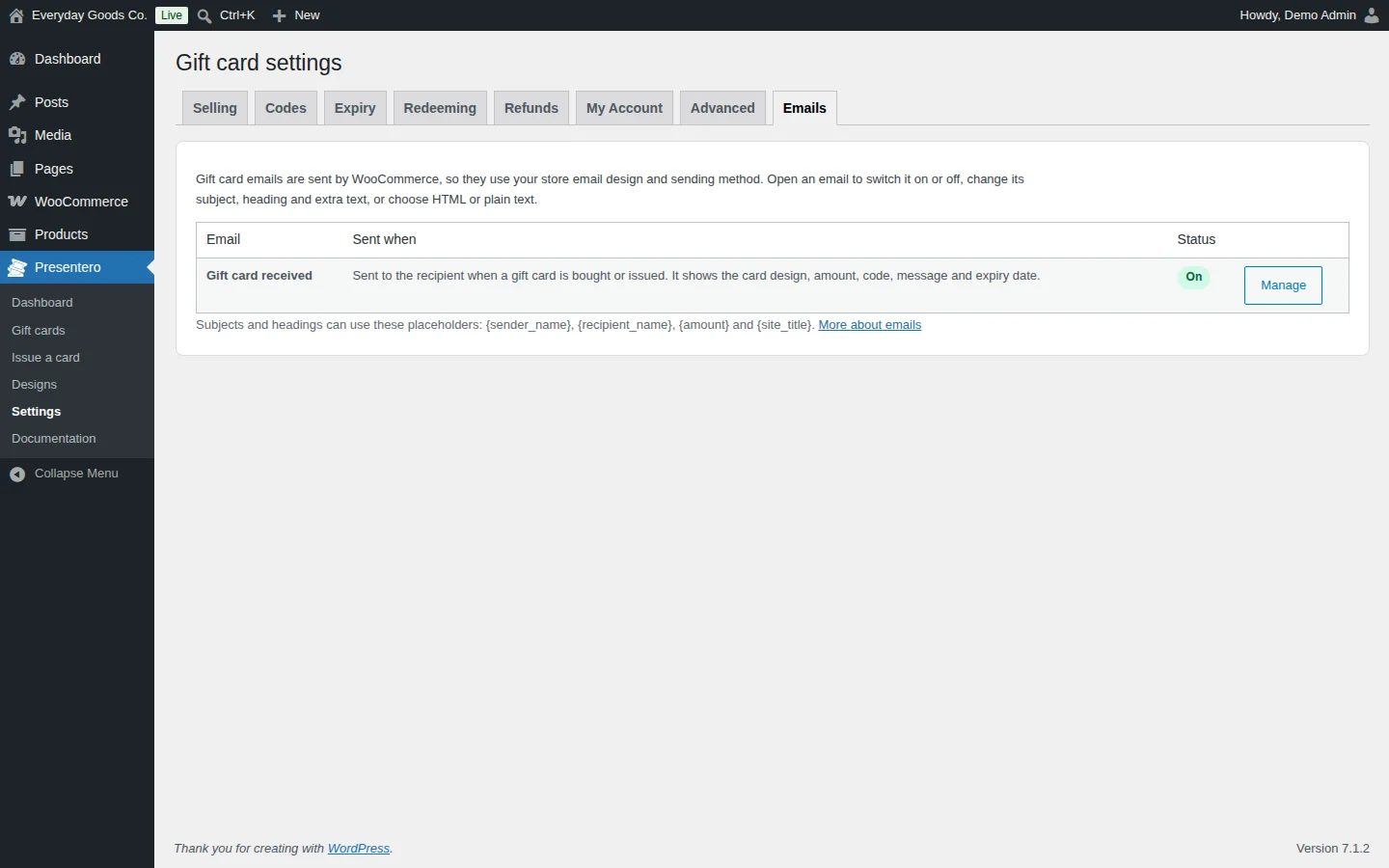
Gift card emails are sent by WooCommerce, so they use your store email design and sending method. The Emails tab lists the Gift card received email with when it is sent and its status. It is sent to the recipient when a gift card is bought or issued, and shows the card design, amount, code, message and expiry date.
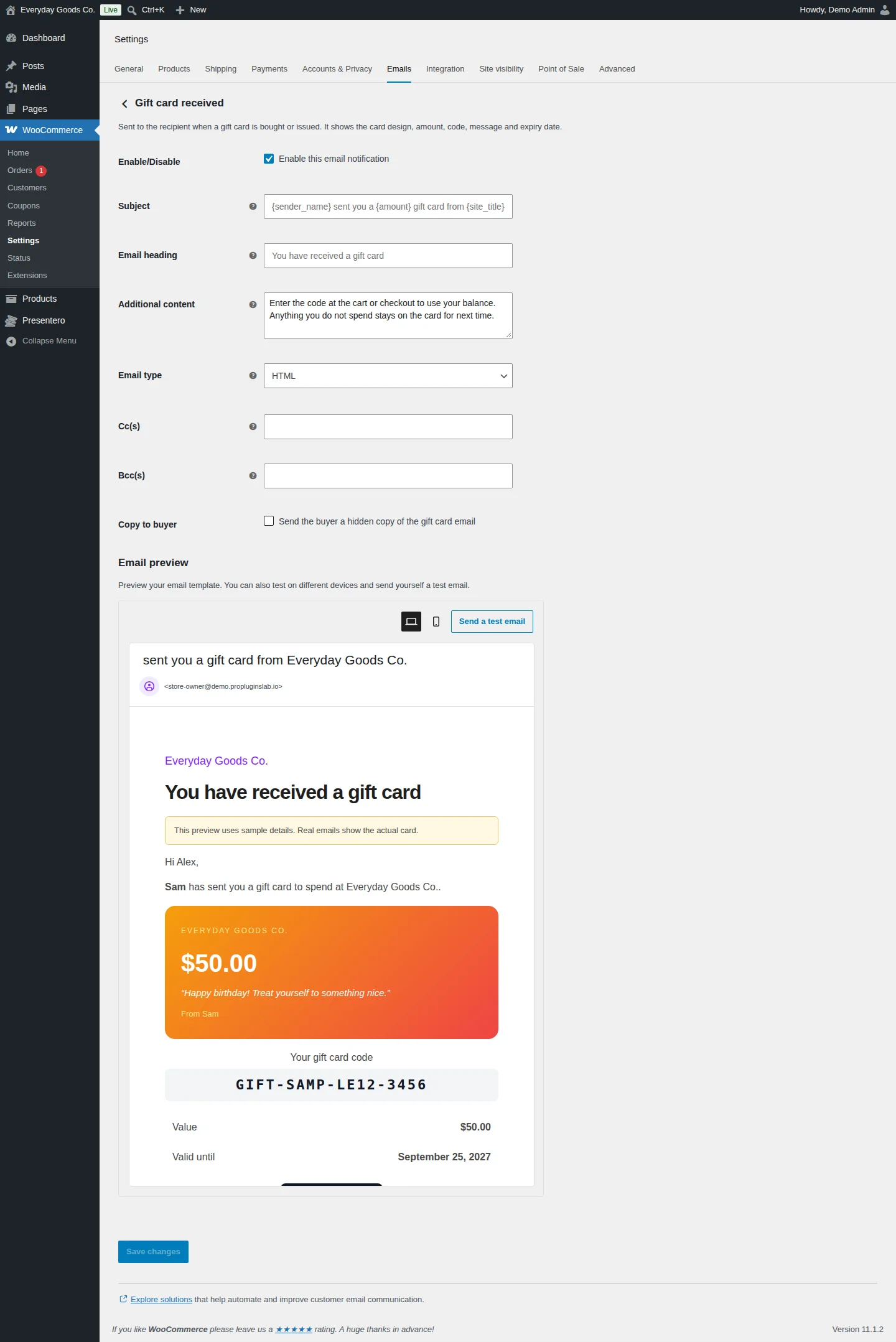
Click Manage to open the email under WooCommerce > Settings > Emails > Gift card received. There you can:
- switch the email on or off with Enable/Disable,
- change the Subject, Email heading and Additional content,
- choose the Email type,
- add Cc(s) and Bcc(s),
- tick Copy to buyer to send the buyer a hidden copy of the gift card email.
Subjects and headings can use these placeholders: {sender_name}, {recipient_name}, {amount} and {site_title}. The Email preview shows the email with sample details, and Send a test email sends one to you.
To change the email layout, copy templates/emails/card-received.php from the plugin to yourtheme/woocommerce/presentero/emails/card-received.php and edit the copy.
#Documentation
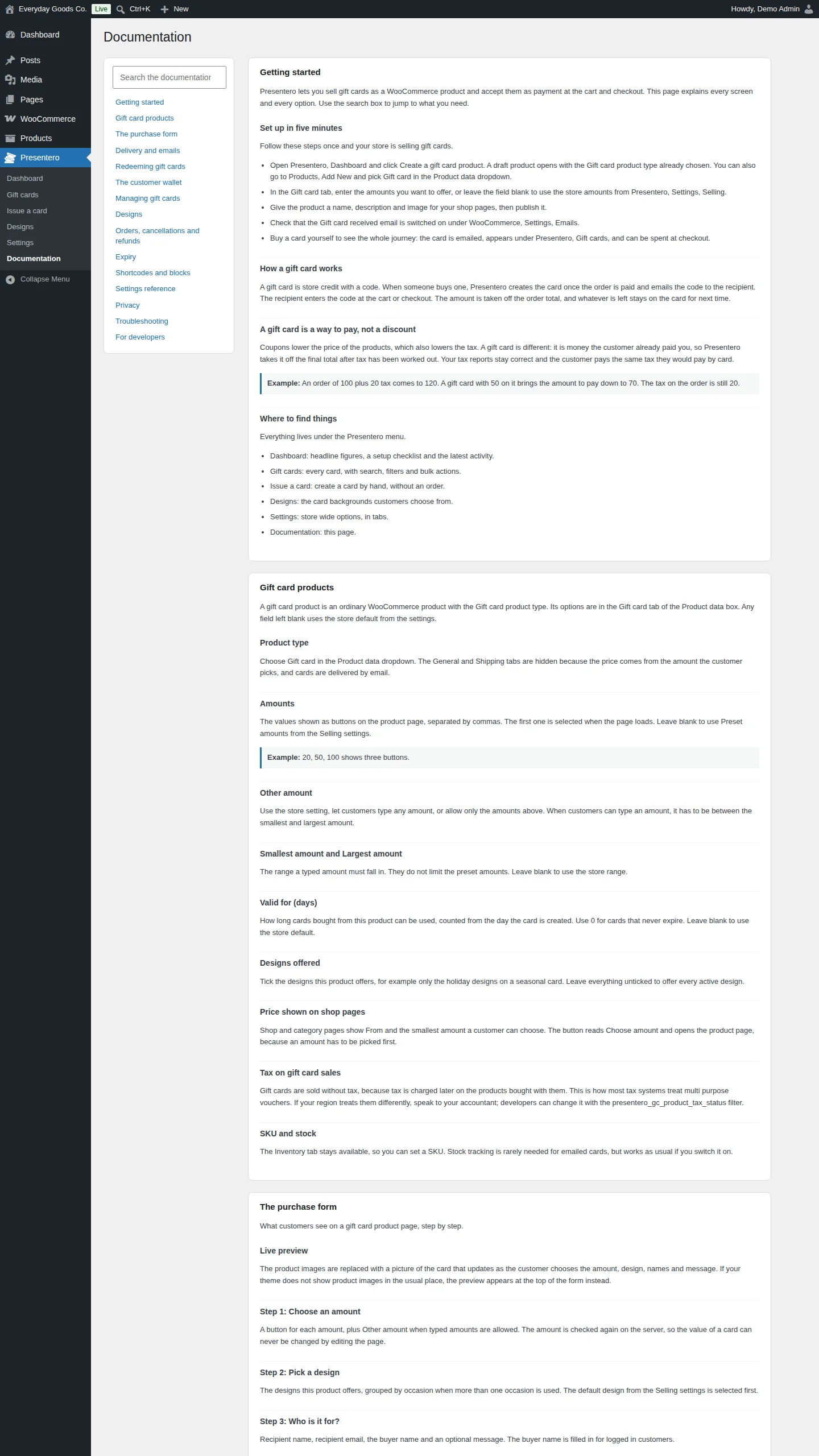
Presentero > Documentation is the built in guide. It explains every screen and every option. Use Search the documentation to jump to what you need, or pick a topic from the list: getting started, gift card products, the purchase form, delivery and emails, redeeming, the customer wallet, managing cards, designs, orders and refunds, expiry, shortcodes and blocks, the settings reference, privacy, troubleshooting and developer notes.
Settings reference
Presentero > Settings > Selling
| Setting | Type | Default | What it does |
|---|---|---|---|
| Preset amounts | text | 25, 50, 100, 200 |
The amounts shown as buttons on the product page, separated by commas. Products with their own amounts ignore this list. |
| Custom amounts | checkbox | On |
Adds an Other amount button. The amount the customer enters must fall between the minimum and maximum below. |
| Smallest custom amount | number | 10 |
The lowest value a customer can enter as a custom amount. Preset amounts are not limited by this. |
| Largest custom amount | number | 500 |
The highest value a customer can enter as a custom amount. |
| Default design | select | Birthday |
The design selected when the product page first loads, and the design used for cards you issue without choosing one. |
| Personal message | checkbox | On |
Lets the buyer write a message to the recipient. The message is printed on the card preview and in the gift card email. |
| Message length | number | 300 |
The most characters a personal message may contain. |
| Create cards when | select | The order is paid (processing or completed) |
The order status that creates the gift card and sends it. Choose The order is completed to review orders first. |
| No recipient email | checkbox | On |
Sends the card to the buyer when the recipient email is left blank. When this is off, the recipient email is required. |
| Codes in order details | checkbox | On |
Shows the gift card codes to the buyer in their order details and order emails. Turn it off if only the recipient should see the code. |
Presentero > Settings > Codes
| Setting | Type | Default | What it does |
|---|---|---|---|
| Prefix | text | GIFT |
Letters and numbers placed at the start of every code, up to 10 characters. Leave blank for no prefix. |
| Length | number | 12 |
How many random characters each code has, not counting the prefix and dashes. |
| Characters | select | Letters and numbers |
Letters and numbers, Letters only or Numbers only. Characters that look alike are always left out. |
| Group size | number | 4 |
Adds a dash after every group of this many characters. Use 0 for no dashes. |
Presentero > Settings > Expiry
| Setting | Type | Default | What it does |
|---|---|---|---|
| Valid for (days) | number | 365 |
How many days a new card can be used for. The card expires at the end of its last day in your store timezone. Use 0 for cards that never expire. Products can set their own period. |
Presentero > Settings > Redeeming
| Setting | Type | Default | What it does |
|---|---|---|---|
| Cart page | checkbox | On |
Shows the gift card field on the cart page. Works on both the classic cart and the cart block. |
| Checkout page | checkbox | On |
Shows the gift card field on the checkout page. Works on both the classic checkout and the checkout block. |
| Several cards per order | checkbox | On |
Allows more than one gift card on the same order. Cards are used in the order they were entered. |
| Shipping | checkbox | On |
Gift cards can pay for shipping. When this is off, shipping and its tax always have to be paid another way. |
| Buying gift cards | checkbox | Off |
Gift cards can pay for other gift cards. Off stops a balance being turned into new codes. |
| Logged in customers only | checkbox | Off |
Customers must be logged in to use a gift card. Checking a balance stays open to everyone. |
| Wrong codes allowed | number | 8 |
How many incorrect codes a visitor may enter before being made to wait. |
| Wait time (minutes) | number | 15 |
How long a visitor who reached the limit has to wait before trying again. |
| Balance on orders | checkbox | Off |
Shows the balance left on each gift card under its payment on the order received page, in My Account orders and in the order emails. |
Presentero > Settings > Refunds
| Setting | Type | Default | What it does |
|---|---|---|---|
| Return spent balance | checkbox | On |
Puts the balance back on the card when an order paid with it is cancelled or fully refunded. Partial refunds do not change the card. |
| Disable refunded cards | checkbox | On |
Disables gift cards bought on an order that is later cancelled or fully refunded. You can switch a card back on by hand. |
Presentero > Settings > My Account
| Setting | Type | Default | What it does |
|---|---|---|---|
| Gift cards page | checkbox | On |
Adds a Gift cards page to My Account with the cards in the customer's wallet and the cards they bought for other people. |
| Page title | text | Gift cards |
The name of the page in the My Account menu. |
| Add by code | checkbox | On |
Lets customers add a card to their wallet by entering its code. A card can belong to one account only. |
| Balance reminder | checkbox | On |
Reminds logged in customers of their wallet balance on the cart and checkout, with a one click Use button. |
Presentero > Settings > Advanced
| Setting | Type | Default | What it does |
|---|---|---|---|
| Remove data on delete | checkbox | Off |
Deletes every gift card, design and setting when the plugin is deleted. Deactivating the plugin never deletes anything. |
WooCommerce > Settings > Emails > Gift card received
| Setting | Type | Default | What it does |
|---|---|---|---|
| Enable/Disable | checkbox | On |
Enables the email that sends the gift card to the recipient. |
| Subject | text | - | The email subject. The field shows {sender_name} sent you a {amount} gift card from {site_title} as its placeholder. |
| Email heading | text | - | The heading at the top of the email. The field shows You have received a gift card as its placeholder. |
| Additional content | textarea | Enter the code at the cart or checkout to use your balance. Anything you do not spend stays on the card for next time. |
Text shown below the main email content. |
| Email type | select | HTML |
Plain text, HTML or Multipart. |
| Cc(s) | text | - | Extra addresses that receive a copy of the email. |
| Bcc(s) | text | - | Extra addresses that receive a hidden copy of the email. |
| Copy to buyer | checkbox | Off |
Sends the buyer a hidden copy of the gift card email. |
Shortcodes
[presentero_balance]
Shows a balance checker on any page. Visitors enter a gift card code and click Check balance. The same checker is also available as the Gift card balance block.
[presentero_balance title="Check your gift card balance"]| Attribute | Default | Description |
|---|---|---|
title | - | A title shown with the balance checker. |
[presentero_wallet]
Shows the customer's gift card wallet on any page: the available balance, the number of cards they can use, a field to add a card by code and the list of their cards. The same wallet is also available as the Gift card wallet block.
[presentero_wallet title="My gift cards"]| Attribute | Default | Description |
|---|---|---|
title | - | A title shown with the wallet. |
On your site
Shoppers see Presentero in several places.
The gift card product page. The product images are replaced with a picture of the card. It updates as the customer chooses the amount, design, names and message. If your theme does not show product images in the usual place, the preview appears at the top of the form. The form has three steps:
- Choose an amount: a button for each amount, plus Other amount when typed amounts are allowed.
- Pick a design: the designs this product offers, grouped by occasion when more than one occasion is used.
- Who is it for?: recipient name, recipient email, the buyer name and an optional message. The buyer name is filled in for logged in customers.
Customers can buy several cards at once, and each card gets its own code.
The cart and checkout. A gift card field appears on the classic cart and checkout, and in the order summary of the cart and checkout blocks. The totals update straight away and show the balance left on the card. Logged in customers with cards in their wallet can see a reminder with a one click Use button.
My Account. The Gift cards page shows every card in the wallet with its balance, code, expiry date and history, plus the cards the customer sent to other people.
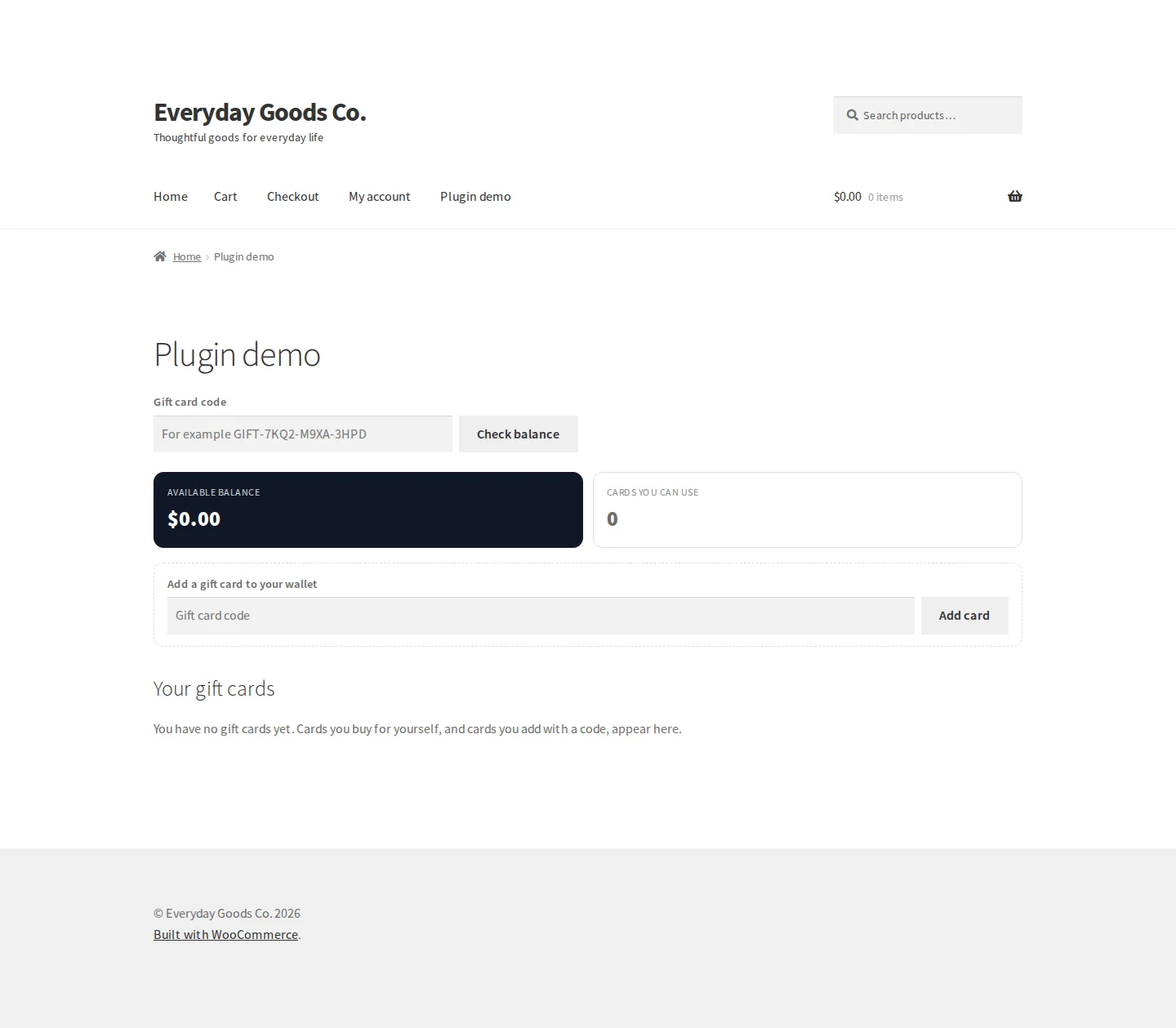
Balance checker and wallet. With the [presentero_balance] and [presentero_wallet] shortcodes (or their blocks), any page can show a Gift card code field with a Check balance button, the customer's Available balance and Cards you can use, an Add a gift card to your wallet field with an Add card button, and a Your gift cards list.
Frequently asked questions
Does it work with the block checkout?
Yes. The gift card field appears in the order summary of the cart block and the checkout block, and the totals update straight away. It also works on the classic cart and checkout.
Is a gift card a discount?
No. A gift card is money the customer already paid, so it is taken off the final total after tax, the same way a payment is. Coupons, on the other hand, lower the price of the products and the tax with it.
What happens to the balance left on a card?
It stays on the card. The customer can use it on a later order until the card expires.
Can a customer use more than one card on an order?
Yes, unless you switch off Several cards per order under Presentero > Settings > Redeeming.
What happens when an order paid with a gift card is refunded?
When the order is cancelled or fully refunded, exactly what it took from each card goes back onto that card. This is controlled by Return spent balance under Presentero > Settings > Refunds. For partial refunds you decide: open the card and raise its balance with a note.
Can I issue a card without an order?
Yes. Presentero > Issue a card creates a card for any amount, with your own code if you like, and can email it straight away.
Will deleting the plugin delete my gift cards?
Only if you switch on Remove data on delete under Presentero > Settings > Advanced. It is off by default, because gift card balances are money your customers are owed. Deactivating the plugin never deletes anything.
Is anything in the free plugin limited or time restricted?
No. The free plugin is complete on its own. Nothing is limited, locked, trial based or time restricted. The Pro upgrade banner shows only on the Presentero screens and can be dismissed.
Troubleshooting
- The gift card email did not arrive
Check that the order is Processing or Completed. If Create cards when under Presentero > Settings > Selling is set to The order is completed, the card is only created after you complete the order. Check that Gift card received is switched on under WooCommerce > Settings > Emails, and that other store emails arrive. The Gift cards box on the order screen shows when each card was emailed and has a Send again link.
- The gift card field does not appear at the cart or checkout
Go to Presentero > Settings > Redeeming and make sure Cart page and Checkout page are ticked. Both options work on the classic pages and on the cart and checkout blocks.
- A guest cannot use a gift card code
If Logged in customers only is on under Presentero > Settings > Redeeming, guests are asked to log in before a code is accepted. Switch it off to let guests redeem cards. Checking a balance stays open to everyone either way.
- A customer is told to wait before entering a code
The customer entered more wrong codes than Wrong codes allowed permits, so they must wait for the Wait time (minutes). Both values are set under Presentero > Settings > Redeeming. This protects your cards from people guessing codes.
- A gift card cannot pay for another gift card or for shipping
Under Presentero > Settings > Redeeming, Buying gift cards is off by default, which stops a balance being turned into new codes. Tick it to allow this. If shipping cannot be paid with a card, make sure Shipping is ticked.
- A card someone sent to a customer does not show in their wallet
Email addresses alone never put a card in a wallet. The customer adds the card by entering its code on the Gift cards page in My Account. Make sure Add by code is ticked under Presentero > Settings > My Account. You can also tick If this email belongs to a customer account, put the card in their wallet when you issue a card under Presentero > Issue a card.
Upgrade
Upgrade to Presentero - Gift Cards for WooCommerce
The free plugin is complete on its own. If you need more, Presentero - Gift Cards for WooCommerce Pro includes everything in the free plugin and adds:
- Physical gift cards that ship, then activate
- Scheduled delivery and several recipients
- Top ups, PIN protection and card transfers
- Automatic gift cards for first orders, reviews and more
- Expiry reminder, low balance and redeemed emails
- Bulk generate, CSV import and export, reports