
Overview
Recovero saves every WooCommerce cart as the shopper builds it. This works for logged in shoppers and for guests. For guests, the email address is picked up as they type it at checkout. When a cart stays inactive past a set time, the plugin marks it abandoned. It then sends a series of recovery emails with a one click link that rebuilds the cart.
The plugin starts working as soon as you activate it. On activation it creates its tables, a default recovery campaign and a set of starter email templates, so carts are captured and recovered without any setup. You can then change the sender details, edit templates in the visual email builder and adjust campaign timing.
Recovero is for WooCommerce store owners who want to win back lost sales. Other features include single use, time limited coupons, email throttling, an exit intent popup, WPML and Polylang support, GDPR tools, webhooks and a live dashboard with recovery statistics.
Requirements
- WordPress 6.2 or later
- PHP 7.4 or later
- WooCommerce 8.0 or later (required plugin)
Installation
Recovero needs WooCommerce. Install and activate WooCommerce first. Then download the Recovero zip file from your ProPluginsLab account and upload it to your site.
Make sure WooCommerce is installed and active on your site.
Log in to your ProPluginsLab account and go to My Account > Downloads. Download the Recovero zip file.
In your WordPress admin, go to Plugins > Add New > Upload Plugin.
Click Choose File, select the zip file you downloaded and click Install Now.
Click Activate Plugin. The plugin creates its tables, the starter email templates and the default campaign automatically.
Open Cart Recovery in the admin menu to check the dashboard. Recovery is already running.
Quick start
- Check the dashboard
Go to Cart Recovery > Dashboard. In the Email sending panel, check that the scheduler shows as healthy and look at when the next run is due.
- Set your sender details
Go to Cart Recovery > Settings and open the General tab. Under Sender, fill in From name, From email and, if you like, Reply to, Email logo and Email footer text. Click Save settings.
- Personalize the email templates
Go to Cart Recovery > Email Templates. Click Edit on a starter template to change its content in the visual builder, or click Create template to start a new one.
- Review the recovery timing
Go to Cart Recovery > Campaigns and open the default campaign. Check the delay, template and coupon for each step. Adjust them to suit your store.
- Follow your results
Use Cart Recovery > Abandoned Carts to see captured carts and their status. Use Cart Recovery > Reports to see recovered revenue, recovery rate and email engagement.
#Dashboard
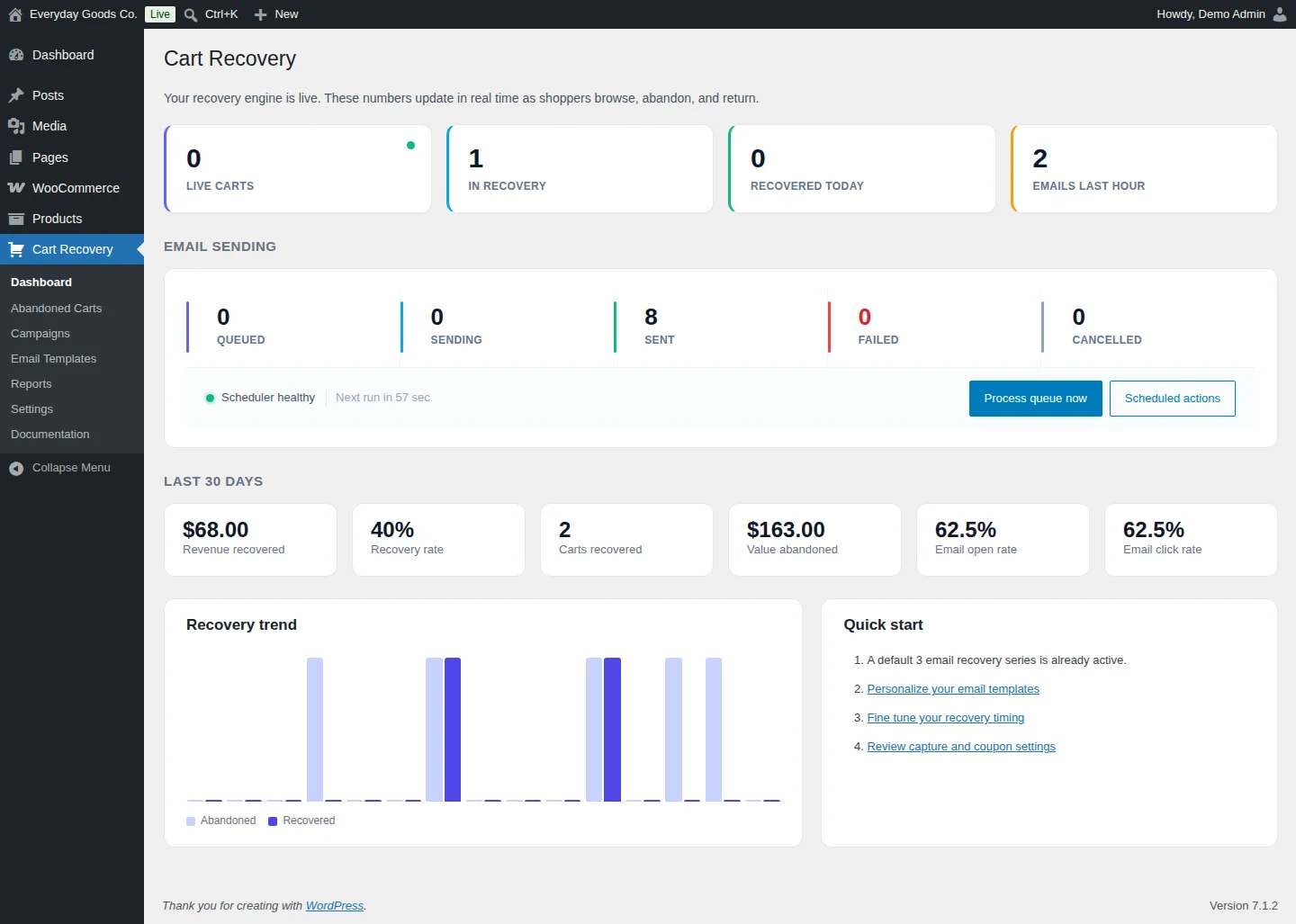
Go to Cart Recovery > Dashboard for a live view of your recovery engine. The numbers update in real time as shoppers browse, abandon and return.
The top row shows Live carts, In recovery, Recovered today and Emails last hour.
The Email sending panel shows the send queue as counts for Queued, Sending, Sent, Failed and Cancelled. Below the counts you can see the scheduler health and a countdown to the next run.
- Click Process queue now to run the queue immediately instead of waiting for the next run.
- Click Scheduled actions to view the background jobs.
The Last 30 days area shows Revenue recovered, Recovery rate, Carts recovered, Value abandoned, Email open rate and Email click rate. The Recovery trend chart compares abandoned and recovered carts over time. The Quick start box links to the template, timing and capture settings.
#Abandoned Carts
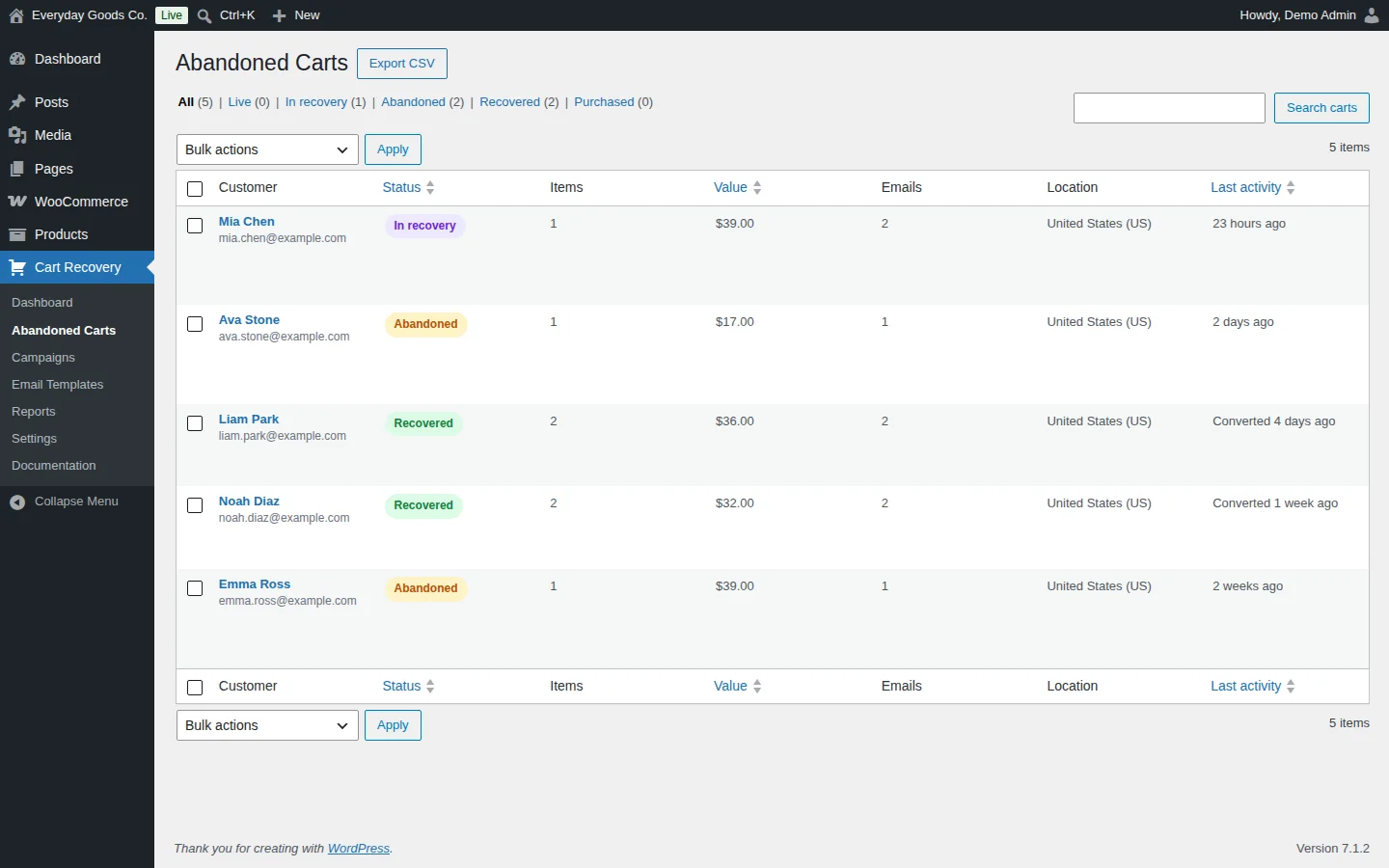
Go to Cart Recovery > Abandoned Carts to see every captured cart. The table shows the Customer (name and email), Status, Items, Value, the number of Emails sent, the shopper's Location and the Last activity. You can sort by status, value and last activity.
Use the links above the table to filter by status:
| Status | Meaning |
|---|---|
| Live | The cart is still in use and has not reached the abandonment threshold yet. |
| Abandoned | The cart was inactive past the threshold. Carts without an email stay here because they cannot be emailed. |
| In recovery | Abandoned with an email, matched to a campaign, with one or more reminders scheduled. |
| Recovered | An order was placed after recovery emails were sent. Counts as recovered revenue. |
| Purchased | An order was placed before any recovery email was sent. Not counted as recovered. |
Other tools on this screen:
- Search carts finds carts by the text you enter.
- Bulk actions with Apply acts on the selected carts. For example, you can mark carts as recovered or abandoned.
- Export CSV downloads the cart list.
- Click a customer name to open the single cart view with an activity timeline.
#Campaigns
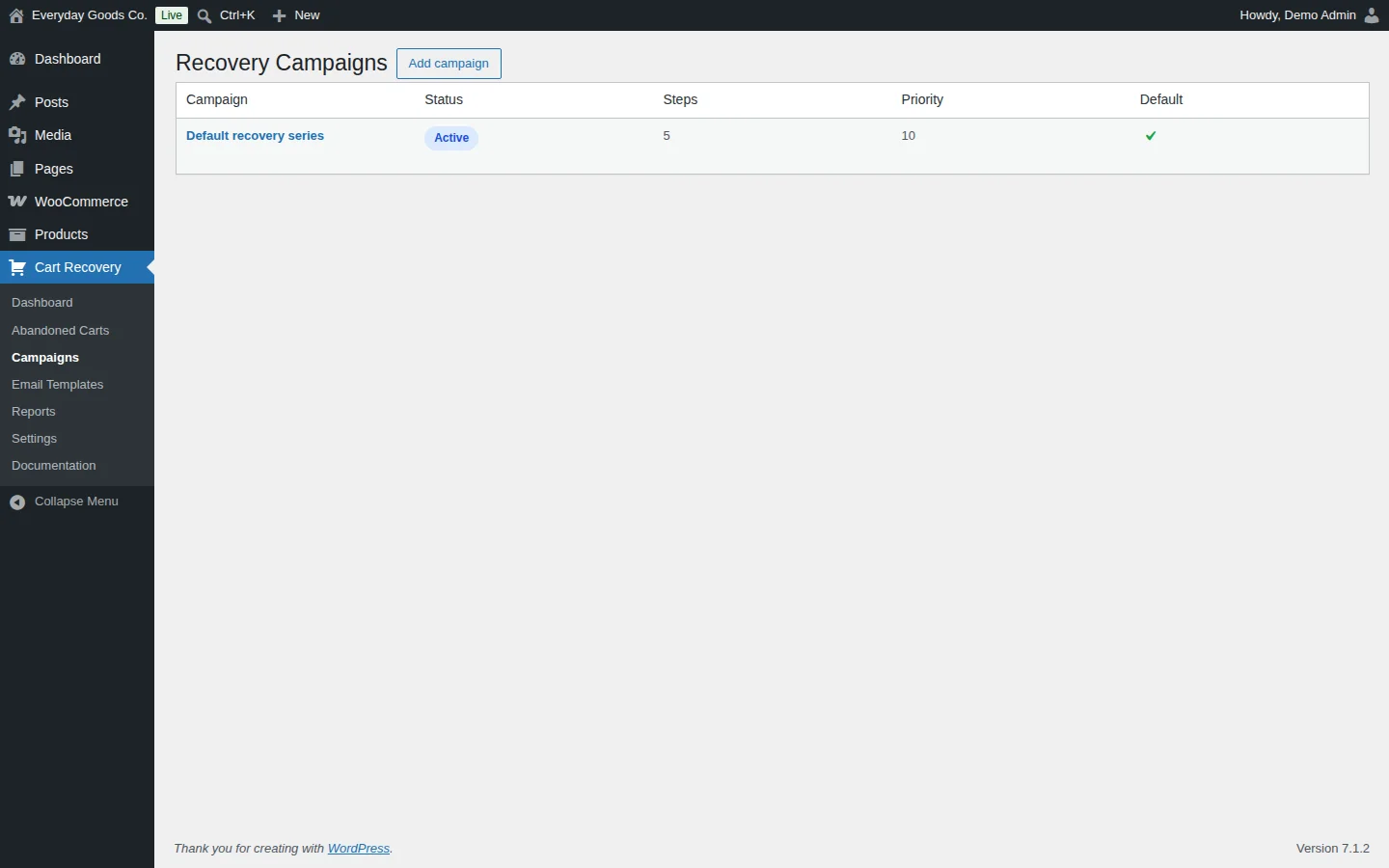
Go to Cart Recovery > Campaigns to manage your recovery sequences. A default recovery campaign is created on activation and is already active. The table shows each campaign's Status, number of Steps, Priority and whether it is the Default.
A campaign is an ordered series of emails. Each step has a delay, a template and an optional subject override. Steps can also include a coupon. Each step is timed from the moment the cart was abandoned.
- Click Add campaign to create a new sequence.
- Click a campaign name to edit it.
How campaigns are matched:
- Only one campaign runs for a cart.
- When several campaigns are active, they are tested in priority order, lowest number first. The first campaign whose conditions match is the one that runs.
- A campaign can be limited by cart value, so you can send a different series to high value carts.
It is safe to edit a campaign that is already running. Changes to timing, templates or copy do not cancel or restart sequences in progress. If you add a step, it is scheduled for carts still in the sequence, timed from when each cart was abandoned. Steps that were already sent are left alone.
#Email Templates
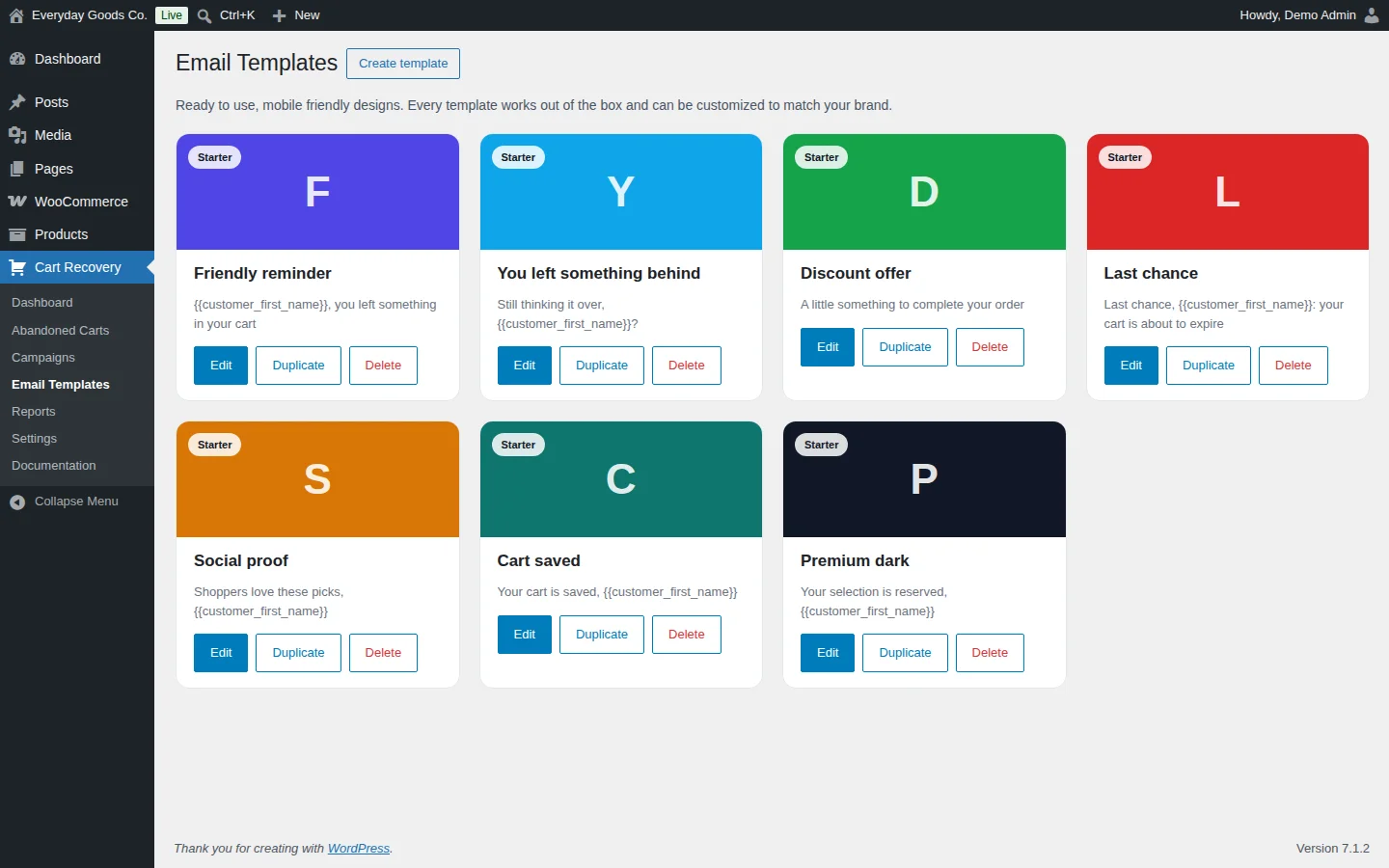
Go to Cart Recovery > Email Templates to manage the emails your campaigns send. Seven mobile friendly starter templates are installed for you, each marked Starter: Friendly reminder, You left something behind, Discount offer, Last chance, Social proof, Cart saved and Premium dark. Each card shows the template's subject line.
- Edit opens the template in the visual builder.
- Duplicate makes a copy you can change without touching the original.
- Delete removes the template.
- Create template starts a new template.
In the visual builder you add blocks from the palette, edit their settings inline, reorder or remove them, and see the changes in a live preview. If you prefer, you can switch to HTML mode. You can also send a test email.
Templates support merge tags, for example {{customer_first_name}} in a subject line. The full list of merge tags is on the Documentation screen.
#Reports
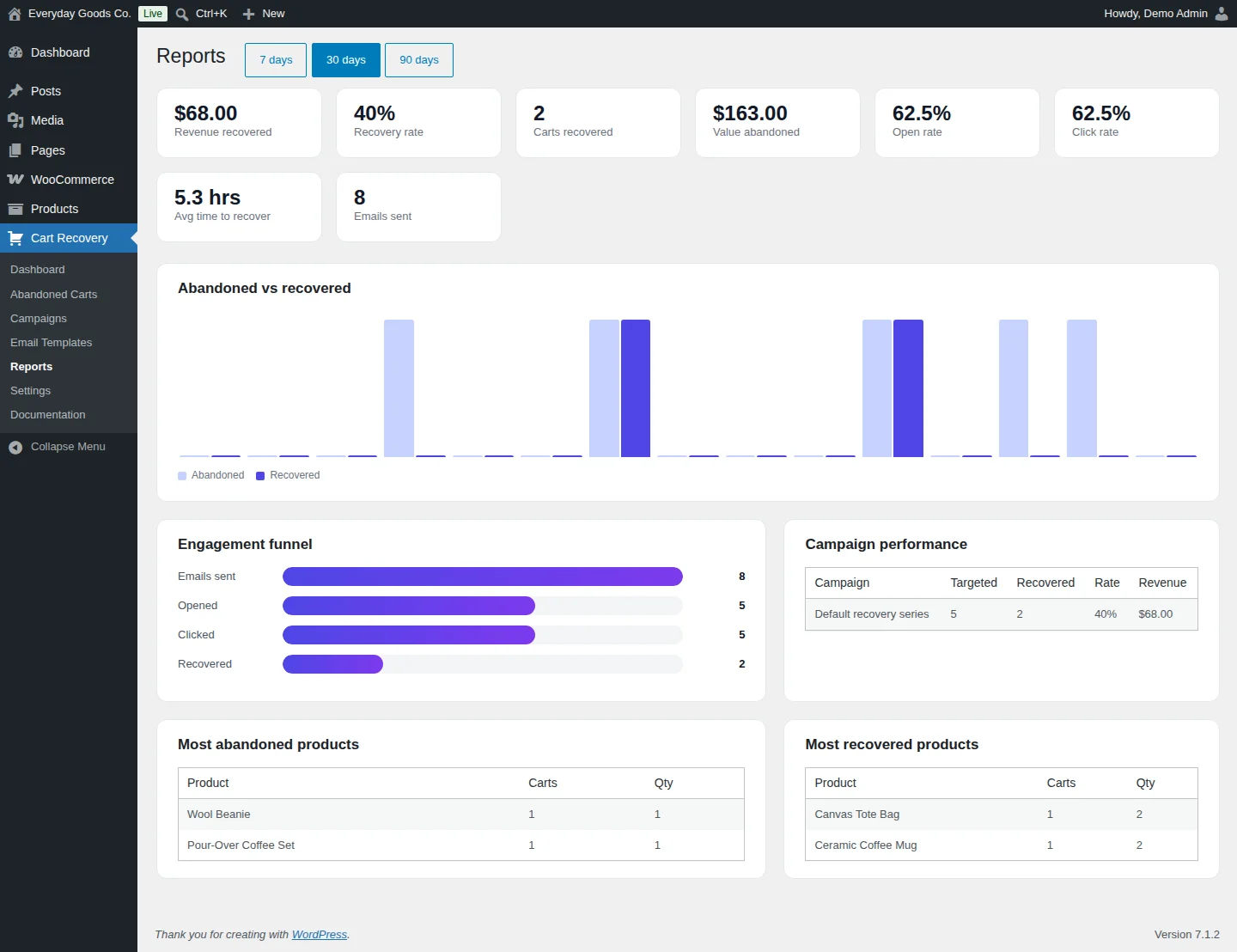
Go to Cart Recovery > Reports to measure your results. Use the 7 days, 30 days and 90 days buttons to choose the period.
The summary cards show Revenue recovered, Recovery rate, Carts recovered, Value abandoned, Open rate, Click rate, Avg time to recover and Emails sent.
Below the cards you will find:
- Abandoned vs recovered: a chart comparing abandoned and recovered carts over the period.
- Engagement funnel: emails sent, opened, clicked and recovered.
- Campaign performance: carts targeted, carts recovered, recovery rate and revenue for each campaign.
- Most abandoned products and Most recovered products: the products that appear most often in carts, with cart counts and quantities.
If a recovered order is later cancelled or refunded, the recovered flag is reverted, so your reports stay accurate.
#Settings
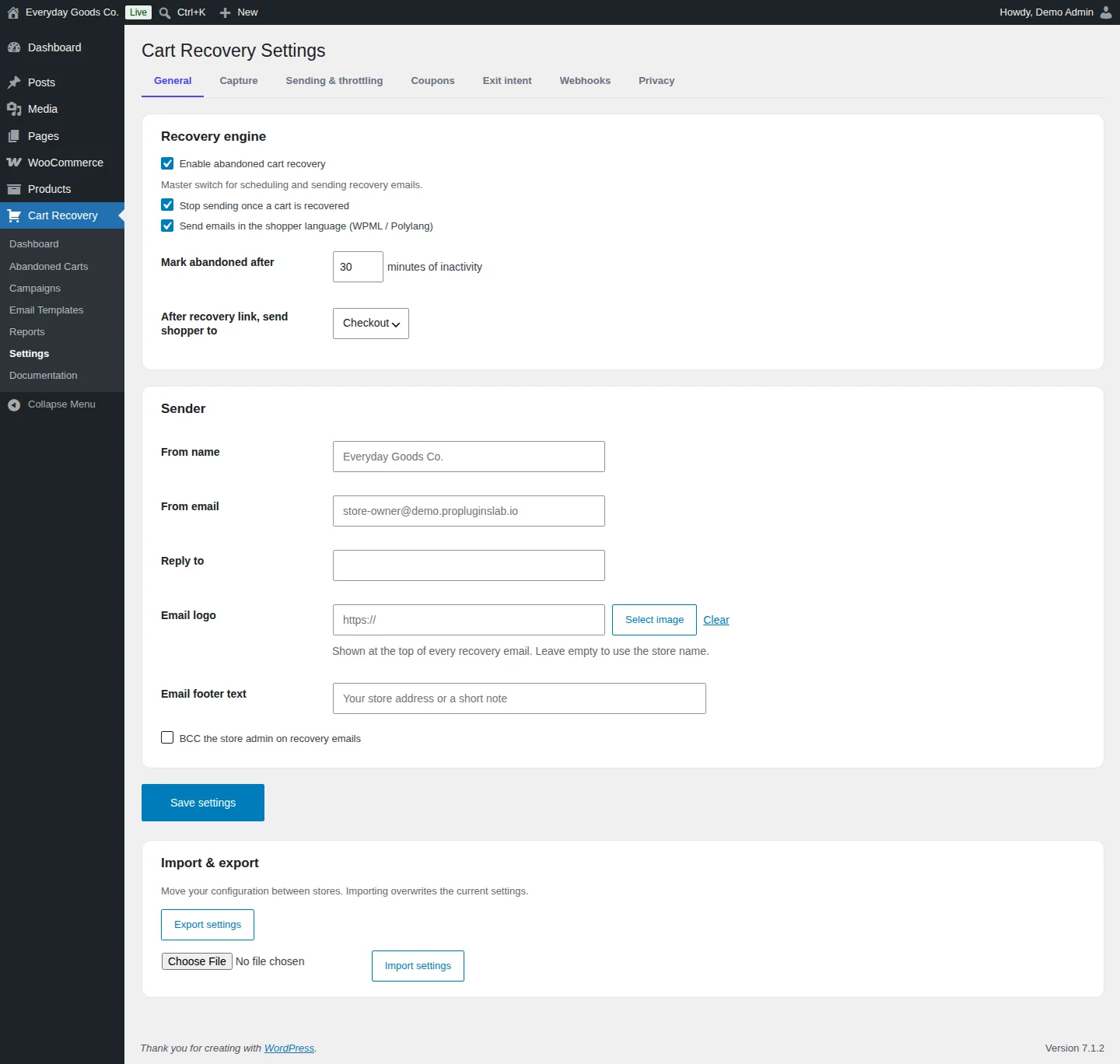
Go to Cart Recovery > Settings to configure the plugin. The settings are split into tabs: General, Capture, Sending & throttling, Coupons, Exit intent, Webhooks and Privacy.
The General tab has three areas:
- Recovery engine: Enable abandoned cart recovery is the master switch for scheduling and sending recovery emails. Here you also choose whether sending stops once a cart is recovered, whether emails go out in the shopper's language (WPML or Polylang), after how many minutes of inactivity a cart is marked abandoned, and whether the recovery link sends the shopper to the checkout or the cart.
- Sender: the from name, from email, reply to address, logo and footer text used in recovery emails. You can also BCC the store admin on every recovery email.
- Import & export: Export settings downloads your configuration, and Import settings loads a configuration file. Importing overwrites the current settings.
Click Save settings after making changes.
The other tabs cover the remaining features:
- Capture: exclude products, categories and user roles, set a minimum cart value, and exclude email addresses or whole email domains from tracking.
- Sending & throttling: email throttling, hourly rate caps, per cart caps and an optional daily send window.
- Coupons: smart coupons that are single use, time limited and restricted to the shopper's email.
- Exit intent: an exit intent popup with device and operating system targeting, frequency capping and an optional discount.
- Webhooks: outgoing webhooks (for example to Zapier, Make or a CRM) with optional HMAC signing.
- Privacy: GDPR tools such as consent capture, unsubscribe links, data retention, anonymization, export and erase, plus optional IP address storage (off by default).
#Built-in documentation
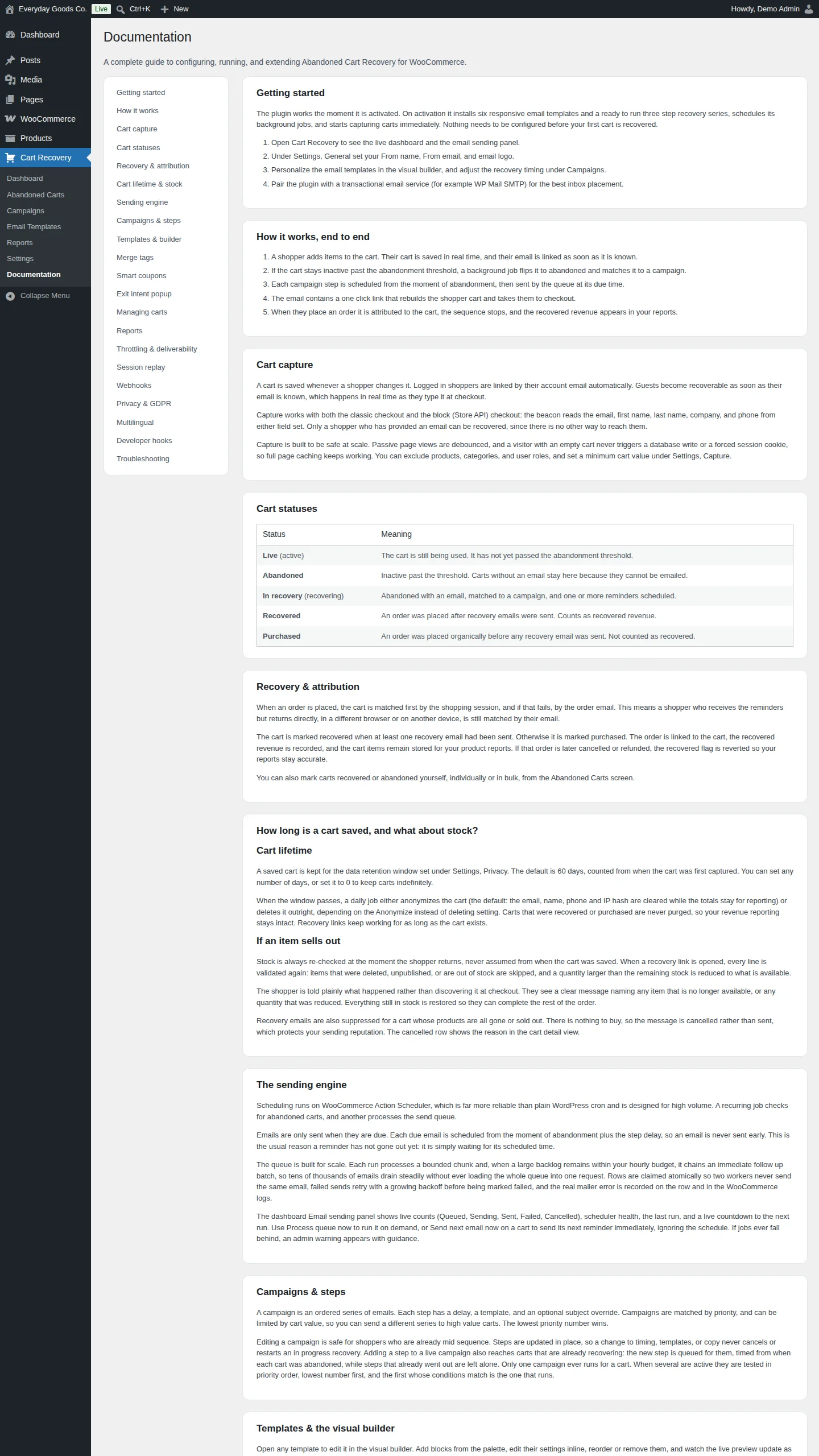
Go to Cart Recovery > Documentation for a complete guide inside your admin. It covers getting started, how recovery works end to end, cart capture, cart statuses, recovery and attribution, cart lifetime and stock, the sending engine, campaigns and steps, templates and the visual builder, merge tags, smart coupons, the exit intent popup, managing carts, reports, throttling and deliverability, session replay, webhooks, privacy and GDPR, multilingual support, developer hooks and troubleshooting.
Use the menu on the left to jump to a topic. The Merge tags topic lists every tag you can use in templates. The Developer hooks topic lists the available actions and filters, for example ppl_acrw_cart_recovered and ppl_acrw_recovery_url.
Settings reference
Cart Recovery > Settings > General
| Setting | Type | Default | What it does |
|---|---|---|---|
| Enable abandoned cart recovery | checkbox | on |
Master switch for scheduling and sending recovery emails. |
| Stop sending once a cart is recovered | checkbox | on |
Stops the remaining emails in the sequence when the cart is recovered. |
| Send emails in the shopper language (WPML / Polylang) | checkbox | on |
Sends recovery emails in the language the shopper used, when WPML or Polylang is active. |
| Mark abandoned after | number | 30 |
Minutes of inactivity before a cart is marked abandoned. |
| After recovery link, send shopper to | select | Checkout |
Where the recovery link takes the shopper after the cart is restored. Options: `Checkout`, `Cart`. |
| From name | text | - | Sender name shown on recovery emails. |
| From email | - | Sender email address for recovery emails. | |
| Reply to | - | Address that receives replies to recovery emails. | |
| Email logo | url | - | Shown at the top of every recovery email. Leave empty to use the store name. Use **Select image** to pick an image or **Clear** to remove it. |
| Email footer text | text | - | Text shown in the email footer, for example your store address or a short note. |
| BCC the store admin on recovery emails | checkbox | off |
Sends a blind copy of each recovery email to the store admin. |
On your site
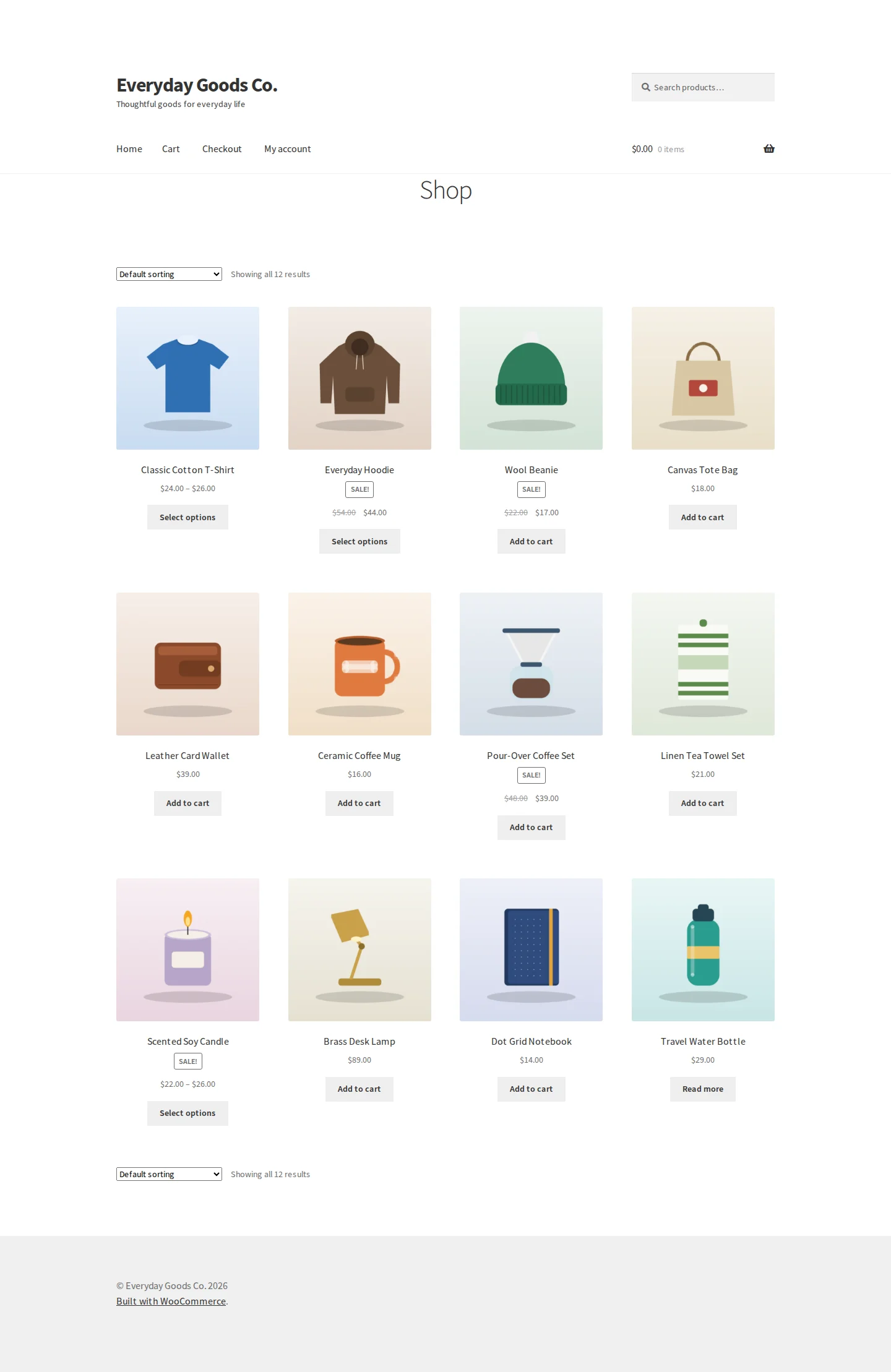
Recovero adds nothing visible to your product pages or shop grid. Cart capture runs in the background as shoppers add items and fill in the checkout. Capture works with both the classic checkout and the block checkout.
What shoppers do see:
- Recovery emails sent from your store, based on your campaigns and templates.
- Cart restore: the one click link in a recovery email rebuilds the cart and takes the shopper to the checkout or the cart, depending on your settings. Stock is checked again at that moment. Items that were deleted, unpublished or are out of stock are skipped, and quantities are reduced to what is available. The shopper sees a clear message about any item that changed.
- Exit intent popup, if you turn it on under Settings > Exit intent. It can target devices and operating systems, limit how often it shows and offer an optional discount.
Frequently asked questions
Do I need to configure anything before carts are recovered?
No. On activation, Recovero installs a default campaign and starter email templates, so carts are captured and recovered without any setup. You should still set your sender details under Cart Recovery > Settings > General.
Does it work with guest checkouts?
Yes. Guest emails are captured in real time as the shopper types in the checkout email field. A shopper can only be recovered once they have given an email address, because there is no other way to reach them.
What is the difference between Recovered and Purchased?
A cart is Recovered when the order was placed after at least one recovery email was sent, and it counts as recovered revenue. A cart is Purchased when the order was placed before any recovery email went out, and it is not counted as recovered.
Can I send recovery emails in my shoppers' language?
Yes. Recovero supports WPML and Polylang. Turn on Send emails in the shopper language (WPML / Polylang) under Cart Recovery > Settings > General.
How long are carts kept?
A cart is kept for the data retention period set under Cart Recovery > Settings > Privacy. The default is 60 days, counted from when the cart was first captured. You can set any number of days, or 0 to keep carts indefinitely. Recovered and purchased carts are never purged, so your revenue reports stay intact.
What happens if an item in a saved cart sells out?
Stock is checked again when the shopper opens the recovery link. Unavailable items are skipped, quantities are reduced to the remaining stock, and the shopper sees a message about what changed. If every product in a cart is gone or sold out, its recovery emails are cancelled rather than sent.
Can I stop staff and test carts from getting recovery emails?
Yes. Under Cart Recovery > Settings > Capture you can exclude user roles, email addresses or whole email domains from tracking. Matching carts are not captured, and queued recovery emails to an excluded address are cancelled.
Can I copy my configuration to another store?
Yes. On Cart Recovery > Settings > General, click Export settings to download your configuration. On the other store, choose the file and click Import settings. Importing overwrites the current settings.
Troubleshooting
- No recovery emails are being sent
- Go to Cart Recovery > Settings > General and make sure Enable abandoned cart recovery is checked. This is the master switch for sending.
- Open Cart Recovery > Dashboard and check that the Email sending panel shows the scheduler as healthy. Sending runs on WooCommerce Action Scheduler. Click Scheduled actions to review the background jobs.
- Click Process queue now to run the queue immediately.
- A cart is abandoned but its reminder has not gone out yet
Emails are only sent when they are due. Each email is scheduled from the moment of abandonment plus the step delay, so an email is never sent early. Check the step delays under Cart Recovery > Campaigns. Remember that a cart is only marked abandoned after the Mark abandoned after time on the General settings tab.
- A cart stays in Abandoned and never moves to In recovery
Carts without an email address stay Abandoned because they cannot be emailed. Logged in shoppers are linked by their account email, and guests only become recoverable once they type an email at checkout. Also check that an active campaign under Cart Recovery > Campaigns matches the cart, for example if you limited a campaign by cart value.
- Staff or test orders receive recovery emails
Go to Cart Recovery > Settings > Capture and exclude the user roles, email addresses or email domains you use for staff and testing. Queued emails to excluded addresses are cancelled.
- Recovery emails land in spam
Set a real From name and From email under Cart Recovery > Settings > General. Pair the plugin with a transactional email service (for example WP Mail SMTP) for the best inbox placement. You can also use the limits under Settings > Sending & throttling to protect deliverability.
- Some emails show as Failed on the dashboard
Failed sends are retried with a growing delay before being marked failed. The mail error is recorded on the email and in the WooCommerce logs. Check those logs for the reason, fix your mail setup, then click Process queue now on the dashboard.