
Overview
Recovero - Cart Recovery for WooCommerce helps you win back sales from shoppers who leave items in their cart. It saves carts in real time for guests and logged in shoppers. It also links each cart to the shopper's email as soon as the email is known, including while a guest is typing it at checkout.
When a cart has been inactive for the time you choose, the plugin marks it abandoned and schedules a series of recovery emails. Each email has a one click link that rebuilds the cart. If the shopper places an order, the sequence stops and the revenue shows in your reports. On activation you get a default three step campaign and five starter templates, so recovery runs without any setup.
The plugin is for WooCommerce store owners who want recovery emails, campaigns, templates and reports inside WordPress. It does not connect to any external service. Cart data, email content and statistics stay in your own WordPress database, and emails go out through your site's own mail configuration.
Requirements
- WordPress 6.2 or later
- PHP 7.4 or later
- WooCommerce 8.0 or later (required plugin)
Installation
Recovero needs WooCommerce, so install and activate WooCommerce first. The free plugin is available from WordPress.org.
In your WordPress admin, go to Plugins > Add New.
Search for
Recovero Cart Recovery.Click Install Now on Recovero - Cart Recovery for WooCommerce.
Click Activate. The plugin creates its database tables, the starter email templates and the default campaign for you.
Open Cart Recovery in the admin menu to see the dashboard. Recovery is already running.
Quick start
- Check the dashboard
Open Cart Recovery > Dashboard. The Email sending panel should show Scheduler healthy. The Quick start box confirms that a default three step email recovery series is already active.
- Set your sender details
Go to Cart Recovery > Settings and open the General tab. Under Sender, fill in From name, From email and, if you want, Reply to and Email logo. Click Save settings.
- Keep your own test carts out
Open the Capture tab in Cart Recovery > Settings. Under Exclusions, tick the user roles to skip (for example Administrator or Shop manager). You can also list email addresses or domains, one per line, such as
test@example.comor@yourstore.com. - Personalize the templates
Go to Cart Recovery > Email Templates and click Edit on a starter template. Change the content in the visual builder and send a test email to see exactly what shoppers receive.
- Review the recovery timing
Go to Cart Recovery > Campaigns and open Default recovery series. Adjust the delay, template and subject line of each step.
- Watch the results
As carts come in, they appear under Cart Recovery > Abandoned Carts. Use Cart Recovery > Reports to track recovered revenue and recovery rate over 7, 30 or 90 days.
#Dashboard
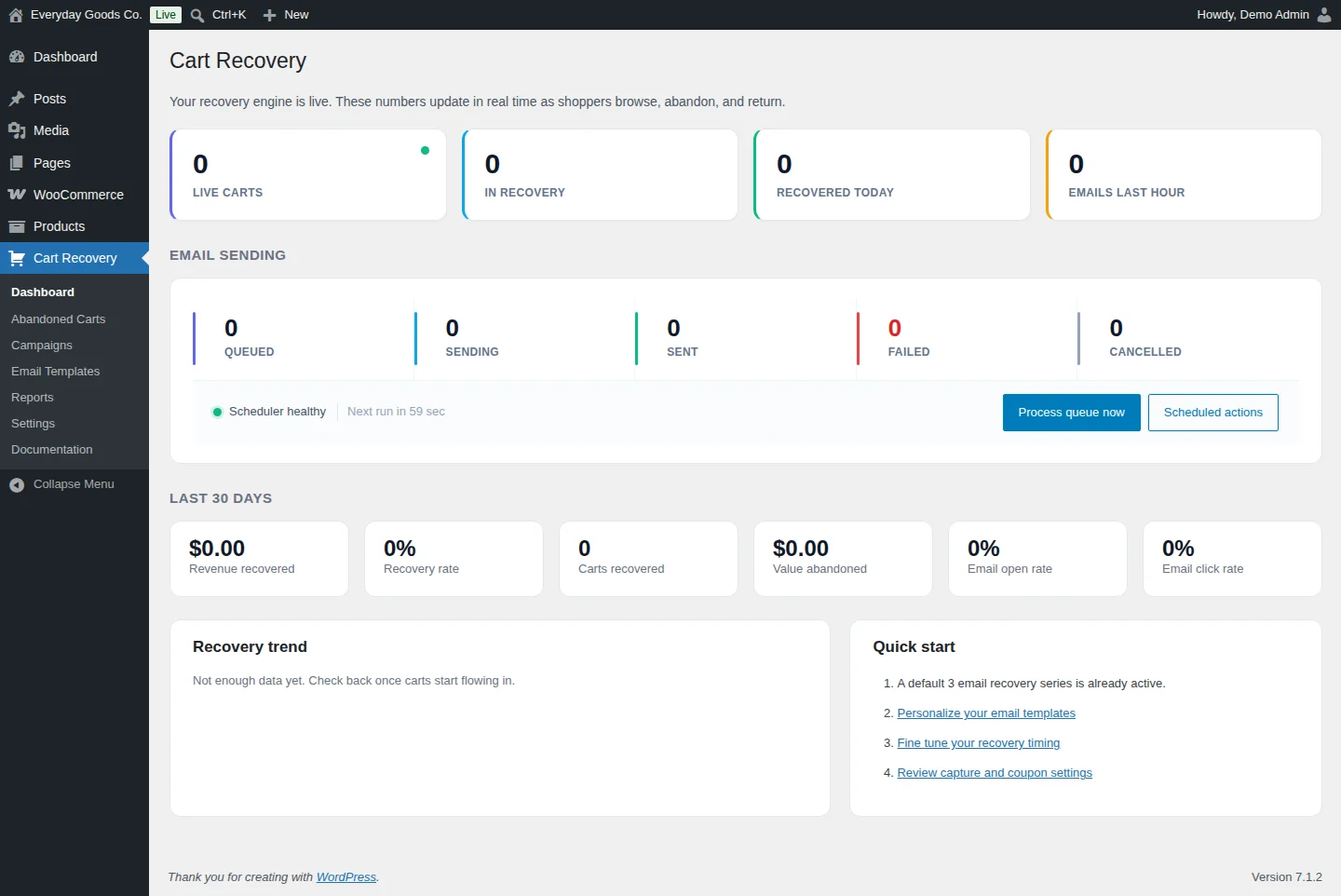
Go to Cart Recovery > Dashboard for a live overview of your recovery engine. The numbers update in real time as shoppers browse, abandon and return.
The top row shows Live carts, In recovery, Recovered today and Emails last hour.
The Email sending panel shows how many emails are Queued, Sending, Sent, Failed and Cancelled. It also shows the scheduler health and a countdown to the next run. Sending runs in the background on WooCommerce Action Scheduler.
- Click Process queue now to run the queue straight away.
- Click Scheduled actions to see the background jobs behind the queue.
The Last 30 days row shows Revenue recovered, Recovery rate, Carts recovered, Value abandoned, Email open rate and Email click rate. Below it, Recovery trend charts your results once enough carts have come in. The Quick start box links to the templates, the campaign timing and the settings.
A banner about Recovero Pro appears on the Cart Recovery screens. You can dismiss it for 30 days.
#Abandoned Carts
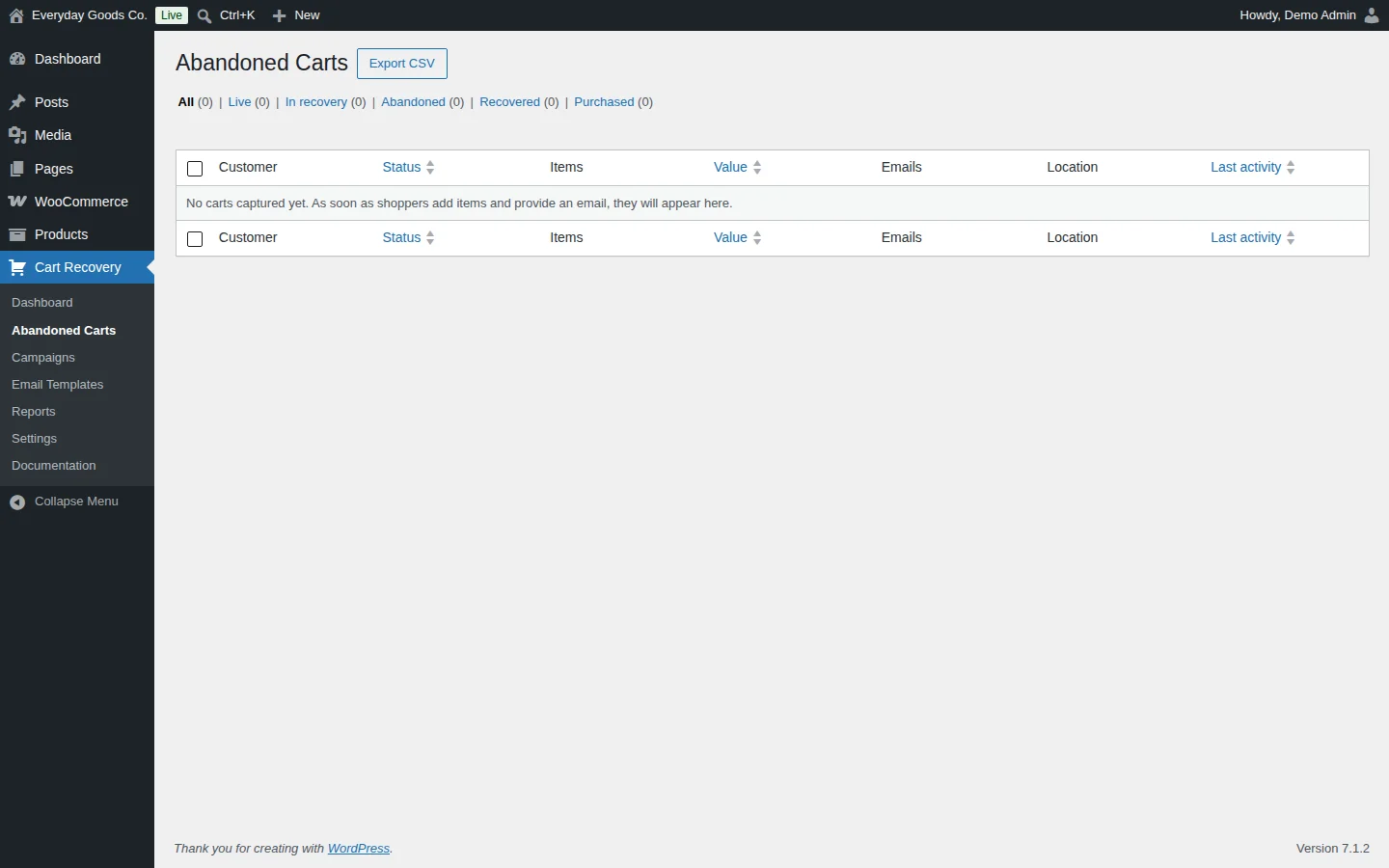
Cart Recovery > Abandoned Carts lists every captured cart. A cart appears here as soon as a shopper adds items and provides an email.
Use the status links above the table to filter the list:
| Status | Meaning |
|---|---|
| Live | The cart is still being used and has not passed the abandonment threshold yet. |
| Abandoned | Inactive past the threshold. Carts without an email stay here because they cannot be emailed. |
| In recovery | Abandoned with an email, matched to a campaign, with one or more reminders scheduled. |
| Recovered | An order was placed after recovery emails were sent. Counts as recovered revenue. |
| Purchased | An order was placed before any recovery email was sent. Not counted as recovered. |
The table shows Customer, Status, Items, Value, Emails, Location and Last activity. You can sort by Status, Value and Last activity. The Location column shows the shopper's country, which is recorded automatically.
You can also:
- Search the list and use bulk actions on selected carts.
- Mark carts as recovered or abandoned yourself, one at a time or in bulk.
- Click Export CSV to download the carts.
- Open a single cart to see the items left behind, the shopper's contact details, the scheduled emails and an activity timeline. From there, Send next email now sends the next reminder right away and ignores the schedule.
#Campaigns
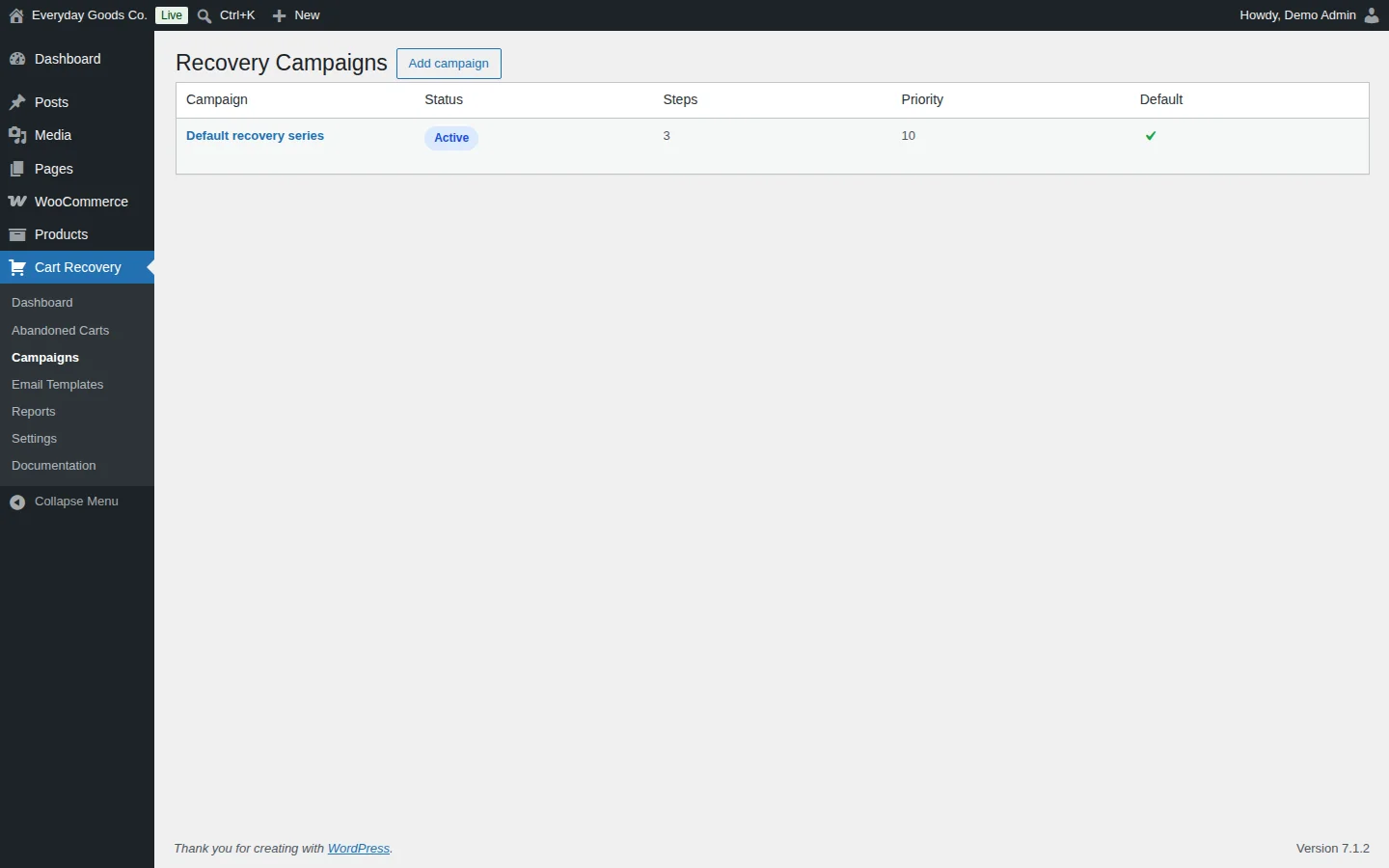
A campaign is an ordered series of recovery emails. Cart Recovery > Campaigns lists your campaigns with their Status, number of Steps, Priority and which one is the Default. The plugin installs Default recovery series, an active campaign with three steps.
Each step has:
- a delay, counted from the moment the cart was abandoned
- a template
- an optional subject line
Click Add campaign to create another series. Campaigns can be limited by cart value, so you can send a different series to high value carts.
How a campaign is chosen: only one campaign runs for a cart. When several are active, they are checked in priority order, lowest number first. The first one whose conditions match is used.
Editing a live campaign: it is safe to edit a campaign while shoppers are part way through it. Changes to timing, templates or copy are applied in place and do not restart anyone's sequence. If you add a step, carts that are already in recovery get it too, timed from when each cart was abandoned. Steps that were already sent are left alone.
#Email Templates
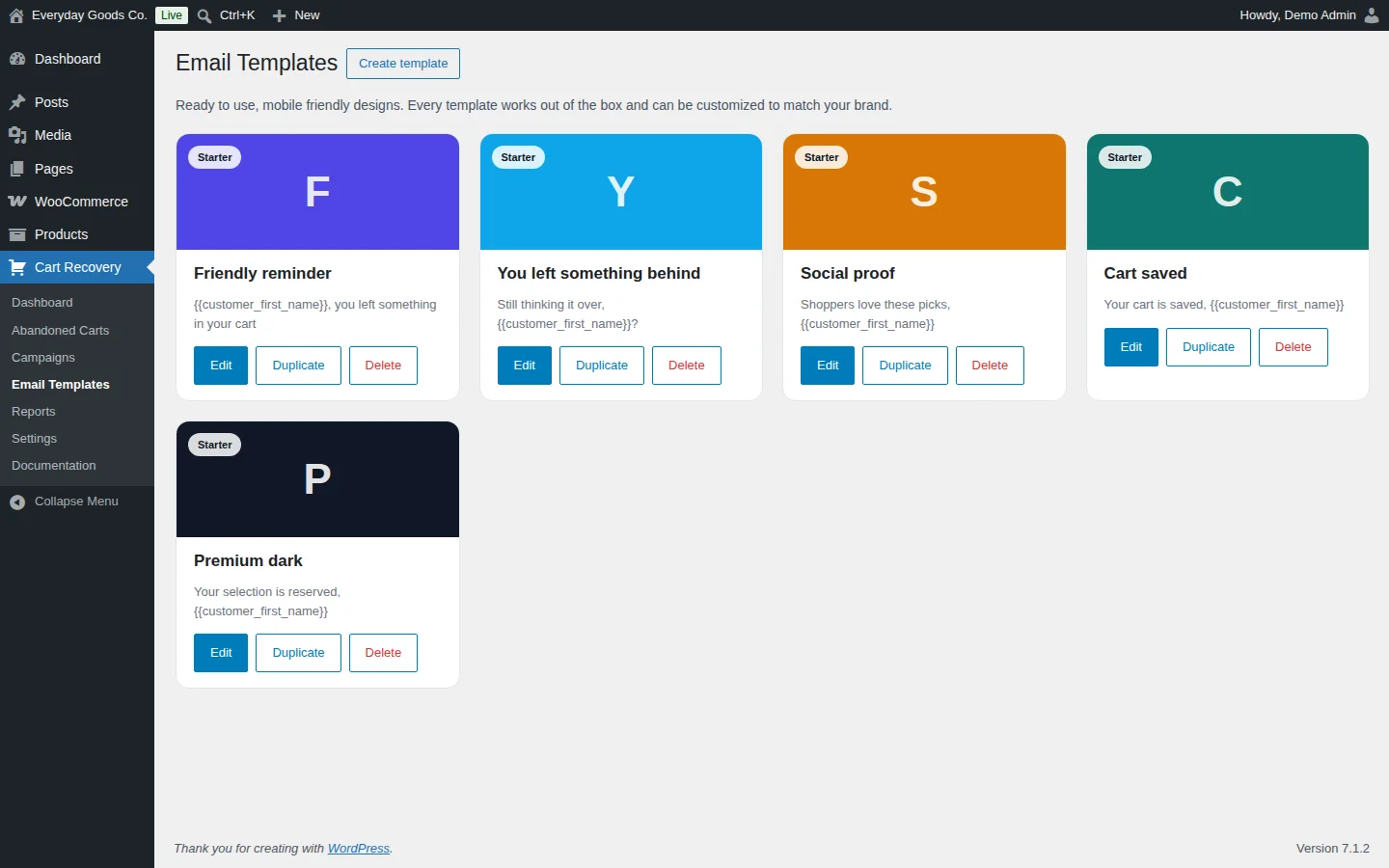
Cart Recovery > Email Templates holds the designs your campaign steps use. Five mobile friendly starter templates are included and work as they are:
- Friendly reminder
- You left something behind
- Social proof
- Cart saved
- Premium dark
Each template card has three buttons:
- Edit opens the template in the visual builder.
- Duplicate makes a copy you can change without touching the original.
- Delete removes the template.
Click Create template to start a new one. You can create as many templates as you like.
In the visual builder you add blocks, edit their settings, reorder or remove them, and watch a live preview update beside them. You can also switch to HTML mode. Use merge tags such as {{customer_first_name}} to personalize the subject and content. The built-in Documentation screen lists every merge tag. Send a test email to check exactly what a shopper receives.
#Reports
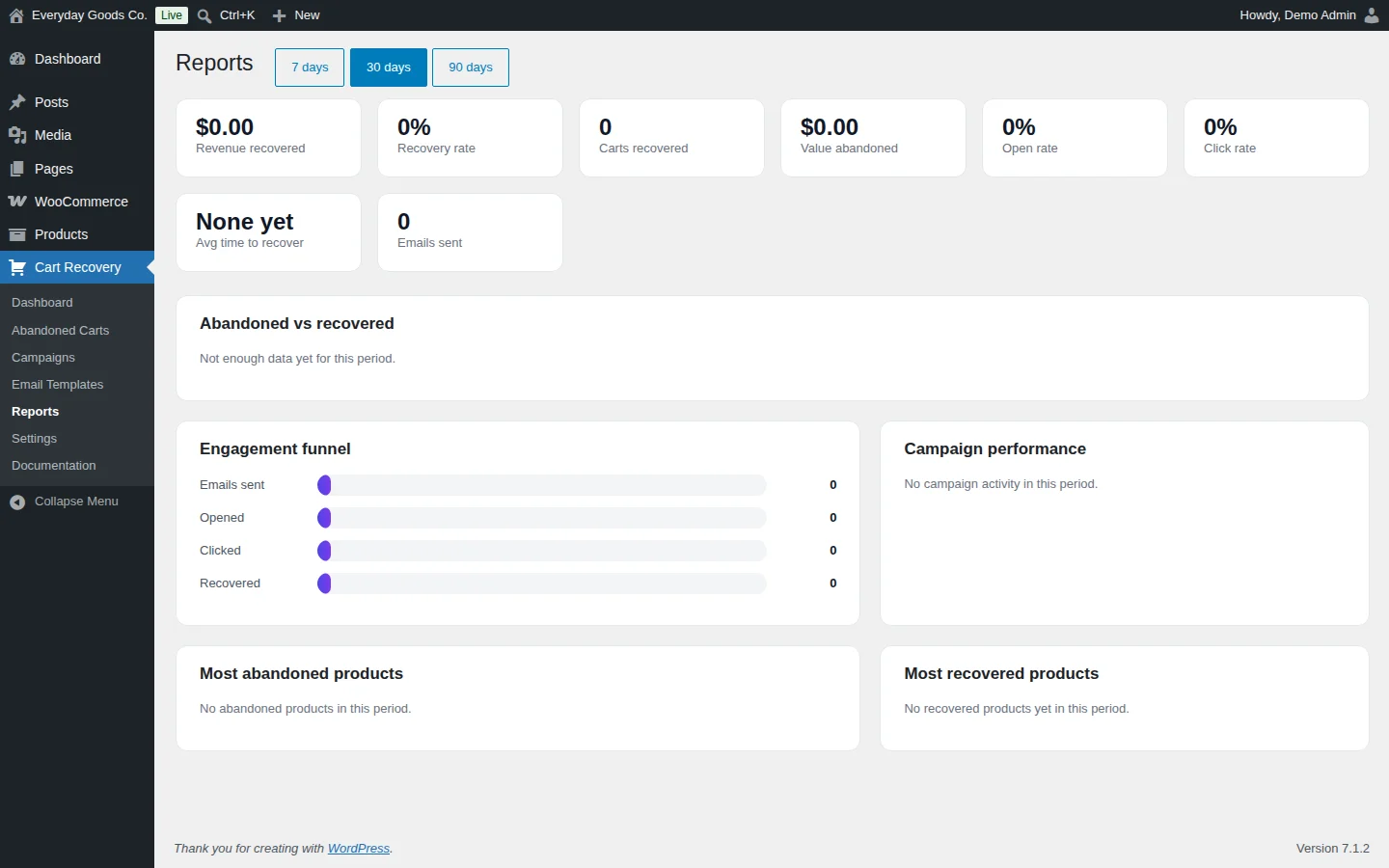
Cart Recovery > Reports shows how well recovery is working. Use the 7 days, 30 days and 90 days buttons to change the period.
The summary cards show Revenue recovered, Recovery rate, Carts recovered, Value abandoned, Open rate, Click rate, Avg time to recover and Emails sent.
Below them you find:
- Abandoned vs recovered: abandoned and recovered carts over the period.
- Engagement funnel: how many emails were sent, opened and clicked, and how many carts were recovered.
- Campaign performance: results for each campaign.
- Most abandoned products and Most recovered products.
If a recovered order is later cancelled or refunded, the cart loses its recovered status, so your reports stay accurate.
#Settings
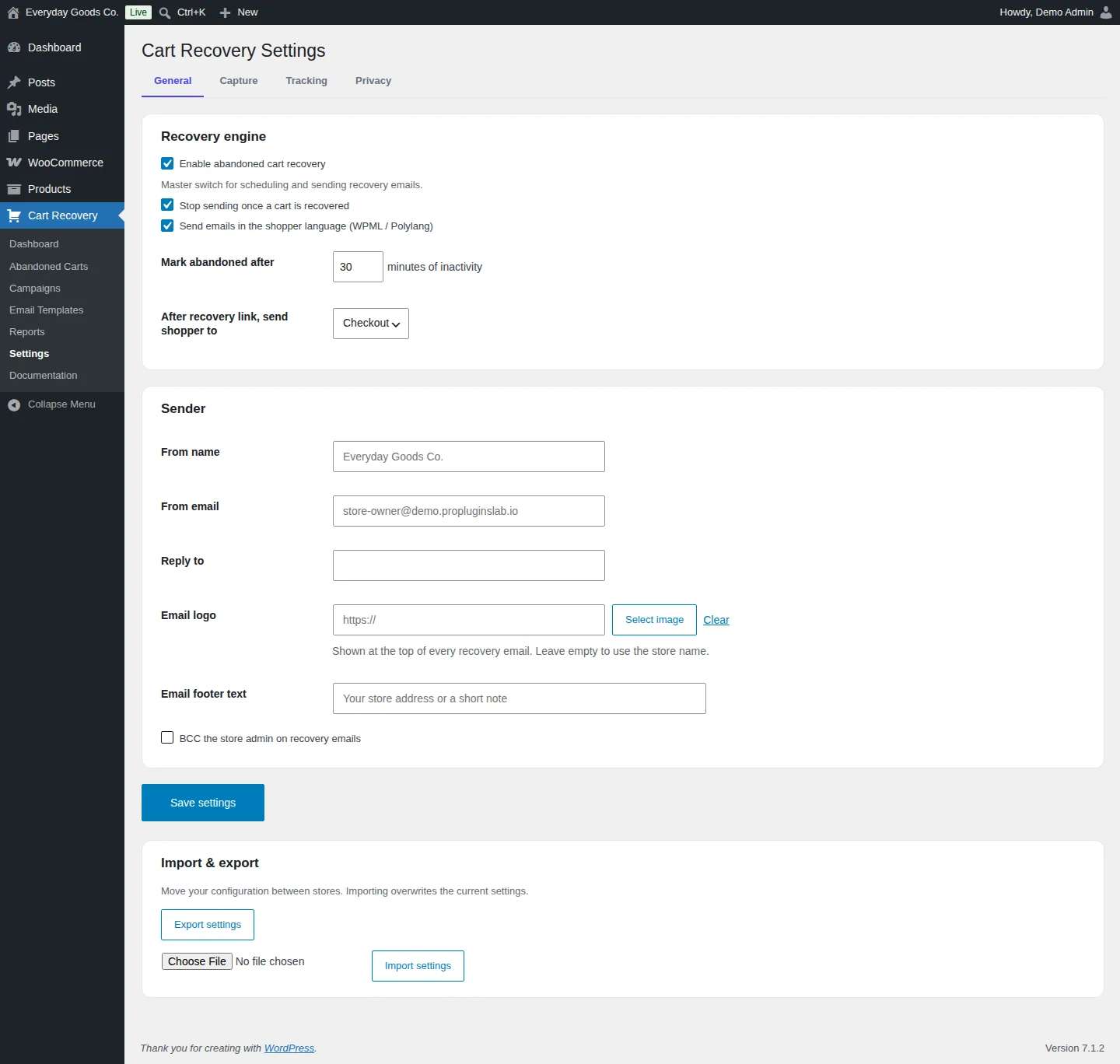
Cart Recovery > Settings has four tabs: General, Capture, Tracking and Privacy.
General is split into these areas:
- Recovery engine: Enable abandoned cart recovery is the master switch for scheduling and sending recovery emails. You can also stop emails once a cart is recovered and send emails in the shopper's language with WPML or Polylang. Mark abandoned after sets how many minutes of inactivity turn a cart into an abandoned cart. After recovery link, send shopper to chooses whether the recovery link opens Checkout or Cart.
- Sender: the name and addresses recovery emails come from, an optional logo and footer text, and an option to BCC the store admin. If you leave Email logo empty, the store name is shown instead.
Click Save settings when you are done.
Import & export moves your configuration between stores. Click Export settings to download it. To import, choose the file and click Import settings. Importing overwrites the current settings.
Capture holds the Exclusions. Tick the user roles to skip and list email addresses or whole domains, one per line. Matching carts are not captured, and emails already queued for an excluded address are cancelled. Nothing is excluded until you set it up. This tab is also where you exclude products and categories and set a minimum cart value.
Privacy holds the data retention window. It is 60 days by default, counted from when a cart was first captured, and 0 keeps carts indefinitely. When the window passes, a daily job anonymizes or deletes the cart, depending on the Anonymize instead of deleting setting. Recovered and purchased carts are never purged. This tab also has optional IP address storage, which is off by default. When it is on, IP addresses are stored only as a salted hash.
#Documentation
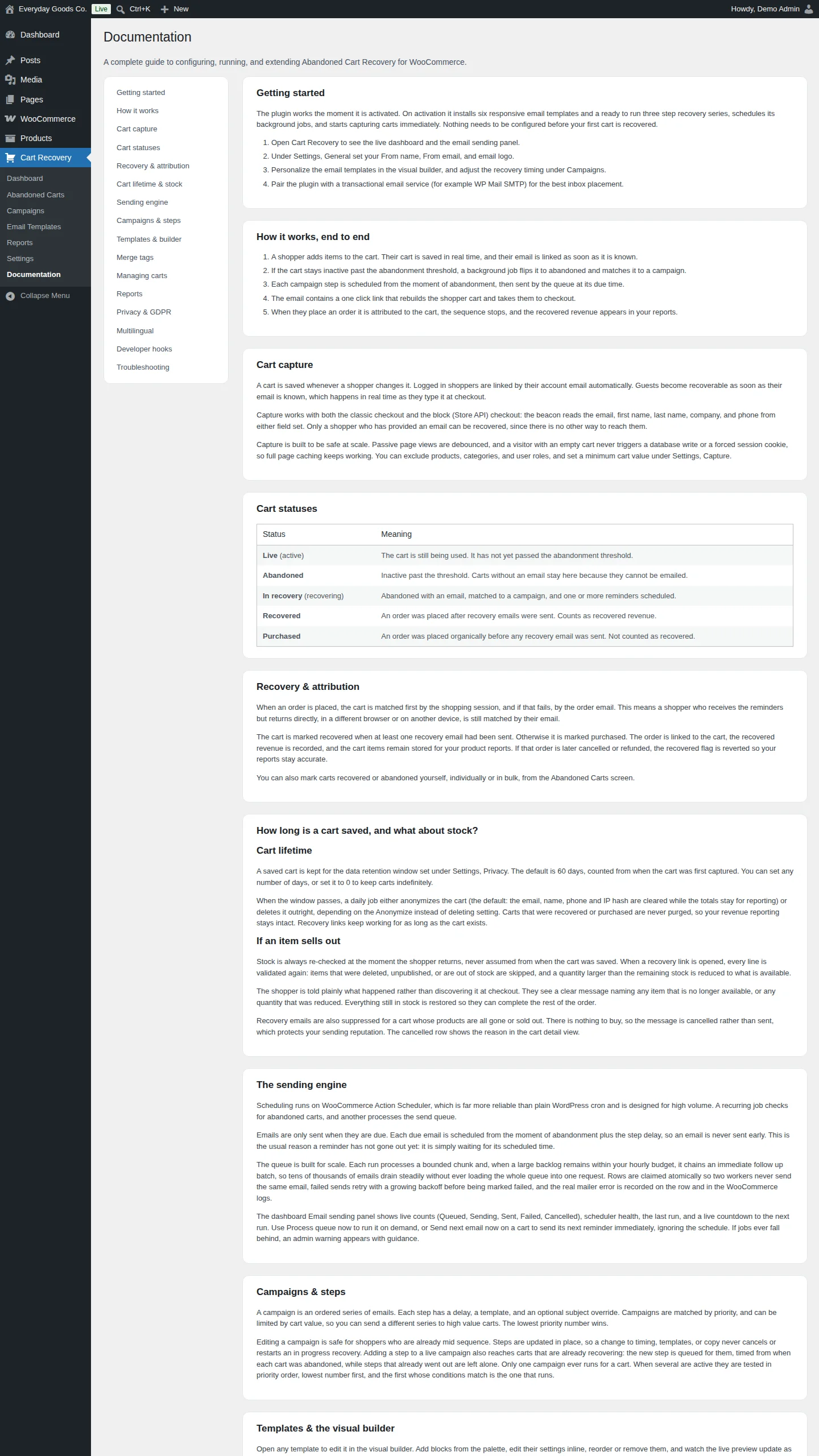
Cart Recovery > Documentation is a built-in guide inside your admin. It covers getting started, how recovery works from start to finish, cart capture, cart statuses, recovery and attribution, cart lifetime and stock, the sending engine, campaigns and steps, templates and the visual builder, merge tags, managing carts, reports, privacy and GDPR, and multilingual sending.
It also has a full developer hook reference. Actions include ppl_acrw_loaded, ppl_acrw_cart_captured, ppl_acrw_cart_abandoned, ppl_acrw_sequence_scheduled and ppl_acrw_cart_recovered. Filters include ppl_acrw_default_settings, ppl_acrw_starter_templates, ppl_acrw_merge_tags, ppl_acrw_should_send, ppl_acrw_queue_batch_size, ppl_acrw_recovery_url, ppl_acrw_rendered_email and ppl_acrw_email_excluded.
Settings reference
Cart Recovery > Settings > General
| Setting | Type | Default | What it does |
|---|---|---|---|
| Enable abandoned cart recovery | checkbox | Enabled |
Master switch for scheduling and sending recovery emails. |
| Stop sending once a cart is recovered | checkbox | Enabled |
Stops the remaining emails in the sequence once the shopper completes an order. |
| Send emails in the shopper language (WPML / Polylang) | checkbox | Enabled |
Sends recovery emails in the shopper's own language when WPML or Polylang is active. |
| Mark abandoned after | number | 30 |
Minutes of inactivity before a cart is marked abandoned. |
| After recovery link, send shopper to | select | Checkout |
Where the recovery link takes the shopper after their cart is rebuilt. Options: `Checkout`, `Cart`. |
| From name | text | - | Sender name shown on recovery emails. |
| From email | - | Address recovery emails are sent from. | |
| Reply to | - | Address that receives replies from shoppers. | |
| Email logo | url | - | Shown at the top of every recovery email. Leave empty to use the store name. Use **Select image** to pick one from the media library, or **Clear** to remove it. |
| Email footer text | text | - | Text shown at the bottom of recovery emails, for example your store address or a short note. |
| BCC the store admin on recovery emails | checkbox | Disabled |
Sends a blind copy of each recovery email to the store admin. |
On your site
Recovero adds no visible elements to your shop, product or cart pages. It captures carts in the background. It does not force a session or cookie on anonymous visitors, so full page caching keeps working.
What shoppers experience:
- At checkout, a guest's email is captured as they type it. This works with both the classic checkout and the block checkout. Logged in shoppers are linked through their account email automatically.
- In their inbox, they get the recovery emails from your campaign, sent through your site's own mail setup.
- When they click the recovery link, their cart is rebuilt and they go to the checkout or the cart, depending on your settings. Stock is checked again at that moment. Items that were deleted, unpublished or sold out are skipped, and quantities larger than the remaining stock are reduced. The shopper sees a message that names any changed item, so they can still complete the rest of the order.
Frequently asked questions
Do I need to set anything up before it starts working?
No. A default campaign and the starter email templates are installed when you activate the plugin, so carts are recovered without any setup. You should still set your sender details under Cart Recovery > Settings > General.
Does it work with guest checkouts?
Yes. Guest emails are captured in real time from the checkout email field, before the order is placed.
Will it slow my store down?
No. Nothing runs on requests that do not need it. No session or cookie is forced on an anonymous visitor, and all sending happens in the background through Action Scheduler.
How are recovery emails sent?
Through wp_mail, so they use whatever mail configuration your site already has, including any SMTP plugin.
How do I stop my own test carts from being tracked?
Go to Cart Recovery > Settings > Capture. Under Exclusions, tick the user roles to skip (for example Administrator or Shop manager). List any email addresses or domains, one per line, such as test@example.com or @yourstore.com. Matching carts are not captured, and recovery emails already queued for an excluded address are cancelled.
Is it compatible with High Performance Order Storage and the block checkout?
Yes. It works with WooCommerce High Performance Order Storage and with the block based cart and checkout.
Is anything in the free plugin limited or locked?
No. Everything included is fully functional with no caps, trials or licence checks. The Pro edition is a separate plugin that adds further features. It does not unlock anything in this one.
What happens to my data if I move to the Pro edition?
Nothing is lost. Both editions read and write the same tables and settings, so every cart, campaign, template and setting carries over. If both are active, Pro takes over and this edition stands down, so recovery emails are never sent twice.
Troubleshooting
- The plugin cannot be activated
Recovero requires WooCommerce. Install and activate WooCommerce 8.0 or later first, then activate Recovero. Also check that your site runs WordPress 6.2 or later and PHP 7.4 or later.
- No recovery emails are going out
- Go to Cart Recovery > Settings > General and make sure Enable abandoned cart recovery is ticked.
- Remember that each email is sent only when it is due: the moment of abandonment plus the step delay. A reminder that has not gone out yet is usually just waiting for its scheduled time.
- On Cart Recovery > Dashboard, check that the Email sending panel says Scheduler healthy. Click Process queue now to run the queue, or Scheduled actions to review the background jobs. If jobs fall behind, an admin warning appears with guidance.
- Emails show as Failed or land in spam
Recovery emails are sent through your site's own mail setup. For better inbox placement, use a transactional email service or an SMTP plugin (for example WP Mail SMTP). Failed sends are retried before they are marked failed. The actual mailer error is recorded on the email and in the WooCommerce logs.
- A shopper's cart does not appear or never gets an email
A cart can only be recovered once the shopper has given an email address. Carts without an email stay Abandoned because there is no way to reach the shopper. Also check the Exclusions under Cart Recovery > Settings > Capture, because carts from excluded roles, addresses or domains are not captured. Emails are also cancelled for a cart whose products are all gone or sold out. The reason is shown in the cart detail view.
- Store staff or test orders receive recovery emails
Go to Cart Recovery > Settings > Capture and, under Exclusions, tick the staff user roles. List your test email addresses or your own domain, one per line. Queued emails to excluded addresses are cancelled.
- Emails are sent in the wrong language
Make sure Send emails in the shopper language (WPML / Polylang) is ticked under Cart Recovery > Settings > General, and that WPML or Polylang is active on your site.
Upgrade
Upgrade to Recovero - Cart Abandonment Recovery for WooCommerce
Recovero Pro is a separate plugin that adds more recovery tools. Nothing in the free plugin is limited or locked. Both editions share the same data, so every cart, campaign, template and setting carries over. Once Pro is active it takes over and the free edition stands down, so emails are never sent twice.
- Exit intent popup that captures emails before shoppers leave
- Session replay recordings of each shopper's visit
- Single use recovery coupons inside reminder emails
- Webhooks that send cart events to Zapier, Make or your CRM
- Email throttling with hourly caps and a send window