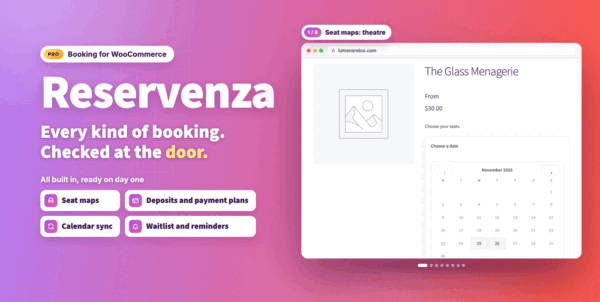
Overview
Auctions for WooCommerce with a tamper-evident bid ledger: ten auction types, events, galas, live sales, card on file, deposits and automatic winner payment.
Requirements
- WordPress 6.5 or later
- PHP 7.4 or later
- WooCommerce 8.5 or later
- Required plugins: woocommerce
Installation
Download Reservenza - Booking for WooCommerce from your ProPluginsLab account, then upload it to WordPress.
Log in to your ProPluginsLab account and open My Account > Downloads.
Download the plugin zip file.
In your WordPress admin, go to Plugins > Add New Plugin > Upload Plugin.
Choose the zip file, click Install Now, then Activate.
License and automatic updates
Reservenza works fully as soon as it is activated. The license key turns on automatic updates, so new versions arrive in WordPress like any other plugin update. Pro features never depend on it.
Activate your license
Find your license key in My Account on propluginslab.io, in the license keys section. It is also in your order confirmation email.
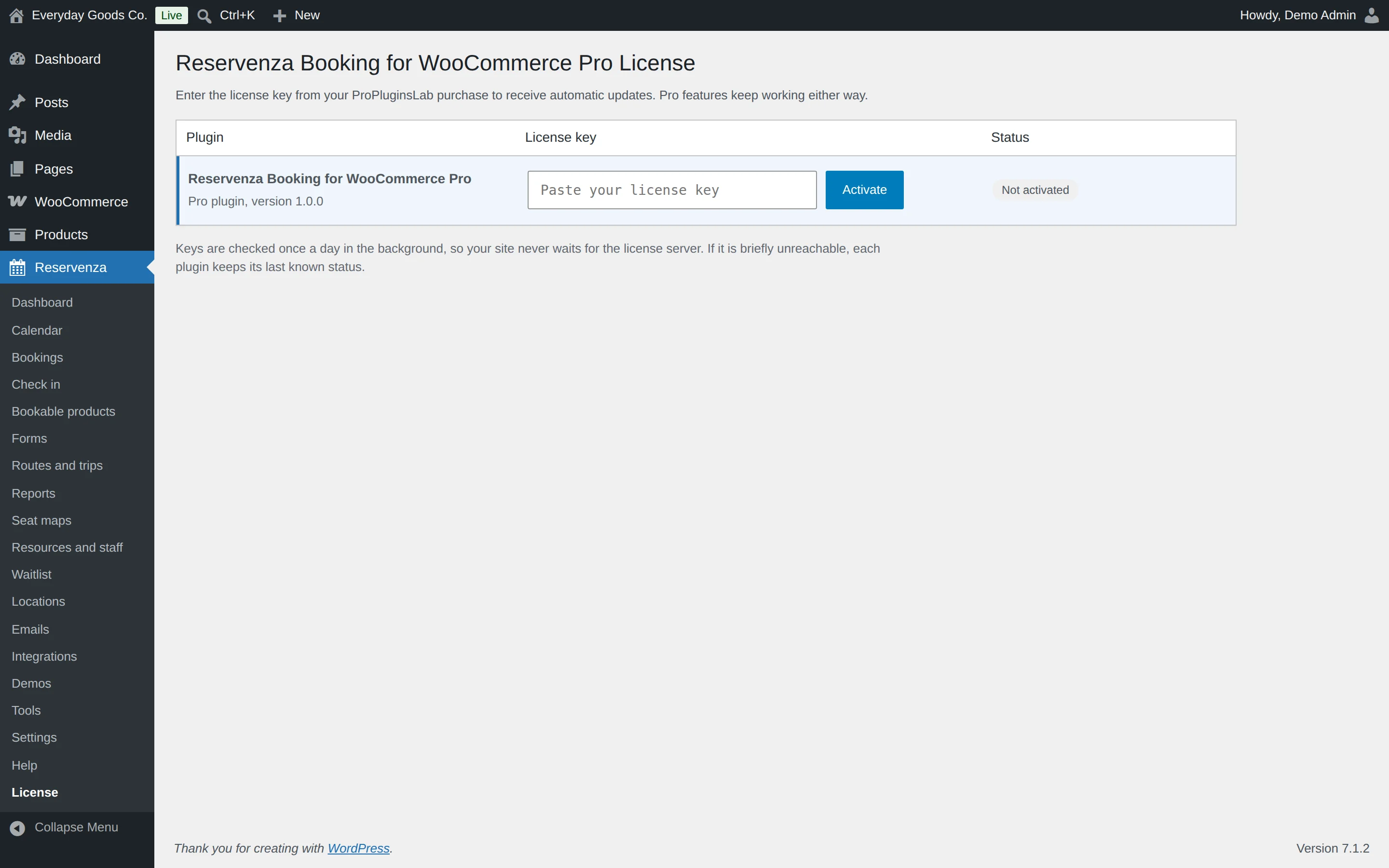
In WordPress, open Reservenza > License. When two or more ProPluginsLab plugins or add-ons are active on the site, WooCommerce > Licenses also appears and lists all of them in one place.
Paste the key into the Reservenza - Booking for WooCommerce Pro row and click Activate. The status changes to Active and automatic updates are on.
Receive updates automatically
Once the license is active, new versions of Reservenza show up under Dashboard > Updates and on the Plugins screen. Click Update now, or click Enable auto-updates in the Reservenza row on the Plugins screen and WordPress installs every future release for you.
Good to know
- Keys are checked once a day in the background, so your site never waits for the license server. If the server is briefly unreachable, the plugin keeps its last known status.
- An expired key or a key that is not accepted only stops updates. Reservenza keeps working. After renewing, click Check now in its row.
- Moving to a new domain: click Deactivate on the old site first, then activate the key on the new one. The status shows Site address changed, checking until the new address is confirmed.
- On the command line:
wp ppl-license list,wp ppl-license activate <plugin> <key>,wp ppl-license checkandwp ppl-license deactivate <plugin>.
Quick start
- Open Check in
Go to
wp-admin/admin.php?page=reservenza-checkinin your WordPress admin. - Open Reservenza Booking for WooCommerce Pro License
Go to
wp-admin/admin.php?page=cwg-license-reservenza-booking-for-woocommerce-proin your WordPress admin. - Open Reservenza
Go to
wp-admin/admin.php?page=reservenzain your WordPress admin. - Open Bookings
Go to
wp-admin/admin.php?page=reservenza-bookingsin your WordPress admin.
#Check in
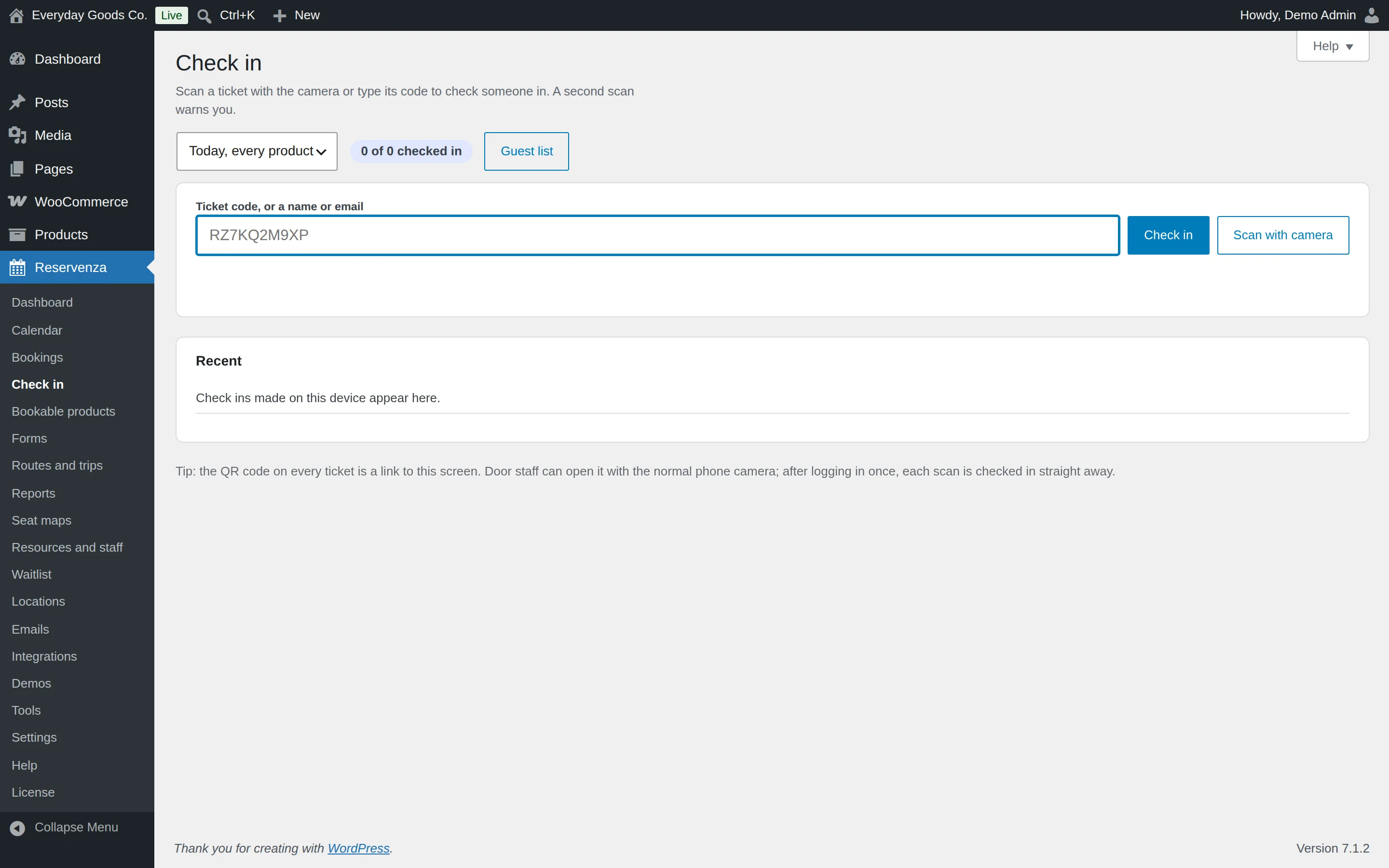
Location: wp-admin/admin.php?page=reservenza-checkin
On this screen:
- Check in
- Recent
#Reservenza Booking for WooCommerce Pro License
Location: wp-admin/admin.php?page=cwg-license-reservenza-booking-for-woocommerce-pro
On this screen:
- Reservenza Booking for WooCommerce Pro License
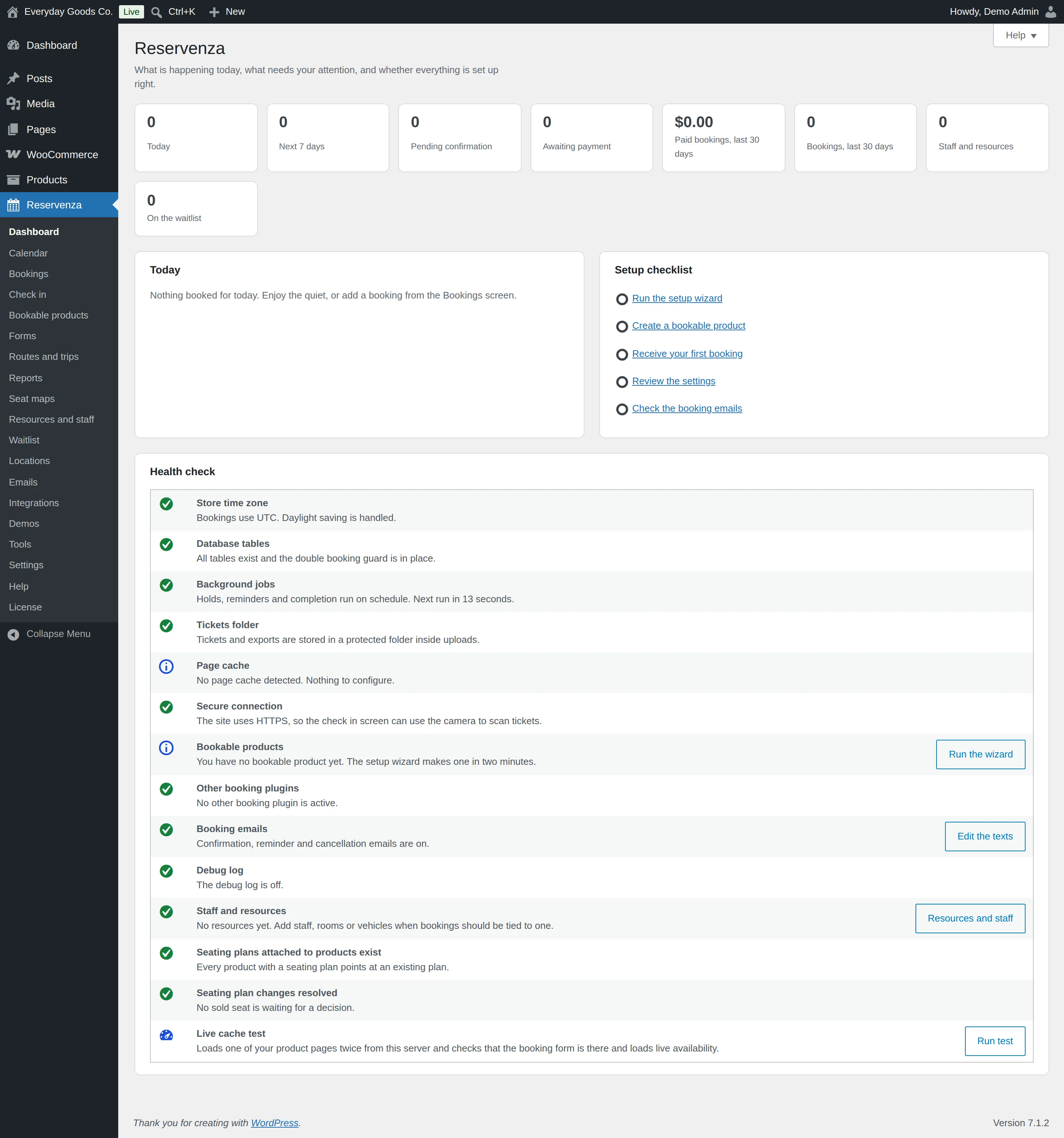
#Reservenza
Location: wp-admin/admin.php?page=reservenza
On this screen:
- Reservenza
- Today
- Setup checklist
- Health check
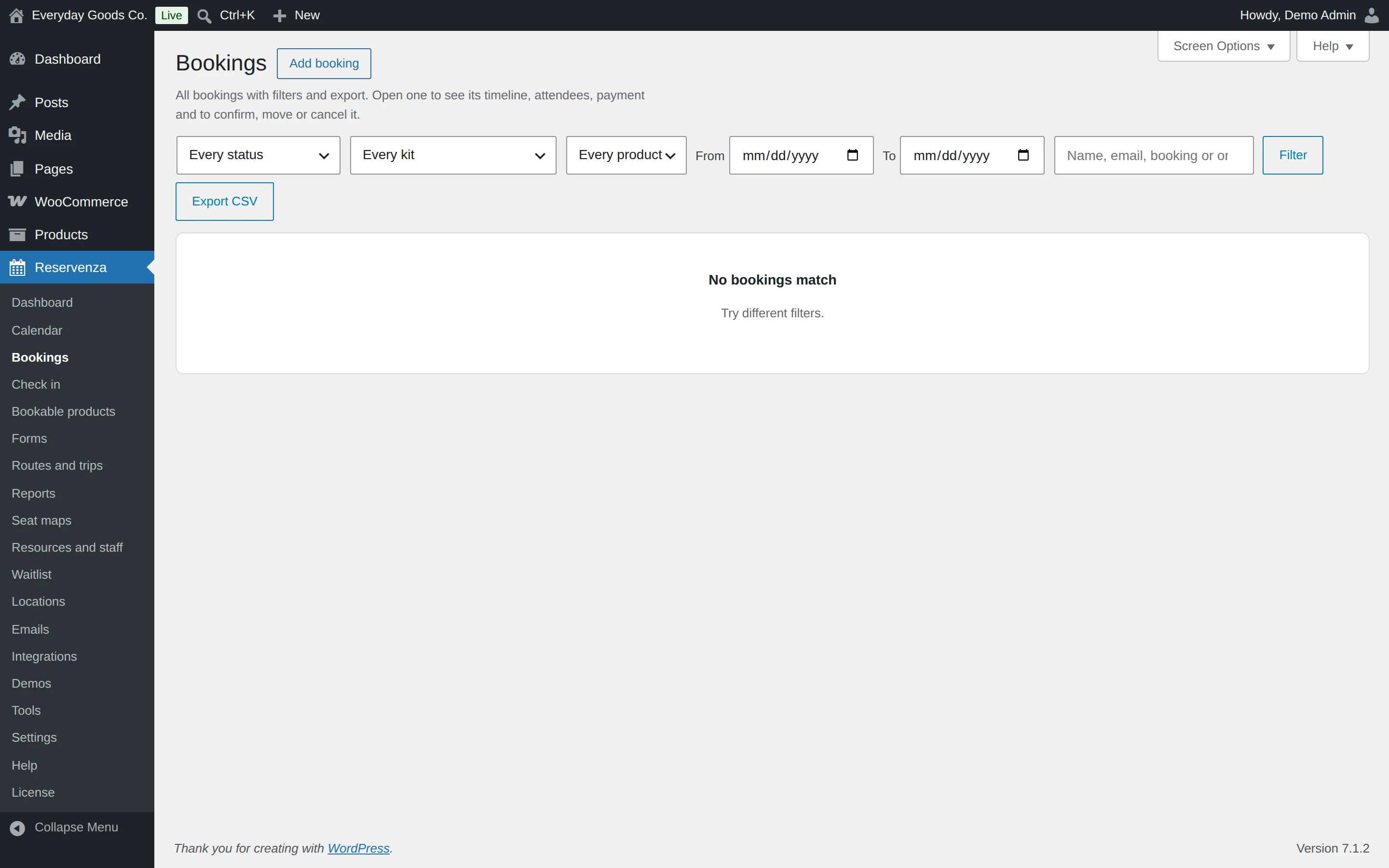
#Bookings
Location: wp-admin/admin.php?page=reservenza-bookings
On this screen:
- Bookings Add booking
- No bookings match
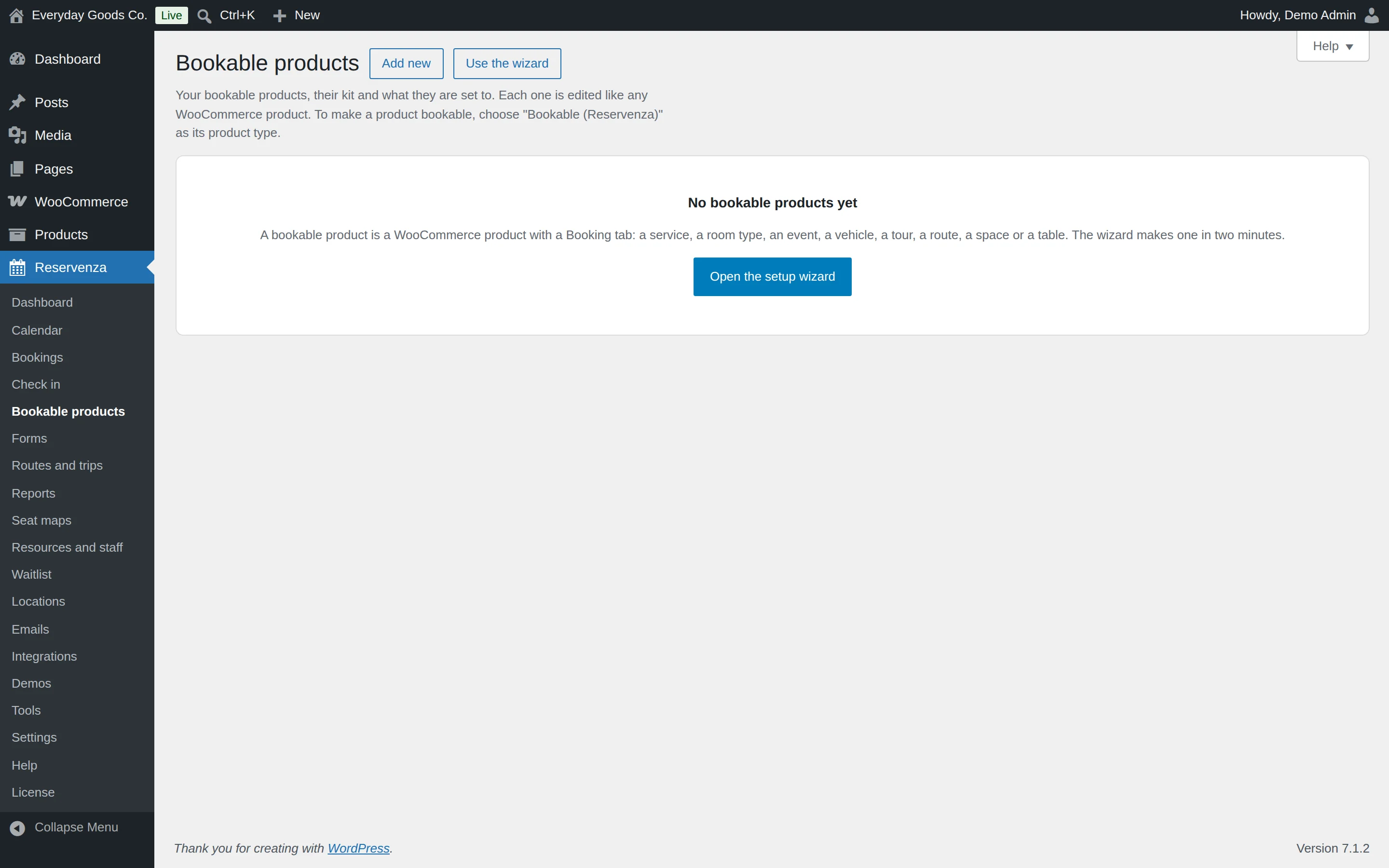
#Bookable products
Location: wp-admin/admin.php?page=reservenza-products
On this screen:
- Bookable products Add new Use the wizard
- No bookable products yet
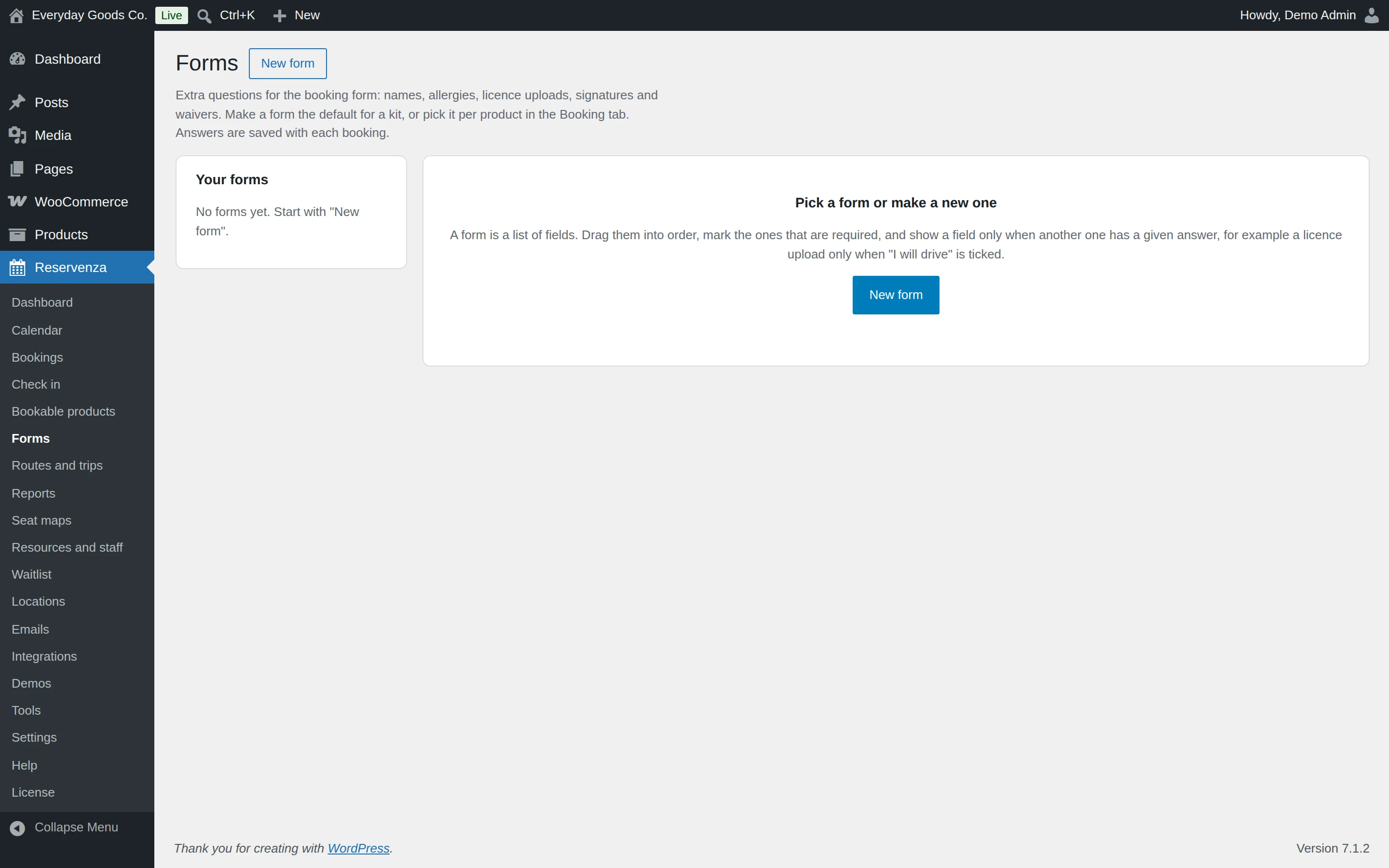
#Forms
Location: wp-admin/admin.php?page=reservenza-forms
On this screen:
- Forms New form
- Your forms
- Pick a form or make a new one
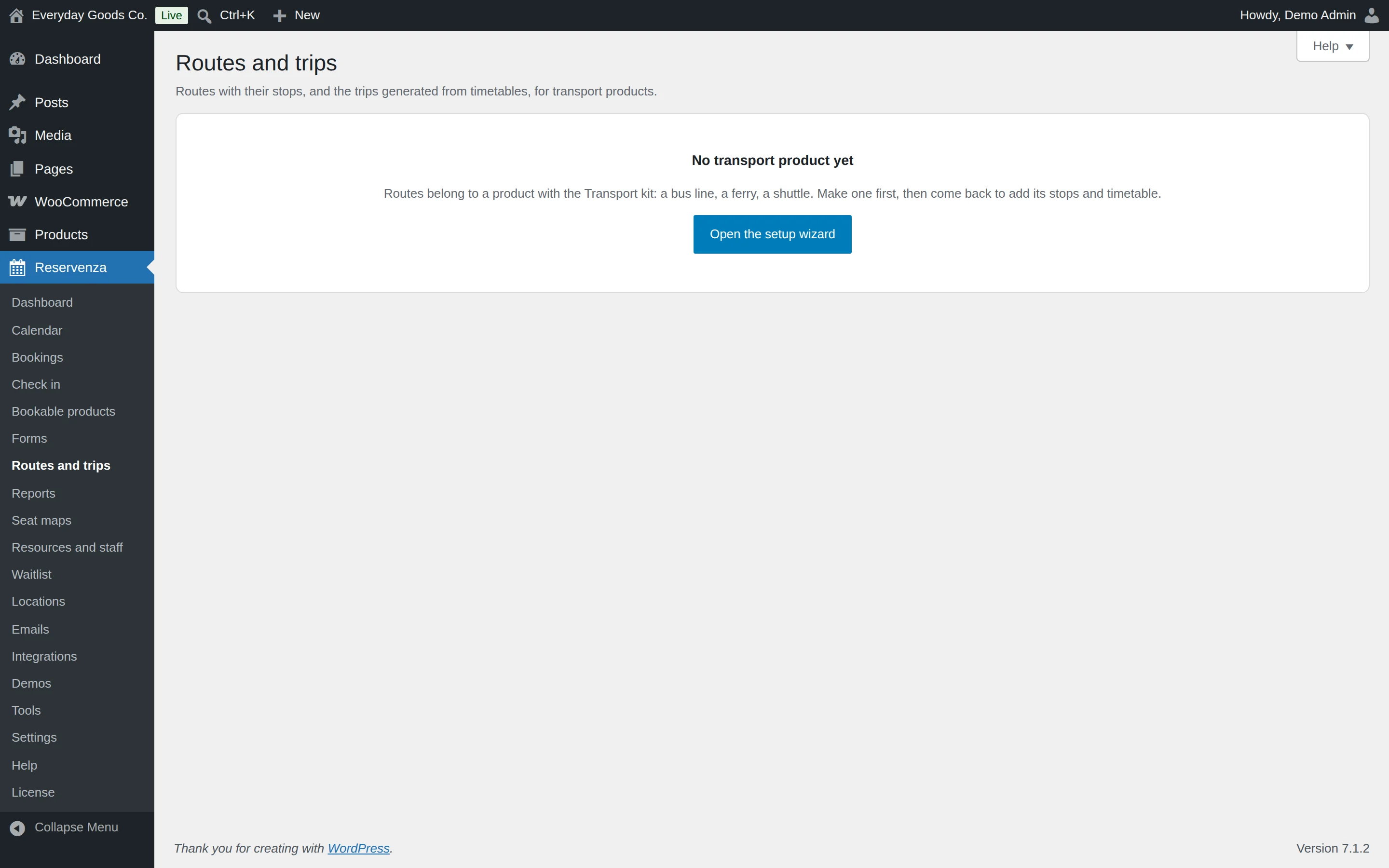
#Routes and trips
Location: wp-admin/admin.php?page=reservenza-routes
On this screen:
- Routes and trips
- No transport product yet
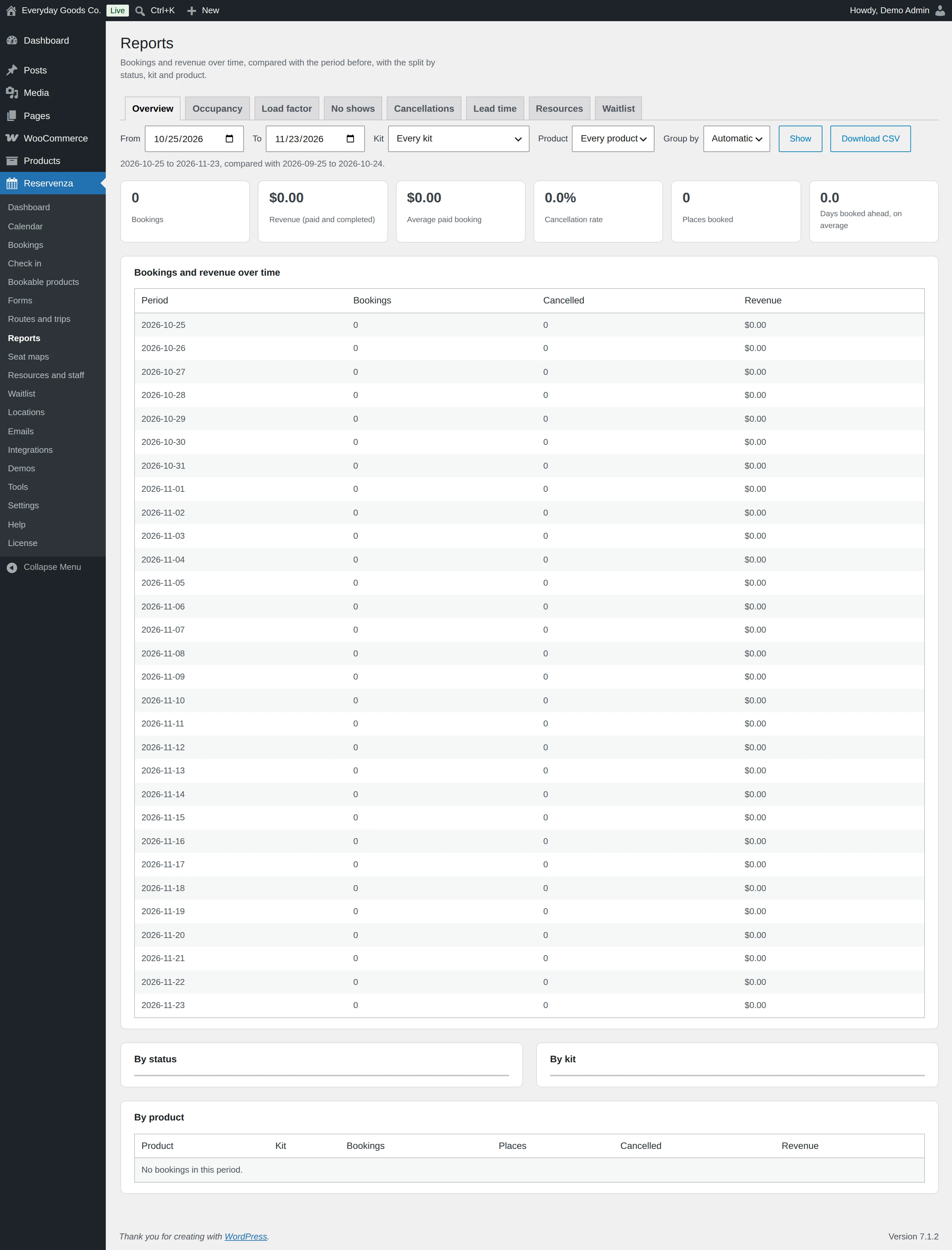
#Reports
Location: wp-admin/admin.php?page=reservenza-reports
On this screen:
- Reports
- Bookings and revenue over time
- By status
- By kit
- By product
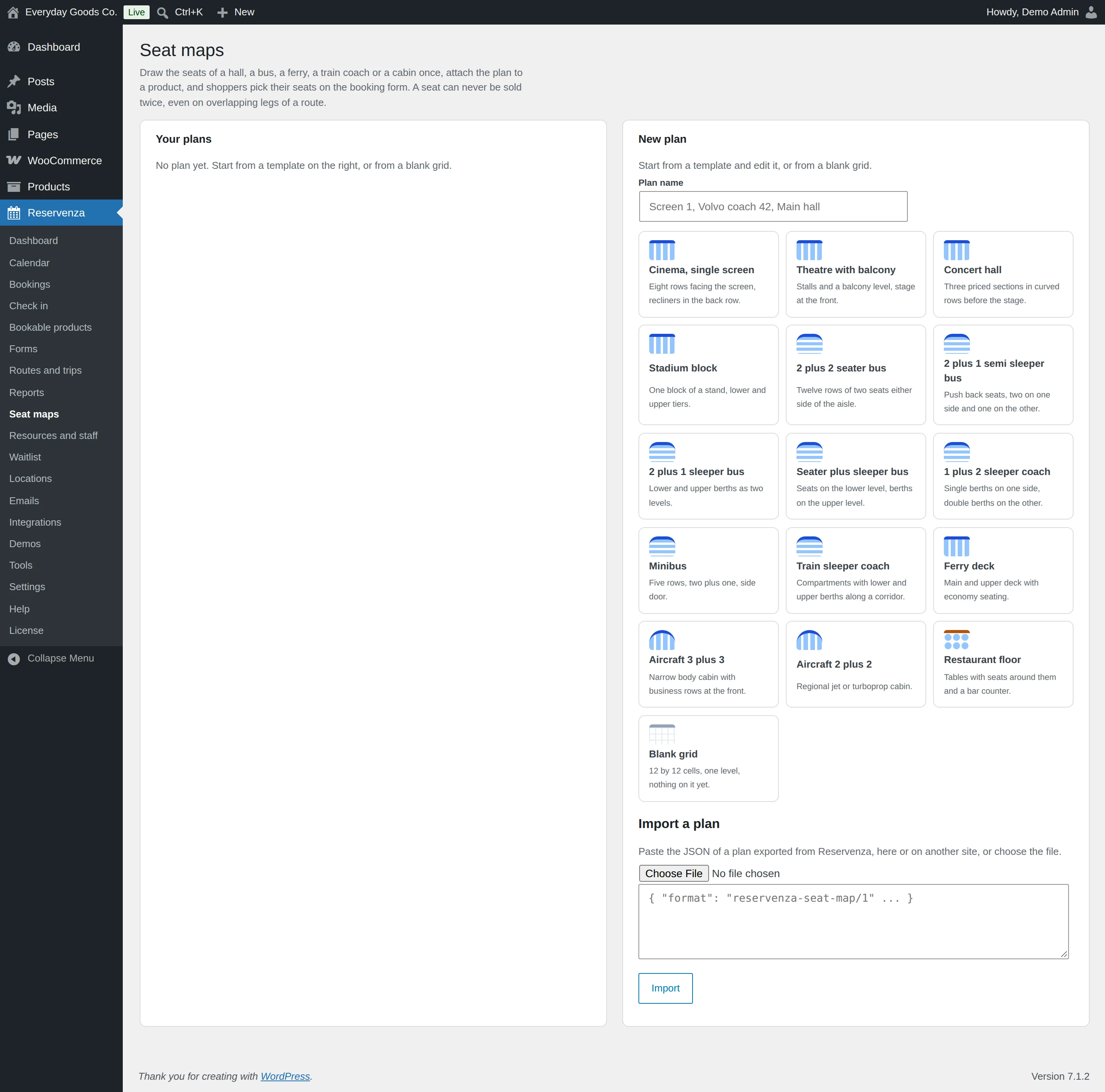
#Seat maps
Location: wp-admin/admin.php?page=reservenza-seatmaps
On this screen:
- Seat maps
- Your plans
- New plan
- Import a plan
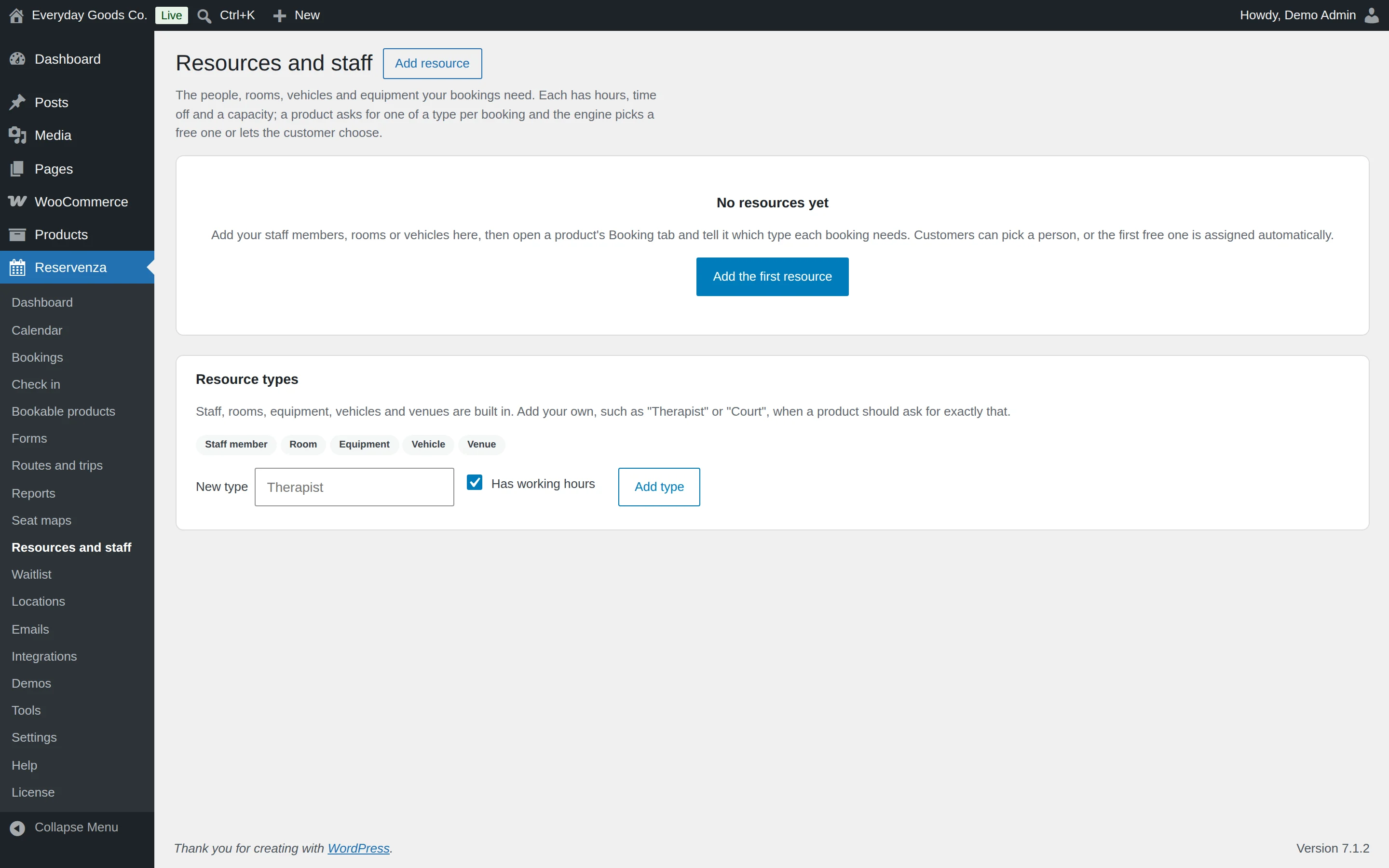
#Resources and staff
Location: wp-admin/admin.php?page=reservenza-resources
On this screen:
- Resources and staff Add resource
- No resources yet
- Resource types
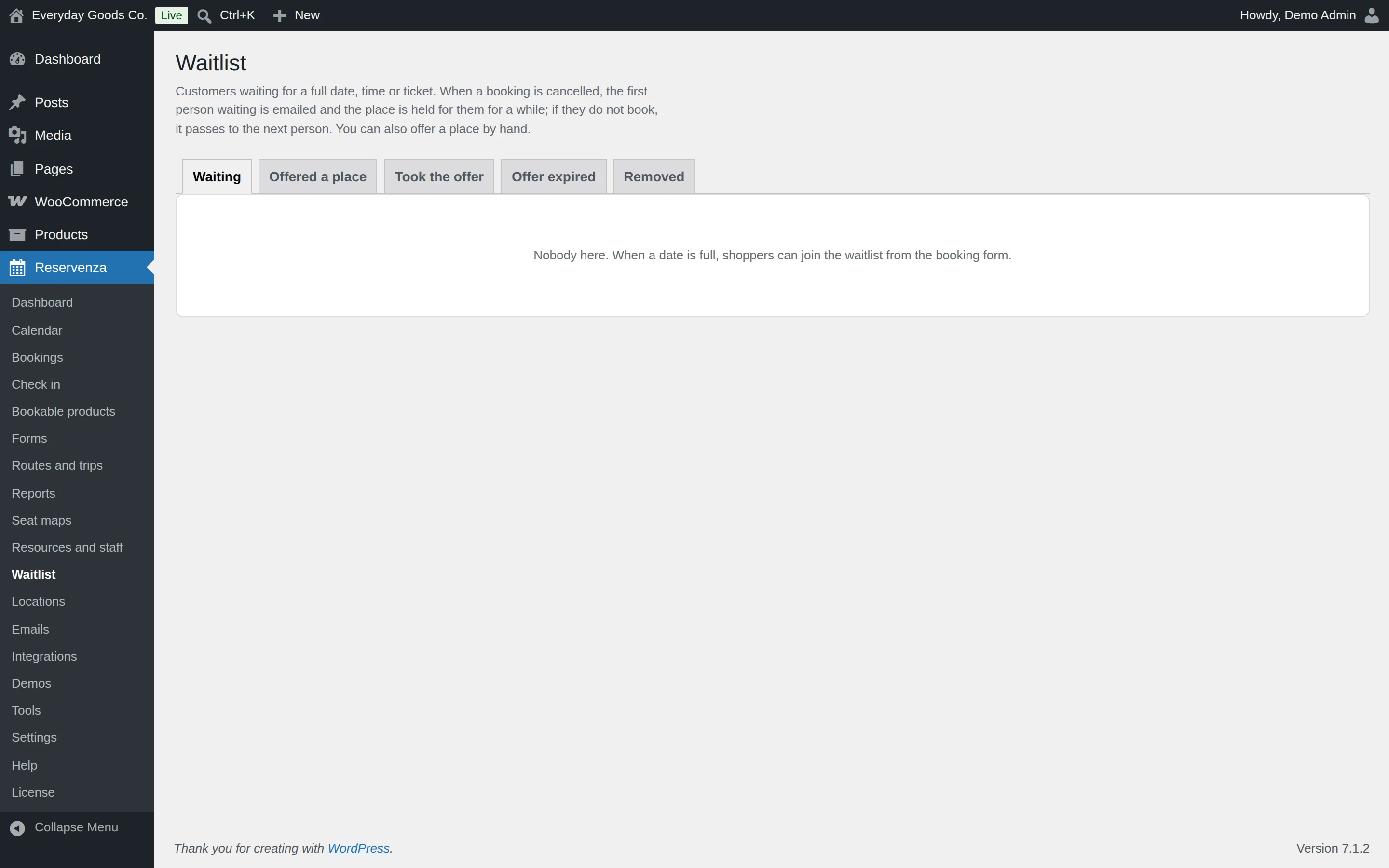
#Waitlist
Location: wp-admin/admin.php?page=reservenza-waitlist
On this screen:
- Waitlist
#Locations
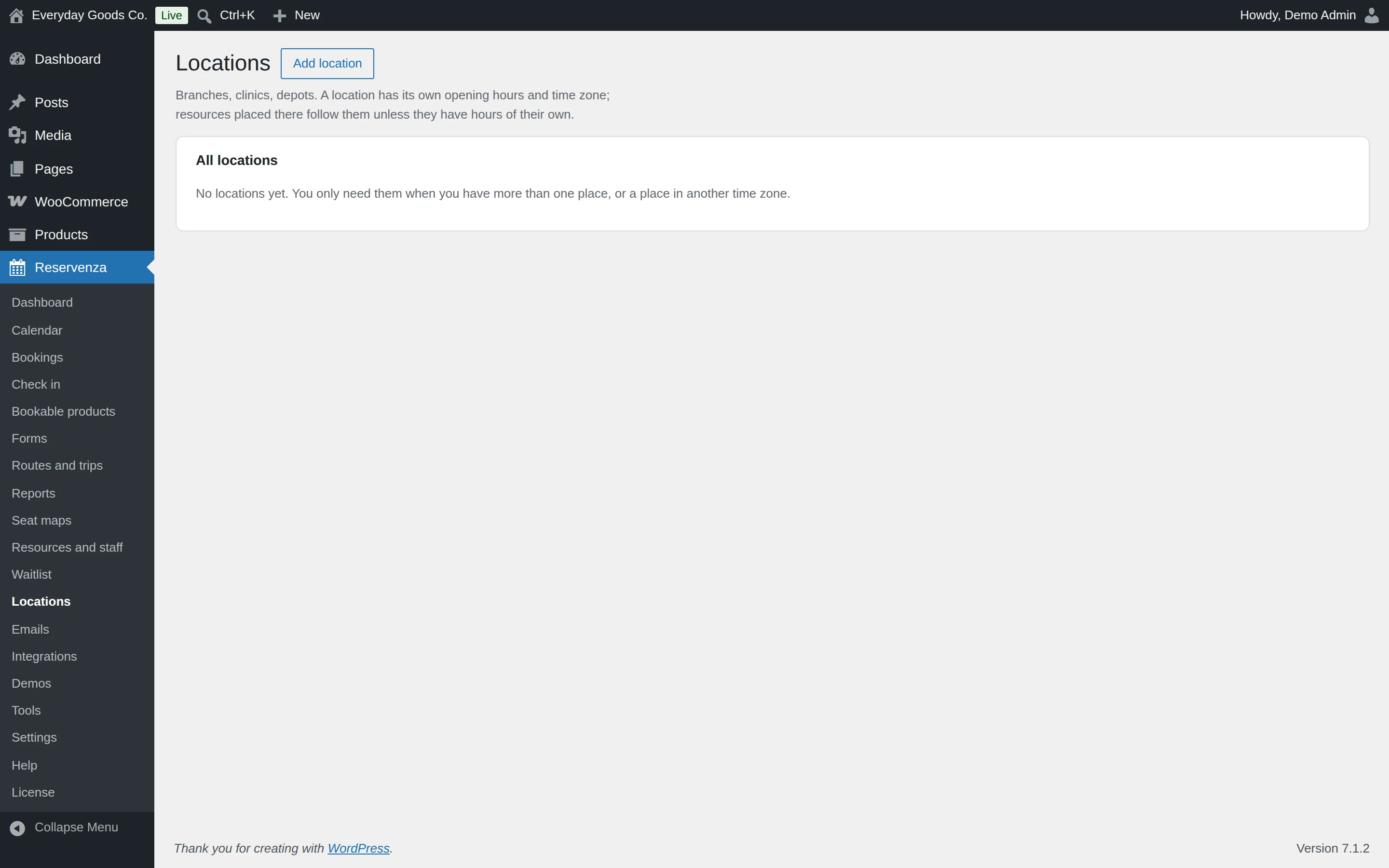
Location: wp-admin/admin.php?page=reservenza-locations
On this screen:
- Locations Add location
- All locations
#Emails
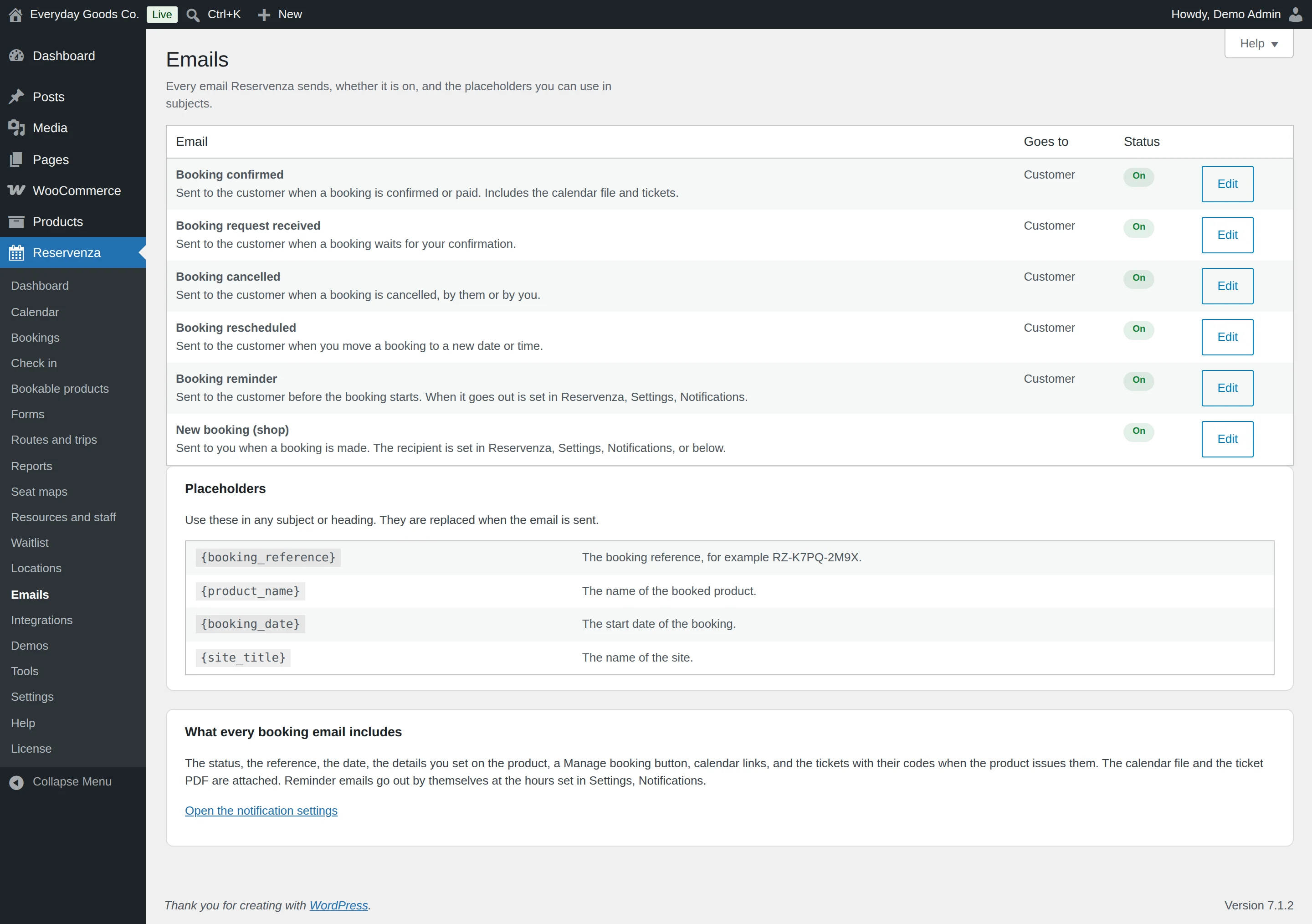
Location: wp-admin/admin.php?page=reservenza-emails
On this screen:
- Emails
- Placeholders
- What every booking email includes
#Integrations
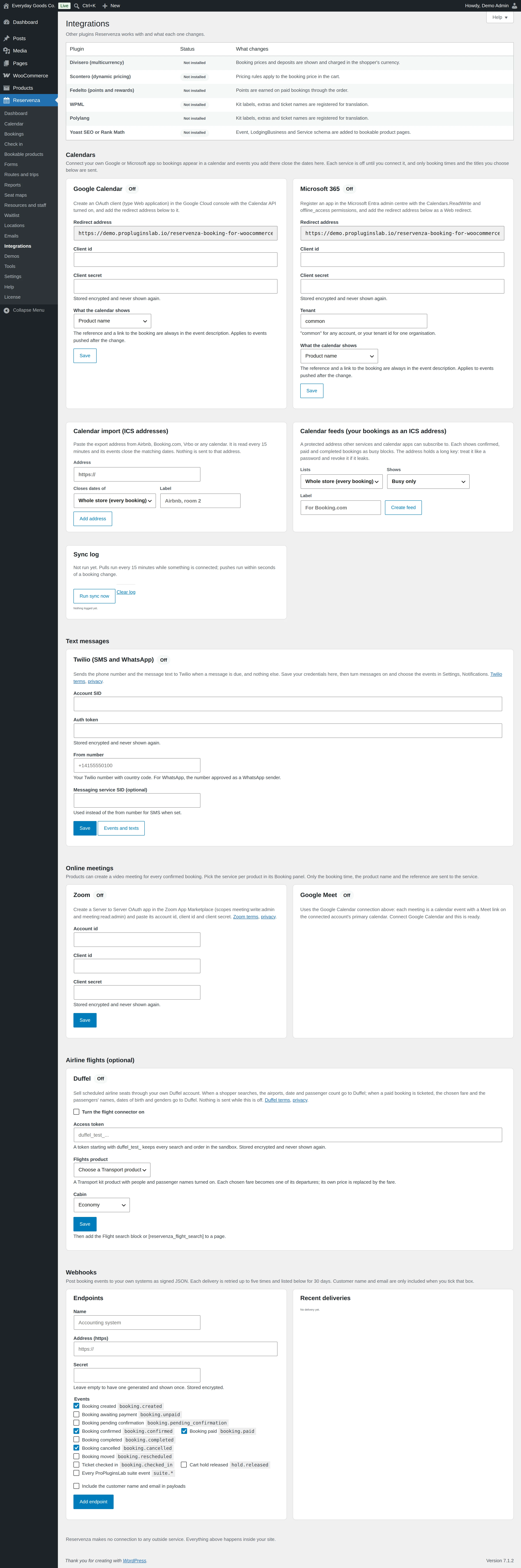
Location: wp-admin/admin.php?page=reservenza-integrations
On this screen:
- Integrations
- Calendars
- Google Calendar Off
- Microsoft 365 Off
- Calendar import (ICS addresses)
- Calendar feeds (your bookings as an ICS address)
- Sync log
- Text messages
#Demos
Location: wp-admin/admin.php?page=reservenza-demos
On this screen:
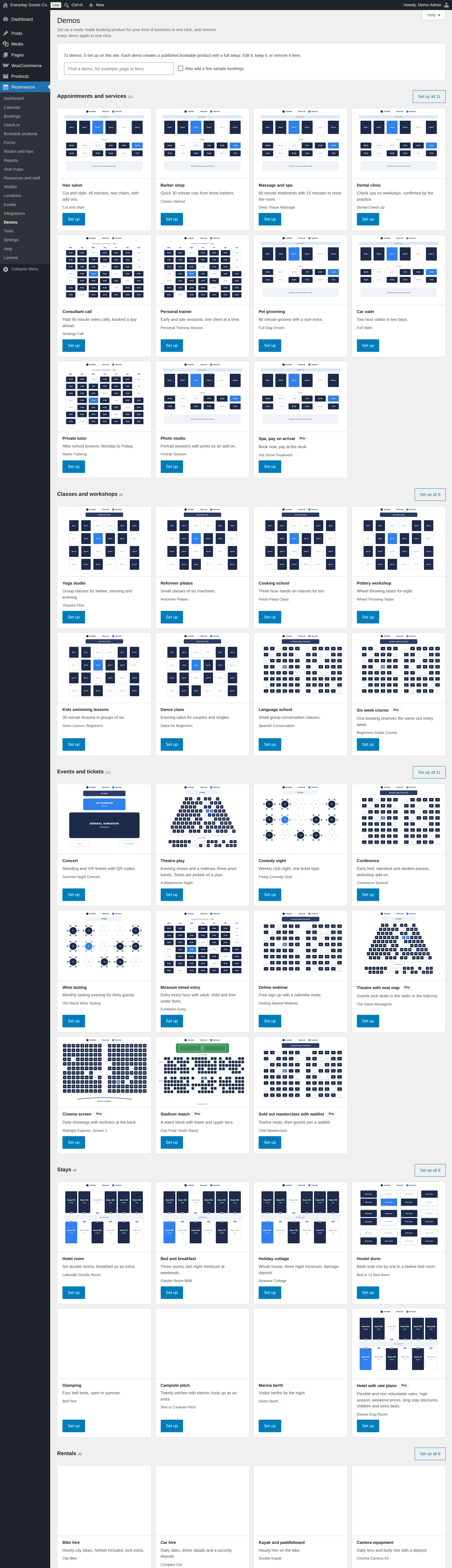
- Demos
- Appointments and services (11)
- Hair salon
- Barber shop
- Massage and spa
- Dental clinic
- Consultant call
- Personal trainer
#Tools
Location: wp-admin/admin.php?page=reservenza-tools
On this screen:
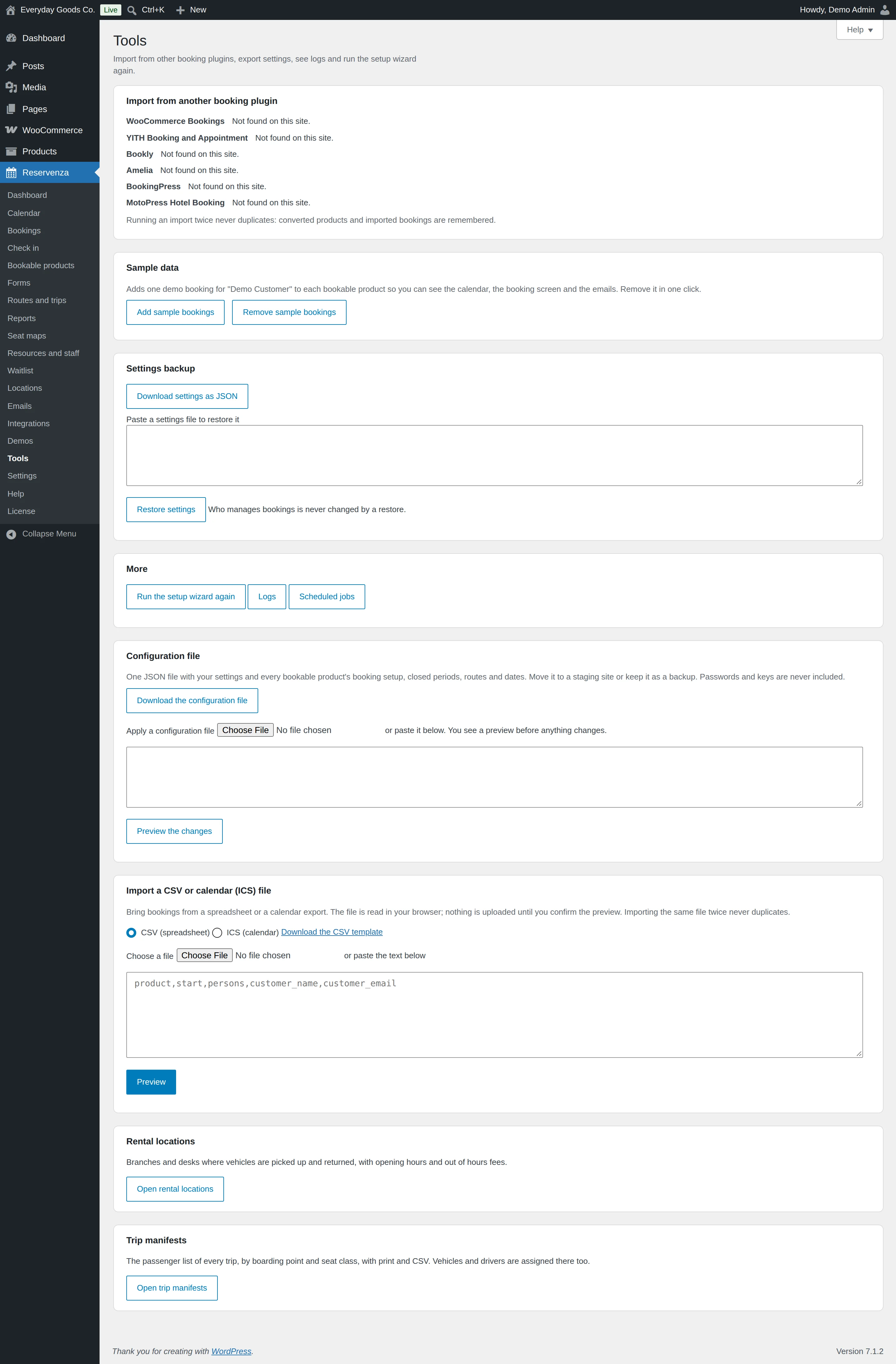
- Tools
- Import from another booking plugin
- Sample data
- Settings backup
- More
- Configuration file
- Import a CSV or calendar (ICS) file
- Rental locations
#Settings
Location: wp-admin/admin.php?page=reservenza-settings
On this screen:
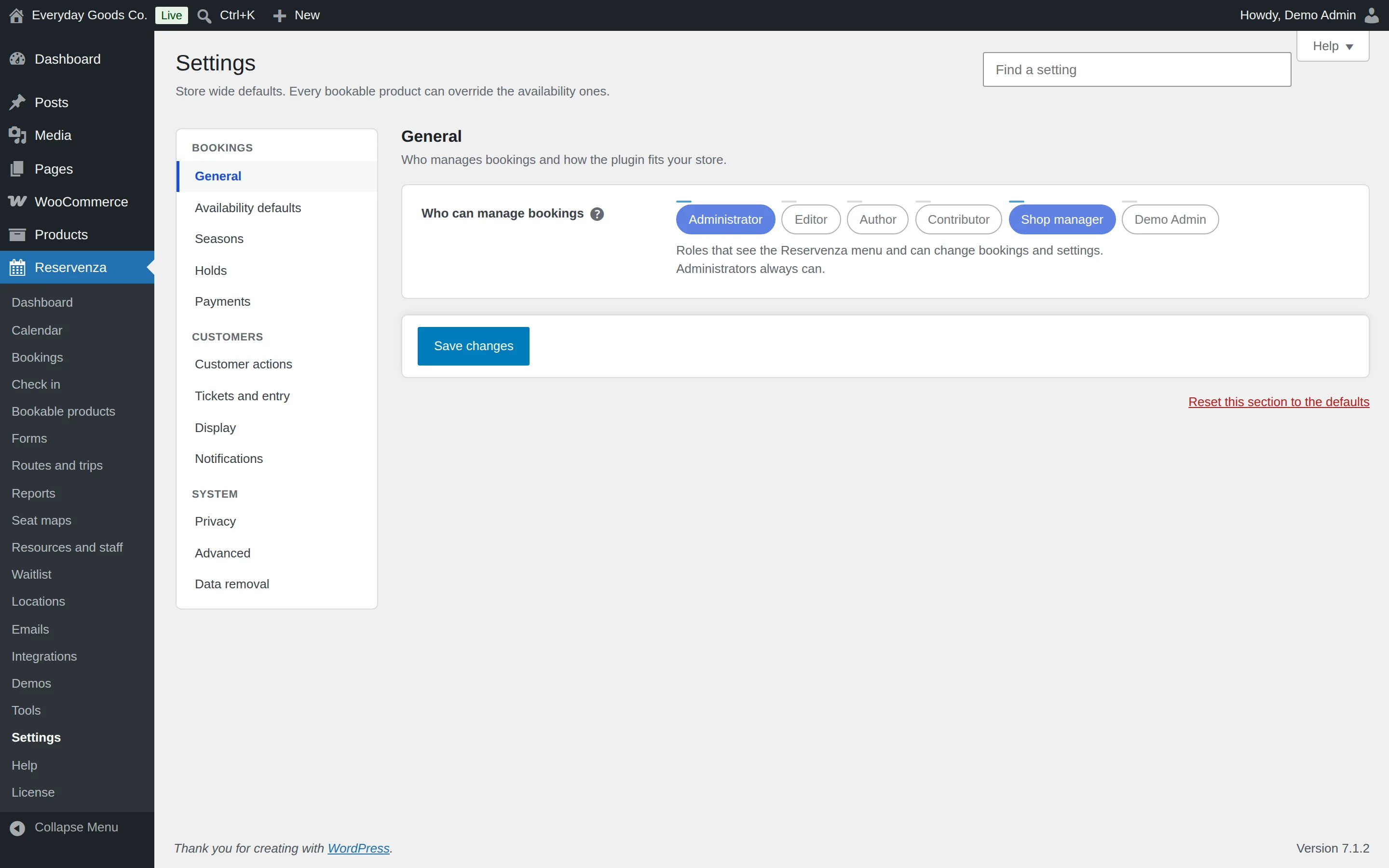
- Settings
- General
#Help
Location: wp-admin/admin.php?page=reservenza-help
On this screen:
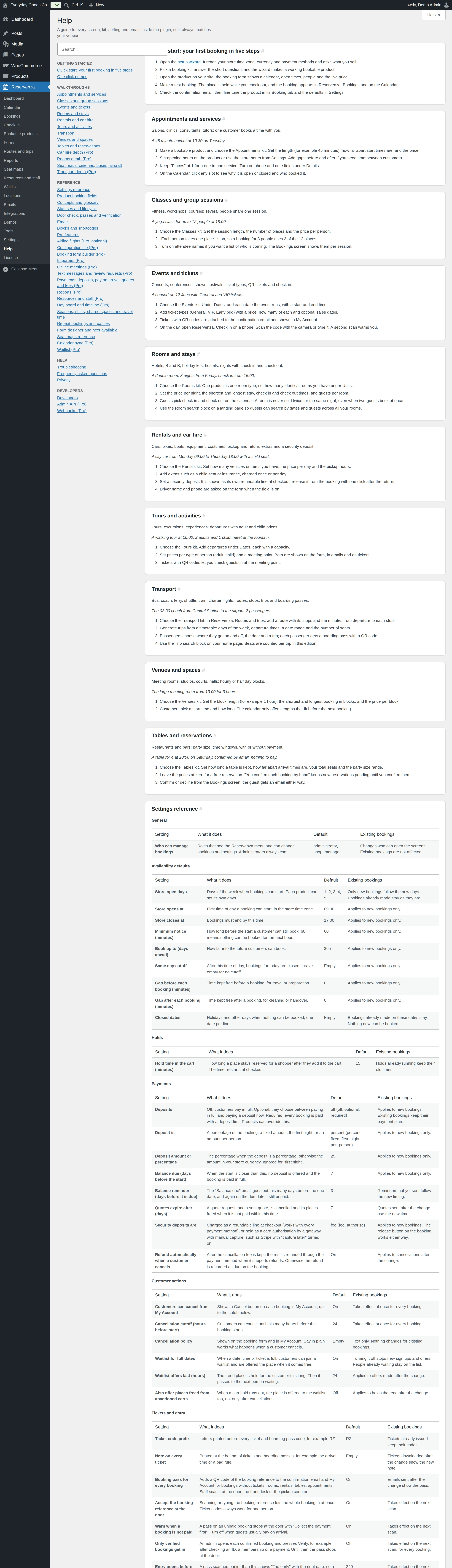
- Help
- GETTING STARTED
- WALKTHROUGHS
- REFERENCE
- HELP
- DEVELOPERS
- Quick start: your first booking in five steps #
- Appointments and services #
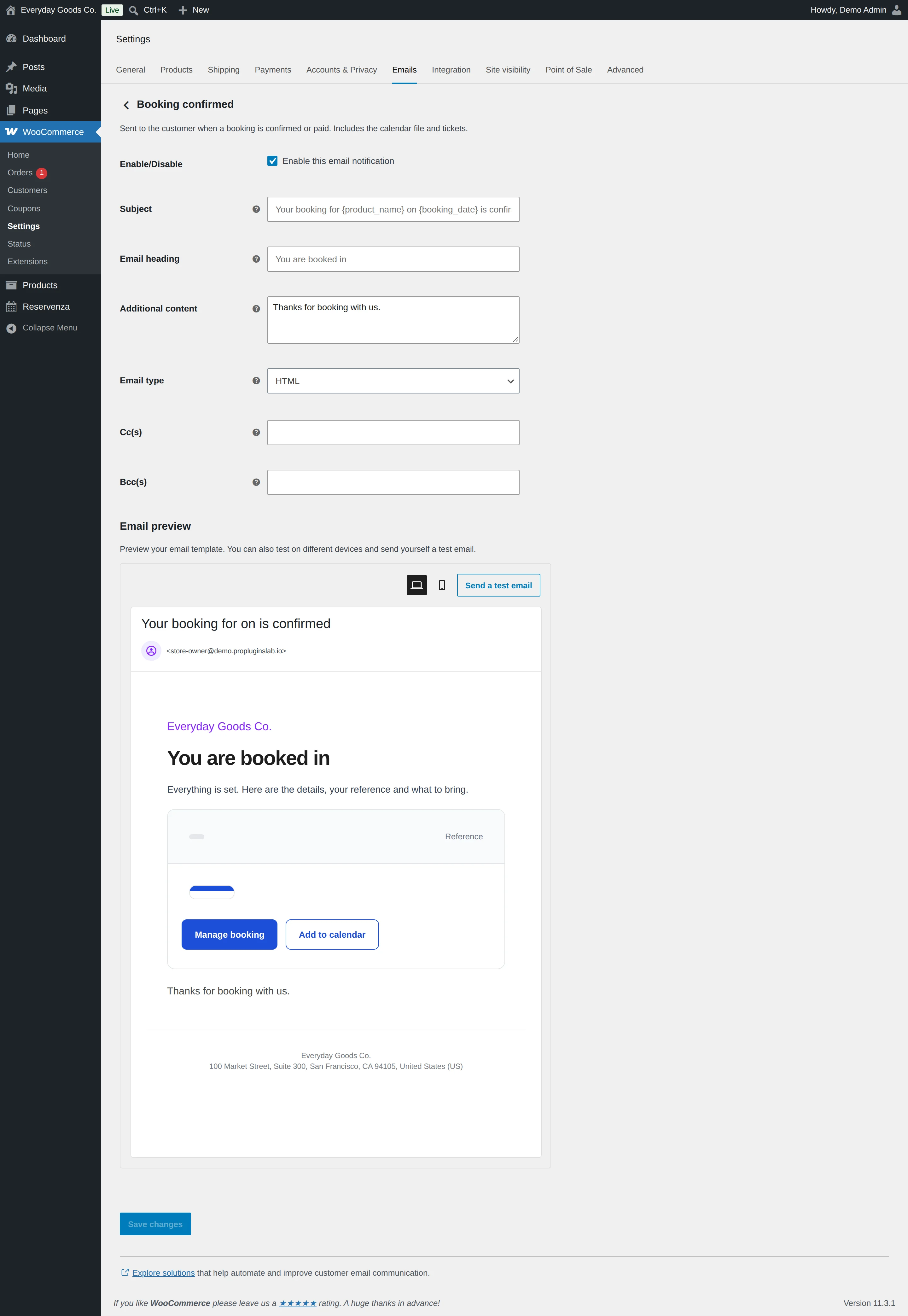
#WooCommerce > Settings > Email > Booking confirmed
Location: wp-admin/admin.php?page=wc-settings&tab=email§ion=reservenza_customer_confirmed
On this screen:
- Booking confirmed
- Email preview
- Your booking for on is confirmed
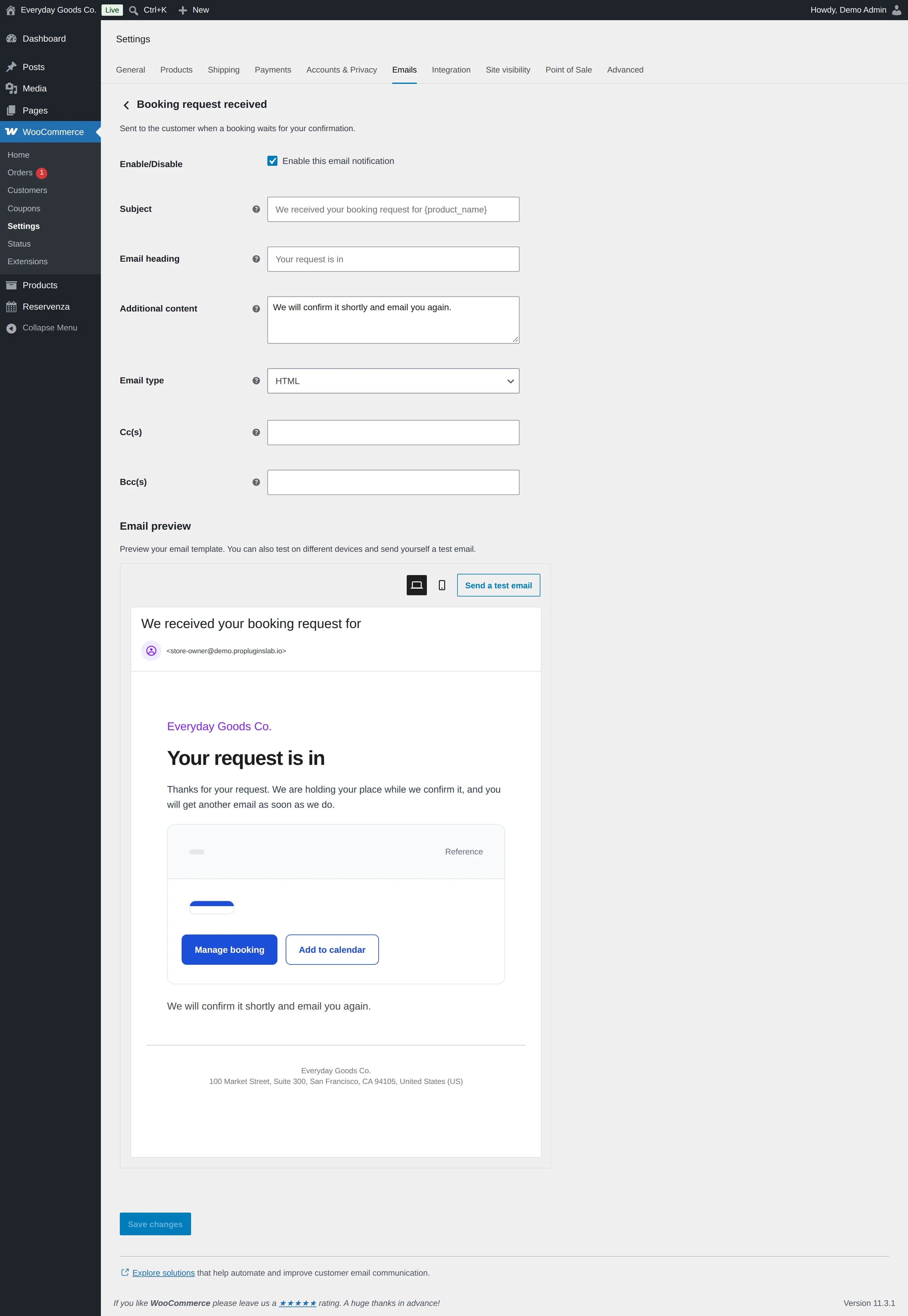
#WooCommerce > Settings > Email > Booking request received
Location: wp-admin/admin.php?page=wc-settings&tab=email§ion=reservenza_customer_pending
On this screen:
- Booking request received
- Email preview
- We received your booking request for
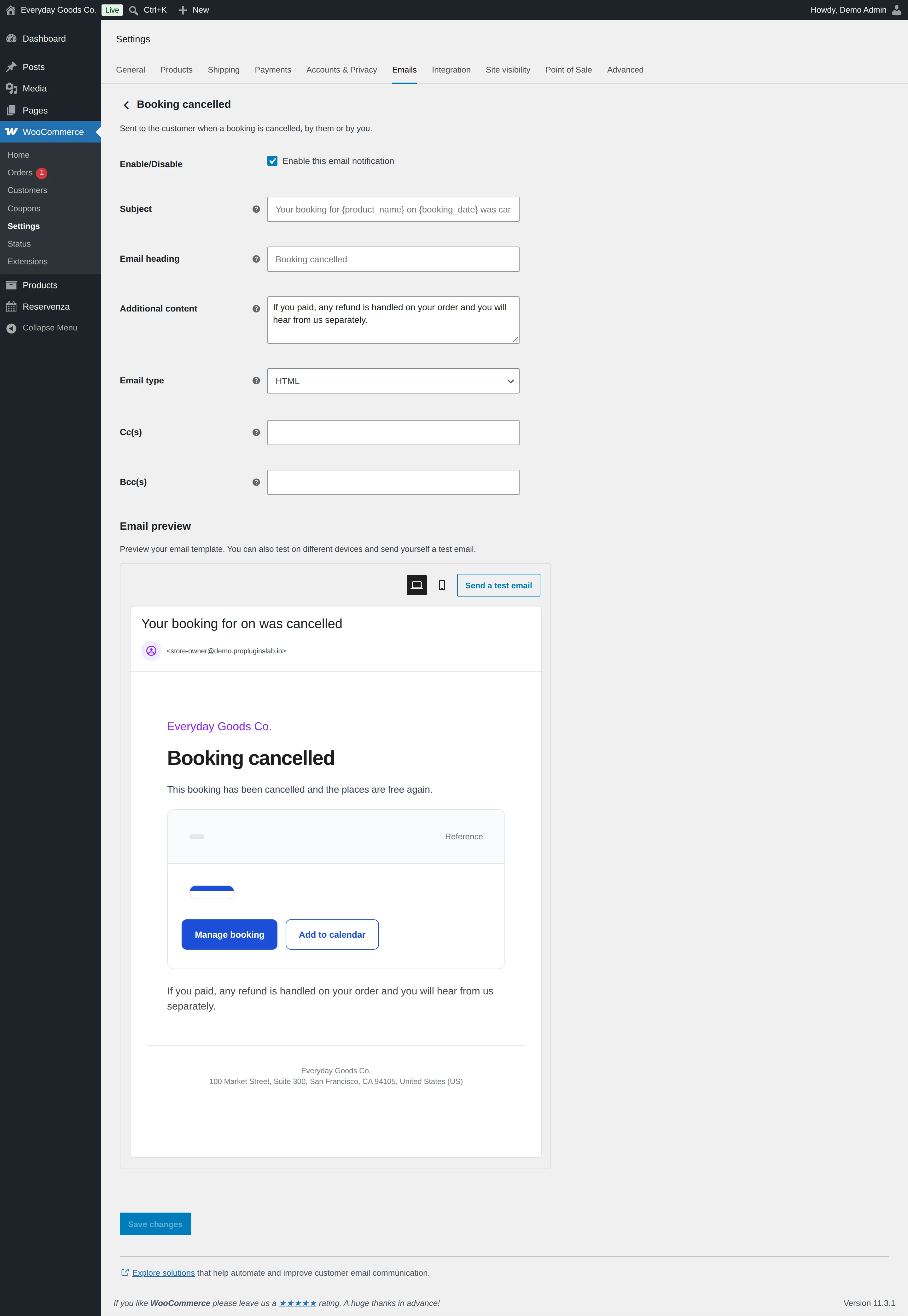
#WooCommerce > Settings > Email > Booking cancelled
Location: wp-admin/admin.php?page=wc-settings&tab=email§ion=reservenza_customer_cancelled
On this screen:
- Booking cancelled
- Email preview
- Your booking for on was cancelled
Settings reference
Bookings
#Status Every status Awaiting payment Pending confirmation Confirmed Paid Completed Cancelled
#Kit Every kit Appointments and services Classes and group sessions Events and tickets Rooms and stays Rentals and car hire Tours and activities Transport Venues and spaces Tables and reservations
#Product Every product
#From
#To
Reports
Integrations
#What the calendar shows
Save
#Tenant
#Address
#Closes dates of Whole store (every booking)
#Lists Whole store (every booking)
#Shows Busy only Product name Product and customer name
#Account SID
#Auth token
#From number
#Messaging service SID (optional)
Save Events and texts
#Account id
#Client secret
Save
#Turn the flight connector on
#Access token
#Flights product
#Cabin
Save Then add the Flight search block or [reservenza_flight_search] to a page.
#Name
#Address (https)
#Secret
#Events
#Include the customer name and email in payloads
Add endpoint
Tools
WooCommerce > Settings > Email > Booking confirmed
WooCommerce > Settings > Email > Booking request received
Shortcodes
[reservenza_booking_form]
Shortcode registered by the plugin.
[reservenza_booking_form][reservenza_calendar]
Shortcode registered by the plugin.
[reservenza_calendar][reservenza_my_bookings]
Shortcode registered by the plugin.
[reservenza_my_bookings][reservenza_events]
Shortcode registered by the plugin.
[reservenza_events][reservenza_trip_search]
Shortcode registered by the plugin.
[reservenza_trip_search][reservenza_room_search]
Shortcode registered by the plugin.
[reservenza_room_search][reservenza_search]
Shortcode registered by the plugin.
[reservenza_search][reservenza_flight_search]
Shortcode registered by the plugin.
[reservenza_flight_search][reservenza_staff_portal]
Shortcode registered by the plugin.
[reservenza_staff_portal][reservenza_next_available]
Shortcode registered by the plugin.
[reservenza_next_available]On your site
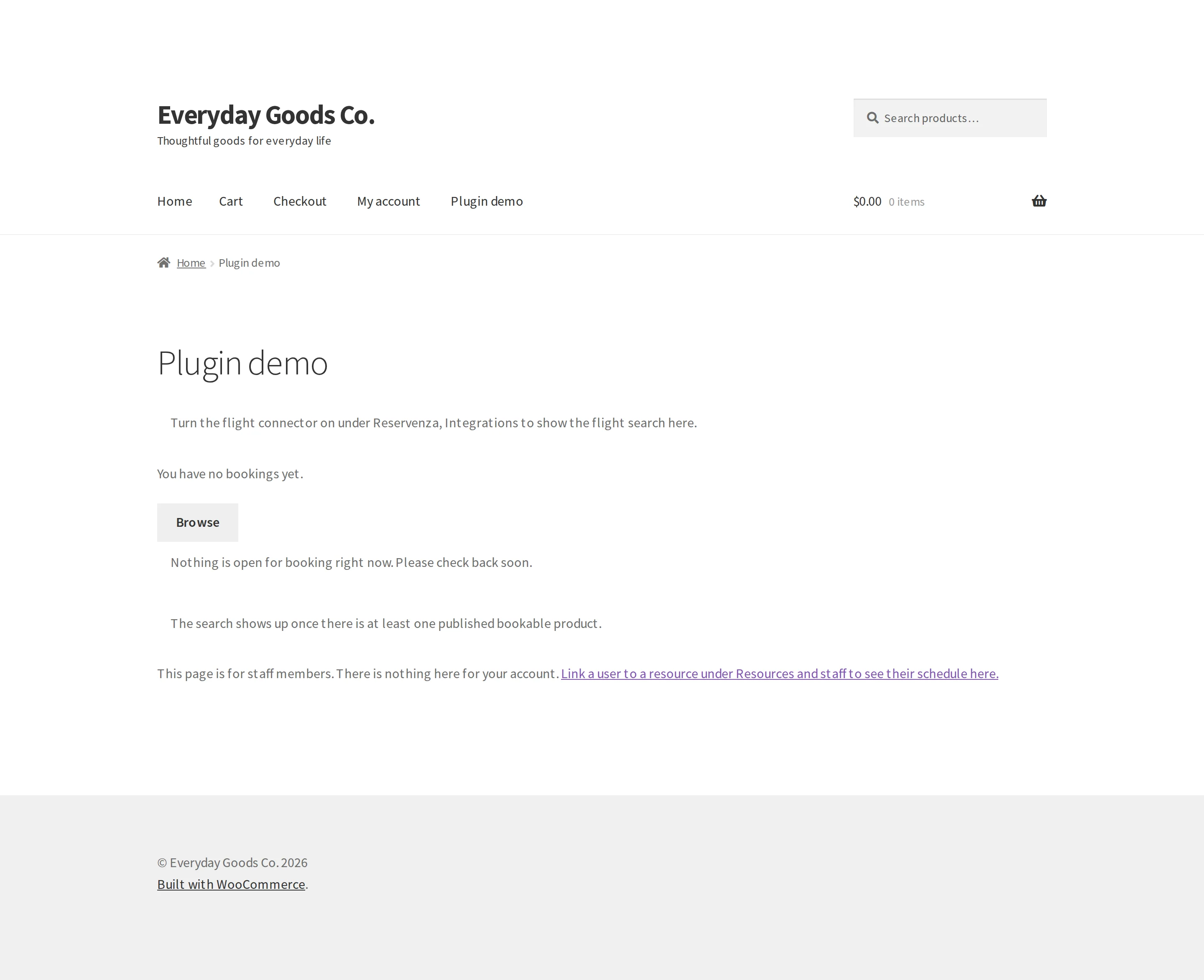
These pages show what visitors see on your site.