
Overview
Scontero runs your WooCommerce price changes and promotions from one place. You build rules such as 15% off a category, bulk prices on a mug, a free gift over a set spend, or a discount for paying by bank transfer. Shoppers see the price they will really pay on product pages, shop pages, the mini cart, the cart, the checkout, emails and My Account.
The plugin is for store owners who want to run promotions without stacking several plugins. It has a guided rule editor with a live summary sentence and price preview, one click templates and a rule tester that explains why each rule did or did not apply.
It also gives you conditions on purchase history, location, coupons, stock and campaign links, recurring schedules, usage limits, rule analytics, CSV import and export, and customer price lists.
Requirements
- WordPress 6.5 or later
- PHP 7.4 or later
- WooCommerce 8.5 or later (required plugin)
- Tested with WordPress 7.1.3 and WooCommerce 11.2.1, on PHP 7.4 to 8.5, with the classic and block cart and checkout
Installation
Scontero needs WooCommerce, so install and activate WooCommerce first. You do not need the free Scontero plugin. If it is active, it stays idle and a notice asks you to deactivate it. Both editions use the same rules and settings, so nothing is lost.
Log in to your ProPluginsLab account and open My Account > Downloads. Download the Scontero zip file.
In WordPress, go to Plugins > Add New > Upload Plugin.
Choose the zip file, click Install Now, then click Activate.
If the free Scontero plugin is active, deactivate it on the Plugins screen.
Open Dynamic Pricing in the admin menu. The setup wizard opens on first activation.
License and automatic updates
Scontero works fully as soon as it is activated. The license key turns on automatic updates, so new versions arrive in WordPress like any other plugin update. Pro features never depend on it.
Activate your license
Find your license key in My Account on propluginslab.io, in the license keys section. It is also in your order confirmation email.
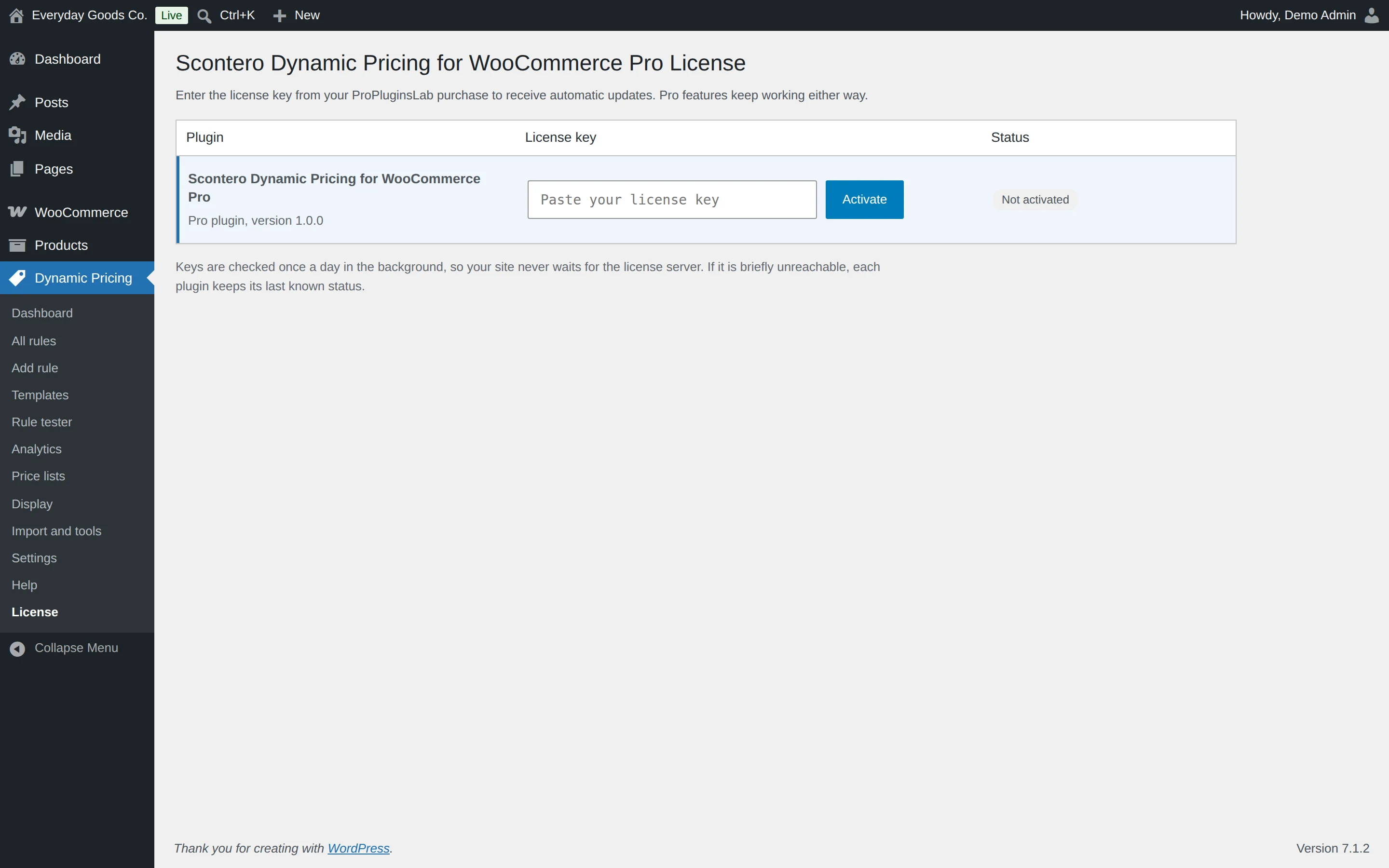
In WordPress, open the License item in the Scontero menu. When two or more ProPluginsLab plugins or add-ons are active on the site, WooCommerce > Licenses also appears and lists all of them in one place.
Paste the key into the Scontero - Dynamic Pricing for WooCommerce Pro row and click Activate. The status changes to Active and automatic updates are on.
Receive updates automatically
Once the license is active, new versions of Scontero show up under Dashboard > Updates and on the Plugins screen. Click Update now, or click Enable auto-updates in the Scontero row on the Plugins screen and WordPress installs every future release for you.
Good to know
- Keys are checked once a day in the background, so your site never waits for the license server. If the server is briefly unreachable, the plugin keeps its last known status.
- An expired key or a key that is not accepted only stops updates. Scontero keeps working. After renewing, click Check now in its row.
- Moving to a new domain: click Deactivate on the old site first, then activate the key on the new one. The status shows Site address changed, checking until the new address is confirmed.
- On the command line:
wp ppl-license list,wp ppl-license activate <plugin> <key>,wp ppl-license checkandwp ppl-license deactivate <plugin>.
Quick start
- Run the setup wizard
Open Dynamic Pricing. The wizard shows what it found in your store, then walks you through a first promotion, how discounts combine and what shoppers see. Click Skip setup if you prefer to start by hand. You can run it again later from the Dashboard.
- Start from a template
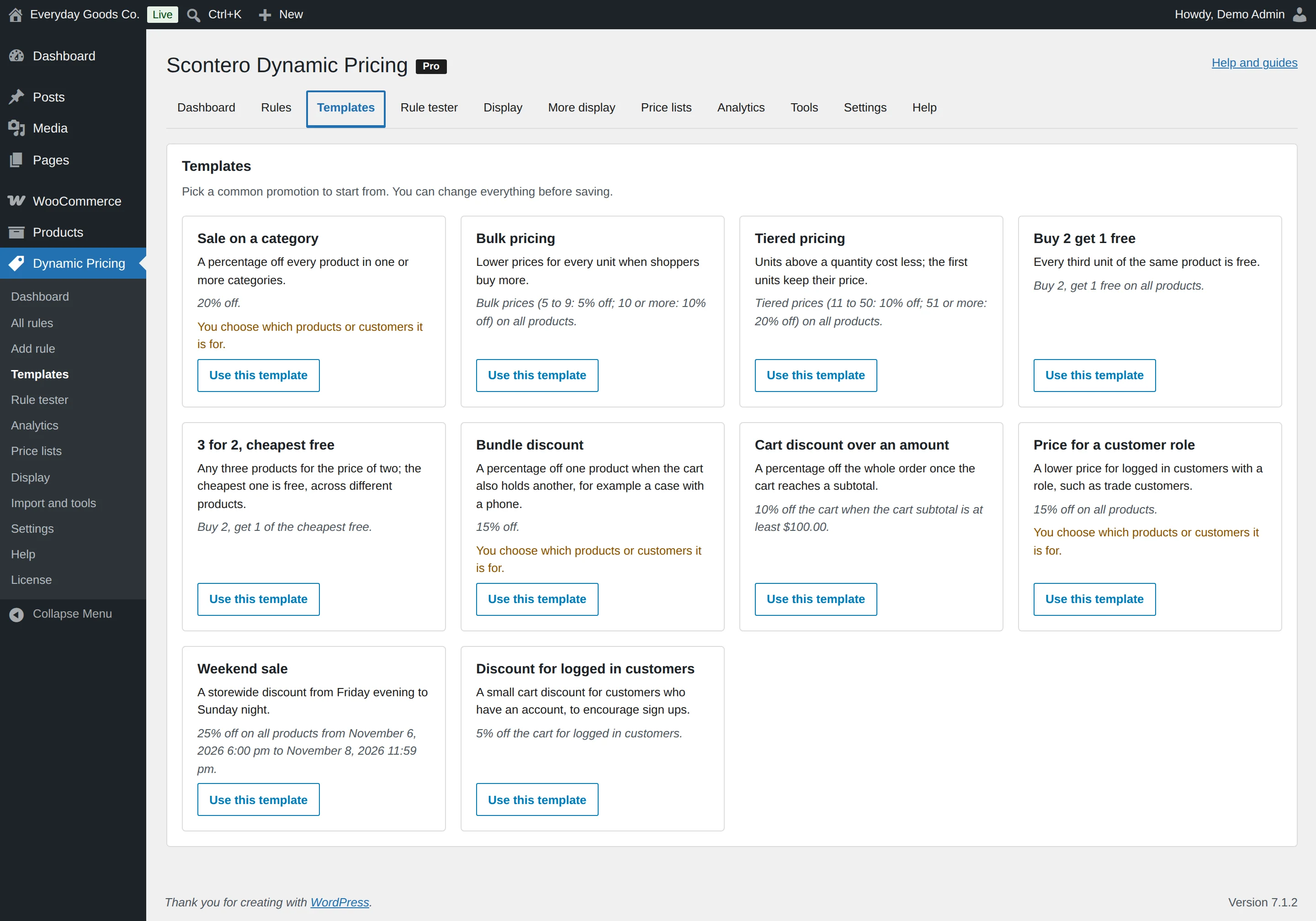
Open Dynamic Pricing > Templates and click Use this template on Sale on a category. Templates give you a ready made rule that you can change before saving.
- Choose the products and check the price
Pick the category under Which products. The THIS RULE GIVES box describes the rule in one sentence. Type a product name under TRY IT ON A PRODUCT to see its new price.
- Create the rule
Click Create rule. The rule is live straight away unless you gave it a start date or switched it off.
- Test it
Open Dynamic Pricing > Rule tester, pick a product and quantity, and click Run the test. The result shows the price and every rule that did or did not apply, with the reason.
- Decide how rules combine
Open Dynamic Pricing > Settings before you add more rules. Check WHEN SEVERAL RULES MATCH THE SAME PRODUCT and COUPONS AND PRICING RULES, so overlapping promotions behave the way you expect.
#Setup wizard
The wizard opens on first activation and gets a store running in six steps. Each step saves when you continue, and you can change every choice later.
- Your store: what Scontero found, such as your products, categories, currency, whether prices include tax, customer roles in use and any page cache.
- First promotion: pick a starting point for your first rule. If you already have rules, you can skip this step.
- Fill it in: complete that rule.
- Combining: choose how rules combine and what coupons do.
- What shoppers see: choose the display options, with a live preview.
- Done: a summary with the next things to do.
If another pricing plugin is active, the first step warns you and lets you import its rules. Scontero never switches other plugins off for you, so deactivate the old plugin yourself on the Plugins screen.
Click Skip setup to leave at any time. To return, click Run the setup wizard again on the Dashboard.
#Dashboard
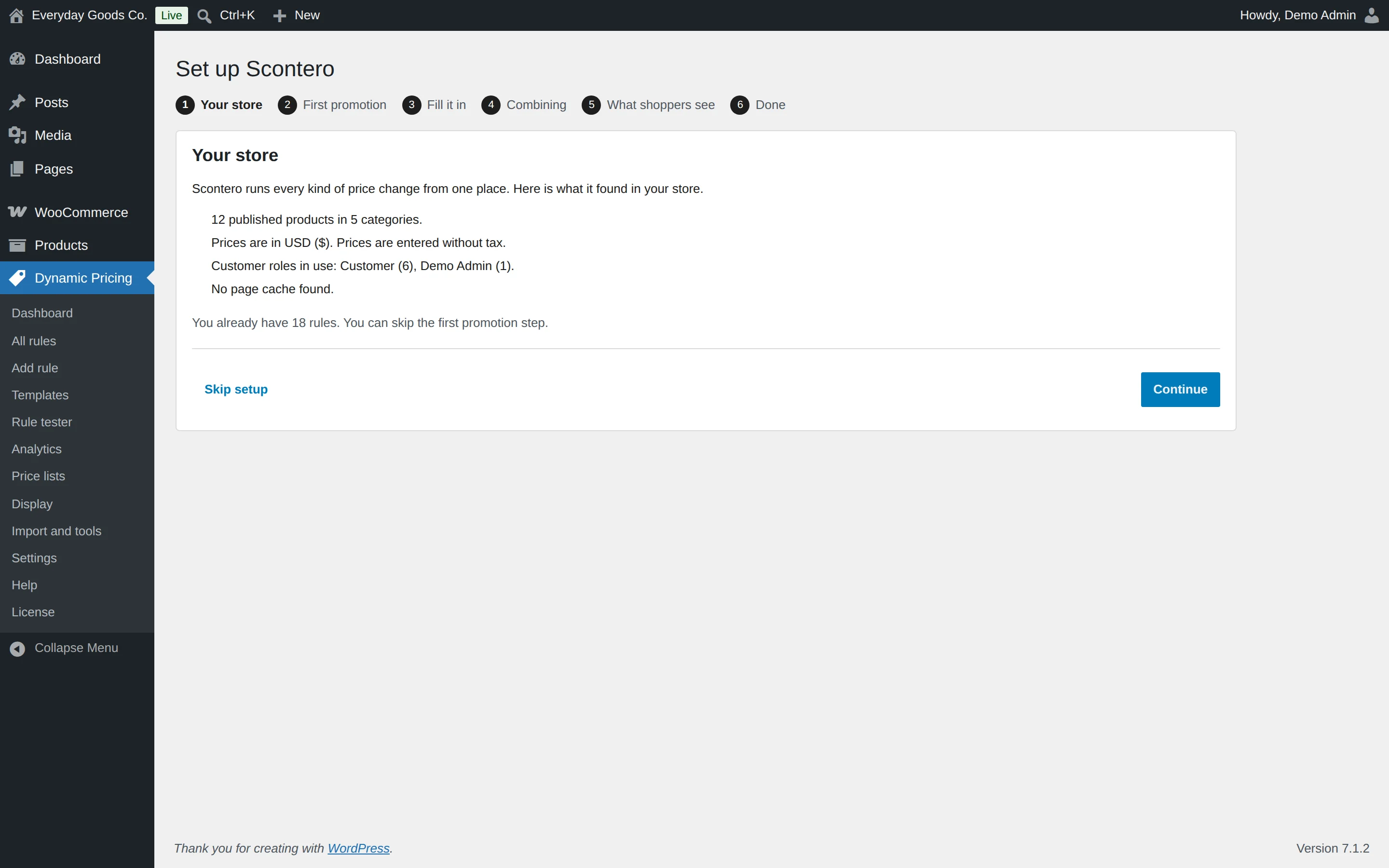
The Dashboard at Dynamic Pricing > Dashboard shows the state of your promotions and of the plugin.
Your rules
Counters show how many rules are running now, scheduled, waiting for their days or times, switched off and ended. Below them are three lists: Running now, Starting later and Ending in the next 7 days. Click a rule name to edit it.
Health check
Each card checks one thing in plain words. A card that needs attention has a button that fixes the problem or a link to where you can fix it.
| Card | What it checks |
|---|---|
| WooCommerce | WooCommerce is active and supported. |
| Rules storage | The table that holds your rules is ready. |
| Fast rule lookup | The list of live rules is up to date. |
| Start and end times | When the next rule starts or ends, and whether background tasks are running on time. |
| Other pricing plugins | No other pricing plugin is changing prices. |
| Cart discounts | Cart discounts can be shown to shoppers. |
| Rules that cannot run | Every switched on rule can run. |
| Page cache | Which page cache was found. Run a live test loads a discounted product page twice as a guest and checks the price. |
| Object cache | Whether a persistent object cache is active. Not having one is fine. |
A Prices for logged in customers card also appears when your cache keeps pages for logged in users and you have rules that depend on the customer.
#Rules list
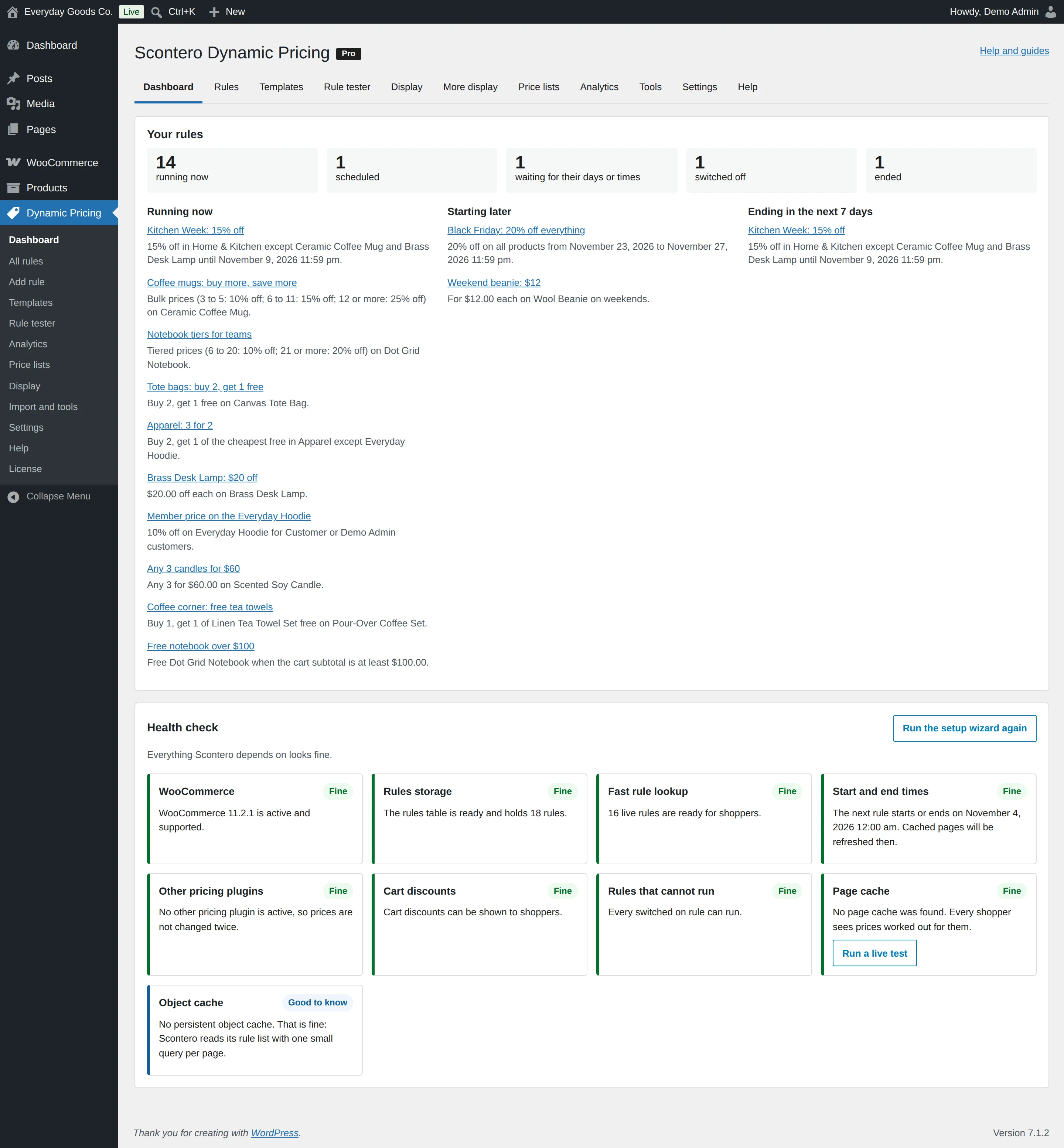
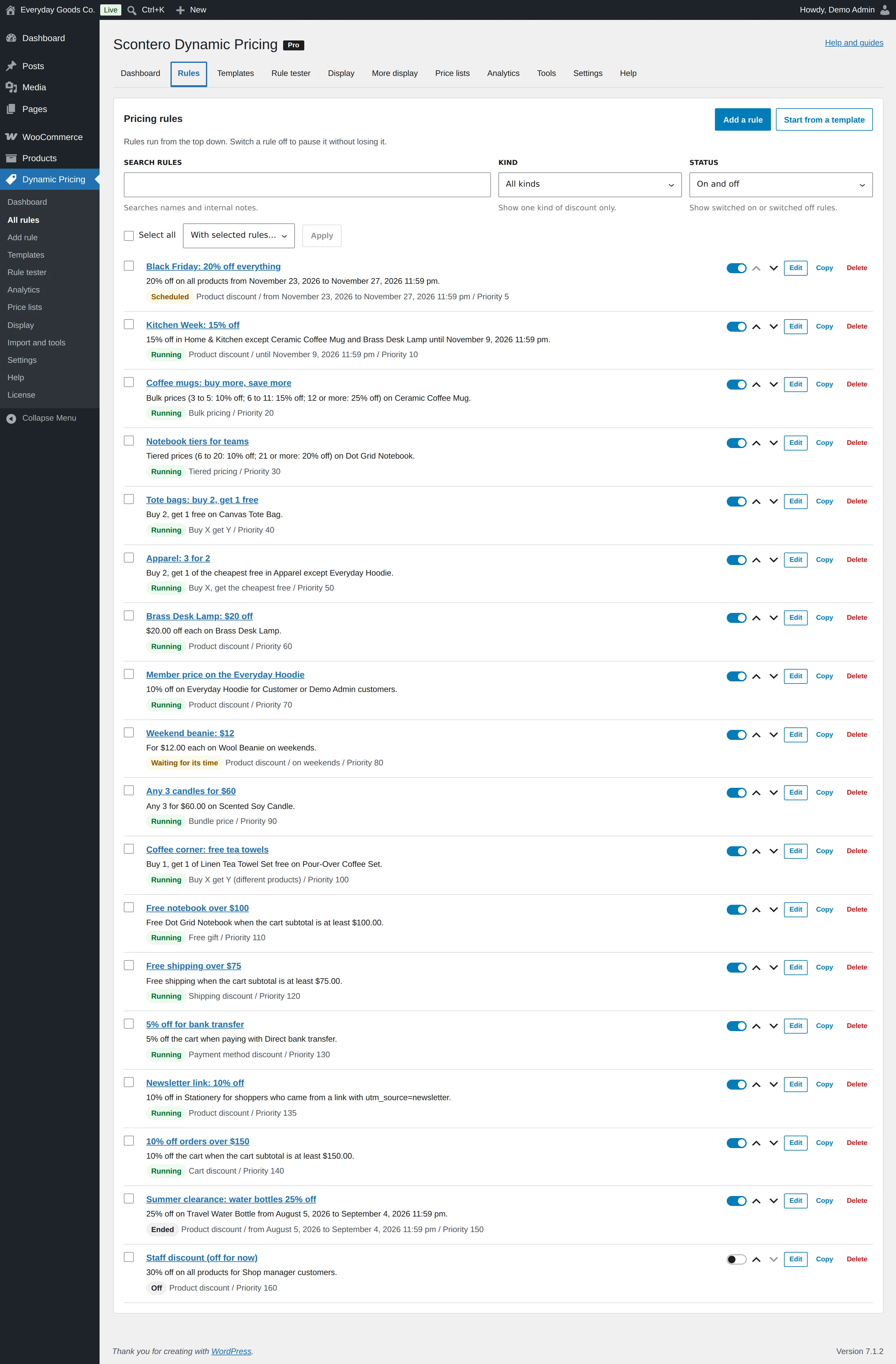
Dynamic Pricing > All rules lists every rule, with a plain sentence that says what it does, its kind and its priority.
Each rule has a status:
- Running: the rule is live now.
- Scheduled: it starts on a future date.
- Waiting for its time: it has recurring days or hours and is outside them right now.
- Ended: its end date has passed.
- Off: it is switched off.
What you can do here:
- Use the switch to turn a rule on or off without deleting it.
- Use Move up and Move down to change the order. Rules at the top run first. Clear the search and filters before changing the order.
- Use SEARCH RULES, KIND and STATUS to find rules. The search looks at names and internal notes.
- Click Copy to make a copy. The copy stays switched off until you turn it on.
- Tick several rules, or Select all, then choose an action in With selected rules and click Apply.
- Click Add a rule or Start from a template to create a new rule.
#Rule editor: guided and advanced
A rule says what discount to give, to which products, for which customers and when. Open the editor with Add a rule, or click a rule name or Edit in the list.
Guided mode
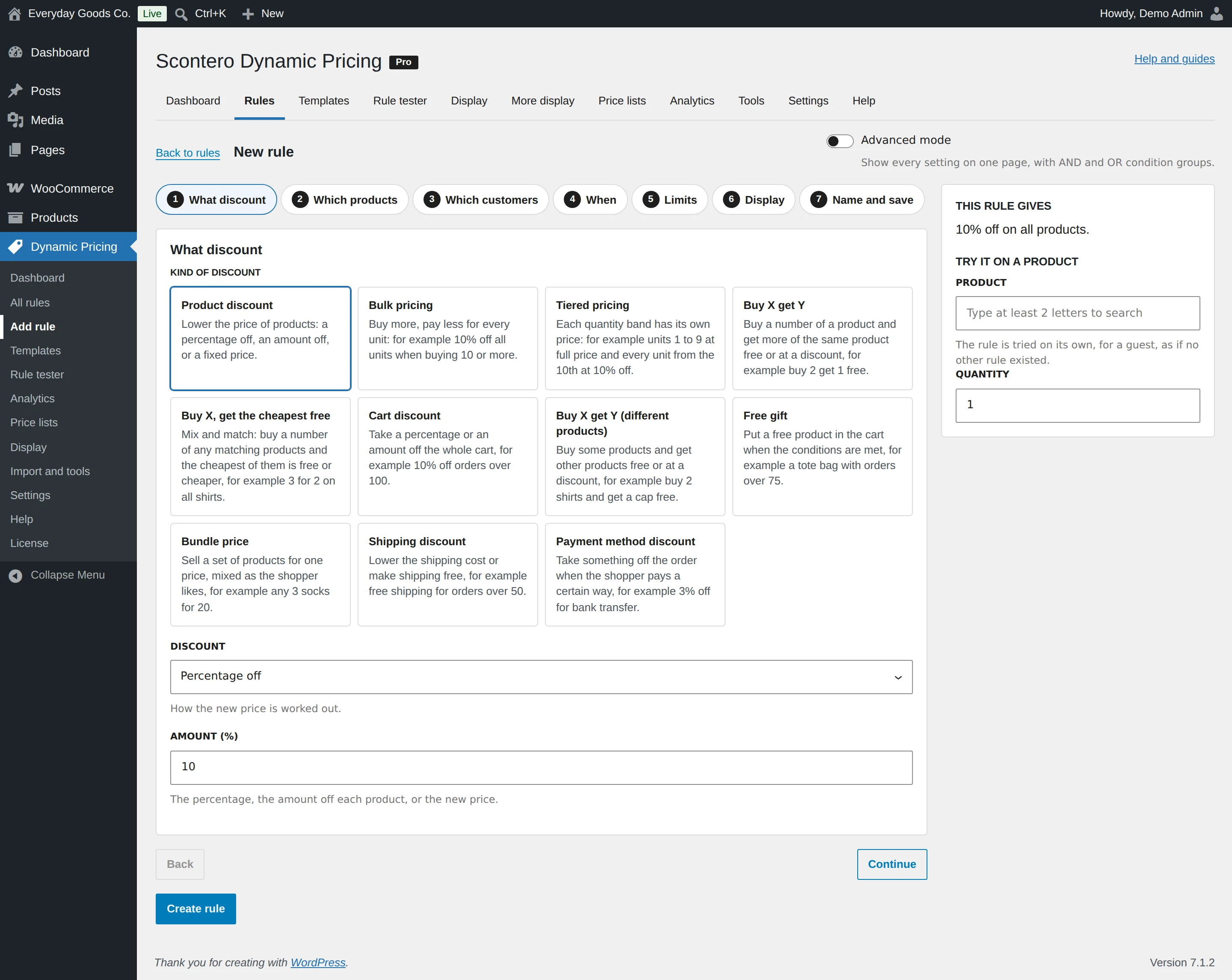
The editor walks through seven steps. Use Continue and Back, or click a step directly.
- What discount: the kind of discount and its amount.
- Which products: product conditions. Leave empty for every product.
- Which customers: customer and cart conditions. Leave empty for every shopper.
- When: dates, days of the week, daily hours and days of the month.
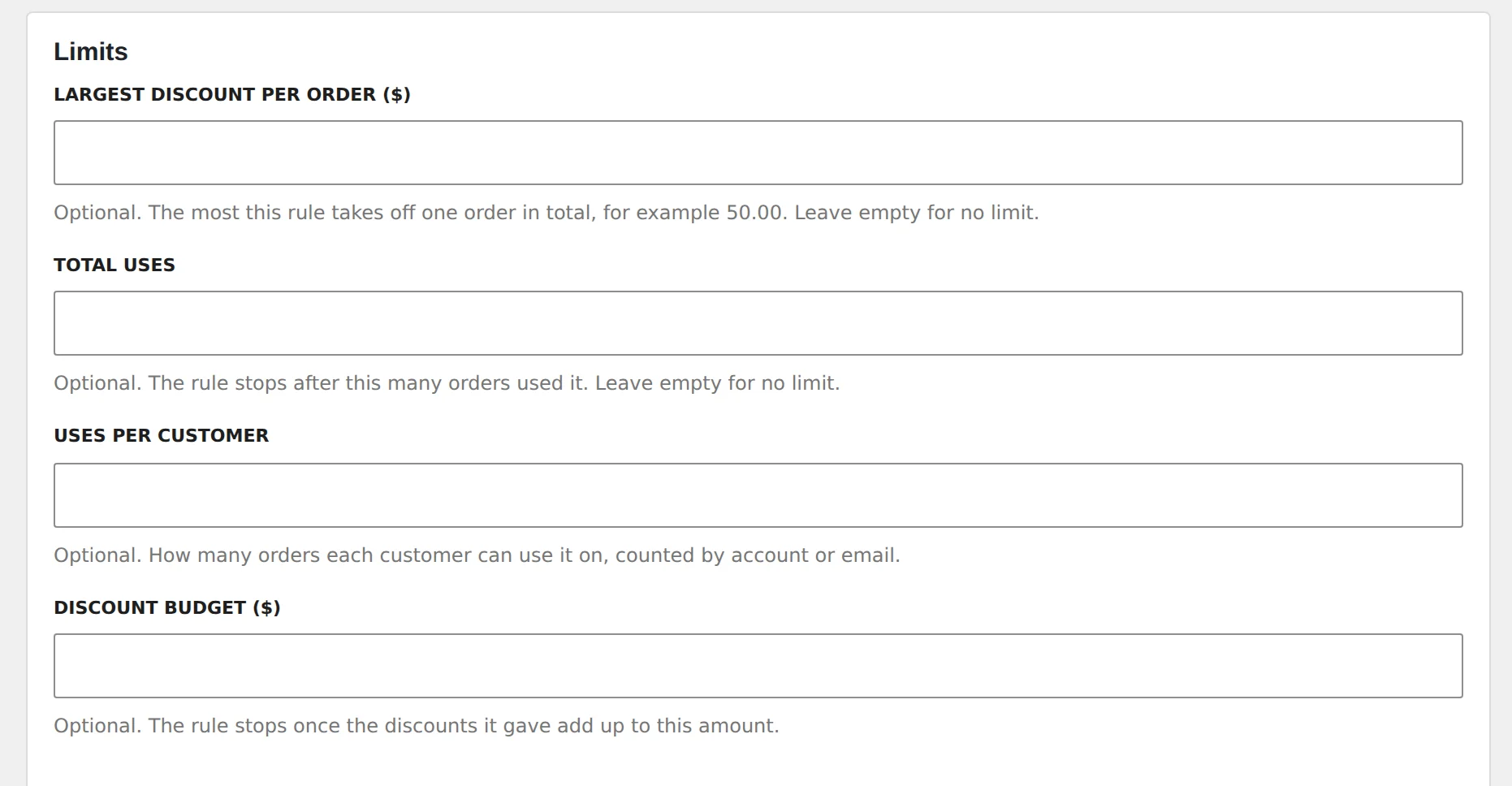
- Limits: largest discount per order, total uses, uses per customer and budget.
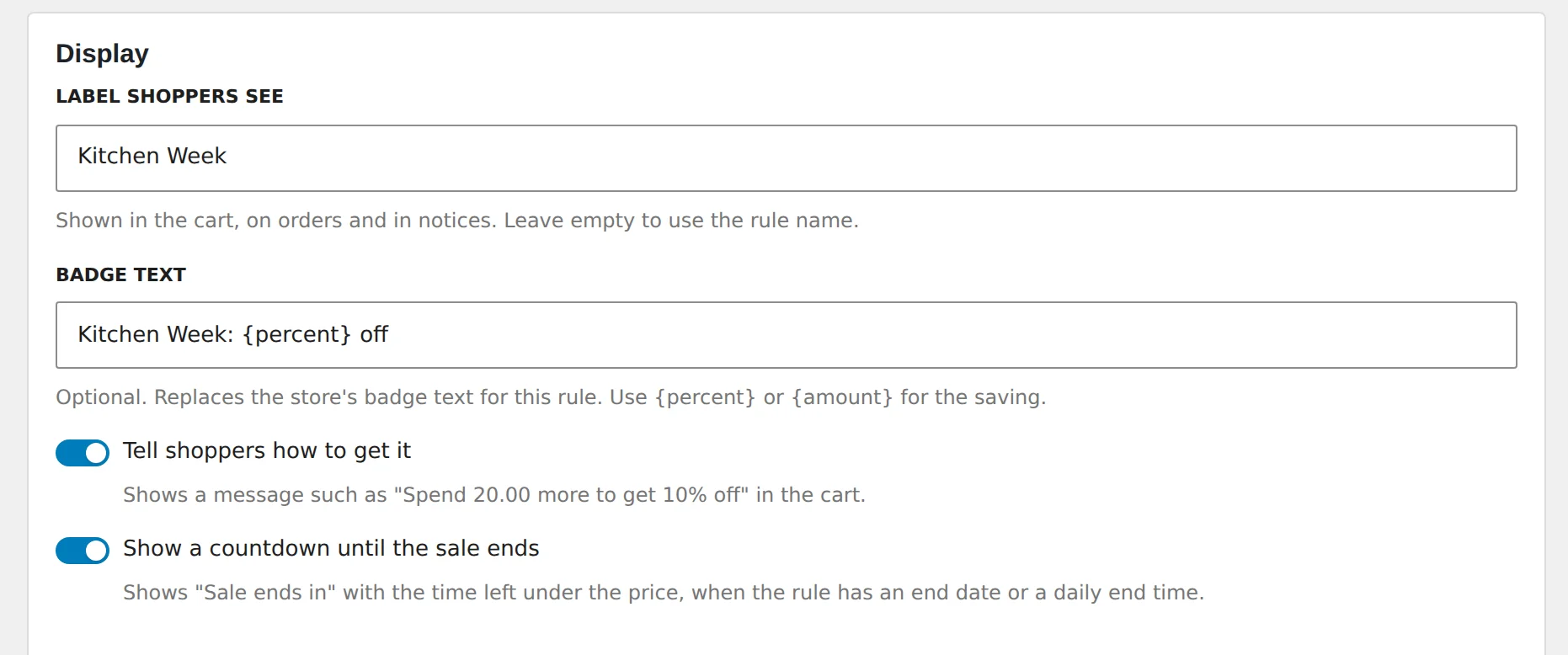
- Display: the label and badge shoppers see, and related options.
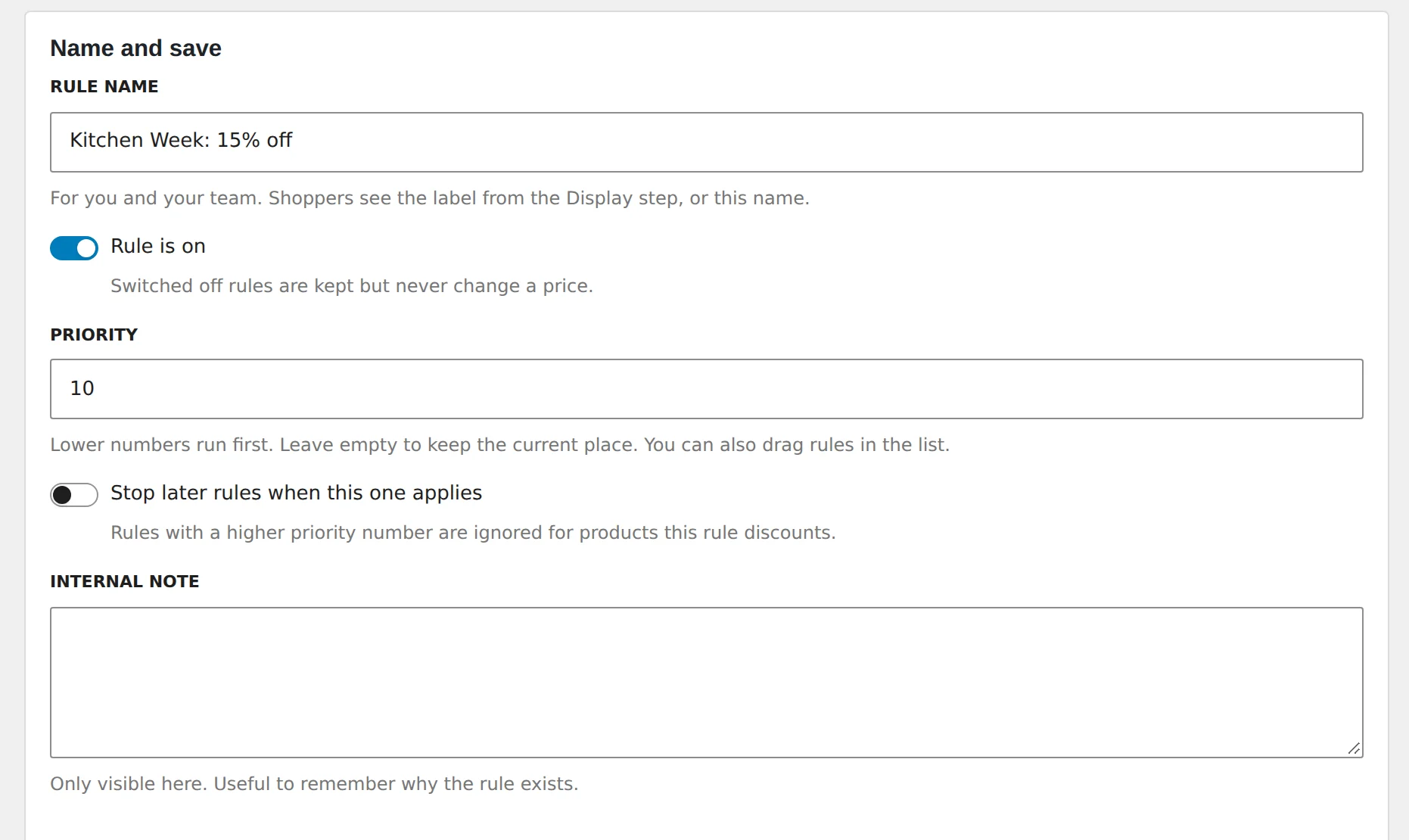
- Name and save: the name, on or off, priority, stop later rules and an internal note.
Advanced mode
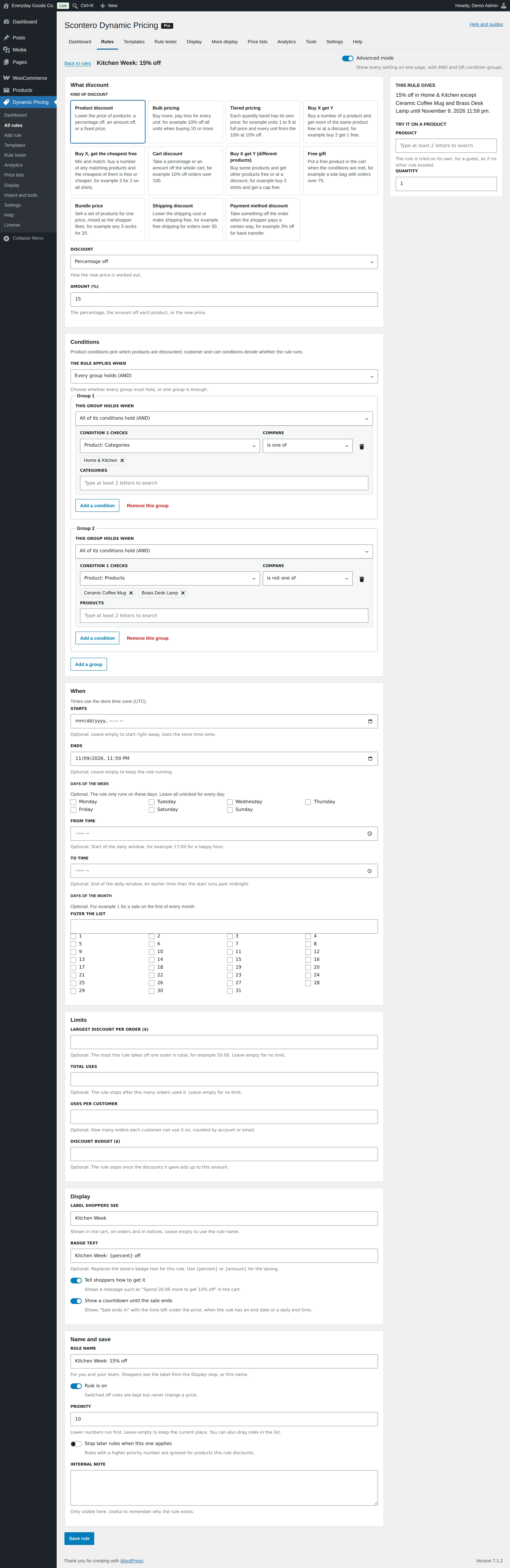
Switch on Advanced mode to see every setting on one page and build AND and OR condition groups. A rule that uses condition groups joined with OR can only be shown in advanced mode.
The preview box
THIS RULE GIVES describes the rule in one sentence as you build it. Under TRY IT ON A PRODUCT, pick a product and quantity to see the price. The preview tries the rule on its own, for a guest, as if no other rule existed. Use the rule tester to see how rules work together.
Saving
Click Create rule or Save rule. Every field is checked when you save. If something is wrong, the rule is not saved and a message next to the field says what to change.
#Rule type: percentage off
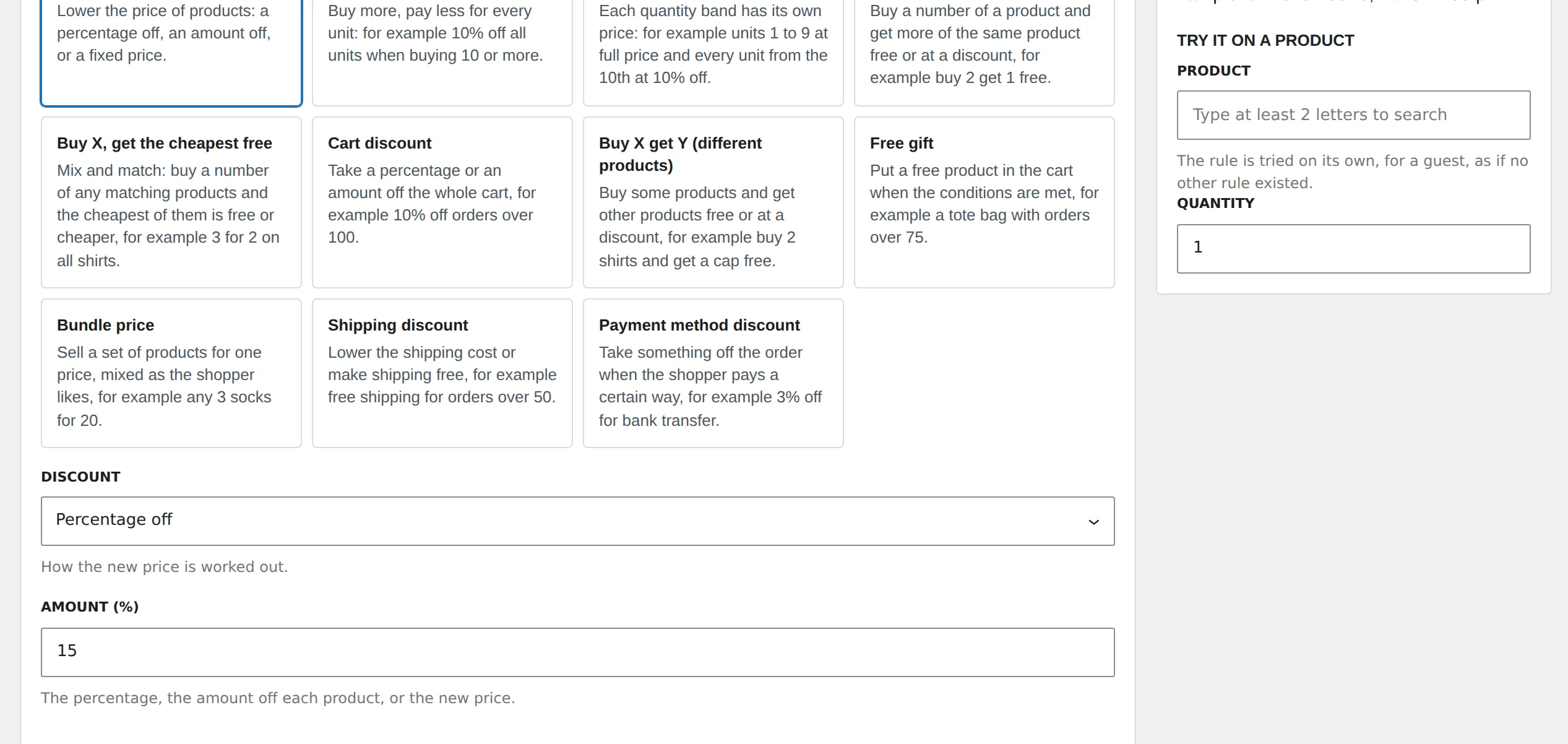
What it does: lowers the price of matching products by a percentage. In the editor, choose Product discount, then Percentage off under DISCOUNT.
When to use it: category sales, storewide sales and discounts for a customer role.
Fields:
- DISCOUNT: set to Percentage off.
- AMOUNT (%): the percentage. It can be at most 100.
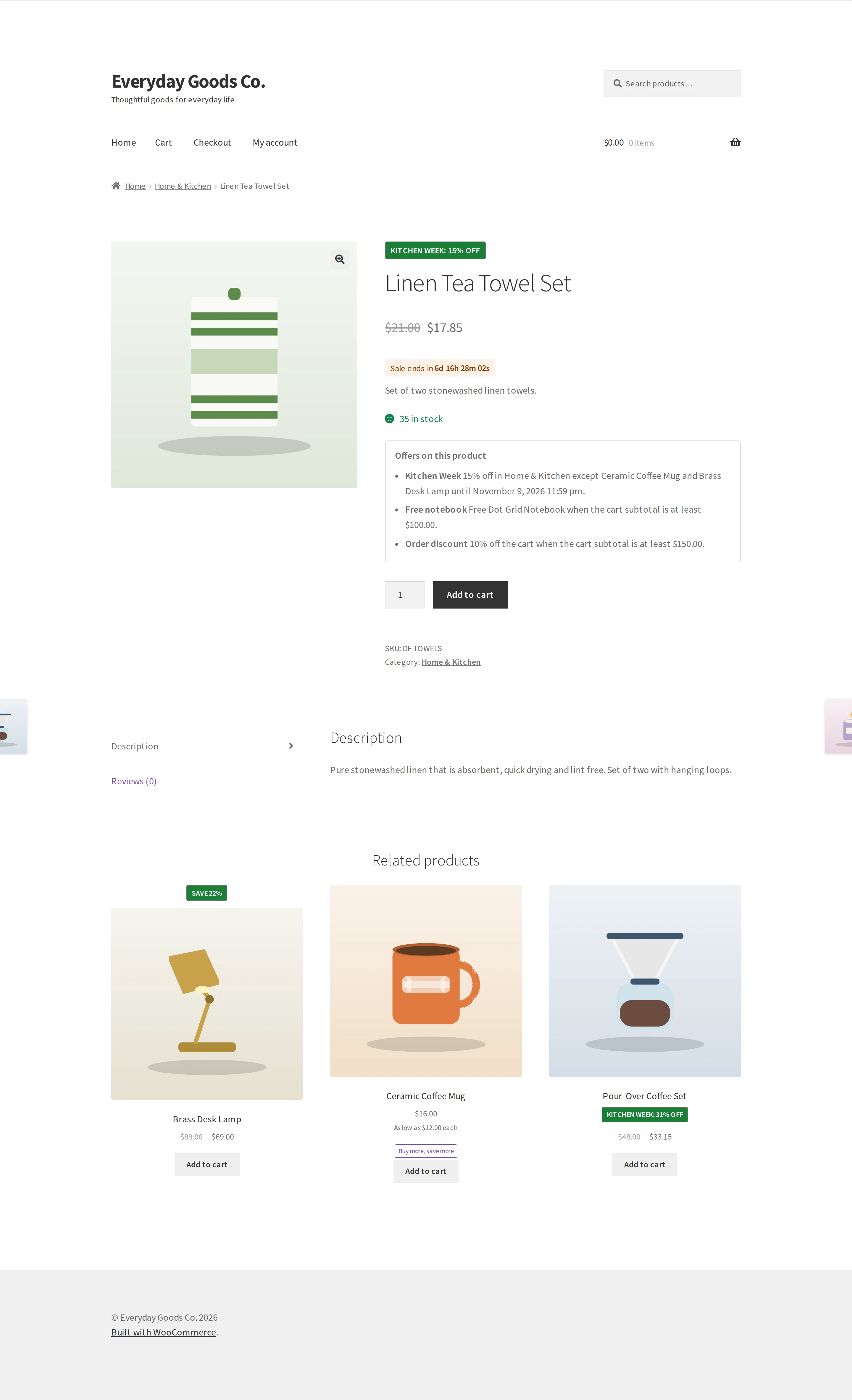
Worked example: a towel set costs $21.00 and the rule gives 15% off its category.
- $21.00 x 15% = $3.15 off
- The shopper pays $17.85, with $21.00 crossed out
You can add a badge such as Kitchen Week: {percent} off and a countdown under Display.
#Rule type: fixed amount off
What it does: takes the same amount off each matching unit. In the editor, choose Product discount, then Amount off each under DISCOUNT.
When to use it: when a round money saving reads better than a percentage, such as $20 off a lamp.
Fields:
- DISCOUNT: set to Amount off each.
- Amount: the amount taken off each product.
Worked example: a lamp costs $89.00 and the rule gives $20.00 off each.
- $89.00 - $20.00 = $69.00
- Two lamps cost $138.00, because the amount comes off every unit
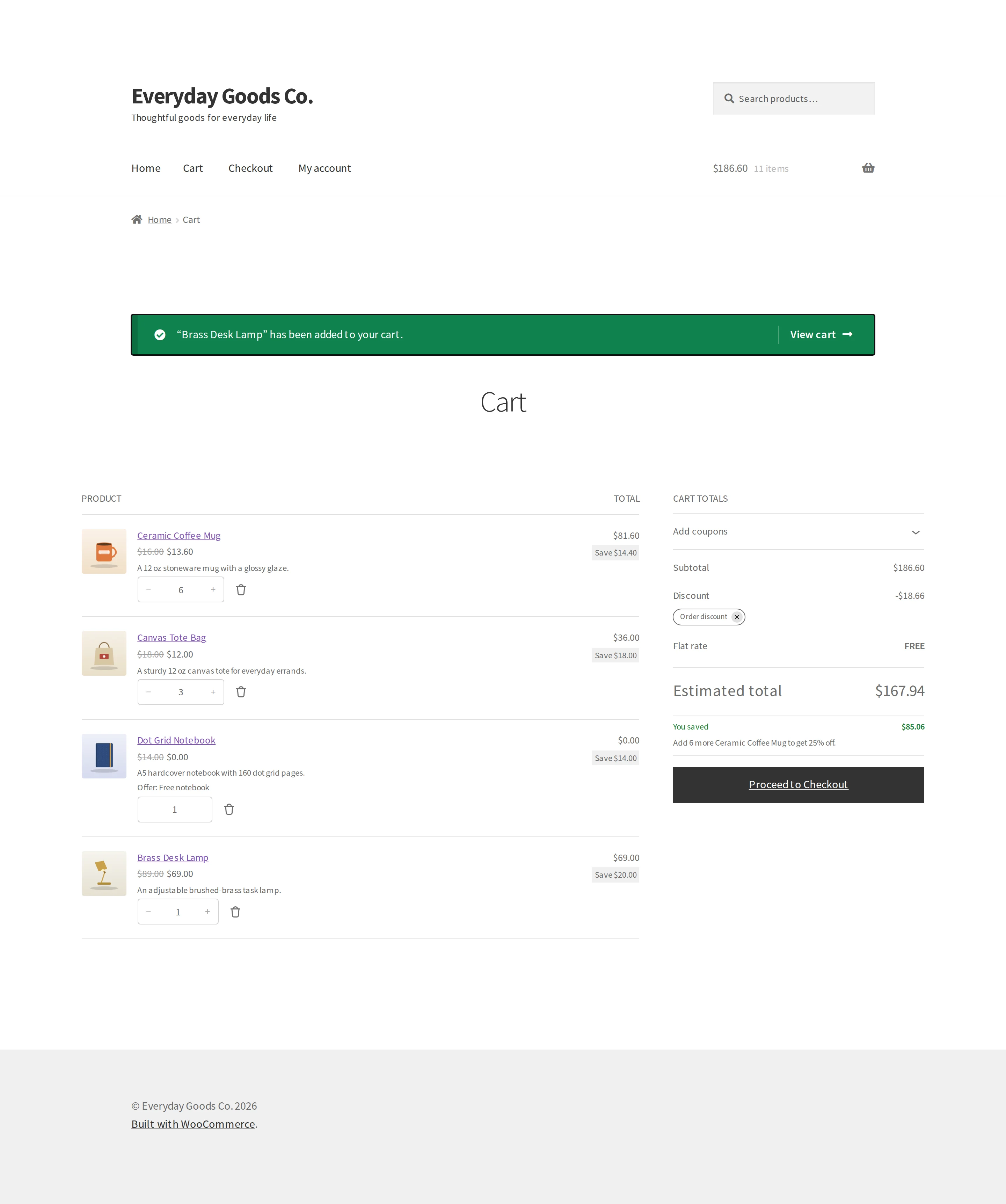
The cart with this lamp is shown in the cart discount part below.
#Rule type: fixed price
What it does: sets a new price for each matching unit. In the editor, choose Product discount, then Fixed price each under DISCOUNT.
When to use it: one price promotions, such as every beanie for $12 at the weekend. A fixed price never raises a price: if the product already costs less, the rule is not used.
Fields:
- DISCOUNT: set to Fixed price each.
- Amount: the new price of each product.
Worked example: a beanie has a regular price of $22.00 and a sale price of $17.00. The rule sets $12.00 each, and Saturday and Sunday are ticked under When.
- On Saturday and Sunday the shopper pays $12.00
- On other days the rule shows as Waiting for its time and the shopper pays $17.00
If the rule set $20.00 instead, it would not be used, because $20.00 is higher than the $17.00 sale price.
#Rule type: bulk pricing
What it does: once the shopper reaches a quantity band, every unit gets that band's price.
When to use it: rewarding bigger orders with one clear price per unit.
Fields:
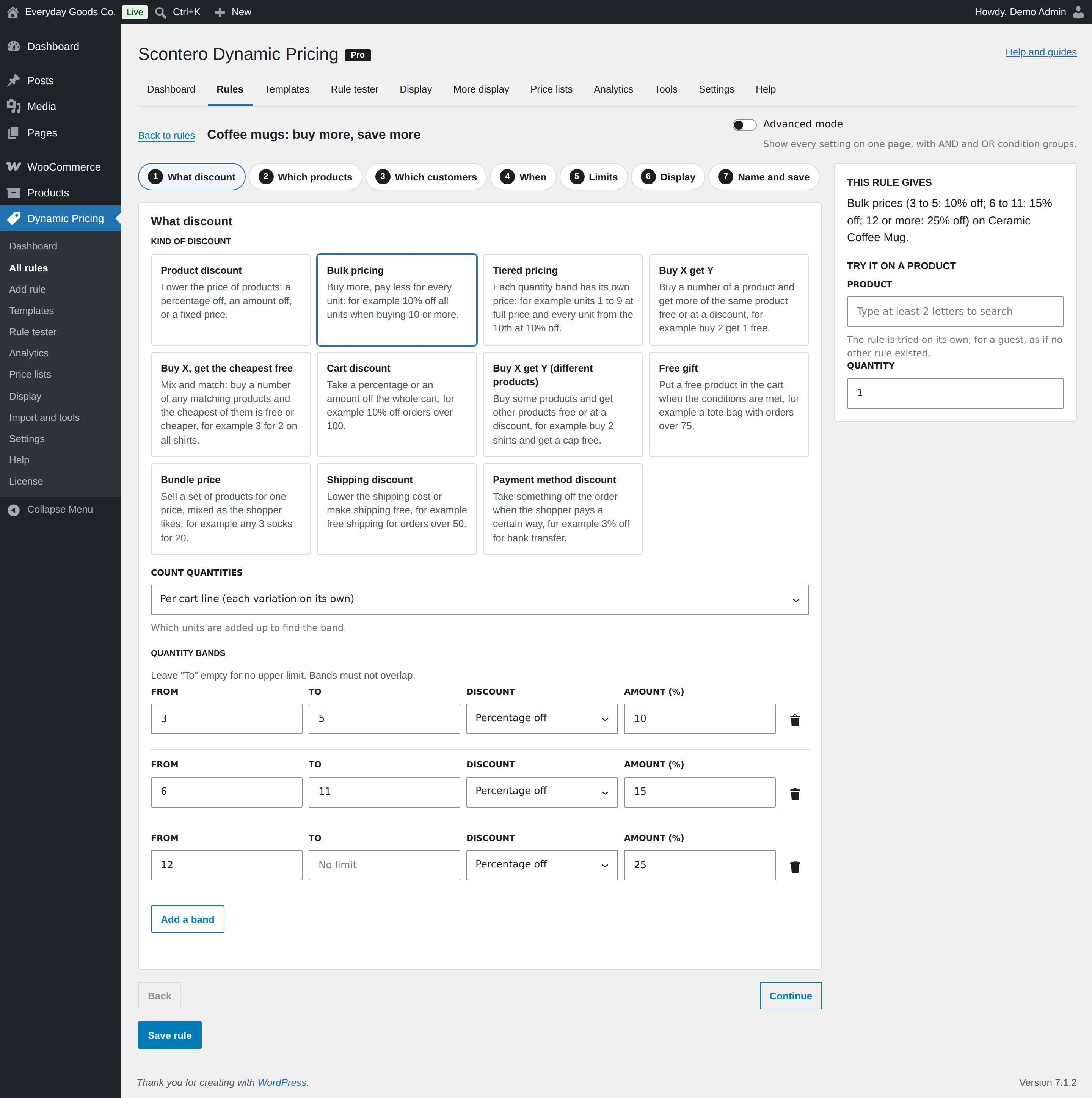
- COUNT QUANTITIES: which units are added up to find the band.
- FROM and TO: the band. Leave TO empty for no upper limit. Only the last band can have no upper limit, and bands must not overlap.
- DISCOUNT: Percentage off, Amount off each or Fixed price each, set per band.
- AMOUNT (%): the amount for that band. The label changes with the discount you pick.
Click Add a band to add a row, and the trash icon to remove one.
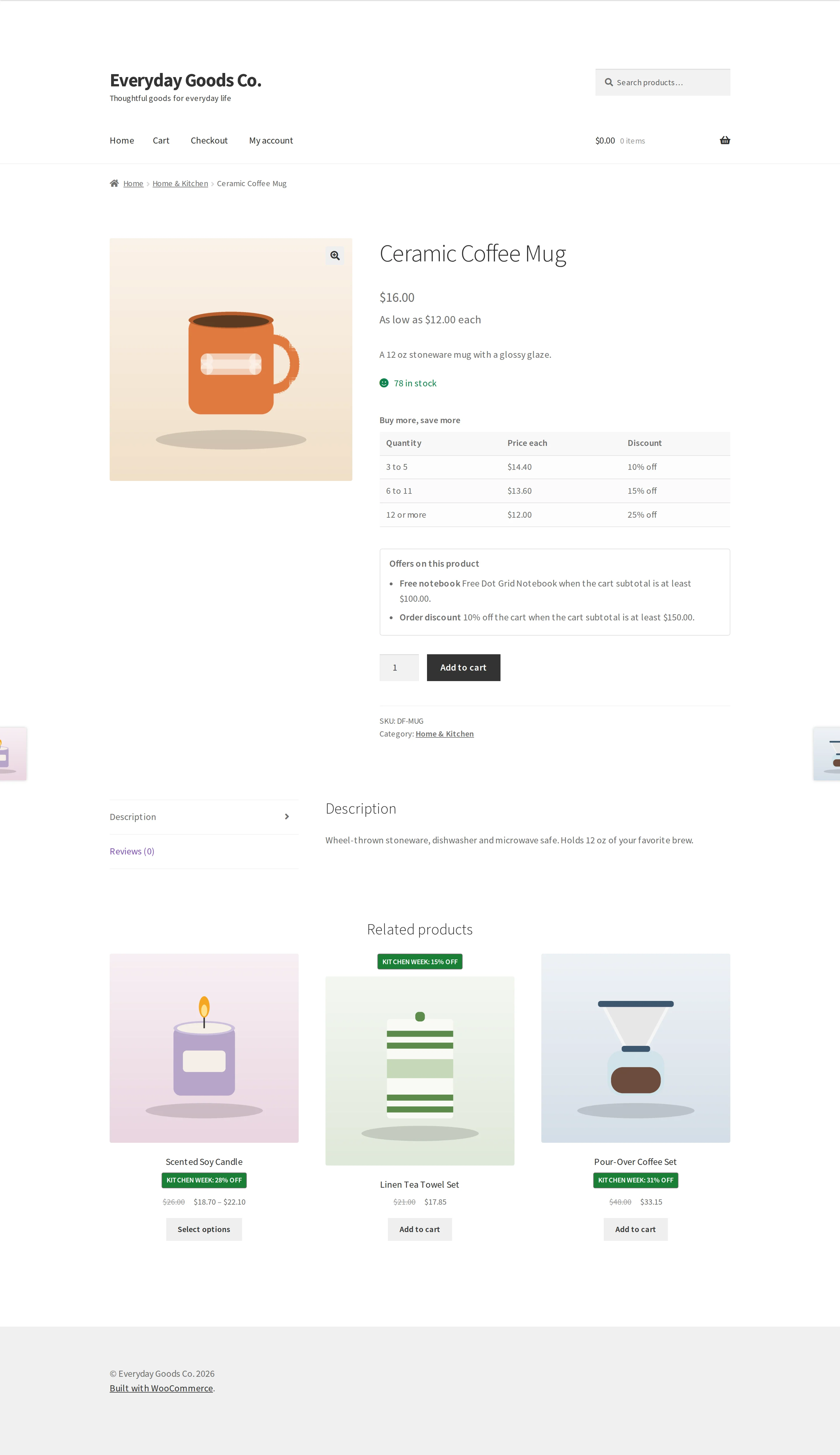
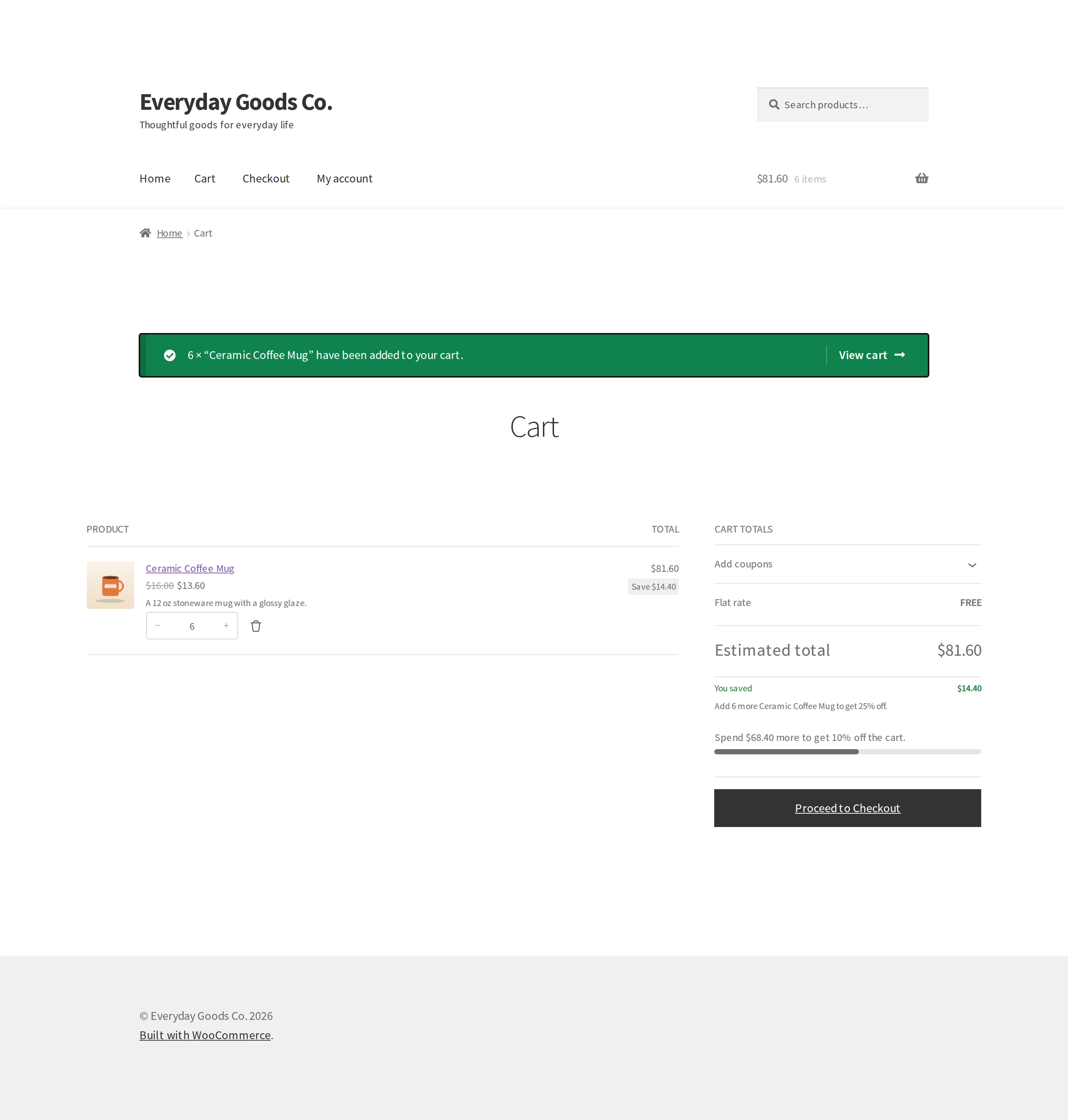
Worked example: a mug costs $16.00, with bands of 3 to 5 at 10% off, 6 to 11 at 15% off, and 12 or more at 25% off. A shopper buys 6.
- 6 units fall in the 6 to 11 band, so every unit gets 15% off
- $16.00 x 85% = $13.60 each
- 6 x $13.60 = $81.60, a saving of $14.40
The cart also tells the shopper: "Add 6 more Ceramic Coffee Mug to get 25% off."
Bulk compared with tiered
Bulk prices every unit at the band reached. Tiered prices each band separately. With the same quantity and bands, bulk always charges the shopper the same or less than tiered, because the first units get the discount too. See the calculation in the tiered pricing part.
#Rule type: tiered pricing
What it does: prices each band on its own. The first units keep their price and only the units inside a band get its discount.
When to use it: when you want to reward extra units without discounting the first ones, such as team orders.
Fields: the same as bulk pricing: COUNT QUANTITIES, then FROM, TO, DISCOUNT and an amount for each band.
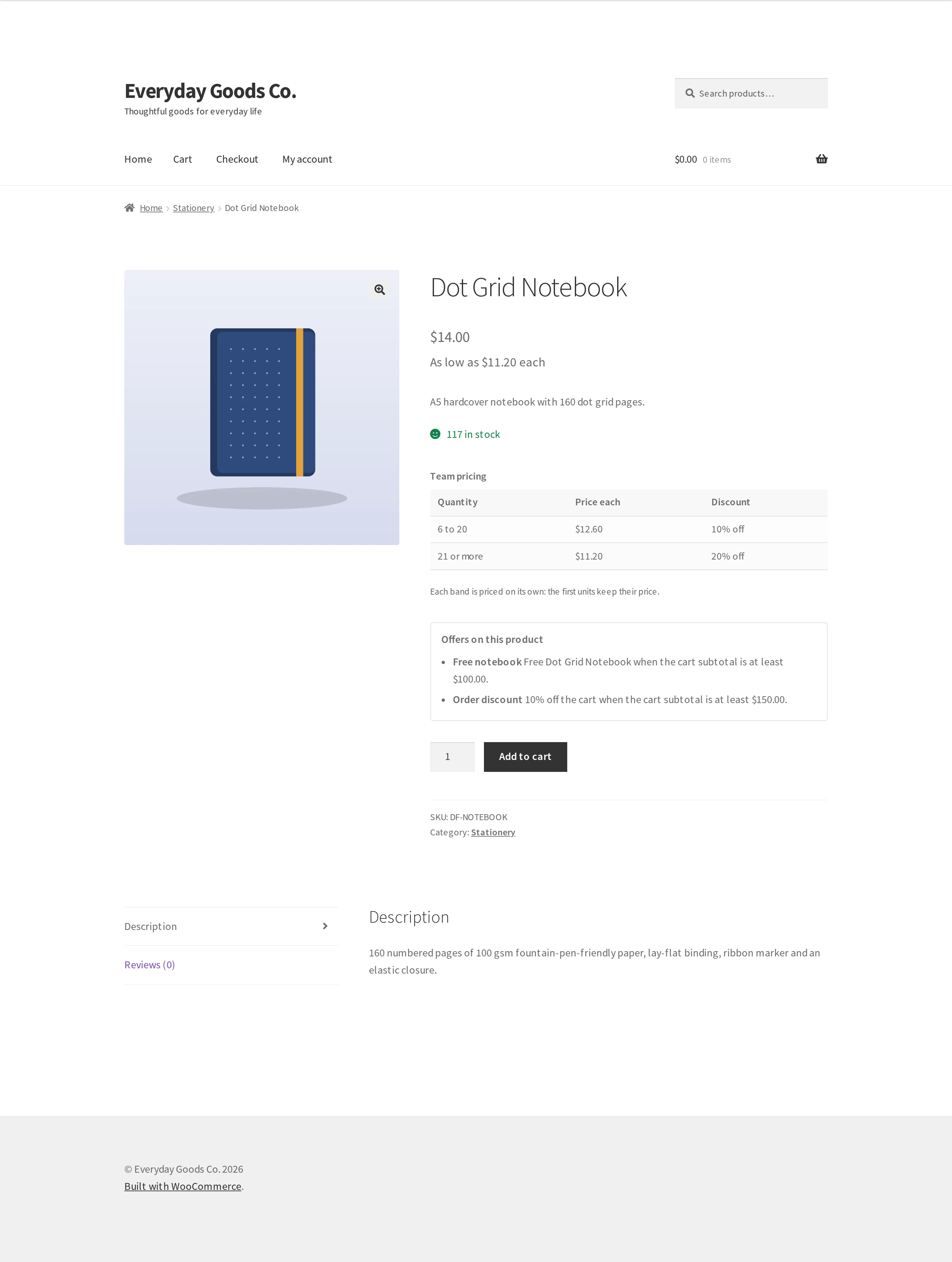
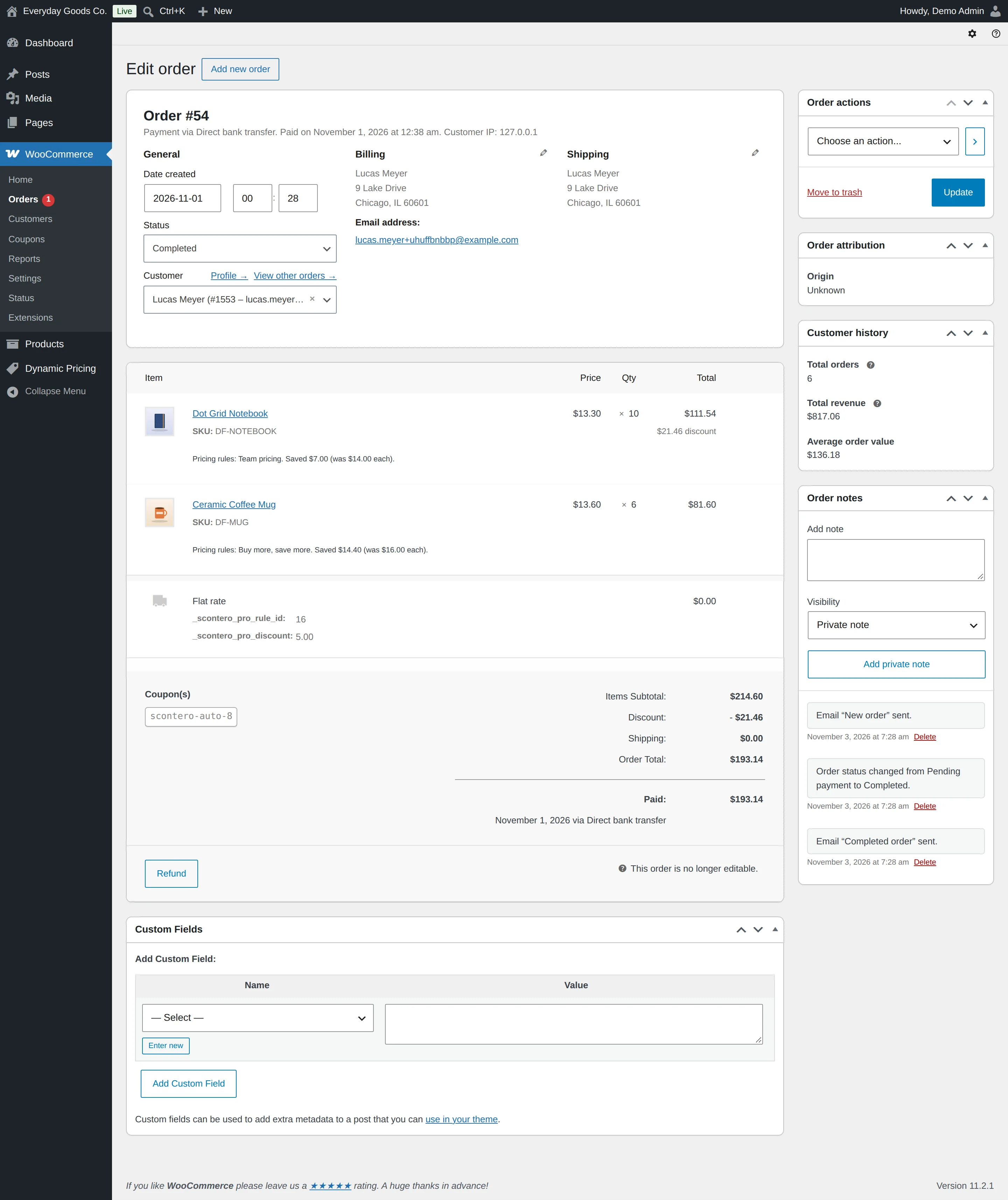
Worked example: a notebook costs $14.00, with bands of 6 to 20 at 10% off and 21 or more at 20% off. A shopper buys 10.
- Units 1 to 5 are outside any band: 5 x $14.00 = $70.00
- Units 6 to 10 are in the 10% band: 5 x $12.60 = $63.00
- Total: $133.00, or an average of $13.30 each, a saving of $7.00
The same 10 notebooks as a bulk rule would all fall in the 6 to 20 band: 10 x $12.60 = $126.00. That is $7.00 less than tiered, because the first 5 units are discounted too.
The cart shows the average price of the line, and the total stays exact. The product page adds a note under the table: "Each band is priced on its own: the first units keep their price."
Rounding under ROUND DISCOUNTED PRICES does not apply to tiered prices.
#Rule type: buy X get Y on the same product
What it does: the shopper buys a number of a product and gets more of the same product free or cheaper. In the editor this kind is called Buy X get Y.
When to use it: buy 2 get 1 free, or buy 3 get the 4th at half price.
Fields:
- Buy: how many the shopper pays for.
- Get: how many more the shopper gets with the discount.
- Discount on the extra units: Free, Percentage off or Fixed price each.
- Amount: the percentage or price. Hidden when you pick Free.
- Repeat: on gives buy 4 get 2, buy 6 get 3 and so on. Off applies the offer once per order line.
- Count quantities: Per cart line, or Per product (all variations together).
The shopper needs the whole set in the cart. With buy 2 get 1, two in the cart gives nothing yet, because the offer needs 3.
Worked example: a tote bag costs $18.00, with buy 2 get 1 free. A shopper adds 3.
- 3 x $18.00 = $54.00, less one free bag ($18.00)
- The line total is $36.00
- The saving is spread over the line, so the cart shows $12.00 each
#Rule type: cheapest item free
What it does: mix and match across products. In every full set, the cheapest (or the most expensive) item is free or cheaper. In the editor this kind is called Buy X, get the cheapest free.
When to use it: 3 for 2 on a whole category, where shoppers can mix different products.
Fields:
- Buy: how many matching products the shopper pays for in each set.
- Get: how many more get the discount in each set.
- Which items get the discount: The cheapest, or The most expensive.
- Discount on those items: Free, Percentage off or Fixed price each.
- Amount: the percentage or price. Hidden when you pick Free.
- Repeat: on means every full set counts, so 6 items give 2 discounted. Off applies it once per order.
Worked example: a 3 for 2 on T-shirts (buy 2, get 1 of the cheapest free). A shopper adds three shirts, two at $24.00 and one at $26.00.
- Before the rule: $24.00 + $24.00 + $26.00 = $74.00
- One $24.00 shirt is free
- The shopper pays $50.00
A free gift never counts as the free item of a 3 for 2, because gift lines stay out of other rules.
#Rule type: cart discount
What it does: takes a percentage or an amount off the cart, shown as its own line in the totals with your label.
When to use it: order level offers such as 10% off orders over $150. Add a Cart: Cart subtotal condition with is at least to set the threshold.
Fields:
- Discount: Percentage off or Fixed amount off.
- Amount: the percentage or the amount taken off.
- Largest discount: optional cap, shown only for Percentage off.
- Discount is worked out on: The whole cart subtotal, or Only the matching products.
Worked example: 10% off when the cart subtotal is at least $150.00. After product rules, the cart subtotal is $186.60.
- $186.60 is above $150.00, so the rule applies
- $186.60 x 10% = $18.66 off
- The total is $167.94
The threshold uses the cart after product discounts. See the troubleshooting section for how this differs from a free gift.
With Give the best price for the customer, only one cart level discount applies: the biggest. Payment method discounts count as cart level too. See How rules combine in the Settings part.
#Rule type: buy X get Y across products
What it does: the shopper buys some products and gets other, chosen products free or cheaper. In the editor this kind is called Buy X get Y (different products).
When to use it: buy 2 shirts and get a cap free, or buy a coffee set and get a towel free.
Fields:
- Buy: how many of the products picked under Which products the shopper buys.
- Get these products: what the shopper gets. Pick a variation for variable products.
- Get: how many of those products get the discount.
- Discount on them: Free, Percentage off or Fixed price each.
- Amount: the percentage or price. Hidden when you pick Free.
- Repeat: on gives buy 4 get 2 and so on. Off applies it once per order.
- Add them to the cart: adds the discounted products by itself, and removes them when the offer no longer applies.
Setup steps:
- Choose this kind and fill in the fields above.
- Under Which products, add a condition that picks the products to buy.
- Save, then try it with the rule tester, adding both products as cart lines.
Worked example: buy 1 coffee set and get 1 towel set free. The towel set costs $21.00.
- The cart holds 1 coffee set and 1 towel set
- The towel set line drops by $21.00 to $0.00
- The shopper saves $21.00
Without Add them to the cart, the shopper must add the towel set themselves. If a shopper removes an added product, it is not added again during that visit. A product that is out of stock, or a variable product with no variation chosen, cannot be added automatically.
#Rule type: free gift
What it does: adds a chosen product to the cart for free while the rule's conditions hold, and removes it when they stop holding.
When to use it: a gift with orders over a set amount, or with certain products.
Fields:
- Gift: the product added for free. Only the first one is used. Pick a simple product or one variation.
- Quantity: how many of the gift are added, from 1 to 100.
Add the threshold under Which customers, for example Cart: Cart subtotal is at least 100.
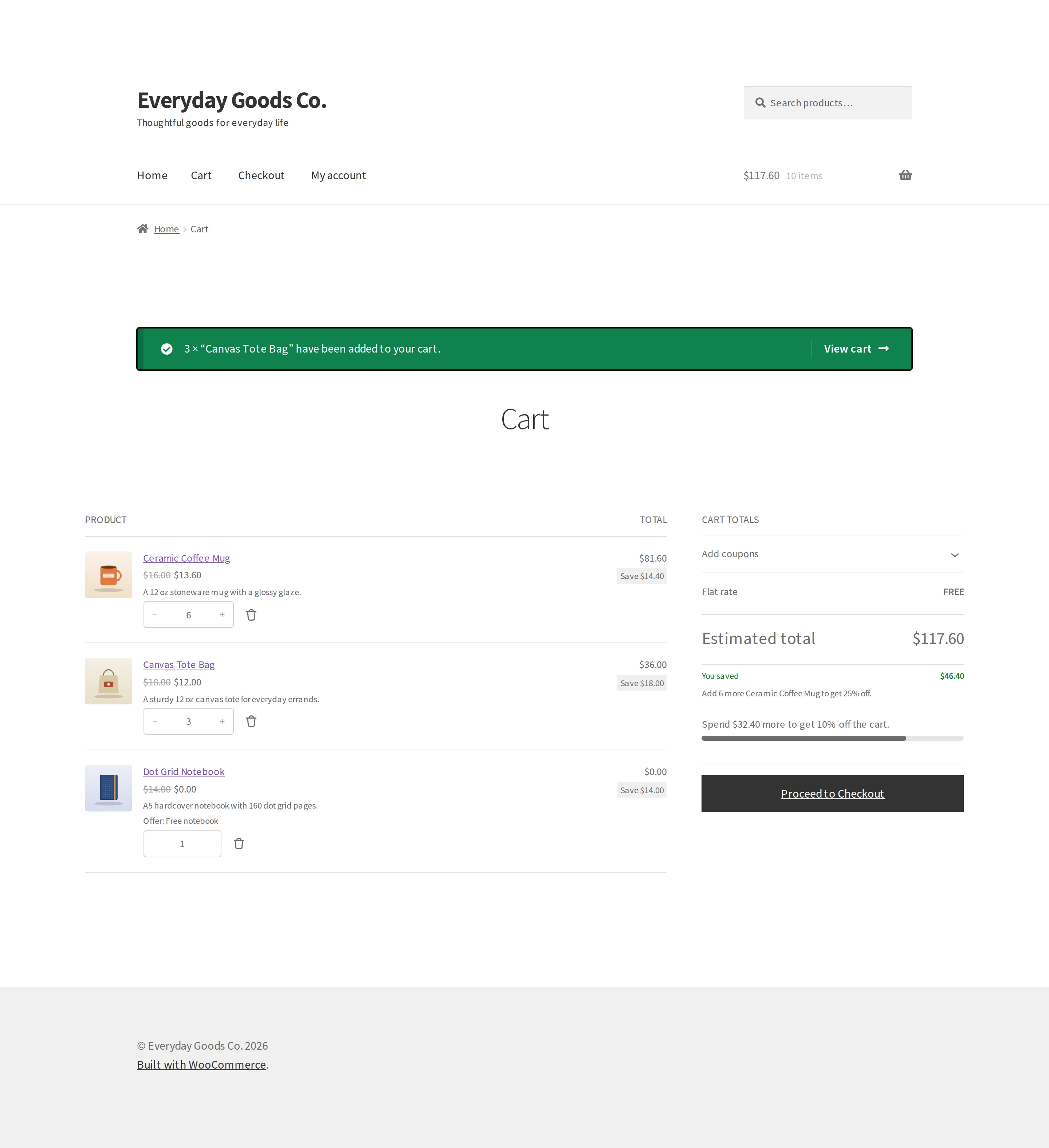
Worked example: a free notebook worth $14.00 when the cart subtotal is at least $100.00. The cart holds 6 mugs at $16.00 and 3 tote bags at $18.00.
- Before discounts: $96.00 + $54.00 = $150.00, which is over $100.00
- The notebook is added at $0.00 and the line says "Offer: Free notebook"
- The shopper's You saved line includes the $14.00
The threshold is compared with the cart before other discounts. That is why the gift still applies here, even if discounts bring the amount the shopper pays below $150.00.
Good to know:
- The gift line never counts toward other rules or cart totals, and its quantity cannot be changed.
- If a shopper removes the gift, it is not added again during that visit.
- A gift that sells out is removed, so it does not block the checkout.
- A largest discount per order does not cut a gift, because half a gift cannot be given.
#Rule type: bundle
What it does: sells a set of products for one price, mixed as the shopper likes. In the editor this kind is called Bundle price.
When to use it: offers such as any 3 candles for $60. Pick the products under Which products.
Fields:
- Units in a set: how many of the picked products make one set. At least 2.
- Price of a set: what the shopper pays for one whole set.
- Repeat: on means 6 units make two sets. Off gives one set per order.
Worked example: any 3 candles for $60.00, where each candle costs $26.00. A shopper adds 3.
- Before the rule: 3 x $26.00 = $78.00
- The set costs $60.00, a saving of $18.00
- The shopper pays exactly $60.00. A fourth candle would stay at its normal price until the set is complete
The most expensive units go into sets first, so the shopper gets the bigger saving. If the set price is not lower than buying the units separately, the rule is not used.
#Rule type: shipping discount
What it does: lowers the shipping cost or makes shipping free.
When to use it: free shipping over a set amount, or a reduced rate on one method.
Fields:
- Discount: Free shipping, Percentage off or Fixed amount off.
- Amount: the percentage or amount. Hidden when you pick Free shipping.
- Shipping methods: leave empty for every method.
Add the threshold under Which customers, for example Cart: Cart subtotal is at least 75.
Worked example: free shipping when the cart subtotal is at least $75.00. Six mugs bring the cart to $81.60 after the bulk discount, and flat rate shipping costs $5.00.
- $81.60 is over $75.00, so the rule applies
- Flat rate drops from $5.00 to FREE
- The order records the $5.00 discount against the rule
The threshold uses the cart after product discounts. A gift in the cart does not earn free shipping. A fixed amount is off the whole order, however many packages it ships in.
#Rule type: payment method discount
What it does: takes something off the order when the shopper pays a certain way. The total updates as soon as the shopper picks the method, on the classic checkout and the Checkout block. It is removed if they pick another method.
When to use it: encouraging lower cost payment methods, such as bank transfer.
Fields:
- Discount, Amount, Largest discount and Discount is worked out on: the same as a cart discount.
- Payment methods: the discount applies while the shopper has one of these chosen. Pick at least one.
- Express buttons: Apple Pay, Google Pay and PayPal buttons work out their own total before a payment method is chosen. Choose Leave express buttons out of the discount, or Give the discount on express buttons too.
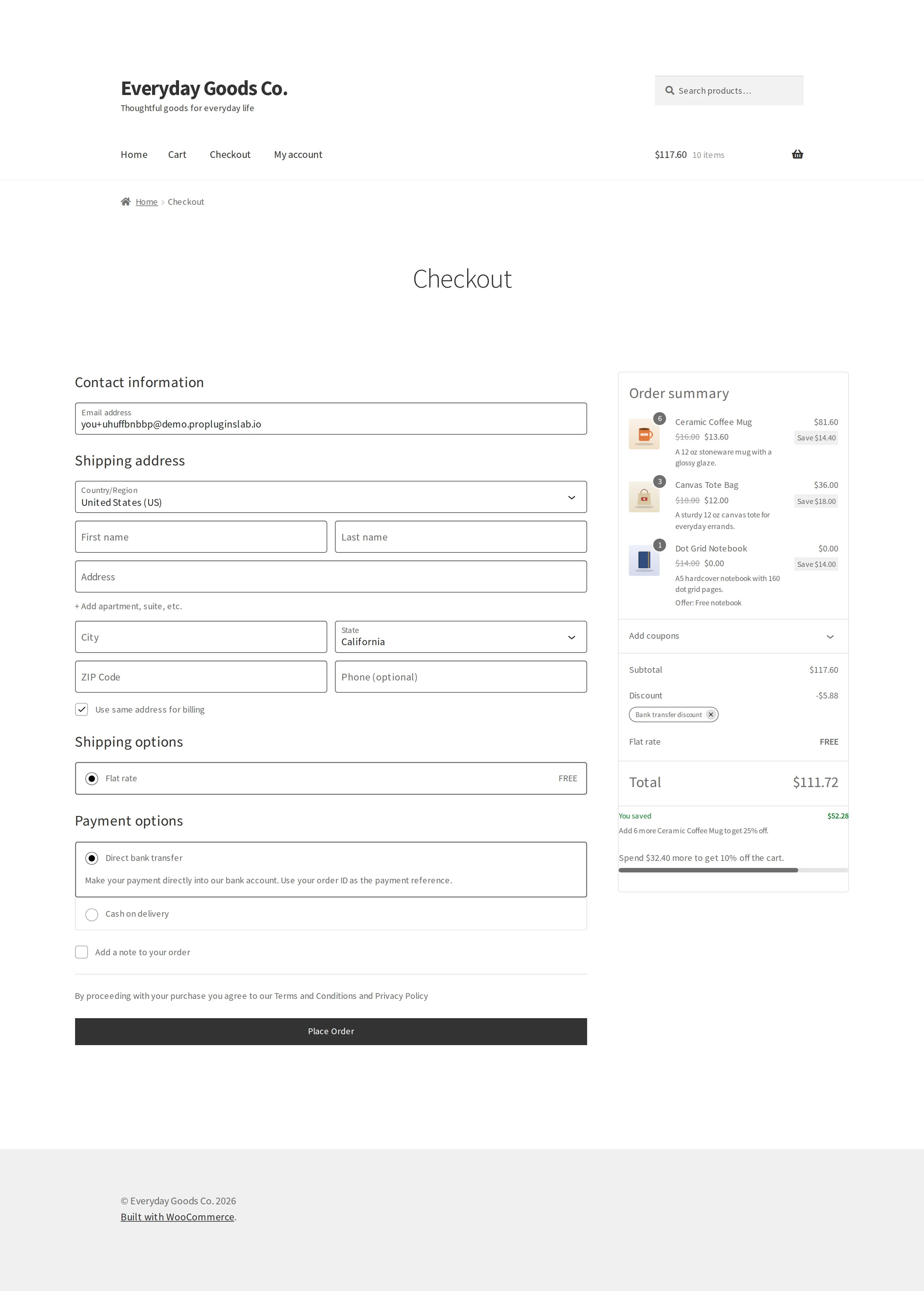
Worked example: 5% off for direct bank transfer on a cart subtotal of $117.60.
- $117.60 x 5% = $5.88 off
- The total is $111.72
The discount appears only after the shopper picks the method at checkout, so it does not show on product pages or as a promise in the cart.
With Give the best price for the customer, it competes with other cart level discounts and only the biggest applies.
#Conditions
Conditions decide which products a rule discounts and when it runs. Product conditions pick which products are discounted. Customer and cart conditions decide whether the rule runs. A rule with no conditions applies to every product, for every customer.
Groups
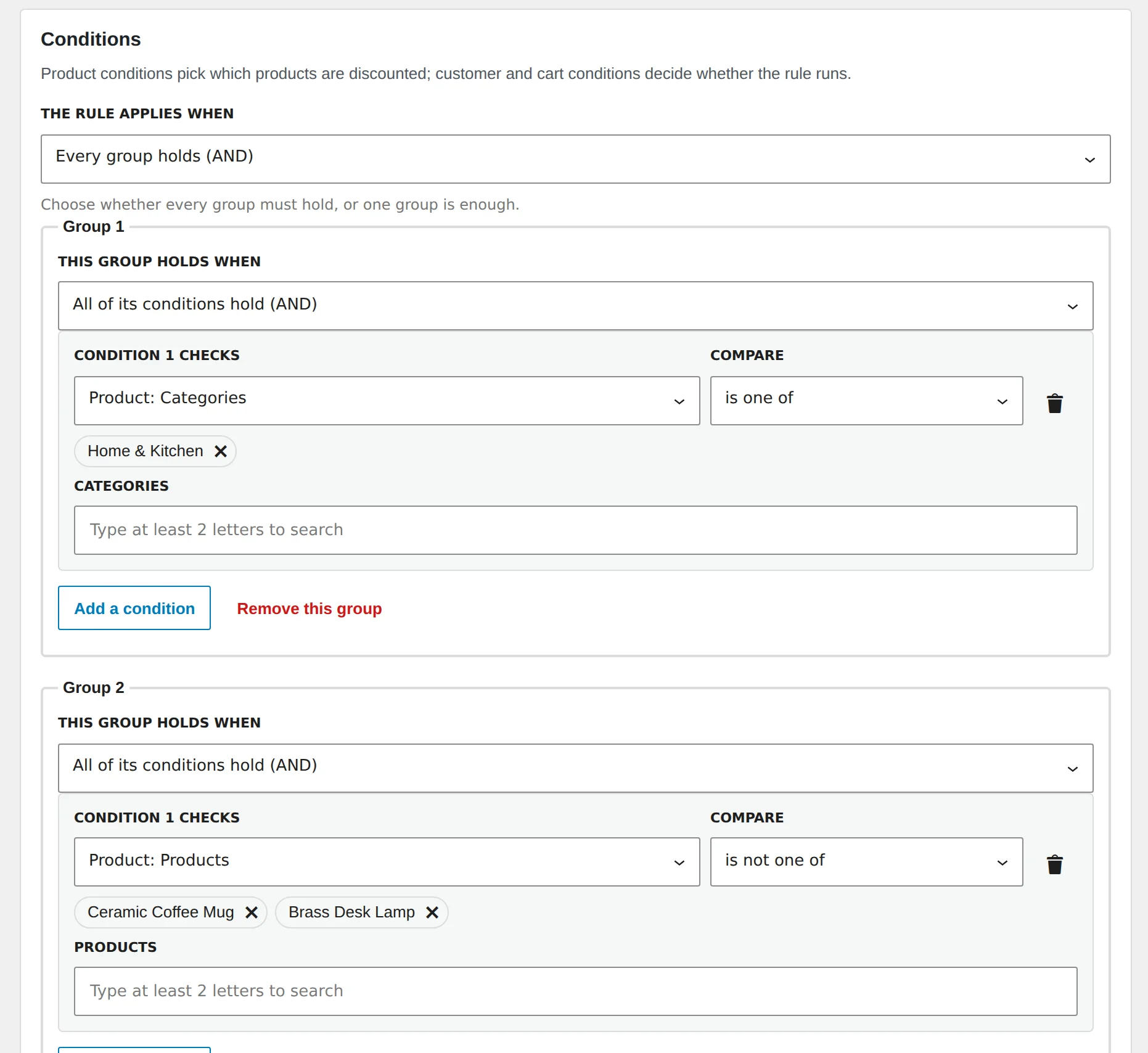
In advanced mode, a rule can have several groups, each with several conditions.
- THIS GROUP HOLDS WHEN decides whether all the conditions in a group must hold, or any one.
- THE RULE APPLIES WHEN decides whether every group must hold, or any one group is enough.
Example: (category is Shoes and the role is Wholesale customer) or (the cart subtotal is at least 500).
Product conditions
| Condition | What it matches |
|---|---|
| Products, Variations | The chosen products (with their variations), or only the chosen variations. |
| Categories, Tags, Brands | Products in the chosen terms. Categories include their subcategories. |
| Attributes | A chosen attribute value, for example Colour: Red. |
| On sale | Products that have, or do not have, a sale price. |
| Stock status | Products with the chosen stock statuses. |
| Stock quantity | A number compared with the product's stock, when the product manages stock. |
| Product price | A price range, using is at least, is at most and so on. |
| Product custom field | Any product meta. Write the name, an equals sign and the value, for example _material=cotton. |
Customer conditions
| Condition | What it matches |
|---|---|
| User role | Customers with one of the chosen roles. |
| Logged in or guest | Logged in customers, or guests. |
| Specific customers | Chosen customer accounts. |
| Customer email | Full addresses, or *@example.com for everyone at a company. The email is known once the customer logs in, because anyone can type an address at checkout. |
| First order | This is, or is not, the customer's first order. |
| Number of orders placed | The number of paid orders. |
| Total spent | The amount the customer spent. |
| Bought a product before | Bought one of, or never bought any of, the chosen products. |
| Membership plan | Active members of a WooCommerce Memberships plan. Only offered when WooCommerce Memberships is active. |
Cart conditions
| Condition | What it matches |
|---|---|
| Cart subtotal, Number of units in the cart, Number of different products in the cart, Cart weight | Is at least, is more than, is at most, is less than or is exactly a number. |
| Cart contains products, categories, tags | The cart holds at least one of, all of or none of the chosen items. |
Location conditions
Billing country, Billing state or county, Billing postcode, Shipping country, Shipping state or county and Shipping postcode. Postcodes work like WooCommerce shipping zones: exact codes, * as a wildcard, or a range such as 90000...90999. Prices that depend on the shopper's country are refreshed after the page loads, so a cached page never shows another country's price.
Checkout conditions
| Condition | What it matches |
|---|---|
| Shipping method, Payment method | The method the shopper chose. Until they choose, the condition does not hold. |
| Coupon applied | The chosen coupon codes. |
| Any coupon applied | Whether any coupon is in the cart. |
| Campaign link | A link parameter and value, for example utm_source=newsletter, or only the parameter name for any value. It is remembered until the order is placed. |
Gift cards, name your price products and the items inside bundles are left out of rules, so they are never discounted by accident. A rule that names such a product under Products still applies to it.
#Schedules
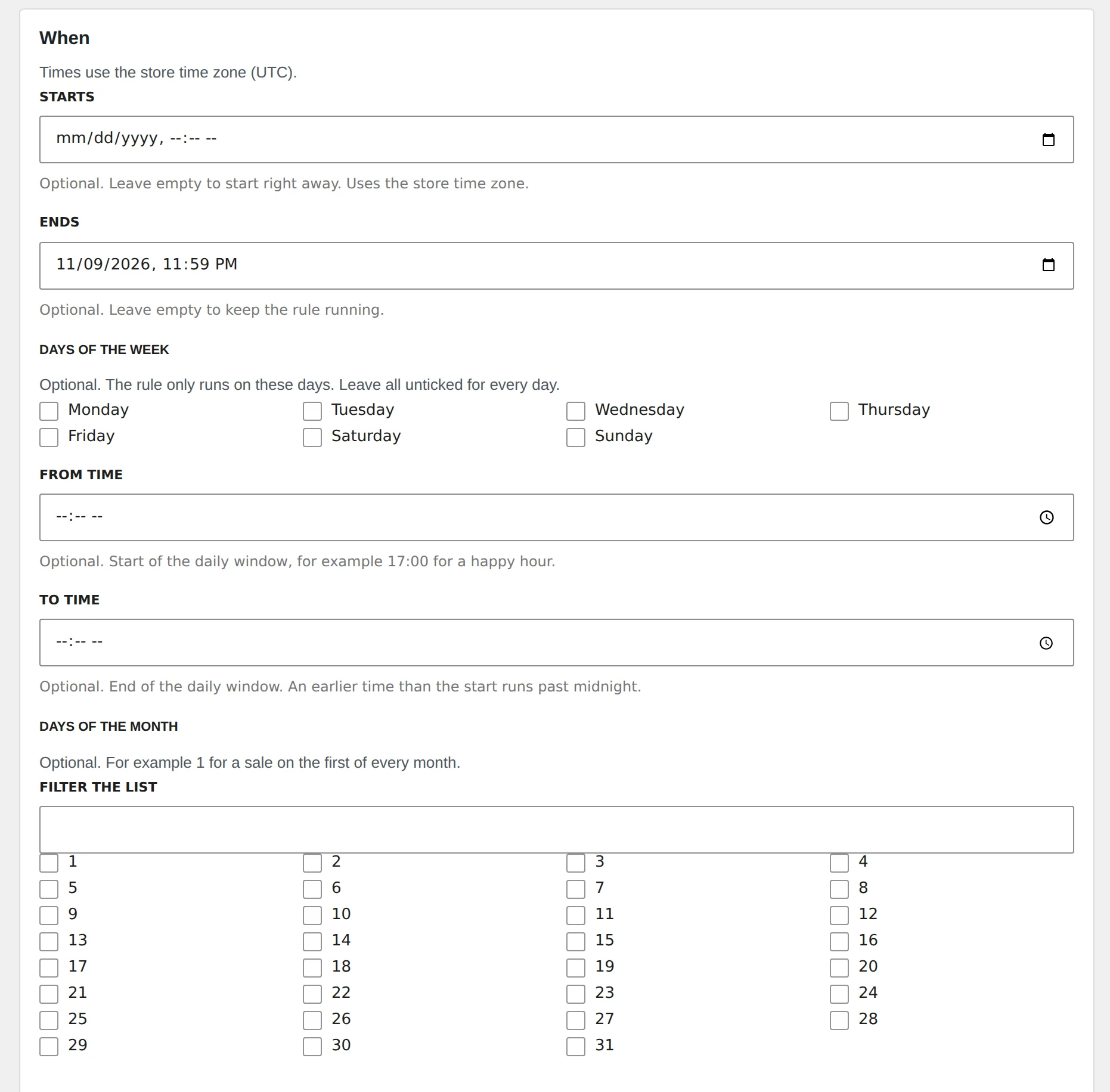
The When step sets when a rule runs. All times use the store time zone from Settings > General, including daylight saving changes.
- STARTS and ENDS: optional dates and times. Leave the start empty to begin right away, and the end empty to keep the rule running.
- Days of the week: tick days such as Saturday and Sunday. Leave all unticked for every day.
- FROM TIME and TO TIME: a daily window, for example 17:00 to 19:00 for a happy hour. Fill in both or neither. A TO TIME earlier than FROM TIME runs past midnight, so 22:00 to 02:00 counts as the day it began.
- Days of the month: tick dates, for example 1 for a sale on the first of every month. Use FILTER THE LIST to find a day.
All the parts you fill in must hold together. A rule outside its days or hours shows as Waiting for its time in the list.
Countdown
Switch on Show a countdown until the sale ends under Display to show "Sale ends in" with the time left under the price. It needs an end date or a daily end time.
Caches
When a rule starts or ends, Scontero refreshes its rule list and purges your page cache, so cached pages change price on time. Cart prices are always right, because dates are checked every time a price is worked out.
#Limits
The Limits step stops a rule from giving away too much. All four limits are optional.
| Limit | What it does | Example |
|---|---|---|
| LARGEST DISCOUNT PER ORDER ($) | The most this rule takes off one order. The discount is scaled back so the order saves exactly this amount. | 50% off but never more than $20.00 an order. |
| TOTAL USES | The rule stops after this many orders used it. | The first 100 orders. |
| USES PER CUSTOMER | How many orders each customer can use it on, counted by account or email. | Once per customer. |
| DISCOUNT BUDGET ($) | The rule stops once the discounts it gave add up to this amount. | Stop after giving away $500.00. |
What counts as a use
One order counts as one use of each rule it used.
- Uses already recorded count toward limits. If a rule has already been used on 15 orders and you set TOTAL USES to 20, it has 5 uses left, not 20.
- Orders waiting for payment count too.
- Cancelled, failed and fully refunded orders give their use back. So do orders moved to the trash or deleted.
- The budget looks at what has been given so far, so the last order can take the total slightly past the budget.
If two shoppers check out at the same moment for the last use, the second sees: "An offer in your cart has just run out, so the total has changed. Please check it and place your order again."
The rule tester says which limit a rule reached. Analytics shows how many uses and how much discount each rule has so far.
#Display options of a rule
The Display step sets what shoppers see for this one rule. Store wide options are on the Display and More display tabs.
- LABEL SHOPPERS SEE: shown in the cart, on orders and in notices. Leave empty to use the rule name.
- BADGE TEXT: replaces the store's badge text for this rule. Use
{percent}or{amount}for the saving, for exampleMembers save {amount}. - Show in the pricing table: lists the quantity bands on the product page. It appears for quantity rules.
- Tell shoppers how to get it: shows a message such as "Spend 20.00 more to get 10% off" in the cart. When off, the rule also stays out of the offers box.
- Show a countdown until the sale ends: shows the time left under the price.
The fields offered depend on the kind of discount.
#Templates
Dynamic Pricing > Templates gives you ready made rules for common promotions. Click Use this template, change anything you like, and save. Nothing is live until you click Create rule.
The templates are Sale on a category, Bulk pricing, Tiered pricing, Buy 2 get 1 free, 3 for 2, cheapest free, Bundle discount, Cart discount over an amount, Price for a customer role, Weekend sale and Discount for logged in customers.
A template marked "You choose which products or customers it is for" needs one more choice. Pick the products or customers in the condition steps.
The Bundle discount template gives a percentage off one product when the cart also holds another, for example a case with a phone. To sell a set for one price, use the Bundle price kind instead.
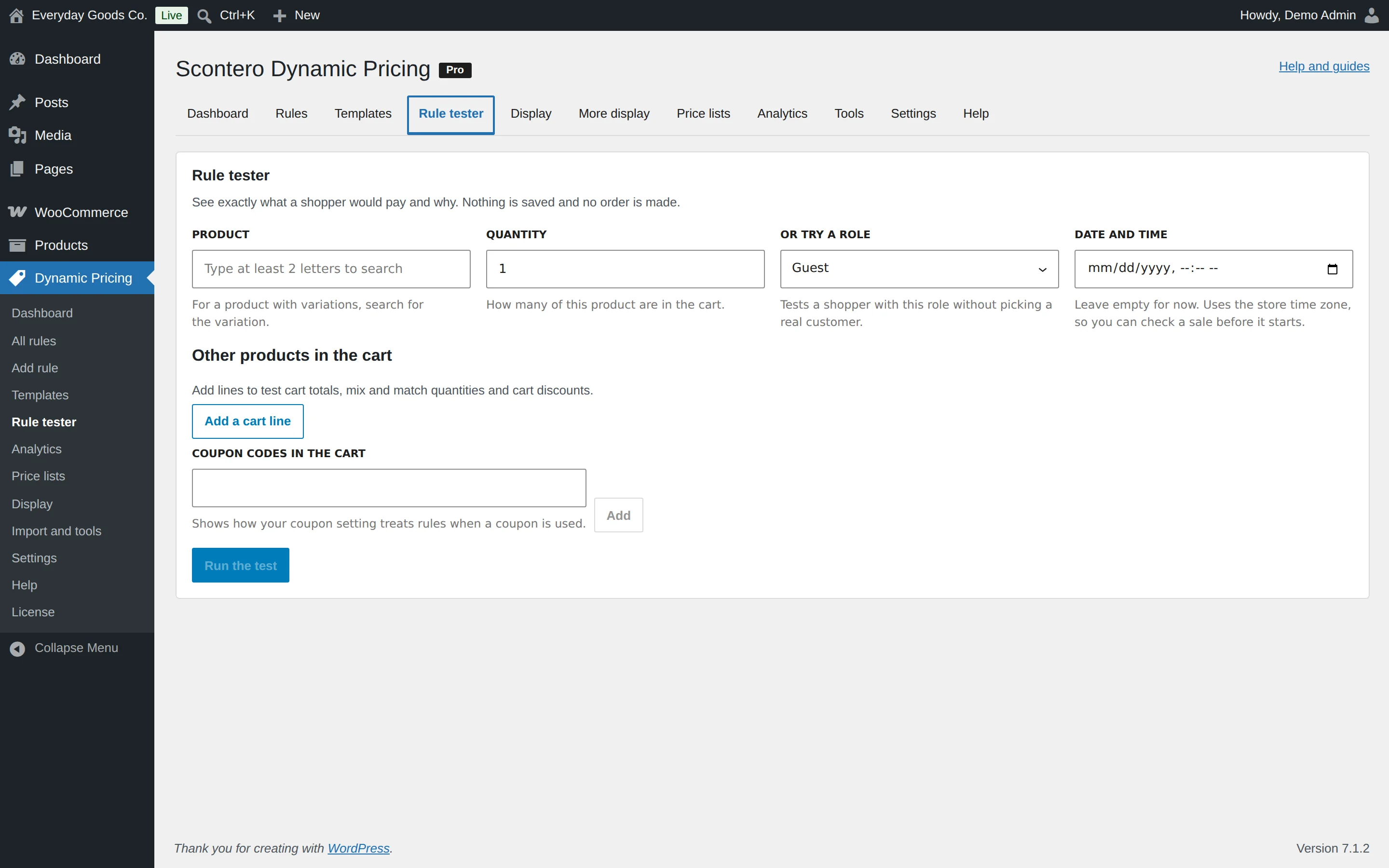
#Rule tester
The rule tester at Dynamic Pricing > Rule tester shows exactly what a shopper would pay and why. It uses the same calculator as the cart. Nothing is saved and no order is made.
How to use it:
- Under PRODUCT, pick a product. For a product with variations, search for the variation. Set the QUANTITY.
- Pick a customer, or use OR TRY A ROLE to test as a guest or with any role.
- Optional: set DATE AND TIME to check a sale before it starts.
- Optional: click Add a cart line to test cart totals, mix and match quantities and cart discounts, and enter COUPON CODES IN THE CART.
- Click Run the test.
The result lists, for each line:
- The price before and after
- Every rule that applied, in order
- Every rule that did not apply, with the reason, for example "The product is not in T-shirts" or "The quantity is 2; the first band starts at 3."
Below that are the cart discounts, the notices shoppers would see and the totals.
You can also reach the tester from a product's edit screen with Test prices.
#Display
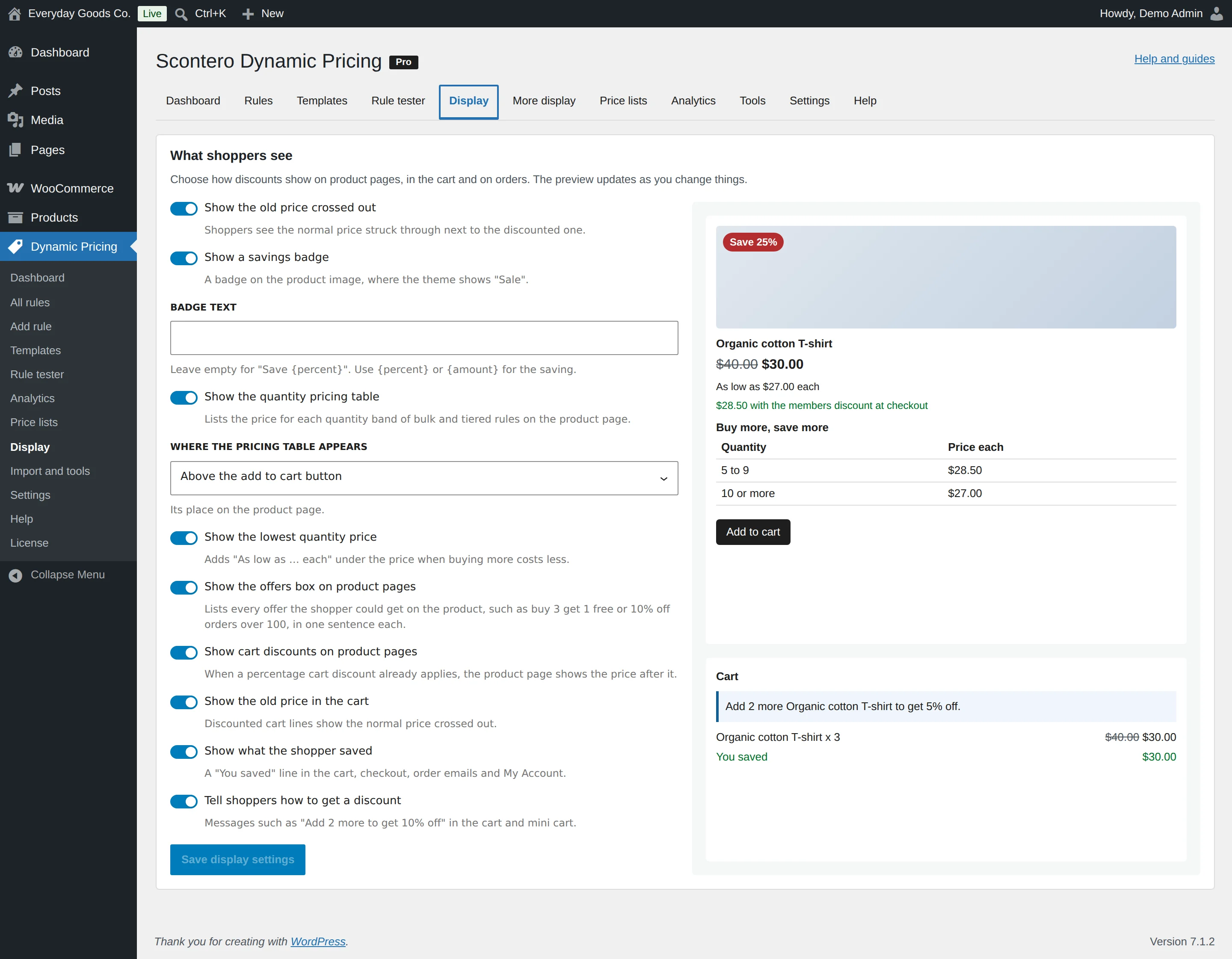
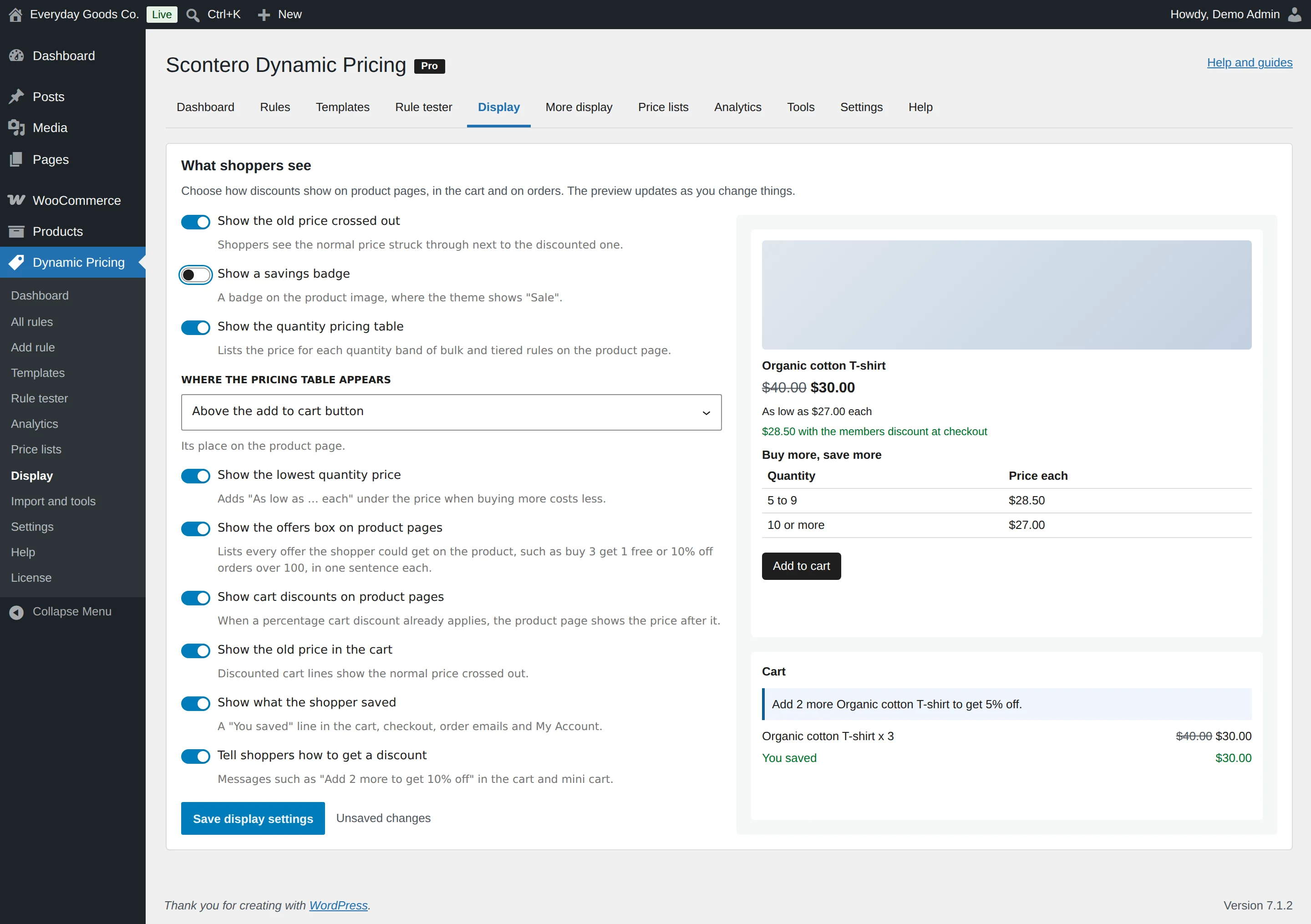
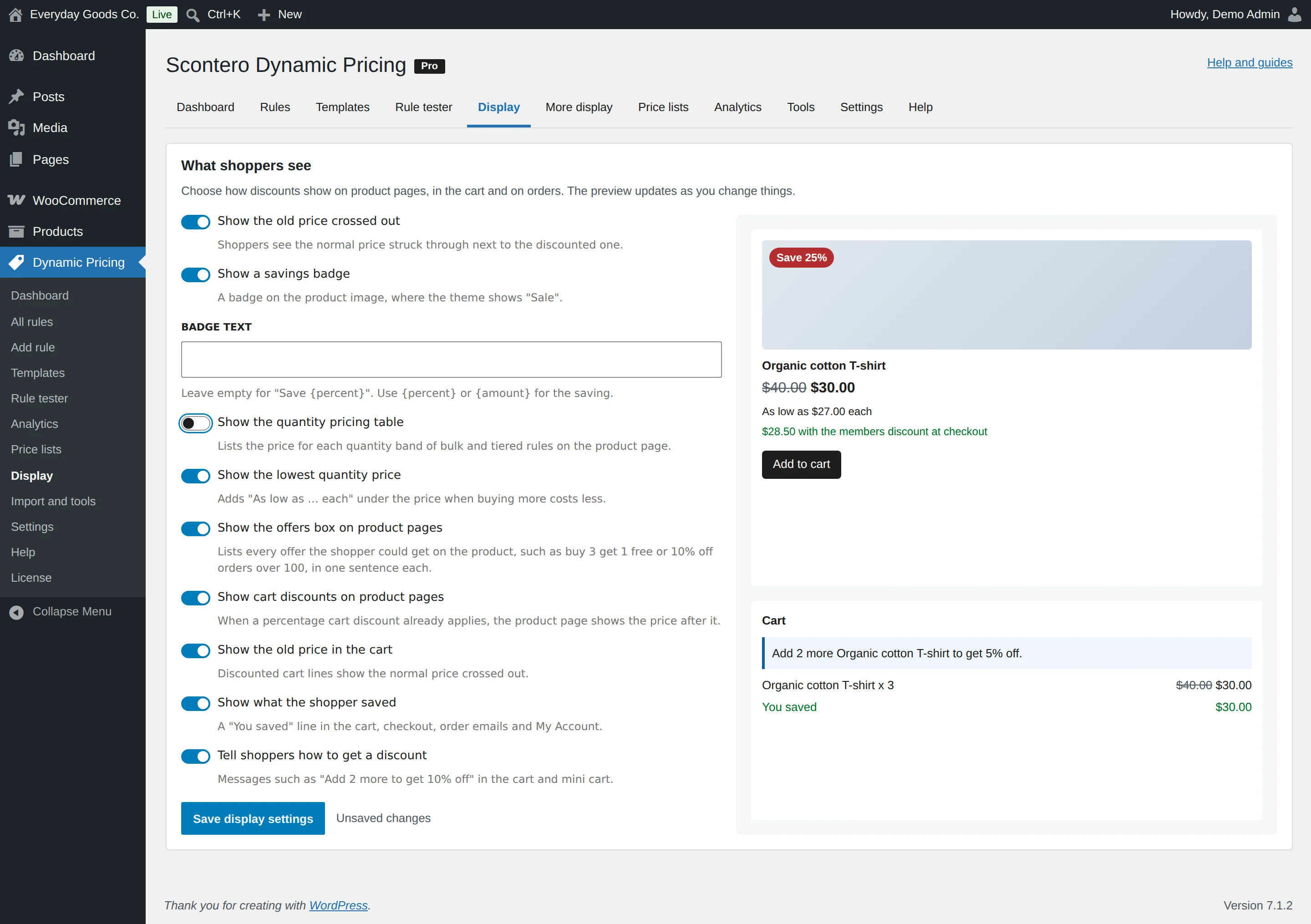
Dynamic Pricing > Display decides how discounts show on product pages, in the cart and on orders. The preview on the right updates as you change things. Click Save display settings when you are done.
What each option changes for shoppers:
- Show the old price crossed out: the normal price is struck through next to the discounted one.
- Show a savings badge: a badge on the product image, where the theme shows "Sale". BADGE TEXT only shows while this is on.
- Show the quantity pricing table: lists the price for each band of bulk and tiered rules. WHERE THE PRICING TABLE APPEARS only shows while this is on.
- Show the lowest quantity price: adds "As low as ... each" under the price when buying more costs less.
- Show the offers box on product pages: lists every offer the shopper could get on the product, in one sentence each. Cart thresholds do not need to be met yet, because the box tells shoppers what to aim for.
- Show cart discounts on product pages: when a percentage cart discount already applies, the product page shows the price after it. This works for percentage rules with no cap.
- Show the old price in the cart: discounted cart lines show the normal price crossed out.
- Show what the shopper saved: a "You saved" line in the cart, checkout, order emails and My Account.
- Tell shoppers how to get a discount: messages such as "Add 2 more to get 10% off" in the cart and mini cart.
#More display
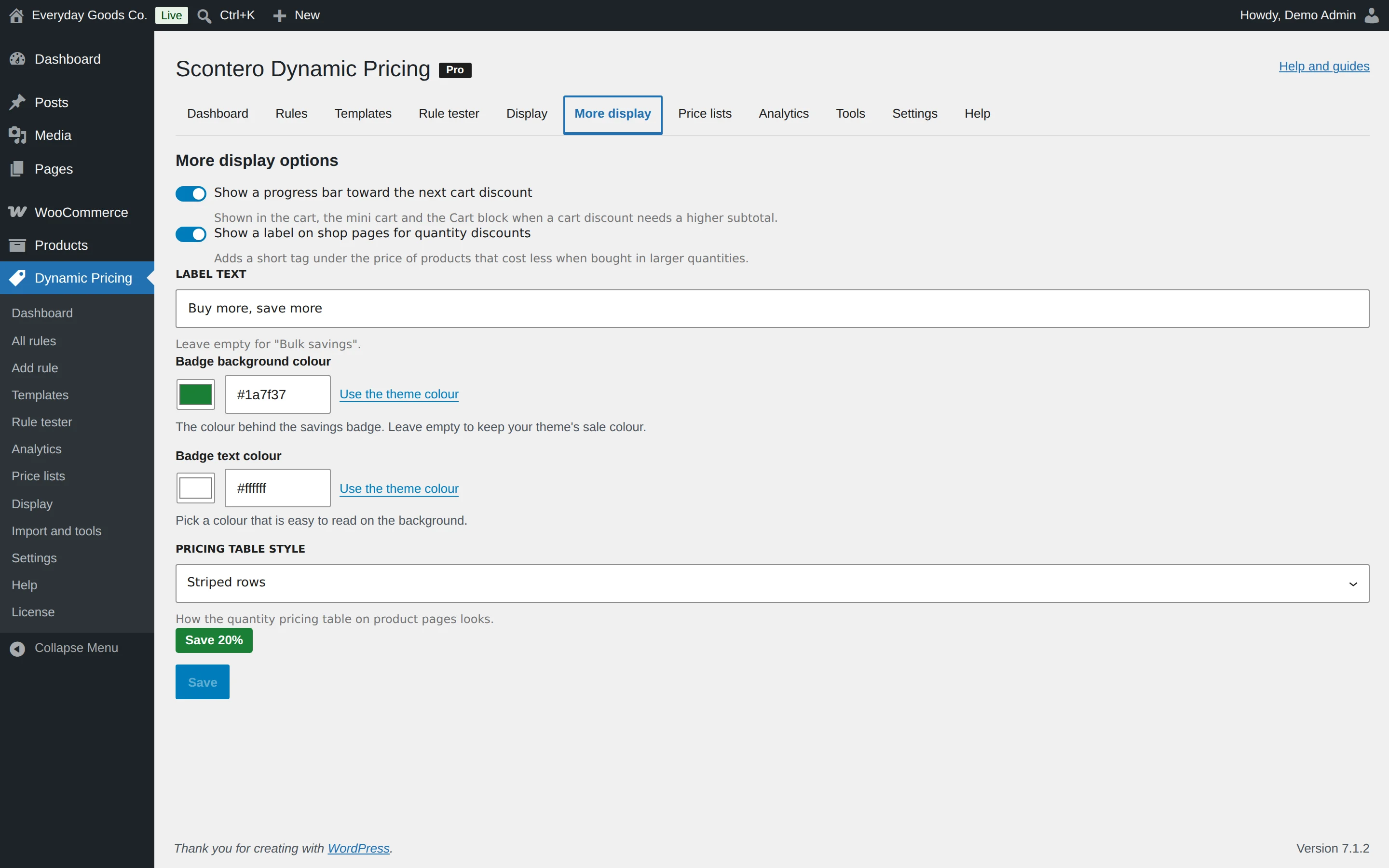
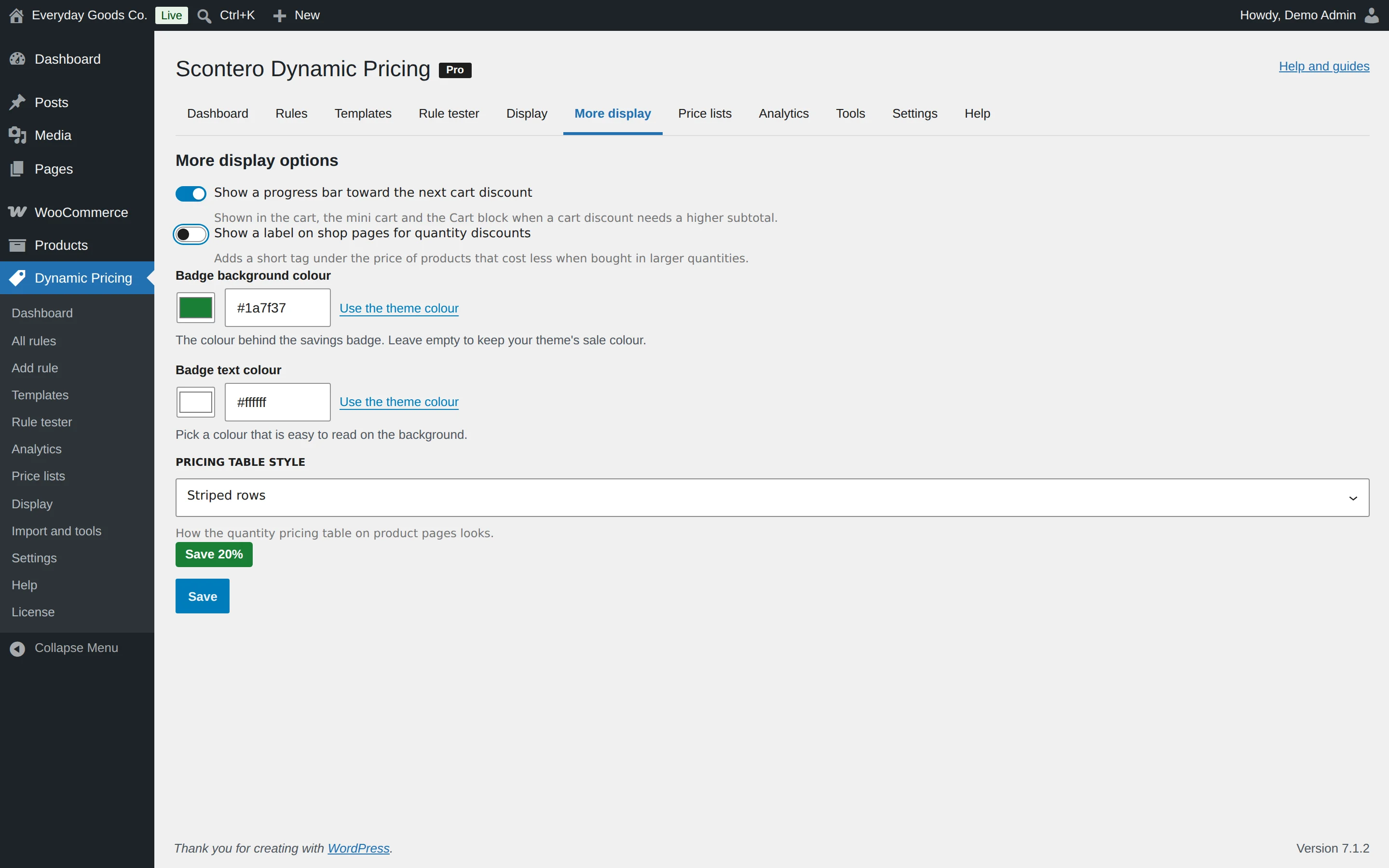
Dynamic Pricing > More display adds a few extra options. Click Save when you are done.
What each option changes for shoppers:
- Show a progress bar toward the next cart discount: a bar and a line such as "Spend $32.40 more to get 10% off the cart." It shows in the cart, the mini cart and the Cart block when a cart discount needs a higher subtotal.
- Show a label on shop pages for quantity discounts: a short tag under the price of products that cost less in larger quantities. LABEL TEXT sets the wording. Leave it empty for "Bulk savings". The field only shows while the label is on.
- Badge background colour and Badge text colour: your own colours for the savings badge. Use a colour like
#1e73be, or click Use the theme colour to clear it. The badge preview shows the result. - PRICING TABLE STYLE: how the quantity pricing table looks on product pages.
#Price lists
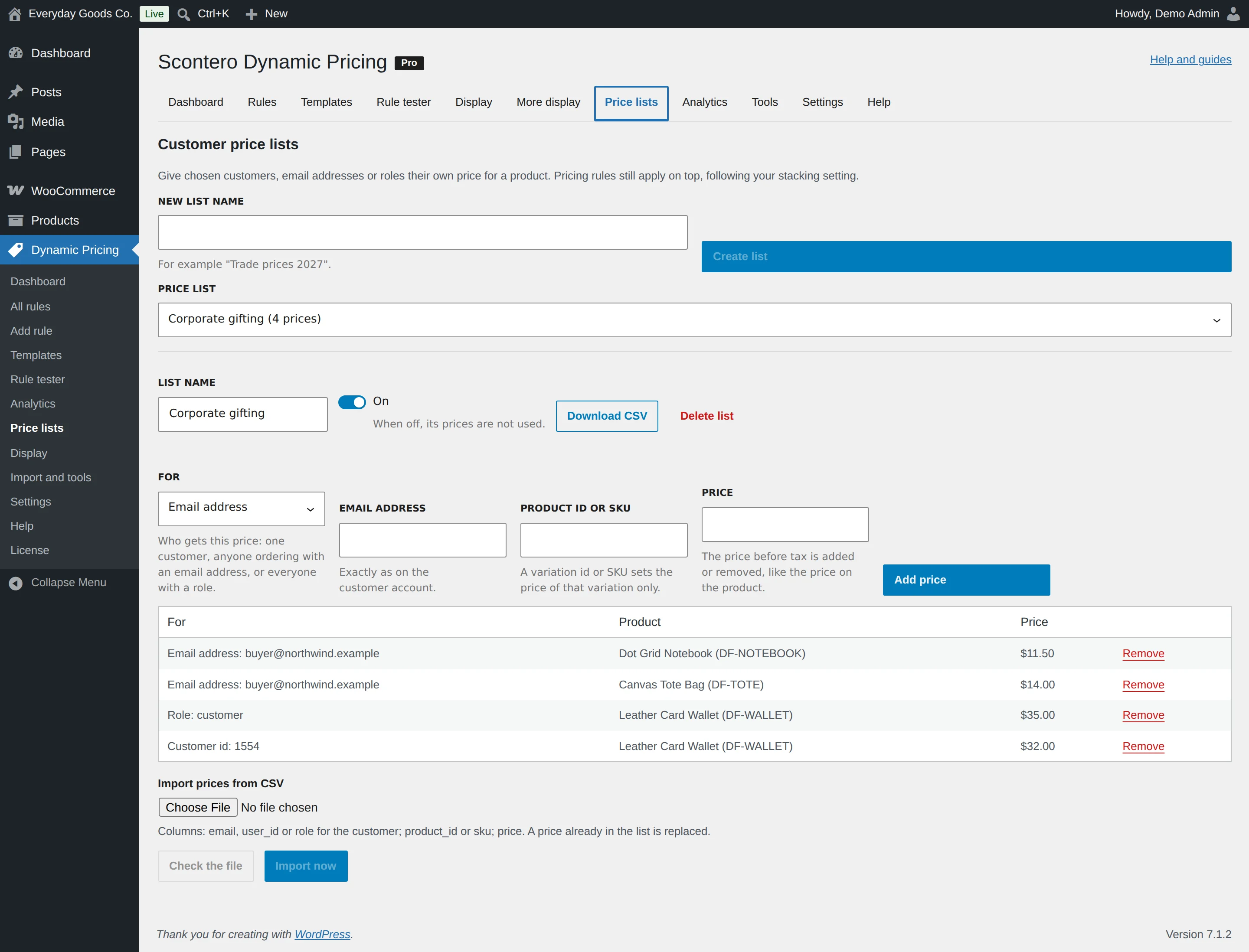
Dynamic Pricing > Price lists gives chosen customers, email addresses or roles their own price for a product.
A list price replaces the base price before rules run. Pricing rules still apply on top, following your stacking setting. For example, with a list price of $32.00 on a $39.00 wallet, a 10% rule works from $32.00, not $39.00.
Create a list and add prices
- Type a name under NEW LIST NAME and click Create list.
- Under FOR, choose Email address, Customer id or Role, then fill in who it is for.
- Enter the PRODUCT ID OR SKU. A variation id or SKU sets the price of that variation only.
- Enter the PRICE, before tax is added or removed, like the price on the product.
- Click Add price.
How prices are chosen
- A variation without its own list price takes the price listed for its parent product.
- If a shopper matches several prices for one product, for example by role and by customer id, the lowest price is used.
- Switch a list off with On to pause it. When off, its prices are not used.
- A guest with no known email address gets no list price.
Import and export
Click Download CSV to export a list. To import, choose a file under Import prices from CSV, click Check the file to test it without saving, then Import now.
The file needs a customer column (email, user_id, role or customer), a product column (product_id, product or sku) and a price column. A price already in the list is replaced, so importing the same file twice adds nothing.
#Analytics
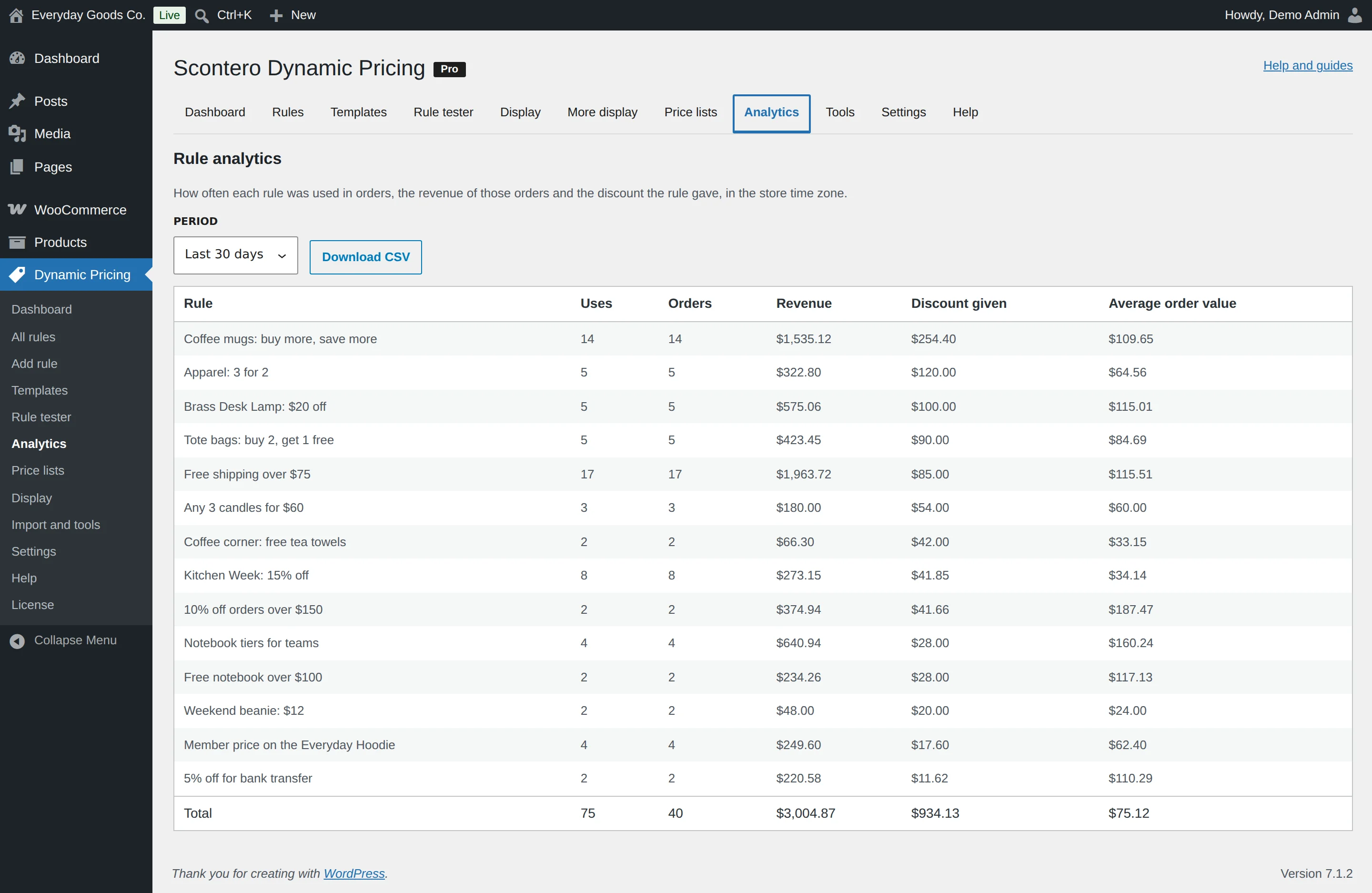
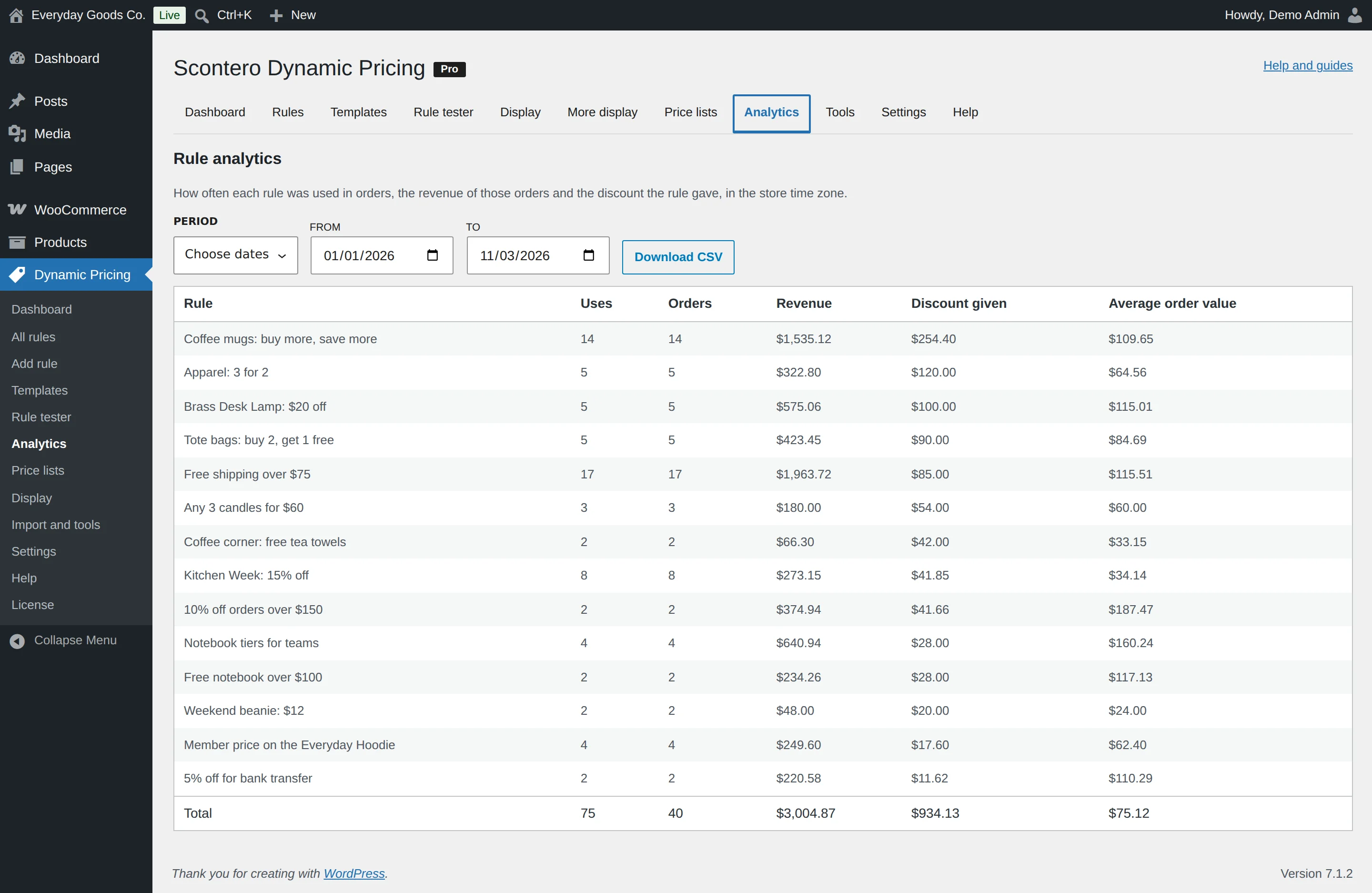
Dynamic Pricing > Analytics shows how often each rule was used in orders, the revenue of those orders and the discount each rule gave, in the store time zone. Pick a PERIOD, or Choose dates to set FROM and TO, up to three years. Click Download CSV to export the report.
Columns
| Column | What it shows |
|---|---|
| Rule | The rule name. A rule you removed shows as "Deleted rule" with its number. |
| Uses | How many times the rule was used. |
| Orders | How many orders used it. |
| Revenue | The revenue the rule touched in those orders. |
| Discount given | The total discount the rule gave. |
| Average order value | Revenue divided by orders for this rule. |
The Total row counts each order once. That is why its Orders and Revenue can be lower than the sum of the rows: one order can use several rules.
Rule use is recorded from new orders on. Figures appear after the first order with a discount. Cancelled, failed and fully refunded orders drop out, so the report and your limits stay true.
#Tools: import and export
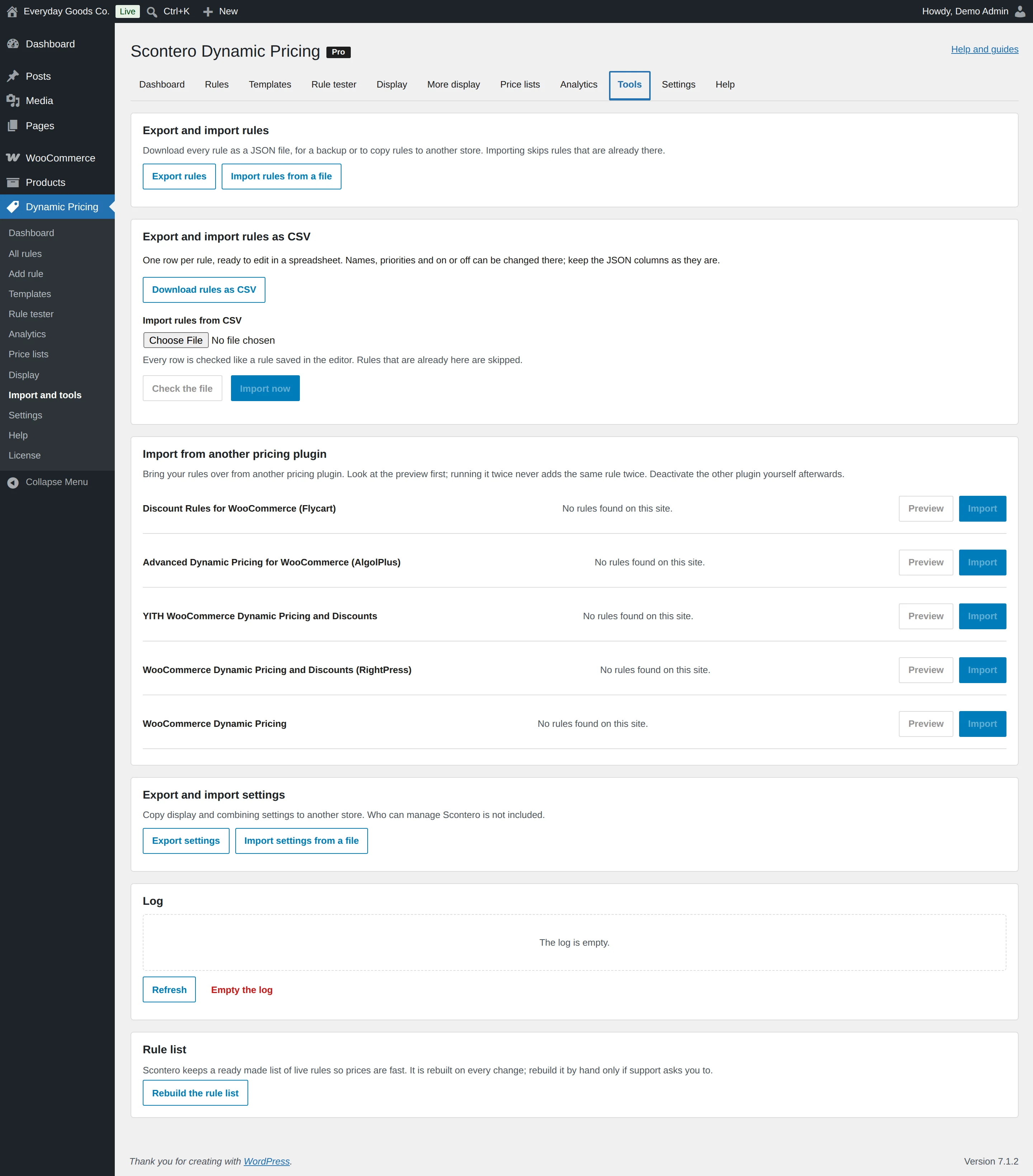
Dynamic Pricing > Import and tools moves rules and settings in and out, and holds the log.
Export and import rules
Export rules downloads every rule as a JSON file, for a backup or to copy rules to another store. Import rules from a file loads one. Importing skips rules that are already there.
Export and import rules as CSV
Download rules as CSV gives one row per rule, ready to edit in a spreadsheet. You can change names, priorities and on or off there. Keep the JSON columns as they are.
To import, choose a file under Import rules from CSV, click Check the file to test it without saving, then Import now. Every row is checked like a rule saved in the editor, and rules that are already here are skipped.
Import from another pricing plugin
Scontero can import from Discount Rules for WooCommerce (Flycart), Advanced Dynamic Pricing for WooCommerce (AlgolPlus), YITH WooCommerce Dynamic Pricing and Discounts, WooCommerce Dynamic Pricing and Discounts (RightPress) and WooCommerce Dynamic Pricing.
- Click Preview to see what would be imported. Nothing is saved.
- Click Import, then check the rules with the rule tester.
- Deactivate the other plugin on the Plugins screen, so products are not discounted twice.
Running it twice never adds the same rule twice. A rule that lost a setting on the way is imported switched off, with a note saying what to check. Scontero only reads the other plugin's data and never changes it.
Export and import settings
Export settings and Import settings from a file copy display and combining settings to another store. Who can manage Scontero is not included.
Log and rule list
Log shows what Scontero recorded, at the level set in Settings. Use Refresh and Empty the log.
Rebuild the rule list rebuilds the ready made list of live rules. It is rebuilt on every change, so use this only if support asks you to.
#Settings: how rules combine
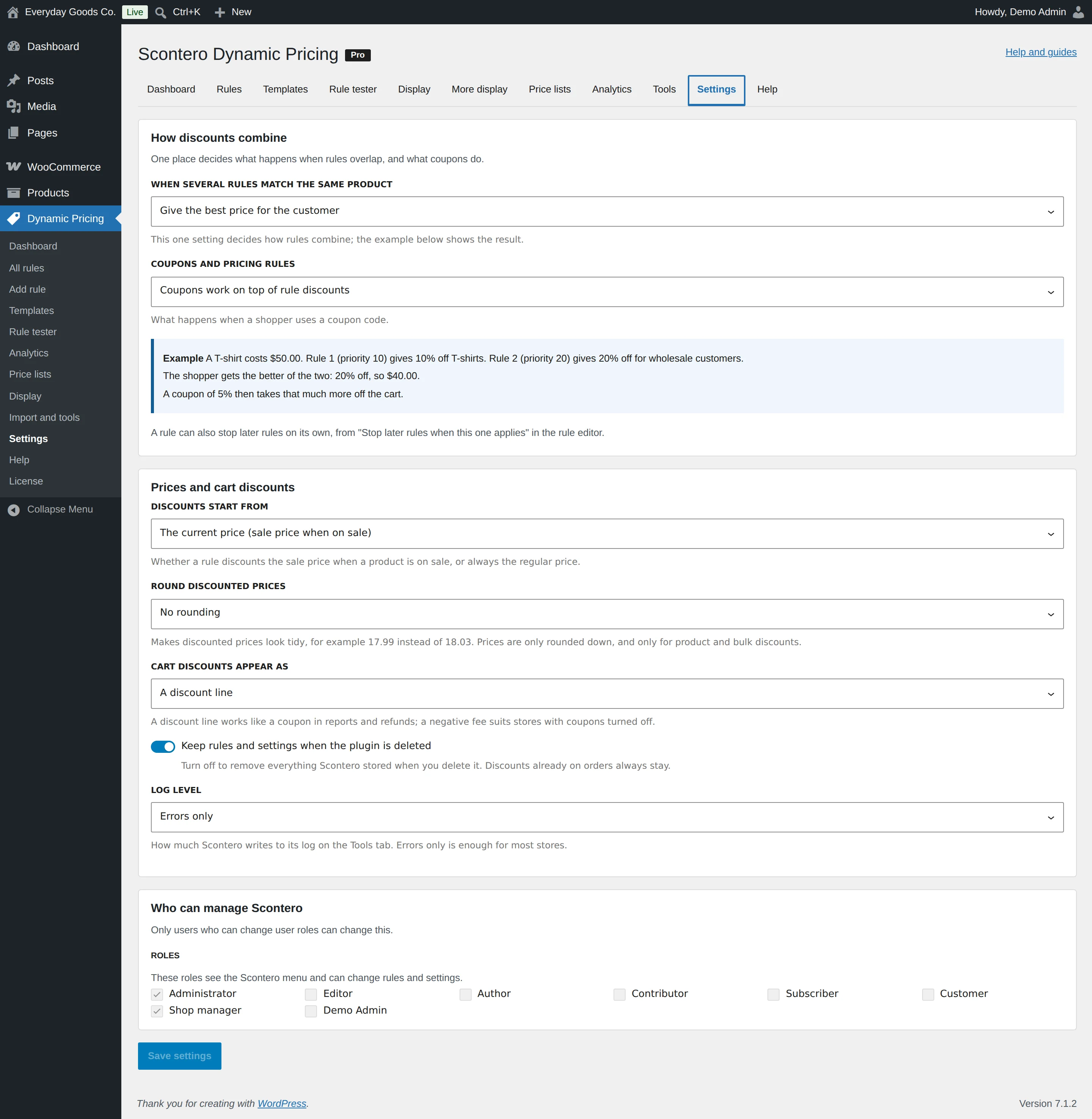
Dynamic Pricing > Settings decides what happens when rules overlap, what coupons do, which price discounts start from, and who can manage Scontero. Click Save settings when you are done.
Stacking: when several rules match
Example: a T-shirt costs $50.00. Rule 1 (priority 10) gives 10% off T-shirts. Rule 2 (priority 20) gives 20% off for wholesale customers.
| Setting | Value | What happens | Result |
|---|---|---|---|
| Give the best price for the customer | best |
Only the rule giving the lowest price is used. | $40.00 |
| Apply every matching rule, one after another | all |
Each rule works on the price left by the one before. | $50.00, then $45.00, then $36.00 |
| Use only the first matching rule by priority | first |
The rule with the lowest priority number wins. | $45.00 |
A rule can also stop later rules on its own with Stop later rules when this one applies.
Cart level discounts follow the same setting
Cart discounts and payment method discounts follow the stacking setting too.
- With
best, only one cart level discount applies: the biggest. On a $186.60 cart, 10% off orders ($18.66) beats 5% off for bank transfer ($9.33), so the shopper gets $18.66 off. - With
all, each one that applies is used. - With
first, only the first one by priority is used.
Shipping discounts work the same way: with best the lowest shipping cost wins, and with all they apply one after another.
Coupons
COUPONS AND PRICING RULES decides what a coupon does:
- Coupons work on top of rule discounts: a 5% coupon takes 5% more off the cart.
- Coupons cannot be used when a rule discount is in the cart: the shopper sees "This coupon cannot be combined with the discounts already in your cart."
- Coupons cannot be used while any rule is running: the shopper sees "Coupons cannot be used while a promotion is running."
- A coupon replaces the rule discounts: the rules are set aside for that cart, so the shopper pays $50.00 minus 5%. Gifts and automatically added products are not given either.
Base price
DISCOUNTS START FROM chooses the price a rule works from. Take a product with a $22.00 regular price and a $17.00 sale price, and a 10% rule:
- The current price (sale price when on sale): $17.00 less 10% is $15.30.
- The regular price: $22.00 less 10% is $19.80. That is above the sale price, so the shopper keeps $17.00.
Rounding
ROUND DISCOUNTED PRICES makes prices look tidy, for example $13.60 becomes $12.99 with End in .99 (19.99).
- Prices are only ever rounded down.
- Only product and bulk discounts are rounded. Tiered, buy X get Y and set prices stay exact.
- Cart discounts are never rounded.
- A line with a rule that has a largest discount per order is left as it is.
How cart discounts are applied
CART DISCOUNTS APPEAR AS chooses how cart discounts show:
- A discount line works like a coupon in reports and refunds. It needs WooCommerce coupons turned on. Orders show a coupon code that starts with
scontero-auto-. - A negative fee suits stores with coupons turned off.
Who can manage Scontero
Administrators always can. Tick other staff roles under Roles to let them see the Scontero menu and change rules and settings. Only staff roles that can edit posts can be chosen, and only users who can change user roles can change this.
#Help
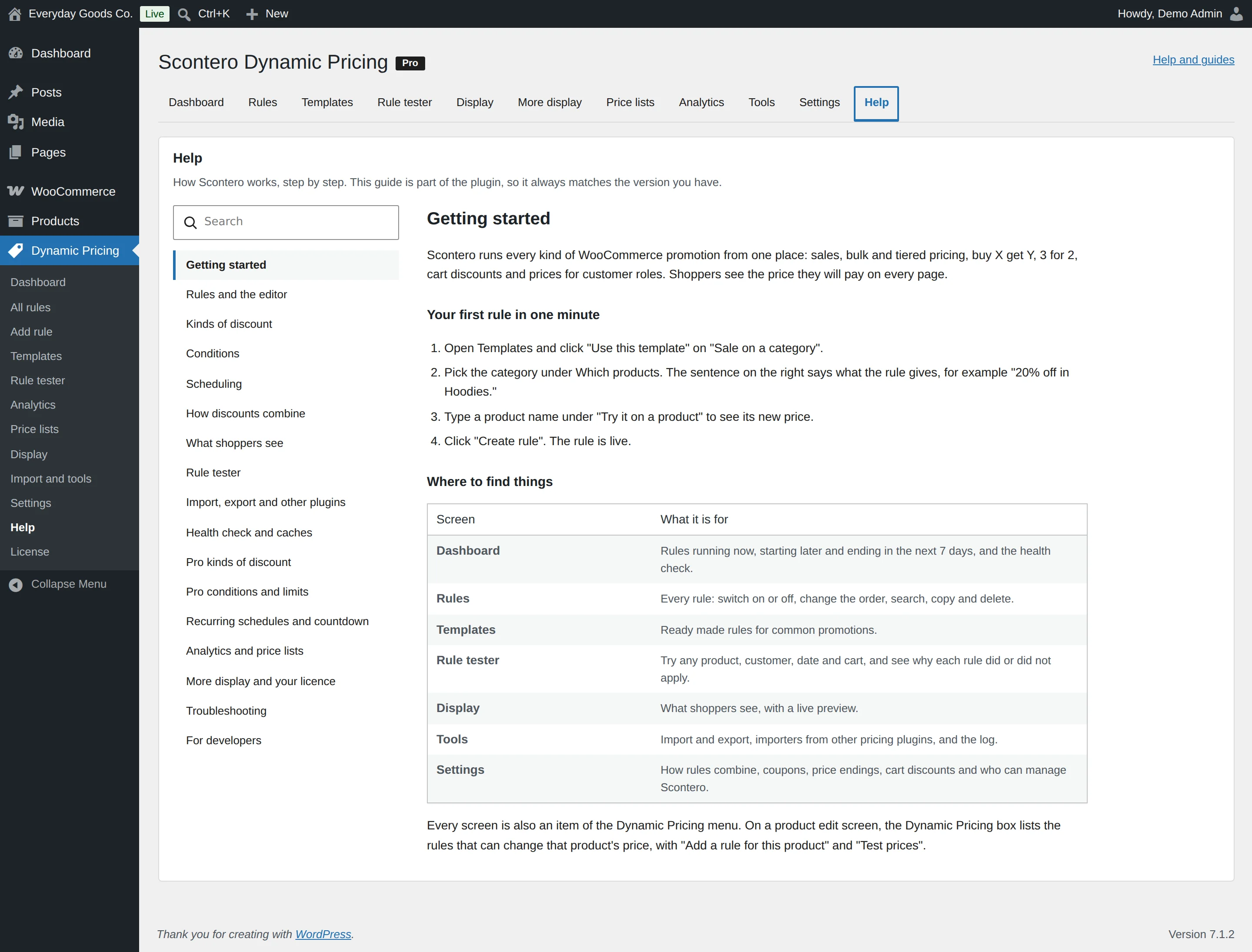
Dynamic Pricing > Help is a searchable guide built into the plugin, so it works offline and always matches the version you have. Type in Search the help to filter the topics, or click a topic on the left. It covers getting started, rules and the editor, kinds of discount, conditions, scheduling, how discounts combine, what shoppers see, the rule tester, importing, the health check, the Pro features and troubleshooting.
#Dynamic Pricing box on the product screen
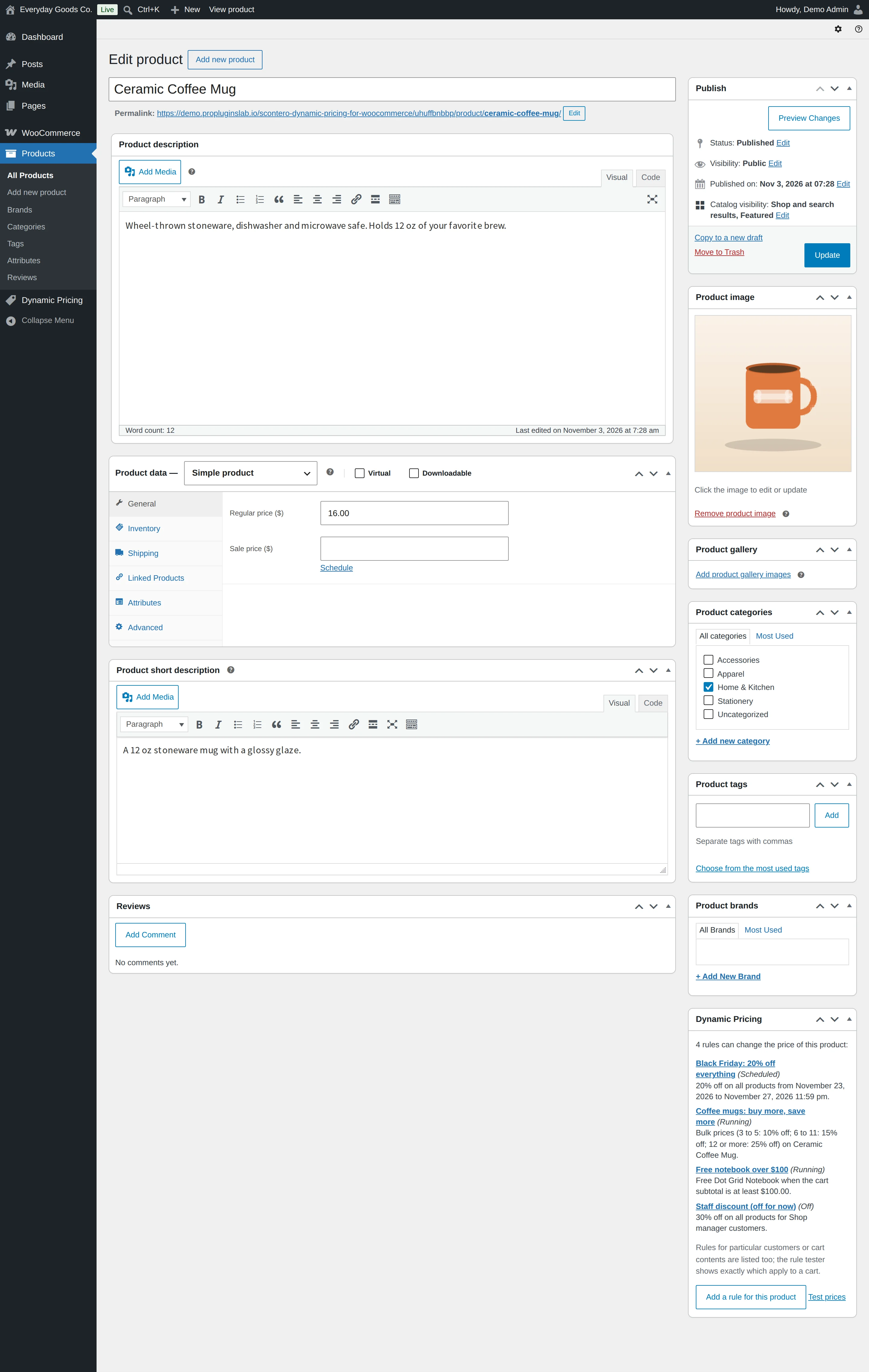
When you edit a product under Products, a Dynamic Pricing box lists the rules that can change its price, with their status and a plain sentence. Rules for particular customers or cart contents are listed too. The rule tester shows exactly which apply to a cart.
- Add a rule for this product opens a new rule with this product already chosen.
- Test prices opens the rule tester with this product.
A new product must be saved before the box can list its rules.
On the WooCommerce order screen, each discounted line says which rule saved how much, for example "Pricing rules: Buy more, save more. Saved $14.40 (was $16.00 each)." Orders keep the price that was paid.
Settings reference
Dynamic Pricing > All rules
Find rules and change several at once.
#Search rules
Searches names and internal notes.
#Kind
Shows one kind of discount only. The list holds All kinds and each kind of discount.
#Status
Shows switched on or switched off rules.
#Select all
Ticks every rule in the list, ready for a bulk action.
When to change it
Use it with With selected rules to change many rules at once.
#With selected rules
The action to run on the ticked rules when you click Apply.
Dynamic Pricing > Add rule (rule editor)
Every field of a rule. The fields under KIND OF DISCOUNT change with the kind you choose, and the rest apply to every kind.
#Advanced mode
Shows every setting on one page, with AND and OR condition groups.
When to change it
Turn it on when you need several condition groups. A rule with groups joined by OR needs it.
#KIND OF DISCOUNT
The kind of promotion this rule runs. Your choice decides which fields appear below it.
When to change it
Pick the card that matches the promotion. Each kind has its own part earlier on this page.
#DISCOUNT
Shown when KIND OF DISCOUNT is Product discount, Bulk pricing or Tiered pricing.
How the new price is worked out, for product discounts and for each band of bulk and tiered rules.
#AMOUNT (%)
Shown when KIND OF DISCOUNT is Product discount, Bulk pricing or Tiered pricing.
The percentage, the amount off each product, or the new price. The label follows the discount you picked.
#COUNT QUANTITIES
Shown when KIND OF DISCOUNT is Bulk pricing or Tiered pricing.
Which units are added up to find the band.
When to change it
Choose how variations and different products should count together.
#FROM
Shown when KIND OF DISCOUNT is Bulk pricing or Tiered pricing.
The first quantity of the band.
When to change it
Bands must not overlap.
#TO
Shown when KIND OF DISCOUNT is Bulk pricing or Tiered pricing.
The last quantity of the band. Leave empty for no upper limit.
When to change it
Only the last band can have no upper limit.
#Buy
Shown when KIND OF DISCOUNT is Buy X get Y, Buy X, get the cheapest free, or Buy X get Y (different products).
How many the shopper pays for, or how many of the products picked under Which products the shopper buys.
#Get these products
Shown when KIND OF DISCOUNT is Buy X get Y (different products).
The products the shopper gets with the discount. Pick a variation for variable products.
#Get
Shown when KIND OF DISCOUNT is Buy X get Y, Buy X, get the cheapest free, or Buy X get Y (different products).
How many more units or products get the discount.
#Which items get the discount
Shown when KIND OF DISCOUNT is Buy X, get the cheapest free.
Which items in each set are discounted.
#Discount on the extra units
Shown when KIND OF DISCOUNT is one of the three buy X kinds.
Free, a percentage off, or a fixed price for each extra unit. Buy X, get the cheapest free calls this Discount on those items, and Buy X get Y (different products) calls it Discount on them.
#Repeat
Shown for the three buy X kinds and Bundle price.
On: the offer counts every full set, so 6 units can make two sets. Off: the offer applies once per order or order line.
When to change it
Turn it off to limit the offer to one set.
#Add them to the cart
Shown when KIND OF DISCOUNT is Buy X get Y (different products).
Adds the discounted products to the cart by itself, and removes them when the offer no longer applies.
When to change it
Turn it on so shoppers do not have to find and add the product themselves.
#Largest discount
Shown for Cart discount and Payment method discount when Discount is Percentage off.
Optional. The discount never goes above this amount. Leave empty for no limit.
When to change it
Use it to cap a percentage on big carts.
#Discount is worked out on
Shown when KIND OF DISCOUNT is Cart discount or Payment method discount.
The whole cart, or only the products the rule's product conditions pick.
#Gift
Shown when KIND OF DISCOUNT is Free gift.
The product added for free. Only the first one is used. Pick a simple product or one variation.
#Quantity
Shown when KIND OF DISCOUNT is Free gift.
How many of the gift are added.
#Units in a set
Shown when KIND OF DISCOUNT is Bundle price.
How many of the products picked under Which products make one set.
#Price of a set
Shown when KIND OF DISCOUNT is Bundle price.
What the shopper pays for one whole set.
#Shipping methods
Shown when KIND OF DISCOUNT is Shipping discount.
The methods the discount covers. Leave empty for every shipping method. The list holds the shipping methods of your store.
#Payment methods
Shown when KIND OF DISCOUNT is Payment method discount.
The discount applies while the shopper has one of these chosen. Pick at least one. The list holds the payment methods of your store.
#Express buttons
Shown when KIND OF DISCOUNT is Payment method discount.
Apple Pay, Google Pay and PayPal buttons work out their own total before a payment method is chosen. Choose whether that total includes this discount.
#THE RULE APPLIES WHEN
Shown in advanced mode.
Choose whether every group must hold, or one group is enough.
#THIS GROUP HOLDS WHEN
Shown in advanced mode.
Decides how the conditions inside one group work together.
#CONDITION 1 CHECKS
What this condition looks at. The list holds every product, customer, cart, location and checkout condition, each described in the Conditions part of this page.
#COMPARE
How the condition compares. The choices depend on what the condition checks.
#CATEGORIES
Shown when the condition checks Product: Categories.
Type at least 2 letters to search for the categories to match. Categories include their subcategories.
#PRODUCTS
Shown when the condition checks Product: Products.
Type at least 2 letters to search for the products to match.
#STARTS
Optional. Leave empty to start right away. Uses the store time zone.
#ENDS
Optional. Leave empty to keep the rule running.
#Monday
The rule runs on Mondays. Leave all days unticked for every day.
#Tuesday
The rule runs on Tuesdays.
#Wednesday
The rule runs on Wednesdays.
#Thursday
The rule runs on Thursdays.
#Friday
The rule runs on Fridays.
#Saturday
The rule runs on Saturdays.
#Sunday
The rule runs on Sundays.
#FROM TIME
Optional. Start of the daily window, for example 17:00 for a happy hour.
When to change it
Fill in both times, or neither.
#TO TIME
Optional. End of the daily window. An earlier time than the start runs past midnight.
When to change it
The end time must differ from the start time.
#FILTER THE LIST
Type to narrow the list of days of the month.
#1
The rule runs on day 1 of the month. Leave all days unticked for every date.
When to change it
For example, tick 1 for a sale on the first of every month.
#2
The rule runs on day 2 of the month.
#3
The rule runs on day 3 of the month.
#4
The rule runs on day 4 of the month.
#5
The rule runs on day 5 of the month.
#6
The rule runs on day 6 of the month.
#7
The rule runs on day 7 of the month.
#8
The rule runs on day 8 of the month.
#9
The rule runs on day 9 of the month.
#10
The rule runs on day 10 of the month.
#11
The rule runs on day 11 of the month.
#12
The rule runs on day 12 of the month.
#13
The rule runs on day 13 of the month.
#14
The rule runs on day 14 of the month.
#15
The rule runs on day 15 of the month.
#16
The rule runs on day 16 of the month.
#17
The rule runs on day 17 of the month.
#18
The rule runs on day 18 of the month.
#19
The rule runs on day 19 of the month.
#20
The rule runs on day 20 of the month.
#21
The rule runs on day 21 of the month.
#22
The rule runs on day 22 of the month.
#23
The rule runs on day 23 of the month.
#24
The rule runs on day 24 of the month.
#25
The rule runs on day 25 of the month.
#26
The rule runs on day 26 of the month.
#27
The rule runs on day 27 of the month.
#28
The rule runs on day 28 of the month.
#29
The rule runs on day 29 of the month.
#30
The rule runs on day 30 of the month.
#31
The rule runs on day 31 of the month.
#LARGEST DISCOUNT PER ORDER ($)
Optional. The most this rule takes off one order in total, for example 50.00. Leave empty for no limit.
When to change it
Use it to protect margins on big orders.
#TOTAL USES
Optional. The rule stops after this many orders used it. Leave empty for no limit.
When to change it
Uses already recorded count toward this number.
#USES PER CUSTOMER
Optional. How many orders each customer can use it on, counted by account or email.
#DISCOUNT BUDGET ($)
Optional. The rule stops once the discounts it gave add up to this amount.
When to change it
Use it to cap what a promotion can cost you.
#LABEL SHOPPERS SEE
Shown in the cart, on orders and in notices. Leave empty to use the rule name.
#BADGE TEXT
Optional. Replaces the store's badge text for this rule. Use {percent} or {amount} for the saving.
#Show in the pricing table
Shown for rule kinds with quantity bands.
Lists the quantity bands on the product page.
When to change it
Turn it off to run a quantity rule without showing its bands.
#Tell shoppers how to get it
Shows a message such as "Spend 20.00 more to get 10% off" in the cart. When off, the rule also stays out of the offers box.
#Show a countdown until the sale ends
Shows "Sale ends in" with the time left under the price, when the rule has an end date or a daily end time.
When to change it
Turn it on for time limited sales.
#RULE NAME
For you and your team. Shoppers see the label from the Display step, or this name. A name is required.
#Rule is on
Switched off rules are kept but never change a price.
When to change it
Turn it off to prepare a rule before it goes live.
#PRIORITY
Lower numbers run first. Leave empty to keep the current place, or to put a new rule last. You can also reorder rules in the list.
#Stop later rules when this one applies
Rules with a higher priority number are ignored for products this rule discounts.
When to change it
Turn it on for a rule that should never be combined with later ones.
#INTERNAL NOTE
Only visible here. Useful to remember why the rule exists.
#PRODUCT
Picks a product for the preview. The rule is tried on its own, for a guest, as if no other rule existed.
When to change it
Use it to check a price before saving. It does not change the rule.
Dynamic Pricing > Rule tester
Set up the situation you want to test. Nothing is saved and no order is made.
#PRODUCT
The product to test. For a product with variations, search for the variation.
#QUANTITY
How many of this product are in the cart.
#Customer
Shown to users who are allowed to list users.
A real customer to test as. Leave empty to test as a guest.
When to change it
Use it to check purchase history, price lists and customer conditions.
#OR TRY A ROLE
Shown when no customer is picked.
Tests a shopper with this role without picking a real customer. The list holds the roles on your site.
When to change it
Use it to check role prices quickly.
#DATE AND TIME
Leave empty for now. Uses the store time zone, so you can check a sale before it starts.
#COUPON CODES IN THE CART
Shows how your coupon setting treats rules when a coupon is used. Type a code and click Add.
Dynamic Pricing > Display
Choose how discounts show on product pages, in the cart and on orders. The preview updates as you change things.
#Show the old price crossed out
Shoppers see the normal price struck through next to the discounted one.
#Show a savings badge
A badge on the product image, where the theme shows "Sale".
#BADGE TEXT
Shown when Show a savings badge is on.
Leave empty for "Save {percent}". Use {percent} or {amount} for the saving.
When to change it
A rule can have its own badge text, which replaces this one.
#Show the quantity pricing table
Lists the price for each quantity band of bulk and tiered rules on the product page.
#WHERE THE PRICING TABLE APPEARS
Shown when Show the quantity pricing table is on.
Its place on the product page.
#Show the lowest quantity price
Adds "As low as ... each" under the price when buying more costs less.
#Show the offers box on product pages
Lists every offer the shopper could get on the product, such as buy 3 get 1 free or 10% off orders over 100, in one sentence each.
#Show cart discounts on product pages
When a percentage cart discount already applies, the product page shows the price after it.
#Show the old price in the cart
Discounted cart lines show the normal price crossed out.
#Show what the shopper saved
A "You saved" line in the cart, checkout, order emails and My Account.
#Tell shoppers how to get a discount
Messages such as "Add 2 more to get 10% off" in the cart and mini cart.
Dynamic Pricing > More display
A progress bar, a shop page label, your own badge colours and a pricing table style.
#Show a progress bar toward the next cart discount
Shown in the cart, the mini cart and the Cart block when a cart discount needs a higher subtotal.
#Show a label on shop pages for quantity discounts
Adds a short tag under the price of products that cost less when bought in larger quantities.
#LABEL TEXT
Shown when Show a label on shop pages for quantity discounts is on.
The wording of the tag. Leave empty for "Bulk savings".
#Badge background colour
The colour picker for the savings badge background.
#Badge text colour
The colour picker for the savings badge text.
#PRICING TABLE STYLE
How the quantity pricing table on product pages looks.
Dynamic Pricing > Price lists
Create lists of fixed prices for chosen customers, email addresses or roles. A list price replaces the base price before rules run.
#NEW LIST NAME
The name of a new list, for example "Trade prices 2027". Click Create list to add it. Up to 120 characters.
#PRICE LIST
Shown once at least one list exists.
The list you are working on. Each entry shows the list name, how many prices it holds, and "off" when it is switched off. Your own lists appear here.
#LIST NAME
Shown when a list is chosen.
The name of the chosen list. It saves when you leave the field.
#On
Shown when a list is chosen.
When off, its prices are not used.
When to change it
Switch a list off to pause it without losing its prices.
#FOR
Shown when a list is chosen.
Who gets this price: one customer, anyone ordering with an email address, or everyone with a role.
#EMAIL ADDRESS
Shown when FOR is set to Email address.
Exactly as on the customer account.
#Customer id
Shown when FOR is set to Customer id.
The id of the customer account, exactly as on the customer account.
#Role
Shown when FOR is set to Role.
The role that gets this price. The list holds Choose a role and the roles on your site.
#PRODUCT ID OR SKU
Shown when a list is chosen.
The product this price is for. A variation id or SKU sets the price of that variation only.
#PRICE
Shown when a list is chosen.
The price before tax is added or removed, like the price on the product. It must be 0 or more.
Dynamic Pricing > Analytics
Choose the period the report covers.
Dynamic Pricing > Settings
How rules combine with each other and with coupons, which price discounts start from, how cart discounts appear, and who manages Scontero.
#WHEN SEVERAL RULES MATCH THE SAME PRODUCT
This one setting decides how rules combine. The example under it shows the result.
When to change it
Keep the default unless you want promotions to add up.
#COUPONS AND PRICING RULES
What happens when a shopper uses a coupon code.
#DISCOUNTS START FROM
Whether a rule discounts the sale price when a product is on sale, or always the regular price.
#ROUND DISCOUNTED PRICES
Makes discounted prices look tidy, for example 17.99 instead of 18.03. Prices are only rounded down, and only for product and bulk discounts.
#CART DISCOUNTS APPEAR AS
A discount line works like a coupon in reports and refunds. A negative fee suits stores with coupons turned off.
#Keep rules and settings when the plugin is deleted
Turn off to remove everything Scontero stored when you delete it. Discounts already on orders always stay.
When to change it
Turn it off only if you will not use Scontero again.
#LOG LEVEL
How much Scontero writes to its log on the Tools tab. Errors only is enough for most stores.
#Administrator
Administrators always can manage Scontero.
#Editor
Lets editors see the Scontero menu and change rules and settings.
#Author
Lets authors see the Scontero menu and change rules and settings.
#Contributor
Lets contributors see the Scontero menu and change rules and settings.
#Subscriber
Listed with the other roles. Only staff roles that can edit posts can be chosen.
#Customer
Listed with the other roles. Only staff roles that can edit posts can be chosen.
#Shop manager
Lets shop managers see the Scontero menu and change rules and settings.
When to change it
Tick it if your shop managers run promotions.
#Demo Admin
A custom role, listed under its own name. Every custom role on your site appears here the same way. Only staff roles that can edit posts can be chosen.
Dynamic Pricing > Import and tools
Most of this screen is buttons, described in the Tools part above.
#Import rules from CSV
The CSV file of rules to import. Every row is checked like a rule saved in the editor. Rules that are already here are skipped.
When to change it
Click Check the file first, then Import now.
Dynamic Pricing > Help
The built in guide to every screen.
#Search the help
Filters the help topics to those that mention your words.
On your site
Shoppers see the real price everywhere: product pages, shop and category pages, the mini cart, the cart and the checkout, classic and block based. Orders keep the price that was paid.
Shop pages
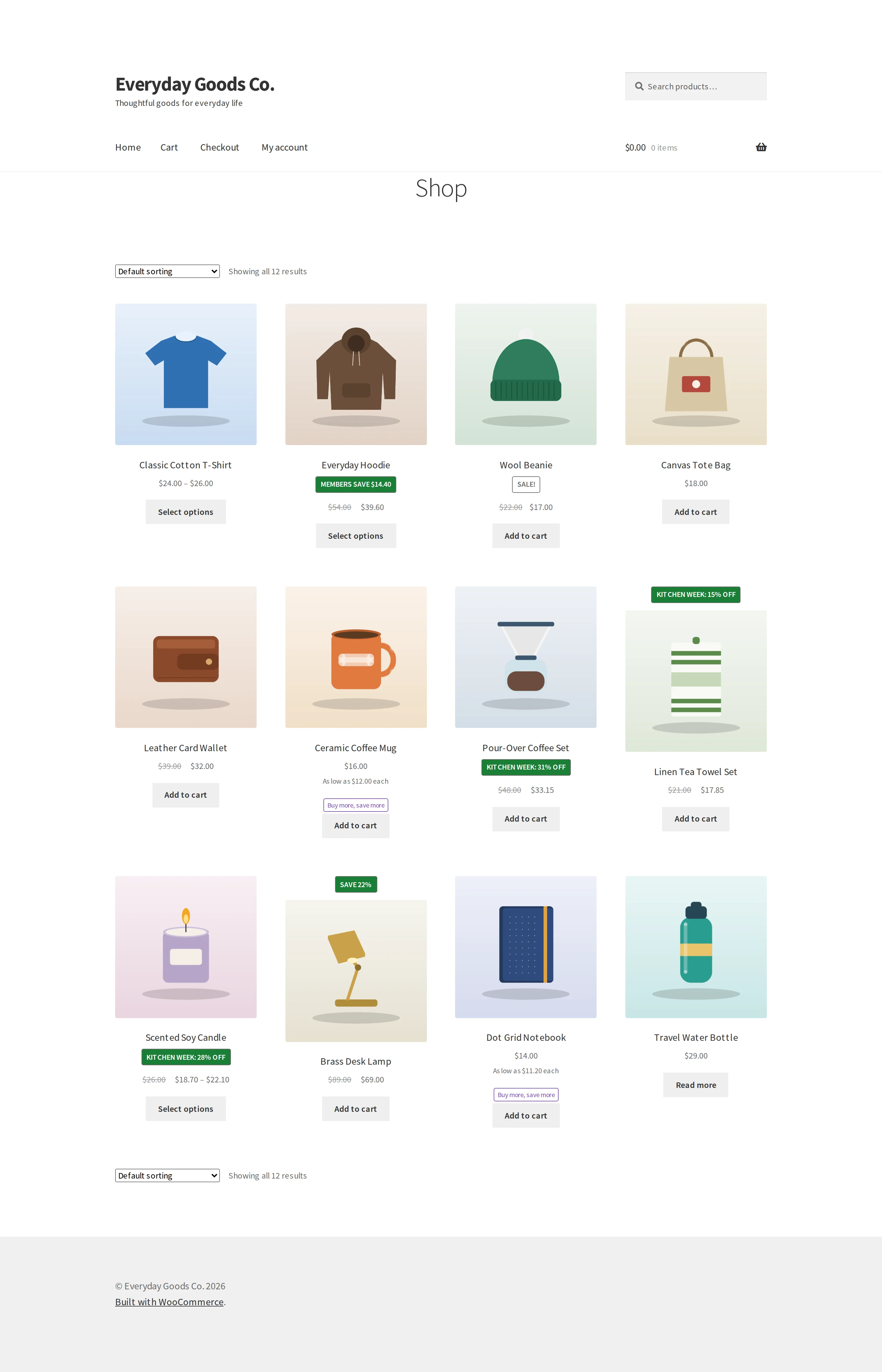
Products show the crossed out price, a savings badge from the rule or store settings, "As low as" prices and a label for quantity discounts.
Product pages
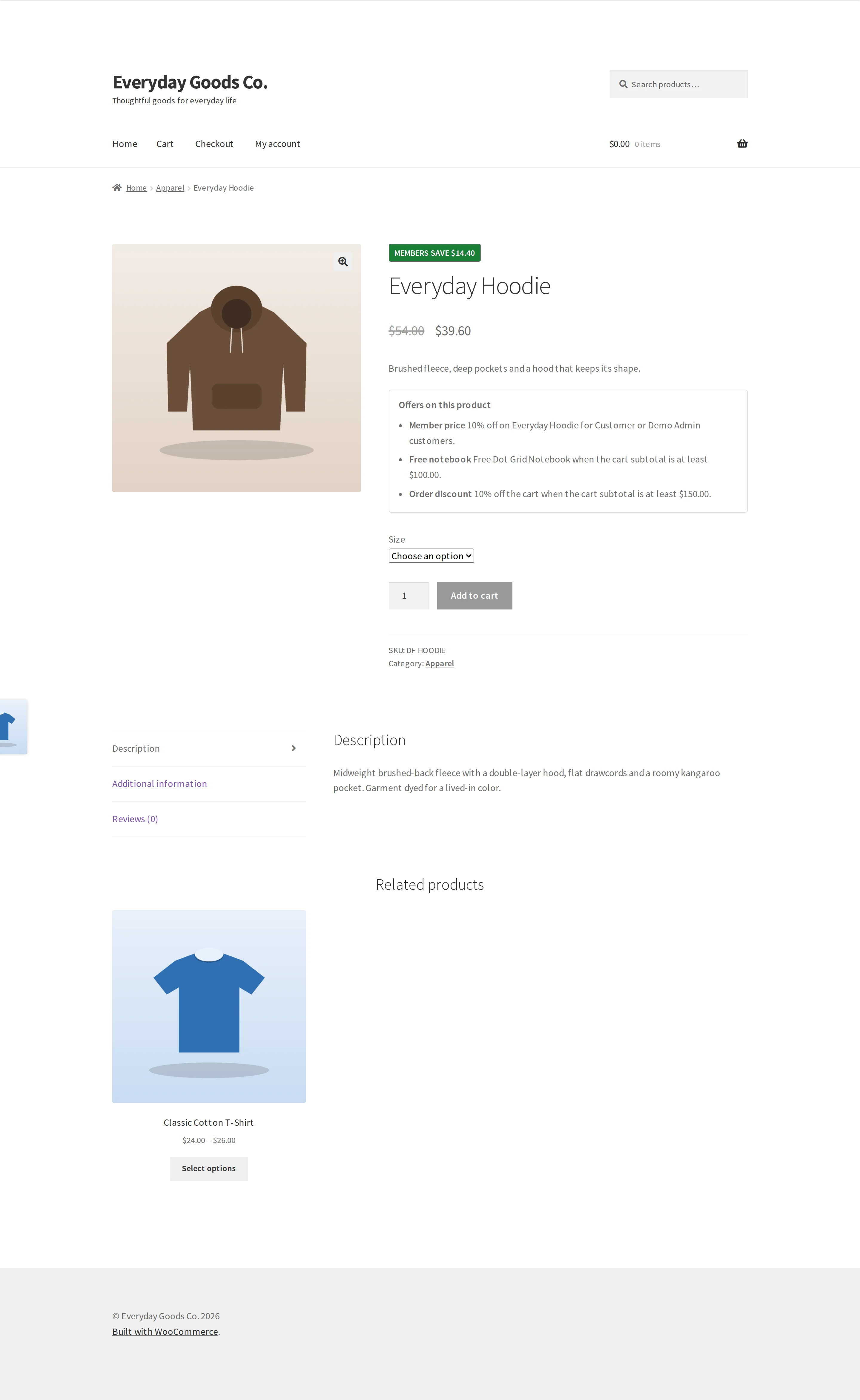
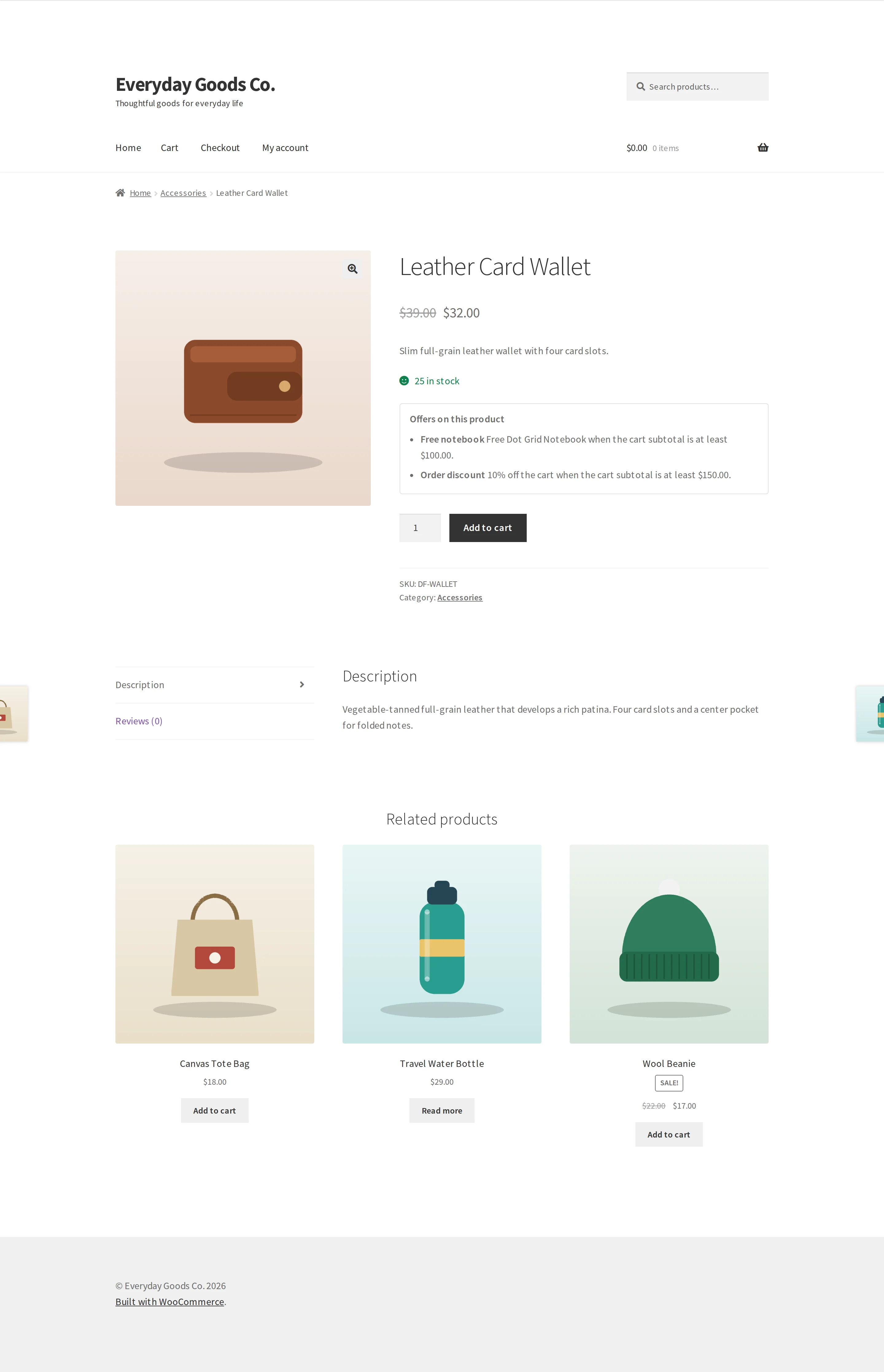
Depending on your Display settings, a product page can show:
- The old price crossed out next to the new one
- A savings badge
- A quantity pricing table, with the row matching the quantity field lit up
- "As low as ... each" under the price
- An Offers on this product box with every promotion the shopper can still get
- A "Sale ends in" countdown
- The price after a percentage cart discount that already applies
Role prices and price lists show as the shopper's own price once they are logged in.
Cart and checkout
Discounted lines show the old price and the saving. The totals show cart discounts with your label, free or lower shipping, and a You saved line. Notices such as "Spend $32.40 more to get 10% off the cart." and "Add 6 more Ceramic Coffee Mug to get 25% off." tell shoppers what to do next, with a progress bar toward the next cart discount. Gifts and offer products appear as their own lines with "Offer:" and the rule label.
Emails and My Account
The You saved line also appears in order emails and My Account.
Frequently asked questions
Do I need the free Scontero plugin too?
No. Pro contains everything. If both are active, the free plugin does nothing until you deactivate it. Both editions use the same rules and settings, so nothing is lost when you move.
Which kinds of promotion can I run?
Percentage off, fixed amount off, fixed price, bulk, tiered, buy X get Y on the same product, cheapest item free, cart discounts, buy X get Y across products, free gifts, bundles, shipping discounts and payment method discounts.
Are payment method discounts shown before the shopper pays?
Yes. The total updates as soon as the shopper picks a payment method, on the classic checkout and the Checkout block, and the discount is removed if they pick another method. Express payment buttons get the discounted total or are left out of the rule, as the rule says.
Do location rules work on cached pages?
Yes. Prices that depend on the shopper's country are refreshed after the page loads through a small read only request to your own site, so a cached page never shows another country's price.
Which page caches does Scontero work with?
Scontero purges your page cache when you save, switch, reorder or delete a rule, and when a rule starts or ends. It works with WP Rocket, LiteSpeed Cache, W3 Total Cache, WP Super Cache, WP Fastest Cache, SiteGround, Breeze, Hummingbird, FlyingPress, Nginx Helper, WP-Optimize, Kinsta, WP Engine and Pantheon. Some CDN caches cannot be purged from WordPress, so run the live test after big changes.
Can I move from another pricing plugin?
Yes. Under Tools you can import from Flycart, AlgolPlus, YITH WooCommerce Dynamic Pricing and Discounts, WooCommerce Dynamic Pricing and Discounts (RightPress) and the official WooCommerce Dynamic Pricing. Look at the preview first, then deactivate the old plugin yourself.
Does the plugin contact outside services for pricing?
No. The pricing features contact no outside service, and no customer, order or shopper data is sent. The location price refresh calls your own site only.
Will Scontero discount gift cards?
Gift cards, name your price products and the items inside bundles are left out of rules, so they are never discounted by accident. A rule that names such a product under Products still applies to it.
Do old orders change when I edit a rule?
No. Orders keep the price that was paid. If you delete Scontero, discounts already on orders always stay.
Can staff who are not administrators manage rules?
Yes. Under Settings > Who can manage Scontero, tick the staff roles that may see the menu and change rules and settings. Only staff roles that can edit posts can be chosen.
Does it work with the block cart and checkout?
Yes. Prices, cart discounts, shipping discounts and payment method discounts work on the classic and block cart and checkout.
Troubleshooting
- A free gift appears but a cart discount or free shipping with the same amount does not
They compare different numbers. A free gift threshold is compared with the cart before other discounts. Shipping and cart discount thresholds use the cart after them.
Example: 6 mugs and 3 tote bags cost $150.00 before discounts and $117.60 after. A gift over $100.00 applies. A 10% discount over $150.00 does not yet, and the cart says "Spend $32.40 more to get 10% off the cart."
Set the thresholds with this in mind, and check them with the rule tester.
- A payment method discount does not show in the cart
This is expected. The discount appears only after the shopper picks that method at checkout. Until then the tester reports "No payment method is chosen yet." If the shopper chose another method, it reports "The shopper chose a payment method this discount is not for." Check that the method is ticked under Payment methods in the rule.
- A rule does not apply
Open the rule tester with the same product, customer and date, and read the reason next to the rule. Common reasons: the rule is off, not started or ended, the product is not in the chosen products, the quantity is below the first band, another rule gives a lower price, or a rule before it stops later rules.
- The product page shows the old price
Purge your page cache, or use Run a live test on the Page cache card of the Dashboard. If the test says "A cache may be serving an old copy", purge the cache and test again. Some CDN caches cannot be purged from WordPress, so purge those by hand. If your theme prints prices without the WooCommerce price function, contact support with the theme name.
- "Coupons are turned off in WooCommerce, so cart discounts cannot be shown as a discount line. Turn coupons on, or show cart discounts as a negative fee instead."
Turn coupons on in WooCommerce, or click Show cart discounts as a fee on the card, which changes CART DISCOUNTS APPEAR AS to A negative fee. Also check your COUPONS AND PRICING RULES setting.
- Logged in customers see another customer's prices
Your page cache keeps pages for logged in users. Turn that off in the cache plugin (in WP Rocket: Cache, "Enable caching for logged-in WordPress users"), then purge the cache.
- "The rule reached its limit of 20 uses." or "The rule used up its discount budget of $500.00."
The rule hit a limit you set under Limits. Uses already recorded count toward it. Raise or clear the limit in the rule. Cancelled, failed and fully refunded orders give their use back. The numbers in these messages follow your own limits.
- "This coupon cannot be combined with the discounts already in your cart." or "Coupons cannot be used while a promotion is running."
Your COUPONS AND PRICING RULES setting blocks the coupon. Choose Coupons work on top of rule discounts under Settings if you want shoppers to use coupons with rules.
- "The rule was not saved. Check the highlighted fields."
Something in the rule needs fixing, and the message next to the field says what. Common ones: "Give the rule a name.", "This band overlaps the one before it.", "A percentage can be at most 100.", "Fill in both times, or neither.", "Pick at least one payment method." and "Pick a product that can be bought on its own (a simple product or one variation)."
- "The file needs a customer column (email, user_id, role or customer), a product column (product_id, product or sku) and a price column."
Your price list CSV is missing a required column. Add the columns and use Check the file before Import now. To see a working layout, click Download CSV on a list that has prices.